
PCC 10.2 Release Manual
Watch Video Demos: Want to see PCC 10.2’s highlights in action? Watch the PCC 10.2 Overview and Video Series.
Implementation: PCC 10.2 includes features that require configuration and user-specific software training. Read about the features below and then review the PCC 10.2 Migration Considerations article.
Read below to learn more about the improvements, and contact PCC Support for help with any PCC product or service.
Patient Portal
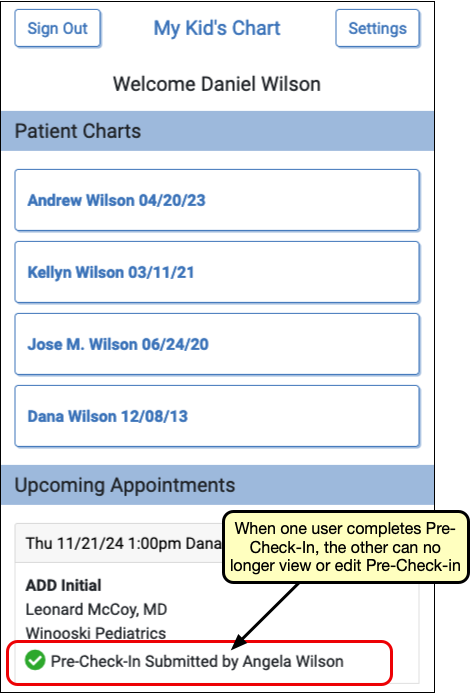
Families can now self scheduling in the patient portal, and more than just one family member can now respond to pre-check-in.
Patients and Families Can Self-Schedule in the Patient Portal
Streamline your scheduling and reduce appointment requests with Patient Portal Scheduling. Your patients and families can now schedule themselves through the Patient Portal with just a few clicks.
Configure Portal Scheduling: Portal Scheduling is available upon release of PCC 10.2, but requires configuration before using. Visit PCC 10.2 Migration Considerations to learn how to enable, configure, and manage Portal Scheduling.
When enabled, portal users will find a “Schedule Appointment” button on the patient portal home page.
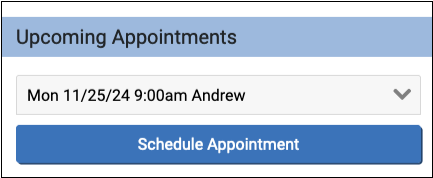
Portal users will select a patient and visit category to schedule. All portal scheduling visits are categorized into either sick or well visit category.

Patients with privacy enabled or who have a status flag that prevents scheduling will be unselectable and marked with “Please Call to Schedule”.
The portal user will select a visit reason, provider, and location, then click “Find Appointments”
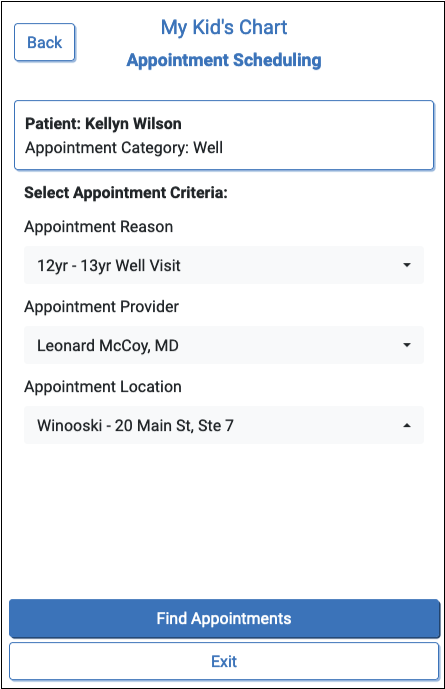

The portal will offer all available appointments that match the visit category, provider, and location.
When searching for a sick appointment, portal scheduling shows all open time slots beginning one hour in the future through three days in the future.
When searching for a well appointment, if the patient has a next physical due date listed in their chart, the appointments offered will begin on that date. A patient without a physical due date will be offered time slots for the next day through the following three months.
When the portal user selects an appointment they’ll have an opportunity to review their selections and schedule the appointment.
Finally, after scheduling, the portal user can add an appointment note.
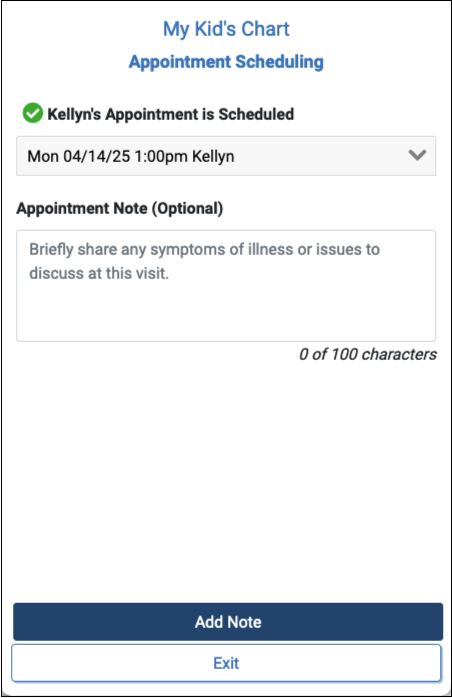
The appointment immediately appears in the Appointment Book and on PCC EHR’s Schedule queue, where it can be reviewed, rescheduled and managed just like any other appointment.
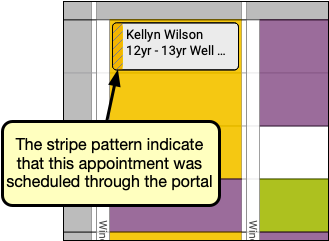
Portal scheduled appointments are marked with a stripe pattern in the Appointment Book and in PCC EHR’s Schedule queue.
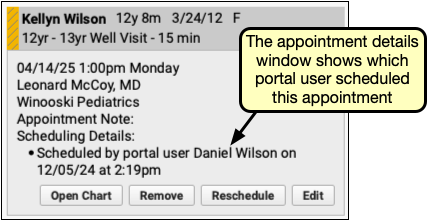
Report Appointments by Scheduling User
Your practice can review appointments created through Portal Self Scheduling with the new Appointments by Scheduling User report in the Appointment category. This report collects appointments with an Appointment Creation Date of “yesterday” by default. Appointments made through patient portal Self Scheduling are grouped together as scheduled by “Portal User”.
Add Additional Pre-Check-In Users
Get the most out of Pre-Check-In by allowing additional users to complete a patient’s Pre-Check-In, so you can ensure that your patients and families can complete Pre-Check-In promptly and conveniently.
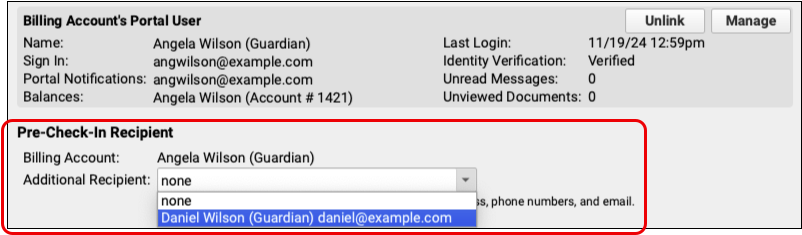
PCC 10.2 adds a new component called Pre-Check-In Recipient in each patient’s demographics component. In edit mode, it includes a drop-down menu listing all other patient portal users linked to this patient.
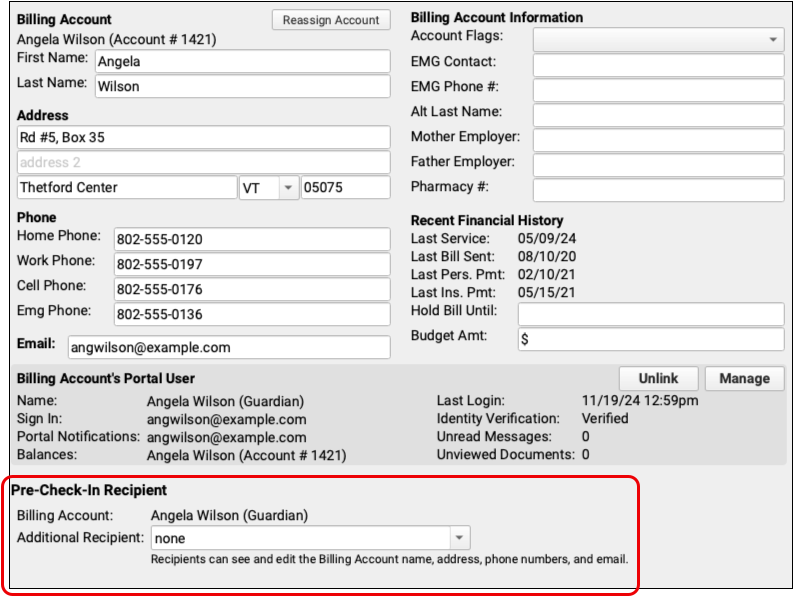
Select an patient portal user linked to this patient to receive the Pre-Check-In notification and option to complete Pre-Check-In.
Once a user begins Pre-Check-In, the additional user will be notified that Pre-Check-In is in progress on the patient portal home page.
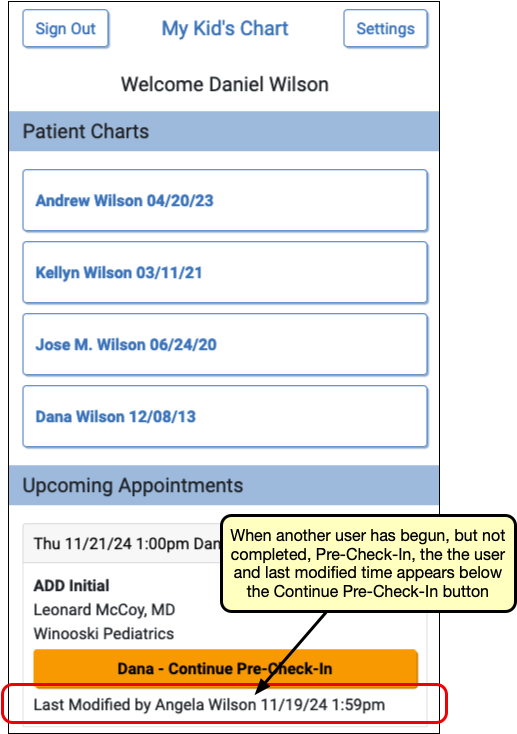
Any Pre-Check-In recipient can continue Pre-Check-In, but once any user submits Pre-Check-In, check-in is complete, and ready to be reviewed and imported in PCC EHR.
pocketPCC
Clinicians can now prescribe medications on their mobile device and quickly preview documents attached to charts.
Prescribe from Your Phone
When you’re away from your primary workstation, you can use pocketPCC on your mobile device or tablet to create and send new prescriptions, process pending prescriptions, review medication histories, manage patient pharmacies, and more.
Log In to pocketPCC
Type in your practice’s pocketPCC URL into the web browser on your mobile device or tablet, then log in using your PCC username and password.
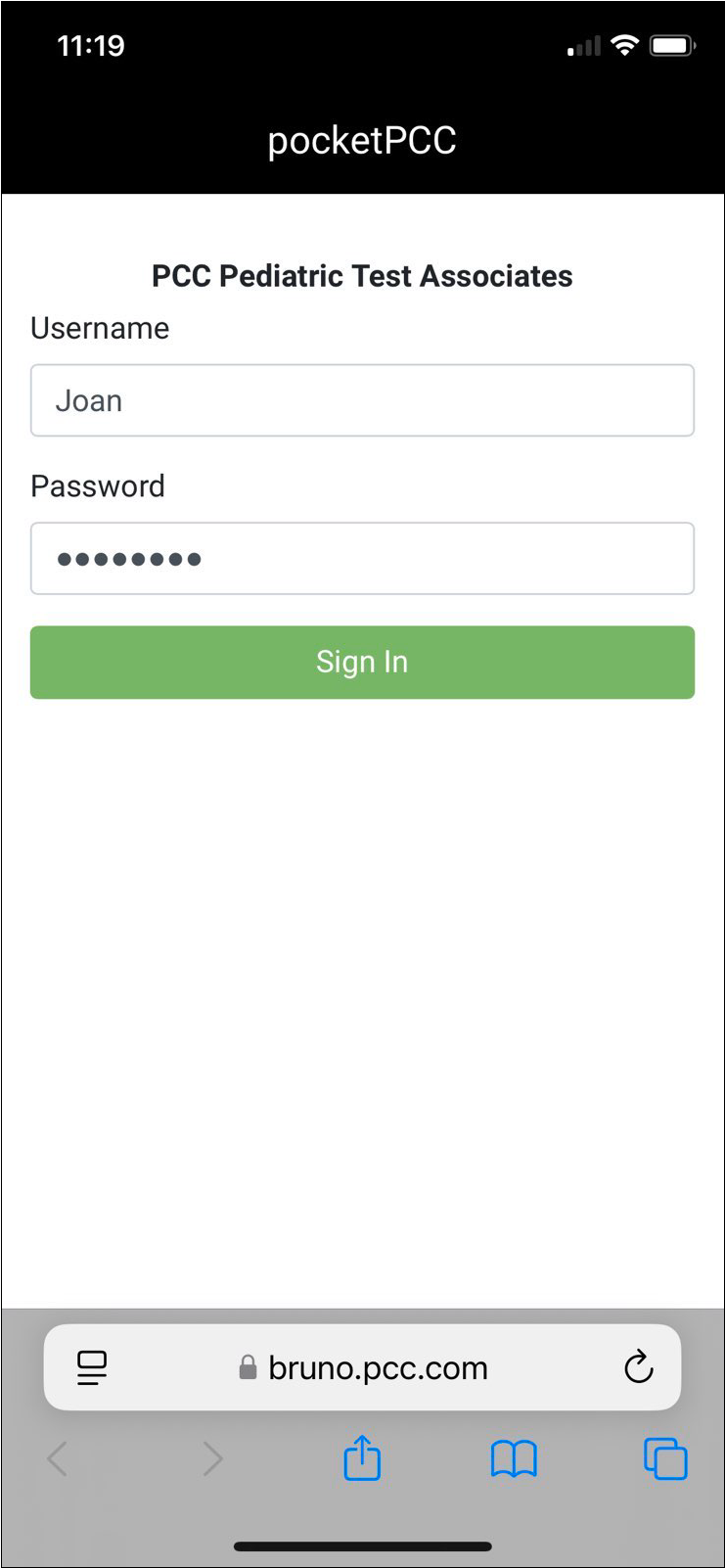
Your Practice’s pocketPCC URL: Your practice’s pocketPCC URL is https://ACRO.pcc.com/pocketpcc, where ACRO is your practice’s PCC acronym. For example, if your practice’s PCC acronym is ‘wp’, your pocketPCC URL is https://wp.pcc.com/pocketpcc. If you need help, ask your practice administrator or contact PCC Support.
By Permission Only: pocketPCC access is controlled by a user role permission in PCC EHR. If you have trouble logging in to pocketPCC, ask your practice administrator for help or contact PCC Support.
See All Pending Prescriptions on the Rx Queue
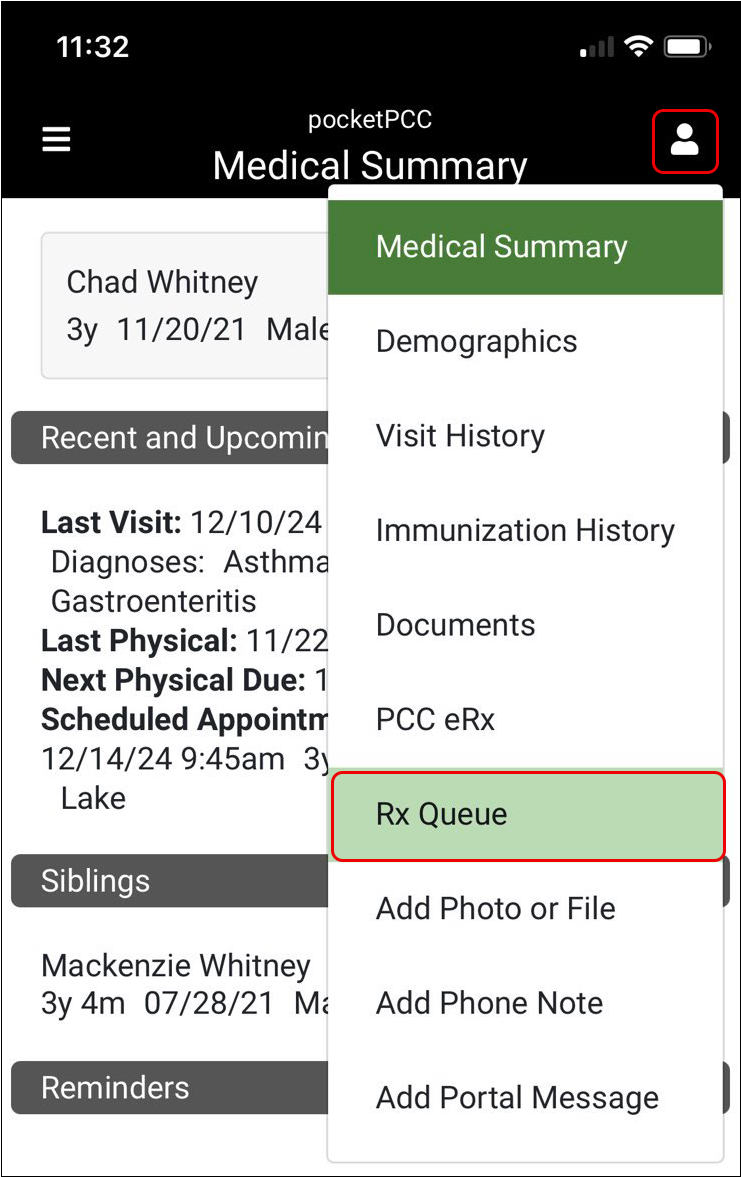
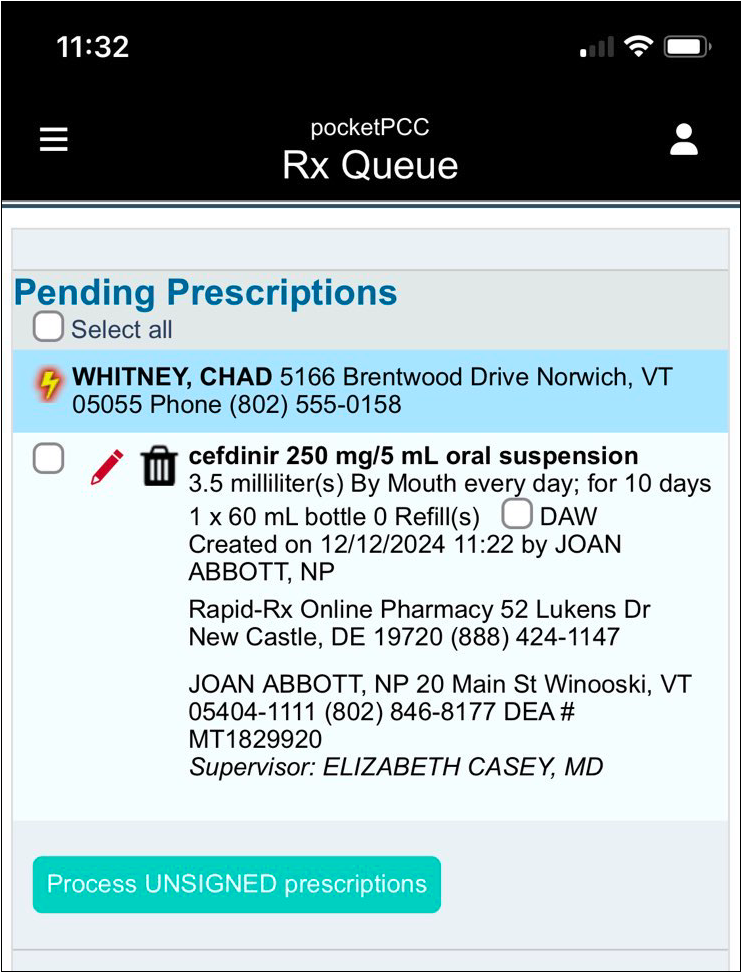
To see a list of all pending prescriptions at your practice, tap the menu icon in the top left corner of the screen and select “Rx Queue”.
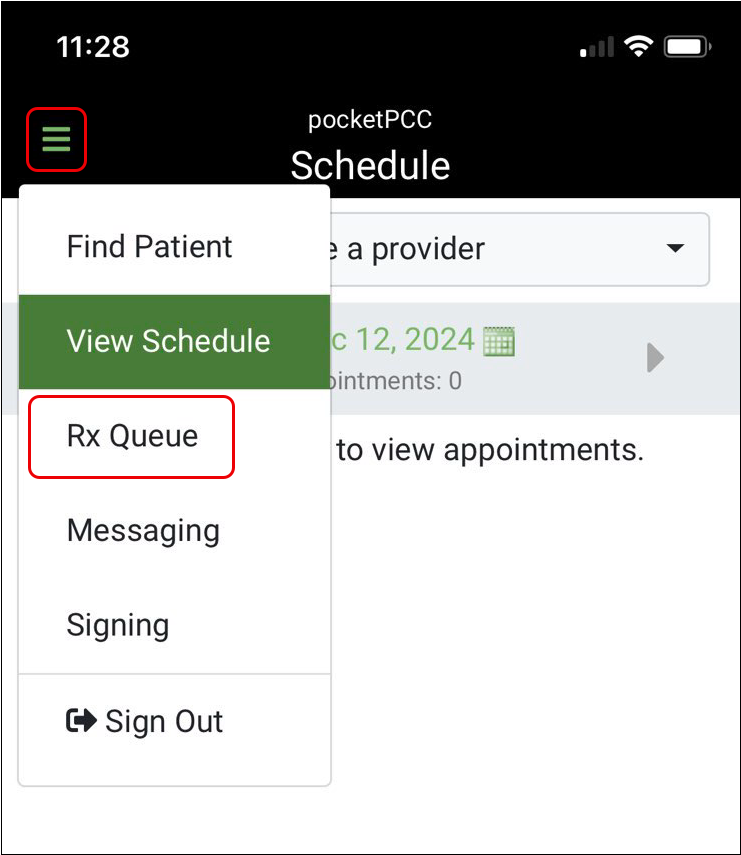
Here you can view, edit, and process pending prescriptions.
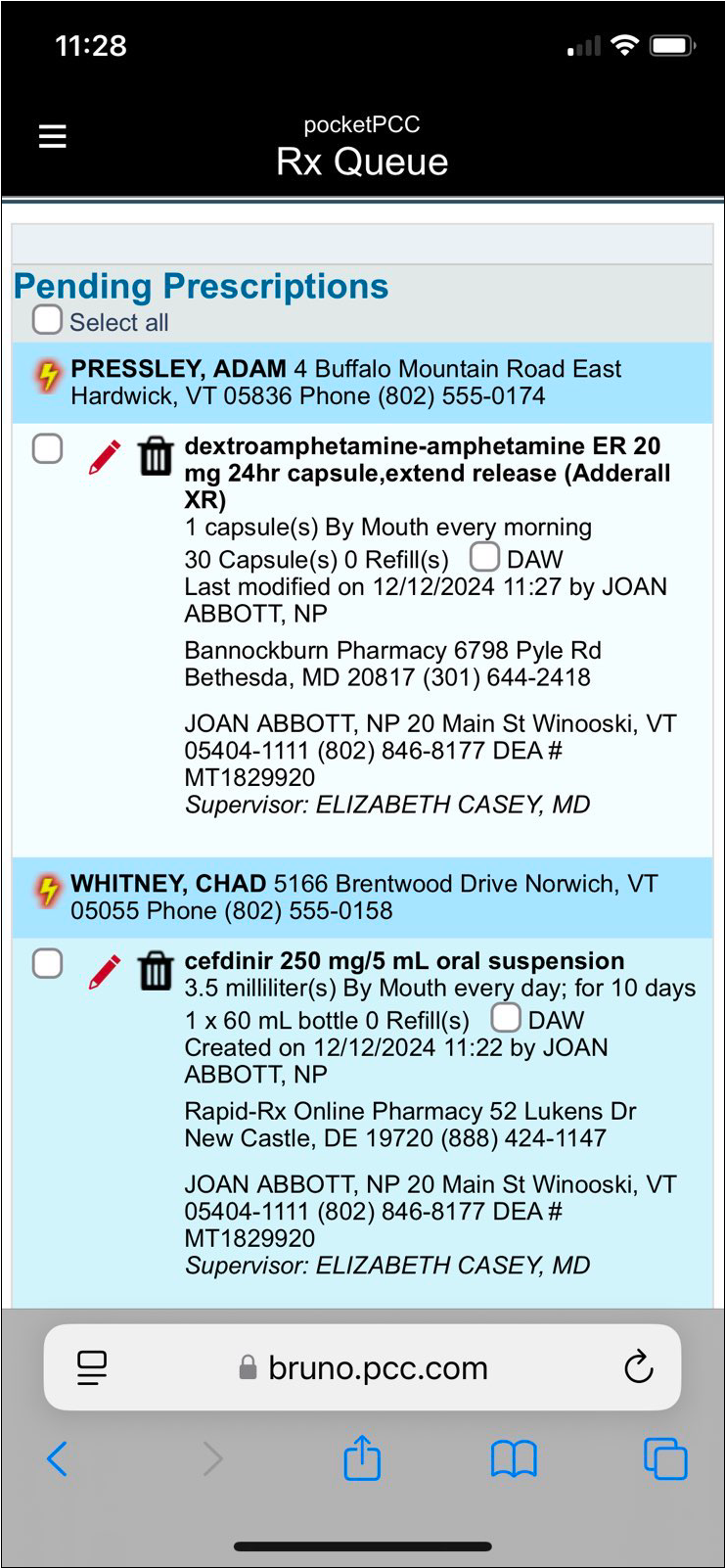
For now, the Rx Queue in pocketPCC only shows pending prescriptions and cannot be filtered by patient, provider, or location.
Create a New Prescription and More in Your Patient’s Chart
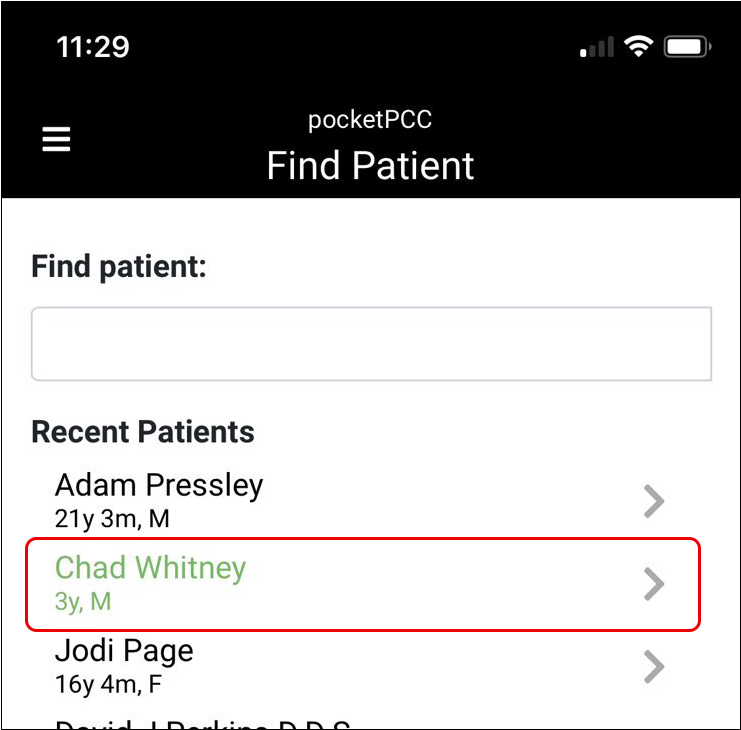
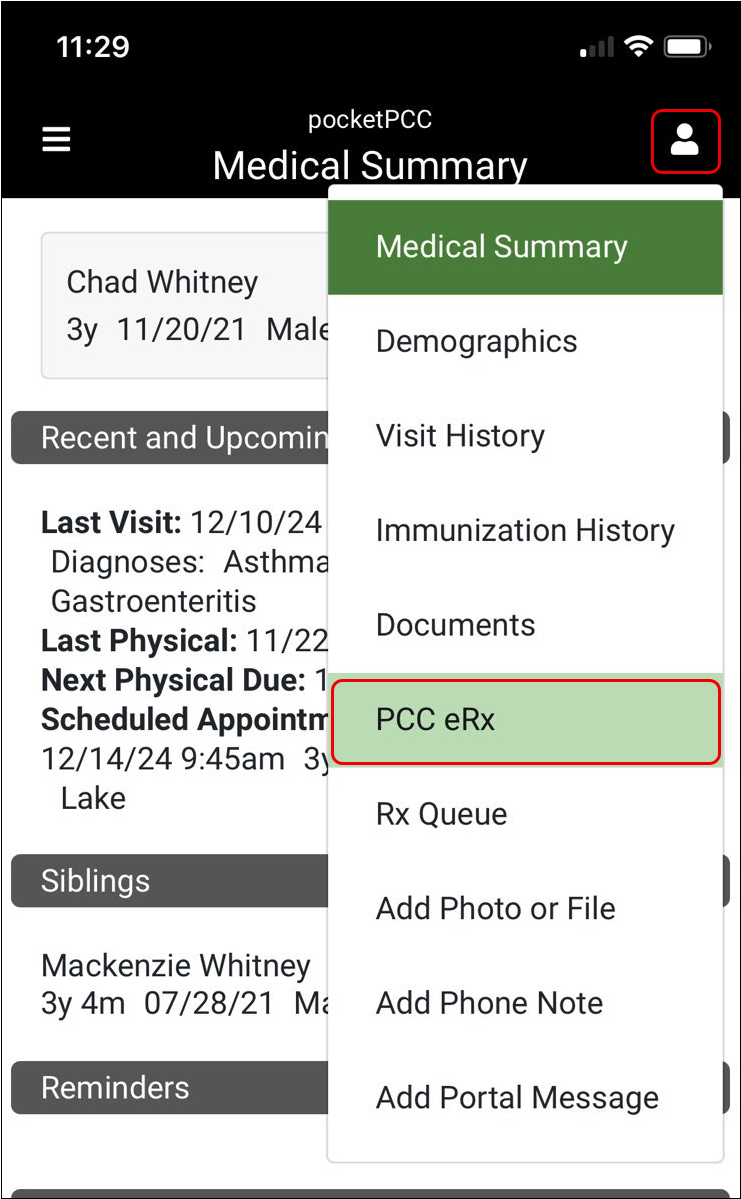
To create a new prescription or take another action in PCC eRx for one of your patients, open their chart in pocketPCC. Then, tap the menu in the top right corner of the screen and select “PCC eRx”.
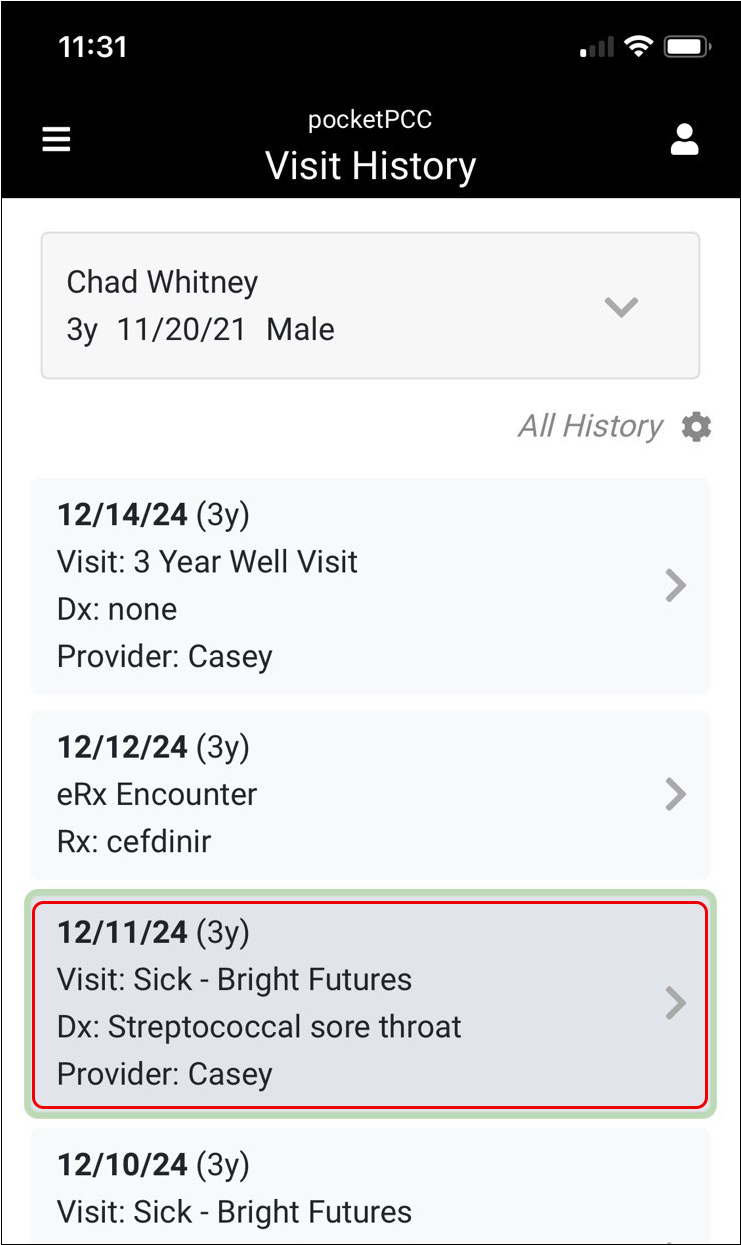
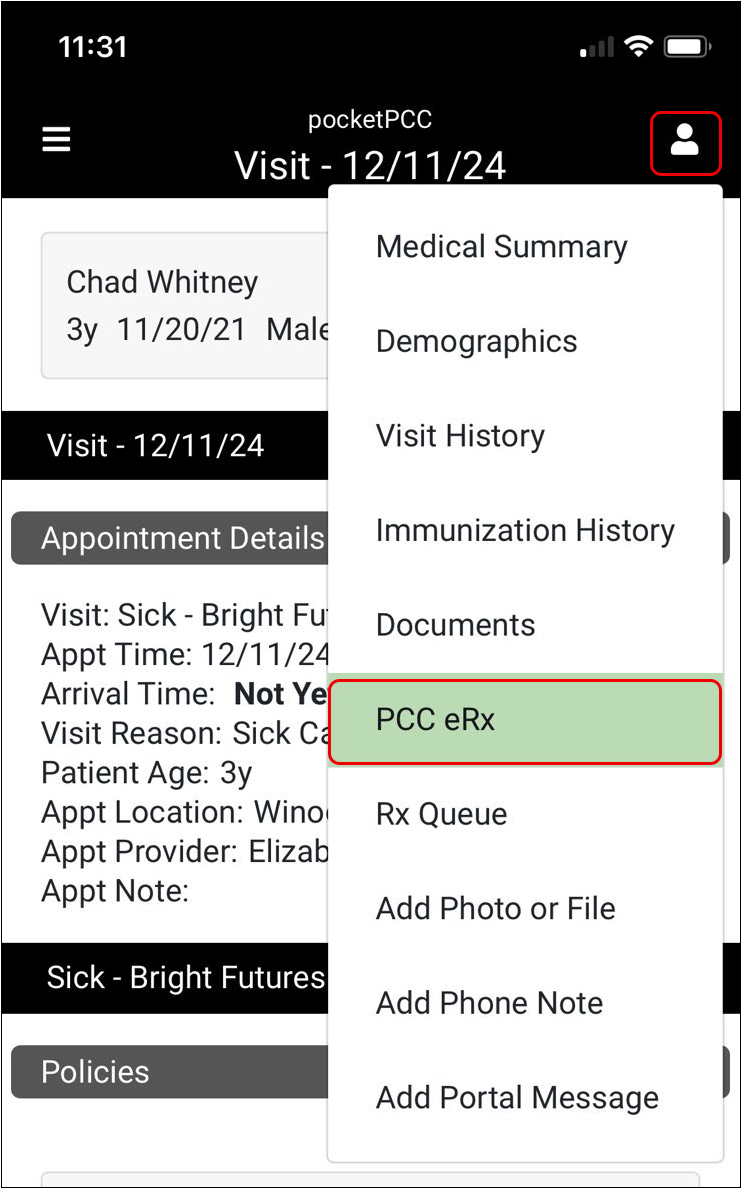
If you need to see the eRx details for a particular encounter, open the encounter from the patient’s Visit History, then open PCC eRx.
If the patient has pending prescriptions, you can view, edit, and send them from the Rx Queue within their chart.
Use Your Hard Token for EPCS: You can send electronic prescriptions for controlled substances (EPCS) from pocketPCC, but you must use your hard token instead of the Authy app for two-factor authentication. To learn more, read the PCC 10.2 Migration Considerations.
How is PCC eRx Different in pocketPCC?: With a few exceptions, PCC eRx in pocketPCC works the same as in PCC EHR. Learn the differences in the PCC 10.2 Migration Considerations article.
Preview Documents In pocketPCC
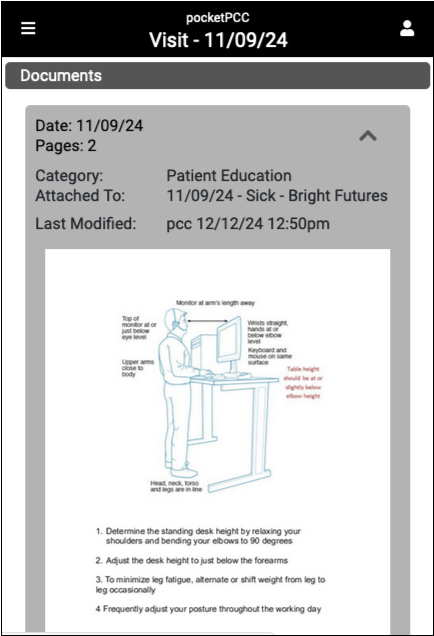
Quickly review documents and images in pocketPCC without the need to download the file.
When reviewing documents in any component where documents are referenced within pocketPCC, a thumbnail preview and the document’s details are now available.
Billing
PCC 10.2 includes new tools for personal bills, billing notes, editing charges and resubmitting claims, and editing your practice’s under-the-hood configuration tables. We also granted several important feature requests we received from billers.
Print a Single Account Statement in PCC EHR
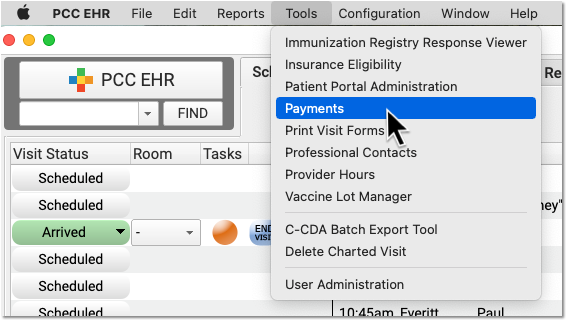
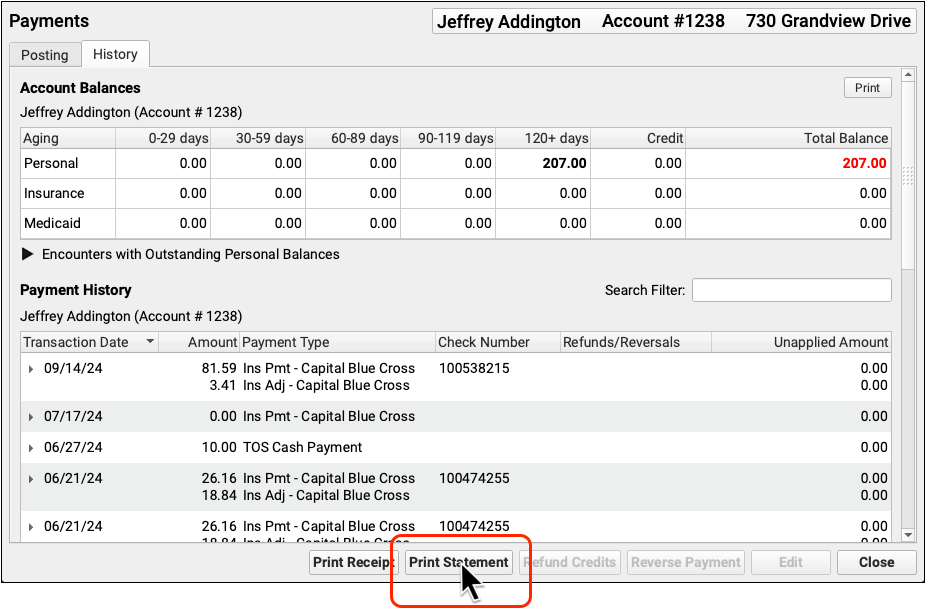
When you need to generate a single bill for an account, open the Payments tool, find the family, and click “Print Statement”.
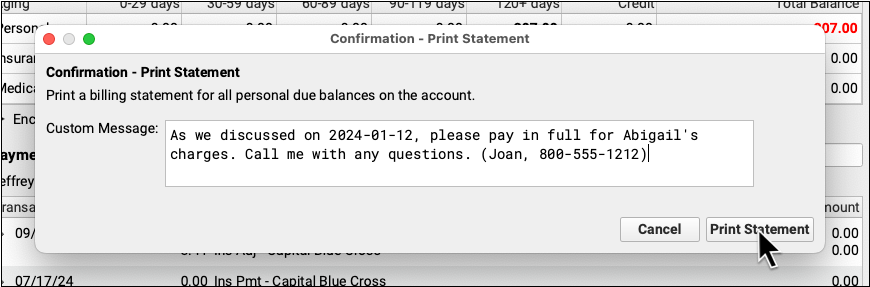
If your practice’s custom paper bill includes room for an account note, you can enter one and it will appear on the bill.
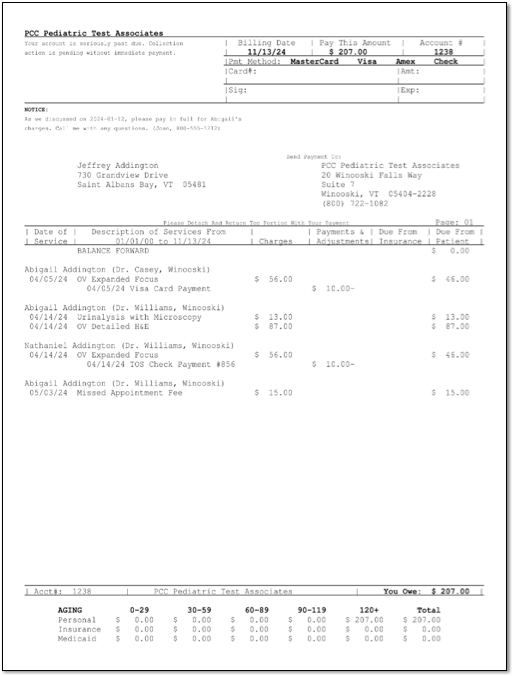
You can print the bill or use your workstation’s print window to save it as a PDF.
Printing a statement updates the family’s “Last Bill Sent” date. If your practice uses a billing cycle (such as 28 days), then when you next run bills, a new bill will not be generated within the cycle unless the family has new charges. For more information, read Generate Personal Account Bills.
Custom Message Tips: The custom message you enter when you generate a single statement is not saved; it appears only on the bill you are generating. Your practice can use Snap Text to define useful re-usable custom messages for bills. Use the Bills tool to define your age-based practice-wide billing messages that appear on every bill.
My Bill Looks Different: The single bill form printed from PCC EHR is not the same format as bills printed by a third-party printing service. The “Print Statement” button prints the default paper bill form on your PCC system.
Record Encounter Billing Notes
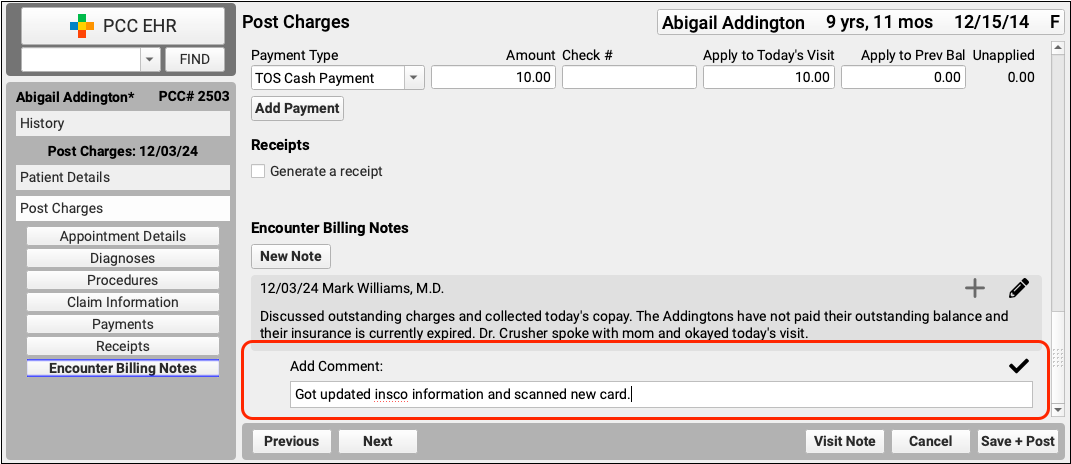
As you bill for an encounter or troubleshoot problems with a claim, you can keep encounter-specific notes that are attached to the billing history of the encounter.
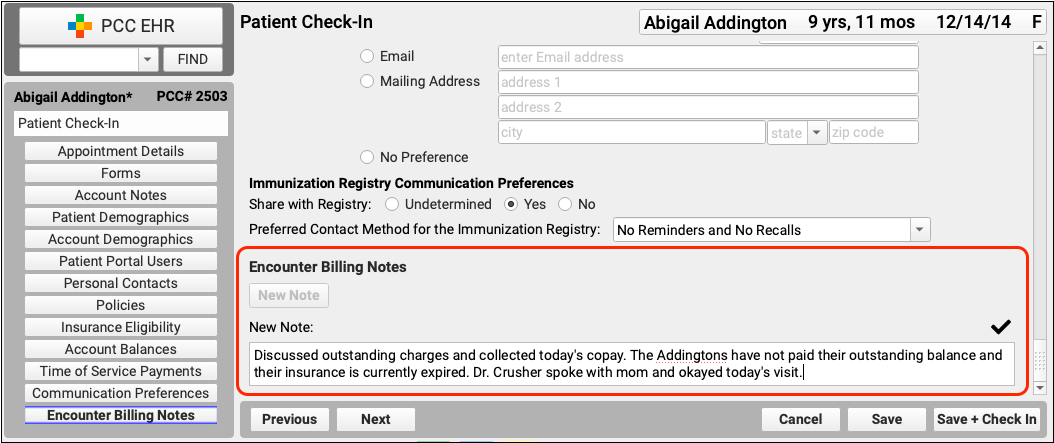
During patient check-in, your front desk can use the Encounter Billing Notes component to enter notes.
When posting charges, your biller can add a new note or a follow-up note.
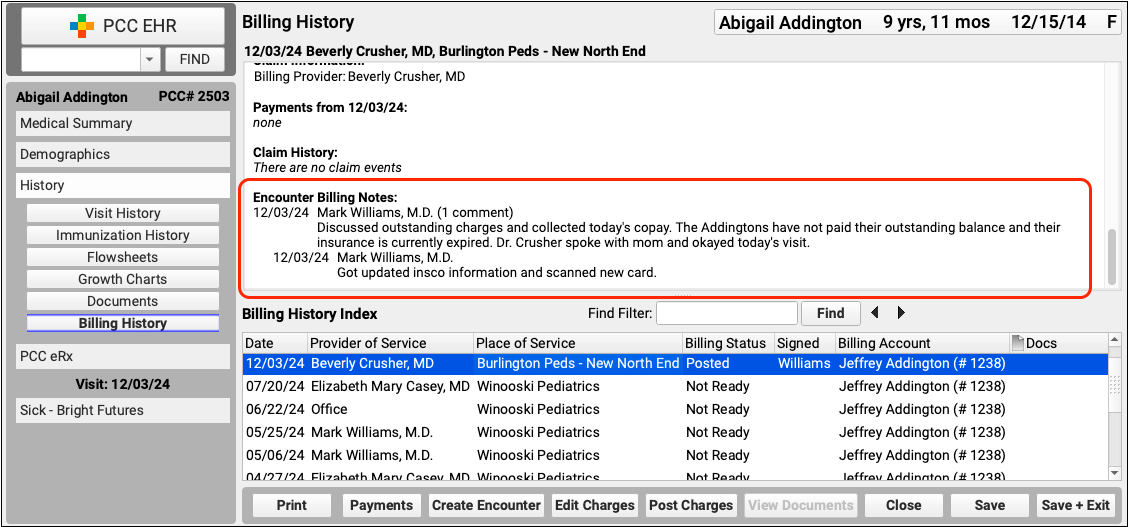
Later, you can review encounter billing notes in the Billing History section of the patient’s chart.
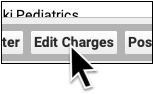
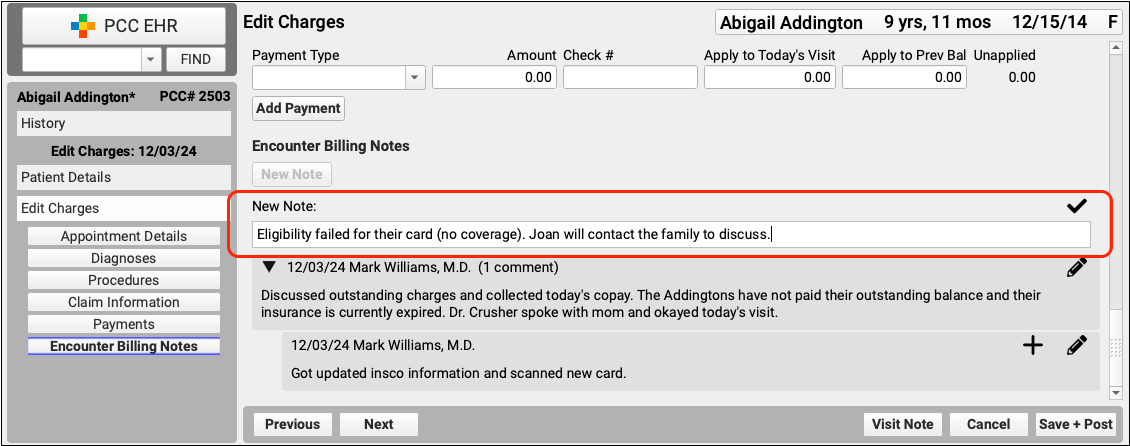
Click “Edit Charges” to add new or follow-up notes to the encounter.
Encounter-Specific Billing Notes or General Account Notes?: In addition to Encounter Billing Notes, your practice can also use Account Notes to track ongoing concerns with a family. Encounter Billing Notes are specific to an encounter, Account Notes are not.
Record the Payor Claim Control Number for Claim Responses from Payers
Whether autoposting an ERA or posting an EOB manually, PCC EHR can store the Payor Claim Control Number for easy access when you need to resubmit claims or communicate with the payer.
-
Record the PCN Automatically: When you process an ERA in the Electronic Remittance Advice tool, PCC EHR will automatically record the Payor Claim Control number for each response to each encounter.
-
Enter a PCN Manually: When you manually post the payer’s response in the Insurance Payments tool, you can enter the Payor Claim Control number along with the check number.
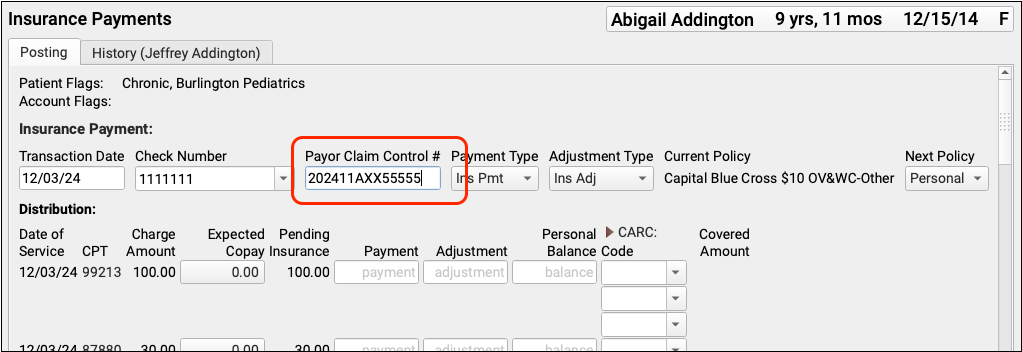
Recording the Payor Claim Control Number for every claim response makes it available when you need to contact the payer to discuss an issue or resubmit a claim, void a claim, or file a corrected claim.
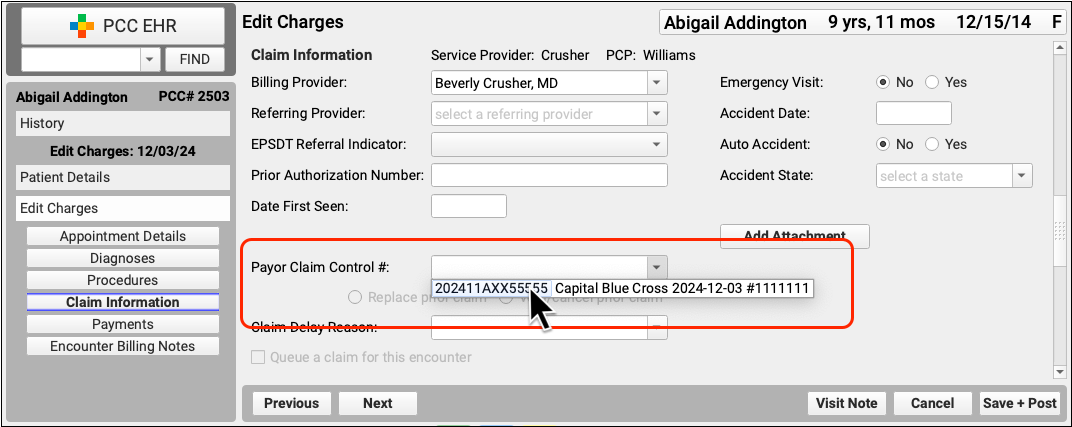
For example, when you use Edit Charges to resubmit a claim, you can quickly pick from a list of claim control numbers recorded for the encounter.
What's a Payor Claim Control Number?: A Payor Claim Control Number (PCN) is a unique identifier assigned by payers to a given claim for a given encounter. Your practice uses the PCN when communicating with the payer about the claim. Insurance payers issue a PCN when they adjudicate a claim and send you an ERA or EOB. The number is also known as the Claim Control Number (CCN) and is called the Original Reference Number (ORN) on a paper claim. Medicare claims refer instead to an Internal Control Number (ICN) or Document Control Number (DCN).
Edit Encounter Charges
When you need to edit the charges for an encounter and related claim information, click “Edit Charges” from the Billing History section of the patient’s chart.
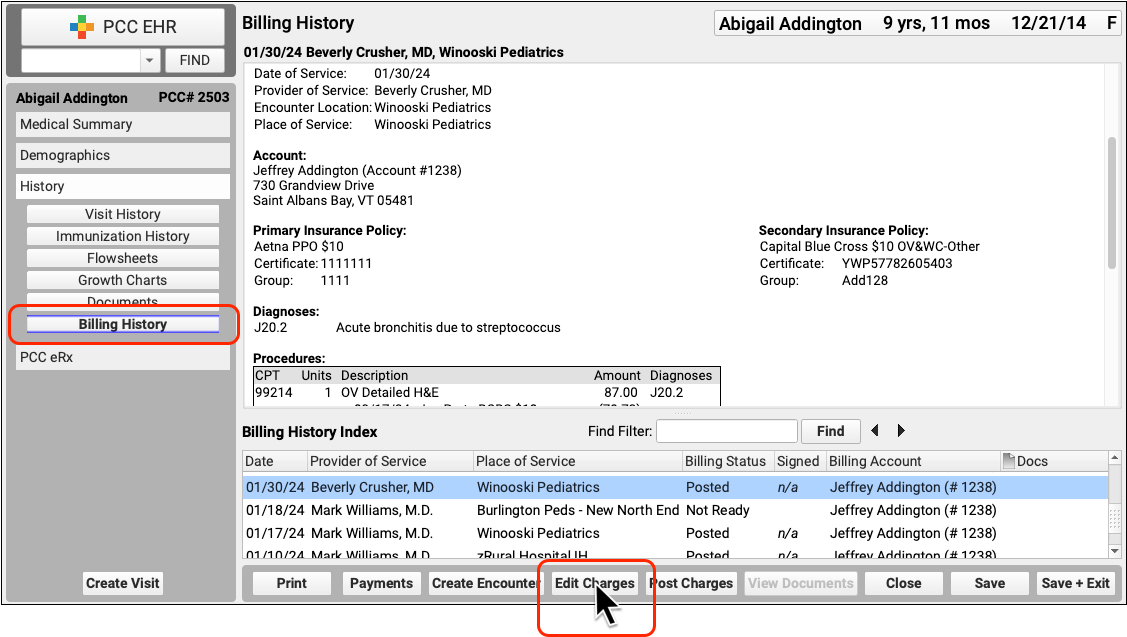
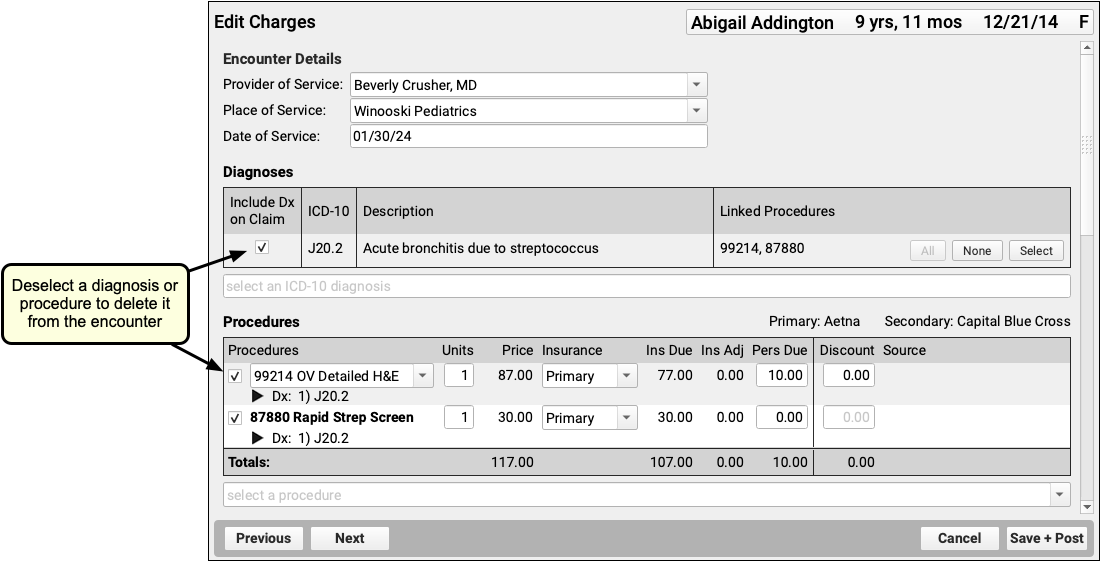
On the Edit Charges screen, you can modify all charges and encounter information. Use the search field in the Diagnoses or Procedures components to add additional diagnoses or procedures and adjust linking. To delete a diagnosis or procedure, deselect it. Changes will apply only to the encounter’s billing history and to future outgoing claims, they will not affect what was charted for the visit.
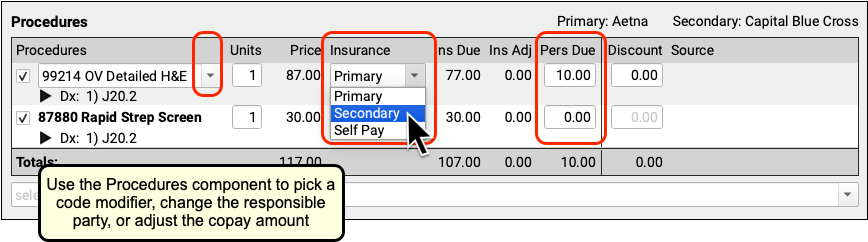
You can also use the Procedures component to pick a code modifier, change the responsible party for a charge, or update the personal due (or copay) amount for each charge.
Below the charges, you can use the Claim Information section to enter other details that may appear on a claim.
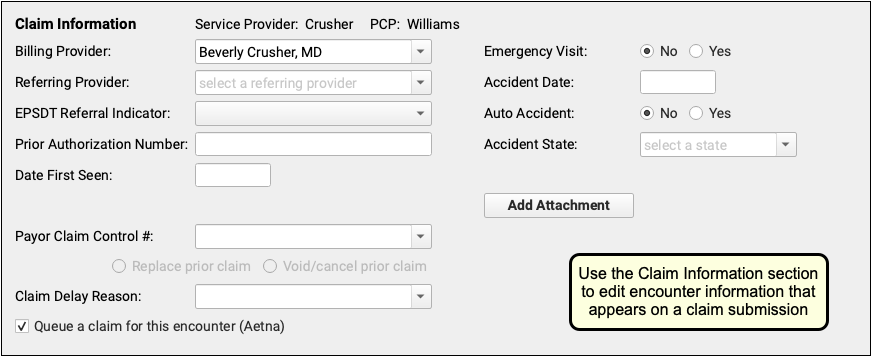
To learn more about the Claim Information fields, read the new Resubmit a Claim procedure below or the Edit Encounter Charges and Resubmit Claims guide.
When you click “Save + Post” to save your changes to an encounter, PCC EHR will queue up a new claim by default if one is needed. You can manually set whether or not to queue up a claim using the checkbox at the bottom of Claim Information section.

Processing Queued Claims Will Remove Duplicates: When you first post the charges for an encounter, PCC EHR automatically queues up a claim. When you edit the encounter and make changes, you can safely queue up another claim. When you submit claims, PCC EHR automatically evaluates multiple queued claims for the same encounter and only submits the most up-to-date information on a single outgoing claim. However, if you are resubmitting a claim or filing an appeal, there are additional steps. See the procedure below.
Resubmit a Claim
When you need to resubmit a claim, file an appeal, or send a corrected claim, use the Billing History in the patient’s chart to add claim resubmission information to the encounter and queue up a new claim.
Select the Encounter
In the patient’s Billing History, select the encounter that may need a new claim.

Review Encounter Details and Claim History
Use the sections of the Billing History to understand why the claim may need to be resubmitted.
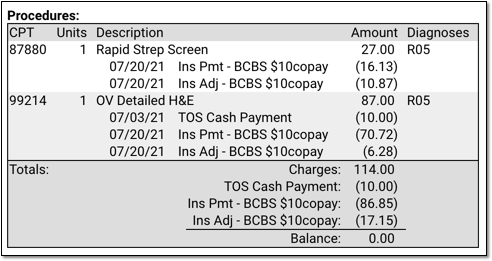
For example, the Procedures section displays all payments and adjustments applied to the charges and the outstanding balance.
You can also use the Claim History section to review the history of every claim for the encounter.
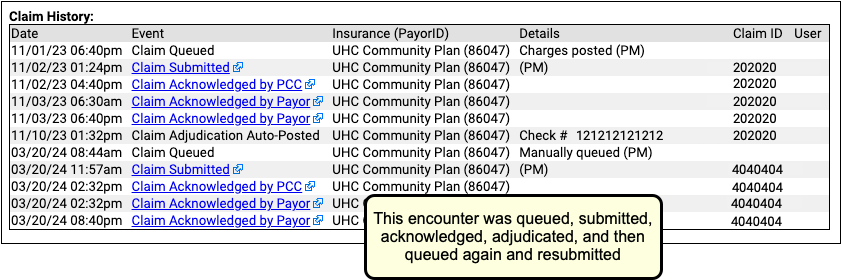
You can click on a link to see more details of each event. In addition, you may find it helpful to open the Electronic Remittance Advice tool and search for the indicated check number to research the payer’s response.
Click “Edit Charges”
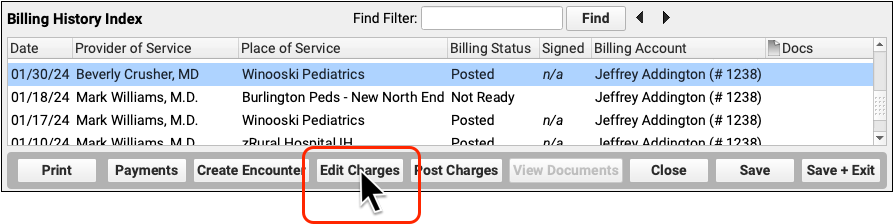
When you’ve determined that a corrected claim, updated claim, or appeal is needed, click “Edit Charges”.
Update the Encounter and Charge Information
Use the components on the Edit Charges screen to edit encounter and charge information that appears on a claim. For example, you may need to adjust the provider, place of service, or encounter date. You can also add or remove diagnoses and procedures.
Update the Responsible Party for Each Charge
Who are you submitting a claim to? Review and set the assigned responsible party for each charge.
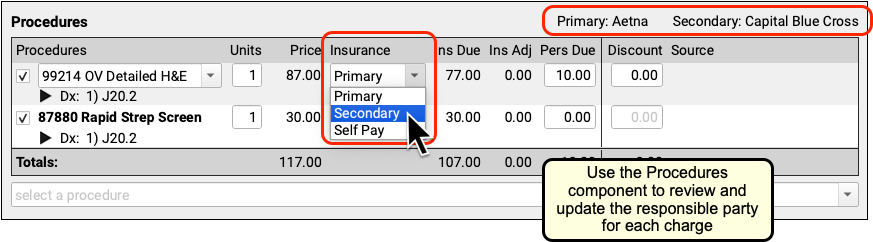
For each charge, you can select any policy that is active for the patient on the encounter’s date of service. If necessary, you can click on the “Patient Details” navigation button to update the patient’s policies.
Update Other Claim Information
Use the Claim Information section to adjust the billing provider, accident information, attachment information, or other details.
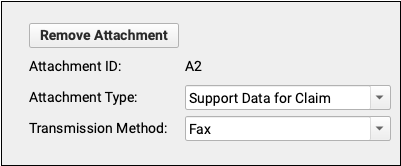
For example, if you need to fax an attachment to the payer, click “Add Attachment” to add an attachment ID and attachment information to the claim.
Enter the Payor Claim Control Number
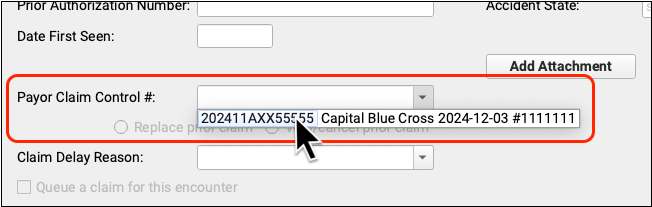
If a payer has already received a claim for this encounter, you must enter the Payor Claim Control Number (PCN). If PCC received an ERA or you entered the PCN manually, you can select it from a drop-down menu in the Claim Information section. Otherwise you can enter it manually.
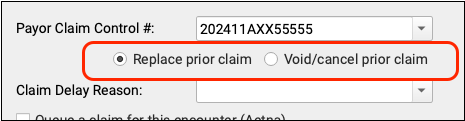
By default, when you enter a PCN, you are sending a replacement (or “corrected”) claim. You can instead send a claim void request to the payer. Under the hood, these options adjust the Claim Frequency Code for the outgoing claim to be either 7 (Replacement of prior claim), or 8 (Void/cancel prior claim).
Optionally, Select a Claim Delay Reason
When needed, select a Claim Delay Reason to include on the claim.
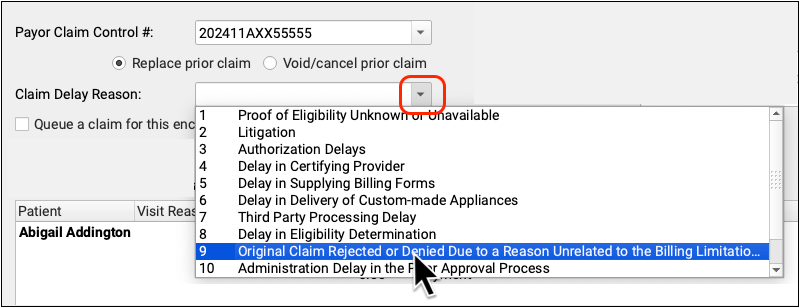
The Claim Delay Reason “9 Original Claim Rejected or Denied…” is commonly used when filing corrected claims or appeals. A PCN is always required in those circumstances, and PCC EHR will remind you if you forget to enter one.
Review the “Queue a Claim” Checkbox
Before you click “Save + Post”, double-check that the “Queue a claim” option is checked (if desired) and that it indicates the correct payer. If you’ve added new charges or made other changes that suggest a new claim is needed, PCC will automatically select the “Queue a Claim” checkbox, but the final choice is up to you.
Next to the checkbox, you can see the payer configuration settings (or “batch”) that PCC will use to format the claim. If it looks incorrect, double-check that you have assigned the charges to the correct policy in the Procedures component.
Save Your Changes and Queue Up a Claim
Click “Save + Post” to save your changes to the encounter. If the “Queue a claim” checkbox is selected, this will also queue up a new claim.
What If I Queue Up Two Claims For the Same Encounter?: When you process and submit claims, PCC will review all queued claims and combine duplicates. It will use the most recent claim’s information.
Submit Claims
Use the Claims tool in the Tools menu to process and submit your outgoing claims. For more information, read Submit Claims.
Edit Your Practice’s Configuration Tables
Use the Tables tool to edit the underlying configuration tables used by your PCC system.
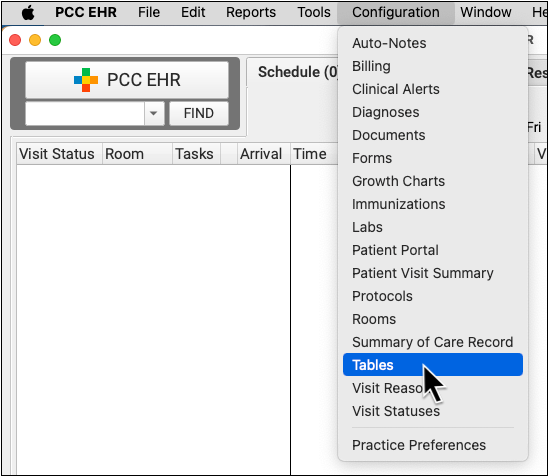
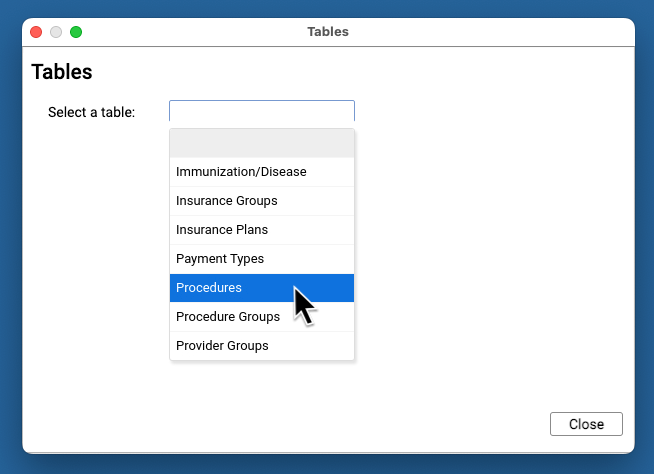
Open the Tables tool from the Configuration menu.
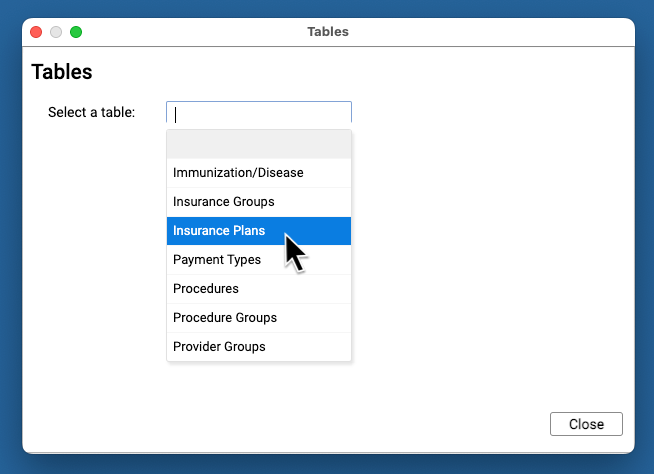
Select a table to review it and make changes.
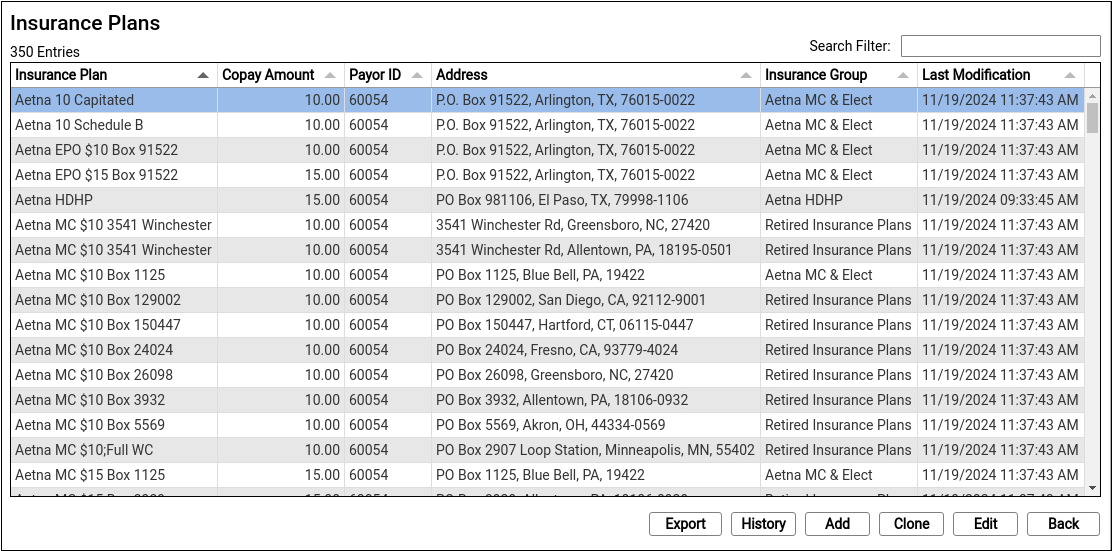
As you review a table, you can search for entries and sort by columns to find items. You can click “Export” to export a comma-separated-value (CSV) file of the entire table for use in a spreadsheet. Select any entry and click “History” to review all changes to the entry.
To make changes, double-click on an entry or select an entry and click “Edit”. To add a new entry, select an existing entry and click “Clone” or click “Add”. Cloning an existing entry instead of adding one from scratch can reduce errors.

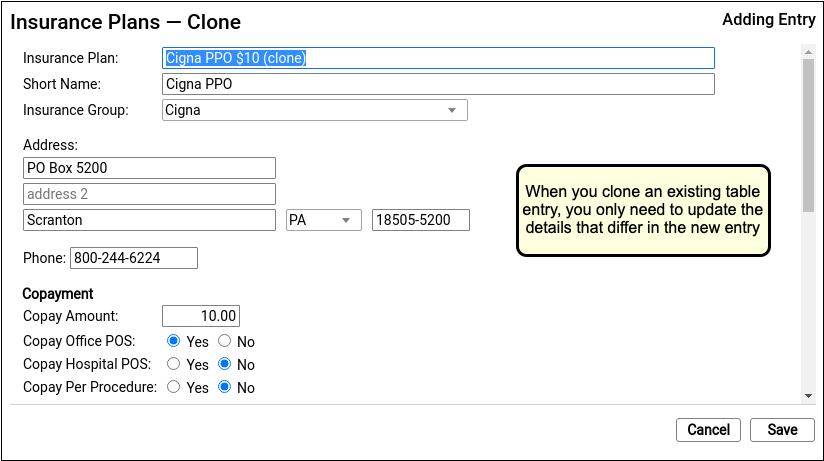
After you create or edit a table entry, click “Save”.
Retiring, Deleting, or Replacing a Table Entry: For most tables, you should never delete or “write over” the contents of a table entry. Altering table entries may change historical information in patient records. If you wish to retire an entry and make it less visible, you can place a tilde (~) at the beginning of the name to sort it to the bottom of the list alphabetically. Use PCC’s other configuration and administrative tools when you need to remove an option from PCC’s software, and contact PCC Support if you need assistance.
Edit Your Practice’s Procedures and Prices
Use the Procedures table in the Tables tool to update your practice’s billing procedures, codes, and prices.
Open the Procedures Table
Open the Procedures table in the Tables tool in PCC EHR.
Review Your Existing Procedures
The Procedures table contains all of your practice’s billable procedures, charges, fees, as well as adjustment offsets used by your PCC system.
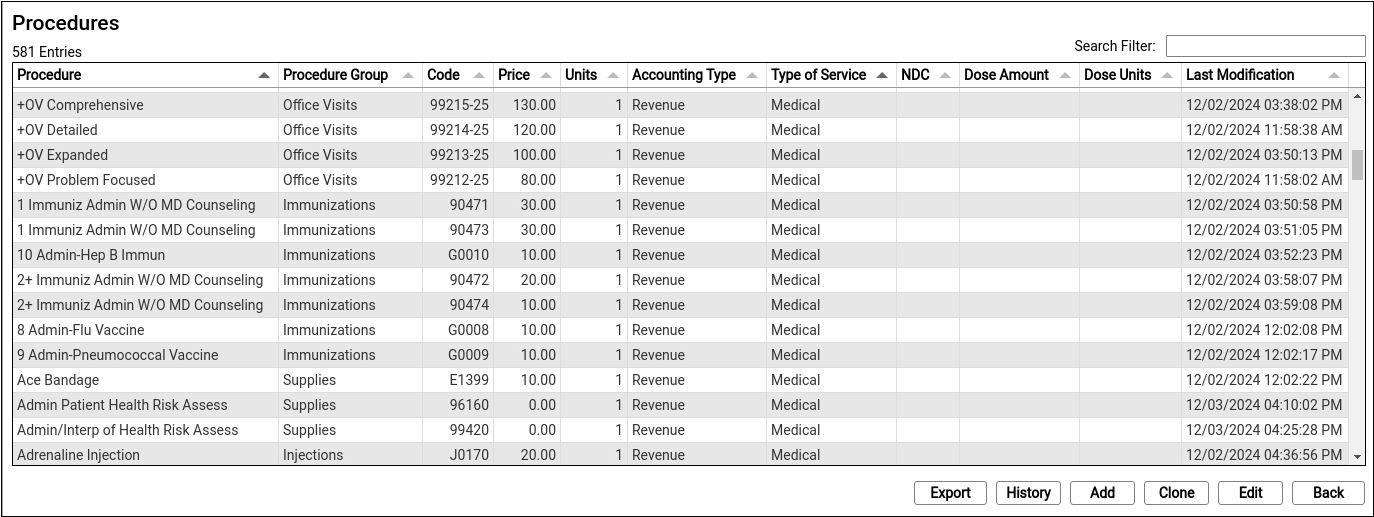
Double-click on an entry to open and edit the details of a procedure.
You can search for specific procedures and sort the list by different columns. Click “Export” to download a comma-separated-value (CSV) file of the entire table for use in a spreadsheet. Click on an entry and then click “History” to see a record of all changes made to a procedure.
Clone or Add a New Procedure
Select an entry and click “Clone” to add a new procedure based on an existing one.
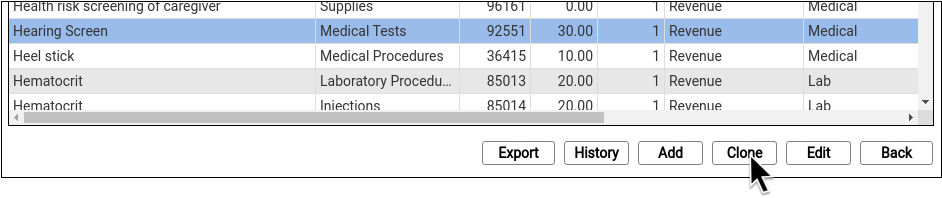
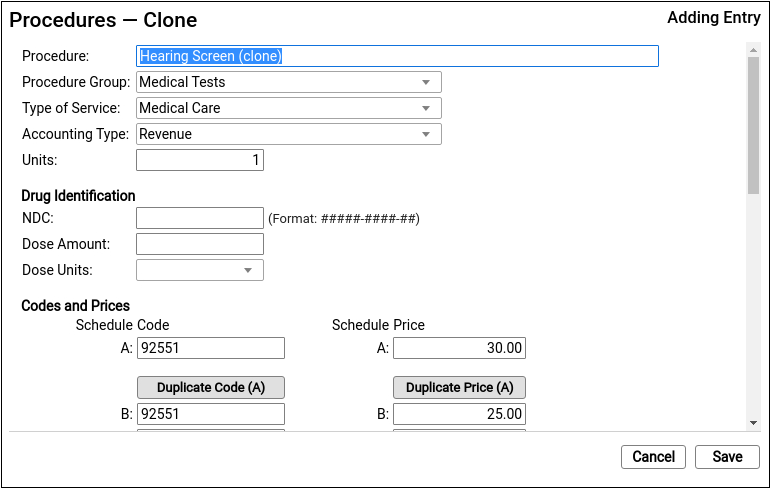
It’s easiest to start by cloning a similar procedure. You can also click “Add” to create a new entry from scratch.
Do Not Overwrite or Erase the Name of an Existing Procedure: Never edit and overwrite an existing procedure entry, as this may affect your billing history. Even if a procedure has been retired and replaced with a new CPT code (for example), always clone and create a new entry.
Update the Cloned Procedure’s Name, Group, Type of Service, and Units
At the top of the screen, update the procedure’s name and basic information that indicates how the new procedure entry will be used.
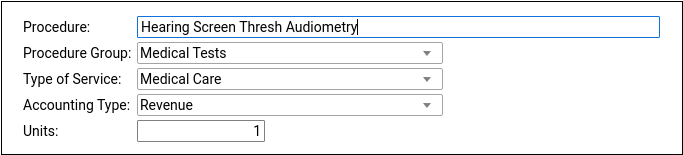
If you cloned an existing procedure, these fields will be filled out for you. For a typical billable procedure, the Type of Service will be “Medical Care” and the Accounting Type will be “Revenue”. For a complete reference, read Edit Your Practice’s Procedures and Prices.
Optional: Update Medication Fields
If the procedure is an immunization, injection, or a drug you administer at your practice, enter the NDC and dosage information that will appear on the claim.
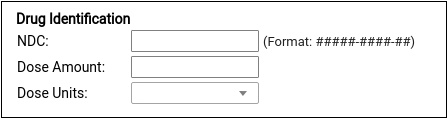
Enter the NDC code for the smallest administered dose; use the code found on the vial, not the box or carton. Read Add and Configure Immunizations for more tips on filling out these fields.
Enter the Billing Code
Enter the procedure billing code in the procedure code field for Schedule A. Then click “Duplicate Code (A)” to populate the alternative code schedules.
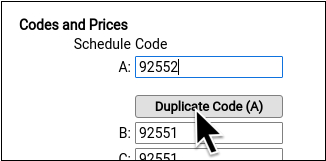
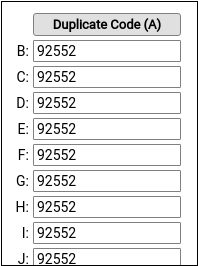
Under rare circumstances, your practice might enter different codes, or a code with a modifier, in different schedules for particular insurance payers. Read Edit Your Practice’s Procedures and Prices to learn more.
PCC does not provide or distribute CPT billing codes, and the example above is for illustration only.
Enter Your Price for the Procedure
Enter your practice’s price for the procedure in the Schedule A Price field. Then click “Duplicate Price (A)” to populate the alternative price schedules.
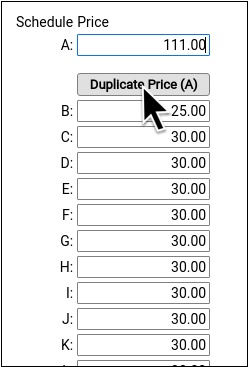
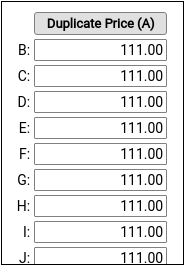
Under rare circumstances, such as when using the same procedure for both medicaid and non-medicaid immunizations, your practice might use an alternate fee schedule for particular insurance payors. Read Edit Your Practice’s Procedures and Prices to learn more.
PCC does not provide pricing recommendations, and the example above is for illustration only.
Save Your Changes
Click “Save” to save your changes.
Configure Orders, Billing, and Chart Notes
After you add or update a billing procedure on your PCC system, you may want to take these additional steps:
-
Contact PCC to Complete Immunization Configuration: If you are adding a new immunization to your PCC system, contact PCC Support. Read Add and Configure Immunizations to learn more.
-
Update Your Practice's Orders: When you link a procedure billing code to an order, PCC EHR will automatically add it to the encounter when the clinician clicks “Order”. Read Configure Order Billing, Diagnoses, and the Bill Window to learn more.
-
Add New Orders to Chart Notes: When you add a new procedure and configure a new order on your PCC system, you may want to add the order to chart notes. When you make an order a default on a chart note protocol, the clinician can create the order and add the billable procedure to the encounter with a single click. Read Configure Protocols to learn more.
-
Update the Bill Window: You can edit your practice’s Bill window, a.k.a. “the electronic encounter form”, to make it easy to select a common procedure or fee when a clinician codes an encounter.
Other Items in the Procedures Table: In addition to billable clinical procedures, the Procedures table includes your practice’s adjustments, fees, refunds, and any accounting item that would increase an account’s balance or offset a payment. Read Edit Your Practice’s Procedures and Prices to learn how to configure these types of procedures.
Edit the Insurance Plans on Your PCC System
Use the Insurance Plans table in the Tables tool to update the plans on your PCC system.
When a parent brings in a new insurance card, you can update their insurance policies easily. If a plan is entirely new to your practice, or is an existing plan with a new address, copay amount, or payer ID, use the procedure below.
Open the Insurance Plans Table
Open the Insurance Plans table in the Tables tool in PCC EHR.
Review Your Existing Insurance Plans
The Insurance Plans table contains all of your practice’s plans.
Double-click on an entry to open and edit the details of an insurance plan.
You can search for specific plans and sort the list by different columns. Click “Export” to download a comma-separated-value (CSV) file of the entire table for use in a spreadsheet. Click on an entry and then click “History” to see a record of all changes made to a plan.
Clone a Plan
When you’re ready to add a new plan, select an existing entry and click “Clone”.
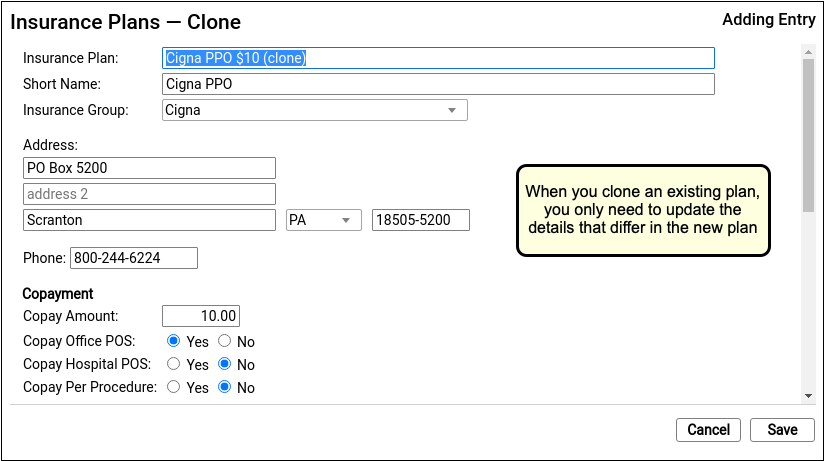
It’s easiest to start by cloning a similar plan and then updating plan details.
Do Not Overwrite or Erase the Name of an Existing Plan: Never edit and overwrite an existing insurance plan, as this may affect your billing history. Even if a plan has been retired and replaced with a new plan, always clone it to add a new entry.
Optional: Add a New Plan
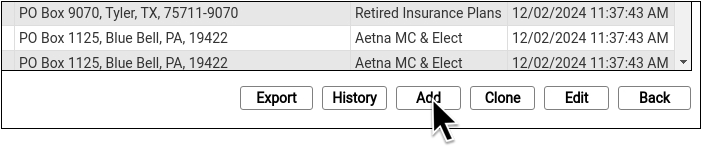
If you can’t find a plan to clone, click “Add” to create a new entry from scratch.
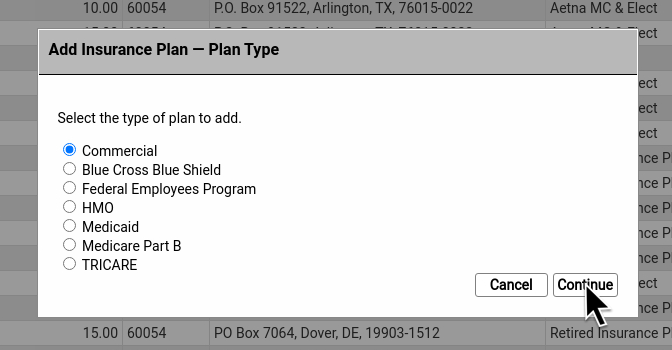
Then select a plan type.
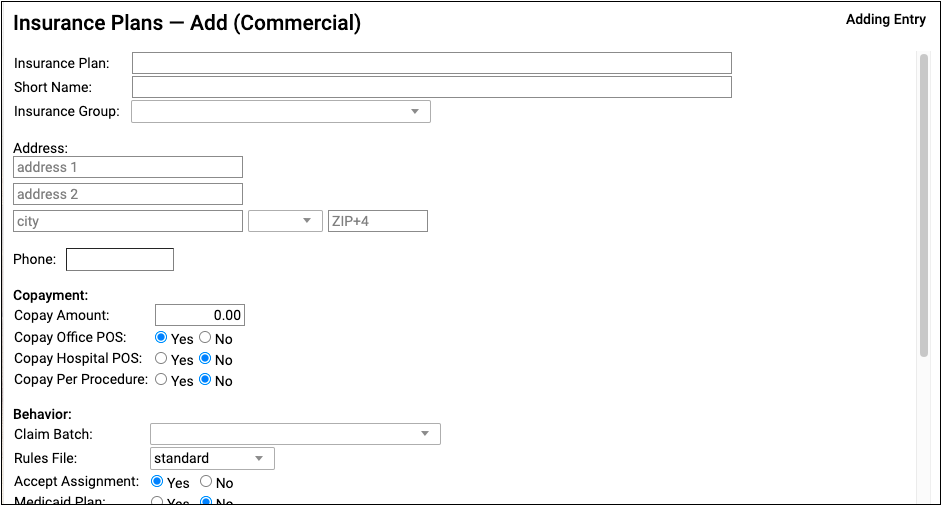
Update the New Plan’s Name and Basic Information
At the top of the screen, review and update the plan’s name and other information that will be used when adding the policy to a patient’s record or submitting claims.
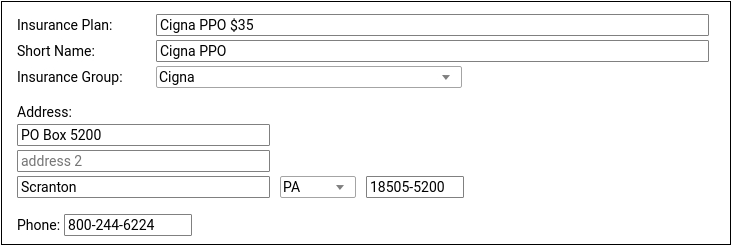
For ease of identification, PCC recommends including the plan’s copay in the Insurance Plan field.
Update Copay Information
Enter the plan’s default copay amount for office visits and define any unusual copay rules used for billing.
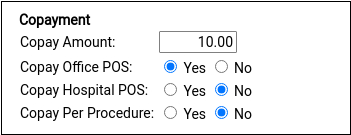
Insurance plans with a copay typically require it for office visits but not for hospital encounters and not per-procedure. Most plans do not charge a copay for well visits, which is controlled with the rules file in the Behavior section described in the next step.
Update Claim Batch and Other Billing Behaviors for the Plan
If you cloned an existing plan, this section may be filled out for you. Otherwise, select claim processing options that will control how your PCC system will handle charges and claims for this policy. Contact PCC Support for assistance.
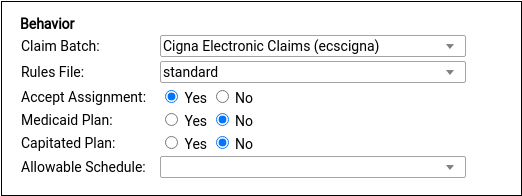
Under most circumstances, select a claim batch that matches the payor and select the “standard” rules file, as shown. The standard rules file puts all medical procedures on the claim and charges a copay, if the plan has one, for office visit procedures. For more information on these options, read Add an Insurance Plan to Your PCC System.
Update Payor ID and Other Identifiers
If you cloned an existing plan, this section may be filled out for you. Otherwise, update the Payor ID and other identifiers used to route claims and submit eligibility requests.
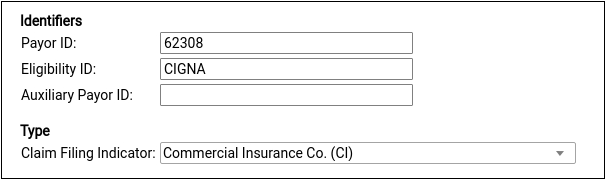
The plan’s Claim Filing Indicator will be inherited from the plan you cloned or else set for you based on the plan type you selected after you clicked “Add”. For a reference to each of these options, read Add an Insurance Plan to Your PCC System.
Optional: Enter Notes
Enter notes about this specific plan for later reference.

Notes are unique per-plan table entry.
Save Your Changes
Click “Save” to save your changes and add the plan to your system.
Add the Policy to Patient Records
After you add a new plan to your PCC system, you can add it to patients’ policy records.
If you have already posted charges for an encounter, you can then edit that encounter in the Billing History, make the new plan responsible for those charges, and queue up a new claim.
Learn More About Each Field: For a complete reference to each field in the Insurances table, with details and recommendations to prevent claim errors, read Add an Insurance Plan to Your PCC System.
Other Billing Improvements
Here are some of the other small-but-wonderful feature enhancements and biller wishes granted in the PCC 10.2 update.
Automatic Default State for Accident-Related Encounters
When you indicate that an encounter is related to an accident, PCC EHR will automatically enter the state of your practice’s office or care center location.
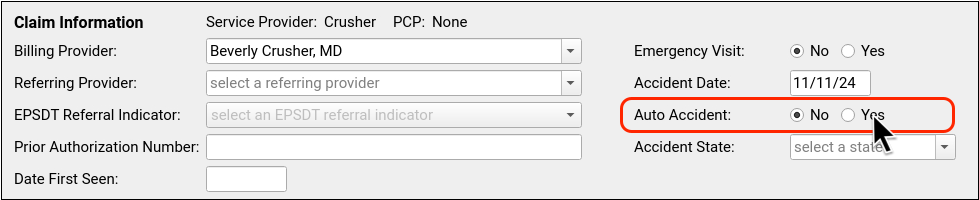
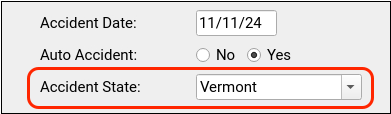
A missing state on an accident-related claim is a common cause of claim rejections. You can adjust the value manually if the accident occurred in a different state.
PCC 10.2 Prevents Special Characters from Creating Claim Errors
Many payers are unable to process claims with special characters, such as ñ,í,è, and ü, leading to errors, claim rejections, and delayed payment. When processing outgoing claims, PCC 10.2 will replace these and other special characters with letters that comply with the X12 Basic Character Set that all payers are required to support.
Similarly, if a claim submission contains an emoji or other unrecognized character, PCC’s claim processing will now remove it. This new filtering will not change the patient or family’s information on your system, it will only alter the claim.
Use the Enter Key as You Manually Enter Insurance Payments
When you need to manually enter an insurance payment from an EOB, the numeric keypad on an extended keyboard makes the process easier. In PCC 10.2, you can press Enter in the Insurance Payments tool to advance to the next field.
Track Payment Reversals and Refunds Back to the Original Provider
When an ERA includes a takeback, or you post a payment reversal or refund manually, PCC EHR will now associate the accounting adjustment with the original provider of the payment.

Prior to PCC 10.2, posting a refund, write-off, or takeback would create an adjustment procedure associated with provider “None” when the full payment amount was adjusted off. While this was accurate (these payments were no longer associated with charges or a provider), some pediatric practices wish to ensure that all accounting activity is associated with a specific provider. As of PCC 10.2, the original provider of the originally linked charge will be used for the adjustment. Reports that show detailed transaction logs for providers will now associate refunded or reversed payments and the associated adjustment with the original provider.
Write Off Account Credits
When an account credit or insurance overpayment has languished and will not be refunded, your practice may decide to write it off and treat it as revenue.
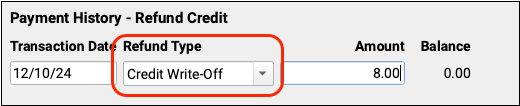
When you need to write off a credit, open the Payments tool for the account and click “Refund Credits”.
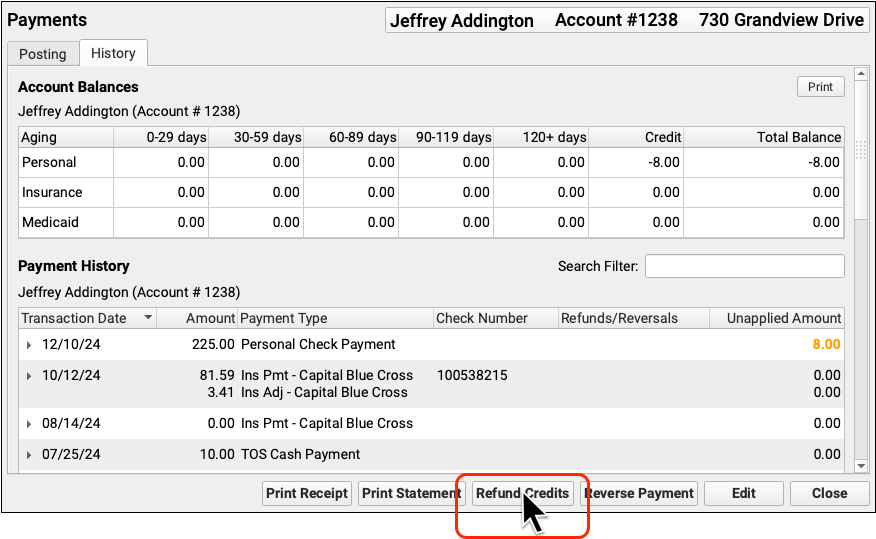
Select the “Credit Write-off” refund type and enter the amount to write off. Then click “Save”.
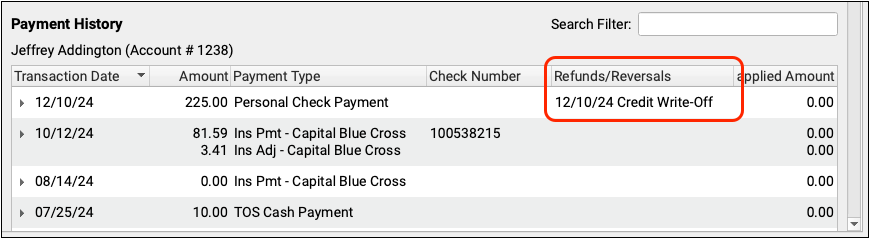
In the account’s payment history, you’ll see the credit write-off associated with any payment that was partially or fully written off.
Configure Your Credit Write-Off Adjustment: If your practice has never written off a credit, you may need to add a write-off offset procedure to your procedures table. To learn how, read Edit Your Practice’s Procedures, Codes, Adjustments, and Prices.
Reporting
PCC 10.2 includes three new reports and many behind-the-scenes upgrades to the Report Library.
Report on Adjustment Trends in the Report Library
In PCC 10.2, practices can review adjustment trends over time with the new Payments and Adjustments by Payment Type report. The report displays the volume and type of adjustments that your practice made over a period of time.
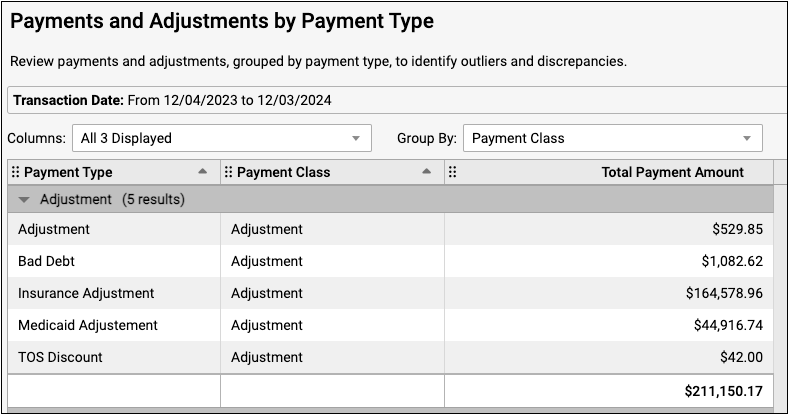
You can reference this report when you audit billing and collections, do accounting preparation, or assess your practice’s adjustment policies.
Read Report on Adjustment Trends in PCC EHR for more information on how to work with this report.
Review Access to Financial Reports: Users with permission to manage categories in the Report Library can edit the Financial Oversight category and uncheck roles to remove access. See Restrict Access to Reports in the Report Library for more information.
Report on Deviations from Your Contract Fee Schedules
Use two new reports in PCC 10.2 to evaluate insurance overpayments and underpayments. If your practice has contract fee schedules (also known as allowables or allowed amounts) configured on your system, you can now report on them in the Report Library. These two reports compare payments received against your contract fee schedule, which is useful when you are preparing for payer contract negotiation or planning for potential insurance takebacks.
Contract fee schedules must be configured prior to running these reports.
Evaluate Overpayments
The Allowable Overpayments by Insurance Group report lets you review insurance payments that were above contracted amounts in order to identify potential takebacks or fee schedules that need to be updated.
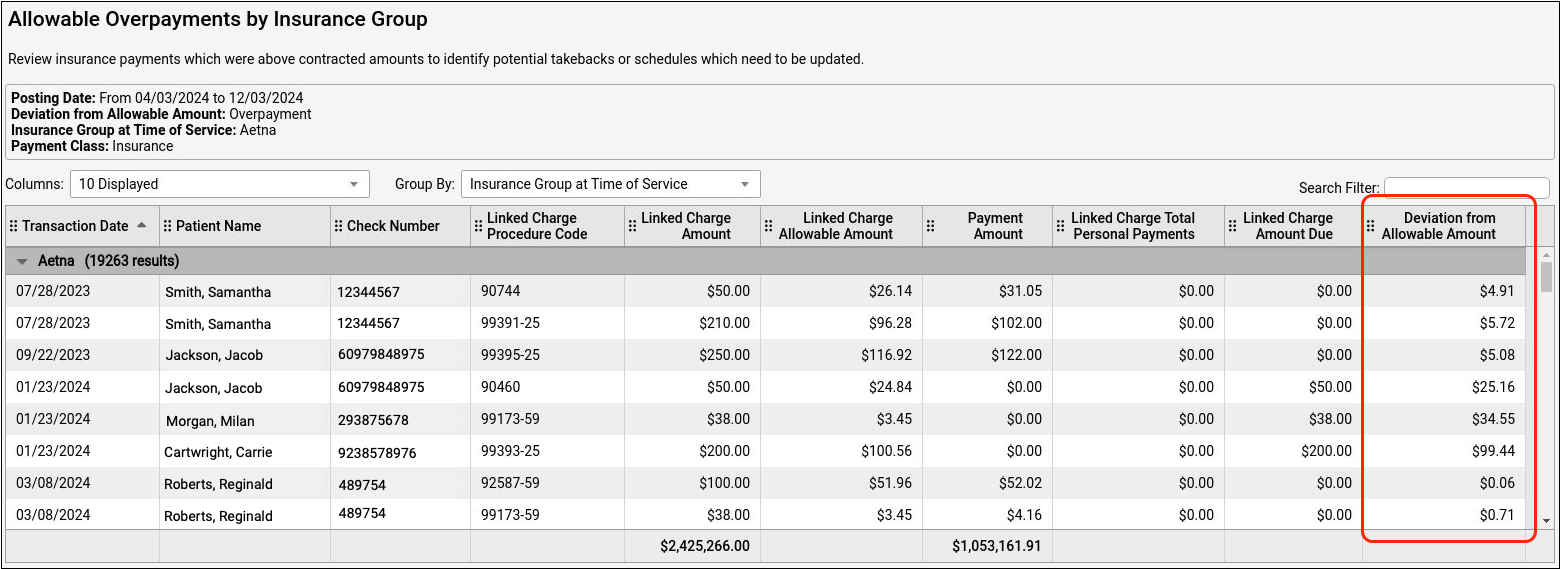
Positive numbers indicate an overpayment, and could signal an upcoming insurance takeback.
Evaluate Underpayments
The Allowable Underpayments by Insurance Group report lets you review insurance payments that were below contracted amounts in order to identify payer errors.
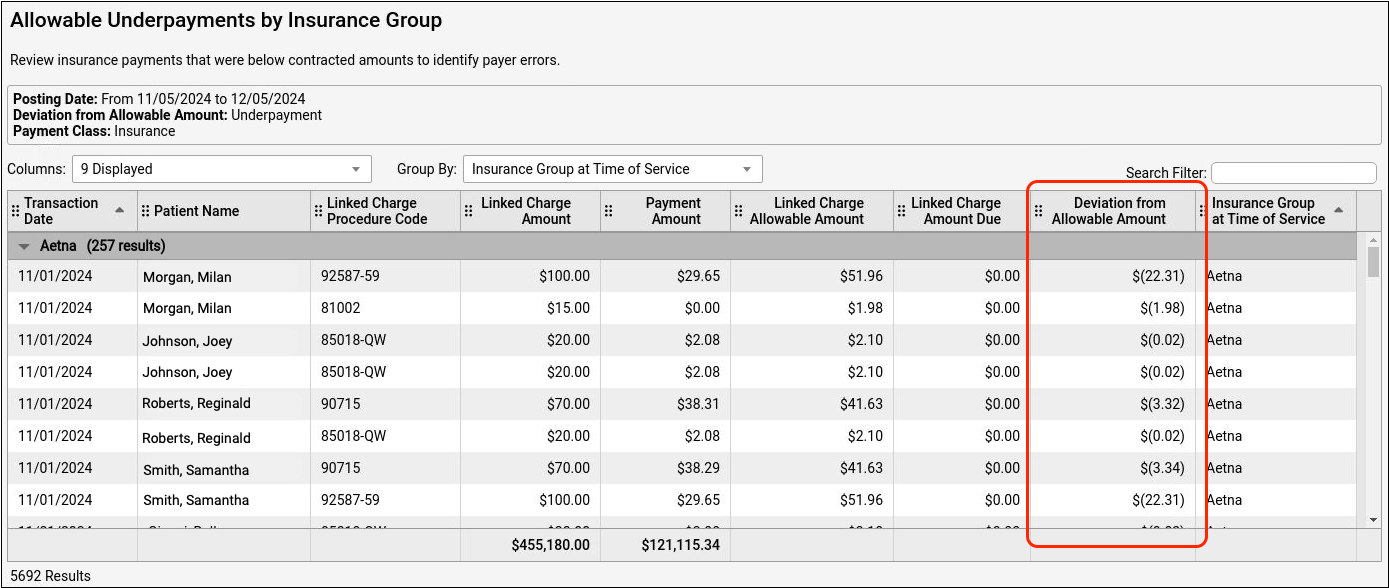
Negative numbers are designated by parentheses and indicate underpayments. Your practice may wish to follow up with the insurance company about underpayment trends.
Customize Underpayment and Overpayment Reports
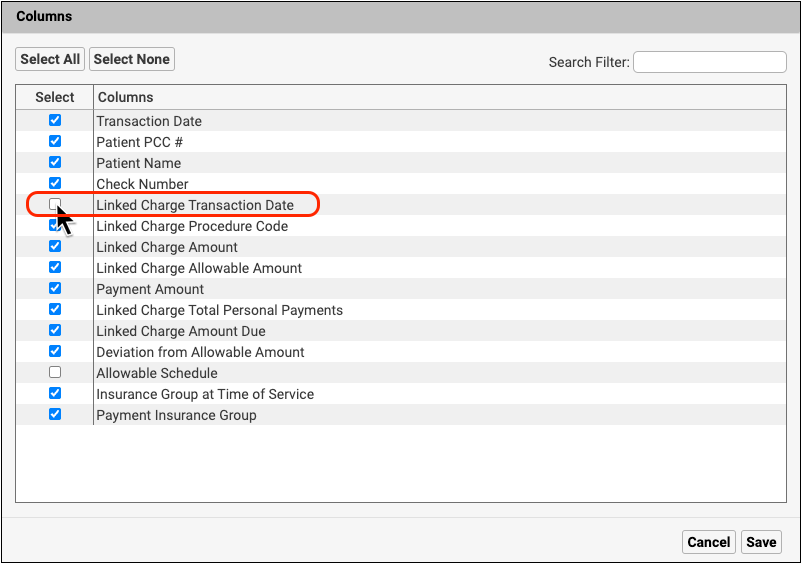
You can add the payment transaction date, allowable schedule, and other criteria, when you customize these reports.
To add the date of service (the day the patient came in to the office) to your report output, select “Linked Charge Transaction Date” when customizing the report.

Report Library Improvements
PCC 10.2 includes significant behind-the-scenes product stability upgrades and sets the groundwork for further improvements to the Report Library. You may notice some changes in the speed, look, and feel of the Report Library.
Improved Report List Navigation and Searchability
Report list navigation and searching is easier and more efficient with the PCC 10.2 improvements.
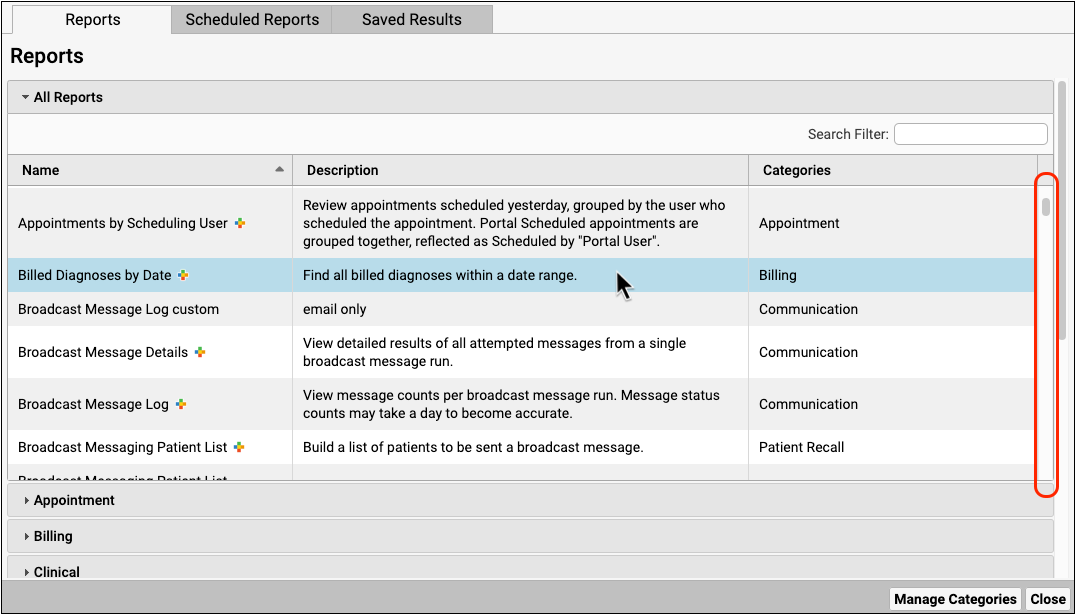
- Report lists are scrollable within their category so that you can see your chosen category while locating a specific report.
- A row highlight follows your cursor in the report list and throughout the Report Library for improved readability.
- Searching in the report list only searches report names for improved efficiency.
Improved Report Output Adjustment
PCC 10.2 gives you more control over the report output, allowing you to sort and display the most pertinent data.
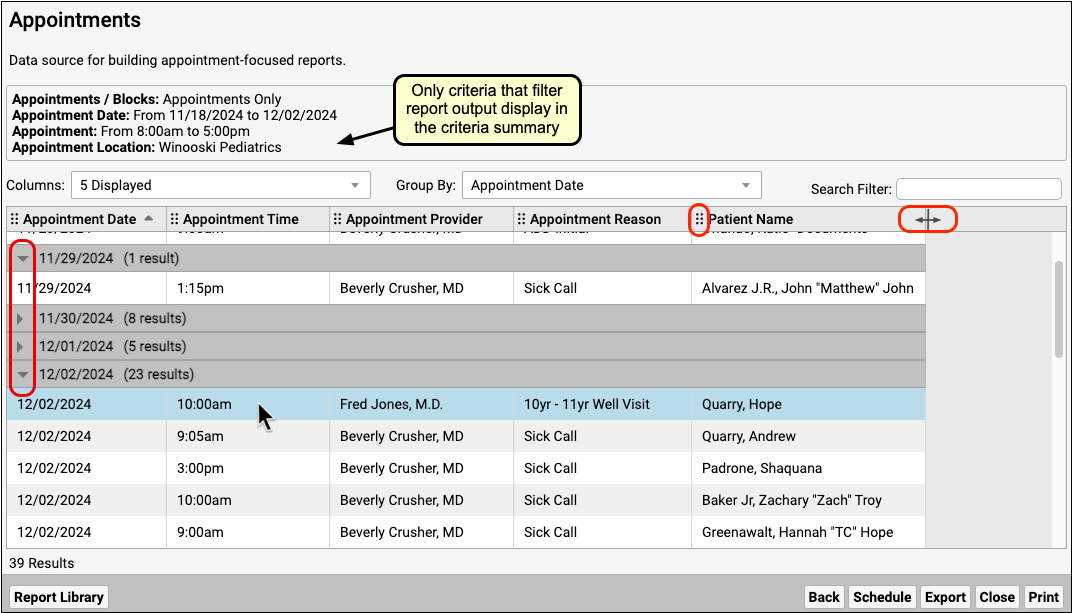
- Only the criteria that filter the report are present in the criteria summary so that you can more easily identify which criteria are affecting your report.
- You can adjust column width and collapse grouped rows to display the most pertinent data.
- A new icon highlights the ability to rearrange the order of columns.
- You can now do multi-level sorting on grouped reports.
Improved Report Output Searchability
Your report output is more searchable after PCC 10.2.
-
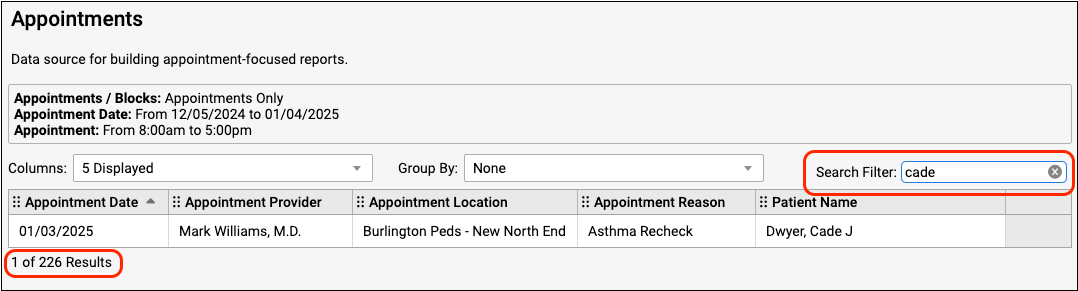
- You will experience fewer delays while performing searches.
- Search results are easier to read with a more compact display.
- A tally of your search results out of the total results allows you to understand your search term in context.
Improvements to Printing and Exporting
Your printed and exported reports are more cohesive after the PCC 10.2 update.
- Only the criteria that filter the report are present in the criteria summary so that you can more easily identify which criteria are affecting your report.
- Row groups that are collapsed on the report output will display as collapsed in the printed report or PDF export so that the printout matches what you see on your screen.
- Exporting and printing automatically resizes your text so that all columns fit on the PDF or printed page. To maintain readability, PCC recommends exporting to CSV rather than PDF when exporting more than twenty columns.
- Grand totals remain aligned with the columns after exporting or printing.
Improvements to Saved Reports
PCC 10.2 introduces improvements to your saved reports.
- Reports that are run, or scheduled and run, after PCC 10.2 will display in the new format.
- You can preview scheduled reports in the Scheduled Reports tab to see your old reports in the new format.
- The new default view for the Saved Results tab shows the most recent results.
Old Saved Results Only Export in CSV Format: Old scheduled reports that were run and saved before the PCC 10.2 are only available for export in CSV format. To learn more, read PCC 10.2 Migration Considerations.
Report on Weight at Last Visit
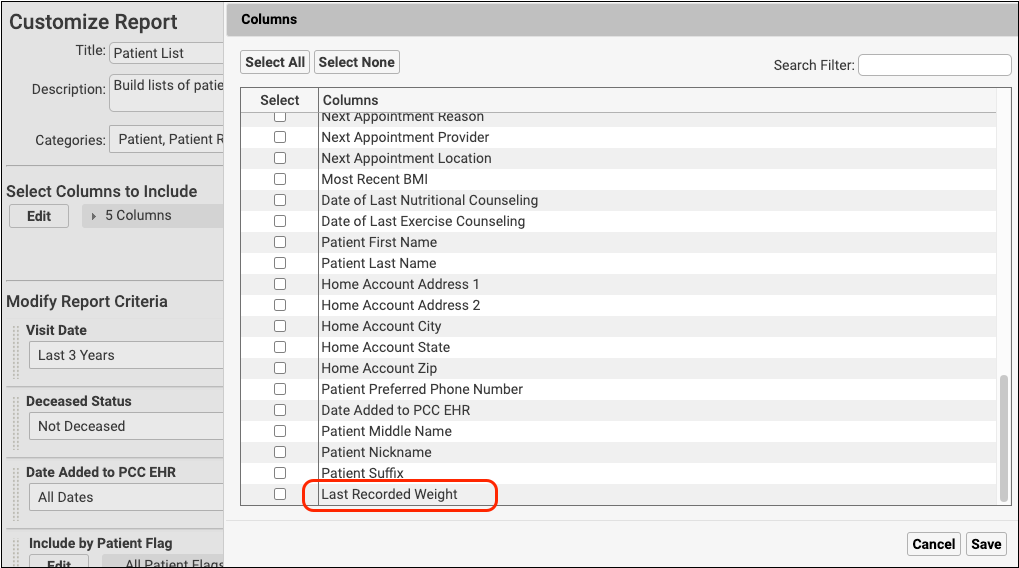
PCC 10.2 adds patient last visit weight to Patient List reports in the Report Library. This information allows practices to anticipate required vaccine volume when ordering vaccines dosed by weight, such as Beyfortus.
Dashboard Infrastructure Improvements
PCC 10.2 optimizes Practice Vitals Dashboard queries and underlying infrastructure for faster and more reliable page display.
Clinical
PCC 10.2 includes a new per-order flowsheet, AAP blood pressure percentiles, improvements to the chart export tool, and more.
Review Test Results Over Time in Flowsheets
The new “Lab Orders” tab displays the result of each test within an order, so you can easily compare results over time for lab tests that are commonly ordered together.
Tests are grouped by LOINC codes, so in-house tests appear in the same row as matching vendor tests. Click the blue lab order name at the top of the column to open the order details.
Use the drop-down menu on the upper right to filter the order list.
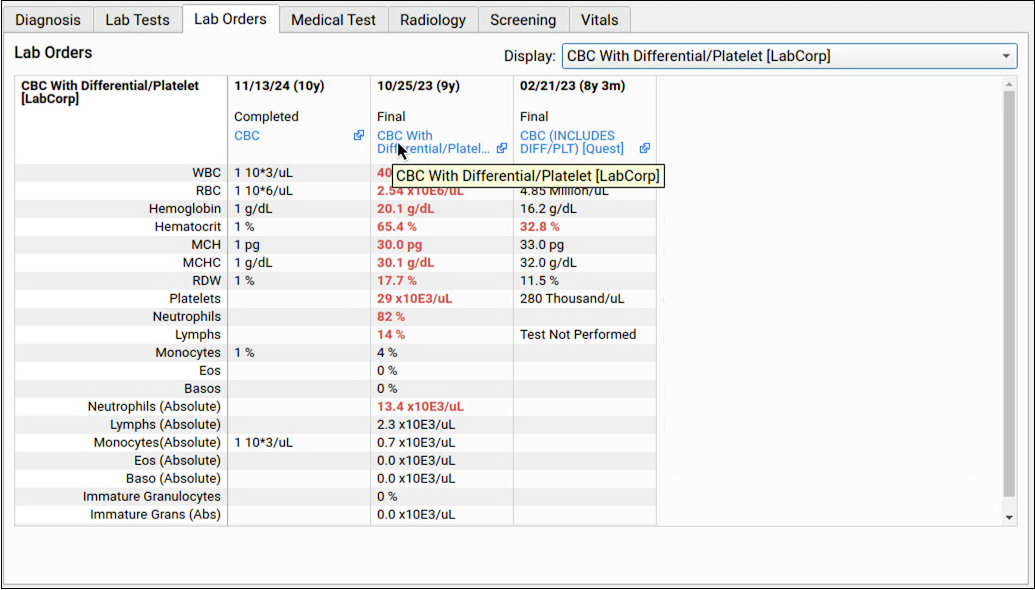
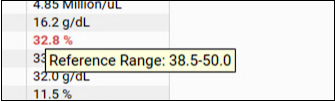
Results that are outside of the reference range appear in red text. Hovering the mouse pointer over the result will show the reference range, so you can find all the data you need without leaving the flowsheet.
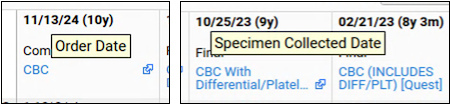
Likewise, hover over the date to see if it represents an Order Date or a Specimen Collection Date.
Generic in-house lab orders without an associated LOINC code cannot be linked to elabs or discrete in-house orders.
Confidential orders are marked with a red lock icon, and hovering your mouse pointer over the lock shows “Not Released to Patient”.
AAP Blood Pressure Percentiles
Beginning in PCC 10.2, PCC EHR calculates blood pressure percentiles using the AAP’s updated normative tables from 2017. Encounters created before PCC 10.2 will not be changed. Their blood pressure vitals will retain their calculation based on the 2005 NIH guidelines. An “(NIH)” label appears next to historical vitals. Percentiles calculated using the AAP tables are labeled “(AAP)”.
Chart Export Improvements
PCC 10.2 adds more controls to the Chart Export tool, makes it run faster, and improves the consistency of exported information.
-
Optionally Include Phone Notes with Patient Chart Exports: Choose whether to include phone notes and all associated clinical data when you export a patient’s chart. Chart exports exclude phone notes by default.
-
Better Handling of Clinical Data Associated with Portal Messages During Chart Exports: When you export a patient chart, it will only include documents and other clinical data associated with portal messages when portal messages are included in the export.
-
See Refused and Contraindicated Lab Orders in Chart Export Results: The chart export file “results.csv” will include refused and contraindicated lab orders, just like the “chart.pdf”, “chart.html”, and “ccda.xml” export files.
-
Spend Less Time Exporting Charts: Changes under the hood improve the speed of chart exports so that you can move on to other tasks sooner.
-
Cancel Stalled Exports and Resume Work in PCC EHR: When a chart export is taking too long, you can cancel it and resume work in PCC EHR.
Retrieve and Save TIFF Files from Other Healthcare Organizations
When you use the Clinical Document Exchange (CDE) feature to query partner health care organizations for patient records, you can now retrieve and save TIFF image files.
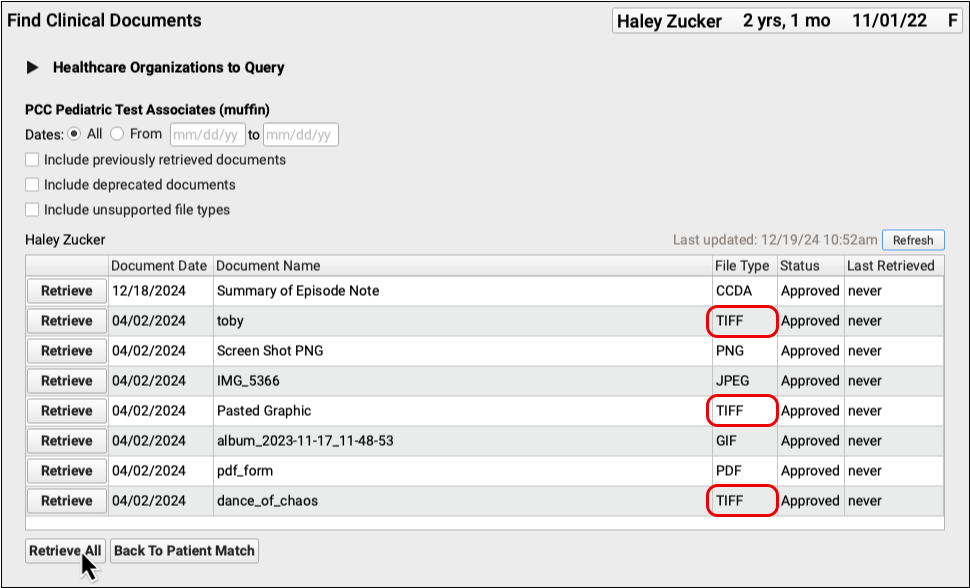
Known Issue: A known bug in PCC EHR prevents users on Macintosh workstations from viewing certain TIFF files in the Document Viewer. A fix is in development.
Better PCC eRx Application Error Handling
PCC 10.2 improves application error handling in PCC eRx.
When you encounter an application error, PCC eRx provides a message with an error code. When you close the error message, PCC eRx automatically reloads your session.
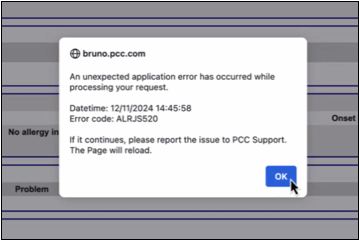
In most cases, reloading the session will resolve the error and allow you to continue working. In cases where reloading does not resolve the error, you can send a screenshot of the error message to PCC Support for fast help resolving the underlying issue.
Immunizations
During the PCC 10.2 release cycle, PCC improved the accuracy of vaccine recall reporting in the PCC EHR Report Library, added RSV recommendations to the immunization forecaster, and enhanced automatic reporting to several immunization registries.
New Immunization Registry Connections in Texas, Hawaii, and Massachusetts
In PCC 10.2, practices in Texas, Hawaii, and Massachusetts can retrieve patient records from their state immunization registry at the click of a button in PCC EHR.
These states join a growing list of bidirectional immunization registry connections.
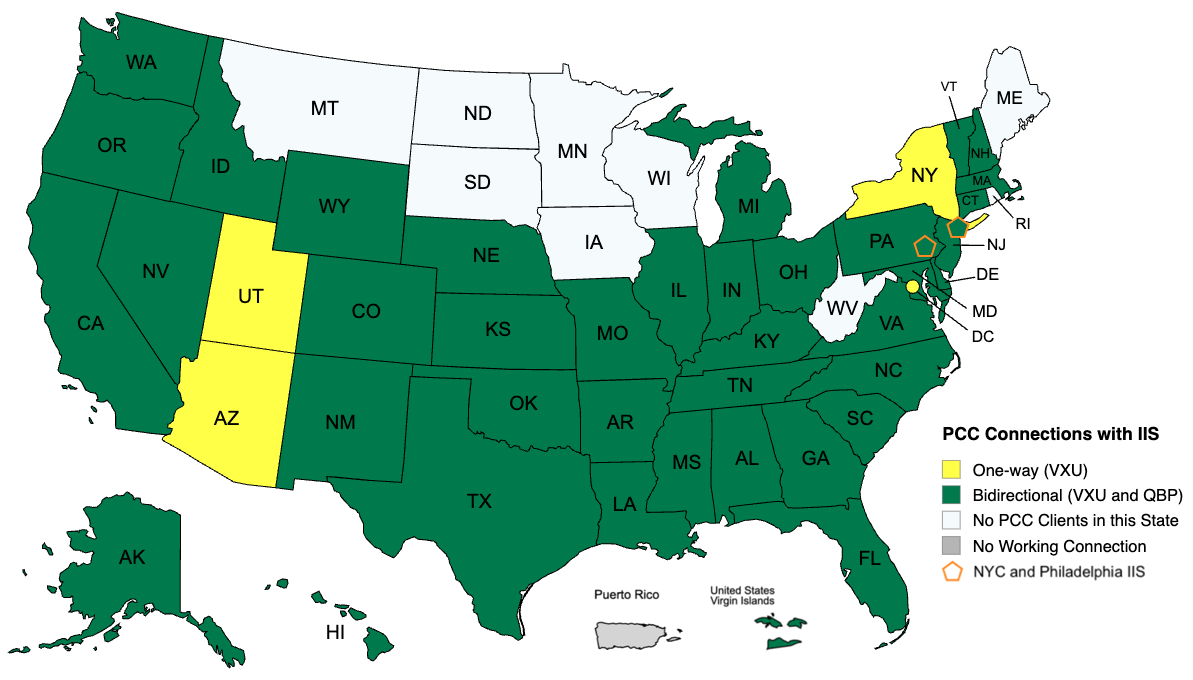
For a complete list of bidirectional immunization registry connections and to learn more about how to look up and import patient records from your registry, read the full guide.
Point-in-Time Snapshot: The above map represents the status of PCC’s available immunization registry connections as of the PCC 10.2 release date and does not guarantee completion of in-progress connections. For the most up-to-date information about the status of a particular immunization registry connection, contact PCC Support.
Improvements to Nightly Registry Submissions
In response to changing specifications, PCC 10.2 improves automatic reporting to immunization registries in several states.
-
Indiana: Nightly submissions to CHIRP, the Children and Hoosiers Immunization Registry Program, will include a vaccine funding source, updates to vaccine administration details, and changes in vaccine administration status.
-
Oklahoma: Nightly submissions to OSIIS, the Oklahoma State Immunization Information System, will report nothing when patient ethnicity is set to “Prefers not to answer” and will report “Other race” when patient race is set to “Prefers not to answer”.
-
California: Nightly submissions to CAIR, the California Immunization Registry, will include the administering provider’s professional suffix.
More Accurate Vaccine Recall Reporting
Prior to PCC 10.2, patient immunization forecasts only updated on chart open. Because users do not have to open charts in order to complete immunization orders, some patient immunization forecasts were inaccurate until the next time their charts were opened. The PCC EHR Report Library sometimes presented these inaccurate forecasts on vaccine recall reports.
In PCC 10.2, a new background process regularly checks for new vaccine administrations and updates patient immunization forecasts accordingly. This improves the accuracy of vaccine recall reports.
Immunization Forecasting Patch Adds RSV Recommendations
On November 7, 2024, PCC updated your system with a new version of the Immunization Calculation Engine (ICE) by HLN Consulting, which underpins PCC’s Immunization Forecasting component.
The latest update included these changes:
-
DTP: Added a minimum recommended age of 7 years in the DTP 5-dose series when the Six by Seven rule applies.
-
RSV: Added support for a new RSV Vaccine Group and the RSV Infant Series (seasonal series for infants younger than 8 months of age), as well as for RSV vaccines: CVX 303, CVX 304, CVX 305, CVX 306, CVX 307, CVX 314, CVX 315, CVX 326. This brings the recommendations in PCC EHR in line with the latest ACIP routine recommendations for infants.
-
Zoster: Updated the implementation to use a 56-day minimum interval (rather than a 28-day minimum interval), to recommend Zoster CVX 187 after CVX 121 or CVX 188.
Other Updates and Patch Notes
Read below to learn about other update news, patches, and bug fixes.
Update Your macOS 10, macOS 11, and macOS 12 Workstations
PCC 10.2 will not work on macOS 10.14 (Mojave) and macOS 10.15 (Catalina). The next PCC release, PCC 10.3, will not work on macOS 11 (Big Sur) or macOS 12 (Monterey).
PCC recommends that Macintosh users running any of the above operating systems update their computers to at least macOS 13 (Ventura).
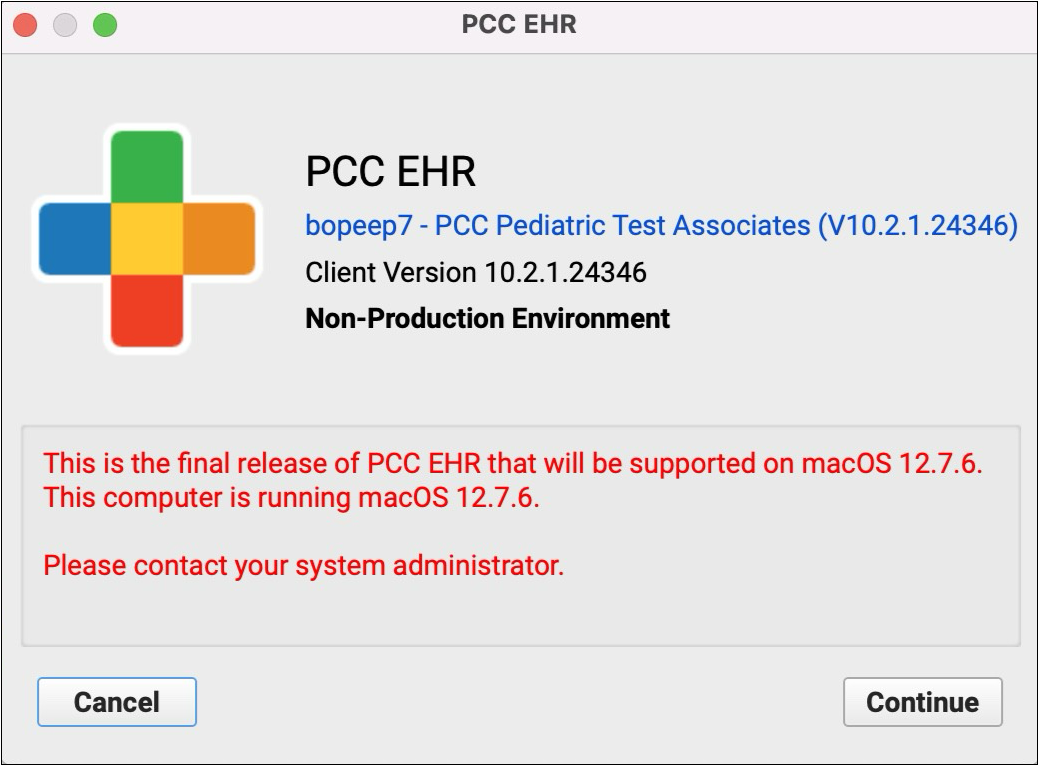
macOS 10.14 and 10.15: On workstations running macOS 10.14 or 10.15, the PCC EHR login screen instructs users to update the operating system in order to continue using PCC EHR.
macOS 11 and 12: On workstations running macOS 11 or macOS 12, the PCC EHR login screen informs users that PCC 10.2 is the last release that supports their operating system version. These users should update their workstations to macOS 13 or higher as soon as possible to avoid disruption.
Contact your system administrator for help updating your workstation to macOS 13 or higher.
Bug Fixes
PCC 10.2 includes some notable squashed bugs.
-
Practice Vitals Dashboard EDI Page Missing EHR Claims Tool Data: Claims sent electronically from PCC EHR appeared in the incorrect section of the Practice Vitals Dashboard. They now appear in the correct section.
-
Custom Reports Not Displaying Columns Selected After First Save: In the report library, columns selected after an initial save during customization were not available to display in the preview. This is fixed, and all columns selected during customization are available to display in the final report.
-
Options Obscured in Category Drop-down: Selecting only one report category when customizing reports narrowed the category drop-down so that some options did not display. The category drop-down is fixed, and will now display all options.
-
Billing Diagnoses by Date Report Inaccurately Displaying Insurance as Personal: The Billing Diagnoses by Date report inaccurately displayed patient insurance as Personal in the Insurance at Time of Service column. This is fixed and patient insurance now displays accurately.
-
CSV Exports Displaying All Criteria: CSV exports displayed headings for all criteria, regardless of whether they were used on the report. This is fixed and now unselected criteria do not display in the exported report.
-
Something Went Wrong Error in Bills: When launching the PCC EHR Bills tool or editing messages that appear on personal statements, some practices could see a “Something went wrong” error. PCC 10.2 corrects the issues that caused this error.
-
Reversals Deleting Payments: Under certain circumstances, when a payer’s ERA only partially reversed a payment, auto-posting the ERA could sometimes result in a deleted payment. PCC 10.2 prevents this from occurring.
-
Users Locked Out of the Claims Tool: Opening the PCC EHR Claims tool while another user prepared claims could sometimes lock a user out of the tool. This problem was fixed for all practices by a mid-release patch.
-
macOS 15 Users Unable to Retrieve Imms: The macOS 15 operating system has a new way of managing under-the-hood certificates and authentication keys. This change was causing issues for users in PCC EHR when attempting to retrieve patient immunizations from a connected registry. PCC 10.2 fixes this issue.
PCC 10.2 Migration Considerations
The PCC 10.2 release includes new features that may need configuration and for which you may want to do extra planning or training. Read below to learn more, and share relevant details with your physicians and staff.
Read the PCC 10.2 Release article for complete details on these features.
Contact PCC Support for help implementing features in PCC 10.2.
Configure Self Scheduling in the Patient Portal
Patient Portal Scheduling configuration options are available immediately upon updating to PCC 10.2. Your practice can complete configuration of Portal Scheduling then make it available to your patients and families.
Portal Scheduling Requires Visit Types: Self scheduling uses PCC EHR’s Visit Types feature to link patient portal scheduling to Appointment Book. If your practice has not set up visit types, configure visit types before continuing.
Configure Visit Reasons for Portal Self Scheduling
Configure the visit reasons, providers, and locations that portal users can select during portal scheduling.
Open the Visit Reason Tool
Open the Visit Reason tool in PCC EHR’s Configuration menu, and select the Portal Scheduling tab.
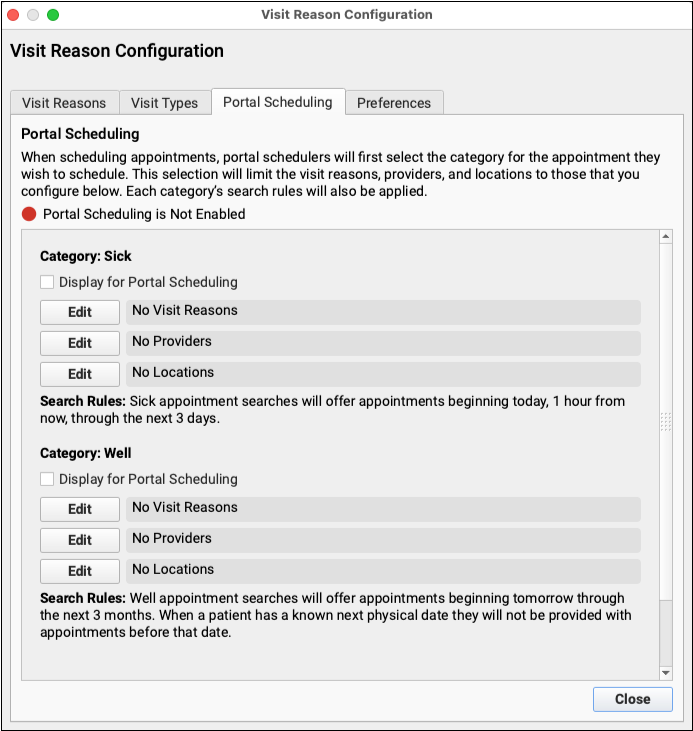
To allow patients and families to schedule sick visits, check the “Display for Portal Scheduling” box under “Category: Sick”.
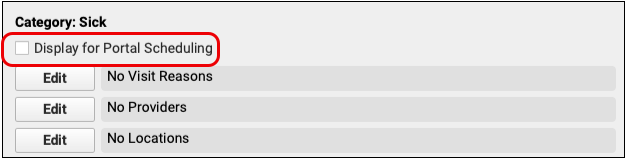
Select Sick Category Visit Reasons
Click “Edit” next on the Visit Reasons line.
Visit reasons you select here will be available for scheduling through the patient portal.
Portal Scheduling only searches for open sick visit time-slots one hour in the future through the next three days. Appointment types that may need to be scheduled more than three days in the future should not be added to the Sick category.
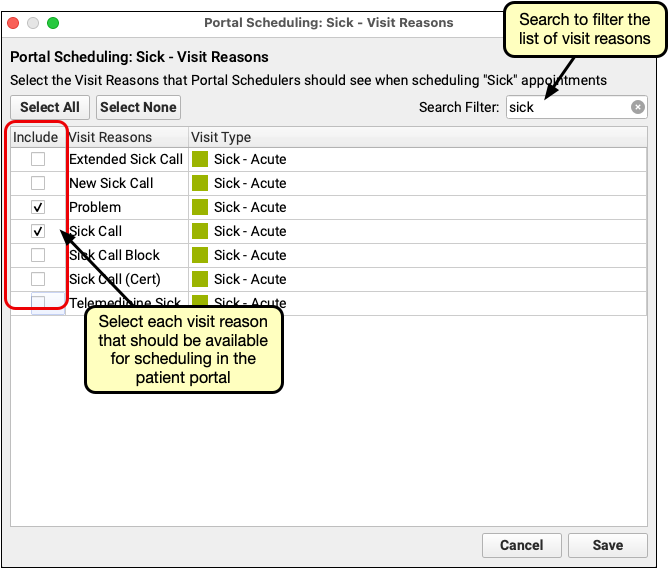
When you’ve made your selection, click “Save”.
Select Sick Category Providers
Click the “Edit” button on the Providers line to select providers for the Sick category.
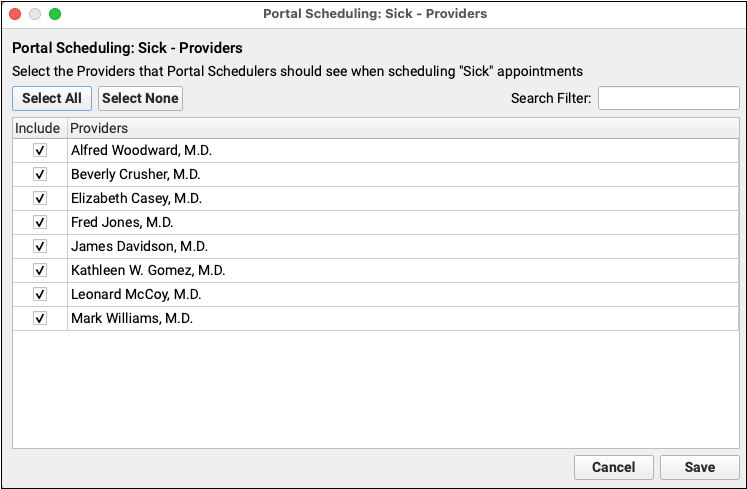
Select the providers that handle the visit reasons you selected above. You may wish to exclude providers that are placeholders for scheduling, such as an “Office” or “Flu” provider, or specialists who you would prefer to schedule over the phone.
Click “Save”.
Select Sick Category Locations
Click the “Edit” button on the Locations line to select providers for the Sick category.
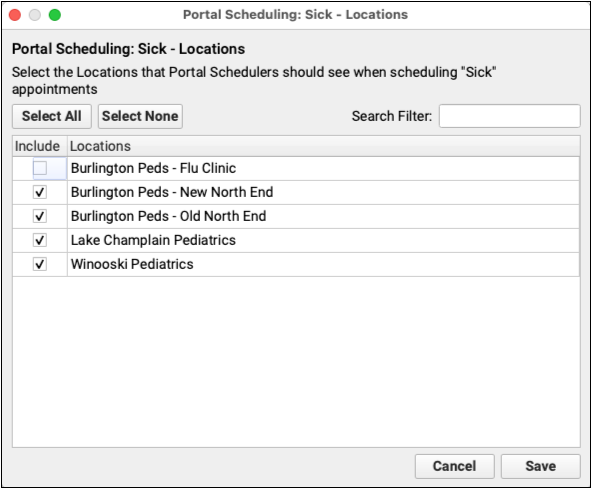
As with Visit Reasons and Providers, select which locations should be available for portal scheduling. If you have locations that have odd hours or need more attention when scheduling, such as a pop-up flu clinic, you may wish to uncheck those.
Click “Save”
Do the Same for the Well Category
Complete the same steps for the Well category. Give the same consideration to well visit reasons, providers and locations.
When selecting well visit reasons, keep in mind that the Well visit category searches for available appointments one day in the future through the next three months. If the patient has a next physical due date in their chart, portal scheduling will jump to that date to begin searching for a matching appointment slot. You may find it best to add only physical exam visits to the Well category.
Click “Save” in each section as you go.
Configure Portal Scheduling Preferences
Use the Preferences tab in the Visit Reasons Configuration tool to determine what available, matching appointment time slots Portal Scheduling offers to your portal users.
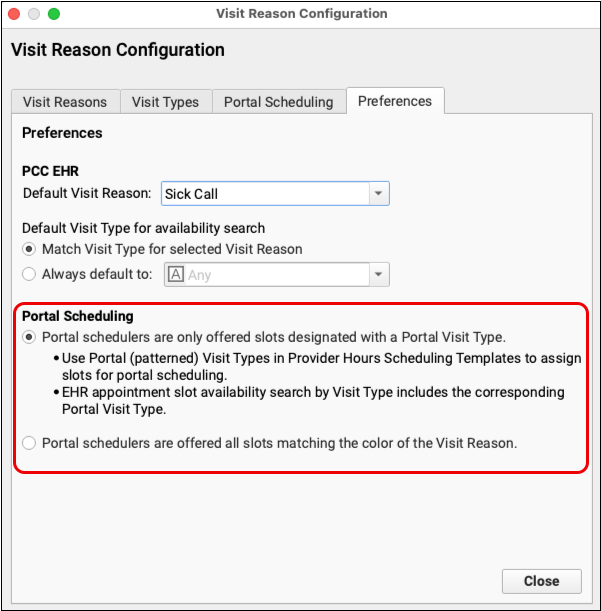
The first option “Portal schedulers are only offered slots designated with a Portal Visit Type” allows your practice to designate specific time slots in a provider’s Scheduling Template as available to Patient Portal Scheduling. This does not prevent Appointment Book users from scheduling within those slots, it simply opens the selected time slots to the Portal Scheduling tool.
The second option “Portal schedulers are offered all slots matching the color of the Visit Reason” maximizes the available slots. Any open time slot color coded as a sick visit or a well visit is available to Portal Schedulers, provided they match the visit types, providers and locations you specified in the Portal Scheduling tab. With this option, no other configuration is needed. Just enable patient portal scheduling in Patient Portal Configuration, and you portal users can begin scheduling themselves.
Update Your Scheduling Templates for Portal Scheduling
Select “Portal schedulers are only offered slots designated with a Portal Visit Type” if your practice wants to limit portal scheduling to certain time slots.
Open the Provider Hours tool from PCC EHR’s Tools menu. Click the Scheduling Templates tab.
The Visit Type menu includes Portal Sick and Portal Well. Mark time slots as Portal Sick or Portal Well just as you do when setting up scheduling templates.
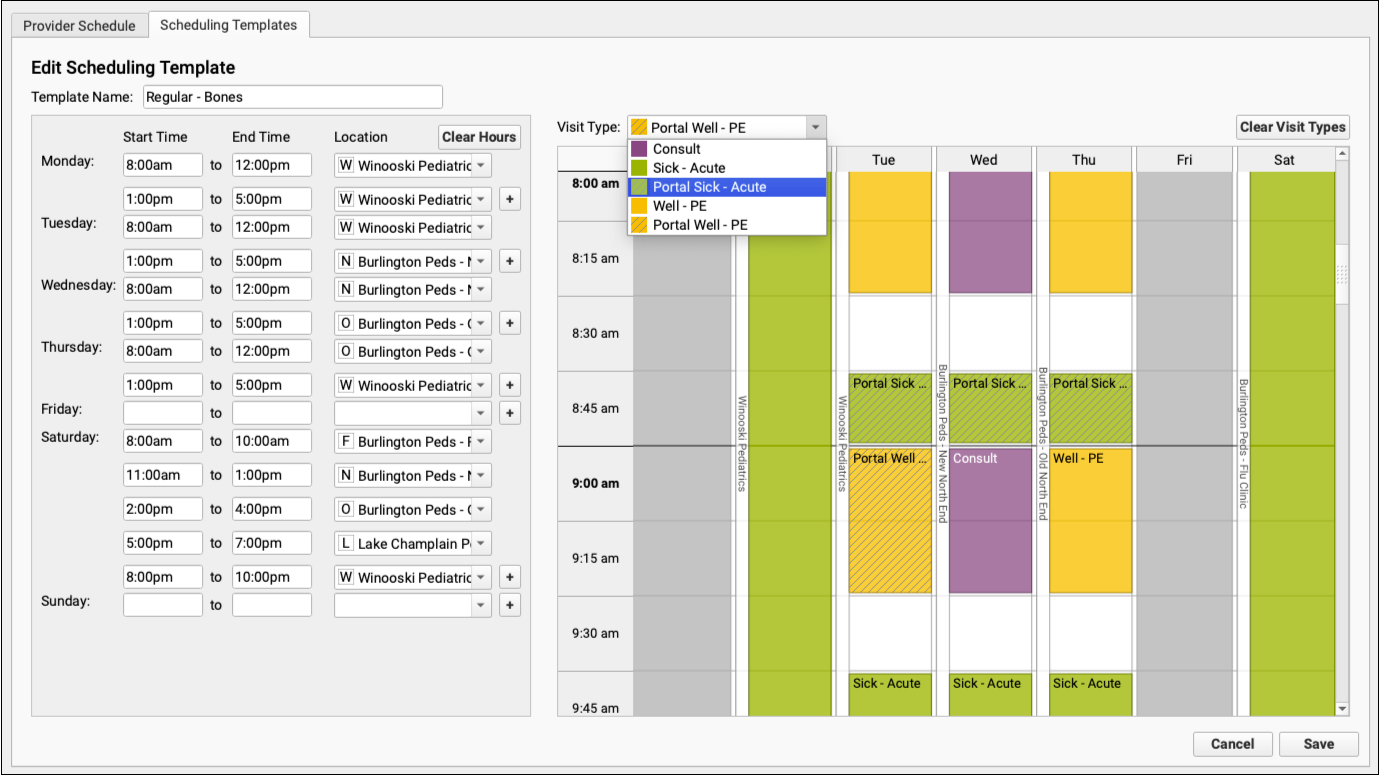
Time slots marked as Portal Sick or Portal Well will appear with a striped pattern over the color you selected for sick or well visits in your schedule.
Portal Sick and Portal Well function the same as the Sick and Well visit types, it only indicates that those time slots slots are available to the Portal Scheduling tool. This has no effect on scheduling through Appointment Book.
Review Your Visit Reasons
The Visit Reasons tab indicates a Portal Scheduling column, which displays the category of each visit reason: Sick, Well or not enabled.
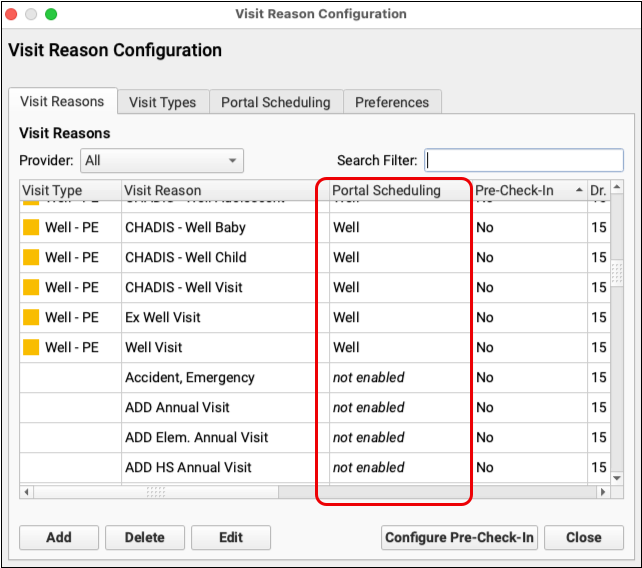
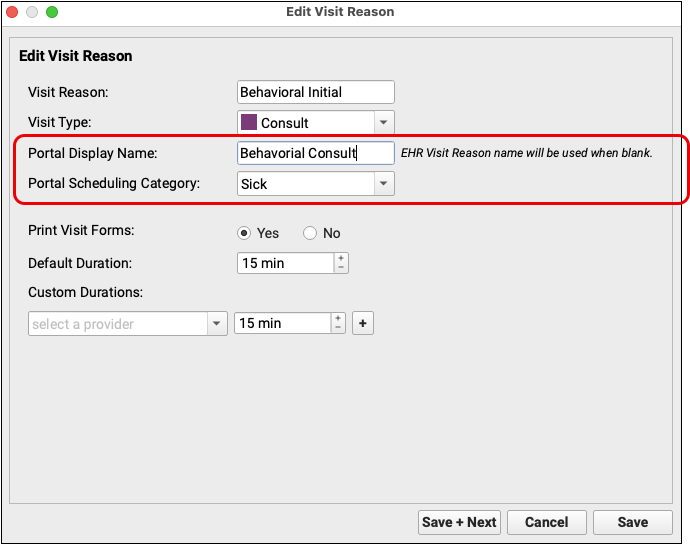
Click “Edit” to open any visit reason, and manage that visit reason’s Portal Scheduling options. You can set an alternative Portal Display Name to appear in the patient portal instead of the Visit Reason name.. You can also change the Portal Scheduling Category for the visit using the drop-down menu.
Enable Portal Scheduling
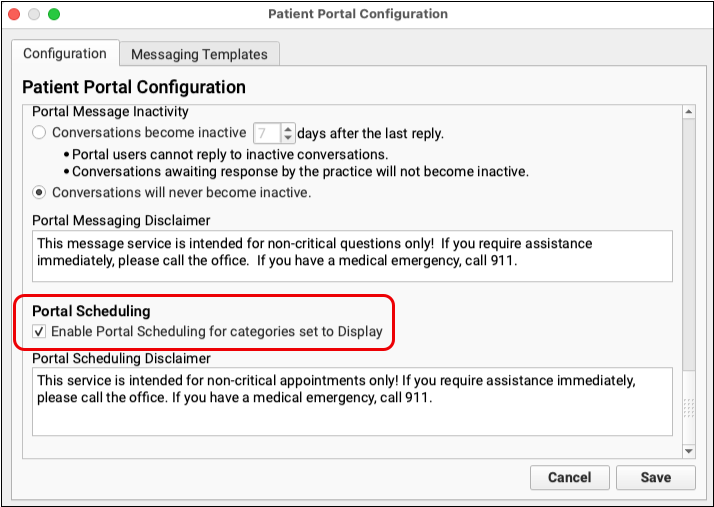
Finally, open Patient Portal Configuration from PCC EHR’s Configuration menu, and check “Enable Portal Scheduling for categories set to Display”. With that box checked, Portal Self Scheduling is available to all your patient portal users.
Give Prescribers Permission to Access pocketPCC
In PCC 10.2, prescribers can use pocketPCC to prescribe from a smartphone or tablet. You can control user access to pocketPCC in the User Administration tool in PCC EHR.
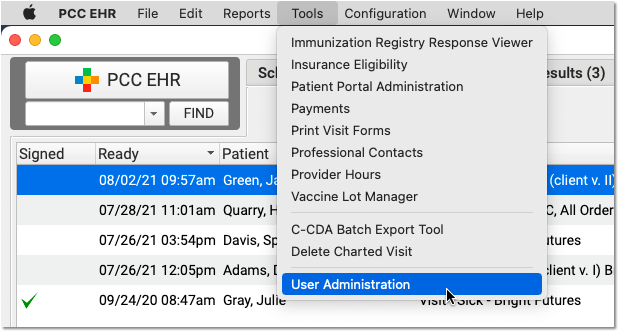
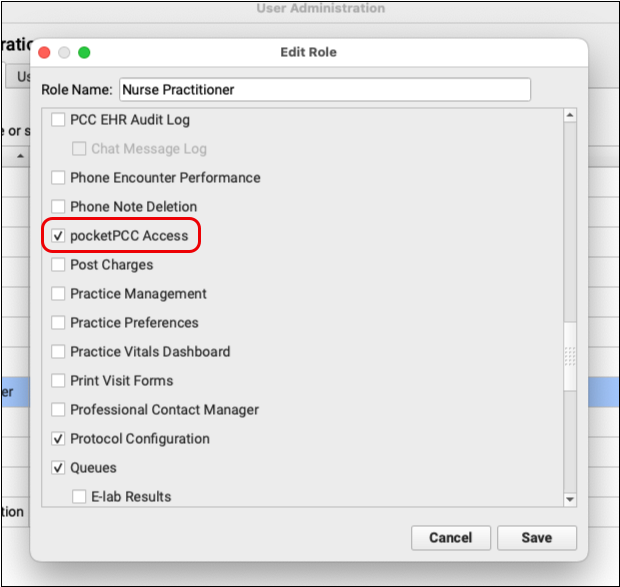
It is completely up to your practice to decide who has access to pocketPCC. Users with access to pocketPCC will have the same prescribing permissions there as they do in PCC EHR.
For more details about how to modify user permissions, read Set User Roles for Permission and Security.
Remind Prescribers to Find Their Hard Tokens for EPCS in pocketPCC
When a prescriber sends electronic prescriptions for controlled substances (EPCS) from pocketPCC, they must use their hard token as a second factor of authentication. They cannot use their soft token (the Authy app).
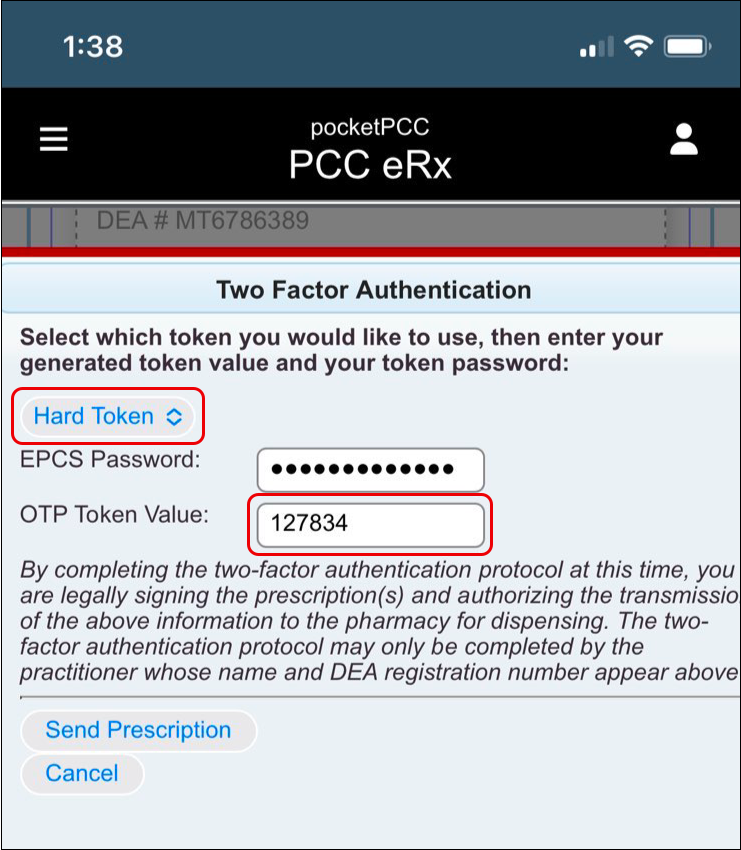
A hard token is the physical fob that PCC provides to every prescriber when they first register for EPCS. Each one has a unique serial number and is registered to a sole prescriber. Hard tokens generate one-time passwords that prescribers can use to finalize and send controlled substance prescriptions.
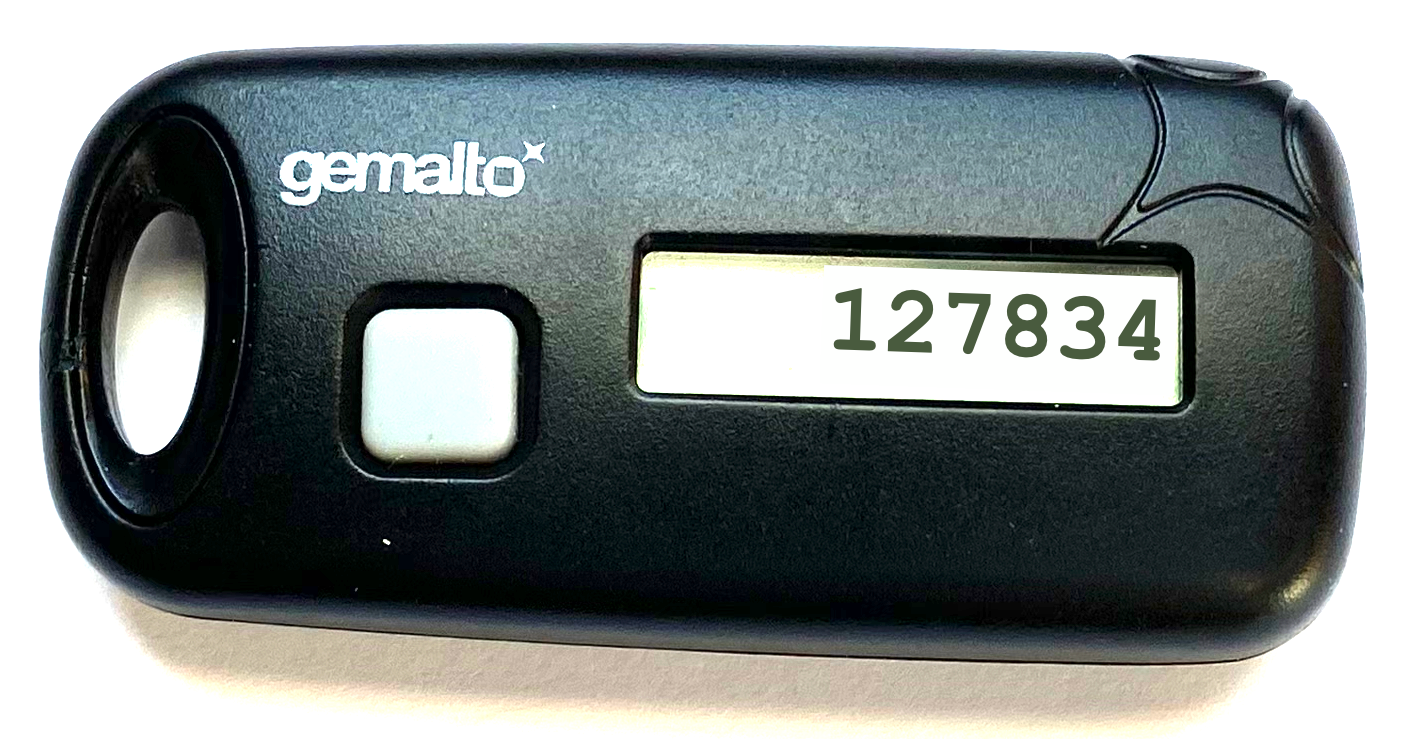
If there are prescribers at your practice who wish to be able to send prescriptions for controlled substances from pocketPCC but cannot find their hard tokens, contact PCC Support to request replacements.
Expect Delays for Replacement Token Orders: Exostar is experiencing a token shortage. If you need a replacement token, please notify PCC immediately but expect a long delay between your order and actual receipt of the token. Exostar has not communicated how long of a delay to expect.
Why Can’t Prescribers Use Their Soft Token (Authy)?: The DEA requires prescribers to generate one-time passwords on a different device than the one being used to prescribe. In order to ensure that our prescribers meet this requirement, PCC mandates use of a hard token for EPCS in pocketPCC.
PCC eRx Activities You Can’t Do (Yet) in pocketPCC
pocketPCC offers a lot of prescribing functionality, but there are still some things you have to log in to PCC EHR to do.
Use PCC eRx in PCC EHR if you want to:
- See and respond to renewal and change requests from the pharmacy
- See and resolve prescription errors
- Sign off on agent prescriptions
- Print PCC eRx content
- Access the My Settings, Rx Logs, Audit Logs, and Administration pages
- Use a soft token (the Authy app) to send electronic prescriptions for controlled substances
- Use the “Clean Up MedHx” button to retire multiple entries at once in your patient’s Medication History
- Sort your patient’s Medication History by status, medication name, or indication
- See active prescription details in Medication History
- Query the Surescripts network for your patient’s Retail Prescription History
- View Medication Care Guidance and Medication History details for drugs in the patient’s history
- See additional Real-Time Pricing and On-Demand Formulary details sent by the patient’s prescription benefit manager
- View additional details of the Safety Checking Warnings that appear when searching for medications to prescribe
Transition Away from the Correct Mistakes (oops) Program
Before PCC 10.2, billers used a tool named Correct Mistakes (oops) to make changes to charges, edit claim information, and resubmit claims.
PCC EHR’s new Edit Charges feature, found in the Billing History in the patient’s chart, is easier to learn and use than the previous Correct Mistakes tool. It includes better built-in validation and safeguards to prevent claim errors.
Edit Charges replaces all functionality in oops and adds new capabilities. While long-time users of PCC’s products and services may prefer the account history available in oops, helping your practice’s billers shift to the Edit Charges features in PCC EHR will improve your billing process.
For example, in PCC EHR, billers can change the date and provider of service for an encounter, add additional diagnoses and procedures, more easily work with encounter-specific billing notes, and use helpful tools when resubmitting a claim.
For help making the transition, reach out to PCC Support.
Implement the Encounter Billing Notes Feature
Encounter Billing Notes is a new encounter-specific notes component. All encounter visit notes entered in Practice Management will appear in Encounter Billing Notes in PCC EHR. The PCC 10.2 update automatically adds the new component to Post Charges, Patient Check-In, and the new Edit Charges workflow.
PCC EHR also has a general Account Notes component for tracking concerns with a family.
Your practice may want to discuss which component you will use for different circumstances. For example, the Encounter Billing Notes component is ideal for recording ongoing struggles around a particular claim problem. The Account Notes component is better suited for billing concerns that stretch across multiple encounters and patients.
Use the Protocol Configuration tool to configure on which encounter protocols, chart sections, and other PCC EHR screens the two components appear.
Understand Reporting of Adjustments and Credit Write-Offs
In order to better preserve each payment’s association with a provider, PCC tracks both unlinking and relinking when you post refunds or write off credits.
This means that in certain under-the-hood proving out reports, like the Daysheet report, you will see the original revenue from a credit write-off and the unlinking and relinking for the provider.
If seeing the unlinking and relinking makes your Daysheet report difficult to understand, you can select “Omit relinks = “Yes”” on the report criteria screen.
Old Saved Results Only Export in CSV Format
Scheduled results in the Report Library will be in the new format when they run after the 10.2 update. You do not need to reschedule your reports.
Old saved results that were run and saved before PCC 10.2 can only be exported to CSV.
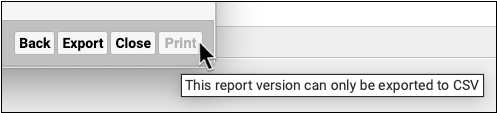
If you need to export to PDF or print one of your saved results, generate a new version with the same criteria from the Report Library landing page, or wait for the scheduled report to run.
Share Your Screen with PCC Support
ScreenConnect gives PCC live access to your workstation for support, troubleshooting, and training. The ScreenConnect application creates a secure connection during each individual session.
Install and Launch ScreenConnect for Windows
To use ScreenConnect, you will need to install ScreenConnect files. You may need your computer’s admin password if install and download permissions are locked on your workstation.
Install ScreenConnect
To install a ScreenConnect instance, use the unique session code that you receive from PCC Support to download your session’s ScreenConnect zip file.
Navigate to the ScreenConnect Login Page
During a support call, open your preferred browser and type the url “help.pcc.com” or “https://pccvt.screenconnect.com”.

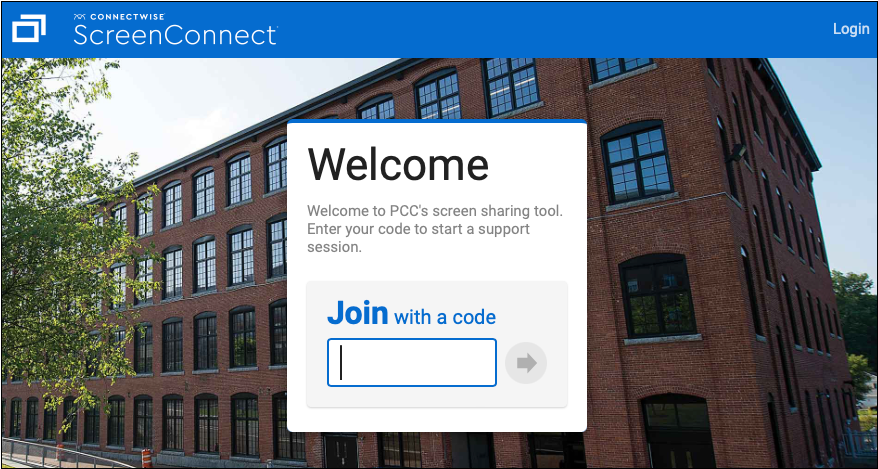
Receive Your Unique Session Code
Your PCC support person will create a new ScreenConnect session. Once the session is live, they will give you a unique session code.
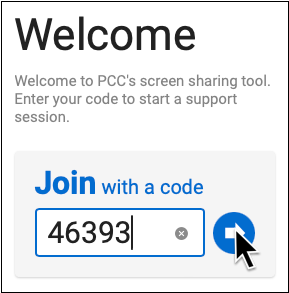
Enter Your Code
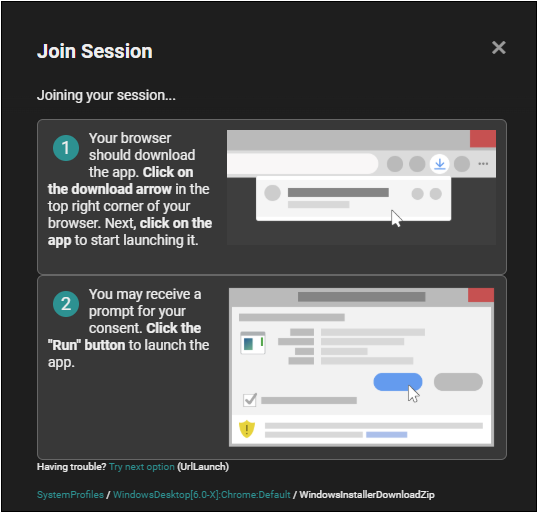
Enter your unique session code and click the arrow button. A zip file for your unique session will download.
Extract and Run the ScreenConnect Instance
Open the ScreenConnect Zip File
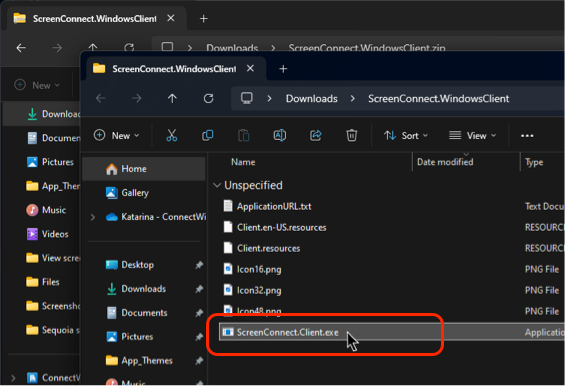
Once the download is complete, click your browser’s download arrow or navigate to your Downloads folder. Double-click the ScreenConnect.WindowsClient.zip file to open it.
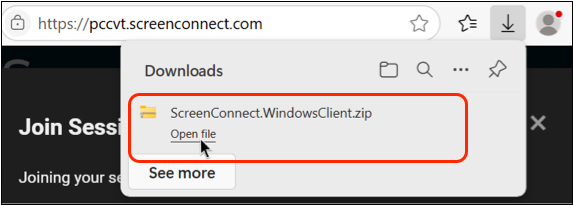
A window displaying the contents of the zip file will open.
Extract All Files in the ScreenConnect Zip File
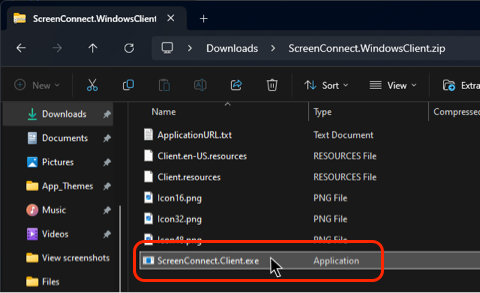
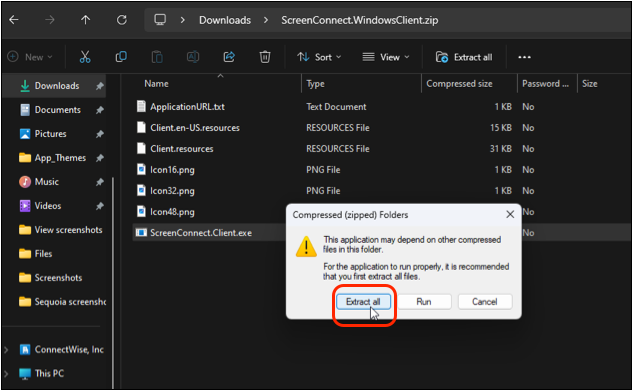
Double-click on the ScreenConnect.Client.exe file within the zip file window to extract the contents. When prompted, click “Extract All”.
Select a File Destination
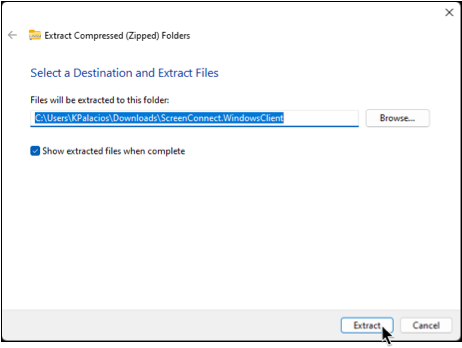
You can use the default destination or enter a chosen destination for the extracted file. Then click “Extract”.
Run the ScreenConnect Application
When a new window opens, double-click on the ScreenConnect.Client.exe file to run the application.
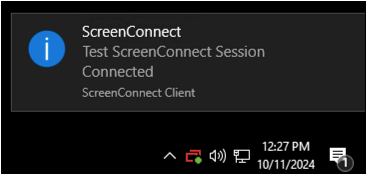
Along with a confirmation message, you may notice a change in background color and new icon in your system tray.
Install and Launch ScreenConnect for Mac
To use ScreenConnect, you will need to install ScreenConnect files. You may need your computer’s admin password if install and download permissions are locked on your workstation.
Install ScreenConnect
To install a ScreenConnect instance, use the unique session code that you receive from PCC Support to download your session’s ScreenConnect zip file.
Navigate to the ScreenConnect Login Page
During a support call, open your preferred browser and type the url “help.pcc.com” or “https://pccvt.screenconnect.com”.
Receive Your Unique Session Code
Your PCC support person will create a new ScreenConnect session. Once the session is live, they will give you a unique session code.
Enter Your Code
Enter your unique session code and click the arrow to open your session.
Download the ScreenConnect Application
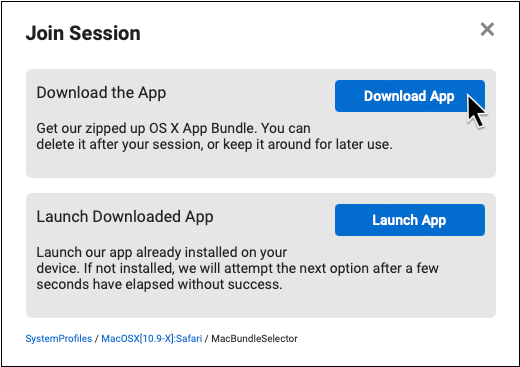
Click “Download App” to download the ScreenConnect application.
Grant ScreenConnect Access to Your Workstation
Mac users downloading ScreenConnect for the first time may need to grant the application access to their workstation.
Open System Settings
Click the “Open System Settings” button at the prompt. This will take you directly to the Privacy & Security section of your settings.
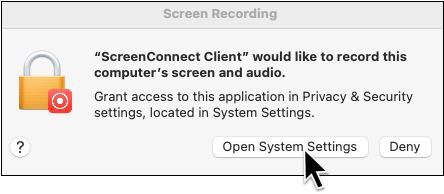
If you do not see a prompt, you can access these permissions in System Settings. Once there, navigate to Privacy & Security, then open Screen & System Audio Recording.
Add ScreenConnect
Click the “+” icon, then search for ScreenConnect and select it.
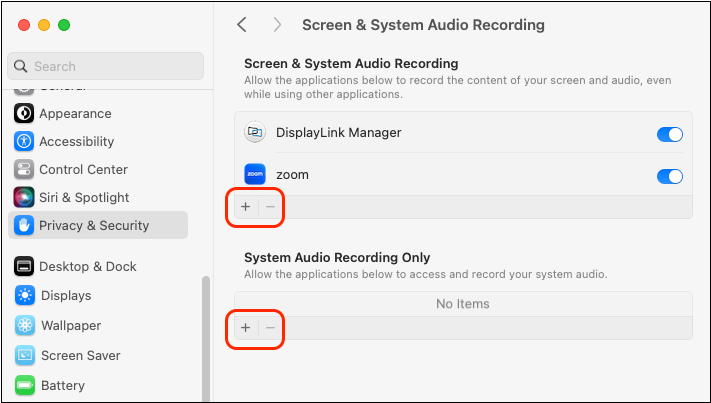
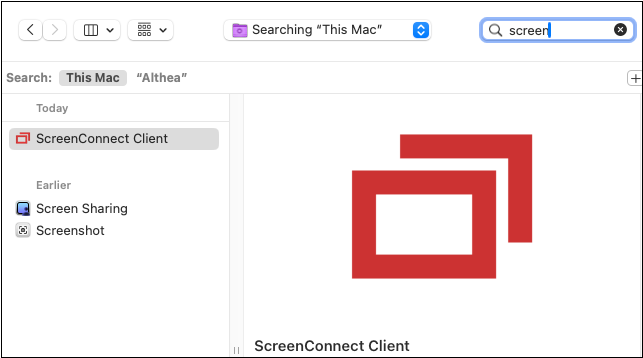
ScreenConnect will already be present in your Screen and System Audio Recording settings if you have used ScreenConnect in the past.
Grant ScreenConnect Access to Your Workstation
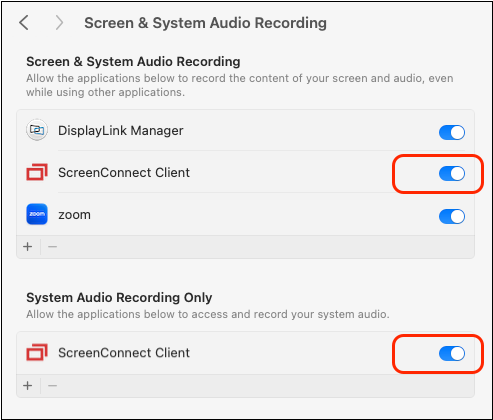
Click the ScreenConnect slider to the “on” position to grant access to your workstation.
Enter Your Username and Password
Enter your computer’s username and password if prompted.
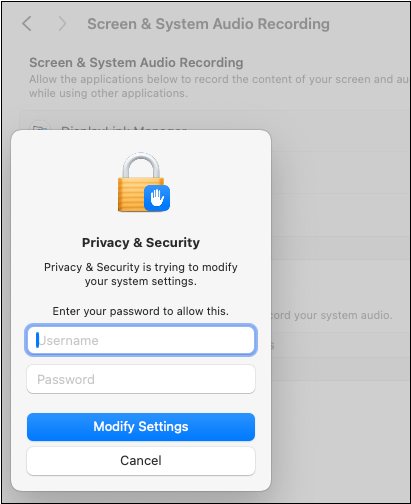
Still Not Connected?: If these permissions do not grant access to ScreenConnect, you may also need to adjust settings in Accessibility and Full Disk Access. These are sections within the Privacy & Security portion of your Mac’s System Settings.
Launch ScreenConnect
After you download the ScreenConnect application, launch the application to share your screen with PCC.
Launch the ScreenConnect Application
Click the “Launch App” button to launch the application.
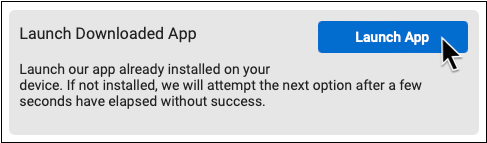
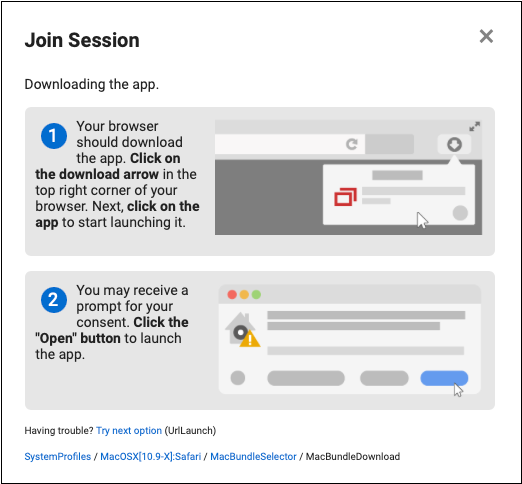
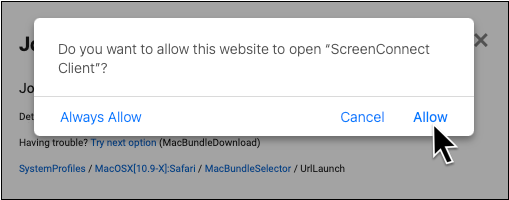
Allow Your Browser to Open ScreenConnect
Click “Allow” or “Always Allow” if you are prompted to do so.
You may notice a change in your desktop background color when you are connected. A ScreenConnect options bar will appear at the top of your screen.

End a ScreenConnect Session
To end a ScreenConnect session, click “Exit” in the ScreenConnect options bar.
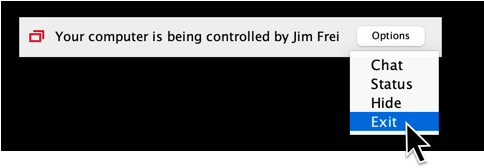
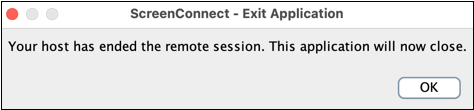
If your PCC support person ends the session first, you will be notified with an Exit Application popup.
Use Your Mobile Device’s Camera for Workspace and Equipment Triage
You can use your phone, tablet, or laptop camera to work out a problem with your physical workspace, hardware or other equipment with a ConnectWise View session.
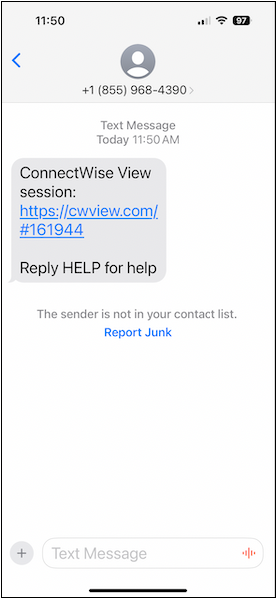
Request a ConnectWise View Session
Ask your PCC support person to text or email you a ConnectWise View session link. You can also request a url to type in to your device’s web browser.
Confirm Your Link
Check with your PCC support person that the link you received is the correct one. You can avoid phishing scams by always confirming a link before tapping on it.
Tap Your Link
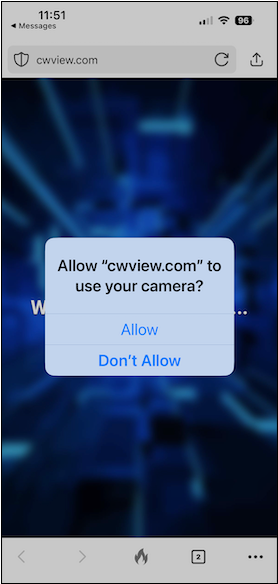
Tap the link and, if prompted, grant permission to use your camera for workspace triage.
Your PCC support person will see the view from your mobile device’s camera and begin triage.
PCC can control which camera view is selected on a phone, as well as whether to mute the mobile device or use a low-bandwidth setting.
End Your ConnectWise View Session
To end a ConnectWise View session, close the browser window on your phone.
Print Lab Specimen Labels
You can easily print specimen labels for labs that are configured for specimen collection.
Video: Watch Print Lab Specimen Labels to see this feature in action.
Find the Patient’s Open Lab Orders
Open the patient’s encounter and find their open lab orders.
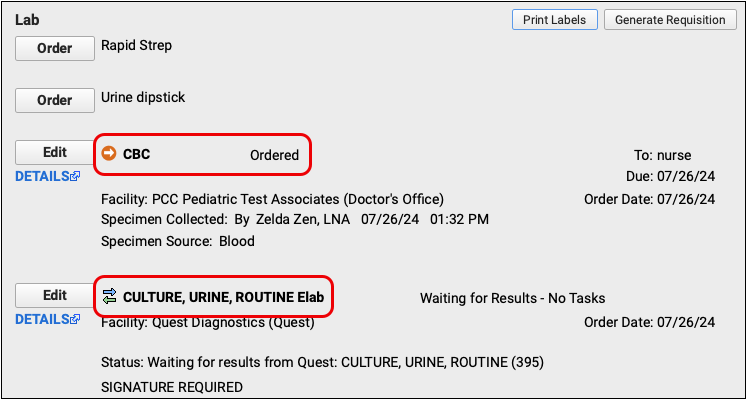
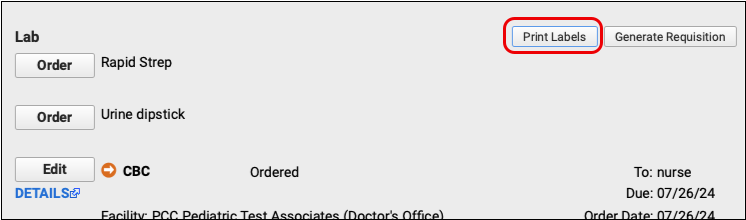
Click “Print Labels”
Click the “Print Labels” button to create labels for all lab orders in the encounter that require specimen collection.
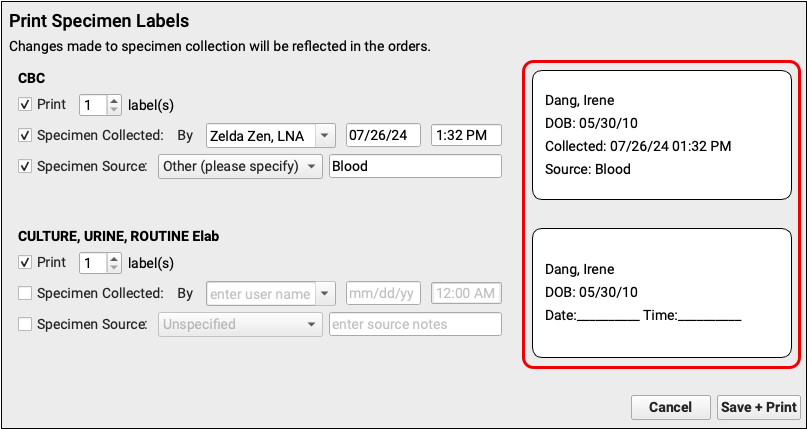
Preview the Labels
Use the label previews to see which labels will print and how they will look. Use the options on the screen to adjust the format as necessary.
Labels Only Generate for Lab Orders that Require Specimen Collection: You can only print labels for lab orders that are configured to require specimen collection. To learn how to configure labs for specimen collection, read Step 3 of Create or Edit a Lab Order
Optionally Adjust the Number of Labels to Print
You can adjust the number of labels to print for each lab order.

To prevent a label from printing altogether, deselect the “Print” checkbox.
Optionally Adjust Specimen Collection and Source Information
Specimen collection details recorded for any given lab order appear on the corresponding label by default. You can optionally edit those details on the label preview screen.

To clear specimen collection details from the lab order and exclude them from the label, deselect the “Specimen Collected” and “Specimen Source” checkboxes. When no specimen collection details are recorded on the lab order or included on the label, PCC EHR leaves space to handwrite a collection date and time.

To record a custom specimen source or prompt someone to write one in by hand, select the “Specimen Source” checkbox and change the drop-down to “Other (please specify)”.

Changes to Specimen Collection and Source Reflect on Lab Orders: If you edit the specimen collection and source details on the Print Labels screen, the changes save to the lab orders in the patient’s encounter as soon as you click “Save + Print”.
Print the Labels
Click the “Save + Print” button to print the labels.

PCC EHR automatically searches for a printer that is set up to print 2-1/8” x 1” labels or similar. Confirm that the correct printer is selected and that the orientation is set to landscape, then click the “Print” button to finish printing the labels.
Compatible Printers and Labels
PCC has tested this functionality with DYMO 450 and 550 label printers and 30336 (2-1/8” x 1”) and 30252 (3-1/2″ x 1-1/8″) labels.
Other printers and label sizes may work.
To learn more about which equipment is compatible with your PCC system, read Hardware Guide: Your Personal Computer and Equipment.
Reconcile Insurance Payments
When you are troubleshooting an insurance check or proving out and auditing payments on an ERA, you can use two Report Library reports to reconcile payment totals:
- The Payment Totals by Check Number report displays check totals by date.
- The Payment Details by Check Number report displays each individual payment on a particular check.
Check Number or EFT Trace Number?: “Check Number” is the conventional term for the number associated with the payment. Depending on how your practice received the funds, the check number may actually be an EFT trace number.
Reconcile Insurance Payment Totals
After posting insurance and other payments, run the Payment Totals by Check Number report in the Report Library to compare the posted payments with your ERA or EOB.
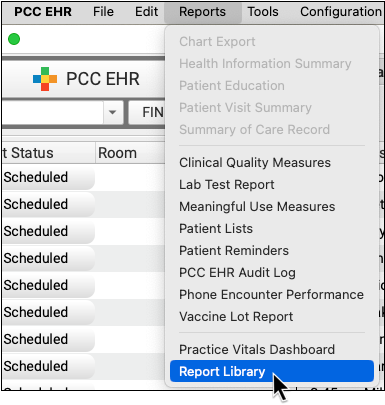
Open the Report Library
Open the Report Library from the Reports menu in PCC EHR.
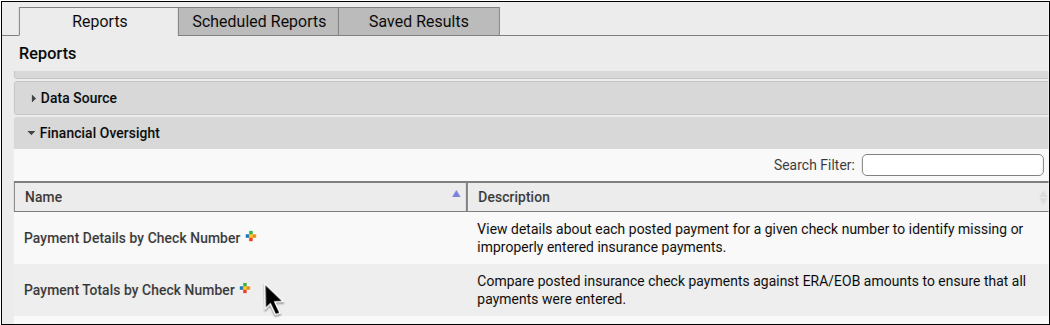
Select the Payment Totals by Check Number Report
Select the Payment Totals by Check Number report in the Financial Oversight category.
You can control which users have access to this report. To learn more, visit Restrict Access to Reports in the PCC EHR Report Library.
Choose Report Criteria
Choose the posting date and payment classes that you wish to report on.
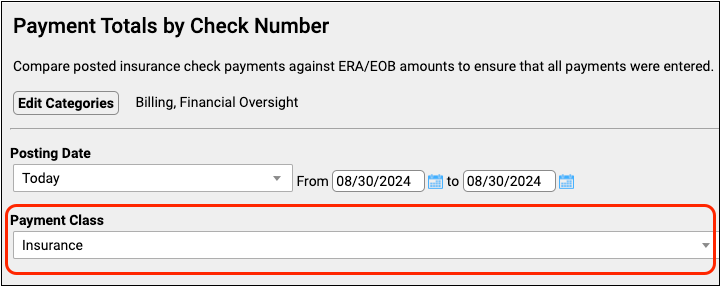
View the Report Results
Click the “View Results” button to run the report.

Review the Generated Report
Review your payment data by check number in the generated report. Refunds or takebacks display in parentheses.
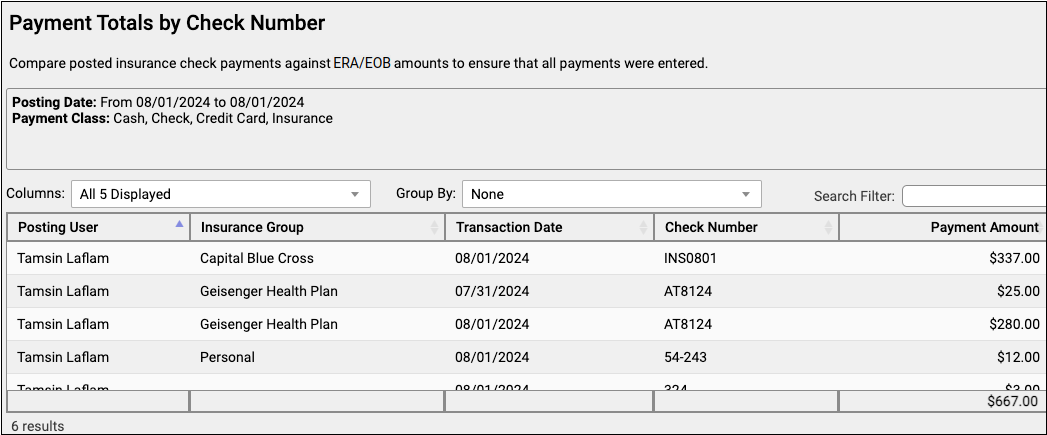
You can group, sort, or hide columns in the report output. To learn more about working with generated reports, read Run Reports in the Report Library.
For more specific information about how to handle an insurance reversal, read Handle Insurance Reversals (Post a “Takeback”).
Reconcile Payments with the Generated Report
To ensure that all payments are present, compare the generated report with your ERA or EOB.
If the values do not match, make a note of the check number and total on this report, then run the Payment Details by Check Number report (as described in the Investigate Payment Details section below) to compare each individual entry and find the discrepancy.
Keep in mind that this report does not display adjustments. To learn about how to review adjustment trends, read Report on Adjustment Trends in PCC EHR
20,000 Row Limit: Exports from the report output (View Results screen) in the Report Library are currently limited to 20,000 rows. If your output appears to be exactly 20,000 rows long, it may not contain all of the information that you are looking for. If this occurs, return to the report configuration screen and click “Export Report” to get your full report. Read Export a Report to learn more.
Investigate Payment Details
When entries in the Payment Totals by Check Number report do not match the numbers on your ERA or EOB, run the Payment Details by Check Number report to see the details for each payment entry.
Select the Payment Details by Check Number Report
Select the Payment Details by Check Number report in the Financial Oversight category.
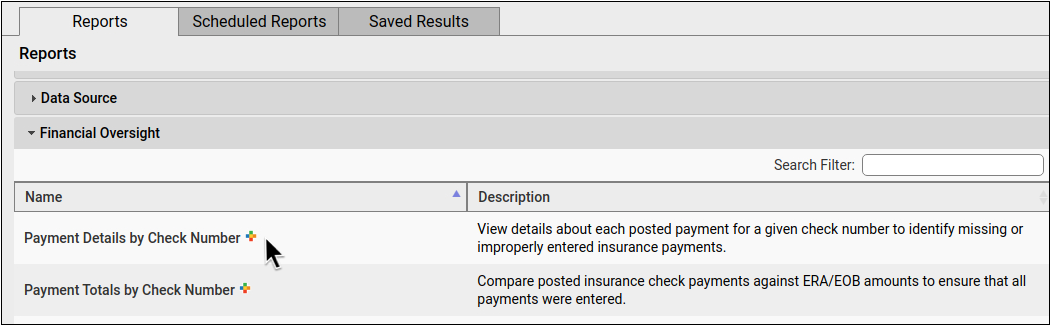
You can control which users have access to this report. To learn more, visit Restrict Access to Reports in the PCC EHR Report Library.
Choose a Posting Date Range
Use the drop-down, date fields, or calendar icon to choose a posting date.
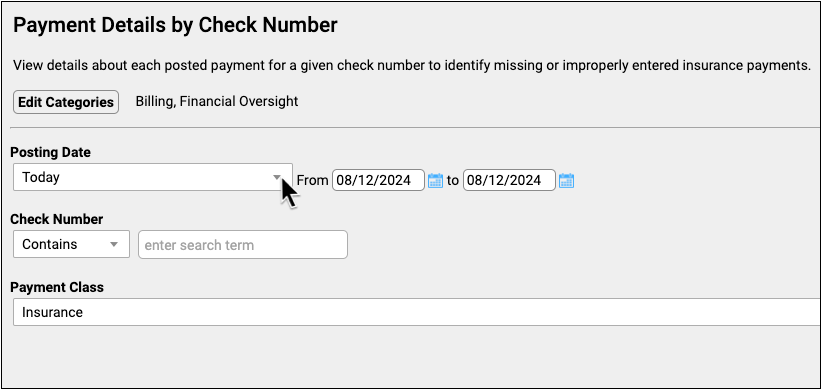
Posting Date is the date that the payment was entered into PCC.
Optionally Search for the Check Number
To search for your check number, choose a search method and enter some or all of your check number into the search field.
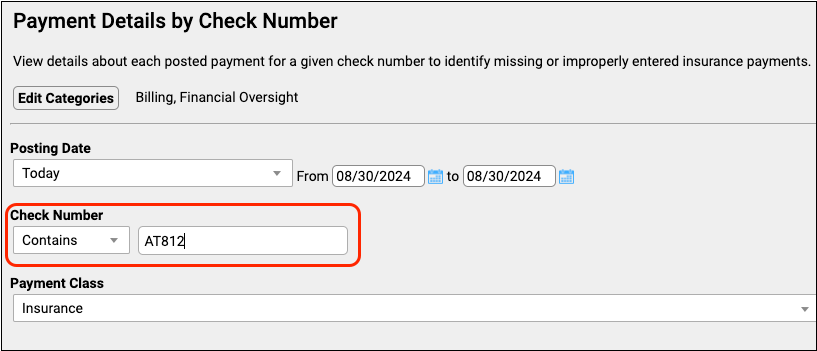
The search can be broadened or narrowed as needed.
Contains: searches for checks that contain your entry in any part of the check number.
Equals: searches for only an exact match with your entry.
Starts with: searches for check numbers that start with your entry.
Ends with: searches for check numbers that end with your entry.
Different Refund Check Number: Takebacks and refunds will have a different check number from the original payment, so run the report with a limited date range instead of a check number to see refunds with the original payment in this report.
Set Payment Class
Set the payment classes that you want to include on your report.
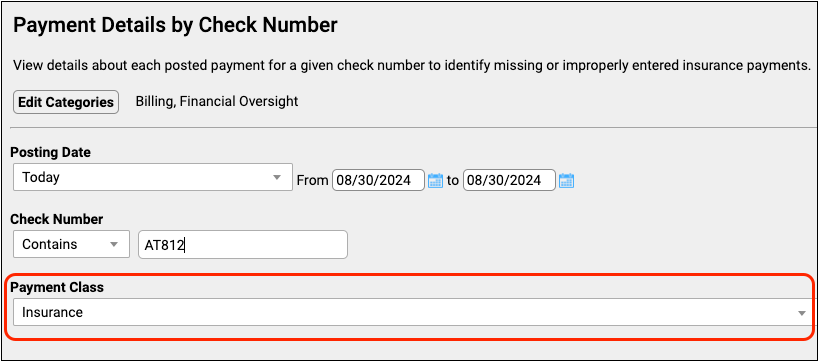
View the Report Results
Click the “View Results” button to run the report.
Compare Posted Payments with the Generated Report
Locate the data that you need and compare the generated report with your ERA or EOB amounts to ensure that all payments and charges are present and correct. Refunds or takebacks display in parentheses in this report.
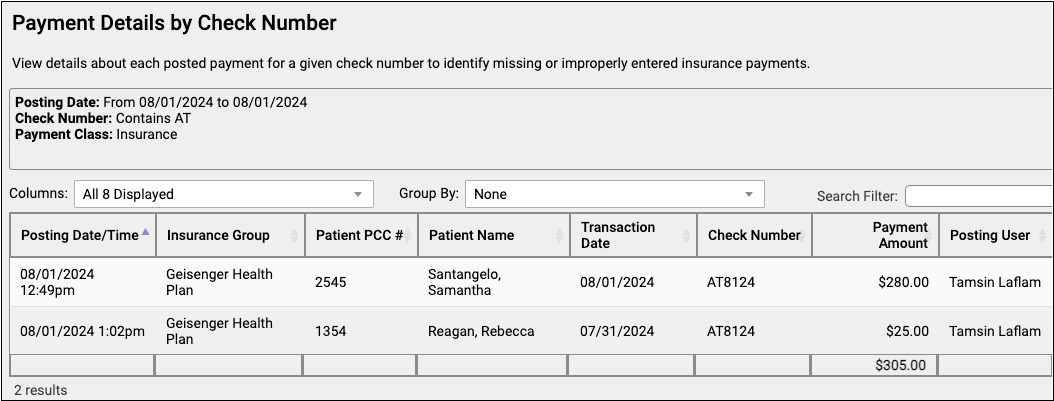
You can group, sort, or hide columns in the report output. To learn more about working with generated reports, read Run Reports in the Report Library.
Fix Payments That Were Posted Incorrectly
As you review these reports, you may find payments that were posted incorrectly.
Use either the Payments tool or the Insurance Payments tool in PCC EHR to review and edit an individual account’s full payment history. For more information, read Review Payment History and Edit Personal Payments.
Prove Out Daily: If you catch and correct mistakes on the same day as they were posted, the dates on your proving out reports will match cleanly when you run by posting date.
Customize to Display Additional Criteria and Columns
You can further organize your output by customizing your report and altering criteria.
Add Transaction Date
Both of these reports run by posting date as the default. To add the transaction date to either of these reports, customize your report, click “Select Criteria”, then select “Transaction Date”.

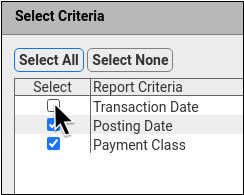
Once selected, the transaction date will display in the customization screen and on the generated report output.
Display Posting Date Column
To display the posting date column on the Payment Totals by Check Number report, customize your report, click “Edit”, then select “Posting Date”.
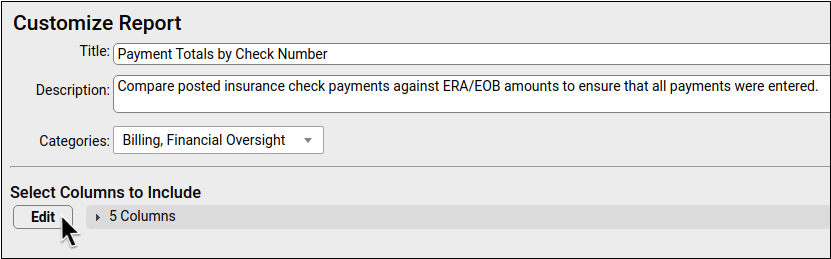
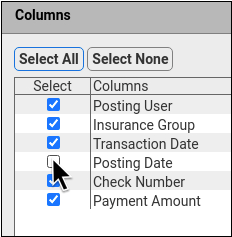
Once selected, the Posting Date column will display on the generated report output.
To learn more about creating a custom report, read Create a Custom Report.
UC 2024 Videos and Course Materials
In 2024, PCC’s Users’ Conference was held in Denver, Colorado. We celebrated pediatric superheroes!

Around 900 attendees participated both online and in-person in 60+ courses, sessions, and roundtables on issues of importance to pediatric practices.
Many sessions were recorded, and where possible we’ve made them available on a PCC UC 2024 playlist and through the links below.
You can review conference details at pcc.com’s UC 2024 page.
Course Descriptions, Slides, and Videos
| Course Title | Course Description | Materials |
| 7 Billing Pitfalls and How to Correct and Avoid Them |
This session details certain all too common hazards of revenue cycle management along with specific corrective action to take in order to quickly resolve these problems. Preventative measures are then outlined in order to avoid these vulnerabilities in the future.
Presented By: Heidi Chamberlin |
|
| A Doctor and a Coder Walk Into a Phone Booth… |
The exact types of expertise needed to really nail documentation and E&M compliance are shared in this entertaining and interactive session. Krekamey Craig, MD shares real encounter examples from her experience as a practicing Pediatrician and Jan Blanchard highlights the coding guardrails around billing for these Primary Care Pediatric services. Come get the best guidance from both of the worlds you must navigate to be paid for all that you do and to *keep* that payment.
Presented By: Jan Blanchard, Krekamey Craig |
|
| Are You Charting Like It’s 2024? |
If your office has been using PCC EHR for 5 years or more, have you kept your configuration updated to take advantage of the new features in PCC EHR? In this session you will learn how PCC EHR is configured for new PCC practices, from protocols to forms to billing so you can ensure that you are taking advantage of relatively new PCC EHR functionality.
Presented By: Lynne Gratton, Brian Kennedy, Hiral Lavania |
|
| Ask Chip |
Bring any questions that are still bouncing in your head and Chip will do his best to answer them!
Presented By: Chip Hart |
|
| Billing Drop-in — Live from the UC! |
Come meet all of your Pediatric Billing peers at this live, in person event modeled on our monthly virtual get togethers. No one knows your work like billing experts! Who better to offer solutions, time savers, shortcuts, tools, and resources than your fellow peers who are also using PCC? This is an opportunity to bring your questions and challenges to peers and experts in a low-key, casual, and friendly face-to-face environment.
Presented By: Jan Blanchard, Kelsey Taveras, Brian Kennedy, Kristen Ryan, Ben Brandt |
|
| Building a Practice Where People Want To Work |
This client panel will share their experiences with building a practice where people want to work, both literally and figuratively! Join us for a discussion with practice owners (and an architect!) who have built their practice from the ground up, and hear about the architectural choices they made to support the practice culture they believe in, as well as the culture they’ve built to create satisfied employees, and more effectively deliver care to the children of their communities.
Presented By: David Allen, Katie Schafer, Christoph Diasio, Christine Dandeneau, Erin Auer |
|
| Building Your CEO Brain |
As the profession of pediatrics has evolved, so has the need for pediatric practice owners to change the way they approach running their businesses. “No Margin, No Mission” has been the SOAPM mission statement for some time. Chip will discuss the difference among the employee, owner, and CEO mindsets and how to approach the future of running your practice.
Presented By: Chip Hart |
|
| Building Your Practice Budget |
Bring together all the financial data points to plan your future! Join Paulie Vanchiere from PMI as he walks you through the steps to create a budget for your practice. Leveraging practical experience, participants will learn what they need to know to properly plan your financial future.
Presented By: Paul Vanchiere |
|
| Change Management for Managing Change |
Every day in a busy pediatric practice you’re overwhelmed by the number of tactical decisions you need to make. This makes it difficult to think strategically for your practice. How can you ever evolve to become the practice you dreamed of if you don’t have the time or organizational capacity to make the necessary changes? We will review a few simple guidelines that will help your practice make important changes to improve the quality of your care and the success of your practice.
Presented By: Erin Auer |
|
| Clinical Oversight Reporting |
As a managing physician or practice administrator, do you wonder which clinical reports you should be monitoring regularly to ensure the practice is operating successfully? This session will highlight PCC’s robust reporting capabilities, with a focus on clinical oversight reporting. You will learn how to report on clinical operations related to vaccine inventory, orders, and prescription activity. Discover how to use PCC’s Report Library for preventive and chronic care recall. We will also delve into high-level strategic reporting of clinical measures within PCC’s Dashboard including vaccine rates, well visit rates, screening rates, and more. Discover how a focus on your practice’s clinical health will also translate to financial success.
Presented By: Tim Proctor, Sabina Hasanovich |
|
| Do You Work With The Wrong People? |
The people who chose to work with and work for you have a profound effect on your career satisfaction, ability to fight burnout, and ultimately the quality and quantity of care you provide children. You have only one run through your career – what can you do to get it right?
Presented By: Chip Hart |
|
| Electronic Prior Authorization: The Next Big Thing for PCC eRx |
Join PCC’s Dewey Howell, MD, PhD (the creator of PCC eRx!) for an in-depth review of an exciting integration for our prescribing tool: Electronic Prior Authorization (ePA). See a sneak peak of our upcoming changes and provide early feedback. Your input matters!
Presented By: Dewey Howell, MD, PhD |
|
| Employee Satisfaction & Retention: An Overview of PCC’s Benefits |
Join PCC’s People and Culture Champion Megan Maddocks as she shares an overview of PCC’s unique benefit package and the strategy thereof. This session will also include an opportunity to hear from your peers on the benefit packages in place at their own practice.
Presented By: Grace Kuzmin, Megan Maddocks |
|
| Engaging with Your Patients |
Learn the proper usage and best practices for PCC’s various messaging and patient engagement tools, including Broadcast Messaging, Send Text, and Notify, among others. Get up to date with all the recent changes, tips, and tricks.
Presented By: Jim Leahy, Chip Hart |
|
| Establishing Strong Routines So You Don’t Have to Do it All Yourself |
In this session, we will review the role of strong routines in leadership when it comes to delegation. Discover what your routines should look like to ensure you get what you need, and don’t have to fight for it. Learn how to set clear expectations, to hold people accountable, and how to change course if your expectations aren’t being met. We will share real-life examples of how this has worked for others.
Presented By: Emily Floyd |
|
| Financial Oversight Reporting |
As a managing physician or practice administrator, do you wonder which financial reports you should be monitoring regularly to ensure the practice is operating successfully? This session will highlight PCC’s robust reporting capabilities, with a focus on billing oversight and productivity reporting. You will learn how to do a pricing and payment analysis, and develop an understanding of high-level strategic measures within PCC’s Dashboard product. Discover the numbers that really matter to your practice’s financial health and how to find and track the information you need most.
Presented By: Tim Proctor |
|
| From Configuration to Refrigeration: Vaccine Management 101 |
PCC knows how important vaccines are to the care of pediatric patients. Stop by this session to boost your knowledge of everything required to properly configure your system and manage your vaccine inventory – especially in the ever-changing industry. Immunization super users across PCC will join forces to share best practices around tables, billing, the Vaccine Lot Manager, and much more!
Presented By: Romni Palmer, Brian Kennedy, Jim Smith, Jennifer Perren |
|
| From Giving the Shot to Reconciling Lots: Vaccine Administration 201 |
Now that you’ve tackled the tables, navigated NDCs, and increased your inventory, you’re ready for the next step: the actual administration of the vaccine. Attendees of this course can expect an in-depth exploration of workflow related to administering vaccines, connecting to your state immunization registry, obtaining the perfect school form, and so much more!
Presented By: Romni Palmer, Brian Kennedy, Jim Smith, Jennifer Perren |
|
| Front Desk Best Practices |
PCC’s Lynne Gratton, CPPM, explores front desk best practices related to scheduling, check-in, insurance verification and copay collection and what has changed as offices work within the pandemic. Understand the importance of the front desk when it comes to your practice’s workflow and collection process.
Presented By: Lynne Gratton |
|
| Grow Your Own EDI Superuser |
Explore the lifecycle of electronic eligibility requests, claim submissions, and ERA responses. Along the way, you will learn about the underlying transactions (837P, 270 and 271, 835). By the end of this course, you’ll become the EDI superuser your practice needs: you’ll understand how to troubleshoot eligibility issues, decode confusing payor responses, and when to work with PCC.
Presented By: Brian Kennedy |
|
| Harnessing the Pediatric Superpower of Curiosity |
Inspire pediatric practices to spark hope in their pediatric practice teams by framing challenges through the lens of curiosity.
Presented By: Susan Kressly |
|
| Help Us Help You |
Communicate with PCC Support for both acute issues and long term practice health. You will learn how to use our learn.pcc.com resources, our Support Portal, and how to receive proactive care via your Client Advocate. You will also learn how PCC structures our support teams, ensuring there are always experts at the ready to answer your software, hardware, or clinical workflow questions.
Presented By: Jerry Wolfenbarger |
|
| HIPAA: Securing Your Patients and Practice |
This session will review HIPAA basics, take a look at what is on the legislative horizon, and provide education around common security threats.
Presented By: Megan Maddocks |
|
| How Pediatric Research in Office Settings (PROS) Has Changed Pediatric Care |
Drawing on the nearly 40 years history of the American Academy of Pediatrics Pediatric Research in Office Settings (PROS) network, we will draw lessons from the history of how a group of visionaries established PROS, review results of studies that continue to transform pediatric primary care and how to apply results in practice, and highlight opportunities to get involved in the next generation of studies addressing sone of the most salient problems impacting primary care and children’s health. Learning objectives: We will enable participants to: 1. apply lessons from PROS’ founding to address current problems in pediatric care 2. integrate key results from PROS’ studies into their practice 3. participate in building the future evidence base for primary care through PROS research.
Presented By: Alexander Fiks |
|
| Improve Your Leadership Through Active Curiosity: The Power of “Huh!” |
Curiosity is like an underutilized superpower living right next door to you. When applied in proper ways, it can dramatically improve operations, strategy, collaboration, and problem solving at your practice. In this session, learn how to develop and harness the power of curiosity and apply it in specific ways to positively transform the relations in your practice.
Presented By: Tim Rushford |
|
| Insurance Negotiations, a 4 Part Series |
Learn how to prepare for and execute a successful negotiation with payors. This four part session will walk you through gathering the data you need and doing the negotiation dance with a payor so that you get paid what you deserve for the care you provide to children. Part 1: Getting Your Data Ducks In a Row. Chip Hart will walk you through the data you need to give yourself the best chance at success when negotiating with insurance companies. There’s nothing more powerful than a pediatrician with data! Part 2: Finally at the Table – Managing Contract Negotiations. What do you do when you’ve got a Payer at the table? Susanne Morgana Brennan will take you step by step through the process of successfully negotiating with an insurance company. It is a long dance and at the end of this session, you’ll know the steps. Part 3: Understanding Business Implications – Navigating Possible Outcomes. Paul Vanchiere will take you through the business implications of your insurance negotiation. In particular, you’ll learn how to analyze an offer from payor and determine its impact on your business. Part 4: Contracting Tips and Tricks – Practice Manager’s Perspective. Kimberly Brennan brings the real-world perspective. As a practice administrator, she’ll give you actionable tools and guidance on creating and maintaining your practice’s payer contracting program. Includes simple Google sheet template to use for contract organization.
Presented By: Susanne Morgana Brennan, Kimberly Brennan, Paul Vanchiere, Chip Hart |
|
| Is Your Practice 401(k) Ripping You Off? |
Many small practices are overpaying for their 401(k) and you get to keep what you don’t pay for! We will present best practices and describe our 401(k) restructure.
Presented By: Christoph Diasio |
|
| Mastering Spreadsheets 101: Enhance Your Data Analysis & Reporting Proficiency! |
Unlock the full potential of spreadsheets with ‘Mastering Spreadsheets 101: Enhance Your Data Analysis & Reporting Proficiency!’ This course is tailored to empower you with advanced techniques to automate and optimize your sheets, enabling them to handle the heavy lifting, thus minimizing your manual efforts. Dive deep into strategic ways to make spreadsheets work to your advantage, turning them into powerful tools for insightful reporting and data analysis. Whether you’re a beginner or looking to upgrade your existing skills, this course is designed to elevate your proficiency, ensuring you leverage spreadsheets to their maximum capability.
Presented By: Stephen Moore |
|
| New Forms to the Rescue: Featuring Refactorman and His Minions |
Join members of PCC’s Forms development team as they walk you through features of PCC’s new forms solution including how to insert variables, response prompts, headers, footers, signatures, columns, margin control, and much more. Learn how to take control over patient form creation at your practice.
Presented By: Tim Proctor, Dan Gillette |
|
| Optimizing Lab and Referral Workflows |
Are you looking to improve your lab or referral workflows? Join us as we share best practices on using PCC EHR features to manage lab and referral workflows. You will also have the opportunity to hear various strategies that other PCC practices are using to manage their workflows.
Presented By: Lynne Gratton, Nick Meunier |
|
| Panel on Incorporating Behavioral Health |
This panel will explore the role of mental health and behavioral intervention in the pediatric office. We will discuss care coordination, in-house mental health services, community resources, strategies, and more. Bring your questions and anecdotes.
Presented By: Michael Chamberlin, David Allen, Christoph Diasio, Althea Beagley, Nelson Branco |
|
| Patient Pre-Check-In |
Are you interested in learning more about PCC’s Pre-Check-In feature and how best to use this at your practice? Are you already using Pre-Check-In and want to learn how others have adopted it at their practice? Join PCC and your peers in a review of PCC’s new Patient Pre-Check-In tool. We’ll discuss the best practices for implementing this tool and managing your accounts to deliver the best possible return on pre-check-in. As part of this course, we’ll also discuss upcoming features and offer you a chance to provide feedback on what you would like to see next in the development of this helpful feature.
Presented By: Jim Leahy, Lee Gaboriault, Althea Beagley |
|
| PCC Billing, Now in Technicolor! Post Charges, Payments, Submit Claims, and More in PCC EHR! |
Complete your daily billing tasks in PCC EHR! From checking eligibility to working with personal payments, to submitting claims and posting insurance payments, PCC EHR has tools that will empower your billing lifecycle. Leave behind the text-based darkness of yesterday and learn about PCC EHR’s latest features.
Presented By: Ben Brandt |
|
| PCC EHR Configuration & Workflow for Pediatric Medical Homes |
Patient Centered Medical Home is not just a certificate, it’s actually a concept of care delivery. Learn from industry experts the most effective patient-facing workflows that affect your daily operations.
Presented By: Kate Taylor, Amanda Ciadella |
|
| Pre-conference: Advanced Clinical Reporting Workshop |
Looking to gain a deeper understanding of how to use the EHR Report Library and Practice Vitals Dashboard for clinical oversight and population management of your practice? Join us for this hands-on, interactive workshop to explore some of the advanced functionality within the EHR Report Library. Your PCC instructors will introduce you to the various data sources within the Report Library. Learn how to manage report permissions as well as how to customize and schedule reports. Come prepared with a laptop enabled with connectivity to your practice. One goal of this session is to create at least one new customized clinical report on your own practice server.
Presented By: Tim Proctor, Jim Leahy |
|
| Pre-conference: Advanced Financial Reporting Workshop |
Looking to gain a deeper understanding of how to build customized financial reports using PCC’s reporting tools? Join us for this hands-on, interactive workshop to explore some of the advanced functionality within the Smart Report Suite (srs) and Practice Vitals Dashboard. Your PCC instructors will introduce you to report data sources and how to build customized report filters and output to meet your reporting needs. Come prepared with a laptop enabled with connectivity to your practice. One goal of this session is to create at least one new customized report on your own practice server.
Presented By: Tim Proctor, Jim Leahy |
|
| Pre-conference: Advanced Roundtable |
Join PCC instructors and your peers for a free-flowing discussion of a variety of advanced topics.
Presented By: Lynne Gratton, Ben Brandt |
|
| Pre-conference: Beginner Roundtable |
Join PCC instructors and your peers for a free-flowing discussion of a variety of introductory topics.
Presented By: Morgan Ellixson Boyea, CPhT, CSPO, Tim Proctor |
|
| Pre-conference: Introduction to Practice Vitals Dashboard |
As a managing physician or practice administrator, have you ever wondered how your practice is performing with key clinical and financial indicators? This introductory session will provide an overview of PCC’s robust Dashboard reporting capabilities, focusing on measures that will allow you to keep your finger on the pulse of your practice.
Presented By: Tim Proctor |
|
| Pre-conference: Optimal Billing Workflows |
Establishing a consistent and efficient process for Accounts Receivable investigation is vital to your practice’s success. In this course we will explore how to establish successful billing processes and how to use PCC tools, reports, and recommended workflows for quickly identifying billing issues when they arise (or even before they arise), ultimately helping you to improve the financial health of your practice.
Presented By: Ben Brandt |
|
| Pre-conference: Optimize Billing Configuration in PCC EHR |
In this session you will learn how to customize billing and table configuration to reflect the unique characteristics of your practice. Learn how insurance, procedure, and payment configuration can be optimized to meet the reporting and billing workflow needs of your practice.
Presented By: Ben Brandt |
|
| Pre-conference: PCC eRx 101: Prescribing Fundamentals |
Are you brand new to prescribing with PCC eRx? Or simply want a review of the fundamentals? Join PCC’s Morgan Ellixson-Boyea, CPhT, CSPO for an in-depth tour of our prescribing software including dedicated time for questions. This course is designed for beginners, but anyone interested in learning more about PCC eRx is welcome to join us.
Presented By: Morgan Ellixson Boyea, CPhT, CSPO |
|
| Pre-conference: PCC eRx 201: Beyond the Basics & Advanced Configuration |
Are you eager to enhance your experience with PCC eRx? Stop by our advanced session to learn about powerful configuration options and optimize prescribing for your office. PCC’s Morgan Ellixson-Boyea, CPhT, CSPO will guide you through a variety of time-saving customizations – both personal and office-wide. If you create prescriptions in PCC eRx, or assist someone who does – this session is for you! Note – some configuration options are only available for users with eRx Administration privileges.
Presented By: Morgan Ellixson Boyea, CPhT, CSPO |
|
| Pre-conference: Protocol Work Session |
When did you last give yourself time to look at your protocols and update them? Come hang out with some of the PCC’s Ensure Success team to review and plan how to update your protocols, making charting easier for you *and* your staff. We will take a look at a few protocols we’ve seen new clients create to get you thinking outside the box.
Presented By: Lynne Gratton, Nick Meunier, Nicole Broderick, Jennifer Perren |
|
| Pre-conference: Tour of the EHR |
Join your PCC tour guide as we journey around the EHR visiting familiar places such as the appointment book and protocol configuration tool. We’ll discuss scheduling workflow, templates, and other schedule configuration aspects. We’ll review how to configure protocols, components, clinical alerts, and much more.
Presented By: Nick Meunier |
|
| Problem Solving by the Numbers |
Physician owners and practice administrators must be well-versed in critical thinking skills to run a successful and viable practice. In this session, attendees will learn the methods that successful owners and managers use to guide their decisions and will discuss real-life examples of how these abilities can be applied for solving problems. Attendees will leave this session with a better understanding of how numbers should inform their day-to-day practice operations.
Presented By: Katrina Skinner |
|
| Show Me the Money! How to Generate and Save It In Private Practice |
We work for the love of the children, but private practice margins for pediatricians can be tight. In this session, we’ll share areas of commonly missed existing revenue, ways to add new revenue, and where to look to save on expenses.
Presented By: Karina Horton |
|
| The Dreaded Frequent Patient Complaints in Billing |
Patient complaints are bound to happen and there is a good chance we will never live in a world where you can make everyone happy all the time, however, recognizing the most frequent complaints from patients regarding their billing can put you one step ahead. In this session you will hear the most common issues we frequently field during a call with a disgruntled patient’s family and the tried and true proven responses we have used to smooth over even the most frustrated patients.
Presented By: Heidi Chamberlin |
|
| The Evolution of Pediatric Medical Homes |
Medical homes are not a new concept in the realm of pediatrics. Let’s explore what the future holds for pediatricians seeking a formal medical home accreditation process; while actually improving health outcomes for their patients and cultivating a fulfilling work environment for staff.
Presented By: Alicia Adams, Amanda Ciadella |
|
| The Happiness League: Supercharging Employee Joy & Fulfillment in the Pediatric Office |
In this captivating and dynamic talk, we dive into the exciting world of superheroes to explore the secrets of employee engagement and building a thriving office culture. Drawing inspiration from iconic characters and their extraordinary abilities, we unlock the superhero mindset necessary to create an environment that fosters high levels of engagement and productivity. Discover how to unleash the superpowers of your employees through effective communication, recognition, and empowerment strategies. Learn how to inspire and motivate your team, just like superheroes inspire hope and save the day. We’ll delve into the importance of trust, collaboration, and diversity in crafting a workplace culture that celebrates individual strengths and promotes a sense of belonging.
Presented By: Katie Schafer |
|
| The Symbiotic Relationship Between Gap-Year Students and Private Practice |
It has always been difficult to find capable and reliable staff and it has gotten harder since COVID. This Session will talk about how to look for and hire gap-year students (those who are looking to apply to medical, nursing, PA school or residency) in place of traditional staff. Gap-year students are often more motivated and committed as they know this experience will strengthen their application therefore building a symbiotic relationship between the students and private practice.
Presented By: Eliza Varadi |
|
| Understanding NCQA Patient Centered Medical Home (PCMH) Annual Reporting Changes |
Join our PCMH super heroes to learn insider knowledge of the 2024 and 2025 NCQA PCMH Annual Reporting changes, and how to implement these changes with effective workflows.
Presented By: Kate Taylor, Amanda Ciadella |
|
| Unleash the Power of PCC EHR and CHADIS Integration |
During this session, you’ll gain valuable insights, tried-and-tested strategies, and practical tips to maximize the effectiveness of your CHADIS integration. We’ll dive into various topics such as enhancing patient portal engagement, efficiently managing questionnaire follow-ups, adjusting CHADIS screening assignments, and much more. Bring your questions and suggestions to enrich the discussion. While the primary audience is existing users of the PCC-CHADIS integration, if you are in the process of integrating or just considering, we expect you will also find this session useful.
Presented By: Sasha Pavlovic |
|
| Value Based Payment Enablers – Past, Present and Future |
The value based payment ecosystem has evolved to not only include care delivery providers and organizations but also “provider enablement entities.” These entities partner with providers to assist in the transition to value, and share responsibility for cost and quality outcomes. This presentation will explore the growth on VBP Enablers, current trends and the future landscape.
Presented By: Greg Barabell |
|
| What’s New/What’s Next |
Product and service highlights since the last UC. The presentation also includes a roadmap review of what is coming.
Presented By: Morgan Ellixson Boyea, CPhT, CSPO, Tim Proctor, Lynne Gratton, Kelsey Taveras, Tori Wonderlick, Dan Gillette, Mark Hurne, Owen Leavey, Jerry Wolfenbarger, Kate Taylor, Sasha Pavlovic, Althea Beagley, Jennifer Marsala |
|
| What’s Next for PCC eRx |
Join PCC’s Morgan Ellixson-Boyea, CPhT, CSPO for a sneak peek into the next year of development for PCC eRx. In addition, you’ll hear about recent bug fixes and improvements, learn new tips & tricks, as well as cast your vote for future enhancements of PCC eRx! Session will also include open Q&A.
Presented By: Morgan Ellixson Boyea, CPhT, CSPO |
|
| Who’s Next? Succession Planning for Pediatric Practices |
While the career-long issue of planning for retirement has a global importance for the independent pediatrician, the specific details of planning for a successor to take over control of a practice are far more focused. Not only do these decisions involve financial questions, but, perhaps more than any other management issue, they involve social, personal, psychological and emotional issues. This session will highlight some of these issues, and suggest ways that a clear approach to them can make the handover of one of the pediatrician’s most significant assets smoother and less fraught with angst.
Presented By: Jesse Hackell |
|
| With Great Power Comes Great Responsibility – Using AI with PCC EHR |
Join us to hear how PCC EHR users are leveraging AI in their workflows. Our discussion includes insights from PCC clients on practical applications, challenges, and the impact of AI in their patient care and decision-making. As we explore the evolving intersection of PCC EHR and AI, learn about their approach to safely and securely leveraging these technologies to enhance their workflows.
Presented By: Brian Birch, Sharlene Matthieu, David Allen, Jolie Lavigne |
Report on Productivity in the Report Library
Practices can report on provider and practice productivity over time using the Total Charges and Payments by Provider and Month report. This report is helpful for practices using a revenue-based compensation model for clinicians. Practices looking to minimize unpaid charges can use this report to compare payments by procedure group as well.
To get an overview of productivity trends at your practice, visit the Practice Vitals Dashboard productivity page.
Run the Total Charges and Payments by Provider and Month Report
To view provider or practice productivity, or to get an overview of charges and payments by month, you can run the Total Charges and Payments by Provider and Month Report in the Report Library.
Open the Report Library
Open the Report Library from the Reports menu in PCC EHR.
Select the Report
In the Financial Oversight category, select the Total Charges and Payments by Provider and Month report.
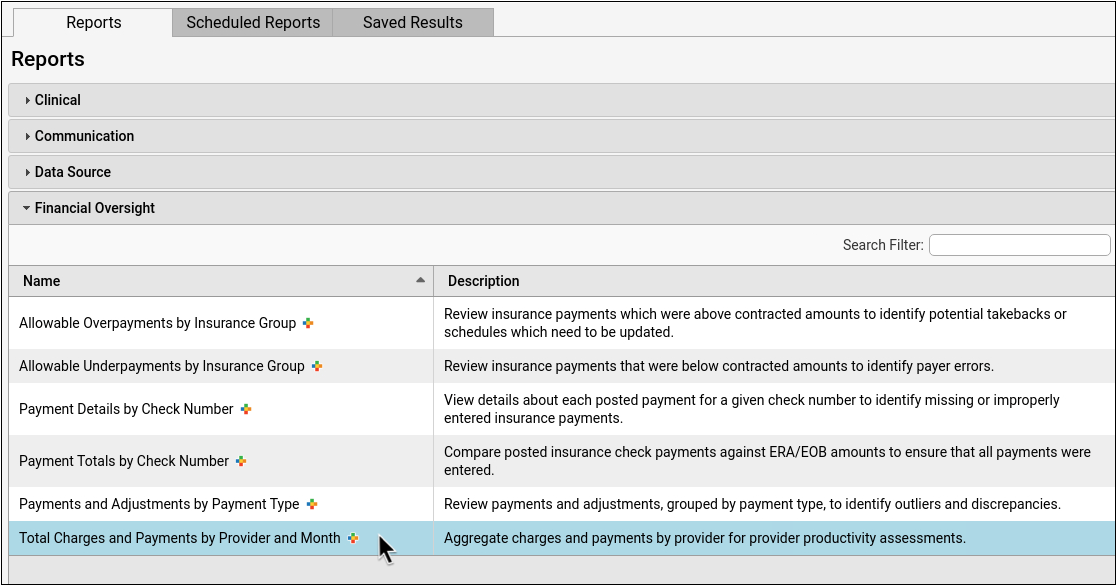
Limit Access to This Report: Users with permission to manage categories in the Report Library can edit the Financial Oversight category in the Manage Categories window and uncheck roles to remove access. See Restrict Access to Reports in the Report Library for more information.
Select Your Criteria
You can select criteria to control the results that display on your report output. For practices using this report to identify revenue generated, or for clinician compensation models, common procedure exclusions for this report are immunizations, injections, and miscellaneous office fees.
To explore your options for this report’s criteria, read the Select Criteria Options section below.
View the Report Results
Click “View Results” to run the report.
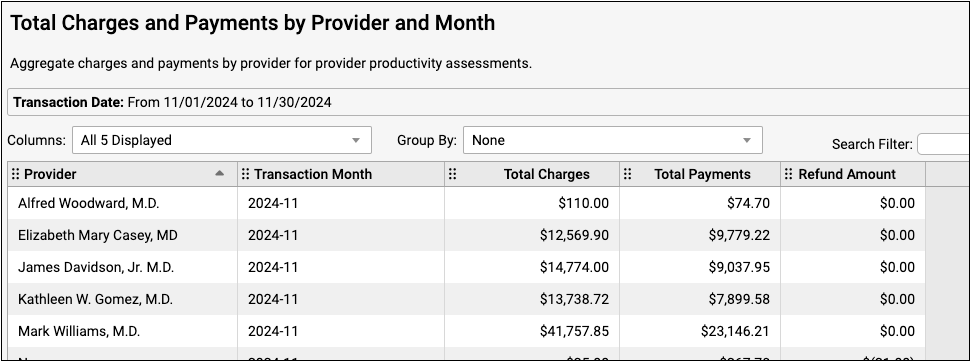
Adjust Output
You can sort, arrange, and filter your report output in a variety of ways.
The Group By drop-down will group entries by the criteria that you select. If you group by transaction month, for example, the report data will be organized by month. Numerical columns subtotal at the bottom of each group.
You can further organize each section by clicking the column headers to sort the information by the column of your choice.
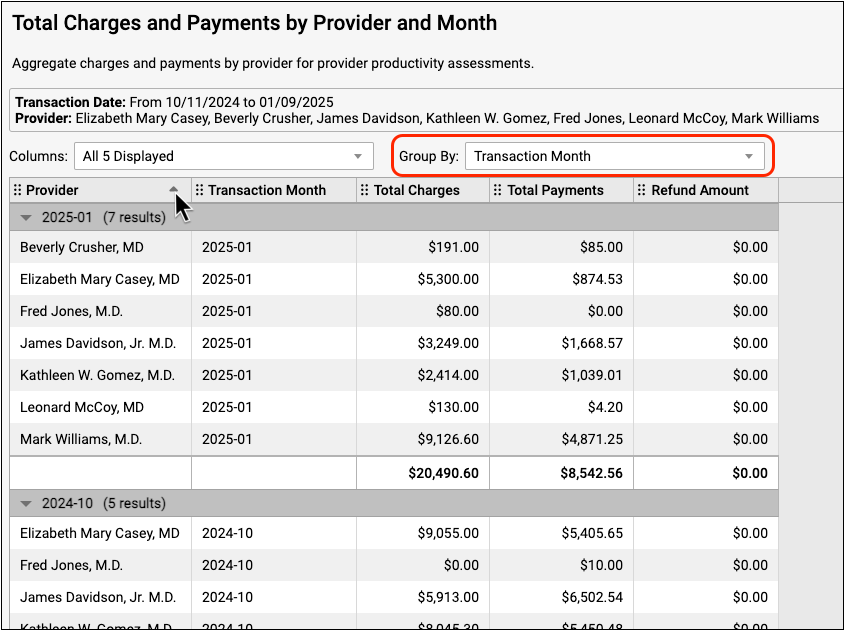
To learn more about navigating and working with report output, read Run Reports in the PCC EHR Report Library.
Optionally Export or Print
You can choose your output format and print or export your report to PDF or CSV.
20,000 Row Limit: Exports from the report output (View Results screen) in the Report Library are currently limited to 20,000 rows. If your output appears to be exactly 20,000 rows long, it may not contain all of the information that you are looking for. If this occurs, return to the report configuration screen and click “Export Report” to get your full report. Read Export Large Data Sets from the Report Library to learn more.
Select Criteria Options
Use the section below to understand your financial oversight criteria options.
Choose Your Transaction Date Range
You can choose your date range using the drop-down list, the date fields, or the calendar icon.
You may wish to compare the final report output to the payments deposited into your bank account during the same transaction date range that you chose to display on the report.
Transaction Date Range Covers Both Payments and Charges: The default, recommended version of this report runs by transaction date for both payments and charges.
Payment Transaction Date: Payment Transaction Date is the date found on the check, EOB, or ERA. Payments will display on this report when they have a payment transaction date that falls within your selected transaction date range.
Charge Transaction Date: The charge transaction date is the Date of Service (DOS). This is the date on which the patient received care. Charges will display on this report when they have a charge transaction date that falls within your selected transaction date range.
What About Posting Dates?: You may be used to seeing charge posting dates and payment posting dates on some of your financial reports.
PCC does not recommend running this particular report by posting date, but the option is available during customization.
For reference, the charge posting date is the date the charge was posted (entered) on your system and the payment posting date is the date that the payment was posted (entered) on your system.
Transaction Date Example for a Single Patient Visit
A patient came in for a well visit on January 31st. This is the Date of Service (DOS) and the charge transaction date. The practice’s biller posted the encounter charges on the following business day, February 3rd. This is the charge posting date. After processing the claim, the payer sent a check or ERA on March 8th. This is the payment transaction date or Electronic Funds Transfer (EFT) date. Finally, the biller posted the payment on March 12th. This is the payment posting date.
The Total Charges and Payments by Provider and Month report displays payments organized by the transaction date. If you chose a transaction date range for only the month of March, the report output would display the payment from the example visit, but not the charge from the example visit. If you chose a transaction date range of January through March, the report output would display the charge as well as the payment from the example visit.
Include by Procedure
The default for this report is to include all procedures. Click “Edit” and use the search filter to find and select procedures by name, group, or procedure code.
To run a report for a specific procedure or procedure group, select the procedures from the Include by Procedure list. Your report will only include the charges and payments attributed to the procedures you chose, so you do not need to exclude any procedures.
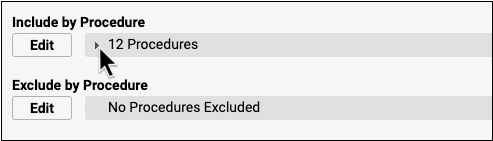
To run a report including charges and payments attributed to all procedures except a few, leave the Include by Procedure default of All Procedures. Then exclude the procedures you don’t want included by selecting them on the Exclude by Procedure list.
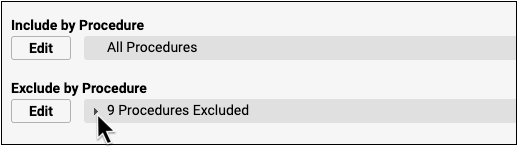
To learn more about including and excluding criteria in reports, visit Run Reports in the PCC EHR Report Library
Exclude by Procedure
The default for this report is to exclude no procedures. Click “Edit” and use the search filter to find and select procedures by name, group, or procedure code.
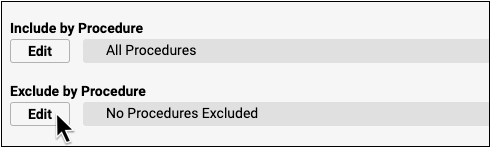
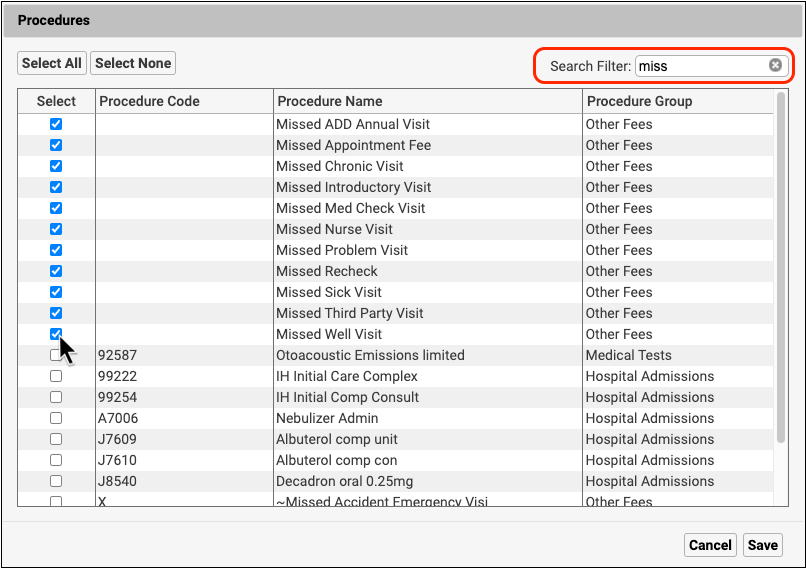
Select Locations
The default setting for this report includes all locations in the report output. If you select a location to include before you generate the report, only that location’s data will be included in the report output.
Select Providers
The default setting for this report includes all providers of service in the report output. If you select a provider to include before you generate the report, only that provider’s data will be included in the report output.
Provider of service is set when charges are posted or entered manually during payment posting.
Customize to Identify Additional Columns and Criteria
The Total Charges and Payments by Provider and Month report uses aggregate data that can be organized by including columns during report customization and by sorting the report output.
When you customize this report to include additional criteria, such as location and procedure, you must select the criteria as well as the column in order for the criteria to display as a column in the report output. To learn more about customizing a report, read Create a Custom Report.
Optionally Add a Column to Subtotal by Location
To display location and other additional columns in your report output, customize your report and select the columns you wish to include.
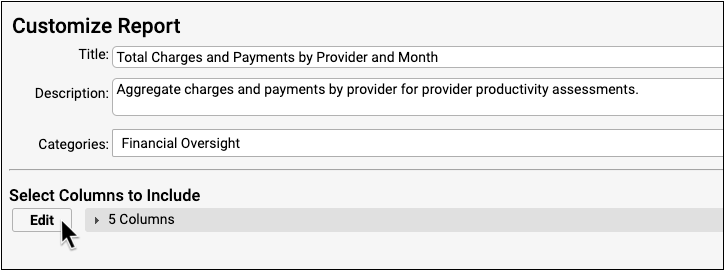
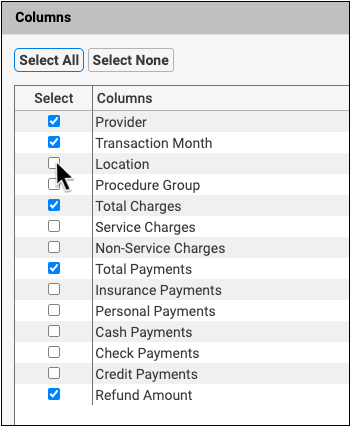
You can group the report by location so that the total charges and total payments subtotal within each location.
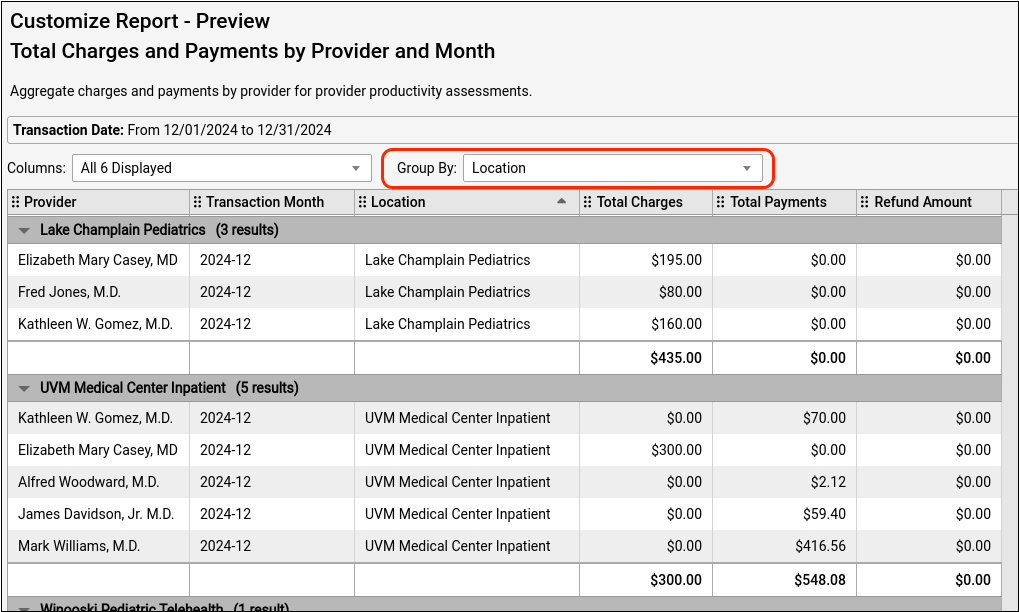
For more information on how to work with your report output read Run Reports in the PCC EHR Report Library.
Optionally Include Service Charges and Non-Service Charges
To see your practice’s service and non-service charges totaled separately, select these columns during customization.
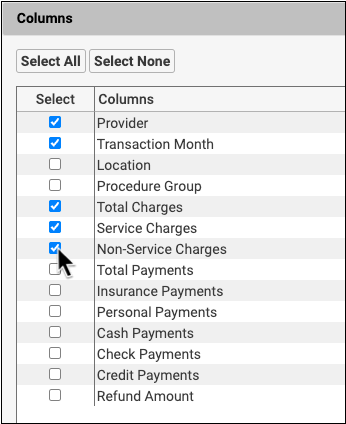
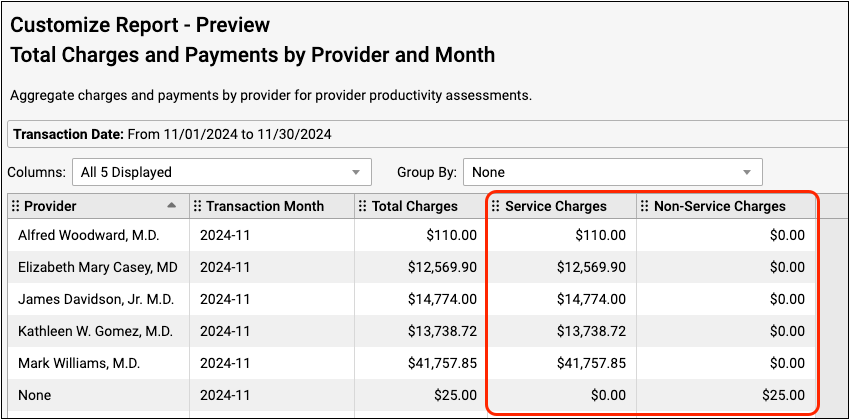
Whether a charge is considered service or non-service depends on the assigned accounting type for the charge’s procedure as defined in your practice’s list of billable procedures. To find out more about configuring accounting types for procedures, read Configure Adjustment Fees and Refunds with an Appropriate Accounting Type.
- Service charges are procedures that have an accounting type of “Revenue”. These are typically clinical procedures, such as office visits, immunizations, and screenings. The Service Charges column does not include credit write offs.
- Non-service charges are procedures that do not have the accounting type of “Revenue”. Some examples are non-clinical service fees, capitation payment offsets, and insurance interest or incentive payment offsets. The Non-Service Charges column does not include credit write offs.
The Total Charges column displays charges with the accounting type of Revenue (which includes Credit Write Off, Service, and Non-Service accounting types). The sum of the Service column’s total and Non-Service column’s total may not equal the Total Charges column total, as the Total Charges column does include credit write offs and the Service and Non-Service columns do not.
Provider None: If a non-service charge, insurance payment reversal, or other line item is not associated with a provider, the Provider column will display “None”.
Interpret Report Results
This report displays a snapshot of all charges and payments within a given payment transaction date range.
Your report output is based on the criteria you selected. The default report criteria present a simple overview of your providers’ productivity by transaction month. Customized reports present a more detailed, and more complex, organization of the data.
Interpret the Default Report
The default report output is sorted by provider and then by transaction month. Total charges and total payments subtotal within each row.
The report output displays all locations by default. If you selected locations while setting criteria on the default report, your selected locations will be the only locations included in the report output. To display chosen locations in a column, create a custom report.
The Transaction Month column displays the months included in your selected transaction date range. See Choose Your Transaction Date Range above for more information on selecting a transaction date range.
The Total Charges column displays charges with the accounting type of Revenue (which includes Credit Write Off, Service, and Non-Service accounting types). You can configure your accounting types in the Procedures table in PCC EHR. To find out more about accounting types, read Configure Adjustment Fees and Refunds with an Appropriate Accounting Type.
The Total Payments column displays total insurance and personal payments with assigned payment class of Insurance, Check, Cash, or Credit card. Adjustments do not display on this report.
The Refund Amount column displays charges with accounting types of Refund, Receipt, or NSF.
Interpret a Custom Report
Custom reports can provide a more detailed view of your data. If you selected location and procedure group during customization, for example, this additional information will display on your report. If you selected many criteria during report customization, the aggregate data will be broken down into even greater detail. Each unique combination of criteria displays on its own row.
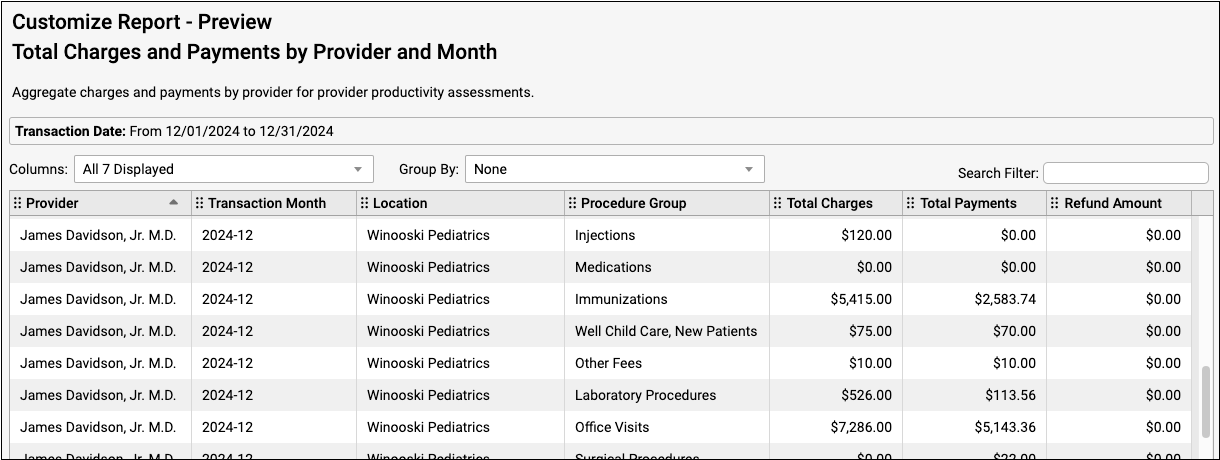
You can group and sort this output to further organize your data. Once you group the report, you can sort further by clicking on a column header. To sub-sort with other columns, hold the “Shift” key and click the column headers for your secondary sort, tertiary sort, and so on.
Interpret the Refund Amount Column
Refunds and reversed insurance payments (also known as “takebacks”) display in the Refund Amount column.
The charges, payments, and refunds displayed on this report are not necessarily associated with each other, except that they share the transaction date range of the report. If a payment and a refund occur within the same selected transaction date range, they will both display on the same report.
The example below shows a charge, a payment, and a refund that were all made on the same day.
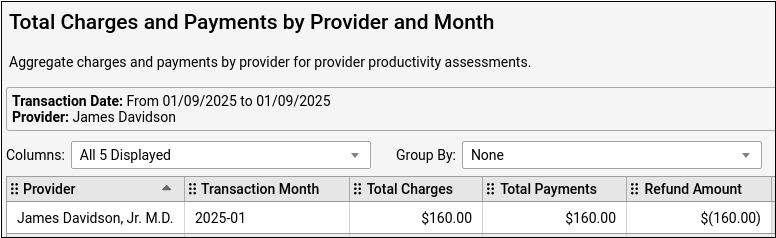
If an insurance payment reversal or other line item is not associated with a provider, the Provider column will display “None”.
Subtract Refunds from Payment Totals: If you are using this report to understand provider payment productivity, be sure to subtract refund amounts from reported payments for the most accurate measure of provider payment productivity.
Pediatric Practice Oversight Reporting with PCC
You can use PCC reports to identify problem areas in your A/R, review collections, and evaluate your growth as a practice. The tables below show PCC’s recommended reporting tools for practice oversight on a daily, weekly, monthly, and annual basis.
These periodic tasks are recommendations only and every practice’s situation and needs are different. As a pediatric practice owner, practice manager, or billing manager you won’t necessarily run all of these reports on the given schedule. Instead you can evaluate which tools will help you address the oversight that your practice needs. Contact PCC Support at any time to discuss your particular needs or if you’d like help finding a report or designing a custom report.
Getting Started?: If you’re just getting started with using PCC’s tools for practice oversight, PCC recommends you take a look at your Practice Vitals Dashboard, where you can evaluate performance on various metrics.
Daily
| Report Title | Purpose | Where to Find |
|---|---|---|
| Custom Huddle Sheet | Identify overdue balances for today’s patients | Report Library (PCC EHR) |
| Visits by Billing Status | Ensure today’s encounter charges were posted | Report Library (PCC EHR) |
| Daily Check | Review coding for today’s charges | Practice Management |
| Payment Reconciliation Report | Reconcile today’s payments with cash drawers and credit card totals | Report Library (PCC EHR) |
| Payment Totals by Check Number Payment Details by Check Number |
Review and Prove Out Insurance Payments by Check Number | Report Library (PCC EHR) |
| Daysheet Postings Check | Review changes to A/R | Practice Management |
Weekly
| Report Title | Purpose | Where to Find |
|---|---|---|
| Copay Collection Ratio | Review copay collection | Practice Management – SRS |
| Need Corrections | Review claims with unaddressed issues that prevent submission | Claims Tool (PCC EHR) |
| Rejections Worklist | Review and resolve claim rejections | Insurance Balances (PCC EHR) |
| Encounters by Billing Status | Review all encounters that were not billed | Report Library (PCC EHR) |
Monthly
| Report Title | Purpose | Where to Find |
|---|---|---|
| Detailed A/R Summary Report | Track your A/R trends | Practice Vitals Dashboard (PCC EHR) |
| Unpaid Balances | Review insurance A/R totals by payor | Insurance Balances (PCC EHR) |
| Unpaid Balances | Review and work on unpaid encounters with insurance balances | Insurance Balances (PCC EHR) |
| Total Charges and Payments by Provider and Month | Calculate charges, payments, and refunds for the practice or by provider | Report Library (PCC EHR) |
| Total Visits, Charges, and Payments by Provider | Evaluate individual provider performance | Practice Management – SRS |
| Missed Appointment Rate | Evaluate missed appointment trends | Practice Vitals Dashboard (PCC EHR) |
| Appointments | Respond to missed appointment instances | Report Library (PCC EHR) |
| E&M Coding Distribution by Provider | Evaluate provider coding | Practice Management – SRS |
| New Patients by Visit Type | Review new patient list | Practice Management – SRS |
| Payments and Adjustments by Payment Type | Review adjustments and write-offs to identify trends or possible fraud | Report Library (PCC EHR) |
| Patient List | Look for well visit recall opportunities | Report Library (PCC EHR) |
| Allowable Over/Under Payments by Payor Group and Check | Review contract fee schedule discrepancies | Report Library (PCC EHR) |
Quarterly
| Report Title | Purpose | Where to Find |
|---|---|---|
| Revenue per Visit by Payor | Evaluate income by insurance group | Practice Management – SRS |
| Revenue per visit with/without imms/location adjusted | Evaluate average visit income | Practice Vitals Dashboard (PCC EHR) |
| Patient Population | Measure practice growth or contraction | Practice Vitals Dashboard (PCC EHR) |
| Patient Population by Provider | Measure practice growth or contraction by clinician | Practice Vitals Dashboard (PCC EHR) |
| Coding Expertise | Consider coding diversity and underutilized codes | Practice Vitals Dashboard (PCC EHR) |
| Sick-to-Well Ratio | Evaluate ratio of sick visits to well visits | Practice Vitals Dashboard (PCC EHR) |
| Sick/Well Visit Analysis (Practice Average) | Review seasonal trends of well and sick visits | Practice Management – SRS |
| Per-Visit Analysis by Provider (Grouped by Visit Type) | Optimize clinician seasonal schedules | Practice Management – SRS |
| Depression & Developmental Screening Rates | Evaluate use of screenings | Practice Vitals Dashboard (PCC EHR) |
| Patients 2 Years Old Adolescents |
Evaluate immunization rates | Practice Vitals Dashboard (PCC EHR) |
Yearly
| Report Title | Purpose | Where to Find |
|---|---|---|
| Pricing RVU Report | Update your practice’s prices | Practice Management – SRS |
| Monthly Trends | Review productivity trends | Practice Vitals Dashboard (PCC EHR) |
| Due for Influenza Vaccination | Plan for your flu season | Practice Vitals Dashboard (PCC EHR) |
| Appointment Stat Report – Month/Day of Week | Evaluate staffing needs by total visits | Practice Management – SRS |
| Monthly Visit Trends by Visit Type | Evaluate staffing needs by visit reason totals | Practice Management – SRS |
| Accounts with Credit Balances | Investigate credits that negatively affect your A/R accuracy | Practice Management – SRS |
| Gross Collection Ratio Report | Evaluate year-over-year collections | Practice Management – SRS |
| Payor Mix Analysis – Yearly Trends | Evaluate annual growth or contraction by insurance group | Practice Management – SRS |
| Insurance Table Configuration | Review insurance reporting accuracy | Tables Configuration Tool (PCC EHR) |
| Procedure Table Configuration | Review billing code reporting accuracy | Tables Configuration Tool (PCC EHR) |
| Total Visits by Age Group and Visit Type – Yearly Comparison | Review annual trends in visits by patient age | Practice Management – SRS |
| Contract Fee Schedule Editor | Review accuracy of contract fee schedules | Practic Management |
Reciprocal Billing Arrangements, Locum Tenens, and Incident-To Billing
When a clinician sees a different physician’s patient, there are a few limited circumstances that would allow the encounter to be billed under the primary physician. Read below for a brief overview of the conditions and considerations for each model.
Reciprocal Billing Arrangements and Fee-For-Time Compensation Arrangements
CMS now refers to short-term substitution for an absent physician as a “Reciprocal Billing Arrangement” or a “Fee-For-Time Compensation Arrangement”. CMS no longer uses the term “Locum Tenens”.
Various state, Medicaid, and carrier requirements may restrict how and when this billing arrangement is allowed, and a practice should consult with specific payors to understand what is required.
For example, a specific Medicaid plan might designate a time period limit, specify how the claim should be billed (a primary physician receiving payment for a substitute’s services), and what coding modifiers must be reported. Q5 and Q6 are required for Medicare, for example, which designate either a reciprocal billing arrangement or fee-for-time compensation arrangement.
Incident-To Billing
Under limited circumstances, an NP/PA or other clinician can bill under a physician’s name even though the physician did not participate in the encounter.
CMS limits this strictly to when the clinician carries out plans that the physician has written. (No new patients, no new problems!)
Additionally:
- The staff member must be employed by the physician directing the care.
- The supervising physician must have documented an order for the service rendered.
- The person administering the care must be qualified: the service is within their scope of practice as defined by state regulations.
In addition, various state, Medicaid, and carrier requirements may restrict how and when this billing arrangement can occur, and a practice should consult with specific payors to understand what is required.
Change Provider of Service or Billing Provider When You Post Charges for Encounters
When posting charges in PCC EHR, users can adjust the Provider of Service and the Billing Provider separately. These providers can also be different from the scheduled Appointment Provider.
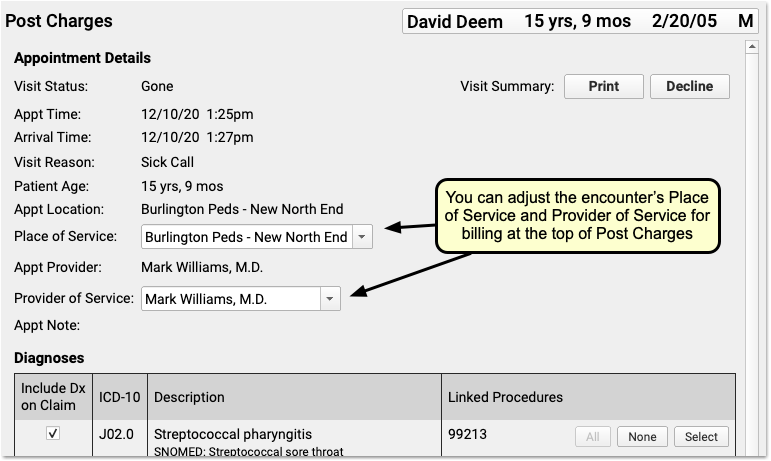
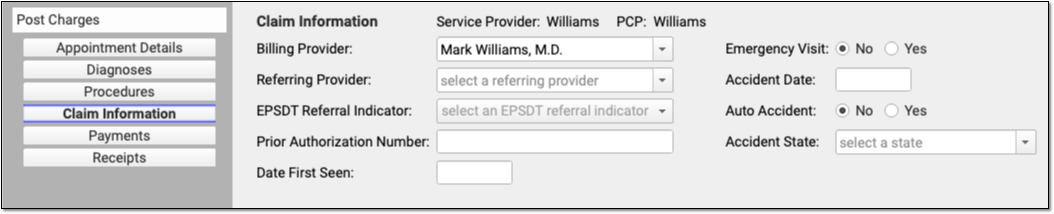
To learn more about adding a new user and clinician to your PCC system, read Add and Configure a New Clinician to Your PCC System.
To learn more about posting charges, read Post Charges in PCC EHR
Contact PCC for help adjusting billing configuration as needed.
PCC eRx My Settings Reference
Tailor PCC eRx to suit your personal preferences and workflows. Your selections on the My Settings page will only apply to you and will only affect the actions you are personally permitted to take according to your PCC eRx role.
Find the My Settings Page
Use the My Settings page in PCC eRx to tailor the application to your personal preferences and workflows.
To find the My Settings page, click on the Rx Queue or open PCC eRx in a patient’s chart. Then, click on the My Settings link in the blue navigation bar at the top of the window.

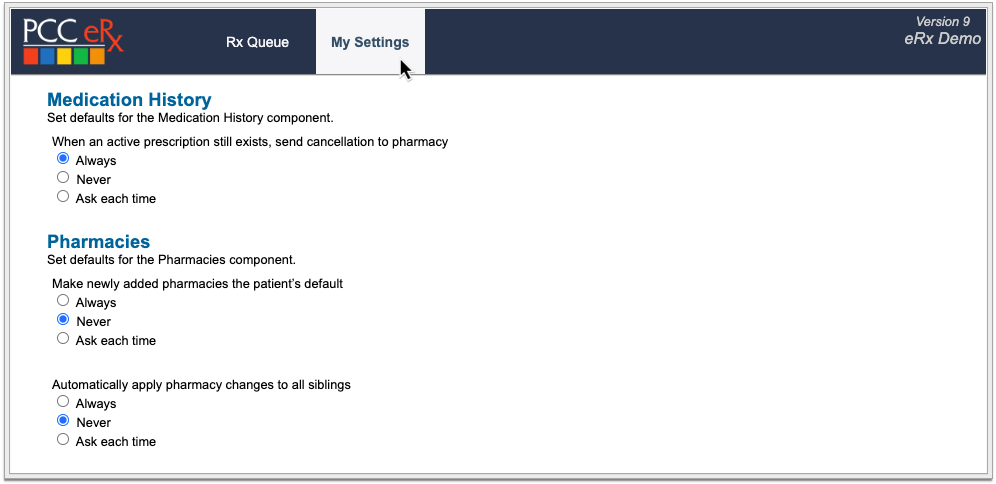
Use the navigation buttons on the left hand side of the screen to view and modify each setting. Your selections will only apply to you and will only affect the actions you are personally permitted to take according to your PCC eRx role.
To learn more about PCC eRx roles, read Set Up PCC eRx User Access.
My Settings Reference
Learn the purpose of each setting on the My Settings page in PCC eRx.
EPCS
If your user account is enabled for Electronic Prescribing for Controlled Substances (EPCS), you can check the status of your enrollment, complete the enrollment steps, manage your EPCS password and two-factor authentication tokens, and access your Exostar account details.
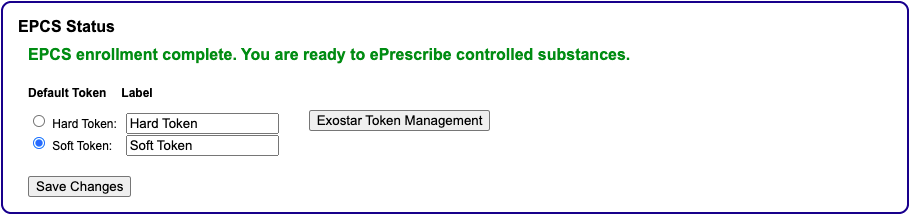
Learn how to enroll for EPCS and manage your EPCS tokens and account.
Favorites
Choose how to build and display your list of prescription favorites.
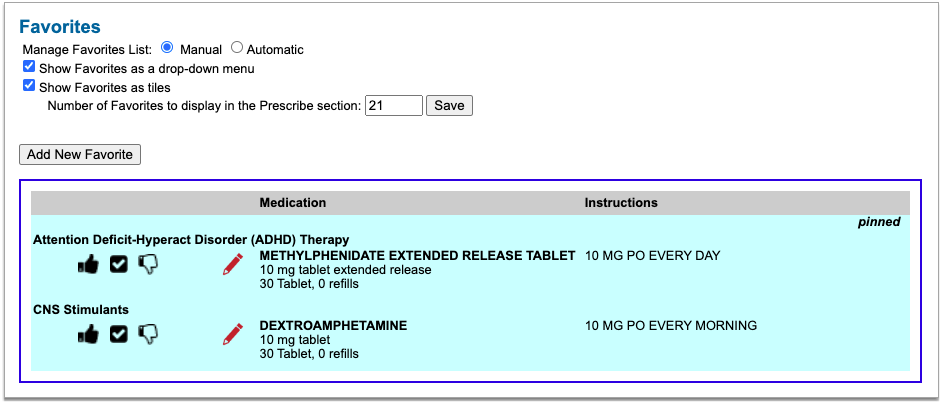
You can build your favorites list manually or automatically. PCC strongly recommends keeping the default setting of “Manual” for best curatorial control. The “Automatic” option builds a list based on your prescribing activity, and often results in a long favorites list that does not necessarily reflect your priorities.
You can also choose how to display your favorites list, add new favorites, and make changes to your saved favorites.
Regardless of your display settings, favorites appear at the top of medication results when relevant to your search.
Learn more about PCC eRx Prescription Favorites.
Medication History
Choose what should happen when you make changes to a Patient’s Medication History.
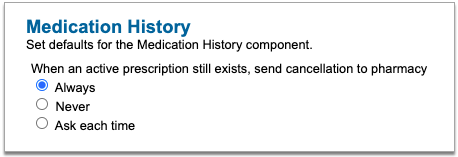
You can control whether PCC eRx sends an electronic cancellation to the pharmacy when you discontinue or delete a medication that still has an active prescription.
Learn more about how to work in Medication History in PCC eRx.
Pharmacies
Choose what should happen when you make changes to a patient’s Pharmacies list.
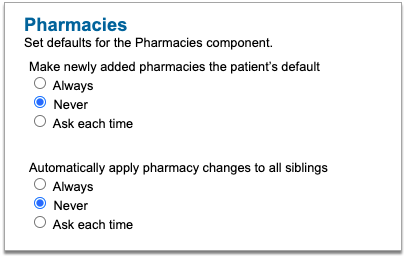
You can independently control whether a pharmacy should become the patient’s default as soon it’s added to the patient’s Pharmacies list, and whether pharmacy changes for one patient should apply to all of their siblings .
Learn more about working with pharmacies in PCC eRx.
Real-Time Pricing and Formulary
Choose the default display for prescription alternatives suggested by a patient’s pharmacy benefit manager (PBM). Alternatives are presented when you create, edit, renew, replace, or resend a prescription.
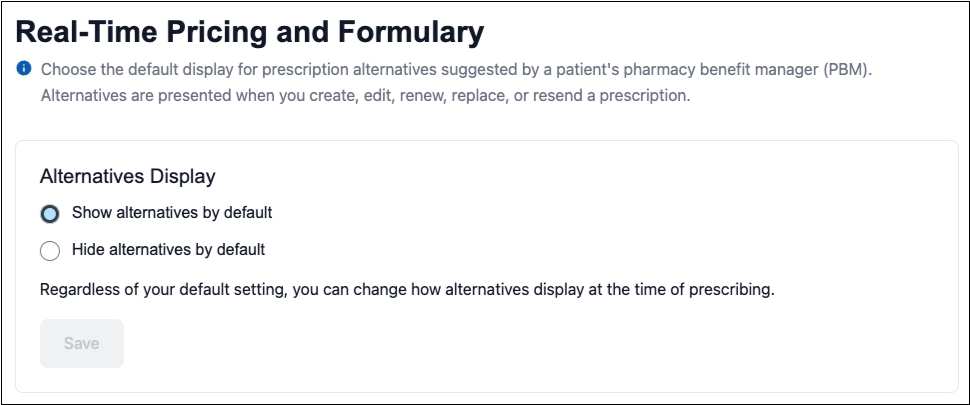
Regardless of your default display setting, you can always show or hide PBM alternatives on demand at the time of prescribing.
Renew Prescriptions
Choose what should happen when you renew a prescription.

-
First Option: When you renew a prescription, the renewal opens in an edit window, where you can optionally modify it and process it immediately.
-
Second Option: When you renew a prescription, the renewal immediately queues for sending in the patient’s chart and on the Rx Queue.
Learn how to renew prescriptions.
Text Size
Set your preferred text size for PCC eRx.
Use the slider to increase the text size. A sample sentence shows what the text looks like at each size.
This setting affects prescribing screens in both PCC EHR and in pocketPCC.
For step-by-step instructions about adjusting your text size in PCC eRx, read Adjust Your PCC eRx Text Size.
Three-Month Supply
Set the default number of days to pre-date the second and third prescriptions in a 3-month supply of controlled substances.
Pre-dating allows patients to fill the next prescription in their supply a few days before running out of the current month.
Learn more about 3-month supply prescriptions.
Vacation Hours
Set vacation hours to record time away from the office in the prescription audit logs. This information makes it easier to identify whether unexpected prescription activity occurred in your name while you were out of the office.

The act of setting vacation hours does not prevent pharmacies from sending you prescription renewal or change requests, nor does it prevent other staff from preparing prescriptions that list you as the ordering or supervising provider.
Authorize Users for PCC SecureConnect
Every practice has a PCC SecureConnect login page from day one, but not all users are authorized to connect.
PCC keeps your system locked down so that only approved users can connect with SecureConnect. Your practice’s system administrator decides which users should be allowed to connect from home, a remote office, or while traveling.
Grant SecureConnect Access
Follow the procedure below to give a user access to your PCC system through SecureConnect.
Open the User Administration Tool
Click on the Tools menu and select “User Administration”.

Permissions: You must be an authorized user to use the User Administration tool. Contact PCC Support if you do not know which users at your practice are authorized.
Select a User and Click “Edit”
Double-click on the user’s name from the PCC EHR user list, or highlight their name and click “Edit”.
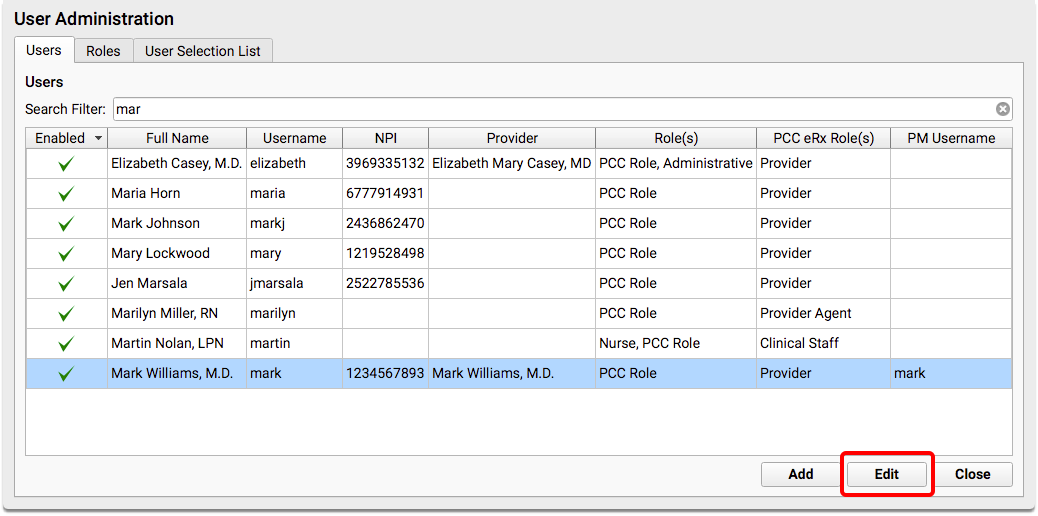
Grant Remote Server Access
Select the “Allow remote server access” checkbox. When selected, this option allows the user to log into your practice’s PCC server through SecureConnect, using their PCC EHR username and password.
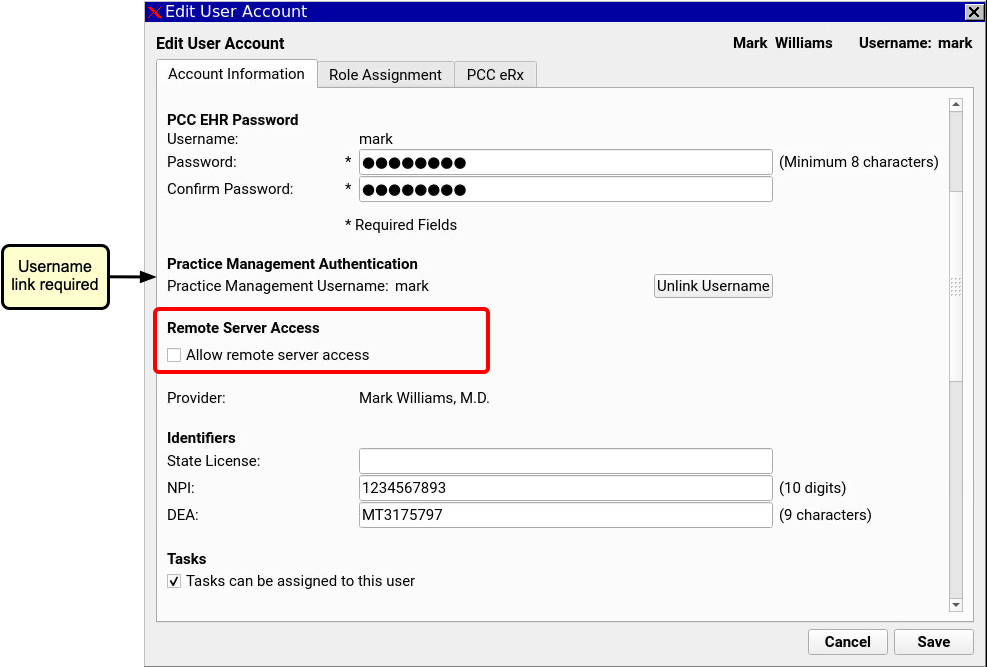
EHR and Practice Management Logins Must Be Linked: A user’s PCC EHR username must be linked to their Practice Management username for SecureConnect to work. If Practice Management Authentication has not been completed for a user, the Remote server access checkbox will be disabled. Contact PCC Support if you need help with this.
Click “Save”
Click “Save” to save the user’s new authorization.
The user can now add a SecureConnect account to their Authy app.
All user changes take effect the next time the user logs in.
Click “Close”
Close the User Administration Tool.
The first time a user tries to log into your server through SecureConnect, they will need to set up two-factor authentication for their account.
Remove SecureConnect Access
To remove a user’s SecureConnect access to your PCC system, de-select the “Allow remote server access” checkbox.
Re-enabling a User Does Not Automatically Restore Their Access to SecureConnect: If a user’s PCC EHR Account is disabled from User Administration, or if their PCC EHR and Practice Management usernames are unlinked, their remote server access will be removed. Re-enabling their account or re-linking their usernames will not automatically restore their SecureConnect access.
Reset Authy Pairing for SecureConnect
You will need to reset authy pairing for a user if they have lost access to their Authy account for any reason (new phone, deleted by mistake, etc).
Users Can Also Reset their Own Authy Pairing: SecureConnect users can reset their own Authy pairing from My Account.
Follow the procedure below to reset a user’s Authy pairing.
Open the User Administration Tool
Click on the Tools menu and select “User Administration”.
Permissions: You must be an authorized user to use the User Administration tool. Contact PCC Support if you do not know which users at your practice are authorized.
Select a User and Click “Edit”
Double-click on the user’s name from the PCC EHR user list, or highlight their name and click “Edit”.
Click “Reset Authy Pairing”
Click the “Reset Authy Pairing” button.
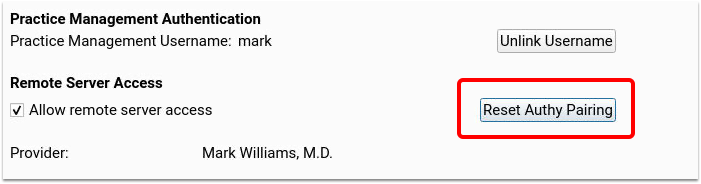
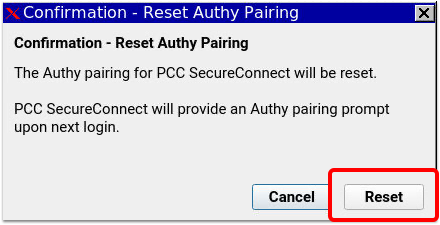
Click “Save”
Click “Save”. All user changes take effect the next time the user logs in.
Click “Close”
Close the User Administration Tool.
The next time the user logs into your server through SecureConnect, they will need to set up two-factor authentication for their account again.
Sign Out Before Closing Secure Connect: Please make sure to sign out of PCC EHR before closing your Secure Connect tab or window to avoid multiple login instances.
Read ERA 835s from Payors
Use the Electronic Remittance Advice tool in PCC EHR to read any ERA on your system and review the adjudication for a claim.
When payors adjudicate a claim, they send your practice an Electronic Remittance Advice (ERA), also known as an 835 file. Your PCC system receives these ERAs. You can automatically post most payments and adjustments and then review only those claim responses that require manual attention, such as denials, reversal, rejections, and unusual adjustments.
Video: Watch Read ERA 835s from Payors to learn more.
Open the Electronic Remittance Advice Tool and Find an ERA
Open the Electronic Remittance Advice tool to review payments and adjustments sent to your practice electronically.
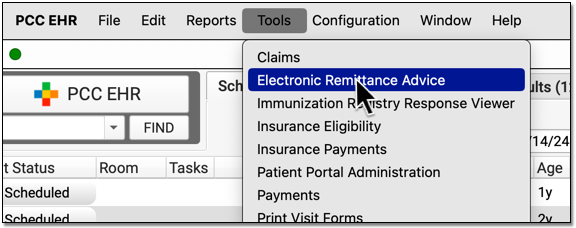
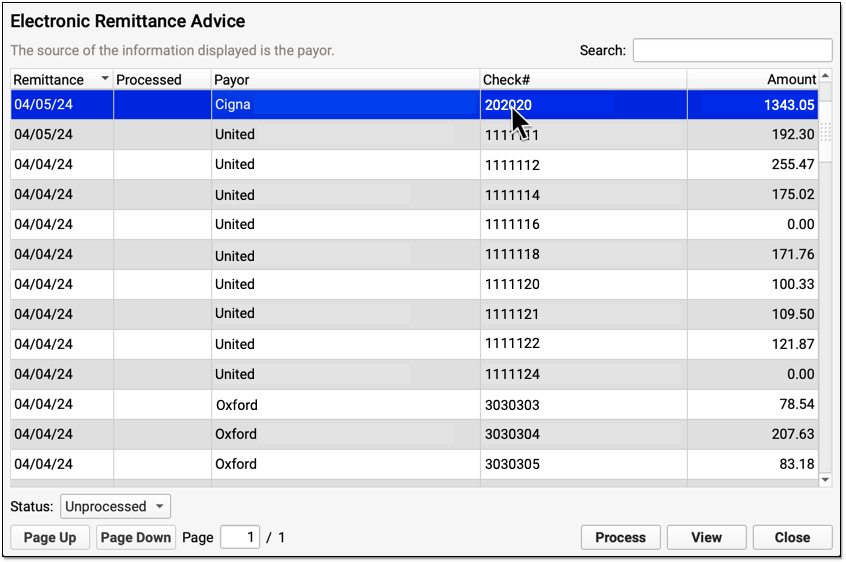
Payers send adjudication to your PCC system as ERAs, also known as 835 files. For each ERA, you can see the Remittance date, when the ERA was processed, the payor, the complete check number, and the total amount of the check associated with the ERA.
You can filter the list of ERAs by whether they are Processed, Unprocessed, or Deleted.
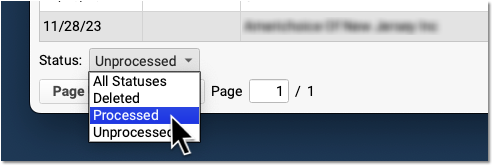
You can also search your practice’s ERAs. For example, you could look for the ERA pertaining to a specific check number or review all ERAs from a specific payor.
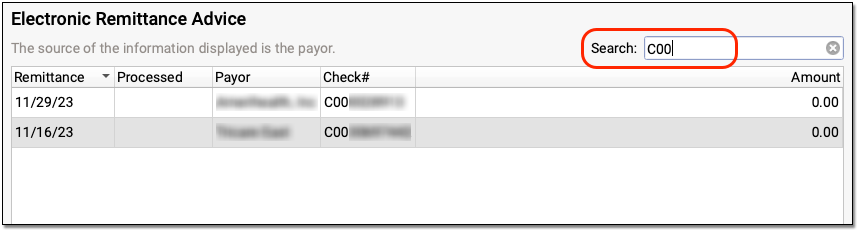
Review ERA Details and Processing Summary
Double-click on an ERA to review its contents.
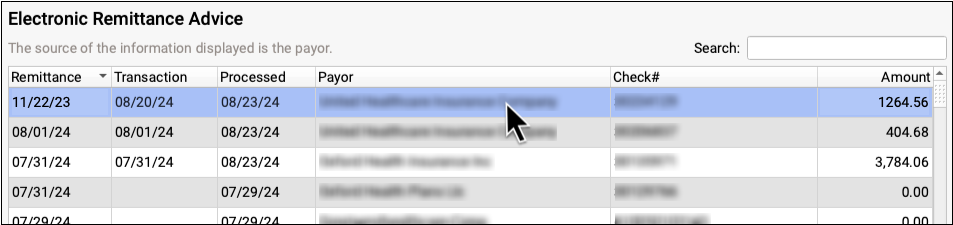
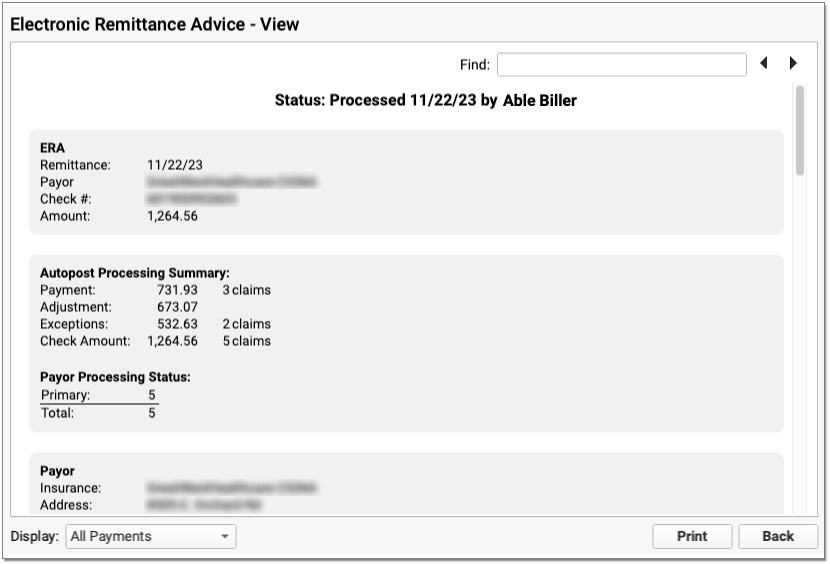
At the top, PCC indicates whether the ERA has been processed and by whom.

Next, summary information about the ERA appears in three or four sections.
-
ERA: The ERA section at the top describes the basic information about the ERA, including the remittance date, payor, complete check number, and amount.
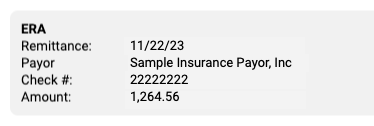
-
Payor: The Payor section includes details about the payor as found in the ERA 835 file, including their provided adjudication and remittance dates, the complete check number, amount, and electronic banking information. The payor may include various types of contact information on an ERA. For example, they may include optional additional contact details which will appear as “Tech Email” and “Tech Phone”.
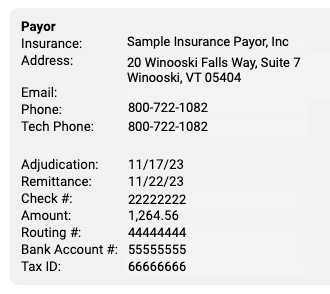
-
Payee: The Payee section includes information about the entity receiving the ERA and the payment. Typically, this is your practice. This section will display the practice name, address, and banking information as reported by the payor.
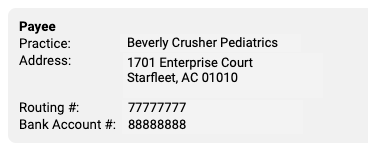
Review the Autopost Processing Summary
If your practice has processed the ERA, a section describes the results, including total amounts and number of claims for payments, adjustments, and exceptions. You can also see how many claims on the ERA were adjudicated as being the primary, secondary, etc. policy for the patient, and review totals for special cases.
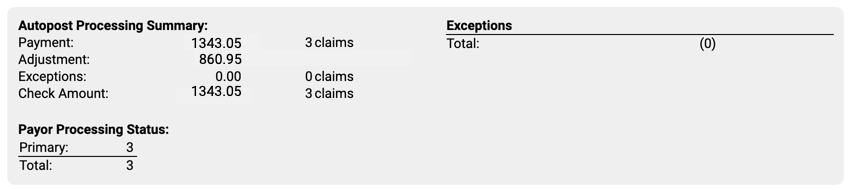
When an ERA has posting exceptions or special cases, you can see additional explanations and totals.
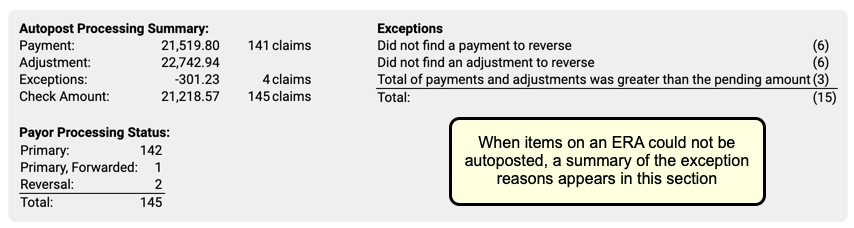
Review Specific Claim Response Details
Below the summary sections, PCC displays detailed payment and adjustment information for each claim referenced on the ERA.
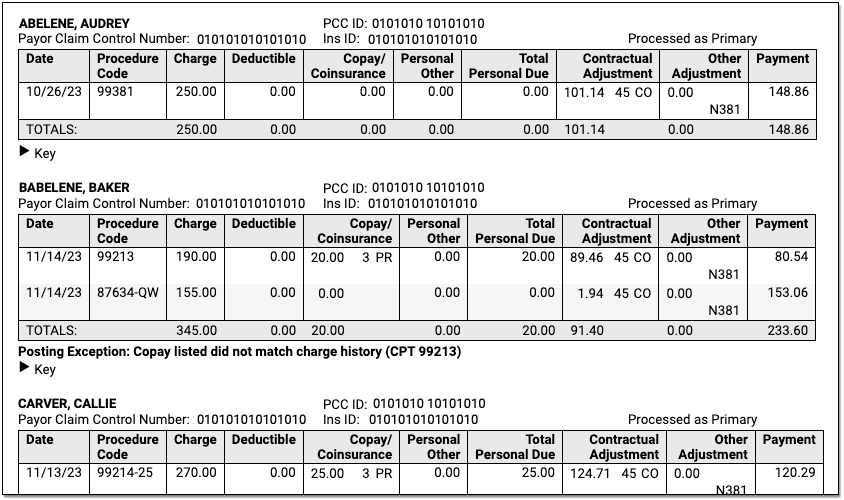
Claim Identifiers
For each claim on the ERA, you can see the patient’s name, PCC ID, Payor Claim Control Number, patient’s insurance ID, and (if the ERA has been processed) whether it was processed as being the patient’s primary, secondary, etc. policy.

-
PCC ID: The PCC ID is a combination of the patient PCC number, a space, and the claim ID number generated on your system when you processed claims.
-
Payor Claim Control Number: The Payor Claim Control Number, sometimes called the Internal Control Number (ICN), is issued by the payor to identify the claim. It’s common for payors to require the Payor Claim Control Number when you submit a corrected claim.
-
Insurance ID: The Insurance ID is the patient policy insurance number, found on the patient’s insurance card and stored with the policy on the patient’s record.
-
Charges and Payment and Adjustment Amounts: For each charge, you can see columns for the date of service and procedure code followed by columns for the amounts of the charge, deductible, copay, personal responsibility, total personal due, contractual adjustment, other adjustment, and payment as reported by the payor on the ERA.
-
Downcoding: If the payor changed a procedure code for a charge, a special “Submitted if Different” column will appear so you can compare the code you submitted on the claim to the code being reported by the payor.
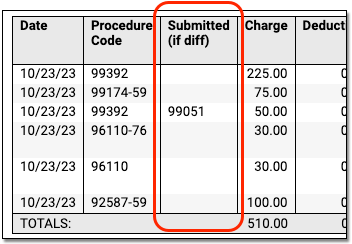
-
CARC, Group, and RARC: When a payer includes CARC, Group, and RARC information for a charge, you can see it inline in the table. For definitions, you can expand the Key below each claim.

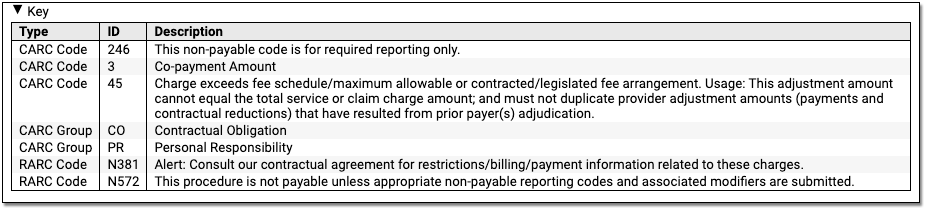
-
CORE Business Scenarios: When PCC identifies that a payor’s response matches a CORE business scenario, you can see a description underneath the table. These scenarios can help you understand the payor’s response more quickly. For more information, you can read about the CORE Code Combinations as explained in the CAQH operating rules.
-
Exception Reasons: When the ERA has been processed, and the payor’s response to the claim could not be automatically posted, PCC displays the Exception Reason, which defines why the response requires your manual attention.
Payments and Adjustments
Underneath the claim identifiers, a table displays detailed information about each charge on the claim.
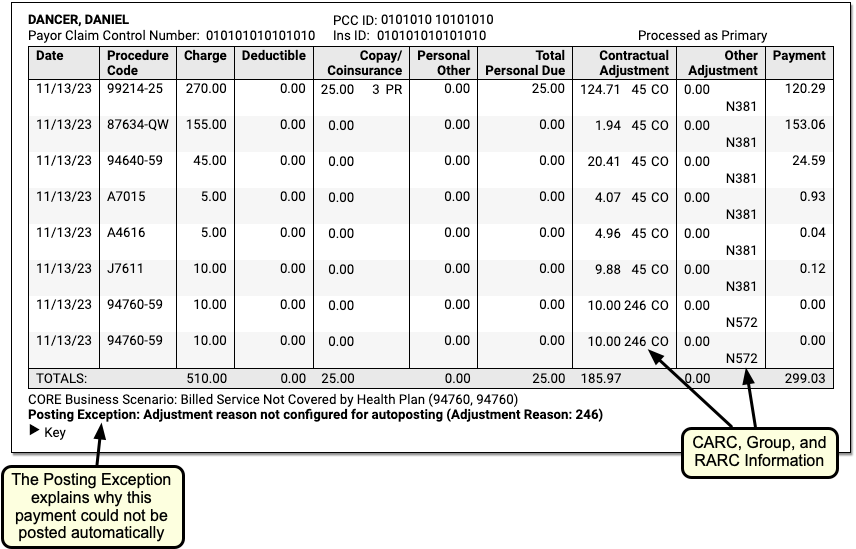
The table and the details beneath explain the payer’s adjudication.
Work on Claim Responses that May Require Additional Attention
After you autopost an ERA, PCC opens it so you can review the Autopost Processing Summary and take action on items that could not be posted or otherwise require additional attention. Items that cannot be posted are called “Posting Exceptions”, and PCC EHR also identifies “Special Cases” that may need review. You may also want to work with claims with specific statuses from the payor, such as Reversals or Denials.
Filter the Encounters on an ERA
Use one or more filters at the bottom of the window to isolate encounter responses with specific traits.
Use the Payor Processing Status filter to view encounters with specific statuses, such as Reversals or Denials.
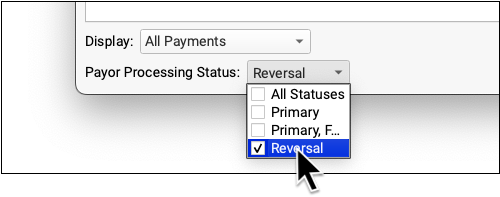
Use the Display filter to view only encounters with a posting exception.
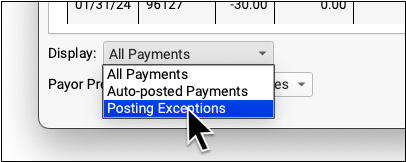
Use the Posting Exceptions filter to view encounters that have specific posting exceptions.
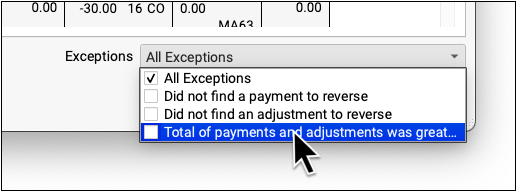
Use the Special Cases filter to view encounter responses that include other situations that may require attention.
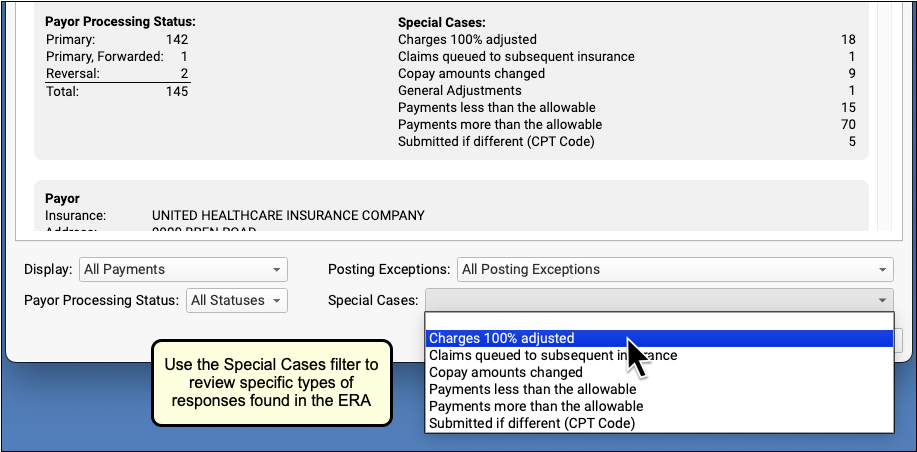
When you apply a filter, the ERA will change to display only those claims that match your selection.
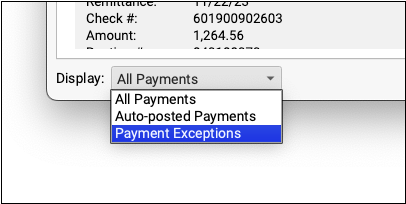
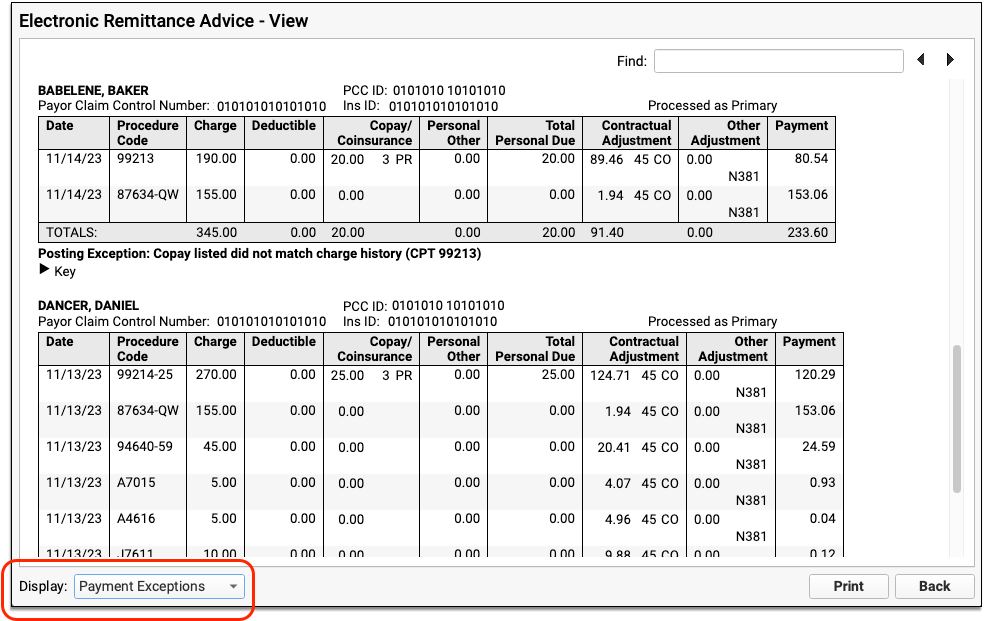
You can optionally print the filtered ERA so you can track and work on the claims manually.
Review General Adjustments (Provider Level Adjustments)
Insurance payors sometimes include sections on ERAs that are not associated with specific claims. These provider level adjustments (also known as “general adjustments”) will appear along with other responses in the Electronic Remittance Advice tool.
After you autopost an ERA in PCC EHR, any general adjustments will be indicated in the totals and in the Special Cases list in the Autopost Processing Summary.
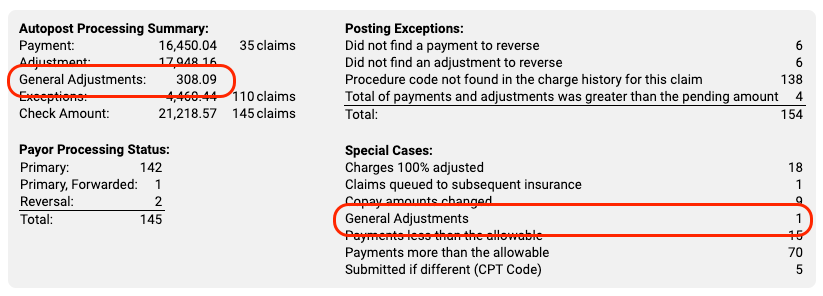
General Adjustment sections appear at the bottom of an ERA, underneath other encounters. You can optionally use the Special Cases filter to find them quickly.
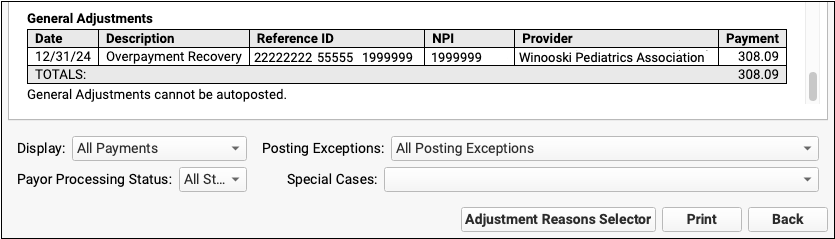
The most common reason for a General Adjustments section is when a payor communicates about a payment reversal (or “takeback”) but fails to specify the encounter. Additional information about the reversal may be indicated elsewhere on the ERA.
Review Claim-Level Adjustments
When a payor uses an ERA to reduce the copay due, they might take that amount out of the check. There are a few other rare circumstances that result in a claim-level adjustment that will change the check total. These are sometimes hard to spot. How can you identify these unusual claim-level adjustments? They aren’t payment amounts, and they aren’t really adjustments to a charged amount either.
When an ERA is autoposted, PCC EHR includes a total of any claim-level adjustments in the autopost summary.
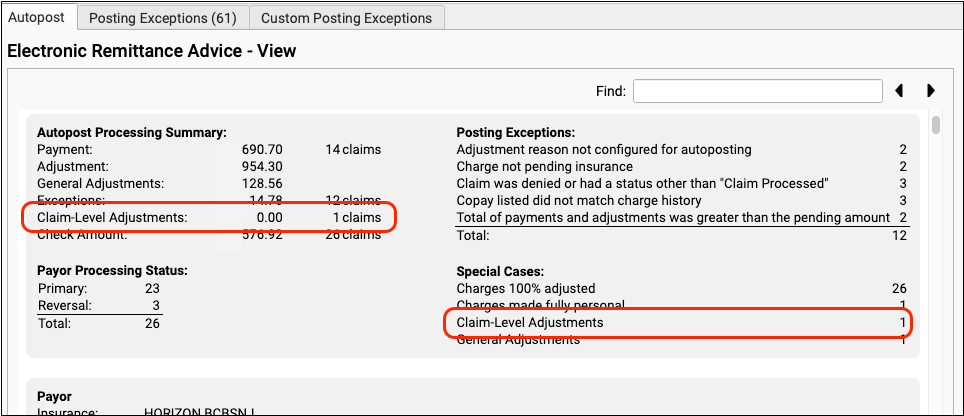
Claim-Level adjustments are classified as Special Cases, so you can use the Special Cases filter to jump directly to encounter responses on the ERA that include one.
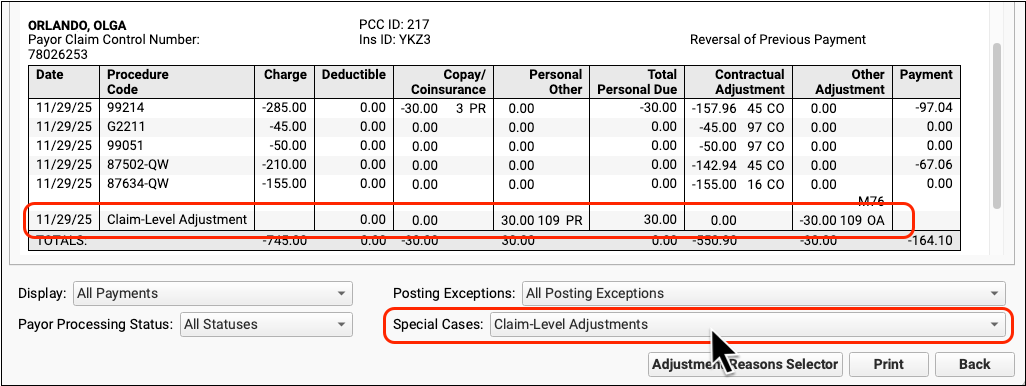
See Both Codes When a Payor Responds to a Different Code
When an insurance payor responds to a different code than the one you submitted, as is the case when they downcode or change the suffix, you can review the ERA to find out what codes were changed.
In PCC EHR’s Electronic Remittance Advice tool:
Your PCC system interprets the ERA and can display both the SVC01 and SVC06 segments (adjudicated and submitted codes) for each charge. If the payer includes the information on their response, you’ll see both the code you submitted and the code they decided to respond to.
By reviewing both columns, you can better understand what happened and take action to resolve the issue and then post the payments and adjustments.
Note that payers sometimes reply to a charge by erroneously returning the NDC code instead of the CPT code you used on the claim! When that occurs, the NDC code will appear in the Submitted (if diff) column. Note also that if a payor fails to include SVC01 and SVC06 in the ERA, you will need to contact the payor to understand the discrepancy.
Take Action on an ERA Posting Exception or Special Case
For each claim response that requires attention, you might decide to contact the payor, post the payments manually, or change the responsible party for charges and generate a new claim. You can learn more and review a list of all payment exception reasons in the Post Insurance Payments article.
When you post the response details manually, you can bring up the encounter charges automatically by entering the Claim ID, which is the second part of the PCC ID on the ERA.

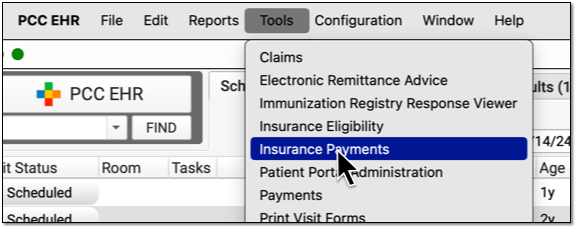
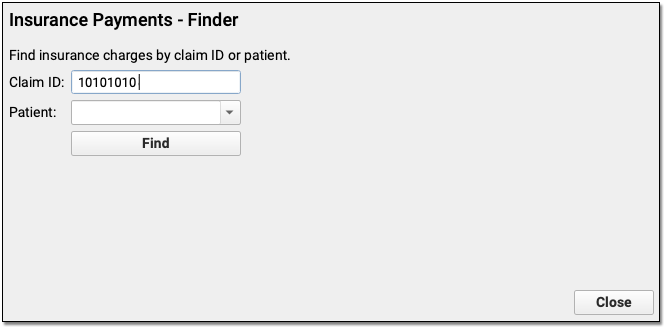
Where is the Manual Report?: In PCC’s previous product, the Partner Practice Management System, billers worked on posting exceptions found in “the Manual Report” in the Practice Management window. Filtering an ERA to show all Posting Exceptions provides the same details with greater clarity and ease-of-use.
Delete an ERA
If a payor sends your practice an ERA that is not related to your patients and your billed charges, you can delete it.
Double-click on an ERA in the Electronic Remittance Advice tool to open it.

Next, click “Delete” at the bottom of the window.
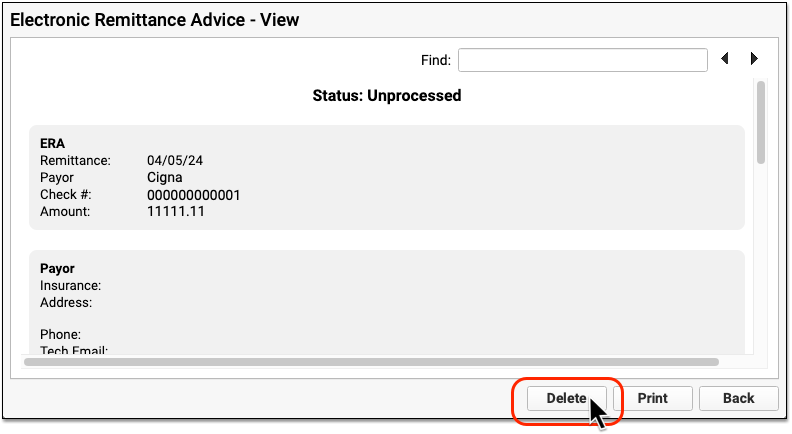
PCC will change the ERA’s status to “Deleted” and log the user and time of deletion.
To retrieve an ERA that was deleted by mistake, first set the Status filter at the bottom of the window to display all deleted ERAs.
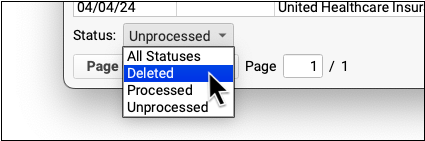
You can then open a deleted ERA and click “Undelete” to revert its status.
Post Capitation Checks, Incentive Payments, Interest Payments, and Withhold Payments
How do you record a payment that does not correspond to amounts due for encounter charges?
When an insurance company sends you an ERA, PCC can automatically post payments and adjustments or you can record them manually (see Post Insurance Payments).
But what about capitation checks, incentive (pay-for-performance) payments, insurance interest, and end-of-year withhold payments?
Option 1: Your practice may decide to track this revenue outside of PCC EHR, such as in your accounting system. These payments are income for your practice, but they do not directly correspond to specific charges you have billed.
Option 2: Your practice can use holding accounts to record these types of payments as revenue in PCC EHR. Open the holding account, create an administrative encounter, and then select an adjustment procedure and enter the payment. Read the sections below to learn more.
Video: Watch Post Less-Common Payments to learn more.
Create Holding Accounts
When you enter all types of payor payments into PCC EHR, it improves reporting and payer analysis. PCC does not have a formal accounting entity for payments that are not attached to a patient. Your practice can set up holding accounts for each type of payment you need to record.
The simplest way to do this is to create a patient record and a corresponding billing account using the name of the type of payment. For example, if you need to record end-of-year payments related to withhold payments, you could create patient and family records named “Withhold Withhold”, and post an adjustment and payment to that patient.
Create patients and accounts as you would for a normal family, using names for each type of payment you need to track. For example:
- Capitation Capitation
- Incentive Incentive
- Interest Interest
- Withhold Withhold
Many practices find it useful to be more specific and track these payments by insurance group. To do so, create holding accounts with the insurance group as the first name and the type of payment as the last name for the patient and the billing account. For example:
- BCBS Capitation
- BCBS Incentive
- BCBS Interest
- BCBS Withhold
Your practice’s billers can decide what holding accounts you need and how to name them. If you use the insurance group name (or “Medicaid”) as the first name for the patient and account, it can make reviewing what happened and calculating total income from a payer easier later on. However, if you rarely receive one of these types of payments, you may decide instead to use a generic account and simply note the source of the income in an encounter billing note.
Post Capitation Checks, Incentive Payments, Interest Payments, and Withhold Payments
When you receive a payment in the form of a capitation check, incentive payment, insurance interest, or withhold payment, follow the procedure below.
Open the Holding Account
Open your practice's holding patient account named for the type of payment you need to post.
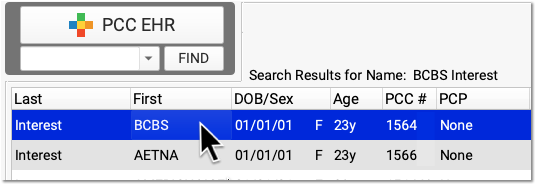
Your practice can set up holding accounts named for different kinds of payments and optionally include the name of a specific insurance group.
Navigate to the Billing History
Click on the History chart navigation button and then click Billing History.
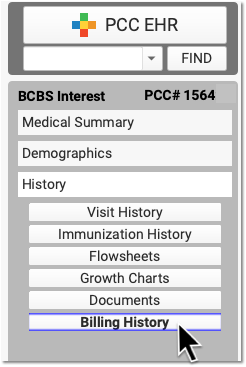
Click Create Encounter
You can use the "Create Encounter" feature to record many different types of financial transactions, such as any fee not associated with an encounter or the less-common types of income described above.
Select a Provider and Optionally Update the Place of Service or Date
Select a provider for the administrative encounter. According to your practice's accounting practices, you may also need to adjust the place of service or date of service.

Select the Appropriate Adjustment Procedure and Enter an Amount
What is the payment for? In the Procedures section, find the adjustment procedure (such as "Insurance Interest") that will offset the payment you received. Enter the amount of the payment as the "Price" of this adjustment.
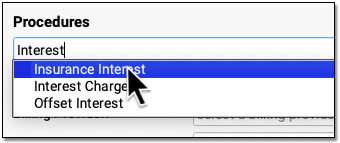

Self Pay: Whenever you enter an adjustment procedure to offset these types of payments on a holding account, you post the procedure as "Self Pay". Self Pay will be selected by default.
Enter Payment Details
In the Payments section, select the Payment Type (such as "Insurance Interest"), and enter the amount and check number. The full amount of the payment should be applied to "today's visit".
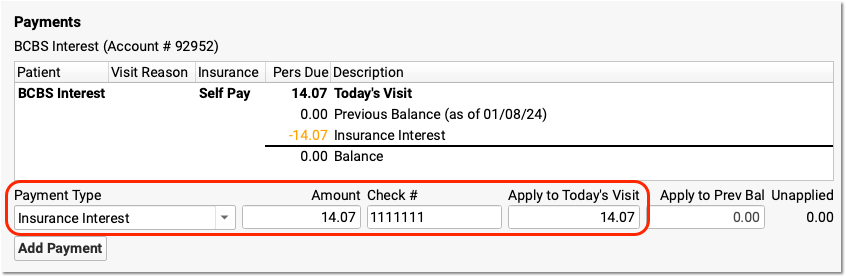
Click Save + Post
Click "Save + Post" to record the adjustment procedure and payment on the holding account.
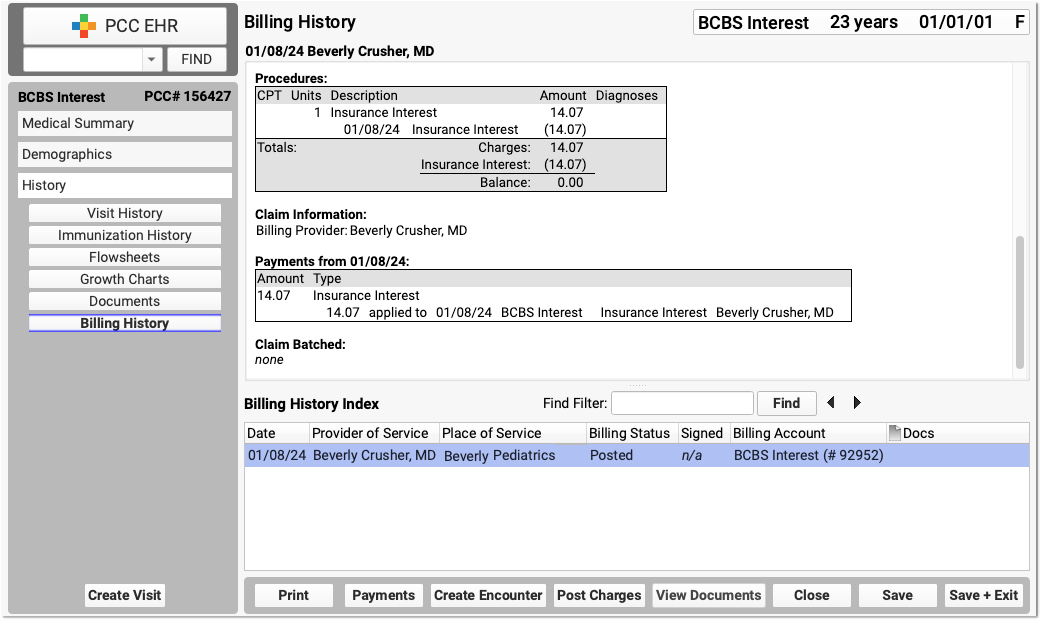
You can review what was posted on the Billing History and use the Billing History Index to review all payments posted to the account.
What About Overpayments?
An “overpayment” is when a payor sends more than is due on a charge, such as when you receive a duplicate payment for an encounter. In the past, some practices used holding accounts and administrative encounters to track overpayments. If your practice used this method, those holding accounts, containing insurance credits, may remain on your system.
However, overpayments should attach to the original encounter and charges shown on the ERA/EOB, even if they are unable to be applied towards those charges. As of the PCC Fall 2026 release, you can post an overpayment, or edit an existing insurance payment and turn it into an overpayment.
Post an overpayment any time you want to enter remittance information without the payments or adjustments affecting the encounter’s charges.
See Use Overpayments to Keep Track of Insurance Credits to learn more.
Configure Adjustment Procedures and Payment Types on Your PCC System
When you record these less-common payment situations, you use adjustment procedures and payment types that reflect their purpose.
PCC Can Do This Configuration For You: Your PCC system is configured by default with adjustment procedures and payment types, and PCC Support can help you make changes as needed.
The adjustments and payment types are defined in your practice’s Procedures table and Payment Types tables, found in the Tables tool.
For example, when you post an insurance interest payment, it will be offset by a procedure called “Insurance Interest”, which indicates what the payment was for. These adjustment procedures are found in your Procedures table in the Tables tool. They have an accounting type of “Revenue – Non-Service” and have no billing code or price. (As shown in the procedure above, you enter the amount of the adjustment when you post it.)
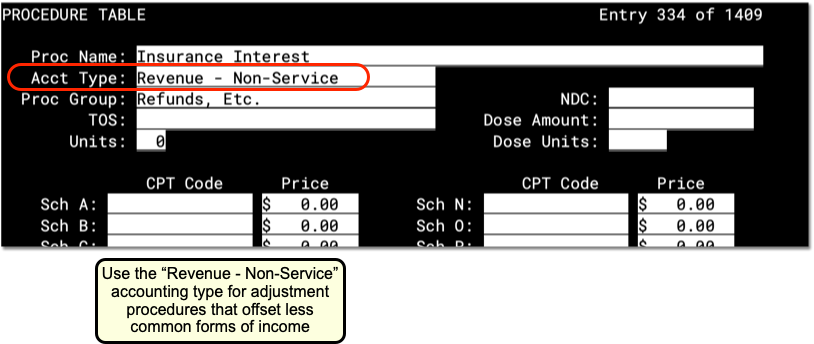
For each adjustment procedure, you use a corresponding payment type, such as an “Insurance Interest” payment type. Payment types are found in your Payment Types table in the Tables tool. Payments for insurance interest, capitation payments, and similar should have a Class of “Insurance” for reporting purposes. These payments types should include the option to be used when posting charges so they can be used when you create administrative encounters as shown in the procedure above.
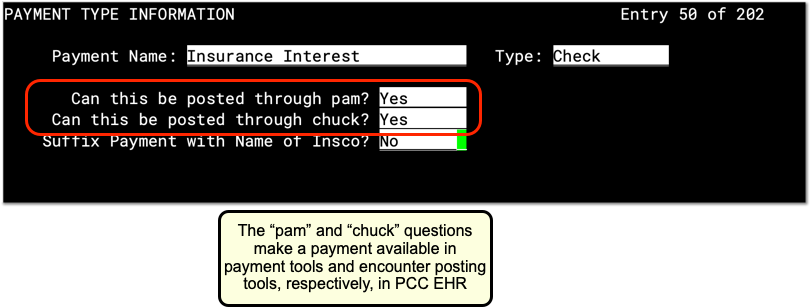
To learn more about making changes to these tables, see Edit Your Practice’s Procedures and Adjustments and Edit Your Practice’s Configuration Tables.
Export a Whole Patient Chart
You can export a patient’s entire chart from PCC EHR in just a few clicks.
Video: Watch Export a Whole Patient Chart to learn more.
Stop and Think Before You Export: The patient chart export exposes all of the Protected Health Information (PHI) stored in your system for a particular patient. This information is protected by law and sharing it inappropriately may harm the patient, their caregivers, you, and your practice. Before you export a patient’s whole chart, obtain consent from the patient and share only the minimum amount of information required.
Run the Export
Export a patient’s entire chart to a password-protected file in just a few clicks.
Obtain Consent from the Patient
Ask the patient or their authorized representative for consent to share their PHI with the intended recipient of the chart export. Your practice’s global consent form might already cover this step.
Open the Patient’s Chart
Open the patient’s chart in PCC EHR.
Avoid Working in SecureConnect for Best Results: If you need to export a patient chart, avoid working in SecureConnect and use the PCC EHR desktop application instead. SecureConnect saves exports to the file system on your PCC server, which requires a follow-up call to PCC Support. By contrast, the PCC EHR desktop application saves exports to your local workstation where you can easily retrieve them and move on to your next task.
Select “Chart Export” from the Reports Menu
Once in the patient’s chart, select Chart Export from the Reports menu.
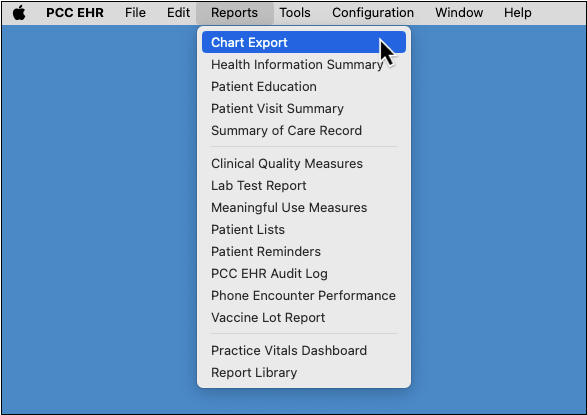
By Permission Only: Only users with the Chart Export role permission may open the Chart Export tool. For information about how to assign role permissions in PCC EHR, read Set User Roles for Permissions and Security.
Decide Whether to Include Confidential Content
The patient’s chart might include confidential notes, diagnoses, orders, and more. You can optionally include this information with the chart export.
The Chart Export window lists everything that is marked confidential in the patient’s chart. To include this information with the export, select the “Include Confidential Content” checkbox.
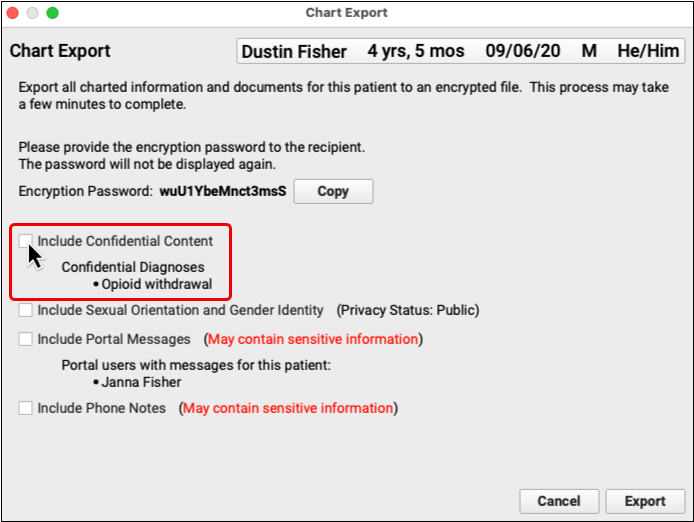
By default, confidential content is excluded from patient chart exports.
Decide Whether to Include Sexual Orientation and Gender Identity Information
Your practice might record information shared by the patient about their sexual orientation and gender identity. You can optionally include this information with the chart export.
The Chart Export window lists the privacy status of the patient’s sexual orientation and gender identity information. To include this information with the export, select the “Include Sexual Orientation and Gender Orientation” checkbox.
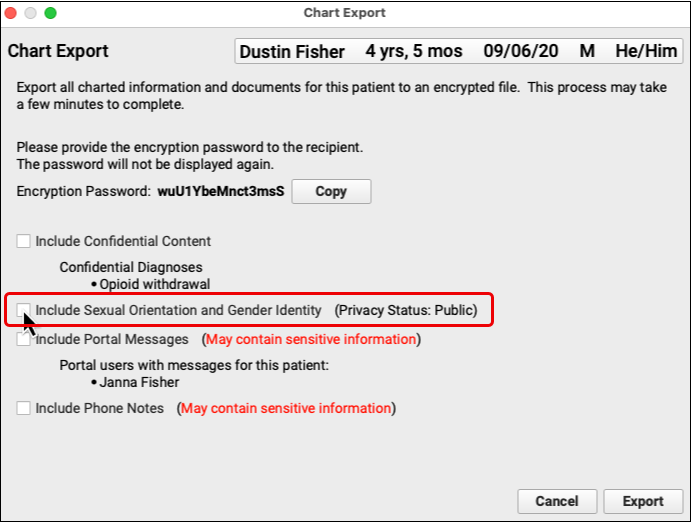
By default, sexual orientation and gender identity information is excluded from patient chart exports.
Decide Whether to Include Portal Messages
The patient might be connected to one or more portal users. You can optionally include messages from all of the patient’s portal users with the chart export.
The Chart Export window lists the patient’s portal users and each one’s relationship to the patient. To include all of these users’ messages in the chart export, select the “Include Portal Messages” checkbox.
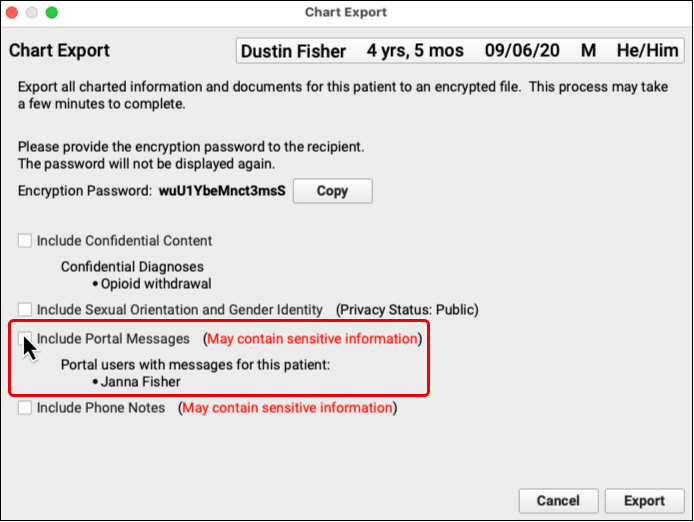
By default, portal messages are excluded from patient chart exports.
New in PCC 10.2: Decide Whether to Include Phone Notes
You can optionally include the patient’s phone notes with the chart export. To include phone notes with the chart export, select the “Include Phone Notes” checkbox.
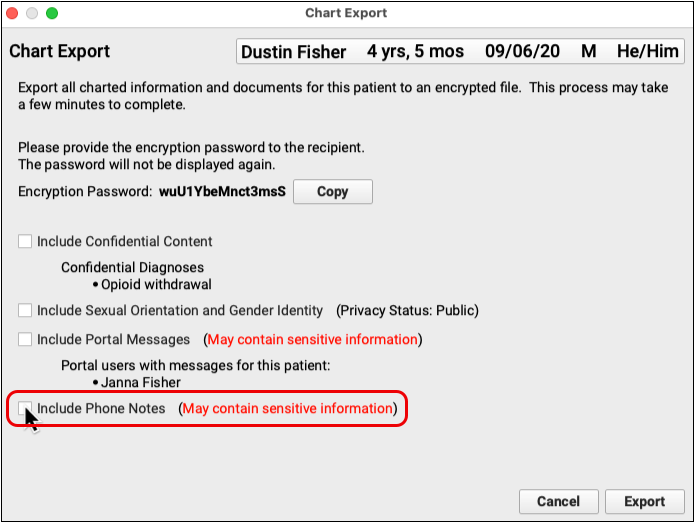
By default, phone notes are excluded from patient chart exports.
Copy the Encryption Password
Each chart export is protected by a unique encryption password. Click the “Copy” button to copy the password so that you can later share it with the recipient of the export.
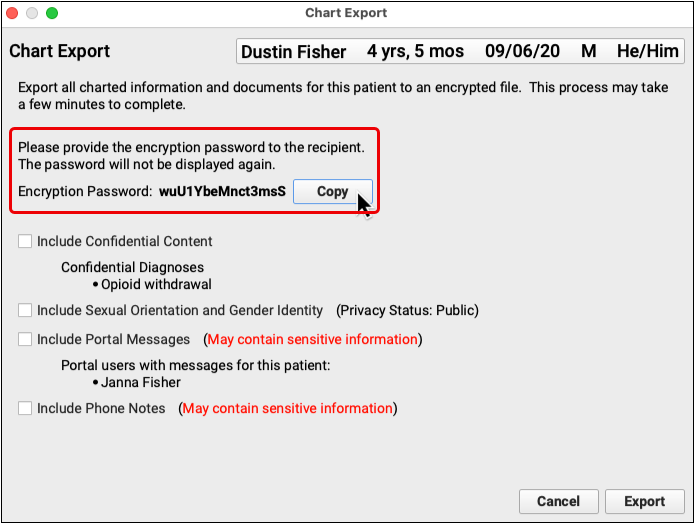
Lost Password? Generate a New Chart Export: There is no way to recover lost encryption passwords. If you or a recipient has lost the password for a past chart export, export the chart again and use a new password to access its contents.
Click “Export”
After you decide what to include with the export and copy the encryption password, click the “Export” button.
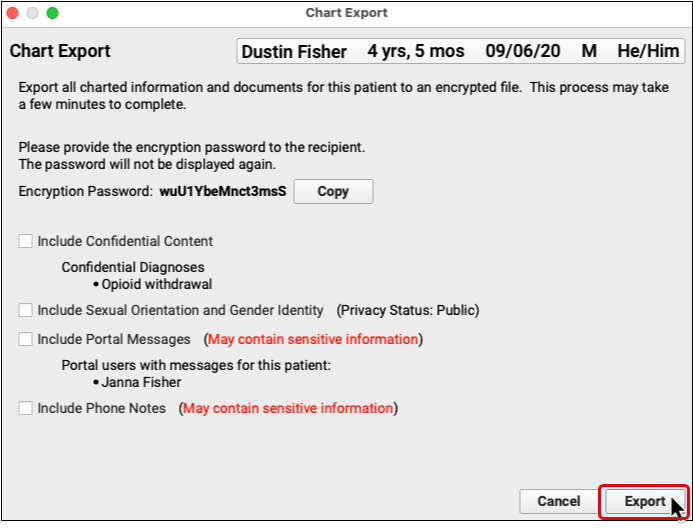
Depending on the number of visits in the patient’s history, the export may take up to a minute to complete.
Save the Export to Your Workstation
Use the file browser window to save the chart export to a location on your workstation.
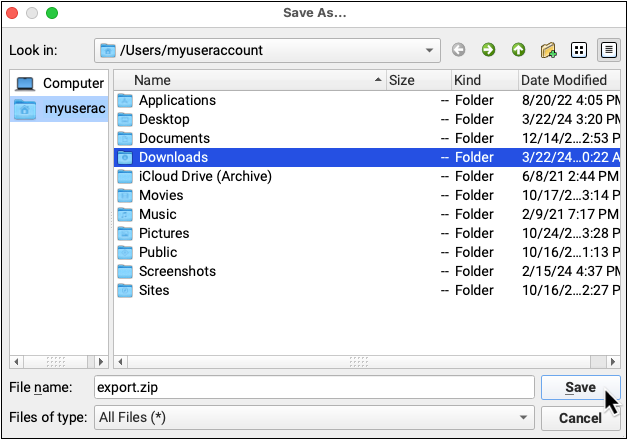
The chart export is password-protected and can safely be stored on your workstation provided the password is stored separately.
Share the Encryption Password and the Export with the Intended Recipient
Copy the encryption password into a direct secure message, portal message, or other secure type of message and send it to the recipient of the export. Then, share the export with the recipient.
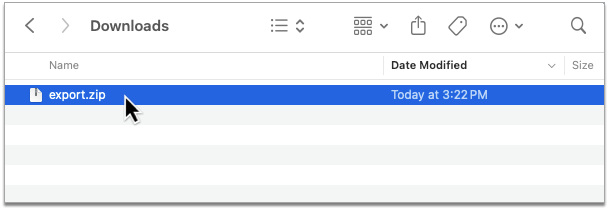
You can share the export in a separate direct secure message, an email, or by putting it on a thumb drive or CD.
What’s Included
The whole patient chart export from PCC EHR includes:
- charted visits and phone notes
- demographics
- diagnoses
- all documents
- family history diagnoses
- family, medical, and social history notes
- immunizations
- lab results
- medication allergies
- medication history
- orders
- prescription history
- problems
- smoking status history
- vitals
The export automatically excludes certain information, such as confidential notes, confidential diagnoses, confidential orders, gender identity and sexual orientation information, patient portal message, and phone notes. You may opt to include this information at the time of the export.
Medications Are Always Included: For patient safety reasons, chart exports always include all medications listed in the patient’s Medication History, including those prescribed on phone note or portal message encounters.
Export Format
The patient chart export saves to a compressed, encrypted file. Use the encryption password provided with the export to decrypt and decompress the directory and access its contents.
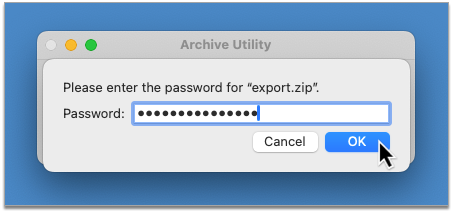
Password Prompt May Occur at Different Points: Depending on your operating system and the tool it is using to unarchive zipped folders, the prompt for the encryption password may occur when you open the encrypted directory, when you open subdirectories, or when you open the files themselves.
The top-level directory contains all of the data exported from the patient’s chart in human- and machine-readable formats (CSV, HTML, PDF, and XML).
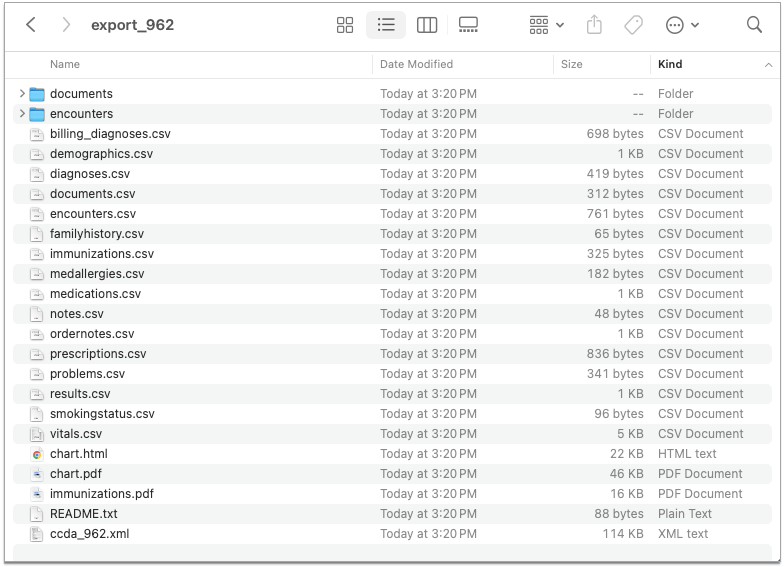
Reference the table below for descriptions of each file and subdirectory. Click any hyperlinked file name to jump to a detailed description of the data it contains.
| Name | Description | Type |
|---|---|---|
| documents | A directory containing the patient’s documents in PDF format. Documents are organized into subdirectories by type. Document types are created and assigned by the PCC practice that provides the export. Document files are named MM-DD-YYYY_ORIGINAL-FILE-NAME.pdf. | Directory |
| encounters | A directory containing the patient’s charted visits, phone notes, and portal messages (when selected for inclusion) in HTML format, as well as cascading style sheets (CSS) to style the HTML. Encounter files are named ENCOUNTER-TYPE_MM-DD-YYYY_ENCOUNTER-ID.html | Directory |
| billing_diagnoses.csv | The patient’s billed diagnoses | CSV |
| demographics.csv | The patient’s demographic information | CSV |
| diagnoses.csv | The patient’s charted diagnoses and problems | CSV |
| documents.csv | The patient’s documents | CSV |
| encounters.csv | The patient’s charted encounters, including phone notes and portal messages (when selected for inclusion) | CSV |
| familyhistory.csv | Diagnoses in the patient’s family history | CSV |
| immunizations.csv | The patient’s immunizations | CSV |
| medallergies.csv | The patient’s medication allergies | CSV |
| medications.csv | The patient’s past and present medications | CSV |
| notes.csv | The patient’s custom notes and family, social, and medical histories | CSV |
| ordernotes.csv | Free text notes associated with the patient’s orders | CSV |
| prescriptions.csv | The patient’s past and present prescriptions | CSV |
| problems.csv | The patient’s problem list diagnoses | CSV |
| results.csv | Results from the patient’s lab, screening, and other tests | CSV |
| smokingstatus.csv | The patient’s smoking status history | CSV |
| vitals.csv | The patient’s vital measurements | CSV |
| chart.html | An HTML version of the patient’s C-CDA v2.1 Continuity of Care Document (CCD) | HTML |
| chart.pdf | A PDF version of the patient’s C-CDA v2.1 Continuity of Care Document (CCD) | |
| immunizations.pdf | The patient’s school immunization form. Format varies by jurisdiction | |
| README.txt | A file containing a link to public documentation about the patient chart export and its contents. | Text |
| ccda_PATIENT-ID.xml | The patient’s C-CDA v2.1 Continuity of Care Document (CCD) | XML |
Data Structure
Learn how files in the patient chart export are structured.
billing_diagnoses.csv
This file contains a list of the patient’s billed diagnoses.
| Field | Description |
|---|---|
| Patient ID | The patient’s PCC identification number |
| Encounter ID | The identification number of the encounter for which the diagnosis was billed |
| ICD10 Code | The International Classification of Diseases, Tenth Revision (ICD-10) code for the billed diagnosis |
| ICD10 Description | The International Classification of Diseases, Tenth Revision (ICD-10) description for the billed diagnosis |
| ICD9 Code | The International Classification of Diseases, Ninth Revision (ICD-9) code for the billed diagnosis |
| ICD9 Description | The International Classification of Diseases, Ninth Revision (ICD-9) description for the billed diagnosis |
| SNOMED Concept ID | The Systematized Nomenclature of Medicine Clinical Terms (SNOMED CT) code for the billed diagnosis |
| SNOMED Term | The Systematized Nomenclature of Medicine Clinical Terms (SNOMED CT) description for the billed diagnosis |
demographics.csv
This file contains a table of the patient’s demographic information.
| Field | Description |
|---|---|
| Patient ID | The patient’s PCC identification number |
| Patient Last | The patient’s last name |
| Patient First | The patient’s first name |
| Patient Middle | The patient’s middle name |
| Patient Suffix | The patient’s name suffix |
| Patient Gender | The patient’s sex |
| Patient Born | The patient’s birth date |
| Custodian ID | The patient’s custodian’s PCC identification number |
| Custodian First | The patient’s custodian’s first name |
| Custodian Last | The patient’s custodian’s last name |
| Custodian Address 1 | The first line of the patient’s custodian’s home address, considered the first line of the patient’s home address |
| Custodian Address 2 | The second line of the patient’s custodian’s home address, considered the second line of the patient’s home address |
| Custodian City | The patient’s custodian’s home city, considered the patient’s home city |
| Custodian State | The patient’s custodian’s home state, considered the patient’s home state |
| Custodian Zip | The patient’s custodian’s home ZIP code, considered the patient’s home ZIP code |
| Custodian “Phone 1” | The patient’s custodian’s first phone number. The exact phone number label is decided by the PCC practice that provided the export |
| Custodian “Phone 2” | The patient’s custodian’s second phone number. The exact phone number label is decided by the PCC practice that provided the export |
| Custodian “Phone 3” | The patient’s custodian’s third phone number. The exact phone number label is decided by the PCC practice that provided the export |
| Custodian “Phone 4” | The patient’s custodian’s fourth phone number. The exact phone number label is decided by the PCC practice that provided the export |
| Primary Provider | The patient’s primary care provider (PCP) |
| Patient Race | The patient’s self-identified race |
| Patient Ethnicity | The patient’s self-identified ethnicity |
| Patient Primary Language | The patient’s primary language |
| Patient Reln to Bill Payer | The patient’s relationship to their bill payer for insurance reporting purposes |
| Guarantor ID | The patient’s guarantor’s PCC identification number |
| Guarantor First | The patient’s guarantor’s first name |
| Guarantor Last | The patient’s guarantor’s last name |
| Guarantor Address 1 | The first line of the patient’s guarantor’s home address, considered the first line of the patient’s personal billing address |
| Guarantor Address 2 | The second line of the patient’s guarantor’s home address, considered the second line of the patient’s personal billing address |
| Guarantor City | The patient’s guarantor’s home city, considered the patient’s personal billing city |
| Guarantor State | The patient’s guarantor’s home state, considered the patient’s personal billing state |
| Guarantor Zip | The patient’s guarantor’s home ZIP code, considered the patient’s personal billing ZIP code |
| Guarantor “Phone 1” | The patient’s guarantor’s first phone number. The exact phone number label is decided by the PCC practice that provided the export |
| Guarantor “Phone 2” | The patient’s guarantor’s second phone number. The exact phone number label is decided by the PCC practice that provided the export |
| Guarantor “Phone 3” | The patient’s guarantor’s third phone number. The exact phone number label is decided by the PCC practice that provided the export |
| Guarantor “Phone 4” | The patient’s guarantor’s fourth phone number. The exact phone number label is decided by the PCC practice that provided the export |
| Patient Deceased Date | The patient’s date of decease |
| Sexual Orientation | The patient’s sexual orientation, if selected for inclusion in the export |
| Sexual Orientation Note | Notes about the patient’s sexual orientation, if selected for inclusion in the export |
| Gender Identity | The patient’s gender identity, if selected for inclusion in the export |
| Gender Identity Note | Notes about the patient’s gender identity, if selected for inclusion in the export |
| Preferred Pronouns | The patient’s preferred personal pronouns, if selected for inclusion in the export |
| Preferred Name | The patient’s preferred name, if selected for inclusion in the export |
diagnoses.csv
This file contains a table of the patient’s charted diagnoses.
| Field | Description |
|---|---|
| Patient ID | The patient’s PCC identification number |
| Encounter ID | The identification number of the encounter during which the diagnosis was documented |
| ICD9 Code | The International Classification of Diseases, Ninth Revision (ICD-9) code for the diagnosis |
| ICD9 Description | The International Classification of Diseases, Ninth Revision (ICD-9) description for the diagnosis |
| SNOMED Concept ID | The Systematized Nomenclature of Medicine Clinical Terms (SNOMED CT) code for the diagnosis |
| SNOMED Term | The Systematized Nomenclature of Medicine Clinical Terms (SNOMED CT) description for the diagnosis |
| Diagnosis Note | The note associated with the diagnosis |
documents.csv
This file contains a table of the patient’s documents.
| Field | Description |
|---|---|
| Document ID | The document’s PCC identification number |
| First Page | The first page number of the document |
| Last Page | The last page number of the document |
| Encounter ID | The identification number of the encounter with which the document is associated |
| Document Date | The date the document was attached to the patient’s chart |
| Patient ID | The patient’s PCC identification number |
| Category | The category to which the document was assigned |
| Note | The note associated with the document |
| File | Where the document is stored on the exporter’s PCC system |
encounters.csv
This file contains a table of the patient’s charted visits, phone notes, and portal messages.
| Field | Description |
|---|---|
| Encounter ID | The encounter’s PCC identification number |
| Patient ID | The patient’s PCC identification number |
| Date | The date of the encounter |
| Encounter Type | The encounter type |
| Provider | The provider of the encounter |
| Note | The free-text note associated with the encounter |
| File | Where the encounter document is stored on the exporter’s PCC system |
familyhistory.csv
This file contains a table of diagnoses in the patient’s family history.
| Field | Description |
|---|---|
| Patient ID | The patient’s PCC identification number |
| Relation | How the family member with the diagnosis is related to the patient |
| SNOMED Concept ID | The Systematized Nomenclature of Medicine Clinical Terms (SNOMED CT) code for the diagnosis |
| SNOMED Term | The Systematized Nomenclature of Medicine Clinical Terms (SNOMED CT) description for the diagnosis |
| Note | The note associated with the diagnosis |
immunizations.csv
This file contains a table of the patient’s immunizations.
| Field | Description |
|---|---|
| Patient ID | The patient’s PCC identification number |
| Description | The name of the immunization |
| CVX | The Vaccine Administered (CVX) code for the vaccine |
| Site | The site where the vaccine was administered |
| Manufacturer | The company that manufactured the vaccine |
| Lot | The vaccine lot number |
| VIS | The identification number of the Vaccine Information Sheet (VIS) provided to the patient when the vaccine was administered |
| VIS Date | The Vaccine Information Statement (VIS) publication date |
| Encounter ID | The identification number of the encounter during which the vaccine was administered |
| Date | The date the vaccine was administered |
| Status | The status of the vaccine administration |
| Notes | Free text notes associated with the vaccine |
medallergies.csv
This file contains a table of the patient’s medication allergies.
| Field | Description |
|---|---|
| Patient ID | The patient’s PCC identification number |
| Allergen | The text description of the allergen |
| Allergen Code | The First Data Bank (FDB) code for the allergen |
| Allergen Code System | The code system employed for allergy documentation |
| Sensitivity Type | The patient’s sensitivity type to the allergen |
| Sensitivity Type Code | The First Data Bank (FDB) code for the sensitivity type |
| Severity | The severity of the patient’s allergy |
| Severity Code | The First Data Bank (FDB) code for the severity of the patient’s allergy |
| Reaction | The patient’s reaction to the allergen |
| Onset Date | The onset date for the allergy |
| Resolved Date | The date the allergy resolved |
| Active | The active status of the allergen |
medications.csv
This file contains a table of the patient’s past and present medications.
| Field | Description |
|---|---|
| Patient ID | The patient’s PCC identification number |
| ndc_id | The National Drug Code (NDC) for the medication |
| rxnorm_codes | The RxNorm code for the medication |
| drug_description | A description of the medication |
| pat_language_drug_description | A patient-friendly description of the medication |
| drug_name | The name of the medication |
| directions | Directions for taking the medication |
| pat_language_directions | Patient-friendly directions for taking the medication |
| route_code | The route for taking the medication |
| dose | The quantity of medication per dose |
| dose_units | The dose unit of measure |
| drug_strengths | The medication strength |
| pat_language_drug_strengths | A patient-friendly description of the medication strength |
| frequency_code | The frequency with which the patient was instructed to take the medication |
| instructions | Free-text instructions describing how to take the medication |
| comments | Non-patient-facing comments about the medication |
| duration | The duration of the medication |
| duration_units | The time units for the duration of the medication |
| start_date | The date the patient was instructed to start taking the medication |
| stop_date | The date the patient was instructed to stop taking the medication |
| discontinued_ts | The date the medication was discontinued in the patient’s medication history |
| prescriber_name | The name of the person who prescribed the medication |
| active | The active status of the medication |
notes.csv
This file contains a table of the patient’s custom notes and family, social, and medical histories.
| Field | Description |
|---|---|
| Patient ID | The patient’s PCC identification number |
| Note Type | The type of the note |
| Note | The contents of the note |
| Last Modified | The date the note was last modified |
ordernotes.csv
This file contains a table of free text notes associated with the patient’s orders.
| Field | Description |
|---|---|
| Patient ID | The patient’s PCC identification number |
| Encounter ID | The identification number of the encounter during which the order was placed |
| Order ID | The order’s PCC identification number |
| Order Code | The order’s PCC order code |
| Order Name | The name of the order |
| Order Date | The date the order was placed |
| Note Date | The date that the note was saved |
| Discrete Result | A flag indicating whether the result values are discrete or non-discrete (1 is discrete, 0 is non-discrete) |
| Note | The free-text note associated with the order |
prescriptions.csv
This file contains a table of the patient’s past and present prescriptions.
| Field | Description |
|---|---|
| Patient ID | The patient’s PCC identification number |
| Encounter ID | The identification number of the encounter during which the prescription was created |
| ndc_id | The National Drug Code (NDC) for the prescribed medication |
| rxnorm_codes | The RxNorm code for the prescribed medication |
| drug_description | A description of the prescribed medication |
| pat_language_drug_description | A patient-friendly description of the prescribed medication |
| drug_name | The name of the prescribed medication |
| directions | Directions for taking the prescribed medication |
| pat_language_directions | Patient-friendly directions for taking the prescribed medication |
| drug_strengths | The strength of the prescribed medication |
| pat_language_drug_strengths | A patient-friendly description of the prescribed medication strength |
| comments | Non-patient-facing comments about the prescribed medication |
| start_date | The date the patient was instructed to start taking the prescribed medication |
| stop_date | The date the patient was instructed to stop taking the prescribed medication |
| discontinued-ts | The date the prescribed medication was discontinued in the patient’s medication history |
| prescriber_name | The name of the person who prescribed the medication |
| quantity | The total quantity that was prescribed |
problems.csv
This file contains a table of the patient’s problem list diagnoses, including non-medication allergies.
ICD9 DescriptionThe Internal Classification of Diseases (ICD-10) description for the problem list diagnosis
| Field | Description |
|---|---|
| Patient ID | The patient’s PCC identification number |
| ICD9 Code | The Internal Classification of Diseases (ICD-10) code for the problem list diagnosis |
| SNOMED Concept ID | The Systematized Nomenclature of Medicine Clinical Terms (SNOMED CT) code for the problem list diagnosis |
| SNOMED Term | The Systematized Nomenclature of Medicine Clinical Terms (SNOMED CT) description for the problem list diagnosis |
| Resolved Date | The date the problem resolved |
| Onset Date | The onset date of the problem |
| Status | The active status of the problem |
| Inactive Date | The date the problem list diagnosis was marked inactive |
| Problem Note | The free-text note associated with the problem list diagnosis |
| Allergy | A binary flag indicating whether the problem is an allergy (0 for no, 1 for yes) |
results.csv
This file contains a table of results from the patient’s lab, screening, and other tests.
| Field | Description |
|---|---|
| Patient ID | The patient’s PCC identification number |
| Encounter ID | The identification number of the encounter during which the test associated with the result was ordered |
| Order ID | The identification number of the PCC order associated with the result |
| Result Set ID | The identification number of the set to which the result belongs |
| Seq# | Where the result appears in sequence within the result set |
| LOINC Code | The Logical Observation Identifiers Names and Codes (LOINC) code for the test associated with the result |
| Value | The discrete result value |
| Result Text | A description of the test associated with the result |
| Units | If applicable, the unit of measure for the discrete result value |
| Interpretation Code | The interpretation code for the result as defined by the HL7 v2.5.1 Abnormal Flags table |
| Normal Range | The range in which the result must fall to be considered normal |
| Abnormal | A binary flag indicating whether the result is abnormal (0 for no, 1 for yes) |
| Result Date | The date and time the result was reported |
| Note | The free-text note associated with the result |
| Order Name | The name of the PCC order associated with the result |
| Order Type | The type of the PCC order associated with the result |
smokingstatus.csv
This file contains a table of the patient’s smoking status history.
| Field | Description |
|---|---|
| Patient ID | The patient’s PCC identification number |
| Encounter ID | The identification number of the encounter during which the smoking status was documented |
| SNOMED Code | The Systematized Nomenclature of Medicine Clinical Terms (SNOMED CT) code for the smoking status |
| SNOMED Term | The Systematized Nomenclature of Medicine Clinical Terms (SNOMED CT) description for the smoking status |
vitals.csv
This file contains a table of the patient’s vital measurements.
| Field | Description |
|---|---|
| Encounter ID | The identification number of the encounter during which the vital measurement was taken |
| Patient ID | The patient’s PCC identification number |
| Vital Type | The vital type |
| Major Value | The major value of the vitals measurement |
| Major Unit | The unit of measure for the major value |
| Minor Value | The minor value of the vitals measurement |
| Minor Unit | The unit of measure for the minor value |
| Temperature Method | How the patient’s temperature was measured |
| Blood Pressure Location | Where the patient’s blood pressure was measured |
| Blood Pressure Position | The position the patient was in when their blood pressure was measured |
| Date | The date of the vitals measurement |
| Percentile | How the patient’s vitals measurement compares to others in a range |
| Percentile Source | The source of the range used for calculating the percentile |
chart.html, chart.pdf
A human-readable version of the patient’s C-CDA v2.1 Continuity of Care Document (CCD).
| Section | Description |
|---|---|
| Patient, Document, and Sender Details | Patient, document, and sender identifying information. Includes patient name, date of birth, sex, race, ethnicity, contact information, and IDs; document ID and creation date; primary care provider name, authoring system, and workplace address; maintaining organization name and workplace address. |
| Table of Contents | A hyperlinked list of sections included in the Continuity of Care Document (CCD). |
| Allergies, Adverse Reactions, Alerts | A list of the patient’s allergies. Includes allergen code, name, reaction note, onset date, and active status. |
| History of Medication Use | A list of the patient’s past and present medications. Includes medication code, brand name, strength, route, form, start date, and stop date. |
| Problem List | A list of the patient’s problem list diagnoses. Includes diagnosis name, SNOMED-CT/ICD-9 code, onset date, and active status. |
| History of Procedures | A list of the patient’s past and present procedures. Includes order name, SNOMED code, SNOMED description, procedure date, and completion status. |
| Relevant Diagnostic Tests and/or Laboratory Data | A list of the patient’s lab, screening, and other diagnostic tests. Includes result types, SNOMED codes, descriptions, dates, statuses, and results. |
| Vital Signs | A list of the patient’s vital sign measurements. Includes vital type, value, unit, and date taken. |
| Social History | A list of the patient’s social history notes. Includes date recorded, SNOMED code, and status. |
| Care Plan | The patient’s care plan(s). |
| Immunizations | A list of the patient’s immunizations. Includes vaccine, date administered, site, and status. |
| Encounters | A list of the patient’s charted encounters. Includes encounter type, performer, location, date, and diagnoses. |
| Reason for Referral | A list of referral reasons. Includes result type, SNOMED code, description, date, status, and result. |
| Functional Status Assessment | Notes about the patient’s cognitive or functional status. |
| Payers | The patient’s insurance policies. Includes policy order indicator, policy name, certificate number, group number, and phone number. |
Additional Information
There are a few more things you should know about patient chart exports in PCC EHR.
Who to Contact
If you received a patient chart export and have questions about its contents, contact the practice who provided the export.
If you are a PCC practice with questions about the export, contact PCC Support.
Multi-Patient Chart Exports
If you need access to information beyond what is provided with the patient chart export tool and PCC reports, such as detailed audit logs or a multi-patient chart export, contact PCC Support.
Depending upon the complexity of the request and the degree of developer involvement required, special data exports may carry an additional fee.
Write Off Charges and Bad Debt
When you want to write off a charge that is unrecoverable (“bad debt”), or post other account adjustments that reduce the amount due for a charge and decrease an account’s outstanding personal balance, use the Payments tool.
Video: Watch Post Personal Payments to learn more.
Open Payments
Open the Payments tool from the Tools menu in PCC EHR
Find an Account
Find the billing account for the charges you need to write off.
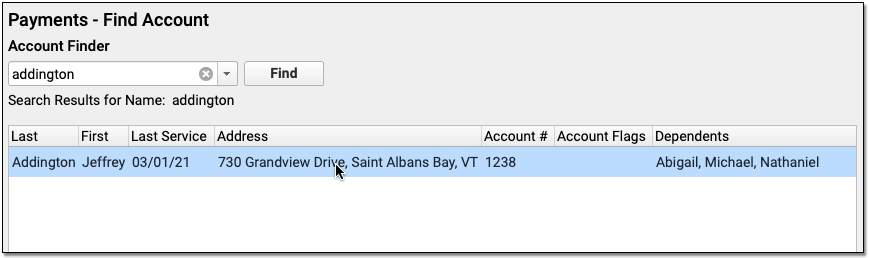
You can search by account name or use other search parameters, like an account phone number.
Optionally Review Account Information
In the Payments tool, you can review Account Balances, Account Demographics, and the Account Notes component so you can understand the charges and what you may need to write off.
For an explanation of all outstanding personal balances, click the disclosure arrow below Aged Balances.
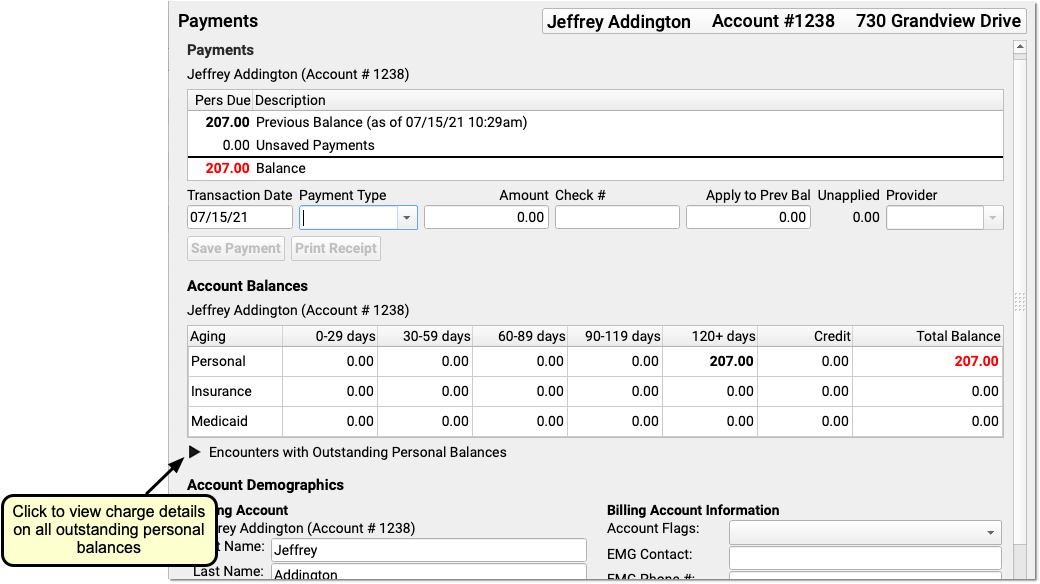
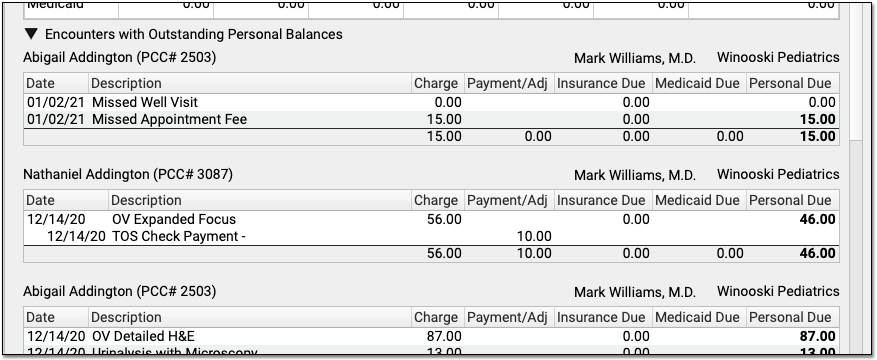
Select an Adjustment Type and Enter Amount
Select your practice’s preferred Adjustment type for a write off in the Payment Type drop-down menu. Then enter an amount.
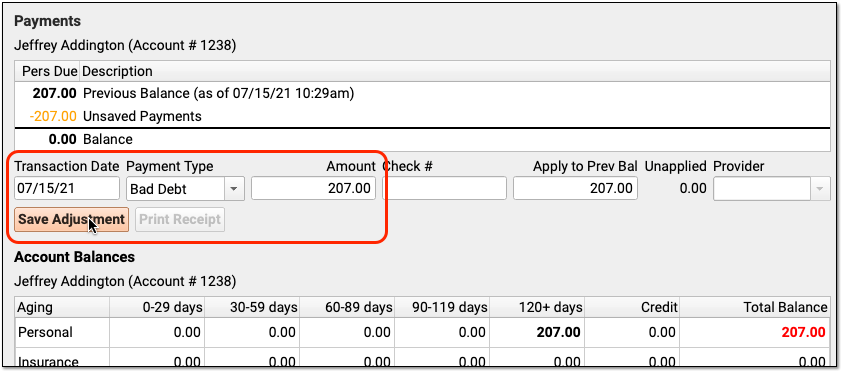
Optional: Apply the Adjustment to Specific Charges
Just as you can select which charges a payment applies towards, you can also enter specific charges to write off, and enter specific amounts.
By default, PCC will automatically apply the adjustment to the oldest unpaid personal charge(s) on the account.
Click “Save Adjustment”
Review Results
Use the payment history to review the charges that the adjustment applies towards and make decisions about any other remaining balances on the account.
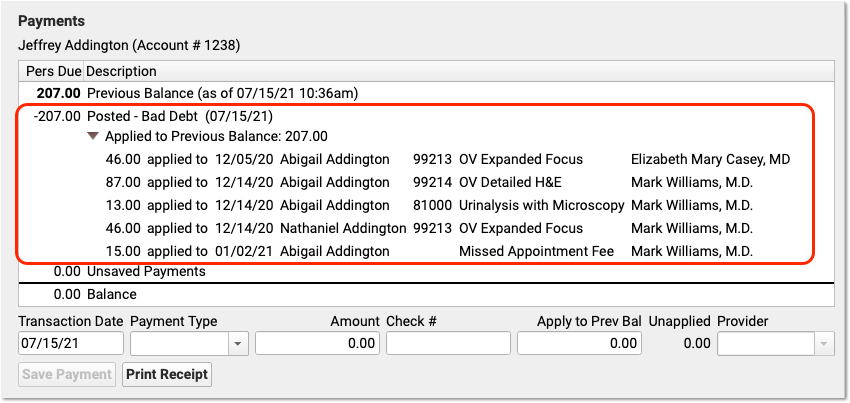
Enter an Account Note Explaining What You Did
It’s a good idea to add an account note explaining what balances were written off.

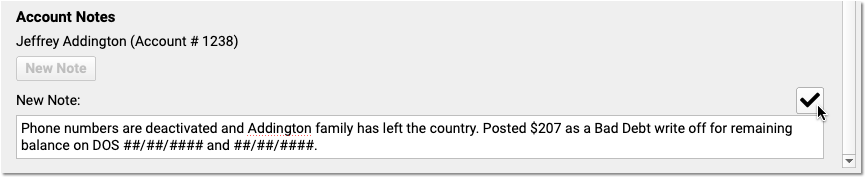
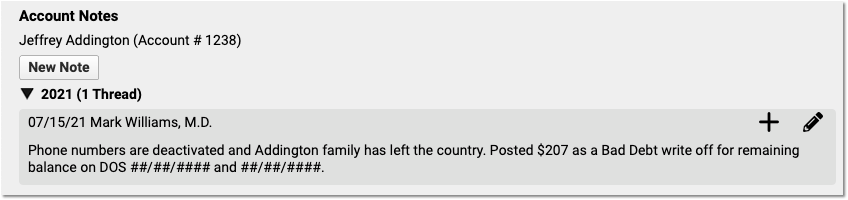
Configure Your Practice’s Write Off Adjustment Types
When you write off a charge, you post an adjustment against that charge. By default, this is done with a “Bad Debt” adjustment.
Your practice can post other types of adjustments as well. You can edit or add new adjustment types in the Payment Types table in the Configuration menu in PCC EHR. An adjustment type used for writing off a credit should have a Payment Class of “Adjustment”.
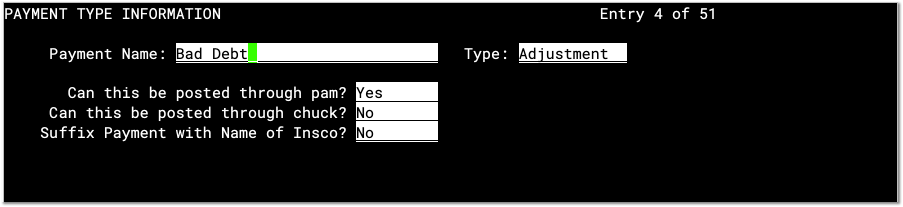
To learn how to edit procedures on your system, read Edit Your Practice’s Procedures, Codes, Adjustments, and Prices.
Manage Your Practice’s Room List
Manage your practice’s exam room list using the Rooms configuration tool in PCC EHR.
Users with permission will find “Rooms” under the Configuration menu.
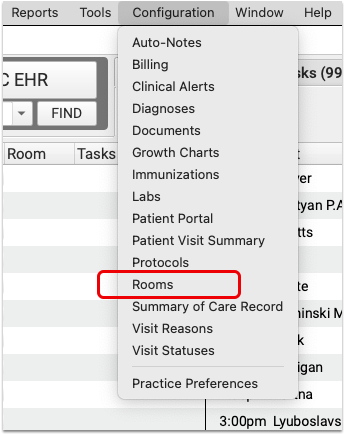
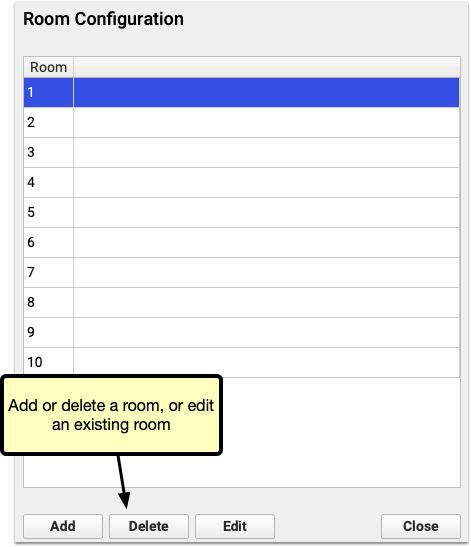
Click “Add” to create a new room. Room names can be between 1 and 4 characters, and can use any letter, number, or symbol. Names must be unique.
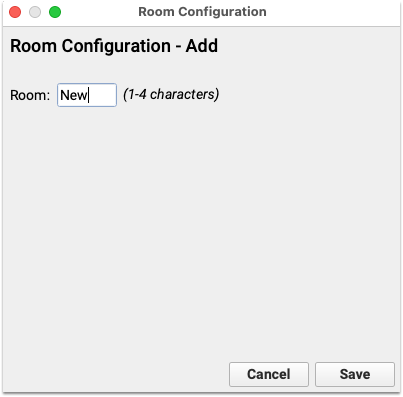
Click “Save” to add the room.
Once you’ve added a new room, or changed the name of an existing room using the edit button, click close in the Room Configuration window. The new room will appear in the drop-down menu in PCC EHR’s schedule queue.
Deleting an existing room will change the available options for future visits, but will not change any history. For example, if you delete room 10, visits recorded as happening in room 10 will still display room 10. Editing a room will change the name of the room on previous visits.
If needed, a provider can assign an exam room within an encounter. The Appointment Details component includes a “Room” drop-down menu.
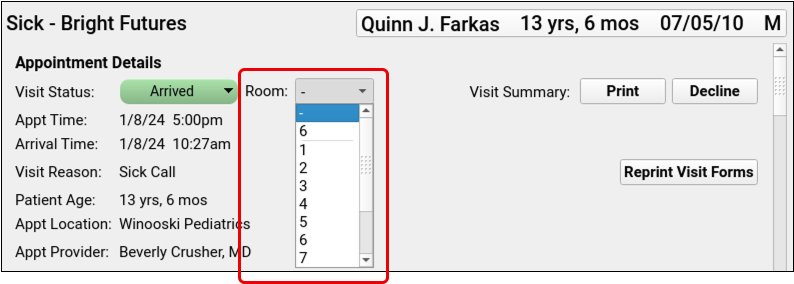
The room drop-down menu is available in all encounters with a status other than “Scheduled” or “Gone.” Simply select a room and move on. The room change saves automatically.
Resend a Prescription
If a pharmacy is unable to fill your patient’s prescription, use the “Resend” button to reroute the prescription to a different pharmacy. You can also use the “Resend” button to fix mistakes on a prescription and resend it to the original pharmacy.
Article Under Construction: This article and companion video are being updated to reflect new functionality in PCC 10.4, which arrived on October 12th, 2025. Some steps may not match your PCC system.
Video: Watch Resend a Prescription to see it in action.
Find the Prescription
Open the patient’s chart. From their Visit History or the encounter selector in the PCC eRx, select the encounter where you wrote the prescription that needs to be resent.
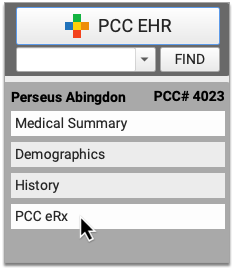
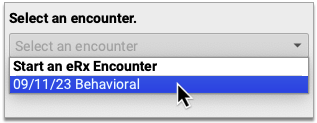
From that encounter, make your way to the Review & Sign component in PCC eRx and find the prescription that needs to be resent.
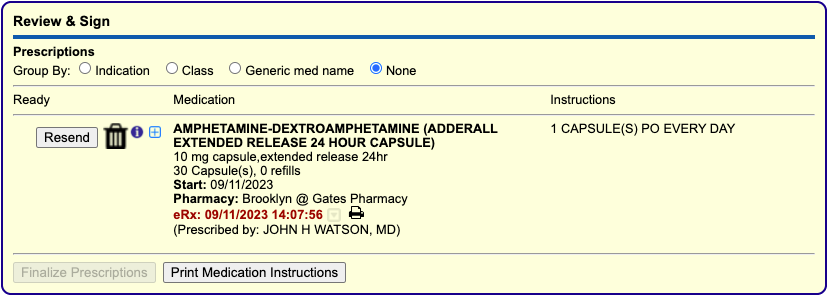
Click “Resend”
Click the “Resend” button beside the prescription.
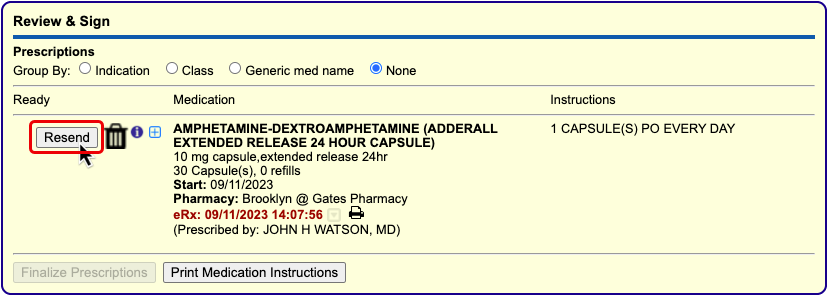
Role-Specific: The “Resend” button is sensitive to each user’s PCC eRx role and permissions. Only Providers, Mid-Level Providers, and Provider Agents may resend prescriptions for legend drugs. Only Providers and Mid-Level Providers who are registered for EPCS may resend prescriptions for controlled substances. To learn and manage users’ eRx role and permissions, open User Administration from the Tools menu in PCC EHR.
Edit the Prescription or Choose a Different Pharmacy
Depending on your reason for resending the original prescription, edit its details or choose a different pharmacy.
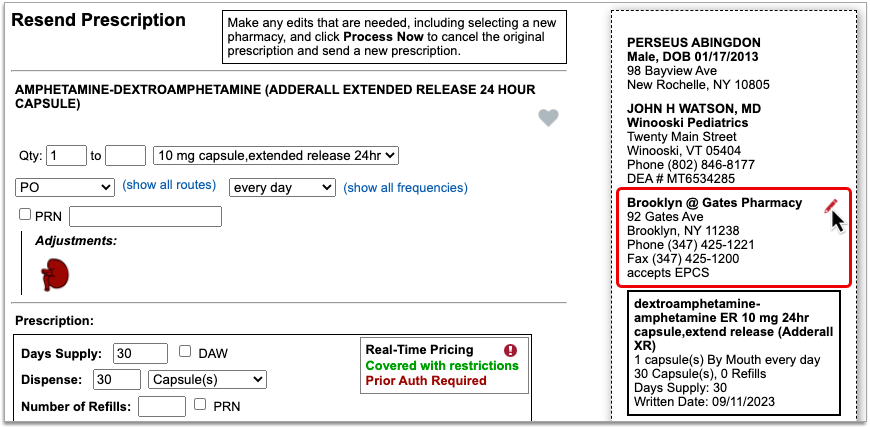
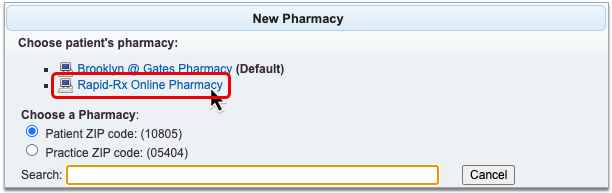
Process and Send the Prescription
Click the “Process Now” button on the prescription preview to finish resending the prescription.
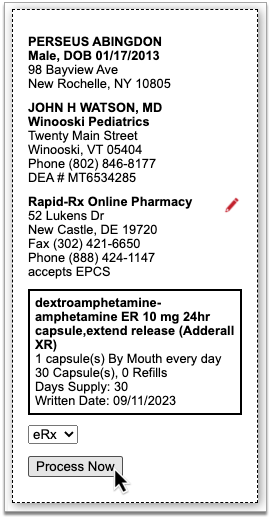
PCC eRx automatically sends a cancellation for the original prescription when you process the resend.
Repeat As Needed
If the new version of the prescription also has issues, you can resend that one, too.
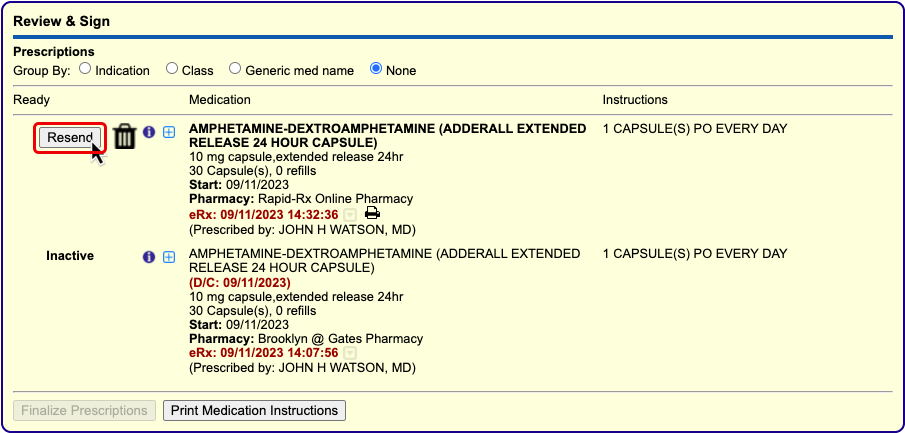
Active prescriptions can be resent up to seven calendar days after their original processing date.
Retracing Your Steps
There are several places you can see all versions of a particular prescription in PCC EHR and PCC eRx.
The Prescriptions component in PCC EHR, the Patient Visit Summary, and the Review & Sign component in PCC eRx show all previous versions of the prescription in addition to the one that was ultimately dispensed.
Only the most recent version of the prescription appears in the patient’s Prescription History and the Medication History components in PCC eRx and PCC EHR.
Configure Pre-Check-In
Your patients and families can add, confirm, and update patient, billing and insurance information through the patient portal, ahead of their visit through Pre-Check-In PCC’s patient portal.
Pre-Check-In is completed through the patient portal. When configured, Pre-Check-In is available within the patient portal seven days before an appointment. A notification is sent to the patient portal users associated with the patient two days before the appointment. Pre-Check-In.
Pre-Check-In is triggered by upcoming appointments, so if a patient portal user has multiple patients with appointments on the same day, the user will need to complete Pre-Check-In individually for each appointment.
Multiple Patient Portal users can complete Pre-Check-In. Use the Pre-Check-In Recipient component to allow additional portal users to complete Pre-Check-In.
Pre-Check-In works in conjunction with PCC EHR’s check-in feature. Information submitted through Pre-Check-In appears in the Check-In component where it can be reviewed and imported.
Pre-Configuration: Review Your Practice Workflow
Phone Numbers and Phone Number Labels
Make sure you’re only using the phone number fields for numerical phone numbers. Any other text, such as “ex” to record an extension, for example, will be stripped out of the information presented during Pre-Check-In. When a user updates or confirms a phone number during Pre-Check-In, the updated, or re-formatted version will overwrite any existing text or phone number in PCC EHR.
Account Demographics phone number labels are customizable and managed through the Practice Management window in PCC EHR. The labels are visible in Patient Portal during Pre-Check-In. Ensure that they are appropriately labeled and that they will make sense to your patients and families if they need to update any numbers you have on file. If you need help adjusting phone labels, contact PCC support.
Notifications
Review how you communicate with patients and families in advance of a visit. A notification to complete the Pre-Check-In process is sent two days before the scheduled visit. Consider how this additional notification fits into your overall patient communication. If you use Notify, Broadcast Messaging, CHADIS, and Pre-Check-In, that could result in a flood of reminders and messages prior to an appointment. Consider adjusting your Notify or Broadcast Messaging usage to let the Pre-Check-In notification serve as an additional reminder.
If someone in your office manually makes appointment reminder calls, use that opportunity to remind patients and families to complete Pre-Check-In.
Eligibility
Users can submit updated insurance information through Pre-Check-In. Be prepared to review any Pre-Check-In results when checking Insurance Eligibility before a visit, so you can ensure that you have the most up-to-date insurance information for each patient.
Check For Patient Portal Accounts During Each Interaction
Your practice need not have 100% of your billing accounts linked to patient portal accounts to use pre-check-in, but the more you have the more effective and useful pre-check-in will be. Take advantage of your interactions with patients and families to ensure that as many as possible have a patient portal account assigned to their billing account.
With the Account Demographics component at the top of the Appointment Book – Patient Details Protocol you can quickly check if a portal user is linked while scheduling an appointment and can create or link an existing patient portal account during the call.
Patients and families without a patient portal account will not be able to complete pre-check-in, so they’ll need to check-in when they arrive at your office. That’s an easy reminder to check their billing account and portal user so they’ll be able to use Pre-Check-In for their next visit.
Prepare Accounts and Portal Users for Pre-Check-In
Link Portal Users to EHR Accounts
Each patient scheduled for an appointment needs a Patient Portal account associated with their billing account to receive Pre-Check-In notifications and to complete the Pre-Check-In process.
If your practice is already using Patient Portal, existing Patient Portal billing accounts need to be linked to EHR accounts. Use the “Add” button in PCC EHR’s demographics component to link the EHR account to the matching person’s Patient Portal account or create a new Patient Portal account as needed.
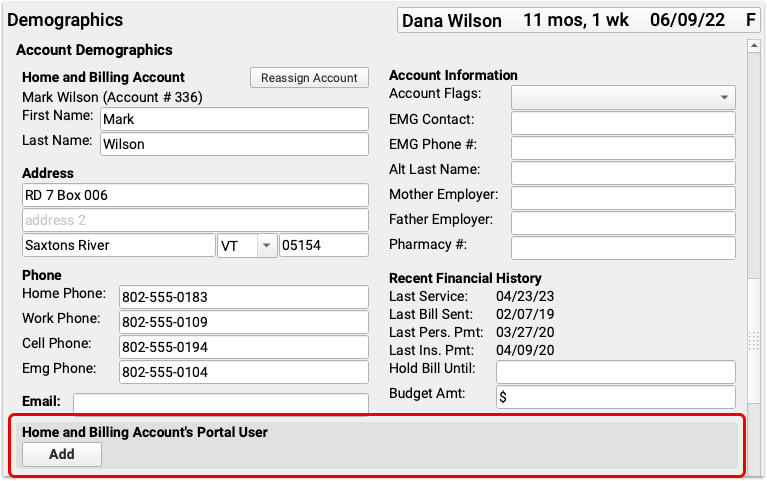
For more information on managing Patient Portal accounts, click here.
Add Additional Pre-Check-In Users
If needed, add additional Pre-Check-In users, so multiple patient portal users can complete Pre-Check-In for each patient.
The Pre-Check-In Recipient component in each patient’s demographics includes a drop-down menu listing all patient portal users linked to the selected patient.
Select an patient portal user linked to this patient to receive the Pre-Check-In notification and option to complete Pre-Check-In.
Once a user begins Pre-Check-In, the additional user will be notified that Pre-Check-In is in progress on the patient portal home page.
Any Pre-Check-In recipient can continue Pre-Check-In, but once any user submits Pre-Check-In, check-in is complete, and ready to be reviewed and imported in PCC EHR.
Configure Pre-Check-In
Adjust the Appointment Book – Patient Details Protocol
Adjust the Appointment Book – Patient Details Protocol so you can quickly check if a patient has a Portal User associated with their billing account during scheduling.
Open the Protocol Tool in PCC EHR’s configuration menu and select Appointment Book – Patient Details under “Chart-wide Builders”. Move the Account Demographics component to the top of the protocol, so it will be immediately visible when you click the Details button in the Appointment book.
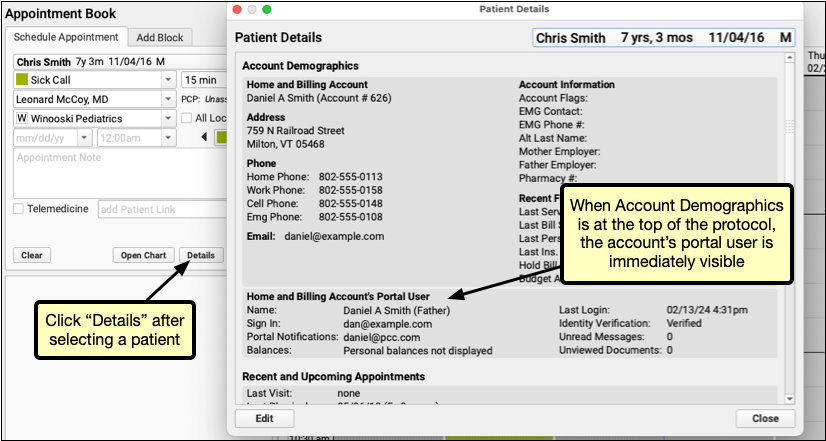
Select a Pre-Check-In Document Category
When Pre-Check-In is enabled, a new document category called “Pre-Check-In Insurance Cards” is automatically created. By default, insurance card images are added to this category. If you already have an insurance card category, or prefer to create a category with a different name, you can manage how Insurance Card Images are categorized through the Document Administration tool in PCC EHR’s Configuration menu.
Pre-Check-In Insurance Cards appears at the bottom of the Assigned Categories tab. Select your existing category in the drop-down menu, and click save.
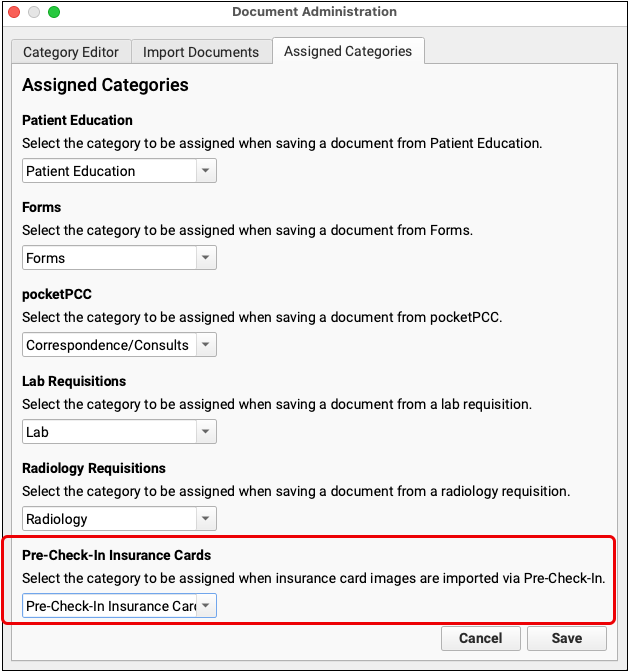
Select Visit Reasons for Pre-Check-In
PCC EHR’s Visit Reason Editor includes two Pre-Check-In configuration options, so your practice can set which visit reasons should use Pre-Check-In and which should not.
By default, all visit reasons are set to use Pre-Check-In. Open Scheduling from PCC EHR’s Configuration menu. In the Visit Reason tab, select a visit and click “Edit”.
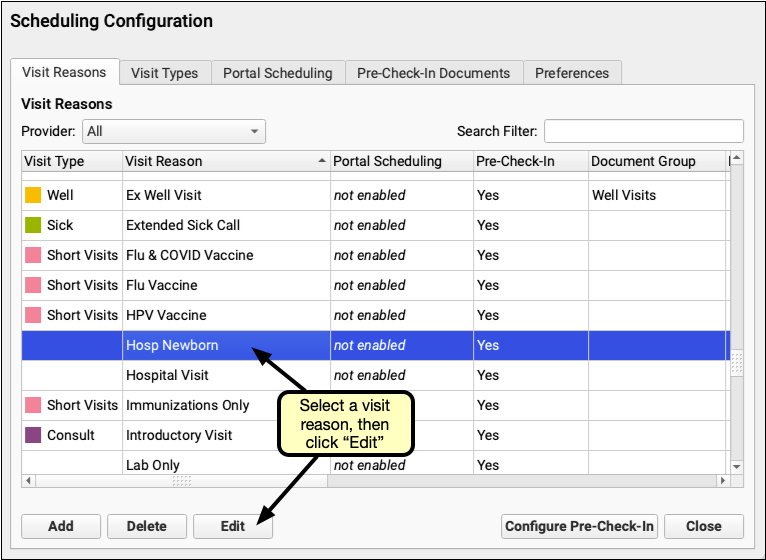
Edit Visit Reason includes a “Pre-Check-In” line with a “Yes” and “No” button. Selecting “No” will disable Pre-Check-In for the selected visit reason.
Patients scheduled with a visit reason set to “No” will not find the orange “Start Pre-Check-In” button when they log into the Patient Portal and will not receive the notification inviting them to complete Pre-Check-In.
Click “Save” to save your work and close the window or click “Save + Next” to save and automatically edit the next visit reason in your list.
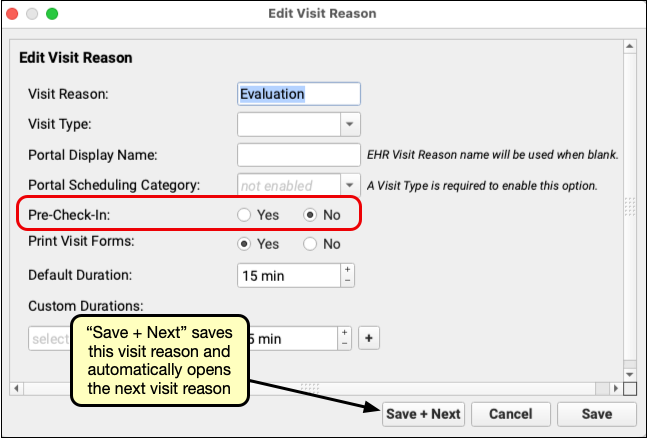
You can configure multiple visit reasons by clicking “Configure Pre-Check-In” on the Visit Reason Configuration window. 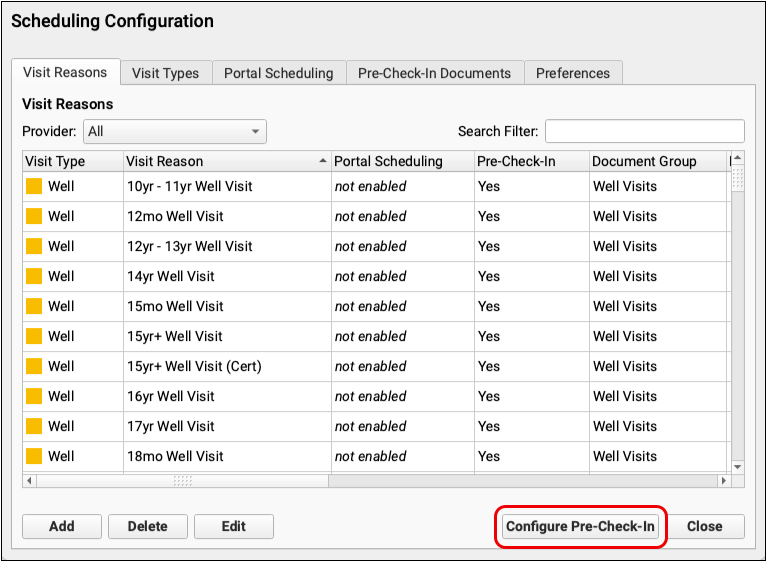
Pre-Check-In Configuration lists all your Visit Reasons with a column of check boxes. Use the Search Filter to narrow the list to the visit reasons you need, or work through the list line by line. Unchecking a box will disable Pre-Check-In for that visit reason.
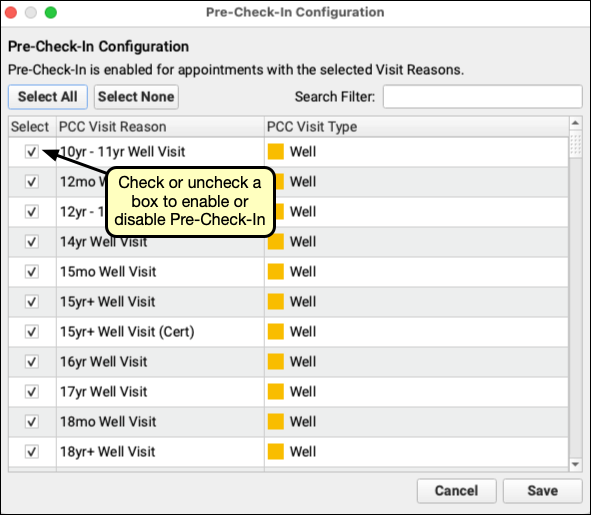
Include Signable Documents in Pre-Check-In
You can optionally add documents to Pre-Check-In, so your patients and families can sign and submit your HIPAA, consent, and other policy documents, before they arrive at your office.
Prepare Forms for Signing in Patient Portal
Create or edit forms to make them available for signing during Pre-Check-In. PDF based forms cannot be included for signing during Pre-Check-In. In the Forms Configuration tool any patient or account form that meets three criteria can be signed in Pre-Check-In:
- They must be set to active
- They must include the Portal Signature Variable
- They must not include any response variables
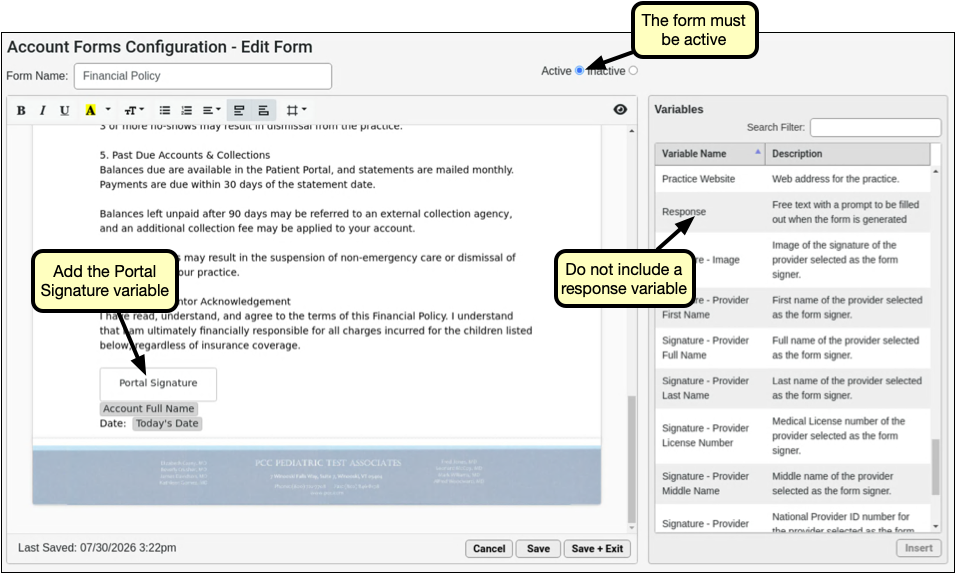
During configuration, you will select a category to assign to incoming signed documents. Consider creating a new document category for signed policy forms.
For more detailed information about managing forms, visit Configure Forms in PCC EHR.
Configure Signing in Pre-Check-In
Signing documents in Pre-Check-In is configured through Scheduling in the Configuration menu.
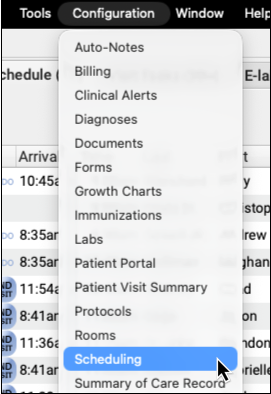

Use the Pre-Check-In Documents tab to build groups of forms, link those groups to visit reasons, and set the frequency at which those forms should be presented to patient portal users.
Create a new Document Group
Open Scheduling Configuration from PCC EHR’s Configuration menu, and select the Pre-Check-In Documents tab. Click the “Add” button to create a new document group.
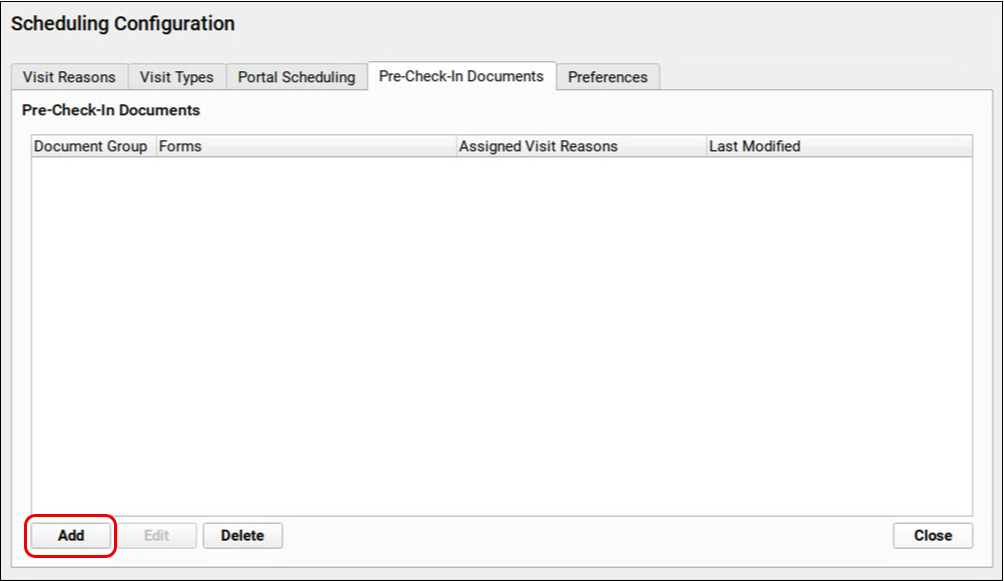
Assign Visit Reasons
Name the document group, Click “Edit” and select one or more visit reasons. Each visit reason may only be added to a single Document Group.
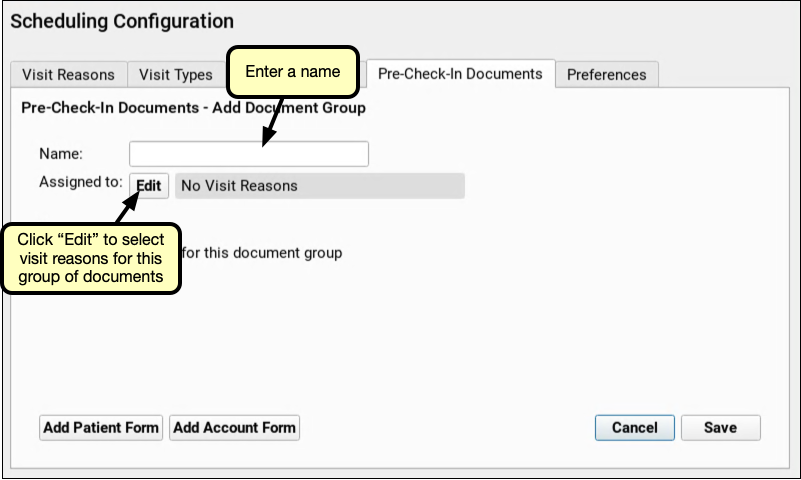
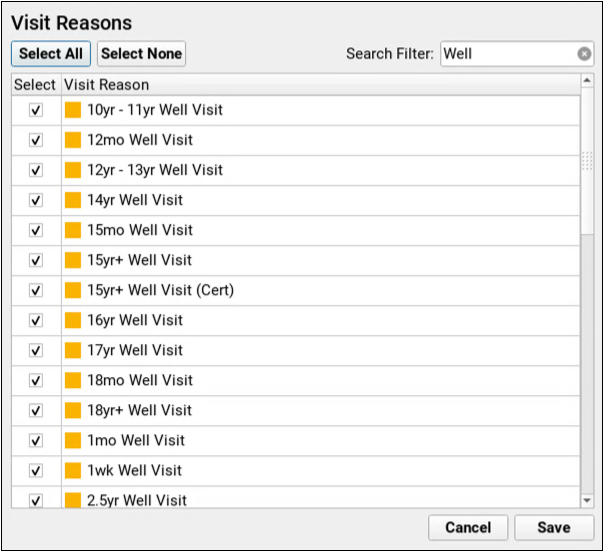
Documents signed during Pre-Check-in appear in a component titled “Pre-Check-In Documents” where they can be reviewed or printed.
Signed forms are saved to the Documents section of the patient’s chart under the category selected during configuration. Patient forms are saved under the patient’s Documents, and account forms are saved to the home or billing account,depending on the selection made during configuration.
If a document has not been signed “Signature Required” and the Print button appear in orange. Your front desk can print the document, from Check-In and have the patient or family sign it, or they can re-open Pre-Check-In and sign the document from their mobile device.

For information about managing your practice forms visit Create and Manage Forms. For additional and detailed information on managing Pre-Check-In and signing forms, visit Configure Pre-Check-In.
Add Forms
Click “Add Patient Form” or “Add Account Form” to select forms for this group. A combination of Patient and Account forms can be added to any document group.
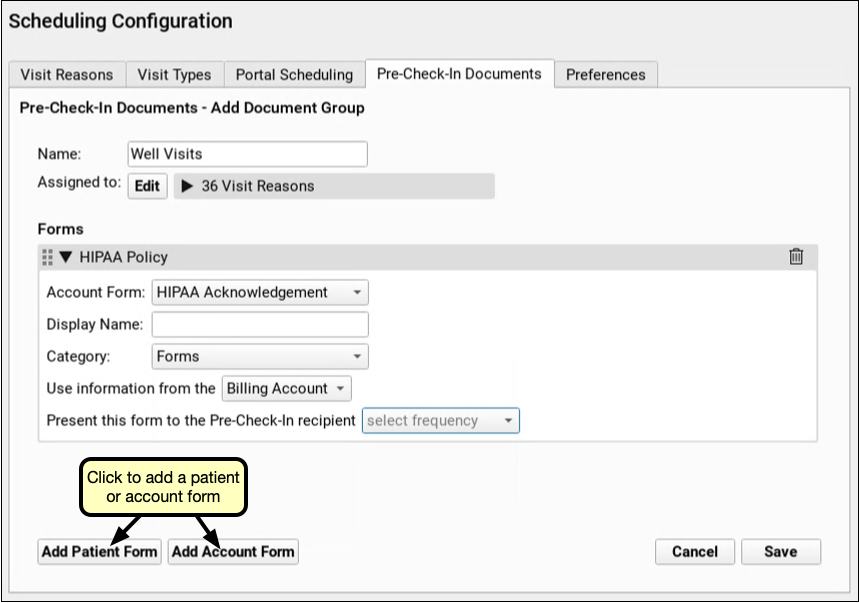
Enter Form Options
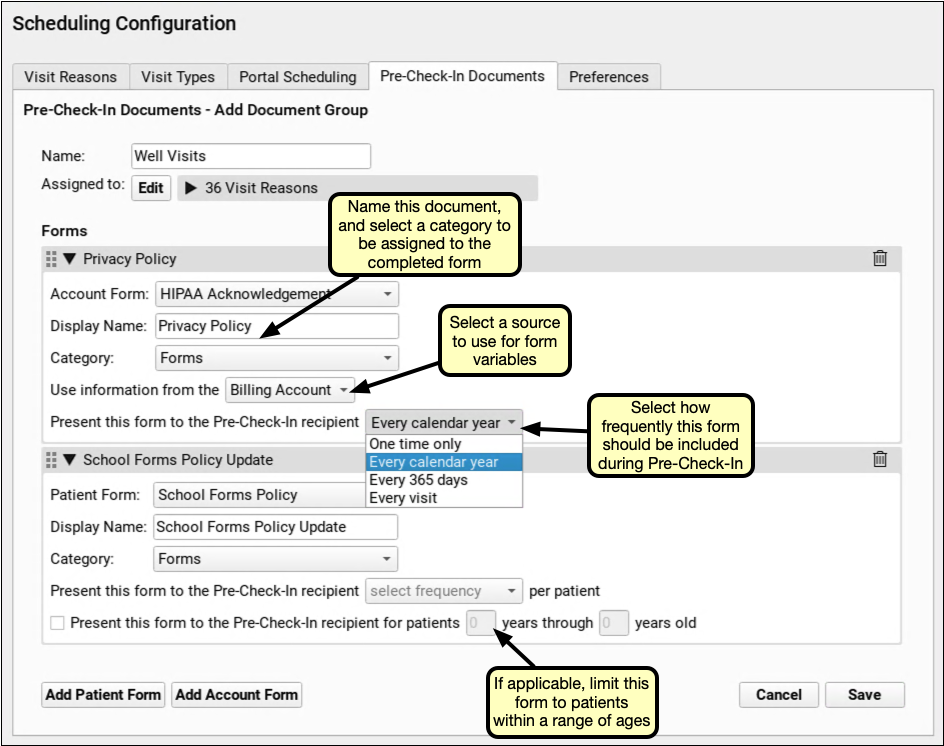
As you add forms, give each a display name to display as the title of the document in the patient portal.
Variables, such as patient names, account addresses, insurance, and other details will be filled in when the form is generated for Pre-Check-In. Select if information from the Billing or Home account should be used to fill those variables. This selection also determines under which account the document will be saved in the Documents section of the patient’s chart.
Select the document category to be assigned to the completed form.
Finally, select how often this form should be included in Pre-Check-In: every visit, every 365 days, every calendar year, or one time only.
Adding a patient form includes an additional option: limiting forms by patient age. Check “Present this form to the Pre-Check-In recipient…” and enter a range of ages. The selected patient form will not be included during Pre-Check-In for any patient outside of that age range.
Save
Click “Save” to complete the document group and return to the list of document groups.
On the Pre-Check-In Documents tab, you can build another document group by clicking “Add,” or select a group and click “Edit” to adjust an existing group, or you can use the “Delete” button to remove a document group.
PCC’s Billing Training Course
PCC offers a comprehensive course on using its software for pediatric billing and collections. Contact PCC at support@pcc.com or 802-846-8177 or 800-722-7708 to find out when the next course is.
Watch the most recent PCC Billing Training Course using the video links below. The complete course is about seven hours.
PCC’s Billing Training Course
- Billing Training Session 1:
Account Structure, Eligibility, and Checkin - Billing Training Session 2:
Post Charges and Submit Claims - Billing Training Session 3:
Post Insurance and Personal Payments - Billing Training Session 4:
Insurance and Personal AR, Account History, and Editing Charges - Billing Training Session 5:
Table Maintenance and Proving Out - Billing Training Session 6:
Oversight Reporting
Topic By Topic Videos: You can also choose specific topics and dive into more detail on the New Biller Training Outline page.
Patient Pre-Check-In
Once enabled by PCC, the Patient Pre-Check-In process begins in the Patient Portal. Pre-Check-In is available seven days before the patient’s appointment, and two days prior to the appointment, the patient’s billing account will receive a Portal message that pre-check-in is available.
Patient Portal Users Required: Pre-Check-In requires a patient to have a patient portal user linked to their Billing or Home account.
Watch a Video : View a short video demonstrating Pre-Check-In through the patient portal
Pre-Check-In in The Patient Portal
When the billing account Patient Portal user logs into PCC’s Patient Portal, they will find and click an orange “Start Pre-Check-In” button for each patient with an appointment scheduled within the next seven days.
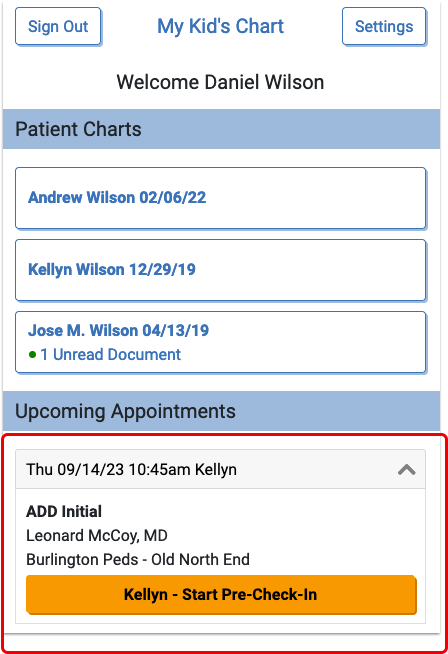
Pre-Check-In includes three sections to be completed and confirmed: Patient Information, Billing Account, and Insurance. By clicking “Edit” below Patient Information, portal users can update existing information and add any requested information.
Patient Information
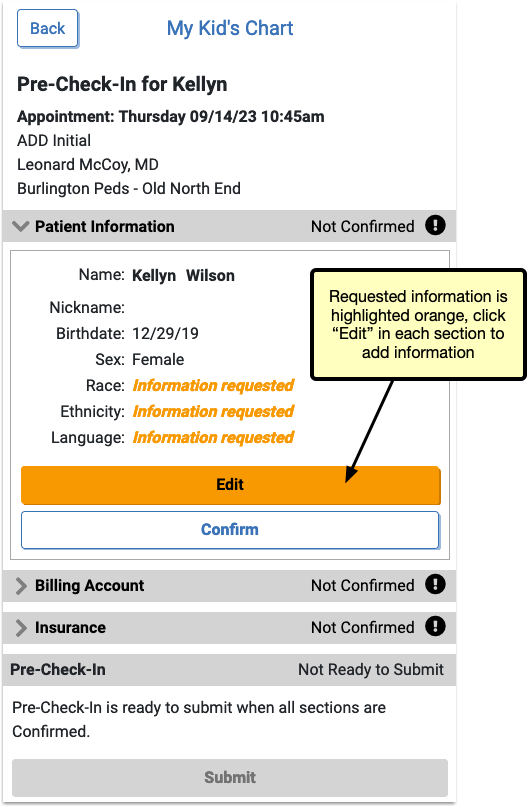
When editing, any information missing is highlighted in orange.
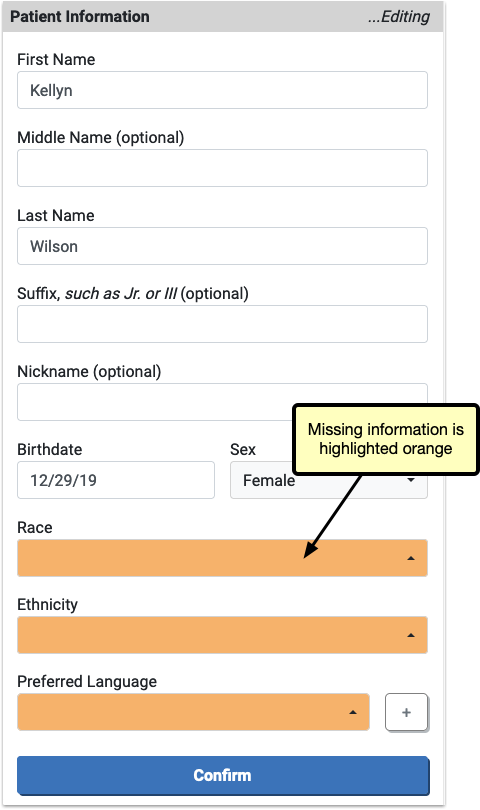
The information already on file for this patient can be edited by the portal user.
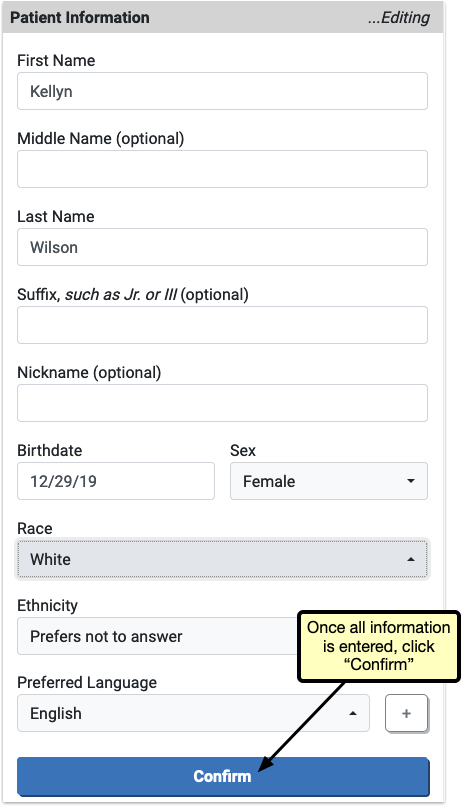
After completing any edits to Patient Information and any requested information is filled out, the user will click “Confirm” to save the changes.
Billing Account
The Billing Account section works the same way as Patient Information: the user will edit any existing information, fill out any orange highlighted missing information, and then click “Confirm”.

After completing and confirming Billing Account information, Insurance is the final section to complete.
Insurance
In Insurance, users can click “Edit” to confirm that the existing insurance is still active, or mark it as expired if it’s no longer valid. By clicking “Add Insurance” users can enter a new insurance.
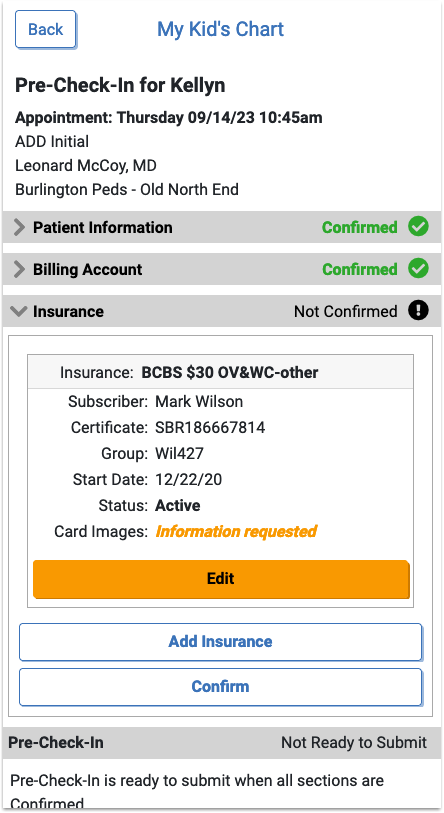
Both “Add Insurance” and “Edit” include the option to upload an image or PDF of the front and back of the patient’s insurance card. These images will be added to an automatically created “Pre-Check-In Insurance Cards” category in PCC EHR, or to a document category selected in Document Administration.
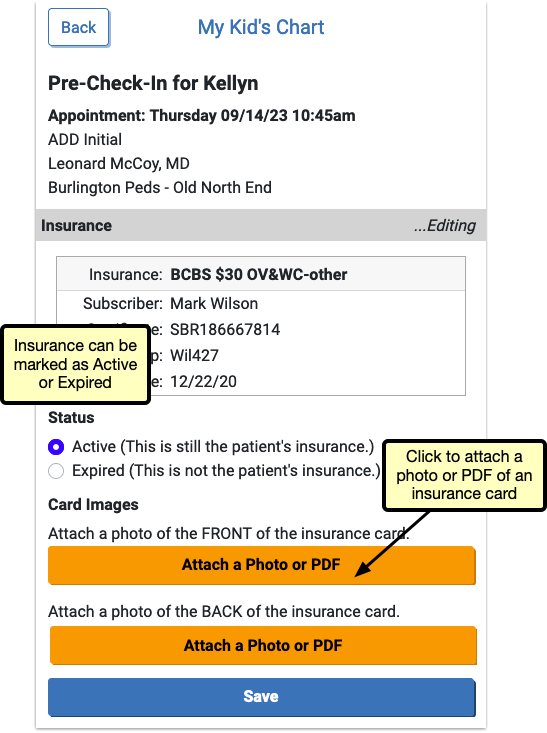
When all three sections have been completed and confirmed, each will be marked “Confirmed” in green, but can be edited again by re-opening the section and clicking “Edit” if needed.
Click “Submit”.
Optional: Pay Personal Balance
If your office has enabled portal payments, the Pre-Check-In confirmation page includes the option to make a payment for any patient with a personal balance.
Users can review the details of the balance by clicking the arrow next to the balance. The “Make a Payment” button opens the payment screen, where the portal user can complete a payment. If the user prefers to pay at the office, clicking the “Pay at the Office” button will return the user to the patient portal home screen.
After completing Pre-Check-In, users without a personal balance will be redirected back to the patient portal home page.
Pre-Check-In in PCC EHR
A visit’s Pre-Check-In status is indicated on the Schedule queue by a clipboard icon.
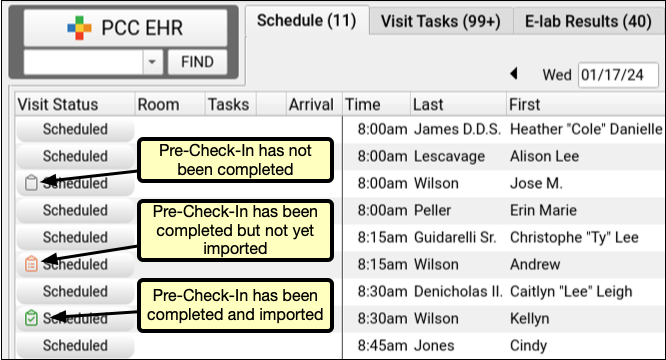
An empty, gray clipboard icon indicates a visit where Pre-Check-In is available through the Patient Portal, but has not yet been completed by a user. A filled, orange clipboard appears on visits where Pre-Check-In has been completed through the Patient Portal, but not yet reviewed and imported by your practice. The checked, green clipboard signifies that Pre-Check-In is complete and imported. Visit reasons not configured for Pre-Check-In will have no icon.
When a portal user completes Pre-Check-In in PCC’s Patient Portal, the submitted information appears in Patient Check-In. All information added, edited, and confirmed by the portal user appears under the rightmost “Pre-Check Information” column. New or updated information appears in orange, with a checkbox.
By default, each checkbox is checked. If you decide that the submitted pre-check-in information should not be imported, uncheck the box. Insurance card images can be viewed by clicking the “View Image” button.
Click “Import” to import all checked information and overwrite the current information.
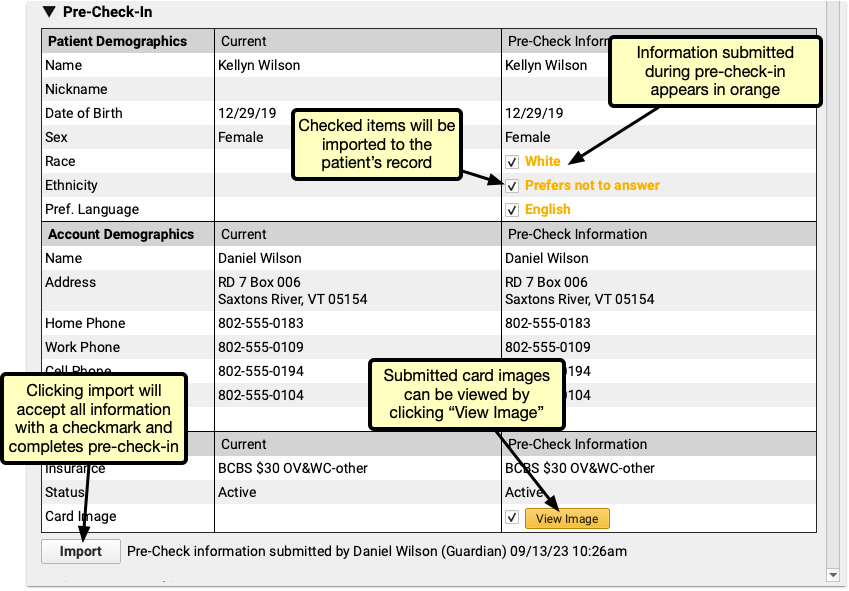
Adding a New Insurance
If, during pre-check-in, a patient has no insurance, or a user adds an additional insurance, you’ll need to add that insurance during Check-In through PCC EHR.
A “New Policy Imported via Pre-Check-In” line appears under the Policies component in PCC EHR.

Select the policy and click “Edit Policy” to open and enter the details of the policy.
The images submitted via pre-check-in appear at the bottom of the window, click “View Document” to review the insurance cards for the insurance details.
If the patient has siblings and the insurance is the same as those siblings, the sibling’s policy will appear at the top of the Insurance drop-down menu, and will automatically fill in the policy details.
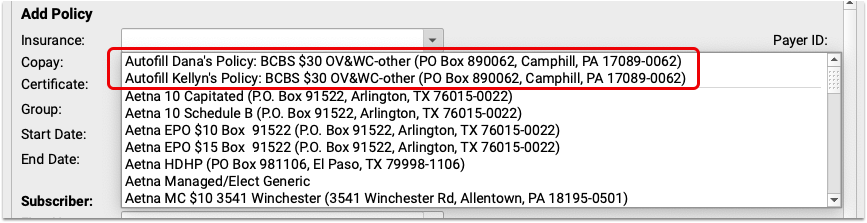
With pre-check-in data imported, and any new insurance added, pre-check-in is complete, and you can continue your check-in process as usual.
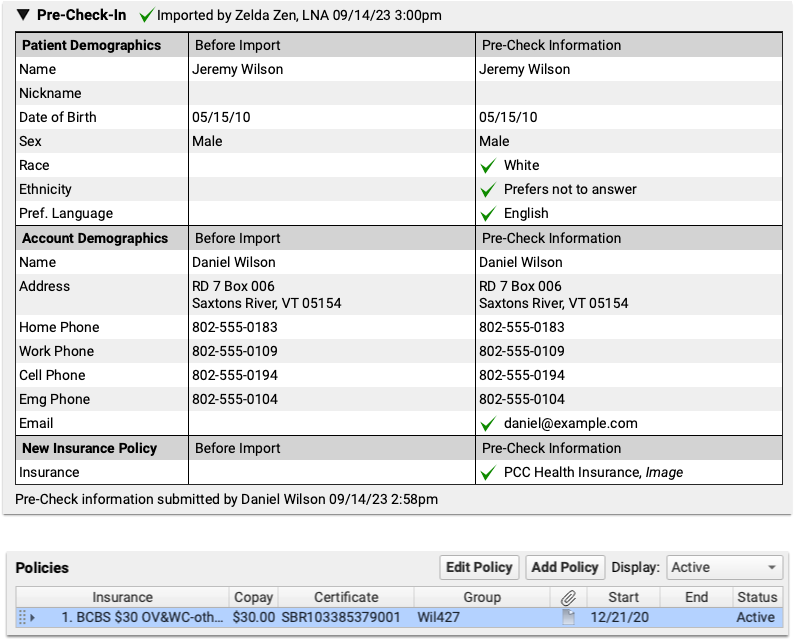
Add Additional Pre-Check-In Users
When a patient has more than one patient portal user associated with their account, those additional patient portal accounts can be added to Pre-Check-In, and complete Pre-Check-In from their own account.
When Pre-Check-In is enabled, a component called “Pre-Check-In Recipient” appears in each patient’s demographics component. In edit mode, it includes a drop-down menu listing all other patient portal users linked to the patient.
Select an patient portal user linked to this patient to receive the Pre-Check-In notification and option to complete Pre-Check-In.
After selecting a user and saving your changes, additional users can be added the same way.
Once a user begins Pre-Check-In, the additional users will be notified that Pre-Check-In is in progress on the patient portal home page.
Any Pre-Check-In recipient can continue Pre-Check-In, but once any user submits Pre-Check-In, check-in is complete, and ready to be reviewed and imported in PCC EHR.
Review Chat Logs in PCC EHR
The Chat Message Log records your saff’s usage of PCC EHR’s Chat messages, so you can review communication between your team members and investigate policy violations.
Owing to PCC EHR’s chat potentially containing sensitive information, the Chat Log report is a separate permission from the Audit Log in PCC’s User Administration tool. To access the Chat Log you’ll need to add Chat Log permission to the appropriate user role.
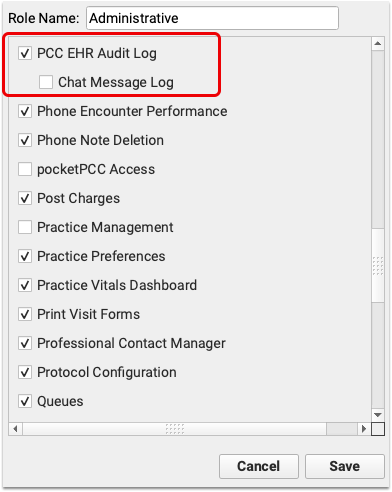
When logged in as a user with the above permission enabled, the Chat Message Log is a separate tab within the PCC EHR Audit Log.
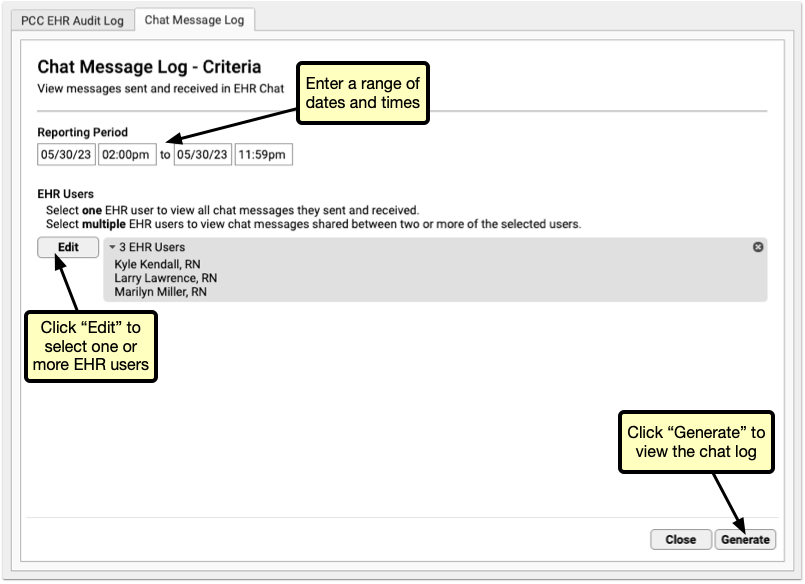
Select a range of dates, and one or more users. Be careful when selecting date ranges and users, as this report pulls the full text of all chats within the selected date range for each selected user, so chat log results can quickly get very large.
Once you’ve narrowed down your report filters, click “Run” to run the report.
The results are listed, by default, oldest to newest, so you can read the results as a conversation, from the top to the bottom. Each conversation can be collapsed or expanded using the arrow to the left.
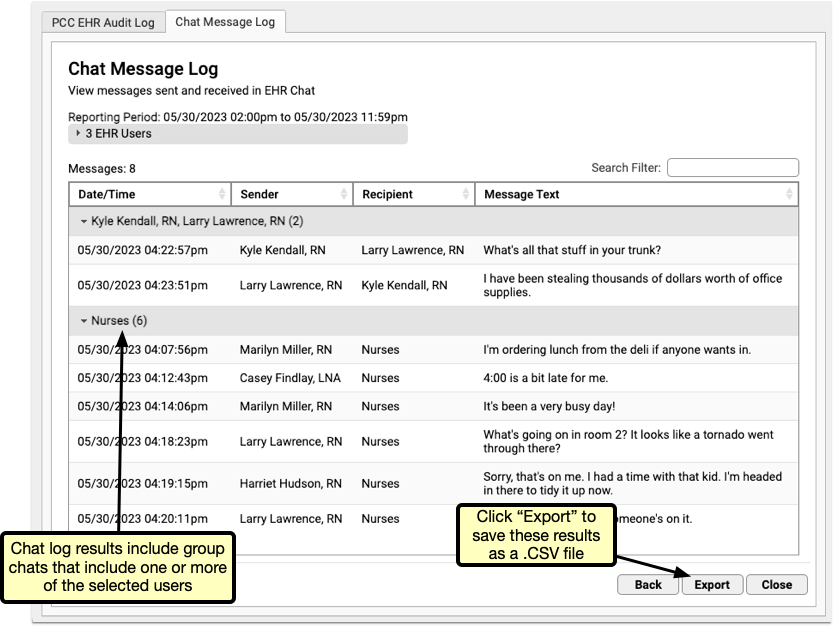
When multiple users are selected, results will include all interactions between two or more of the selected users.
Selecting Multiple Users: When more than two users are selected, Chat Message Log results will include all interactions between two or more of the selected users. If a group chat includes two users you selected and a third you didn’t, that group chat will be included in the results.
Check Prescription Pricing and Insurance Coverage While You Prescribe
When you prepare a prescription, you can see how much it will cost out-of-pocket, whether it requires prior authorization, and if there are more cost-effective alternatives.
Video: Watch Check Prescription Pricing and Insurance Coverage While You Prescribe to see it in action.
Overview
When you prepare a prescription, PCC eRx instantly displays pricing and insurance coverage information. The information is provided in real time by the pharmacy benefit manager that administers the patient’s prescription insurance plan.
First, PCC eRx displays Real-Time Pricing.
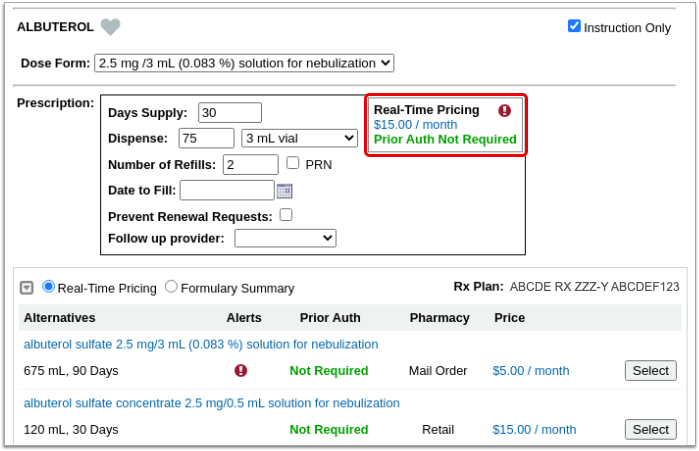
Real-Time Pricing: Real-Time Pricing can tell you exactly how much a prescription will cost out-of-pocket, whether it requires prior authorization, how much of it will apply to the patient’s deductible, and more. Real-Time Pricing displays on the prescription editing screen once you pick a medication and define a quantity, days supply, and pharmacy. These details are routed to Surescripts, the entity that enables electronic information exchange between PCC eRx and other organizations. Surescripts then asks the pharmacy benefit manager that administers the patient’s prescription insurance plan for pricing and coverage information and passes those details back to PCC eRx.
If the prescription does not contain enough information for the pharmacy benefit manager to provide Real-Time Pricing, or the plan is not set up for Real-Time Pricing, PCC eRx automatically displays a Formulary Summary instead.
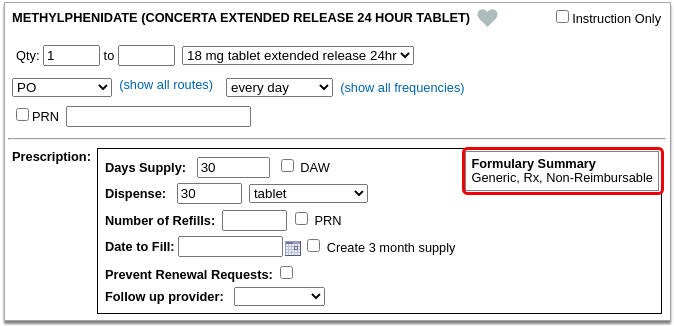
Formulary Summary: A Formulary Summary can generally tell you the copay tier for a prescription, whether the drug is on- or off-formulary, its preference level, and a dollar-sign rating as to how expensive it is out-of-pocket. The Formulary Summary displays as soon as you pick a medication and arrive at the prescription editing screen. The prescription details are routed to Surescripts, which asks the pharmacy benefit manager that administers the patient’s prescription insurance for formulary-level coverage information, then passes it back to PCC eRx. The Formulary Summary may not reflect the patient’s exact prescription benefit status, but can give a sense of how a prescription is covered under the general rules of their prescription insurance plan.
If both Real-Time Pricing and a Formulary Summary are available, you can switch between the two.

If the patient’s prescription insurance sends neither Real-Time Pricing nor a Formulary Summary, PCC eRx makes it clear that there was no response.
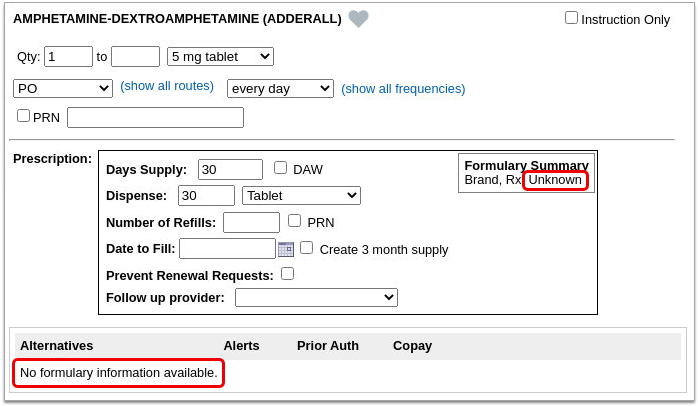
If the patient has multiple prescription insurance plans, you can switch between them to see how the prescription is covered under each one.
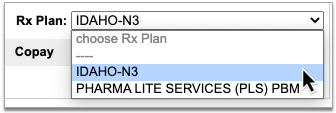
No Need to Change How You Collect Policy Information: PCC eRx receives the patient’s prescription insurance plan information directly from Surescripts, which relies on basic demographic details in the patient’s chart, not the information recorded in the Policies component, to find the patient’s coverage.
Each plan may suggest alternatives to your original prescription. You can switch to any alternative at the click of a button.
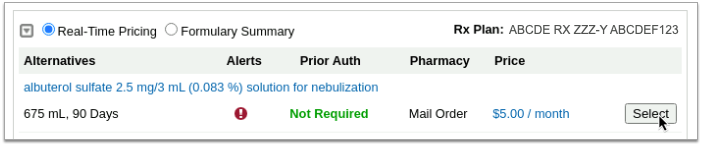
If you switch to an alternative or edit the original prescription, PCC eRx automatically runs a new prescription benefit check.
Usually, Real-Time Pricing and the Formulary Summary contain helpful and clear information, but sometimes they can be difficult to interpret. For help navigating confusing responses and scenarios, read What to Do About Poor or Confusing Responses.
Check Prescription Pricing and Coverage
When you prepare a prescription, you can see how much it will cost out-of-pocket, whether it requires prior authorization, and if there are more cost-effective alternatives.
Start a Prescription
Start a prescription in PCC eRx.
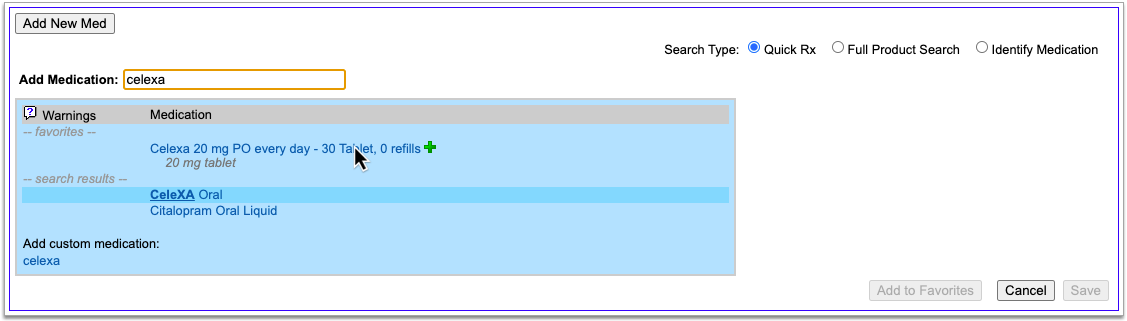
There are many ways to start a prescription. You can create one from scratch in the patient’s visit, renew an historic medication, or prescribe a favorite.
For detailed instructions about how to start a prescription, read Prescribe Medications.
Select a Medication and Strength to See Formulary Summary Information
As soon as you choose a medication and strength for your prescription, PCC eRx starts checking how much it will cost out of pocket and how it’s covered under the patient’s prescription insurance. The results display in a box beside the prescription.
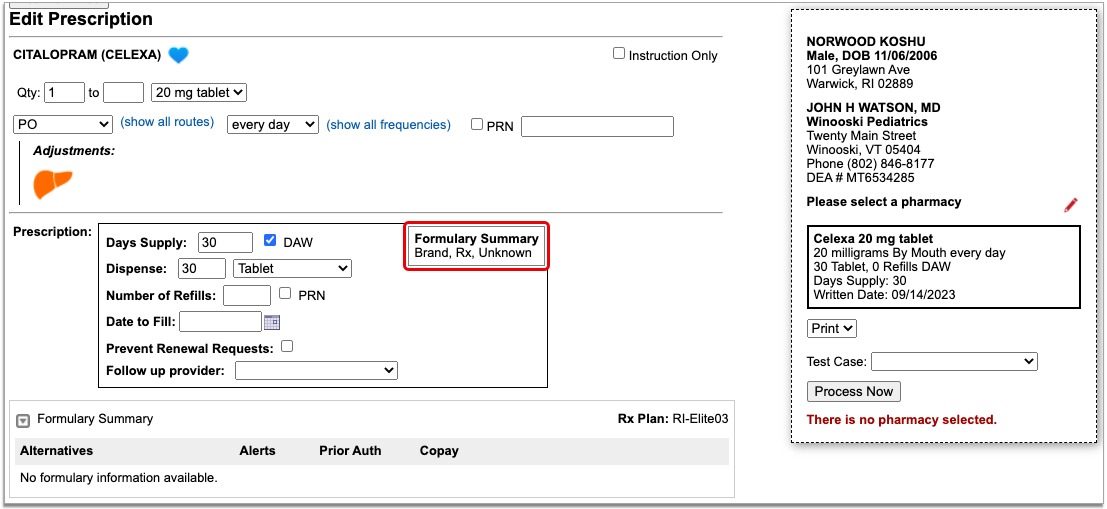
With only a medication and strength, PCC eRx can usually display a Formulary Summary result from the patient’s prescription insurance. The Formulary Summary can tell you the copay tier for the medication, whether it is on- or off-formulary, and provide a dollar-sign rating as to how expensive it is out of pocket.
Enter a Quantity, Days Supply, and Pharmacy to See Real-Time Pricing and Alerts
Once you enter a quantity, days supply, and pharmacy for the prescription, PCC eRx can usually display a Real-Time Pricing result from the patient’s prescription insurance.
Real-Time Pricing can tell you exactly how much the prescription will cost out of pocket each month, how much of that cost will apply to the patient’s deductible, whether the medication requires prior authorization, and more.
Price
If the Real-Time Pricing response includes a price, hover over it to see if the insurance company shared how it will apply to the patient’s deductible.
Coverage Alerts
An alert icon indicates that there are coverage alerts for the prescription. Hover over the icon to view the alerts.
Coverage alerts may include information such as days supply limits, next fill dates, and coverage limitations based on age and sex.
Prior Authorization and Coverage Status
The insurance plan may also send a prior authorization or coverage status. When the plan indicates the prior authorization is definitively needed, PCC eRx displays the status “Prior Auth Required”.
Any other response from the plan invokes PCC eRx’s predictive prior authorization model, which uses a combination of statistically significant de-identified historical data points to calculate the likelihood that prior authorization will be needed. Hover over the predictive status to see the likelihood.
There are three possible predictive statuses.
-
Prior Auth Unlikely: Data shows that prior authorization is rarely required for this kind of prescription (0-5% likelihood).
-
Prior Auth May Be Required. Confirm with Plan: Data shows that prior authorization is sometimes required for this kind of prescription, and you should contact the plan to confirm (5-80% likelihood).
-
Prior Auth Likely: Data shows that prior authorization is usually required for this kind of prescription (80-99% likelihood).
You can use these statuses to guide your decision about whether to initiate a prior authorization before your patient gets to the pharmacy and is blocked from filling their prescription.
Optionally, Check a Different Plan
The name of the plan that provided the pricing and coverage information displays in the “Rx Plan” field beneath the prescription. If the patient has multiple prescription insurance plans, the Rx Plan field becomes a drop-down and you can switch between them.
When you switch to a different plan, PCC eRx checks it for pricing and coverage information and displays those results beside the prescription.
Optionally, Switch Between Real-Time Pricing and Formulary Results
The radio buttons beneath your prescription indicate which types of responses the patient’s prescription insurance sent. If you see a Formulary Summary in addition to the Real-Time Pricing response, you can select it to see what it contains.
PCC eRx defaults to displaying Real-Time Pricing, since that response usually contains more concrete and actionable information. If the plan could not provide any response at all, PCC eRx indicates that there was no coverage information to be found.
Prescription pricing and coverage information is provided in real time by the pharmacy benefit manager responsible for administering the patient’s prescription insurance plan. PCC eRx connects with the pharmacy benefit manager through Surescripts, the vendor who enables electronic information exchange between PCC eRx, pharmacies, and other entities.
Surescripts and the pharmacy benefit manager use demographic information — not the insurance policy details recorded in PCC EHR — to find the patient’s prescription insurance plans.
Check Alternatives
Prescription insurance plans can send alternatives for you to consider instead of the prescription you wrote. Those alternatives display in a table beneath your prescription.
Alternatives may be cheaper for the patient, have fewer restrictions, or be covered without prior authorization.
If the original prescription you wrote is expensive, not covered, or requires prior authorization, see if one of the alternatives could work instead.
Alternatives may specify a different quantity, pharmacy type, or medication than the original prescription. Use your best clinical judgment to determine if one of the alternatives might be appropriate for your patient.
Easy Price Comparison: To ease comparison between the original prescription and alternatives, all prices are expressed as a cost per month.
Optionally Hide Alternatives: Click the gray disclosure triangle in the top left corner of the Alternatives section to hide it from view. Click the disclosure triangle again to show hidden alternatives. If you want the Alternatives section to be collapsed by default, update your Real-Time Pricing and Formulary display preference on the My Settings page.
Optionally, Prescribe an Alternative
If one of the alternatives suggested by the patient’s prescription insurance proves to be a good option, click the “Select” button to switch to it. As soon as you click “Select,” PCC eRx replaces the original prescription with the selected alternative and displays the pricing and coverage information for it.
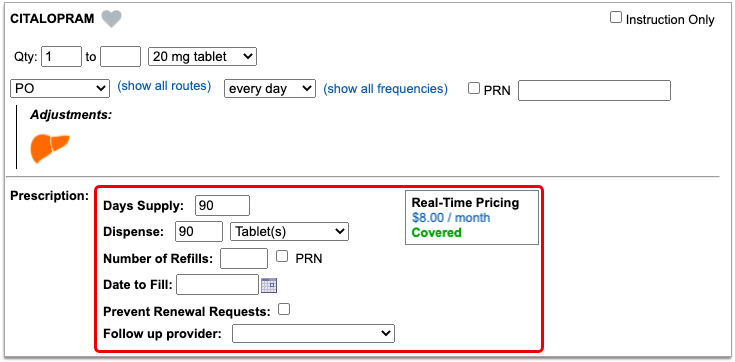
If you select an alternative that lists Mail Order as the pharmacy type, PCC eRx automatically updates the prescription to use the mail order pharmacy suggested by the insurance plan. If the patient prefers to use a different mail order pharmacy, you can manually update the pharmacy on the prescription to reflect the patient’s preference.
Double-Check Before and After You Select: Before you select an alternative, double-check the drug, quantity, duration, and other details to ensure that it is clinically appropriate for your patient. After you select an alternative, verify that the dosing instructions for the prescription are accurate, especially if the alternative is in a different form than the original medication. Edit the prescription for the alternative as needed until the instructions are correct for your patient.
Process the Prescription
Once you are satisfied with the prescription, process and send it to the pharmacy.
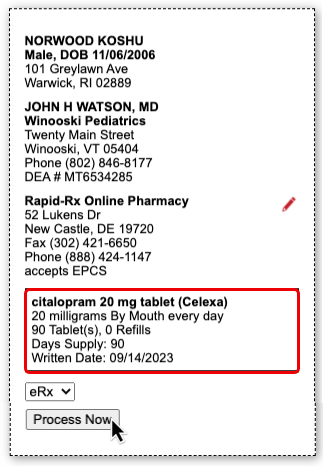
What to Do About Poor, Confusing, or Nonexistent Responses
Not all prescription insurance plans respond the same way to prescription benefit checks, and sometimes the responses that do come through are unhelpful, sparse, or confusing. While PCC does not control the messages that come from prescription insurance plans and cannot provide definitive interpretations of their responses, there are some common cases that have relatively straightforward solutions. Read on to learn about those cases and how to navigate them:
-
'No Matching Coverage Details Provided' Message: When you see the message “No matching coverage details provided” in a Real-Time Pricing response, it indicates that the patient’s prescription insurance did not provide comment on the prescription as written and likely wants you to prescribe an alternative. This is most common when the total dispense quantity indicated on your prescription is less than the minimum standard package size that can be dispensed by the pharmacy. Review the alternatives suggested by the patient’s prescription insurance to see how standard package sizes are covered and optionally select one that is appropriate for your patient.
-
'Pharmacy Not Found' Message: Certain prescription insurance plans only cover prescriptions that route through mail order pharmacies and reply with the message “Pharmacy not found” when assessing a prescription that indicates a retail pharmacy. You can ignore the message if the prescription is covered under one of the patient’s other plans, or consider switching the prescription to a mail order pharmacy.
-
No Coverage Details and Only One Alternative: If no coverage details are provided for a prescription that you wrote and the prescription insurance plan only suggests a single alternative in a quantity that cannot cover the entire course of the patient’s treatment, it usually means that the plan only covers that lesser quantity of medication for the indicated timespan.
-
Not Covered and No Good Alternatives: If the prescription is not covered, has a coverage alert, and none of the suggested alternatives match what you are trying to prescribe, hover over the alert to see if it contains a description in words about what the prescription insurance plan will cover. For example, if the coverage alert indicates that a different quantity would be covered, try changing your prescription to match that advice, then wait to see if Real-Time Pricing updates with a more useful response.
-
Albuterol Inhalers: To reduce clicks and prescribe the most cost-effective option when your patient needs an albuterol inhaler, consider the following: 1) Many prescription insurance plans appear to prefer 6.7g albuterol inhalers to the larger, 18g ones. 2) If you write prescriptions for a total number of inhalers rather than a total number of grams, prescription insurance plans may not be able to provide coverage details.
-
Contradiction Between Real-Time Pricing and the Formulary Summary: If you notice a contradiction between the Real-Time Pricing and Formulary Summary for a prescription, defer to the Real-Time Pricing.
Nonexistent Responses
Some pharmacy benefit managers do not share real-time pricing and coverage insights. PCC and Surescripts have prepared a letter template that you can use to encourage them to do so (shown below).
PCC can review your practice’s specific Real-Time Pricing response rate and let you know which prescription insurance plans are not currently sharing real-time pricing and coverage insights. Contact PCC Support for help customizing this letter and learning to whom it would best be addressed.
UC 2023 Videos and Course Materials
In 2023, PCC’s Users’ Conference was held in Burlington, Vermont. We celebrated PCC’s 40th anniversary with a 1980s theme.

Over 700 attendees participated both online and in-person in 63 courses, sessions, and round tables on issues of importance to pediatric practices.
Sessions were recorded, and where possible we’ve made them available on a PCC UC 2023 playlist, and using the links below. Attendees can access course and video information on the PCC Events app. Most materials will be available for at least one year following the conference.
You can review the UC 2023 Dashboard Awards, photo albums, and more at pcc.com’s UC 2023 page.
Course Descriptions, Slides, and Videos
| Course Title | Course Description | Materials |
| 2023 Coding Updates |
Join PCC’s Jan Blanchard for a heads up on the new Pediatric ICD-10 and CPT coding changes for 2023.
Presented By: Jan Blanchard |
|
| 2024 NCQA PCMH Annual Reporting Changes |
Get insider knowledge of the 2024 NCQA PCMH Annual reporting changes and learn how to implement the changes with effective workflows.
Presented By: Kate Taylor, Amanda Ciadella |
|
| A Doctor and a Coder Walk into a Bar |
The exact types of expertise needed to really nail documentation and E&M compliance are shared in this entertaining and interactive session. Krekamey Craig, MD shares real encounter examples from her experience as a practicing Pediatrician and Jan Blanchard highlights the coding guardrails around billing for these Primary Care Pediatric services. Come get the best guidance from both of the worlds you must navigate to be paid for all that you do and to *keep* that payment.
Presented By: Jan Blanchard, Krekamey Craig |
|
| A Practical Guide on Auditing Your Billing Department |
Every office should have a strong understanding of their billing practices. Performing regular internal audits is an essential part to keeping your practice thriving and developing a plan that fits the needs of your organization is attainable. In this session you will learn the tools you need in areas such as correct modifiers, verifying large write-off balances, A/R follow-up and more.
Presented By: Heidi Chamberlin |
|
| Addressing Grief and Loss in Practice |
Many of our children and families have experienced the loss of a loved one during the COVID-19 pandemic. However, pediatricians have not been traditionally trained in grief counseling and report discomfort in addressing this topic with patients. This session will discuss the basics in addressing grief and loss with and provide tips regarding how to comfort and partner with families during these most difficult experiences.
Presented By: Colleen Kraft |
|
| Advanced Reporting Workshop |
Looking to gain a deeper understanding of how to build customized reports using PCC’s reporting tools including the Smart Report Suite (srs) and the EHR Report Library? Join us for this hands-on, interactive workshop to explore some of the advanced functionality within PCC’s reporting tools. Your PCC instructors will introduce you to report data sources and how to build customized report filters and output to meet your reporting needs. Come prepared with a laptop enabled with connectivity to your practice. One goal of this session is to create at least one new customized report on your own practice server.
Presented By: Tim Proctor, Jim Smith, Kate Taylor |
|
| Advancing Pediatrics 2023 |
Mark will discuss how the American Academy of Pediatrics (AAP) is working to solve the challenges currently facing pediatricians and pediatric medicine. Improvements are needed across the pediatric health care system to empower pediatricians to care for children and families.
Presented By: Mark Del Monte, JD |
|
| Allow Me to Introduce Myself: Professional Bios in 500 Words or Less |
This workshop will cover the basics of what constitutes a great professional bio for websites, speaking events, professional networking, and more. Attendees will workshop their bios and compare with partners for half the session.
Presented By: Allie Squires |
|
| An Independent Pediatrician’s Journey to Ukraine |
As news of the war in Ukraine escalated in 2022, Dr. Kent Kleppinger listened in with increasing concern from his practice in Laramie, Wyoming. When Dr. Kleppinger decided to step in to help physicians in Ukraine, he didn’t hesitate; he went all in.
Presented By: Kent Kleppinger, MD |
|
| Ask Chip |
Bring your practice management questions and PCC’s resident practice management expert, Chip Hart, will answer them live.
Presented By: Chip Hart |
|
| Back to the Future A PCC Roadmap Review |
A review of the past year of PCC changes and a preview of what’s to come. Come learn what PCC has in store for you!
Presented By: Scott Ploof |
|
| Billing Drop In Live from the UC! |
Come meet all of your Pediatric Billing peers at this live, in person event modeled on our monthly virtual get togethers. No one knows your work like billing experts! Who better to offer solutions, time savers, shortcuts, tools, and resources than your fellow peers who are also using PCC? This is an opportunity to bring your questions and challenges to peers and experts in a low-key, casual, and friendly face-to-face environment.
Presented By: The Get Paid Team |
|
| Burnout: Or How I Stopped Worrying and Learned to Love the Job |
Burnout has reached an all-time high among physicians in pediatrics. Using the latest information from positive psychology as well as proven stratgies from professional organizations, Dr. Trimble hopes to guide you through the best ways to understand and finally manage burnout. Don’t miss this opportunity to empower your people and bust through the chaos!
Presented By: Robert Trimble |
|
| CHADIS Workflow Roundtable (In-Person Only) |
This is an opportunity for clients to get together and discuss CHADIS workflow challenges, best practices, and more. Learn from PCC’s CHADIS expert, Sasha Pavlovic, and others in a conversational setting.
Presented By: Sasha Pavlovic |
|
| Change Management for Managing Change |
Every day in a busy pediatric practice you’re overwhelmed by the number of tactical decisions you need to make. This makes it difficult to think strategically for your practice. How can you ever evolve to become the practice you dreamed of being if you don’t have the time or organizational capacity to make the necessary changes. We will review a few simple guidelines that will help your practice make important changes to improve the quality of your care and the success of your practice.
Presented By: Chip Hart |
|
| Dark Side of the Moon |
This is a class about how to use your practice as a tool to reach beyond the walls of your office. Vaccine clinics at local schools, mobile wellness visits at a homeless shelter, presence at the local farmer’s markets, and pairing with local vendors are all ways in which to explore other sides of the four walls of your office.
Presented By: Katie Schafer |
|
| Dashboard Awards Presentation |
We’ll present this year’s dashboard awards at lunch!
Presented By: PCC |
|
| Disaster Preparedness for Solo and Small Practices: Lessons from My Journey with Cancer |
I will use my personal journey with cancer to illustrate the kinds of planning and preparation that small and solo practice owners need to consider. We’ll discuss issues of continuity, insurance, communication and lessons learned for self-care to help ensure that when the unthinkable happens, the survival of one’s practice can take a back seat to returning to health.
Presented By: Seth Kaplan |
|
| Enneagram Magic: The Power of Self- Awareness |
“Teamwork makes the dream work;” but first, one must look within themselves. Self-awareness helps us be fiercely present, have honest conversations, build trust and ultimately improve relationships, culture and productivity. The enneagram offers a self- awareness framework to better understand the “why” behind our actions AND inspires us to be curious about understanding the “whys” of those around us. During this session, we will do a deep dive into how to use the enneagram to promote self-discovery, provide feedback and improve teaming at work and at home. That is where the magic lies.
Presented By: Akshata Hopkins |
|
| Everybody Wants to Use New Forms (In-Person Only) |
Join our Forms Development Team for a discussion of the migration process to PCC’s new forms solution and an opportunity to experiment with the product on your own. This hands-on workshop will include guided exercises allowing you to experience the Forms Configuration Tool within your own EHR system. Attendance at the prior “Sweet Forms O’ Mine” introductory session is recommended. This session will not be streamed for virtual attendees.
Presented By: Dan Gillette, Tim Proctor |
|
| Front Desk Best Practices |
Explore front desk best practices related to scheduling, check-in, insurance verification and copay collection and what has changed as offices work within the pandemic. Understand the importance of the front desk when it comes to your practice’s workflow and collection process.
Presented By: Lynne Gratton |
|
| Get Ready to Dive Into Credit Card Processing: Let the Fun Begin! |
We surveyed the PCC practices and the strong majority wanted a credit card processing workshop using CardPointe and/or BluePay with a strong emphasis on Credit Card on File (workflows, pros/cons etc), PCI Compliance, Patient Portal Marketing and setting up/maintaining payment plans.
Presented By: James & Sarah Estes |
|
| Grow Your Own EDI Superuser |
Explore the lifecycle of electronic eligibility requests, claim submissions, and ERA responses. Along the way, you will learn about the underlying transactions (837P, 270 and 271, 835). By the end of this course, you’ll become the EDI superuser your practice needs: you’ll understand how to troubleshoot eligibility issues, decode confusing payor responses, and when to work with PCC.
Presented By: Ben Brandt |
|
| Hardware Petting Zoo (In-Person Only) |
We will display and describe current and older equipment supplied by PCC, as well as allow participants to actually plug, click and manipulate equipment. This session is an intro to hardware for the techno-phobic.
Presented By: Tom Anderson,James Frei,Stephen Moore,Thomas Heller |
|
| Hardware Petting Zoo (In-Person Only) |
We will display and describe current and older equipment supplied by PCC, as well as allow participants to actually plug, click and manipulate equipment. This session is an intro to hardware for the techno-phobic.
Presented By: Tom Anderson, James Frei, Stephen Moore, Thomas Heller |
|
| How To Assess Opportunities for Growing or Selling Your Practice |
Do you have buyers knocking on your door? How do you know if selling is right for you? Should you hold on or sell out? There may be other options …
Presented By: Susanne Morgana Brennan, MBA |
|
| How To Market Your Practice With No Time, Talent, or Money |
20 years ago, patients still found their pediatricians through a combination of word-of-mouth and the Yellow Pages. Although parent-to-parent marketing is still vital, 2023 is about Google, review sites, and cell phones. How can you, a pediatrician with no time, money, or social media talent, connect with these new millennial parents?
Presented By: Chip Hart |
|
| ImmTrac Roundtable (In-Person Only) |
An opportunity for Texas clients to discuss workflows that impact immunization submissions to ImmTrac.
Presented By: Romni Palmer |
|
| Leave Behind the Dark Side: Post Charges, Payments, Submit Claims, and More in PCC EHR! |
Complete your daily billing tasks in PCC EHR! From checking eligibility to working with personal payments, to submitting claims and posting insurance payments, PCC EHR has tools that will empower your billing lifecycle. Leave behind the text-based darkness of yesterday and learn about PCC EHR’s latest features.
Presented By: Brian Kennedy |
|
| Messaging to Patients |
Learn the proper usage and best practices for PCC’s various messaging tools. Get up to date with all the recent changes, tips and tricks from patient engagement support specialists, Scarlett Tomlinson and Sasha Pavlovic
Presented By: Sasha Pavlovic,Scarlett Tomlinson |
|
| Monitoring your Immunization Submissions |
This course covers the basics of using the Immunization Registry Response Viewer to check on your practice’s submissions to the state registry.
Presented By: Romni Palmer |
|
| PCC Benefits A Case Study |
The benefit package provided by a company to its employees reflects the culture of the organization and provides the employer with the opportunity to demonstrate their commitment to the employer/employee relationship.
Presented By: Grace Kuzmin, Bill VanDeventer |
|
| PCC EHR Customizations & Workflow for Pediatric Medical Homes |
Patient Centered Medical Home is not just a certificate, it’s actually a concept of care delivery. Learn from industry experts the most effective patient-facing workflows that affect your daily operations.
Presented By: Kate Taylor, Amanda Ciadella |
|
| PCC eRx Open Lab (In-Person Only) |
New this year! Stop by our eRx-specific open lab for personalized answers to all your prescribing questions. Want help with your Favorites? Need a refresher on custom medications or other configuration options? Have an eRx bug you want squashed? Our eRx team is here to help.
Presented By: Morgan Ellixson Boyea, CPhT, CSPO |
|
| PCC Shortcuts For Faster Charting |
This Advanced Beginner/Intermediate level workshop session reminds users how to configure snap text, auto-notes, Dx favorites, billing configuration, labs/orders, protocols, and tasking to reduce the time they spend charting. Bring your laptops for hands-on time at the end of the session.
Presented By: Sarah Bunning |
|
| Pre-Check-In Takes Flight! |
Do you dream of greeting patients at the front desk with a just a smile, and NO paperwork? That’s the vision for a new feature in PCC development: Patient Pre-Check-In. In this session we will demonstrate the initial Pre-Check-In functionality and we will review designs for the remaining planned functionality. PCC will be seeking a few practices to pilot the feature and help us grow it to be ready for all practices. We will discuss the reality of what it means to pilot the first version, and we will provide opportunity for you to share your wishes for how this new feature should evolve to serve the needs of your practice and the patients and families you serve.
Presented By: Erica Greenwood, Amanda Smith |
|
| Preconference Morning Session |
Live Stream the morning preconference sessions here!
Presented By: Nick Meunier, Tim Proctor, Morgan Ellixson Boyea, CPht, CSPO |
|
| Preconference: Introduction to Practice Vitals Dashboard |
As a managing physician or practice administrator, have you ever wondered how your practice is performing with key clinical and financial indicators? This introductory session will provide an overview of PCC’s robust Dashboard reporting capabilities, focusing on measures that will allow you to keep your finger on the pulse of your practice.
Presented By: Tim Proctor |
|
| Preconference: PCC eRx 101: Prescribing Fundamentals |
Are you brand new to prescribing with PCC eRx? Or simply want a review of the fundamentals? Join PCC’s Morgan Ellixson-Boyea, CPhT, CSPO for an in-depth tour of our prescribing software including dedicated time for questions. This course is designed for beginners, but anyone interested in learning more about PCC eRx is welcome to join us.
Presented By: Morgan Ellixson Boyea, CPhT, CSPO |
|
| Preconference: Tour of the EHR |
This course begins with a run-through of appointment book, clinical workflows, where to find it, where to configure it, and what to do if you’re stumped. We will spend some time in protocols, scheduling templates, clinical alerts, and more.
Presented By: Nick Meunier |
|
| Proactively Manage Insurance A/R |
In today’s challenging insurance environment, insurances are working overtime to limit reimbursement to providers. To get the most out of your contracted rates you first need to start with managing your insurance denials and the obstacles they throw your way in delaying payment. This session will touch on frequent denials, clearinghouse rejections, payer guidelines and so much more.
Presented By: Rebecca Lamb |
|
| Promoting a Vaccine Against Cancer: Increasing HPV Vaccination Rates in Your Practice |
In the United States, high-risk HPV cause 3% of all cancers in women and 2% of all cancers in men. The HPV vaccine is extremely effective against preventing HPV related cancers yet only 54% of US teens are up to date on the vaccine and in many areas its as low as 30%. I will discuss how, through small yet effective interventions, Pelican Pediatrics increased our rates from 33% to 88% and how you can too.
Presented By: Eliza Varadi |
|
| Real Time Prescription Benefit Service: An Industry Perspective |
Join PCC’s Dewey Howell, MD, PhD (the creator of PCC eRx!) for an in-depth review of an exciting change for PCC eRx: Real-Time Prescription Benefit Services. See a sneak peak of our upcoming changes and provide early feedback. Your input matters!
Presented By: Dewey Howell, MD, PhD |
|
| Reporting Drop-in Session (In-Person Only) |
Join your peers and PCC’s reporting experts to discuss reporting needs at your practice in this part discussion, part workshop session. This is an opportunity to bring your reporting questions and challenges to peers and experts in a low-key, casual, and friendly environment.
Presented By: Tim Proctor, Jim Smith, Kate Taylor |
|
| Sailing Into The Wind: How To Survive In A Big Practice Market |
How can a small, primary care practice survive in a health care market that appears to favor the larger groups? Learn how small practices can not only survive, but THRIVE, in big practice markets.
Presented By: Susan Kressly, Chip Hart |
|
| Sharing Clinical Records: DSM & CDE |
This course will explore Direct Secure Messaging and Clinical Document Exchange, two solutions that allow your practice to share data more easily with third parties. Learn the difference between the solutions, how they complement each other, and how to onboard!
Presented By: Jennifer Marsala |
|
| Sweet Forms O’ Mine An Introduction to New PCC Forms |
This introductory session will show you what it takes to convert to PCC’s new forms solution and the simple-to-use and powerful features that await you on the other side. Join PCC’s Forms development team as they walk you through creating new forms within the form configuration tool, highlighting how to insert variables, response prompts, headers, signatures, and much more.
Presented By: Dan Gillette |
|
| The Art of Delegation |
In this session, Dr. Skinner will review the business case for delegation in the physician practice, uncover the typical roadblocks to delegation success, and share practical tips that help attendees improve their delegation skills in their offices.
Presented By: Katrina Skinner |
|
| The Next Generation Preparing Your Practice for a Long and Prosperous Future |
Preparing to hand off a practice you’ve built is a daunting prospect. Taking over an existing practice is similarly daunting. In this course, you will learn how to prepare your practice to be handed off to the next generation. This course will cover structuring ownership and compensation to ease the transition as well as finding and preparing the right people to lead your practice into the future.
Presented By: Paul Vanchiere, MBA |
|
| The Pediatrician Experience: Participating in the AAP’s PROS Network Research |
This session will provide background on PROS research, current projects, innovative approaches used with PCC, and will highlight the experience from the practitioner perspective of participating in PROS research
Presented By: Alexander Fiks |
|
| To the Right of Boom: What Happens After a Cyber-Security Incident Occurs |
Learn about what happens after a cyber security incident occurs. Empower yourself by learning about post-event situational awareness and how to respond and recovery from a “boom”. We will review the 4 major actions every practice must take before a security incident is detected and after.
Presented By: Marissa Maldonado |
|
| Unstoppable. A Framework for Reaching Practice Goals. |
In this session we will talk about how to align your entire team towards your practice goals to ensure they are met and celebrated by all. By the end of the session, participants should be able to define at least one practice goal and will have a framework that what will tell them exactly how to make sure that goal is accomplished not by them, but by their team.
Presented By: Emily Floyd |
|
| Using PCC Dashboard Data to Serve Your Community |
Join us to hear how Dr. Seth Kaplan from TLC Pediatrics of Frisco, TX uses PCC’s Dashboard to make data-driven decisions for his practice. This session will provide an overview of PCC’s robust Dashboard reporting capabilities, focusing on financial and clinical measures that will allow you to keep your finger on the pulse of your practice.
Presented By: Tim Proctor,Seth Kaplan |
|
| Welcome & Morning Announcements | Presented By: PCC | |
| What Retirement Taught Me About Retirement Planning |
Retirement planning is not something that can be left to be taken care of when one decide that it’s time to retire. Rather, it is something that should be started as soon as one begins that first job. Planning takes different forms and addresses different topics as one moves through the stages of a career, but each choice sets the stage for future ones. While this talk will briefly discuss financial issues usually associated with retirement planning, the focus will be more on understanding one’s identity as a physician, and how that will shape the choices one makes throughout that career, especially those which will impact the timing, process, risks and benefits associated with retirement.
Presented By: Jesse Hackell |
|
| What’s Changed with Implementations? |
Your office has been on PCC EHR for 5 years or more and your implementation process was 5 years ago. How do we do implementations now? What are the configurations we setup for new clients which you may not be taking advantage of? Learn how current implementations may change how you use PCC EHR.
Presented By: Lynne Gratton |
|
| What’s Next for PCC eRx |
Join PCC’s Morgan Ellixson-Boyea, CPhT, CSPO for a sneak peek into the next year of development for PCC eRx. In addition, you’ll hear about recent bug fixes and improvements, learn new tips & tricks, as well as cast your vote for future enhancements of PCC eRx! Session will also include open Q&A.
Presented By: Morgan Ellixson Boyea, CPhT, CSPO |
|
| What’s Past is Prologue |
We’ll share how the original vision for PCC–40 years ago!–designed to emphasize long-term relationships and empower our clients, continues to guide the company vision for today and the future.
Presented By: Erin Auer |
|
| Which Interfaces are Right for Your Practice? |
Discover which PCC integration options best address specific data sharing use-cases, and which might be a good fit for your practice.
Presented By: Scott Kirby |
|
| Why You Need Data and Getting the Data You Need |
At the conclusion of this presentation, participants should be able to: illustrate how to turn a “word problem into a math problem” just like in middle school, identify appropriate sources of the data required to make an Evidence Based Practice Management Decision, construct a plan and collect the data required to make an important assessment of the practice.
Presented By: Chip Hart |
|
| Writing Playbooks That Are Awesome |
Playbooks are important for every pediatric practice: they explain how you want your schedulers to do your appointments; they describe the dress code and attendance policies for your staff in your employee handbook; they lay out steps to take in the case of vaccine temperature excursion. How can you write procedures that are clear, relevant, up-to-date, and don’t suck?
Presented By: Suzanne Berman |
Configure Provider Signatures for Patient and Account Forms
You can upload provider signatures, set permissions for who is allowed to generate them, and include them on patient and account forms in the Forms Configuration tool in PCC EHR.
Video: Watch Configure Form Letterhead and Signatures to learn more.
Your practice will need to be live with the Forms Configuration tool to take advantage of this functionality. Learn how to enable the Forms Configuration tool in Switch to the Forms Configuration tool in PCC EHR.
Prepare a Provider Signature
Your practice can upload electronic signatures for each of the providers at your practice. Once the signature image is uploaded, you can set permissions for which staff members are allowed to generate the signature. When the signature image is not allowed to generate, the signature area remains blank, so that the provider can sign the form by hand.
The provider should sign unlined white paper with black ink. Scan the image at a high resolution and save it on your computer. If you have the option, make the signature image a transparent PNG.
You can use a signing pad or computer application and save the image to your computer. Use black lines on a white background for the greatest contrast. Crop the image closely. If you have the option, make the signature image a transparent PNG.
Add a Signature Image
Once you have prepared a provider signature, open the Signatures tab in the Forms Configuration tool and upload your signature.
Open the Signatures Tab
Open the Forms Configuration tool from the Configuration menu in PCC EHR. Then click on the Signatures tab.
Select a Provider
Select a provider from the Providers table.
Open the File Viewer
Click the “Upload” button in the Signature Image pane to open the file viewer.
Select your Image
Select the scan file from your computer and click “Open”.
The signature appears in the Signature Image pane as it will display on patient and account forms, and a green check mark appears beside the Provider’s name in the Providers table.
Optionally Replace or Delete the Uploaded Image
You can replace the image or delete it if you need to make changes.
Migrate Existing Signatures: If your practice already has signatures on forms but you haven’t started using the Forms Configuration tool, rest assured that those signatures will link to the correct provider once you migrate to the new tool and be ready to use immediately.
Set Signature Generation Permissions
You can control which users are allowed to generate a given signature on patient and account forms. By default, all provider signatures are set to “Unrestricted”, meaning any user at your practice can generate them on forms.
Select a provider from the list, then click the “Edit” button in the Generation Permissions pane.
Use the drop-down menu to adjust the Permission Type.
There are three permission types:
-
Unrestricted: Any user can generate the signature on patient and account forms.
-
Allow list: Only selected users can generate the signature.
-
Block list: Selected users cannot generate the signature.
The type you select determines who can generate the provider’s signature on forms.
Create a List of Allowed Users
To create a list of users who are authorized to generate a signature, choose “Allow List” from the Permission Type drop-down, then select the users who may generate the provider’s signature on patient and account forms.
Create a List of Blocked Users
To create a list of users who are not authorized to generate a signature, choose “Block List” from the Permission Type drop-down, then select the users who are not permitted to generate the provider’s signature on patient and account forms.
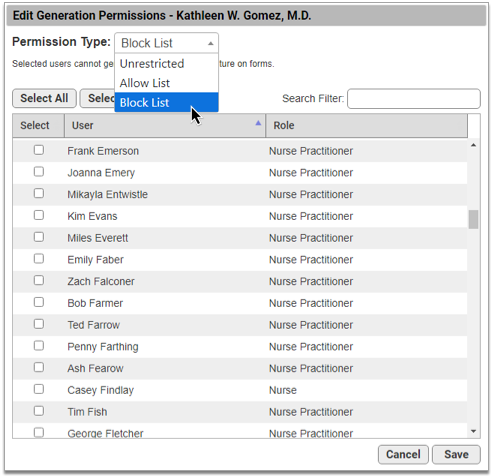
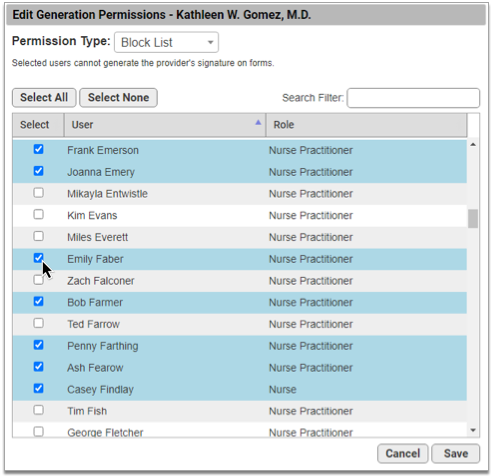
Once you have finished updating the permissions, click the “Save” button to return to the Signature Image Configuration overview.
Switching Permission Types: Switching between permission types clears out all user selections.
Set Permissions for Signatures Tab Access
Users need explicit permission to access the Forms Configuration tool in PCC EHR and the Signatures tab within it. You can add the Forms Configuration and Signature Image Configuration permissions to user roles in the User Administration tool in PCC EHR.
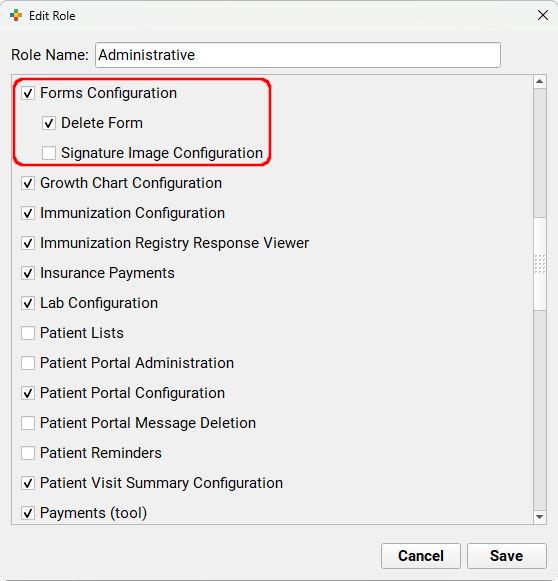
Users with the Forms Configuration permission can access the Forms Configuration tool and all of its functions with the exception of form deletion and signature configuration. Users with the Signature Image Configuration permission can see and access the Signatures tab and all of its functions.
Manage Your EPCS Account, Tokens, and Password
After registering for electronic prescribing for controlled substances (EPCS), you can manage your EPCS account and authentication tokens in the Exostar Account Management tool. You can also reset your EPCS password with help from an eRx Administrator.
Open Exostar Account Management
Use the Exostar Account Management tool to add a new token to your EPCS account, remove or resync an existing token, or manage your backup phone number.
Open the Rx Queue
Click on the Rx Queue tab in PCC EHR to open PCC eRx.

Go to My Settings
Click on the “My Settings” link in the top navigation bar to open your personal PCC eRx settings.

Open Exostar Account Management
Click on the “Exostar Account Management” button on the EPCS tab of the My Settings page to access your Exostar account details.
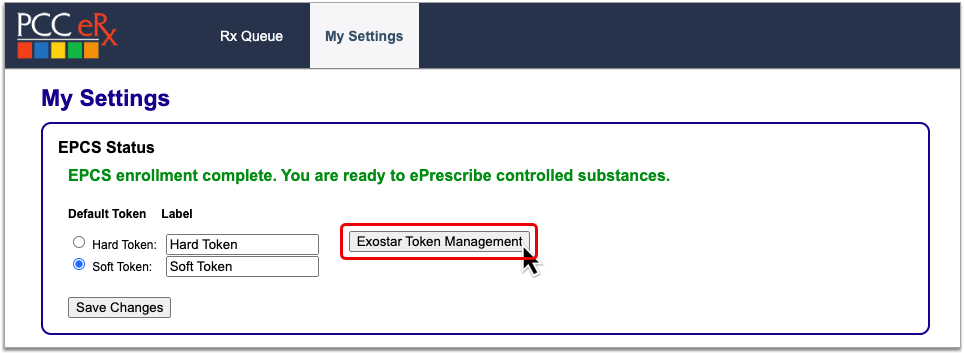
Read on to learn which actions you can take within Exostar Account Management.
Resync Your Hard Token
When PCC eRx stops accepting one-time passwords from your hard token, you can try resyncing it to restore your ability to use it as a factor of authentication for EPCS.
Grab Your Hard Token
Get your hard token in hand. You will need it to complete the resync.
Open Exostar Account Management
Click the “Exostar Account Management” button on the My Settings page in PCC eRx.
Resync Your Token
Find the Hardware Token (One-Time Password) card within your Exostar account settings and click the “Resync your token” link.

Enter Two One-Time Passwords from Your Hard Token
Press the button on your hard token to generate a one-time password, then enter it into the field labeled “One-time password 1”.
Press the button a second time to generate another password, then enter it into the field labeled “One-time password 2”.
Both fields are required to resync your token.
Finish Resyncing Your Token
Click the “Next” button after entering both passwords to finish resyncing your token.
If you receive an error message, try again, double-checking that both passwords have been entered correctly.
After resyncing, try sending an electronic prescription for a controlled substance to see if it has been restored. If resyncing does not restore use of your hard token, contact PCC Support.
Remove a Lost or Broken Token
If you lose access to one of your tokens, deactivate and remove it from your EPCS account so that you can add back a functional replacement.
Open Exostar Account Management
Click the “Exostar Account Management” button on the My Settings page in PCC eRx.
Check That You Have a Backup Phone Number for Your Exostar Account
Check that you have a Phone-Based (One-Time Password) backup phone number connected to your Exostar account. If you do not, set one up now before moving on to the next step.
A backup phone number ensures continued access to your Exostar account if neither a hard nor soft token is accessible, functional, or connected to your account.
Click “Remove” on the Lost or Broken Token
Click the “Remove” button on the token you need to remove.

To remove your hard token, click “Remove” on the Hardware Token (One-Time Password) card. To remove your soft token, click “Remove” on the Mobile ID (Authy) card.
Authenticate Your Identity
Choose a method to authenticate your identity, then click “Next”.

Enter the code from the method you selected.
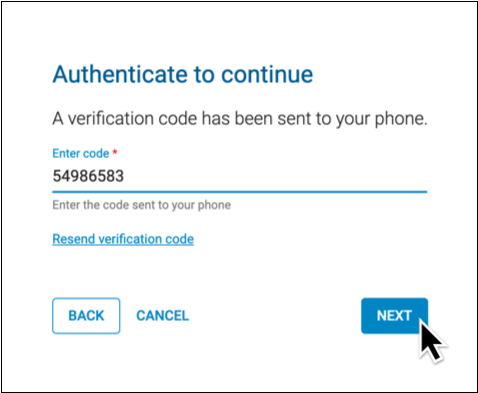
You can authenticate using a code generated by your hard token, your PCC eRx soft token in the Authy app, or with a code sent to your phone by call or text.
Not Prompted to Authenticate?: That’s okay! You only need to authenticate once per session while working in Exostar Account Management. You may not be prompted to authenticate if you already proved your identity while taking another action in Exostar Account Management.
Record the Reason for Removing the Token
Document your reason for removing your token.
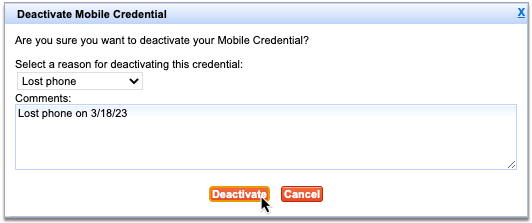
Click “Remove”
Click the “Remove” button to finish removing your token.
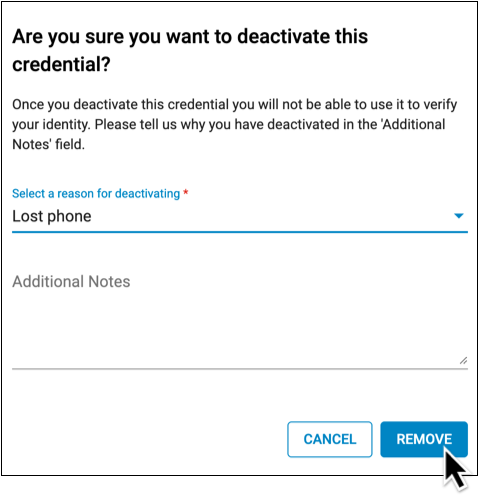
After you remove a token, you can add back a replacement for it.
Add a New or Replacement Token
You can use the Exostar Account Management tool to add a new or replacement token to your Exostar account. This is useful when you need to replace a lost or broken hard token, set up a soft token using a new cell phone number, or configure a soft token for the first time after having skipped that step in the EPCS registration process.
Add a New or Replacement Soft Token
Set up your smartphone as a factor of authentication for EPCS.
Grab Your Smartphone
Get your smartphone in hand. If you haven’t already, install the Authy app.
Open Exostar Account Management
Click the “Exostar Account Management” button on the My Settings page in PCC eRx.
Add or Activate a Mobile ID
Find the Mobile ID (Authy) card within your Exostar account settings.
Click the button at the bottom of the card. It will say “Add” or “Activate” depending on the status of your Exostar account.
If the button says “Remove” you already have a soft token linked to your account. Follow the steps to remove your current token before proceeding any further.
Authenticate Your Identity
Choose a method to authenticate your identity, then click “Next”.
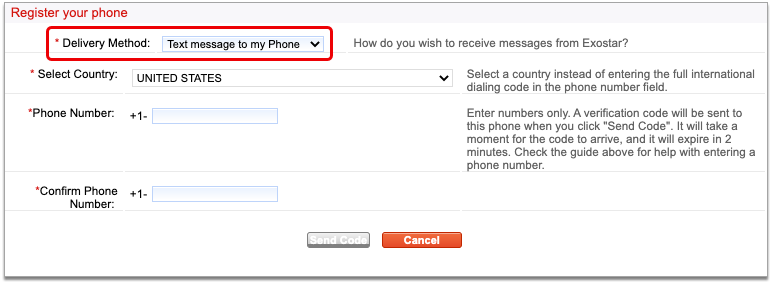
Enter the code from the method you selected.
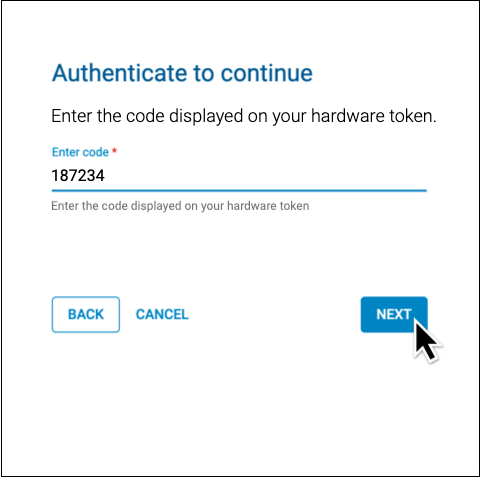
You can authenticate using a code generated by your hard token, or with a code sent to your phone by call or text.
Not Prompted to Authenticate?: That’s okay! You only need to authenticate once per session while working in Exostar Account Management. You may not be prompted to authenticate if you already proved your identity while taking another action in Exostar Account Management.
Enter Your Phone Number and Email Address
Enter the phone number associated with your smartphone and the email address that you used to register for EPCS.
Click “Next” to proceed.
Tap the Authy Notification on Your Smartphone
Pick up your smartphone and tap the push notification from Authy to open the app.
No Notification? Open the App Manually: If you have the Authy app installed but do not receive a push notification, open Authy manually instead by tapping the app icon on your home screen.
Don’t Have the Authy App? Download it Now: If you do not have the Authy app installed on your smartphone, you will receive a text message with a download link instead of a push notification. Open the text message, click on the link, and install the Authy app before moving on to the next step.
Tap the Notification Icon in the Authy App
Tap the notification bell icon in the Authy app.
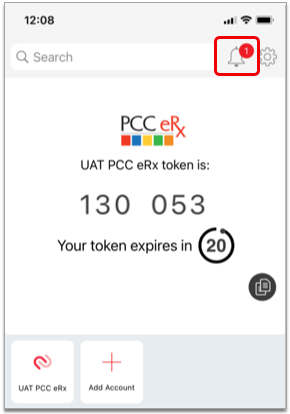
The red counter on the notification bell indicates that you have a new request to add a token.
Approve the Pending Request
Tap the pending request from PCC eRx to approve it. Then, tap the green “Approve” button to confirm.
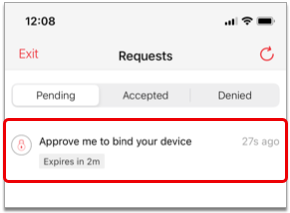
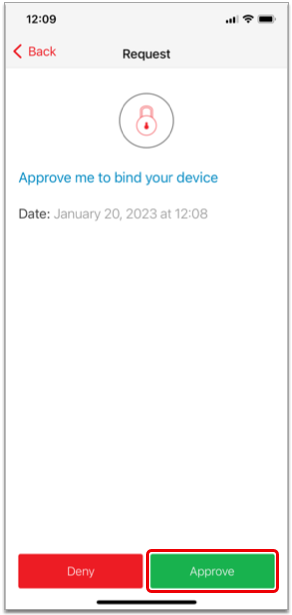
Once you approve the pending request, your smartphone becomes registered as a soft token for EPCS in PCC eRx.
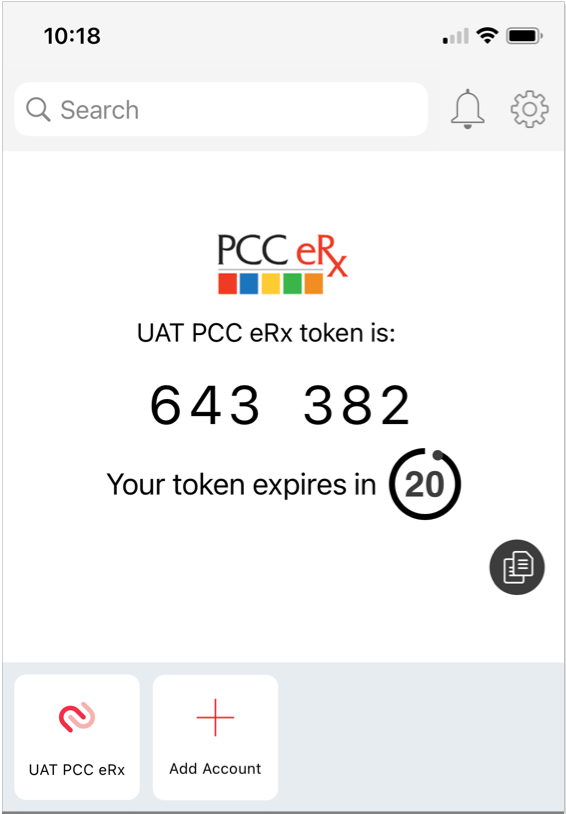
Request Timeout: If the pending request from PCC eRx times out before you have a chance to approve it, tap “Exit” in the top left corner of your phone screen, click the “Verify with Mobile ID code” link in PCC eRx, then enter a one-time password from your smartphone to finish the registration process.
No Notification? Finish Set Up Manually: If the notification bell in the Authy app does not display a red counter but you can see the PCC eRx soft token on your screen, click the “Verify with Mobile ID code” link in
PCC eRx, then enter a one-time password from your smartphone to finish the registration process.
Once registered, your soft token is bound to your identity, phone number, and device. Only you may use it as a second factor of authentication when sending electronic prescriptions for controlled substances from PCC eRx.
Add a Replacement Hard Token
Add a hard token as a factor of authentication for EPCS. If you already have a hard token, try resyncing it before setting up a new one.
Order New Hard Tokens from PCC: If your practice needs to order new hard tokens, contact PCC Support. PCC orders hard tokens from Exostar at no cost to you. Once ordered, Exostar ships hard tokens directly to your practice, generally in less than two weeks.
Grab Your New Hard Token and Your Smartphone
Get your new hard token and your smartphone in hand.
You will need your hard token in order to register it as an authentication method for EPCS.
You will need your smartphone in order to authenticate that you are authorized to make changes to this account.
Open Exostar Account Management
Click the “Exostar Account Management” button on the My Settings page in PCC eRx.
Add a Hardware Token
Find the Hardware Token (One-Time Password) card within your Exostar account settings.

Click the “Add” button at the bottom of the card.
If the button says “Remove” you already have a hard token linked to your account. Follow the steps to remove your current token before proceeding any further.
Authenticate Your Identity
Choose a method to authenticate your identity, then click “Next”.
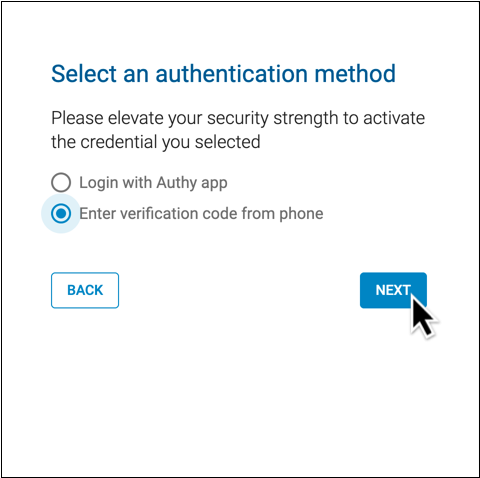
Enter the code from the method you selected.
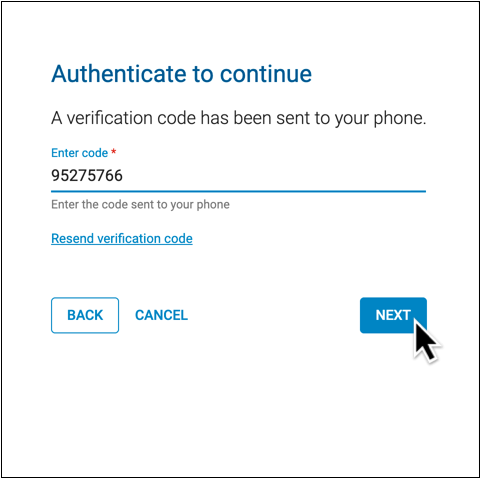
You can authenticate using a code generated by your PCC eRx soft token in the Authy app, or with a code sent to your phone by call or text.
Not Prompted to Authenticate?: That’s okay! You only need to authenticate once per session while working in Exostar Account Management. You may not be prompted to authenticate if you already proved your identity while taking another action in Exostar Account Management.
Enter Your Hard Token’s Serial Number
Enter the serial number from the back of your hard token into PCC eRx.
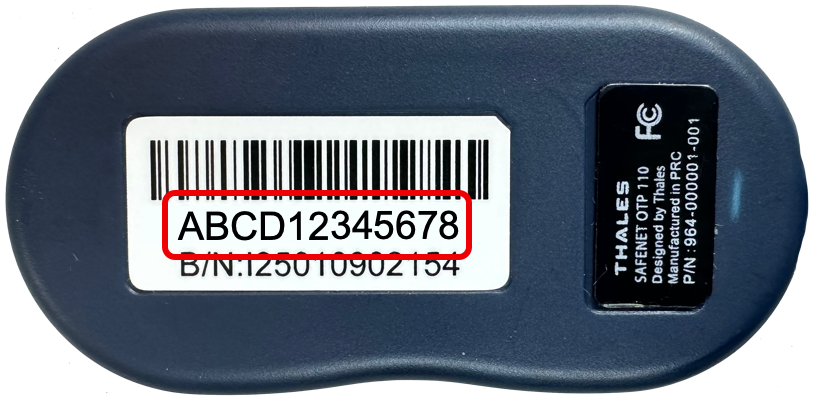
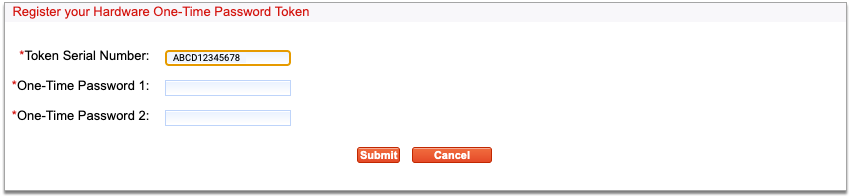
Enter Two One-Time Passwords from Your Hard Token
Press the button on your hard token to generate a one-time password, then enter it into the field labeled “One-Time Password 1”.
Press the button a second time to generate another password, then enter it into the field labeled “One-Time Password 2”.
Both fields are required to add your token.
Click “Next”
Click the “Next” button to finish registering your hard token.
Once registered, your hard token is bound to your identity. Only you may use it to validate your identity when sending electronic prescriptions for controlled substances from PCC eRx.
Manage the Backup Phone Number for Your Exostar Account
You can set up a phone number as a backup authentication method for your Exostar account in case you lose access to both your hard and soft tokens. While you cannot use the backup phone number to send prescriptions for controlled substances, you can use it to authenticate in Exostar Account Management so that you can add new tokens back to your account and resume prescribing.
PCC recommends setting up at least one phone number when you register for EPCS, but you can update your backup phone number settings at any time in Exostar Account Management.
Add a Backup Phone Number
You can add one or several phone numbers as backup authentication methods for your Exostar account. You can use these phone numbers to authenticate and unlock the other actions in Exostar Account Management, which is especially useful if you lose access to both of your EPCS tokens and want to set up new ones without having to go through the Exostar identity proofing process a second time.
Open Exostar Account Management
Click the “Exostar Account Management” button on the My Settings page in PCC eRx.
Add a Backup Phone Number
Find the Phone-Based (One-Time Password) card within your Exostar account settings.

Click the “Add” button at the bottom of the card.
Authenticate Your Identity
Choose a method to authenticate your identity, then click “Next”.
Enter the code from the method you selected.
You can authenticate using a code generated by your hard token or your PCC eRx soft token in the Authy app. If you already have a backup phone number connected to your account, you can use that to authenticate, too.
Not Prompted to Authenticate?: That’s okay! You only need to authenticate once per session while working in Exostar Account Management. You may not be prompted to authenticate if you already proved your identity while taking another action in Exostar Account Management.
Enter Your Phone Number and Choose a Delivery Method
Enter your phone number and choose whether you would like to be contacted by voice or text.
This phone number and delivery method will be used to receive verification codes from Exostar.
Click “Next” to proceed.
Receive the Verification Code from Exostar
Wait for a call or text from Exostar with your verification code.
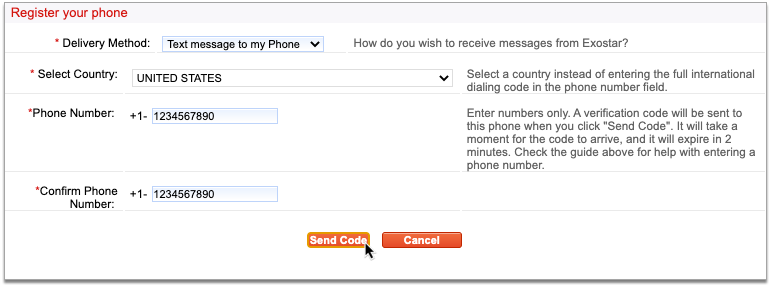
Enter the Verification Code on Your Computer Screen
Type the verification code into the field on your computer screen.

Click “Next” to finish adding your backup phone number.
Resend Code: If you do not receive a code, check that you entered your phone number correctly. Once confirmed, click “Resend verification code” and wait to receive a different code. If you do not receive a code after a second attempt, contact PCC Support for assistance.
You can add up to three backup phone numbers to your Exostar account.
Remove a Backup Phone Number
You can remove old backup phone numbers from your EPCS account.
Open Exostar Account Management
Click the “Exostar Account Management” button on the My Settings page in PCC eRx.
Click “Remove” on the Phone Number to Delete
Click the “Remove” button on the Phone-based (One-Time Password) card that lists the phone number you would like to delete.
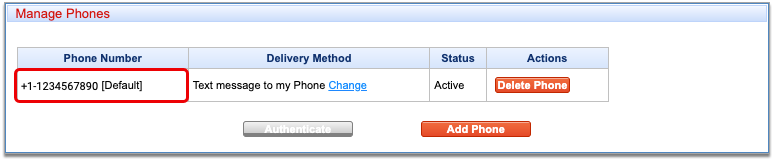
Authenticate Your Identity
Choose a method to authenticate your identity, then click “Next”.
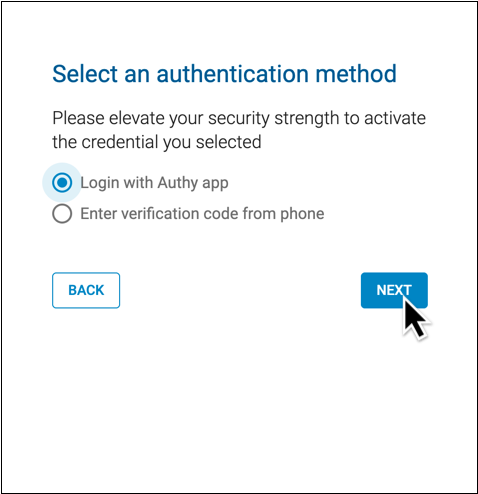
Finish verifying your identity using your selected method.
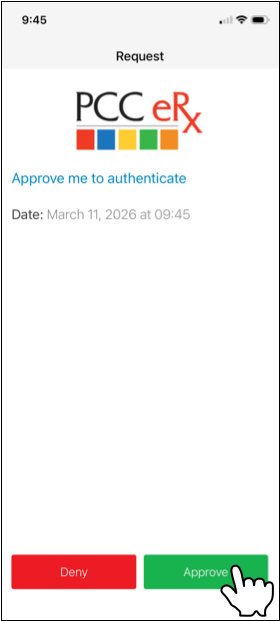
You can authenticate using a code generated by your hard token, your PCC eRx soft token in the Authy app, or a valid backup phone number connected to your Exostar account.
Not Prompted to Authenticate?: That’s okay! You only need to authenticate once per session while working in Exostar Account Management. You may not be prompted to authenticate if you already proved your identity while taking another action in Exostar Account Management.
Select a Reason for Removal
Use the drop-down to select the reason you are removing your backup phone number.
Provide additional detail if desired.
Finish Removing the Number
Click the “Remove” button to finish deleting this backup phone number.
If you deleted the only backup phone number listed on your Exostar account, add a new one right away to ensure that you will be able to unlock your account settings in Exostar Account Management even if you lose access to both of your EPCS tokens.
Reset Your EPCS Password
If you lost or forgot your EPCS password, ask an eRx Administrator at your practice to help you reset it.
eRx Administrator Steps
First, an eRx Administrator resets the prescriber’s password.
Open PCC eRx Administration
On the Rx Queue tab in PCC EHR, click “Administration”.
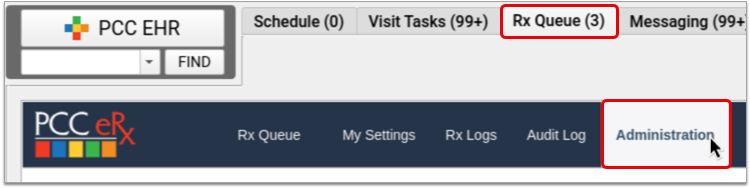
Open EPCS Setup
Click on the “EPCS Setup” link.
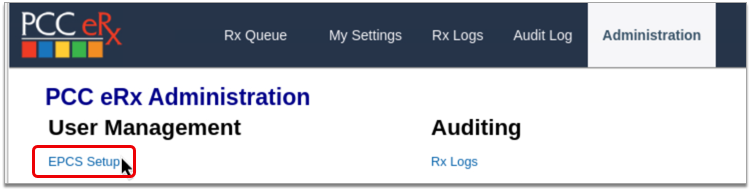
Find the Prescriber
Search for the prescriber by last name.
Edit the Prescriber
Click the “Edit” link on the prescriber’s account.
Reset the Prescriber’s Password
Click the “Reset EPCS Password” button.
The screen updates with a message showing that the prescriber can reset their password.
Prescriber Steps
Next, the prescriber chooses a new password.
Open My Settings in PCC eRx
On the Rx Queue in PCC EHR, click “My Settings”.
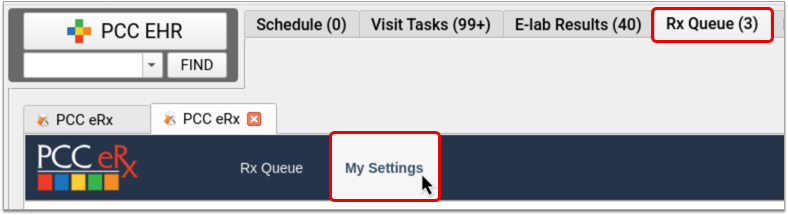
Create a New EPCS Password
Click the “Set up my EPCS password” button, then create a new password that meets all of the criteria.
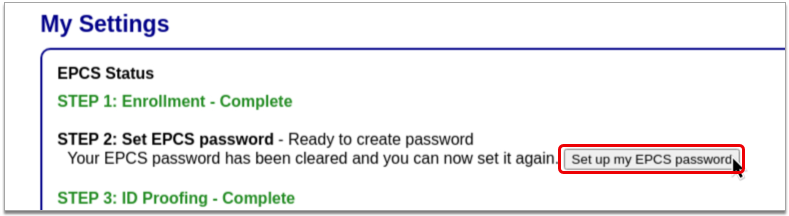
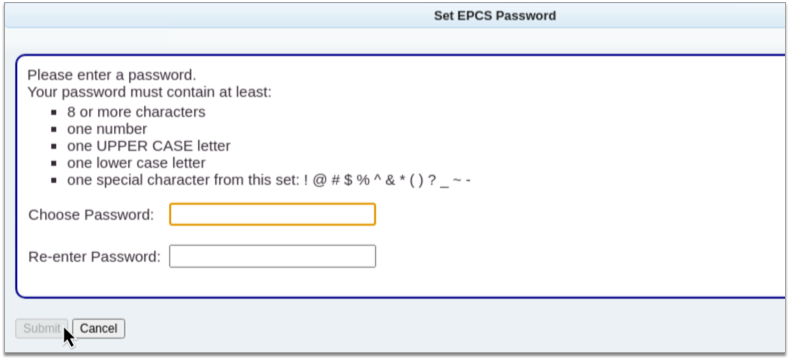
Click “Submit”
Click the “Submit” button to save your new password.
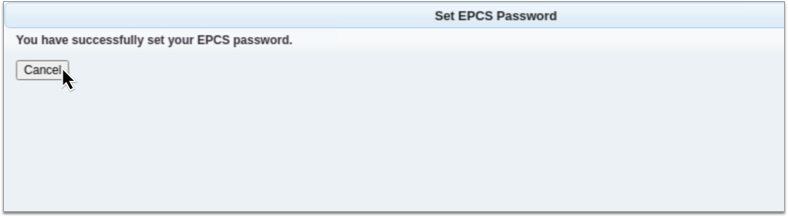
Never Revoke Your EPCS Account
Never Revoke Your Account: Never click the “Revoke OTP account and all credentials” button in Exostar Account Management. If you believe you might need to take that action, contact PCC Support first.
Claim Processing and Needs Correction Error Reference
When you process your claims, your PCC system reviews them for accuracy before submitting them electronically. This “claim scrubbing” results in cleaner claims, fewer claim rejections due to errors, and faster payment. Claims that need corrections will appear in the Needs Correction tab in the Claims tool.
What Claim Information Does PCC “Scrub” for Errors?
What kinds of pre-submission errors can your PCC system check for? What does it review before the claim is submitted? Here’s a partial list shared by PCC’s EDI specialists:
- Patient first and last name
- Patient date of birth
- Patient Care Center assignment
- Account (guarantor and custodial) names
- Account address line, city, state, and ZIP
- Account phone number
- Patient / account relationship
- Referring provider
- Service date (relative to current date, patient date of birth)
- CPT / HCPCS code (the claim processor checks your practice’s procedure code table to see that the codes on the claim are valid for the service date)
- ICD-10-CM code (valid for service date; primary non-External Cause code)
- Place of service address line, city, state, ZIP, phone number, and code
- CARC values and charge / payment / adjustment balancing
- NPI, tax identifier, and taxonomy code
- Inpatient admission date
- Practice address line, city, state, and ZIP
- Pay-To Provider address line, city, state, and ZIP
- Payor address line, city, state, ZIP, and [clearinghouse] identifier
- Subscriber first and last name
- Subscriber identifier
- Subscriber group identifier
- Subscriber date of birth
- Subscriber address line, city, state, and ZIP
- Original claim reference number
- Accident state
- Special characters (if any required fields include emojis, accented characters, or other characters that are not part of the mandated standard, PCC claim scrubbing replaces or removes them)
PCC’s claim processing reviews all of the above and more.
Special Behavior for Special Characters
Many payers are unable to process claims with certain characters, such as ñ,í,è, and ü, leading to errors, claim rejections, and delayed payment. When processing outgoing claims, your PCC system replaces these and other special characters with letters that comply with the X12 Basic Character Set that all payers are required to support.
Similarly, if a claim submission contains an emoji or other unrecognized character, PCC’s claim processing will remove it.
This filtering alters only the claim and does not change the patient or family’s information on your system.
When I See an Error, What Does It Mean? How Do I Fix a Claim Error?
The table below displays all the claim errors that can appear in the Needs Correction tab, in logs, or in other PCC reports that show claims that could not be submitted.
Claim Rejections and Denials: This list includes the errors created when you process your claims. Remember to also review claim rejections and denials, found in responses from claim clearinghouses and payors. See Respond to Claim Rejections.
| Error Code | Reason Claim Can Not Be Submitted | Suggestions to Fix | Previous Description (found in logs prior to PCC 9.6) |
| 100 | The patient’s first or last name is missing. | Edit the patient’s first or last name. | The patient’s name is invalid |
| 102 | The patient’s date of birth is either missing or invalid. | Review and update the patient’s date of birth. | The patient’s date of birth is invalid |
| 103 | The patient’s relationship code ([CODE]) for the relationship “[RELATIONSHIP]” is invalid. | Review the patient’s policies and update the patient’s relationship to the subscriber. If the relationship is already correct, review the codes for that relationship in your Relationships table. | Invalid relationship code found |
| 104 | The patient’s relationship to the subscriber is missing. | Review the patient’s policies and update the patient’s relationship to the subscriber. | Patient’s relationship to the insured is invalid |
| 105 | The patient’s PCP is not assigned. | Add a PCP to the patient’s demographics. | Patient does not have a provider entered in (the patient record) |
| 106 | Some part of the policy’s subscriber address is missing or incomplete. | Review the patient’s policies and update the subscriber address. | Subscriber address is bad |
| 200 | The billing account ([PCC#]) is missing a first or last name. | Edit the first or last name of the patient’s billing account. | The guarantor’s name is invalid |
| 202 | Some part of the billing account’s ([PCC#]) address is missing or incomplete. | Edit the address of the billing account. | The guarantor’s address is bad |
| 204 | The home account ([PCC#]) is missing a first or last name. | Edit the first or last name of the patient’s home account. | The custodian’s name is invalid |
| 205 | Some part of the home account’s ([PCC#]) address is missing or incomplete. | Edit the home account and update the address. | The custodian’s address is bad |
| 207 | The subscriber’s date of birth is either missing or invalid. | Edit the patient’s policy and enter a valid subscriber date of birth. | The insured’s date of birth is invalid |
| 208 | The policy’s certificate number has fewer than 2 characters. | Edit the patient’s policy and enter a valid certificate number. | The insurance certificate number is invalid |
| 209 | The policy’s group number is missing. | Edit the patient’s policy and enter a valid group number. | The insurance group number is invalid |
| 210 | The policy “[INSURANCE PLAN]” is not active for the date(s) of service. | Review the patient’s policies, and verify policy effective dates are correct. Review the charges for this encounter and ensure they are pending the correct policy. If you change the responsible party for the charges, generate a new claim and delete this claim. | Claim is for an insurance company no longer on the patient |
| 300 | Some part of the insurance plan address is missing or incomplete. | If you want to file a claim with this plan, update the address of the plan in the Insurance Companies table. | The insurance company address is bad |
| 302 | The payor ID for the insurance plan is missing. | If you want to file a claim with this plan, add the plan’s payor ID in the Insurance Companies table. | The ins company does not have a payor ID number in ted |
| 303 | The place of service “[POSNAME]” has an invalid address. | Contact PCC Support to update the place of service’s address. | The Place of Service Address is invalid |
| 305 | The place of service “[POSNAME]” is missing an NPI. | Contact PCC Support to update the place of service’s NPI. | The place of service NPI is invalid |
| 306 | The referring provider’s name is missing. | Edit the referring provider and update their name. | The referring provider’s name is invalid |
| 307 | The [CHOICE] for the referring provider “[NAME]” is missing. | Edit the referring provider and update any missing information. | The referring provider’s %s is invalid |
| 308 | The provider “[COMMON.PROV.NAME]” is missing their tax ID. | Edit the provider and update their Tax ID. | The provider Tax ID is invalid |
| 309 | The provider “[COMMON.PROV.NAME]” is missing their taxonomy code. | Edit the provider and update their taxonomy code. | The provider taxonomy code is invalid |
| 310 | The provider “[COMMON.PROV.NAME]” is missing an NPI. | If you want to file this claim with this provider, update the provider’s NPI in the Providers table. If the provider is not correct, either update the charges with the correct billing provider or delete and repost the encounter. | The provider NPI is invalid |
| 311 | Some part of the practice’s address is missing or incomplete. | Edit Practice Configuration and update the practice’s address, including a ZIP+4 code. | The Practice Address is invalid. The Practice Address requires at least one address line, city, state, and ZIP+4. |
| 312 | Some part of the batch-specific practice address is missing or incomplete. | Contact PCC. | The Alternate Practice Address, from the insurance batch configuration, is invalid. The Alternate Practice Address requires at least one address line, city, state, and ZIP+4. |
| 313 | Some part of the batch-specific pay-to practice address is missing or incomplete. | Contact PCC. | The Pay-To Practice Address, from the insurance batch configuration, is invalid. The Pay-To Address requires at least one address line, city, state, and ZIP+4. |
| 314 | The billing account’s zip code ([ZIP CODE]) is less than nine digits. | Edit the billing account to include a ZIP+4 code. | POS: Home: Guarantor needs ZIP+4 |
| 314 | The home account’s zip code ([ZIP CODE]) is less than nine digits. | Edit the home account to include a ZIP+4 code. | POS: Home: Custodian needs ZIP+4 |
| 700 | The procedure “[COMMON.PROC.NAME]” has a code ([PROC.CODE]) with less than 5 characters. | If you want to file this procedure on the claim, edit the procedure’s code in the Procedures table. Otherwise, change the responsible party of the charge so it is personal. Then the procedure will not be filed on this claim. | Procedure code contains less than 5 characters |
| 701 | The procedure “[COMMON.PROC.NAME]” has a code ([PROC.CODE]) that is invalid for the date of service. | Delete and repost the charges for the encounter. | The procedure code “XXXXX” is obsolete for the date of service. |
| 702 | The procedure code modifier ([MODIFIER]) for the procedure code ([CODE]) is invalid. | Modifiers can only have 2, 4, 6, or 8 characters. Edit the procedure and update the billing code. | The procedure modifier “XXX” has an invalid number of characters. |
| 703, 704, 705, or 706 | The diagnosis code ([CODE]) is invalid for the date of service. | Edit the encounter’s charges and change the diagnoses. If the encounter was posted for the wrong date of service, delete the charges and repost them with the correct date. | Diagnosis code is not valid for the date of service |
| 708 | The place of service “[POSNAME]” is missing a POS code (schedule [A-F]). | Contact PCC Support to update the POS code. | Place Of Service(POS) code is invalid |
| 710 | The date of service ([DOS]) is invalid. | Date(s) of service must be after 1980. Delete and repost the charges for the encounter. | Charge posting date is invalid |
| 711 | The date of service ([DOS]) is invalid. | Date(s) of service must be today or in the past. Delete and repost the charges for the encounter. | Charge posting date is in the future |
| 721 | The primary diagnosis code on the claim must not be an External Cause code (beginning with V, W, X, Y). The current primary diagnosis is “[DIAG NAME]” ([DIAG CODE]). | Edit the encounter’s charges and change the order of the diagnoses. | The primary diagnosis cannot be an External Cause diagnosis code |
| 722 | The total of CARC adjustment(s) and insurance payment amounts from the primary insurance can not exceed the charge amount. Procedure: [PROCEDURE NAME] Charge Amount: $[######] Primary Payment: $[######] CARC Total: $[######] | Delete the payments and adjustments, repend the charges towards the appropriate responsible party, and then repost the payments and adjustments so they include the correct CARC amounts. | The total posted CARC adjustment(s) and insurance payment cannot exceed the the charge amount. |
| 800 | The date first seen ([DATE]) must be within the dates of service. | Edit the date first seen for the encounter’s charges. | Date first seen is after the first date of service |
| 801 | This claim is missing the accident state. | Enter the accident state for the encounter’s charges. | Accident was posted without entering the accident state |
| 803 | This inpatient hospital claim is missing the admit date. | Enter the admit date for the encounter’s charges. | Inpatient hospital service was posted without an admission date |
| 804 | This claim, with a claim delay code of 09, is missing a payer claim control number. | Enter the payer claim control number into the Reference Number field for the encounter’s charges. | A Reference Number is required when the Claim Delay Code is “09” |
| 996 | This claim has no insurance policy. | Review the patient’s policies, and verify policy effective dates are correct. Review the charges for this encounter and ensure they are pending the correct policy. Generate a new claim and delete this claim. | Claim batched w/o insurance. Check insurance effective dates |
| 997 | The charge ID ([CHARGE HANDLE]) can not be processed. | Contact PCC. | No configuration match found for this charge |
| 998 | The charges for this claim are no longer associated with this patient ([PCC#]). | Identify the correct patient account and review their account history. Generate a new claim and delete this claim. | Charges for a sibling were found rebatched with this claim |
| 1001 | The billing account ([PCC#]) can not be accessed. | Contact PCC. | Error getting account data pcc=%ld |
| 1002 | The patient ([PCC#]) can not be accessed. | Contact PCC. | Error getting patient data pcc=%ld |
Install and Set Up the Authy App
The Authy app turns your smartphone into a secure password generator for taking certain actions on your PCC system. Secure Authy passwords are used in conjunction with your regular PCC password to provide an extra layer of security for your account. The concept of requiring two passwords to access a digital service is known as two-factor authentication.
PCC requires two-factor authentication to:
This article covers how to install and set up the Authy app on your smartphone or tablet and tailor notifications to your preference.
If you already have the Authy app installed, use the links above to configure two-factor authentication for PCC SecureConnect, EPCS, and RoundCube.
Install the Authy App
Install the Authy app on your Apple or Android smartphone or tablet.
On iPhone or iPad
Find Authy in the App Store and install it on your iPhone or iPad.
Open the App Store
Tap the App Store icon to open it on your device.

Search for Authy
Search for the Authy app in the App Store, where it appears under the name “Twilio Authy.”
Install Authy
Tap the “Get” button to install the Authy app. Follow the prompts on your screen to confirm and complete the purchase. The Authy app is free of charge.
On Android Phones and Tablets
Find Authy in the Google Play store and install it on your Android phone or tablet.
Open the Google Play Store
Tap the Google Play Store icon to open it on your device.

Search for Authy
Search for the Authy app in the Google Play Store, where it appears under the name “Twilio Authy Authenticator”.
Install Authy
Tap the “Install” button to install the Authy app. Follow the prompts on your screen to confirm and complete the purchase. The Authy app is free of charge.
Register Your Device
After downloading the Authy app, register your device and create an account.
Open the Authy App
Open the Authy app on your device.
Register Your Phone Number
Type in your phone number to begin the registration process.
Register Your Email Address
After you type in your phone number, an email field appears.
Type in your email address then tap the “OK” button.
Choose a Verification Method
Choose a method to verify your phone number. You can verify by text (SMS) or phone call.
Get Your Registration Code
Answer the call from Authy or open your text messages to retrieve your registration code.
Receipt of the registration code is how Authy verifies that your phone number was entered accurately.
Enter Your Registration Code
Type your registration code into the Authy app.
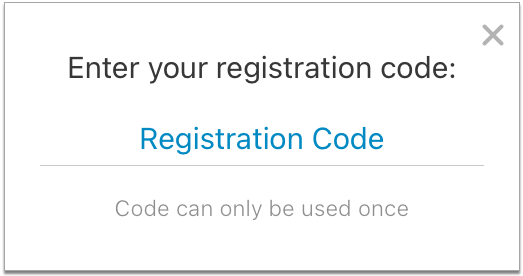
Alternatively, if you received your code by text, you can tap the registration link in the text message instead of typing your code into the app.
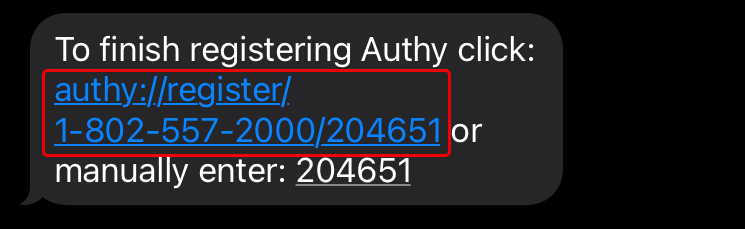
Authy automatically finishes creating your account after you enter the code.
Allow Authy Notifications
If prompted, allow the Authy app to send you notifications.
Among other things, Authy uses notifications to prompt for identity verification with a single tap, which is the most convenient way to validate your identity from your smartphone, tablet, or connected Apple Watch.
Enable Backups and Create a Backup Password
Enable backups in Authy in case you need to be able to access your account from a different device. Backups are most commonly used to regain account access after switching phones.
Click on the gear icon, then click “Accounts” to go to your settings.
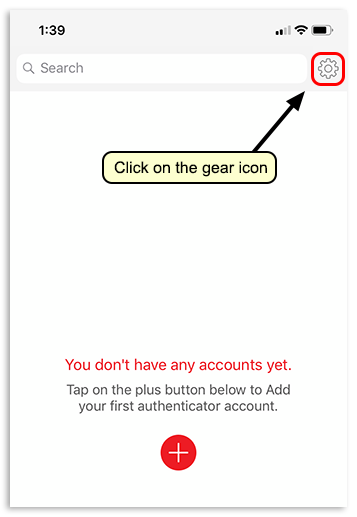
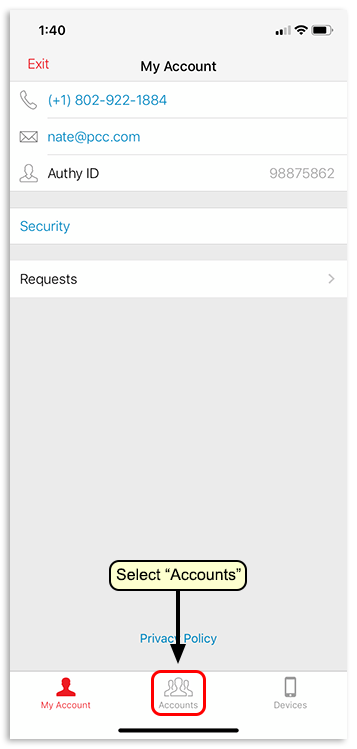
Turn on “Authenticator Backups”.
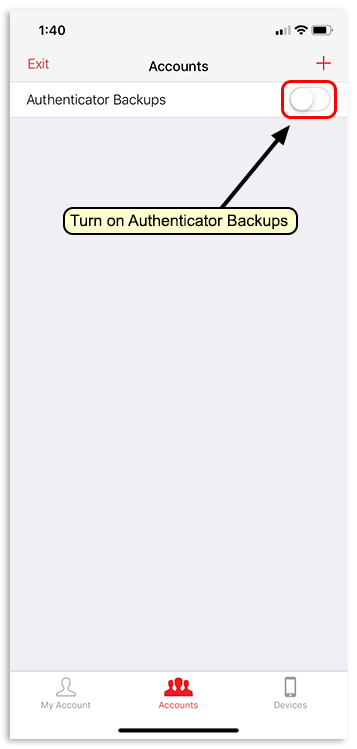
Create a password, click “Enable Backups”, then confirm your new backup password by typing it again.
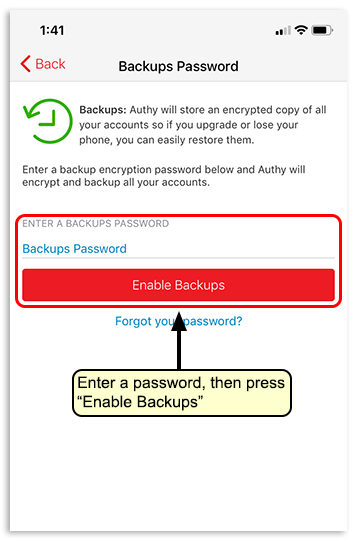
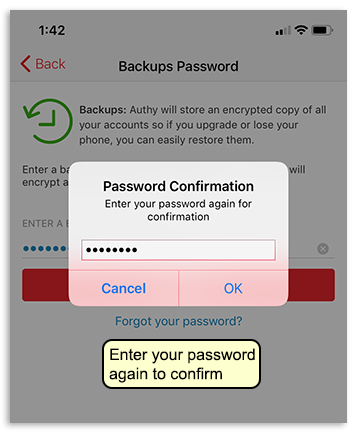
Remember your backup password in case you need to use it to access your Authy account on a new device. You can return to this screen to change your backup password at any time.
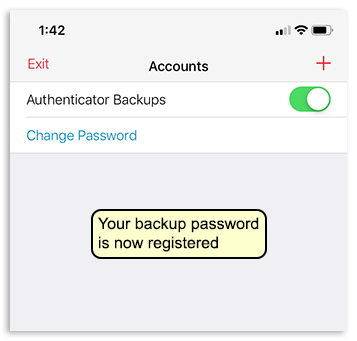
Add Authentication Tokens for SecureConnect, Roundcube, and EPCS
Add a secure token to the Authy app for each sign-in or action on your PCC system that requires two-factor authentication. The parts of your PCC system that require two-factor authentication are PCC SecureConnect, EPCS, and, if configured for it, Roundcube (your PCC email).
Follow the links above to learn how to set up two-factor authentication for each service.
Set Up Notifications and One-Touch Approval
Authy has a feature that allows you to complete two-factor authentication by tapping a notification from the app. Read on to learn how to set it up on your smartphone, tablet, and connected Apple Watch.
On Your Phone
Enable Authy notifications on your phone, then set up one-touch approvals in the Authy app.
Open Your Phone Settings
Open your smartphone’s settings.

Find Settings for the Authy App
Locate the settings for the Authy app, then tap to view them.
Allow Notifications from the Authy App
Allow notifications from the Authy app on your smartphone and tailor the notification style to your preferences.
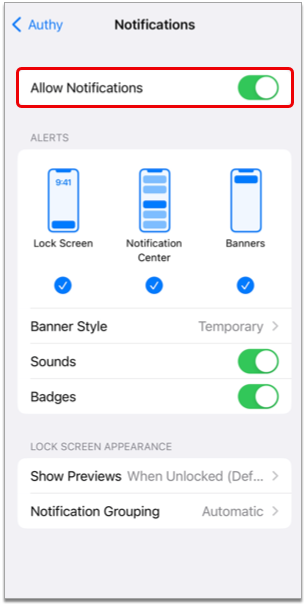
When you are done, exit your smartphone’s settings.
Additionally, on iPhone and iPad
Open the Authy App
Open the Authy app on your smartphone.

Tap the Gear Icon
Tap the gear icon in the top right corner of the Authy app.
Tap “Requests”
Tap the “Requests” option in the middle of the screen.
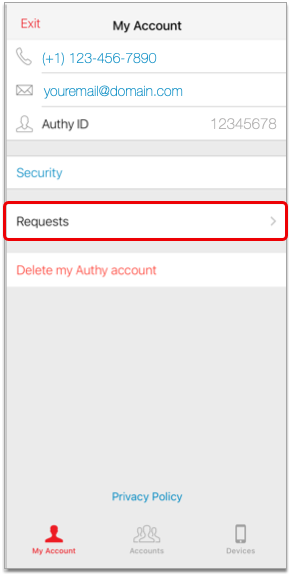
Allow Approval from Notifications
Enable the “Allow Approval from Notifications” option.
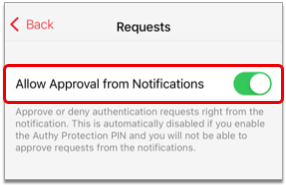
When you are done, exit the Authy app.
After completing these steps, you can approve or deny authentication requests from Authy by tapping one of the options in the push notification it sends to your smartphone.
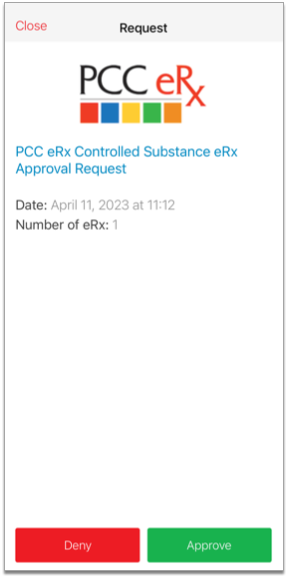
On Your Apple Watch
Push Authy notifications to your Apple Watch for one-touch approval.
Open the Watch App on Your iPhone
Open the Watch app on your iPhone.
Find Authy in Your Watch Settings
Scroll through your Watch settings until you find the Authy app.
If Needed, Install the Authy App on Your Watch
If the Authy app isn’t already installed on your watch, tap the “Install” button.

Once installed, you can access Authy on your Apple Watch.
The next time you take an action in PCC that requires a security code from Authy for two-factor authentication, the Authy app will send an authentication request to your Apple Watch as well as to your phone.
You can also open the Authy app on your Apple Watch at any time, without notification, and use the security code it generates to validate your identity.
Access Your Authy Account on a New Device
If you lose your device or want to access Authy on multiple devices, read on.
Restore Access on a New, Lost, or Inaccessible Device
Read Authy’s instructions about how to access your existing Authy account on a new device.
Restore Authy Access on a New, Lost, or Inaccessible Phone
Set Up Authy on Multiple Devices
Open Authy on Your Primary Device
Open the Authy app on the device you normally use.

Enable Multi-Device in Your Authy Account
Open your Authy account Settings, go to the Devices tab, then turn on the “Allow multi-device” switch.
Download Authy on a New Device
Download the Authy app on a new device, like your tablet or a second smartphone, if you have one.
Sign into Authy on Your New Device
Open the Authy app on your new device, then sign into your account.

Verify Your Account
Choose a verification method for your account. If you choose “Use existing device with Authy installed”, Authy will send a notification to your main device requesting approval to add a new device to your account.
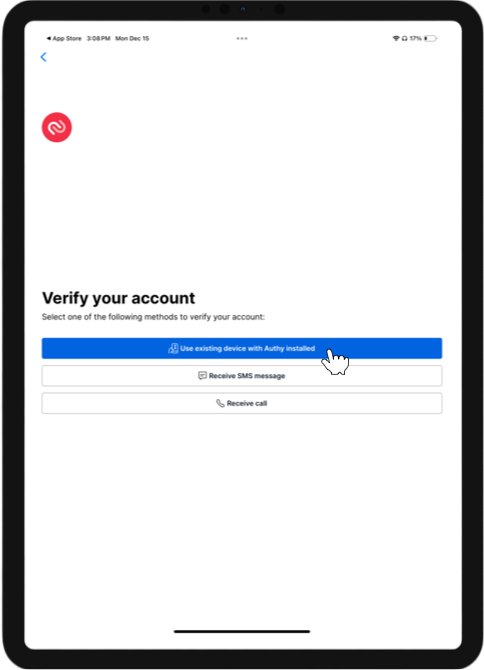
Approve the New Device
On your main device, approve the request from the Authy app to add a new device to your account.

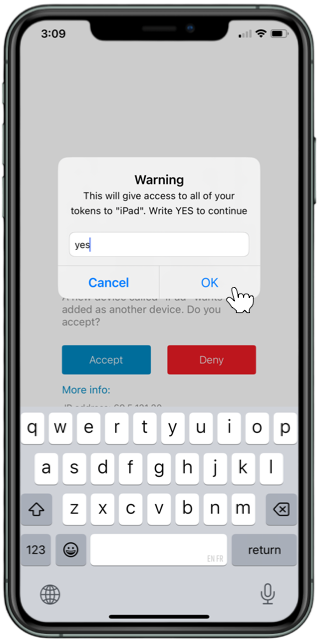
Once you add your new device, Authy recommends turning off the multi-device switch in your account settings until the next time you want to add a device. You can continue to use Authy on all of your approved devices when the multi-device switch is off.
For more information, read Authy’s instructions about how to Set Up Authy on Multiple Devices
Enable Backups For Best Results: The backup functionality in Authy allows you to restore your two-factor authentication tokens on a new device, ensuring that you won’t have to add each one back from scratch every time you get a new phone. To enable backups, follow the instructions in Step 8 of Register Your Device. It is important to choose a password you will remember, or to store it somewhere safe where you can reference it in case you should need it.
Helpful Authy Links
Sometimes there are hiccups and you need to reset your two-factor authentication account in the Authy app. PCC has found the following links useful for resolving issues in the Authy app.
-
-
Restore Authy Access on a New, Lost, or Inaccessible Phone: Did you lose your phone or upgrade to a new one? Learn how to restore Authy access or recover your account.
-
Delete, Hide, or Decrypt Two-Factor Authentication Accounts in the Authy App: Do you need to delete a connection in the Authy app? Learn how.
-
Reconfigure Authy After Losing or Forgetting Your Backup Password: Did you forget the backup password for your Authy account? Learn how to reconfigure Authy.
-
Prescribe Controlled Substances (EPCS)
Anyone with permission to create prescriptions in PCC eRx can prepare and edit prescriptions for controlled substances. Some users may additionally print those prescriptions in accordance with local regulations. Registered users can send electronic prescriptions for controlled substances (EPCS).
Read on to learn how to prescribe controlled substances in PCC eRx.
Article Under Construction: This article is being updated to reflect new functionality in PCC 10.4, which arrived on October 12th, 2025. The current descriptions may not include everything you can do on your PCC system.
Register for EPCS
Prescribers must register for the ability to send electronic prescriptions for controlled substances. To learn more, read Register for EPCS.
Create and Send Electronic Prescriptions for Controlled Substances (EPCS)
You can create prescriptions for controlled substances in PCC eRx just as you would for any other medication, then send them electronically using your EPCS credentials.
Start a Prescription
Start a prescription in PCC eRx for the drug you wish to prescribe.
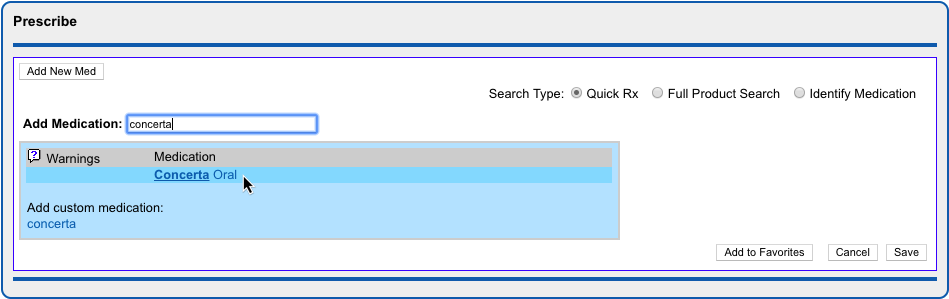
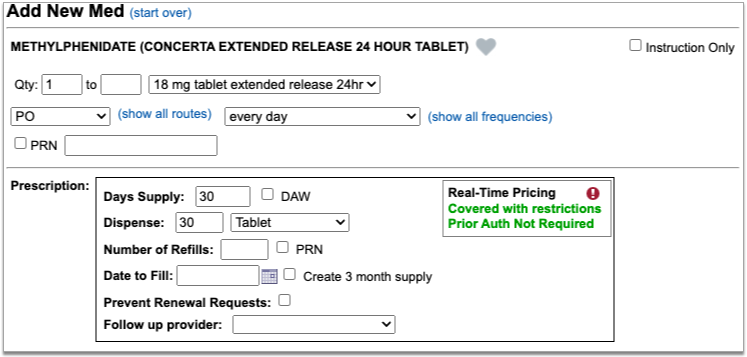
If you are a prescriber with EPCS credentials, move on to the next step. Otherwise, save the prescription and the leave the next steps for a prescriber who is authorized to send electronic prescriptions for controlled substances.
For more detail about how to access PCC eRx and create a prescription, read Prescribe Medications.
Process the Prescription Electronically
You can process prescriptions electronically from three different places in PCC eRx: RapidRx, Review & Sign, and the Rx Queue.
RapidRx
RapidRx is the prescription preview on the right hand side of the screen when you create or edit a prescription.
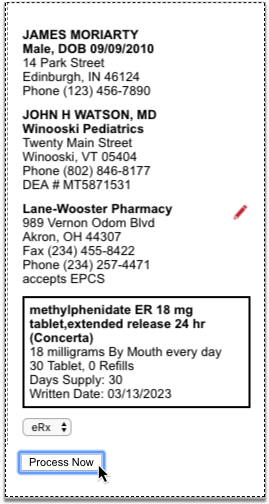
To process the prescription electronically from RapidRx, set the drop-down to “eRx” and click the “Process Now” button.
Review & Sign
When you save a prescription to be processed later, one of the places you can find it again and finish up is in the Review & Sign section of PCC eRx within the patient’s encounter.
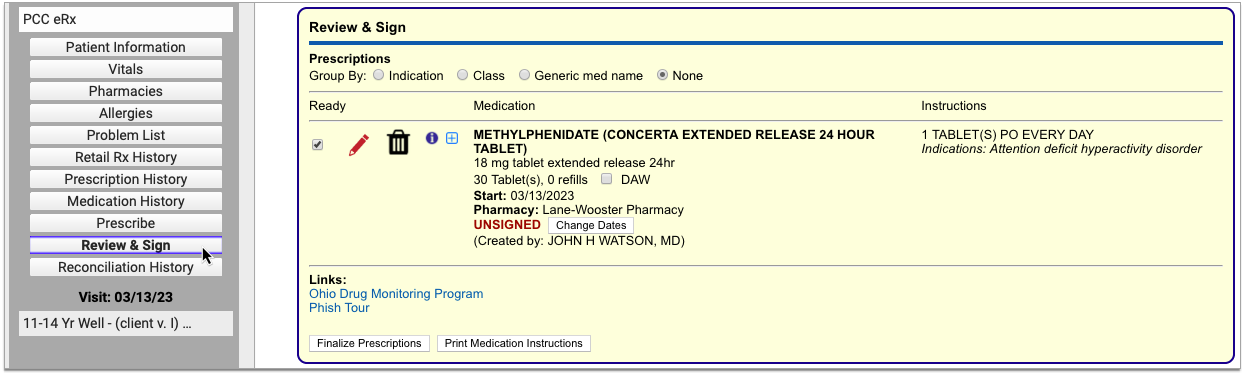
To process an electronic prescription for a controlled substance from Review & Sign, verify that the “Ready” checkbox is selected, then click the “Finalize Prescriptions” button.
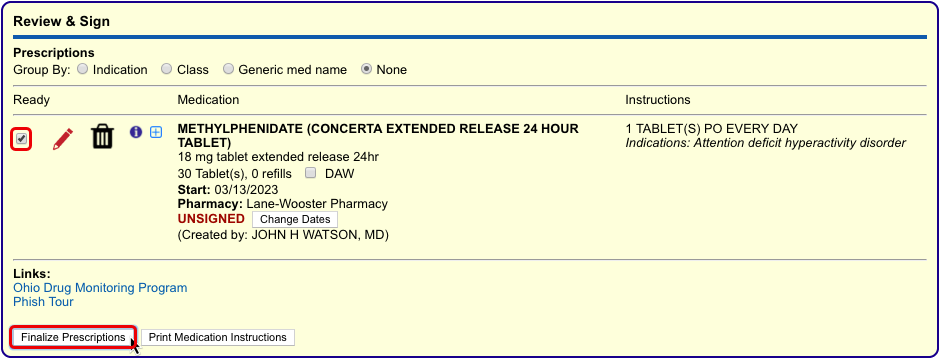
In the Prescription Review window that pops up, verify that the checkbox in the lightning bolt column beside the prescription is selected.
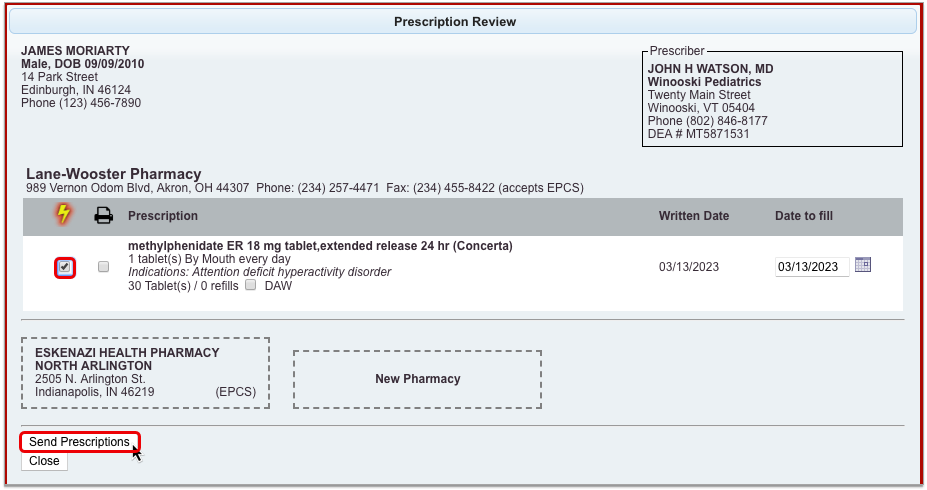
Then, click the “Send Prescriptions” button.
Rx Queue
Another place you can find and process pending prescriptions is in the Pending Prescriptions section of the Rx Queue in PCC EHR.
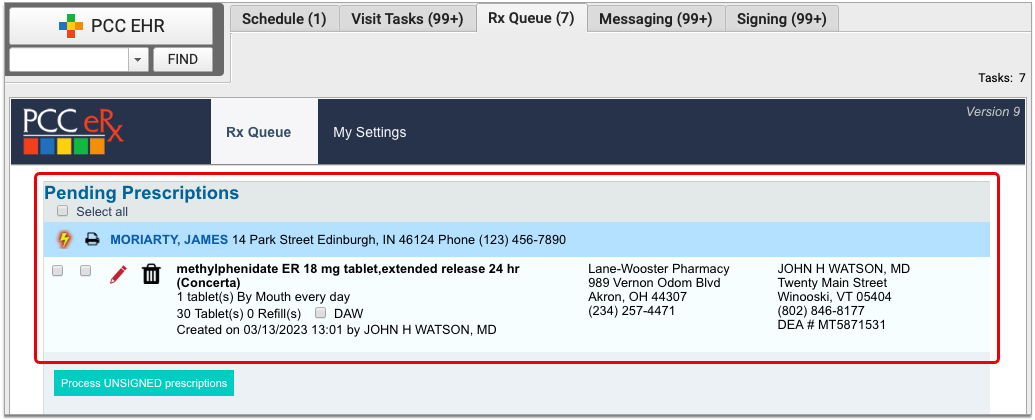
To process an electronic prescription for a controlled substance from the Rx Queue, select the lightning bolt checkbox in the column beside it, then click the “Process Unsigned Prescriptions” button.
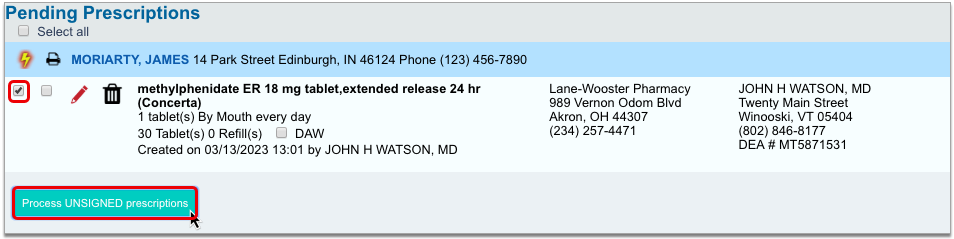
Select a Token
In the Two-Factor Authentication window, indicate which token you plan to use to validate your identity for this prescription.
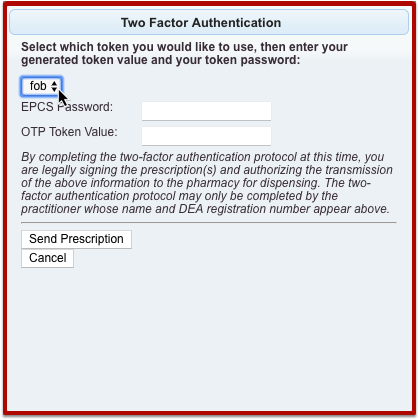
You set up at least one token when you registered for EPCS.
Enter Your Personal Prescribing Password
Once you have indicated a token, enter your personal prescribing password.
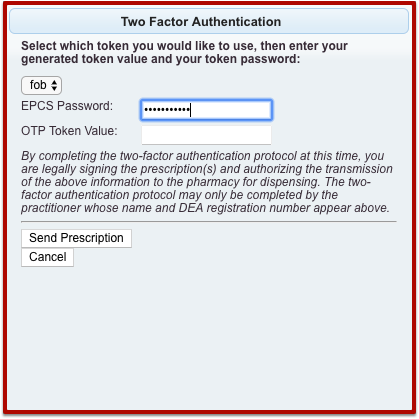
You set up your password when you registered for EPCS.
Option 1: Enter A One-Time Password From Your Hard Token
If you indicated that you will use your hard token to prescribe the medication, press the button on the token to generate a one-time password then enter the password into the Two-Factor Authentication window in PCC eRx.
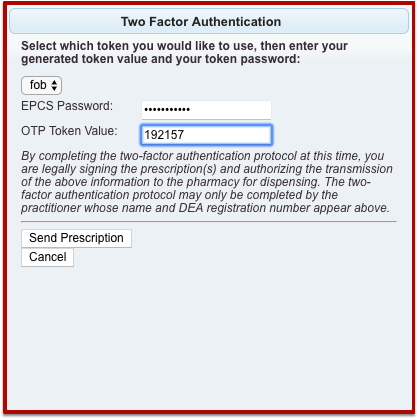
Click the “Send Prescription” button to finish processing the prescription.
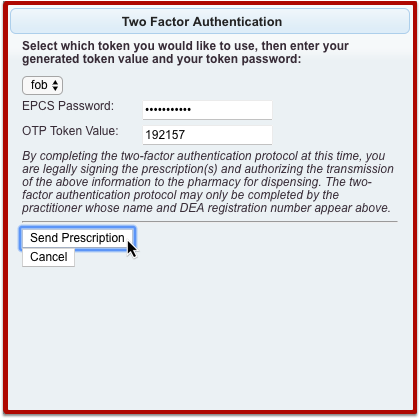
Option 2: Approve the Prescription Using the Authy App on Your Smartphone
If you indicated that you will use your soft token to prescribe the medication, enter your EPCS password then click the “Send Prescription” button in the Two-Factor Authentication window in PCC eRx to finish validating your identity and send the prescription.
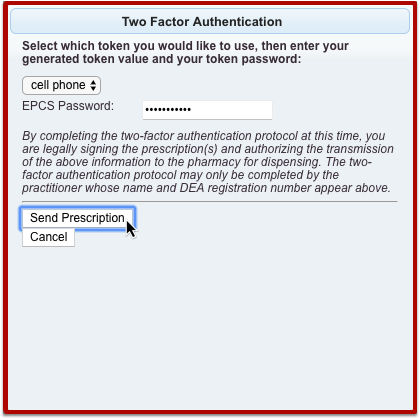
If the Authy app on your smartphone is configured to send you push notifications for one-touch approval, tap the notification on your smartphone, then tap the green “Approve” button.
If you don’t have Authy push notifications set up, open the Authy app on your phone and tap the green “Approve” button there.

If you don’t see the green “Approve” button within the Authy app, click the “Enter OTP Instead” button in the Two-Factor Authentication window in PCC eRx.
Then, type a one-time password from your PCC eRx soft token into PCC eRx.
Once you submit your OTP in PCC eRx or tap the green “Approve” button in the Authy app, the prescription finishes processing.
You can check the status of sent prescriptions in the Review & Sign component of the PCC eRx encounter where they were prescribed. Hover over the red date and timestamp beneath a prescription to see its status.
Sent prescriptions also appear in the patient’s Medication History, Prescription History, and the Prescriptions component of their encounter in PCC EHR. If you need information about how to cancel and delete prescriptions that were sent in error, read “Cancel and Delete Prescriptions that Were Sent or Printed in Error” in the Prescribe Medications article.
To learn more about how to register for electronic prescribing for controlled substances (EPCS), read Register for EPCS.
Prescribe a 3-Month Supply of a Schedule II Controlled Substance
In a single click, you can turn a prescription for a Schedule II drug into a three-month supply. This function is most commonly used to prescribe maintenance medications for the treatment of ADHD.
Start a prescription for a Schedule II drug, then check the “Create 3 month supply” box.
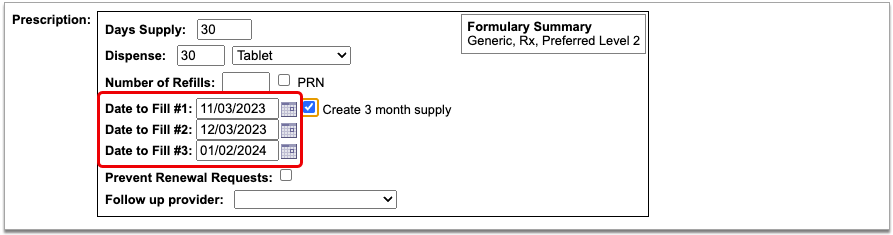
The prescription goes from having one date to fill to having three successive ones that are calculated from today’s date based on days supply.
If you want the patient to be able to pick up the second and third prescriptions in the series a little before they’re needed, you can manually adjust the dates to fill. This is called pre-dating.
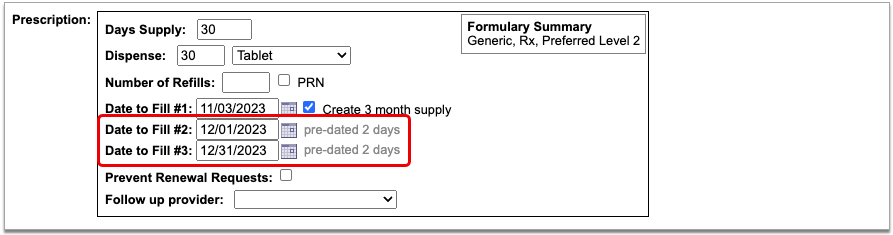
When you pre-date the second prescription in the series, the third automatically becomes pre-dated by the same number of days. If you want to pre-date the third prescription for a different number of days, you can manually change its date to fill without affecting the first two prescriptions in the series.
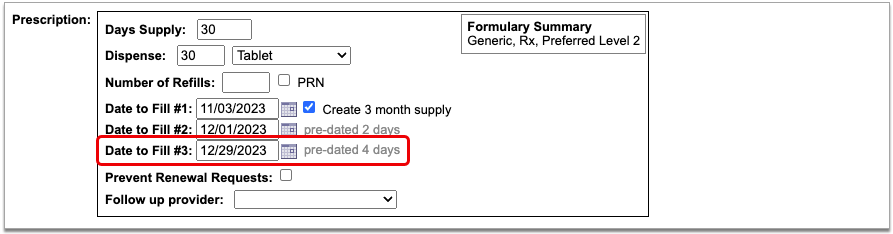
If you always want to pre-date the second and third prescriptions in a series of three by a certain number of days, you can set that up in your PCC eRx settings.
When you are ready to send the prescription, process it as usual. You will only be prompted to enter your EPCS credentials once.
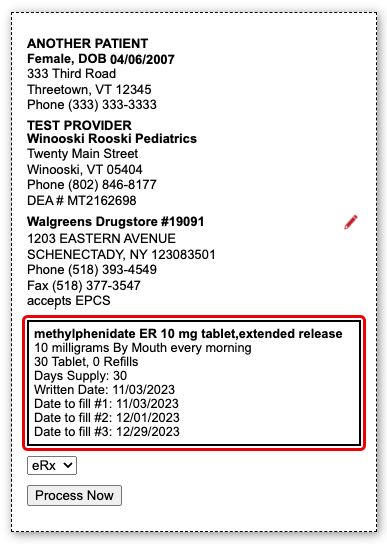
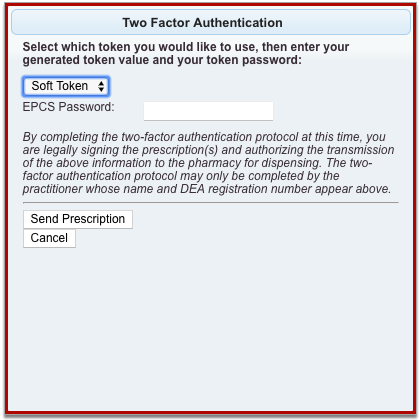
Even though it feels like you are sending one prescription and all three months display as a single entry on the Rx Queue, in the patient’s Medication History, and in their Prescription History, each month’s supply goes to the pharmacy as a separate prescription with unique a serial number.
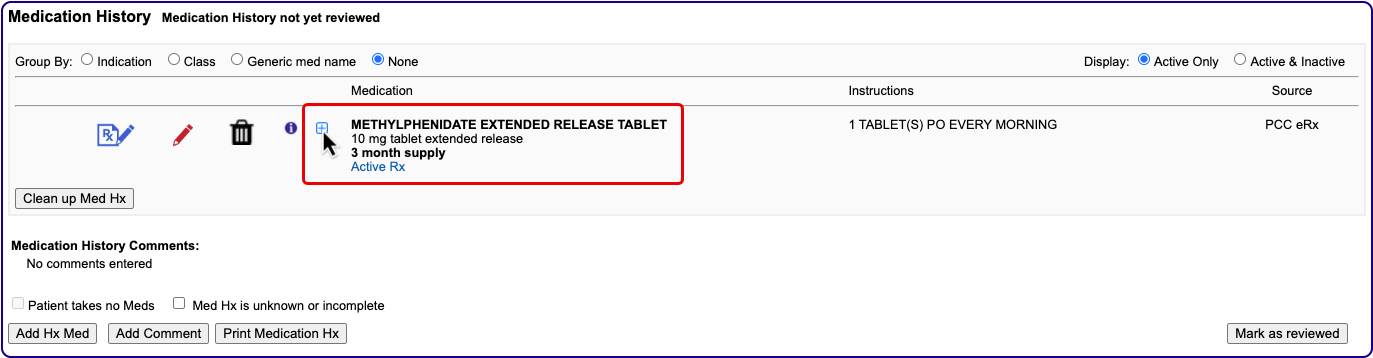

If you need help troubleshooting issues with a prescription for a three-month supply, contact PCC Support.
Renew Controlled Substance Prescriptions
You can renew a controlled substance prescription from a patient’s Medication History, Prescription History, or pharmacy refill request just as you would any other medication. Whoever finalizes the renewal must be authorized to send electronic prescriptions for controlled substances.
For more detailed information about how to renew prescriptions, read the “Renew Prescriptions” section of the Prescribe Medications article.
Send EPCS in Response to Pharmacy Change Requests
When you respond to a change request with a prescription for a controlled substance, you must enter your EPCS credentials to finish processing and sending it, just as you would with a new prescription.
Change requests are electronic messages that pharmacies use to request script clarifications, generic substitutions, therapeutic interchanges, drug use evaluations, or confirmation of a prescribers’ credentials. Pharmacies can also use change requests to notify you when a medication requires prior authorization or is out of stock. Change requests appear on the Rx Queue in PCC EHR alongside pending prescriptions and renewal requests.
There are five standard response options for most change requests:
-
Keep or Edit Original Prescription: Keep or edit the prescription you originally wrote, then send that in response to the change request.
-
Approve Requested Substitution: Approve the substitution suggested by the pharmacy, either as written or with edits.
-
Replace with New Prescription: Start a new prescription from scratch to replace the original.
-
Cancel Original Prescription: Notify the pharmacy that you want to cancel the original prescription.
-
Reassign: Reassign the change request to a different provider at your practice.
Certain kinds of change requests, such as notifications that prior authorization is required, have different, more tailored response options.
Print Controlled Substance Prescriptions
PCC enables printing for controlled substance prescriptions on a practice-by-practice basis in accordance with local regulations. Not all states allow controlled substance prescriptions to be printed, and states that do allow it have differing restrictions as to who can do so. Where printing is allowed, users who have permission to do so will see a “Print” option anywhere you can finalize and process prescriptions in PCC eRx.
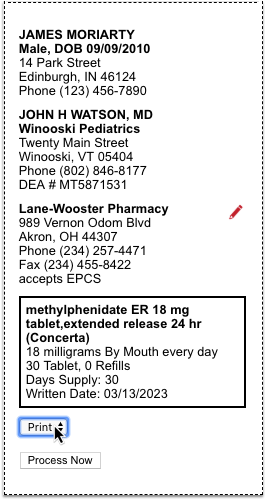
To learn more about reprinting prescriptions, or providing void copies for documentation and reference purposes, read “Reprint Prescriptions” in the Prescribe Medications article.
Work on Claim Errors, Rejections, and All Unpaid Claims
After you prepare and submit claims, how do you deal with stuck claims, rejections, claims with no response from the payor, and other unpaid encounters?
Read below for an overview of PCC’s tools for your insurance A/R workflow.
Fix Claims that Need Corrections
Your PCC system automatically catches many problems before a claim leaves your practice; it holds back claims that contain errors or otherwise need corrections.
After you prepare and submit claims, you can review all claims that need corrections.
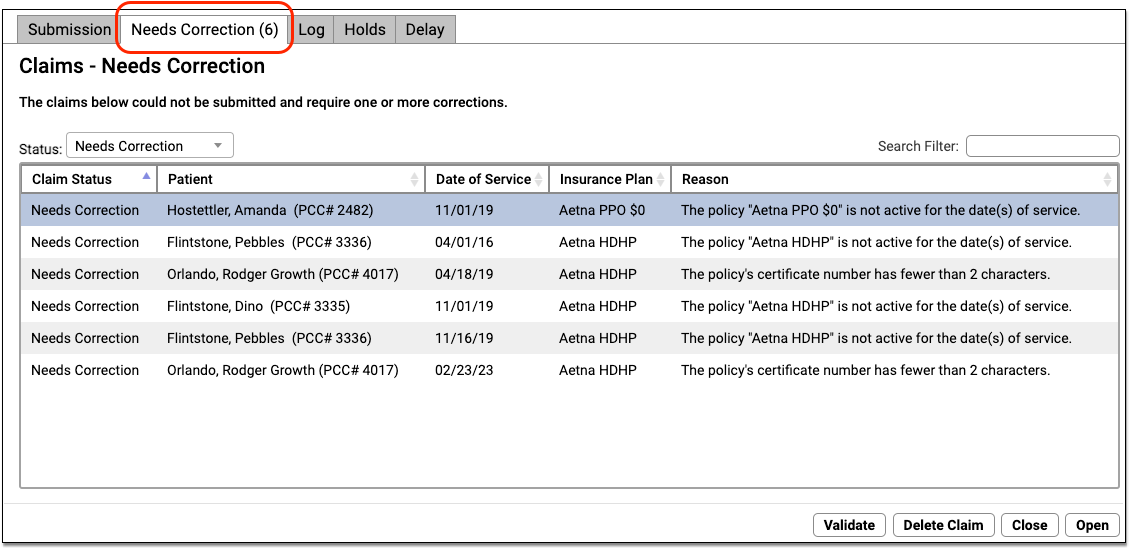
You can work your way down the list, open each queued claim for more information, and use tools in the Claims tool to correct the issue. The claim will then go out when you next prepare and submit claims. Claims that needed corrections are also logged in the Log tab of the Claims tool.
For more information, read Submit Claims.
Respond to Every Claim Rejection
If unaddressed, rejected claims result in lost revenue. Use the Rejected Claims worklist to review and respond to every claim rejection sent to your practice.
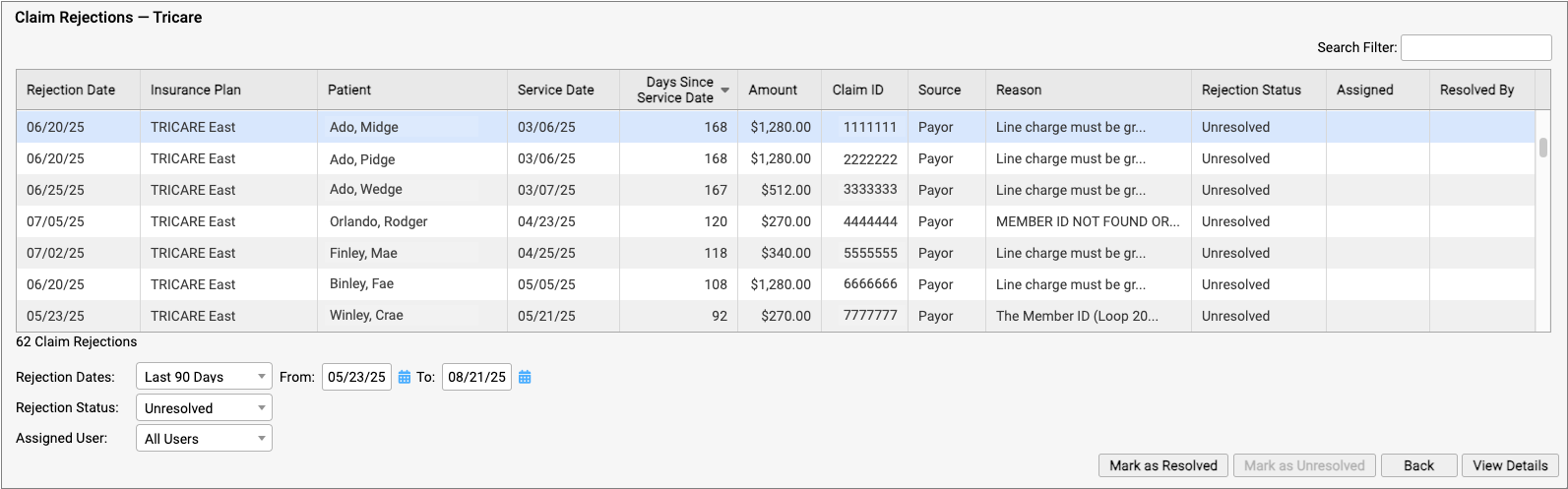
To learn more, read Respond to Claim Rejections.
Read Electronic Remittance Advice From Payors
You can review all ERAs from payors in the Electronic Remittance Advice tool.
ERAs provide complete details about the payor’s adjudication, including payments, adjustments, denials, and unusual circumstances. Read the Read ERA 835s from Payors article to learn more.
Review the Claim History of a Specific Encounter
When you need to understand when a claim was sent, acknowledged, rejected, paid, or resubmitted, use the Claim History found in the encounter’s Billing History.
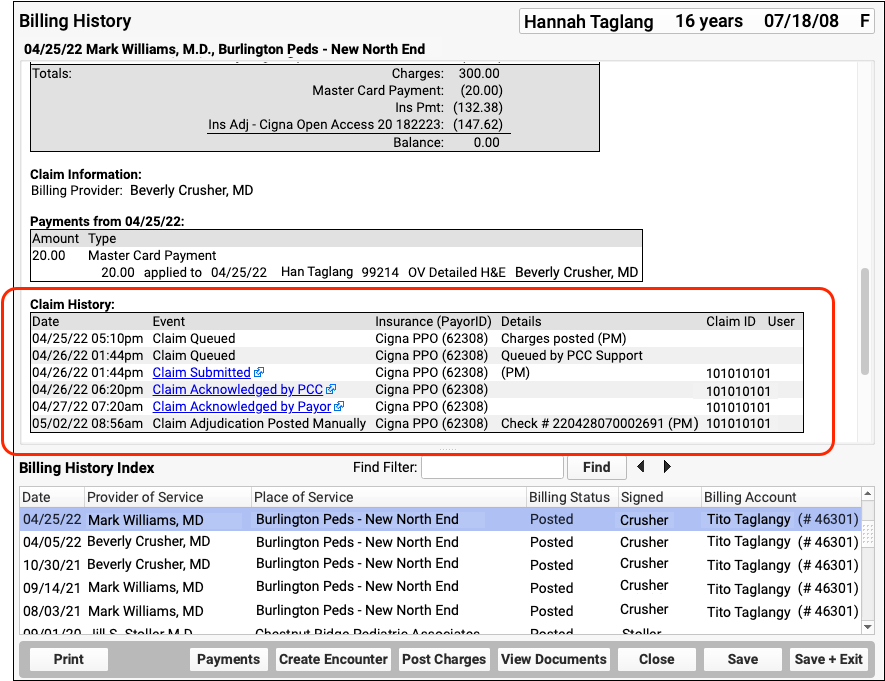
The Claim History shows the lifecycle of all claims for the encounter, from submission to resolution. You can see when a claim was queued, held, delayed, processed, received by PCC’s clearinghouse, acknowledged by the payor, and more. By clicking on a link, you can read the payor’s original electronic response.
For more information, read Review an Encounter’s Billing History.
Followup on Unpaid Encounters with Insurance Balances
What if a problem was fixed, but a claim was never resubmitted? And how can you follow up on appeals, or on claims where the payor never responds? Use the Unpaid Encounters tab in the Insurance Balances tool to review an aged summary of your insurance A/R and an unpaid encounters worklist.
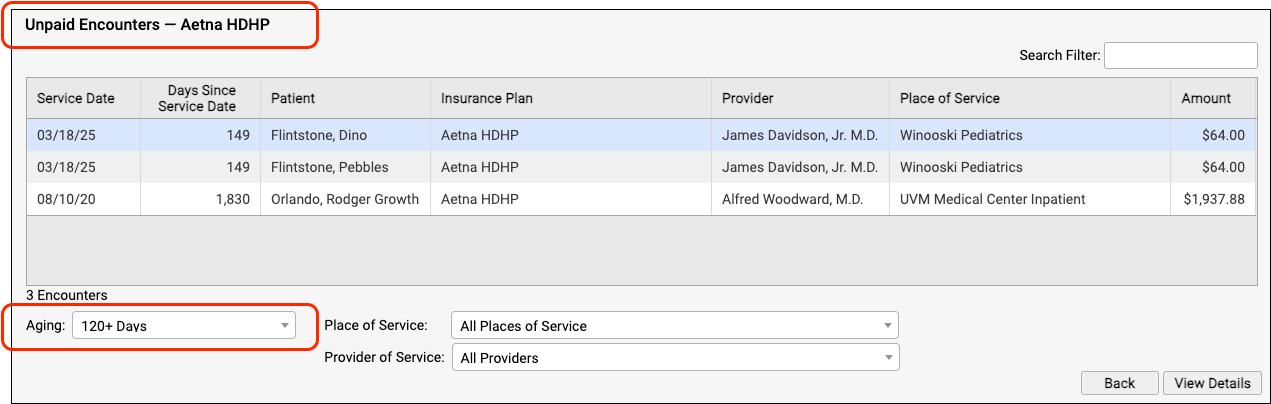
To learn more, read Follow Up on Unpaid Encounters with Insurance Balances.
UC 2022 Videos and Course Materials

In 2022, PCC’s Users’ Conference returned to Burlington, Vermont. Our theme this year was Resilience and Rejuvenation! We recognize that you are in pediatrics because of your patients and their families. We want to honor that and help you make your practice a place that supports them through every phase of their journey with you.
Over 500 attendees participated both online and in-person in 46 courses, sessions, and round tables on issues of importance to pediatric practices.
Sessions were recorded, and where possible we’ve made them available on a PCC UC 2022 playlist, and using the links below. Attendees can access course and video information on the PCC UC 2022 app, which will be available for one year following the conference.
Learn more on PCC.com’s UC2022 wrap-up page.
Course Descriptions, Slides, and Videos
| Course Title | Course Description | Materials |
| 2022 Coding Updates |
Join PCC’s Jan Blanchard for a review of the ICD and CPT changes in play this year. She’s not Donelle Holle, but she’s still awesome!
Presented By: Jan Blanchard |
|
| 5 Security Policy Tips to Implement for a More Secure Practice |
Learn what and how to implement 5 Security Policies today for your practice that will help ensure you are staying up to date with the evolving Cyber Security Landscape.
Presented By: Marissa Maldonado |
|
| AAP PROS Update |
Join Alex Fiks of the AAP’s Pediatric Research in Office Settings (PROS) group to learn about PROS past, present, and future. He’ll highlight recent studies that PCC clients have collaborated on and preview some upcoming study opportunities.
Presented By: Alexander Fiks |
|
| Allow Me to Introduce Myself: Professional Bios in 500 Words or Less |
This workshop will cover the basics of what constitutes a great professional bio for websites, speaking events, professional networking, and more. Attendees will workshop their bios and compare with partners for half the session.
Presented By: Allie Squires |
|
| Ask Chip |
Practices can bring their questions to the session to have them answered live by Chip with helpful input from the audience.
Presented By: Chip Hart |
|
| Best Payment Processes: A Review Into Payment Workflows, Credit Card on File and PCI Compliance |
How are you taking payments now? Are you employing the best payment processes for your practice? It’s a good idea to review your payment processes and ensure they grow along with you. There are various factors that can require a reassessment of these workflows, including security changes to reduce PCI scope, technology advancements and environmental obstacles, to name a few. We’ll provide examples of what other practices are doing and explain why they work. Payment acceptance methods PCC clients use include combinations of patient portal integration, hosted payment pages, virtual terminals and physical terminals. Like a lot of things, payment processes is not “one size fits all.” Seeing the ways other practices combine these methods in their offices will be useful in assessing the payment workflow of your own practice.
Presented By: James & Sarah Estes |
|
| Billing and Payment Workflows (Post 9.4 release) |
This session will explore all the ways Billing and Collection tools may be accessed through PCC EHR.
Presented By: Ben Brandt |
|
| Billing Workflow Roundtable (in-person only) |
Come hear about the tips and tricks your colleagues employ to make PCC work for them. We’ll explore shortcuts, pro tips, and words to the wise that will help you work smarter.
Presented By: Jan Blanchard |
|
| Budgeting For Pediatric Practices |
Bring together all the financial data points to plan your future! Join Paulie Vanchiere from PMI as he walks you through the steps to create a budget for your practice. Leveraging practical experience, participants will learn what they need to know to properly plan your financial future.
Presented By: Paul Vanchiere |
|
| Clinical Oversight Reporting |
As a managing physician or practice administrator, have you ever wondered which clinical reports you should be monitoring regularly to ensure the practice is operating successfully? This session will highlight PCC’s robust reporting capabilities, with a focus on clinical oversight reporting. You will learn how to report on clinical operations related to vaccine inventory, orders, and prescription activity. Discover how to use PCC’s Report Library for preventive and chronic care recall. We will also delve into high-level strategic reporting of clinical measures within PCC’s Dashboard including vaccine rates, well visit rates, screening rates, and more. Discover the numbers that really matter to your practice’s clinical health and how to find and track the information you need most.
Presented By: Tim Proctor |
|
| Compliance – You Don’t Know What You Don’t Know |
Did you know as a Provider every time you credential with Medicaid or Medicaid HMO’s you are attesting that you have an effective Compliance Program? Yes, really. Do Your Practice Policies Meet Federal & State Regulations? Is Your Practice following OIG Guidelines? Are you familiar with Sec 1866? Did you Choose a Qualified Compliance Officer? Is Your Compliance Program Effective? Is Your Practice Utilizing Competencies Effectively? -Attendees will learn best practice risk assessment methodologies, how to define an audit scope, when to perform audits, what to look for, how to document and next steps when hazards or vulnerabilities are discovered.
Presented By: Michelle Richards |
|
| Creating Efficiencies within E&M Guidelines |
In 2021 we focused on the newness of the guidelines, this year let’s focus on getting the guidelines right!
Presented By: Shannon Deconda |
|
| Delivering on Your Practice Culture |
Are you running a practice where personal responsibility isn’t baked in? Do people leave shifts early? Do they wait for someone to tell them what to do? Are messes left for someone else (you!) to clean? Do your patients miss a lot of appointments? Is your clinical performance disappointing? How can you lead your practice to understand that they are part of a team with a common goal. You’ll also learn tips for honestly assessing BOTH of your practice’s cultures; the culture you aspire to and the culture you actually have.
Presented By: Chip Hart |
|
| Expanding Your Practice |
This talk will focus on how to expand your practice and will address such topics as adding services to your existing location, opening an additional location, adding providers and/or partners, exploring and assessing joint ventures (with hospitals and other 3rd parties), and so on.
Presented By: Susanne Morgana Madden, MBA,Paul Vanchiere |
|
| Financial Oversight Reporting |
As a managing physician or practice administrator, have you ever wondered which financial reports you should be monitoring regularly to ensure the practice is operating successfully? This session will highlight PCC’s robust reporting capabilities, with a focus on billing oversight and productivity reporting. You will learn how to do a pricing and payment analysis, and develop an understanding of high-level strategic reporting of financial measures within PCC’s Dashboard product. Discover the numbers that really matter to your practice’s financial health and how to find and track the information you need most.
Presented By: Tim Proctor |
|
| Forms with Benefits |
Find out how PCC’s new forms solution can help you get more out of patient form letters. In the new way of doing things, your current forms get an upgrade and you can create new templates from scratch. Discover the benefits of switching up how you do forms, what it takes to convert to the new solution, and the simple, powerful tools that await you on the other side.
Presented By: Bastien Gliech,Dan Gillette,Kayla Robinson |
|
| Front Desk Best Practices |
Explore front desk best practices related to scheduling, check-in, insurance verification and copay collection and what has changed as offices work within the pandemic. Understand the importance of the front desk when it comes to your practice’s workflow and collection process.
Presented By: Lynne Gratton |
|
| Get the most out of the CHADIS and PCC EHR integration |
This session will offer practical insights, peer-tested ideas, and tips for getting the best return on your CHADIS integration. Some of the topics we’ll cover include: improving your patient portal usage rates, following up on outstanding questionnaires, modifying your CHADIS screening assignments, and many more. Bring your questions and ideas to this session. This course is primarily intended for existing users of the CHADIS-PCC integration, but the tips and tricks in this session will be beneficial to clients who are in the process of integration, or who would like to get started.
Presented By: Sasha Pavlovic |
|
| Healthcare Engagement and Experience |
In 2022 and beyond, primary care must continue to adapt to Gen Y and Gen Z parents.This talk explores the ways in which healthcare professionals can connect and engage with patients/families.
Presented By: Todd Wolynn |
|
| How Much Should I Pay An Employed Clinician? |
Hiring a new physician or nurse practitioner and wondering not only what you should pay, but what you can AFFORD to pay? This simple exercise will walk you through determining the maximum salary of your employed clinicians and review the non-salary drivers that motivate clinicians.
Presented By: Alex Meyer, MBA |
|
| How not to be a BWitch |
Exploration of professional interactions among women, the negative impacts of the Queen Bee Syndrome, and how changes can be made for women to help uplift each other.
Presented By: Hiral Lavania |
|
| How the COVID Pandemic Permanently Changed How We Practice |
Since the onset of COVID pediatric practices have had to change how we practice. Initially these changes seemed temporary but after 18 months many of the changes have actually improved many of our workflows and will likely stay. Some of the changes include or are related to : telemedicine, remote check-in, vaccine clinics, waiting rooms as well as addressing social and economic issues.
Presented By: Eliza Varadi |
|
| How To Effectively and Profitably Add Behavioral Health Services To Your Practice |
This talk will focus on how to incorporate Behavioral Health services into your practice from a ‘line of service’ perspective: Who do you hire? What services do you offer? Do you outsource? How do you promote to patients? How can you ensure its profitable?
Presented By: Susanne Morgana Madden, MBA,Amanda Ciadella |
|
| How To Give Vaccines Without Giving Away The Farm |
Do you know how much it really costs to administer vaccines? Are you properly billing for your vaccines? Learn how to measure your real product and administrative costs and discover practices ways to improve your delivery efficiency. Special appearance by Dr. Christoph Diasio to discuss vaccinating adults in the pediatric medical home.
Presented By: Christoph Diasio,Chip Hart |
|
| How To Maximize Your Preventive Care Clinical and Financial Workflow |
We will discuss how to use different reports and PCC Dashboard information to maximize your well check recalls and minimize outstanding balances.
Presented By: Jim Leahy,Hiral Lavania |
|
| How to Organize and Run a Successful Drive-Thru Vaccination Clinic |
Since the onset of the pandemic – we have turned our annual fluclinics into a drivethru – we have been able to perfect the technique – vaccinating 3 times the number of people while being socially distanced in their car. Once COVID vaccines rolled out we added those to our drivethru. Our last drivethrus included flu vaccines and COVID vaccines without any confusion and easy documentation. I would like to present the logistics and organization of the drivethru clinic
Presented By: Eliza Varadi |
|
| Humor in Medicine |
You don’t need to be a shoulder specialist to find humor in medicine. Jim Smith’s comedic routine will teach how incorporating humor and levity into your practice can help you connect with and provide better care for your patients.
Presented By: Jim Smith |
|
| Impact Beyond The Exam Room |
At the end of this presentation, attendees will understand that they can have impact beyond the exam room. They will also discover the different ways they can accomplish this.
Presented By: Dr. Unachukwu |
|
| Impact of COVID on Preventive Care |
2020 was the first time in decades of measurement that most pediatric clinical benchmarks declined – well visit coverage, depression screening, even vaccines. What does the data tell us about the impact of COVID on the services pediatricians provided in 2020 and what should we be doing about it?
Presented By: Chip Hart |
|
| LIVE Pediatric Billing Drop In |
Come meet all of your Pediatric Billing peers at this live, in person event modeled on our monthly virtual get togethers. No one knows your work like billing experts! Who better to offer solutions, time savers, shortcuts, tools, and resources than your fellow peers who are also using PCC? This is an opportunity to bring your questions and challenges to peers and experts in a low-key, casual, and friendly environment.
Presented By: Jan Blanchard,Douglas Brosseau |
|
| Oversight Reporting Workshop (in-person only) |
Take what you’ve learned in the Financial and Clinical Oversight Reporting courses and start to put it into place in your practice. Bring your laptop, log into your system, and start working with your reports and your data today!
Presented By: Tim Proctor |
|
| Patient Recall Strategies |
You know you have patients you haven’t seen in a while. How do you get them back in the office so they get the care they need? PCC’s Jim Smith will review recall strategies to bring your overdue patients back.
Presented By: Jim Smith |
|
| Preventive Care vs Sick Visit and Combo Care |
Sometimes it’s not just a well child visit, and sometimes it’s not just a sick visit. The key is ensuring proper documentation to bill appropriately for services rendered.
Presented By: Shannon Deconda |
|
| Promoting Child Health Through Advocacy |
Pediatricians are natural advocates and using these skills to advance and promote child health is impactful. This talk will review why advocacy is important, how to hone and develop those skills, as well as provide AAP examples of successful advocacy efforts.
Presented By: Sandy Chung |
|
| Refugee and Migrant Health and Your Pediatric Medical Home |
The United States is seeing increases in the numbers of children and unaccompanied youth fleeing violence from countries in Central America, Haiti, and Afghanistan. This session will examine what these new populations of children mean to your community as well as highlight pediatric practices that are developing the capacity to care for these children.
Presented By: Colleen Kraft |
|
| Should You Run? |
More women are needed to hold public office. Is it in your future? Hear from one female pediatrician who ran–and won!
Presented By: Katie Schafer |
|
| The Changing Nature of Malpractice Suits in Pediatrics |
While the allegations of negligence in care have not changed much, the tactics and focus of plaintiff’s attorneys have evolved in concert with the changes in technology and documentation. This session will review several cases where the outcome depended not just on what the physician did or did not do, but on the technical processes of management and documentation.
Presented By: Jesse Hackell |
|
| The Five Biggest Mistakes Pediatricians Make |
The 5 Biggest Business Mistakes Pediatricians Make Why do good independent pediatricians fail? Failure is an opportunity to reassess and learn from mistakes. While you’re good at your profession, it’s not enough to simply be a good pediatrician anymore. You also need to understand and excel at the business of pediatrics to make an independent practice truly thrive. It’s easy to develop habits over time that allow you to just get by, but not excel in your practice. With a few simple changes, you can improve your business, delight your patients, and create a better workplace culture. Take the opportunity of mistakes to make your practice stronger and more agile than ever.
Presented By: Chip Hart |
|
| The Magic of Tidying Up: Pediatric Executive Edit |
Pediatricians frequently work in silos where their perfectionism and inability to say no leads to burnout and exhaustion. Many pediatricians have not cultivated their superpower of delegation or learned the art of automation to create more time for things that bring them joy. A pediatrician’s health, well-being, and personal development are crucial to the sustainability of their practice. In this thought-provoking and highly-motivating session, attendees will apply the principles of a popular decluttering movement to create more calendar space so they will have the emotional, mental, and physical bandwidth to care for their patients, families, and communities.
Presented By: Katrina Skinner |
|
| The Patient Centered Medical Home (PCMH) For Children With Special Healthcare Needs |
It’s not a building! Family/Youth Leaders have an important role to play in a patient centered medical home. Learn what makes a medical practice a medical home, about the certification process and how family/youth leaders are integral to its success.
Presented By: Jan Blanchard,Amanda Ciadella |
|
| Time Tested Protocols for Personal Billing |
Accounts receivable management is a constant battle for pediatricians. As the financial burden of healthcare shifts further towards the patient in the form of higher deductibles and copays, providers who have reliable and effective Personal Billing protocols will maintain a healthy cash flow and maximum revenue. This session will outline proven processes for efficient and effective Personal AR management. Target areas will include collections, front desk coordination, handling patient questions, managing aging balances.
Presented By: Rebecca Lamb |
|
| Update on the 21st Century Cures Act and Data Segmentation |
Discussion of progress made and pitfalls encountered in the process of learning how to segment data in the EHR to assure access to critical health information while also preserving confidentiality. Exploration of steps the pediatric provider should be prepared to take in view of our unique obligation to both children and their parents.
Presented By: Jesse Hackell |
|
| Welcome Session (Wed) and “Don’t Stop Believin’!” | Presented By: PCC | |
| Welcome and Morning Announcements (Thu) | Presented By: PCC | |
| Welcome and Morning Announcements (Fri) | Presented By: PCC | |
| What’s New? |
We’ve released a ton of software in the last year. Come learn about all the new things at PCC since our virtual UC in 2021!
Presented By: Scott Ploof |
|
| What’s Next for PCC eRx |
Join PCC’s Morgan Ellixson-Boyea, CPhT, CSPO for a sneak peek into the next year of development for PCC eRx. In addition, you’ll hear about recent bug fixes and improvements, learn new tips & tricks, as well as cast your vote for future enhancements of PCC eRx! Session will also include open Q&A.
Presented By: Morgan Ellixson Boyea |
|
| What’s Next? |
During this session the PCC roadmap will be presented. The session will also include PCC’s planned release schedule.
Presented By: Megan Maddocks |
Work with Pharmacies
Find and select a pharmacy while you prescribe, see where prescriptions were sent and dispensed, manage patient pharmacies, tailor pharmacy settings to your preference, and set up searchable pharmacy nicknames.
Article Under Construction: This article is being updated to reflect new functionality in PCC 10.4, which arrived on October 12th, 2025. Some images may not match your PCC system.
Find and Select a Pharmacy
Look up a pharmacy as you prescribe and set it as the destination for your patient’s prescriptions.
On a New Prescription
Find and select a pharmacy while you write a prescription.
Start a Prescription
Start a prescription in PCC eRx by searching for a medication in the Prescribe component.
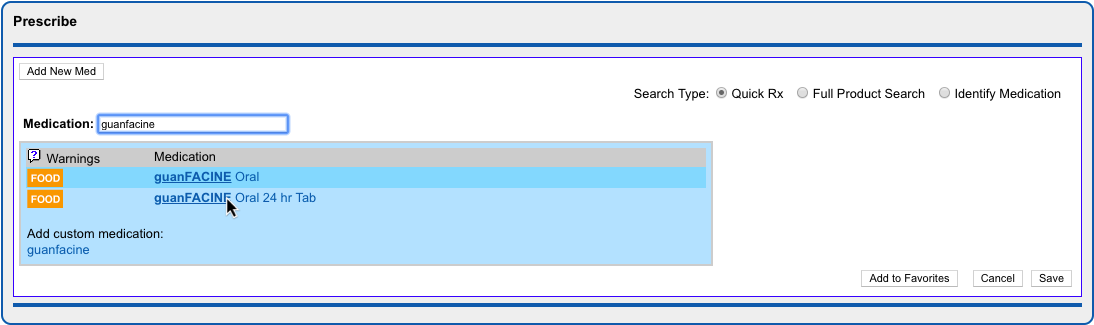
You can also renew or start a fresh prescription from entries in the patient’s Medication History or Prescription History.
Locate the Pharmacy on the Prescription Preview
Once on the prescription editing screen, locate the pharmacy on the prescription preview.
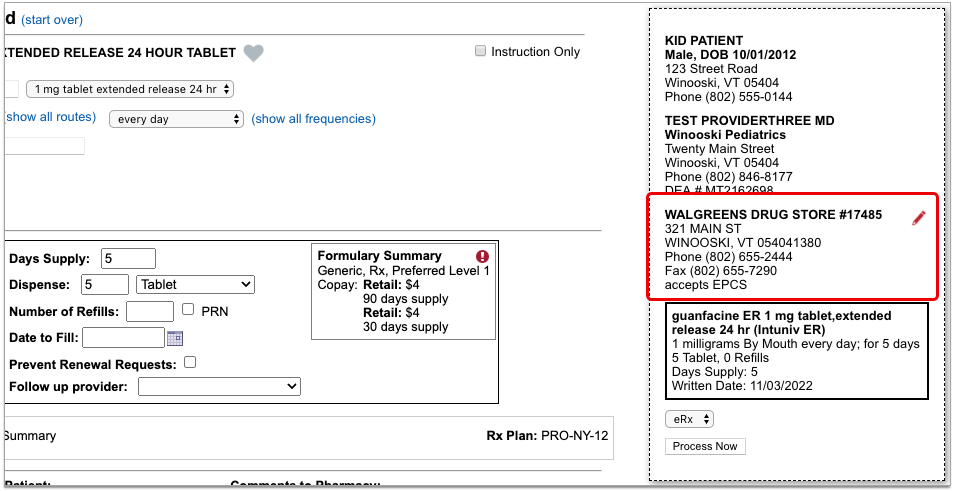
The standard pharmacy for new prescriptions is the patient’s default pharmacy. If the patient has no saved pharmacies, the pharmacy field on the prescription starts out blank.
Edit the Pharmacy
Click the red pencil icon beside the pharmacy field to edit it.
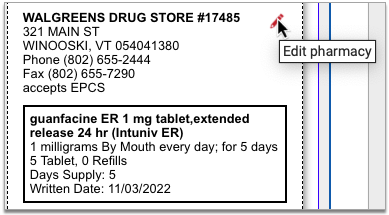
Pharmacy search options open in a new window.
Choose a New Pharmacy
The patient’s saved pharmacies appear at the top of the pharmacy search window. Beneath those, you can search for a new pharmacy.
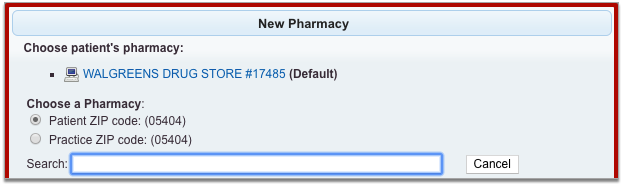
Pharmacy search results display by order of distance from the patient’s home or your practice’s ZIP code. You can search by pharmacy name, address, cross street, or nickname. All of these pieces of information display in the pharmacy search results.
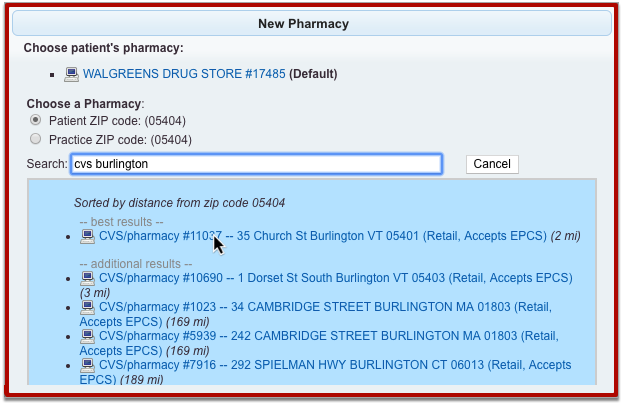
Select the pharmacy where you want to send the prescription.
Review the Pharmacy on the Prescription Preview
After you select a pharmacy, the pharmacy search window closes and returns you to the prescription editing screen.
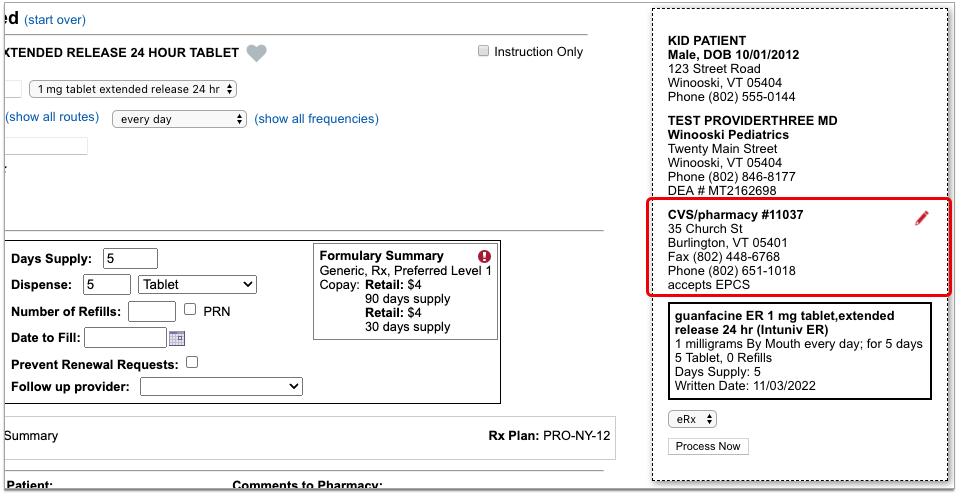
Review the prescription preview to make sure that the pharmacy is now correct. You can edit it as many times as it takes to select the right pharmacy.
You can send new prescriptions right away, or save them to be sent later. Read on to learn how to edit the pharmacy on pending prescriptions.
On a Pending Prescription
You can change the pharmacy on pending prescriptions before sending them out the door.
Find the Pending Prescription
Locate the pending prescription that you need to edit.
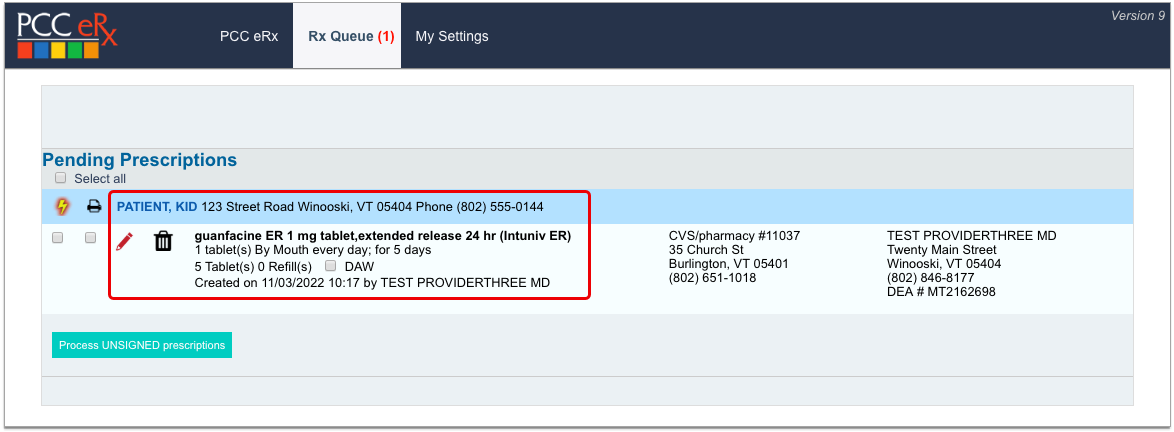
You can find pending prescriptions in the Review & Sign component within the PCC eRx section of the patient’s encounter or on the Rx Queue.
Edit the Prescription
Click the red pencil icon beside the prescription to edit it.

Edit the Pharmacy on the Prescription Preview
Find the pharmacy on the prescription preview, then click the red pencil icon to edit it.
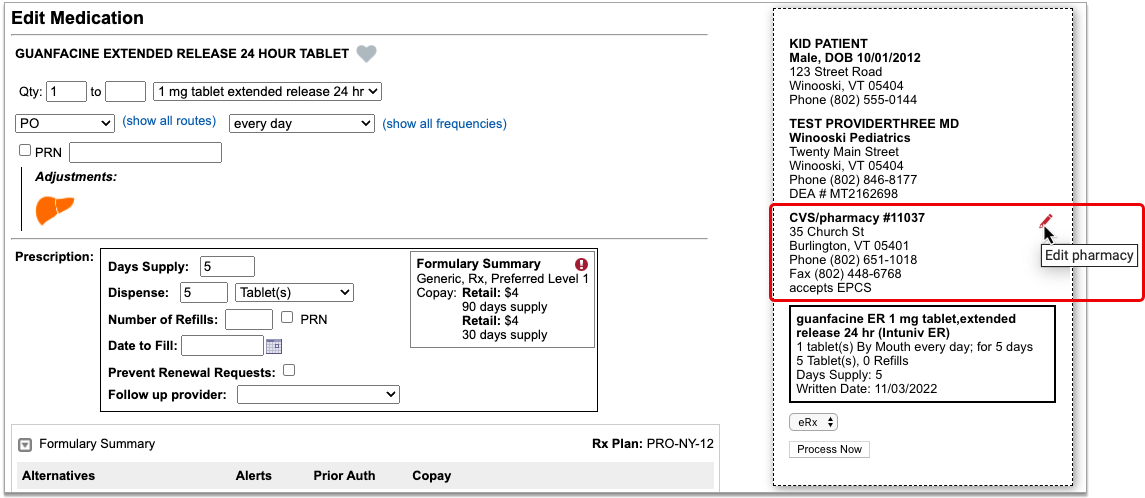
Pharmacy search options open in a new window.
Choose a Different Pharmacy
The patient’s saved Pharmacies appear at the top of the pharmacy search window. Beneath those, you can search for a different pharmacy.
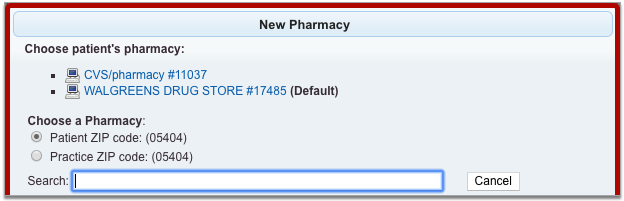
Pharmacy search results display by order of distance from the patient’s home or your practice’s ZIP code. You can search by pharmacy name, address, cross street, or nickname. All of these pieces of information display in the pharmacy search results.
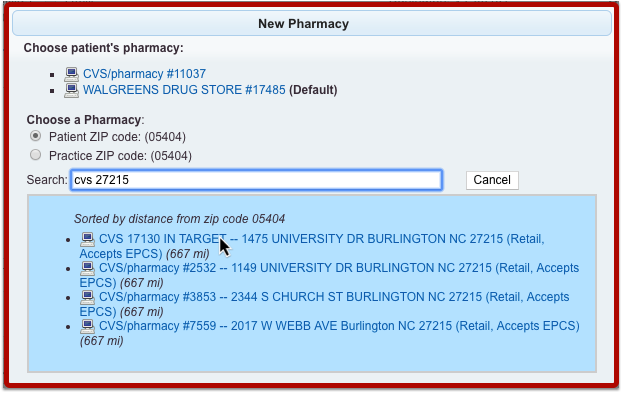
Select the pharmacy where you want to send the prescription.
Review the Pharmacy on the Prescription Preview
After you select a pharmacy, the pharmacy search window closes and returns you to the prescription editing screen.
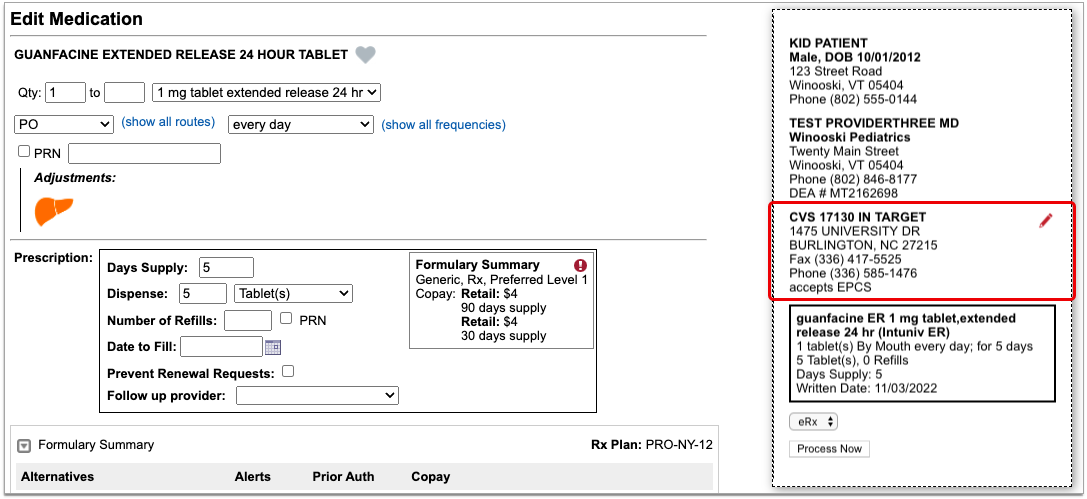
Review the prescription preview to make sure that the pharmacy is now correct. You can edit it as many times as it takes to select the right pharmacy.
You can send the pending prescription right away, or save it to be sent later. If you want to edit the pharmacy for multiple pending prescriptions, or split up a batch of pending prescriptions to go to different pharmacies, read on.
For Multiple Pending Prescriptions
You can edit the pharmacy for multiple pending prescriptions at the same time, and optionally split up a batch of pending prescriptions to go to multiple different pharmacies.
Find the Pending Prescriptions
Open the PCC eRx section of the patient’s encounter and go to the Review & Sign component.
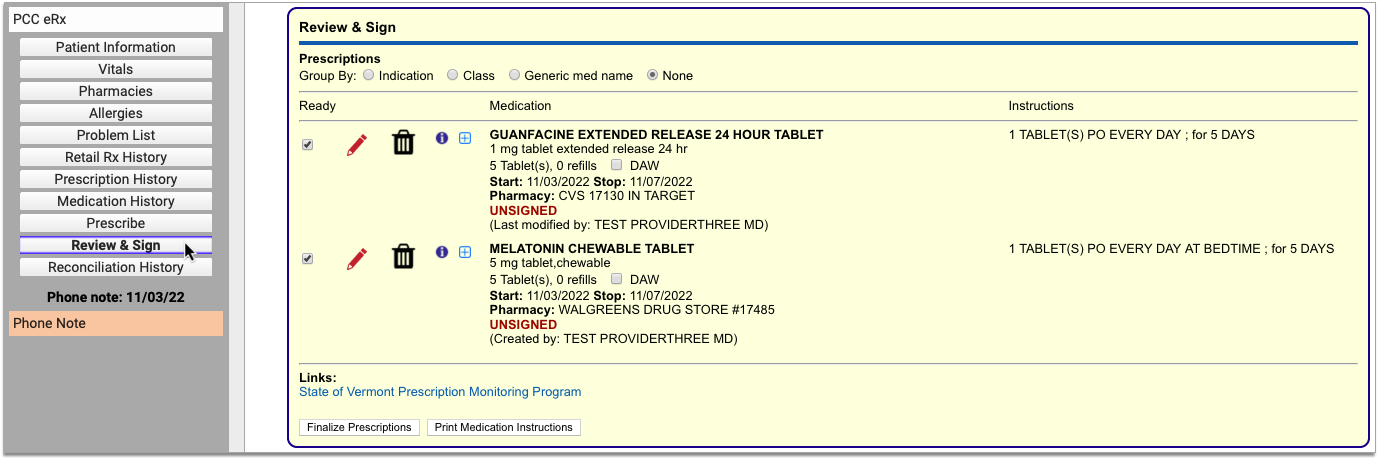
The patient’s pending prescriptions queue appear in that component pending processing.
Finalize Prescriptions
Click the “Finalize Prescriptions” button to launch the Prescription Review window.
In Prescription Review, you can edit prescription details such as the pharmacy.
Edit the Pharmacy
In the Prescription Review window, prescriptions display beneath the pharmacy where they are queued to be sent.
The patient’s additional saved pharmacies appear as tiles at the bottom of the window, along with the option to add a pharmacy, which opens the pharmacy search options.
You can pair prescriptions and pharmacies by dragging them together with your mouse cursor until you see a yellow highlight.
You can use the drag and drop function to pair prescriptions and pharmacies one at a time, or to replace a pharmacy that has several prescriptions queued.
Finish Processing the Prescriptions
Review the prescriptions to make sure each one is going to the right pharmacy.
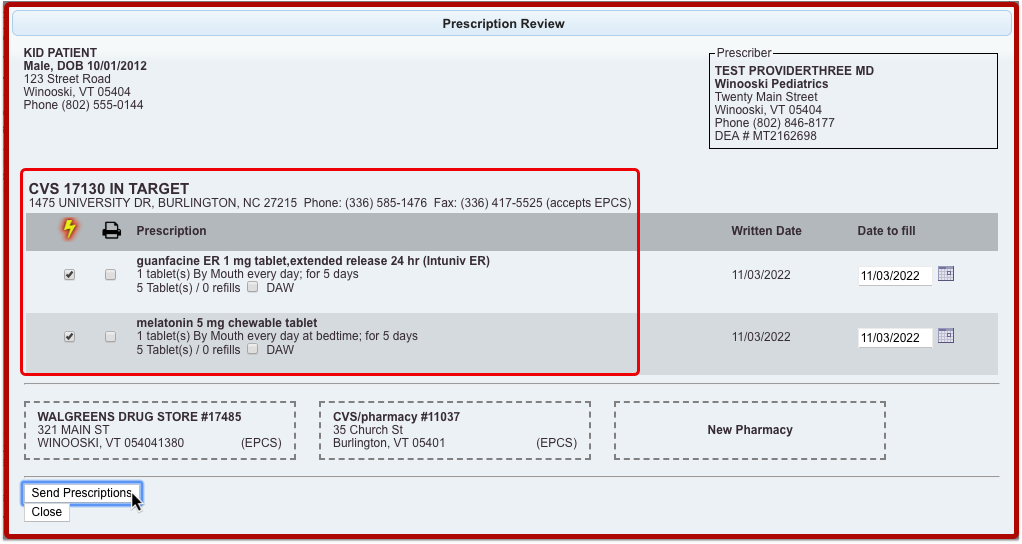
Click “Send Prescriptions” to send all of the prescriptions at once to their respective pharmacies.
See Where a Prescription Was Sent or Picked Up
See where a prescription was sent or picked up in PCC EHR and PCC eRx.
See Where a Prescription Was Sent
There are many places in PCC EHR where you can review where a prescription was sent.
In the patient’s Visit History, find the encounter where the prescription was written. The encounter summary shows what was prescribed and where the prescription was sent.
If you open the encounter, you can jump to the Prescriptions component to see the same information in the context of the visit.
If you want to see information about all of the patient’s past prescriptions, open the PCC eRx section of their chart and go to the Prescription History.

For the most complete details about how, when, and where a prescription was sent, open the PCC eRx section of the encounter where it was prescribed. Then, jump to the Review & Sign component.
After being sent, prescriptions in the Review & Sign component list a pharmacy, a timestamp, and other details. Hover over the timestamp to see an overview of the prescription’s journey from your office to the pharmacy.
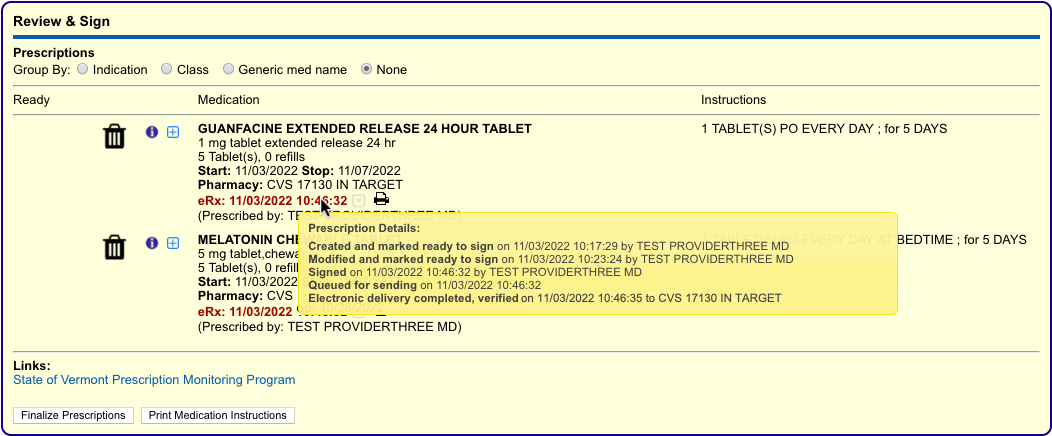
For the maximum amount of detail about how, when, and where the prescription was sent, click the gray disclosure triangle next to the timestamp in Review & Sign.

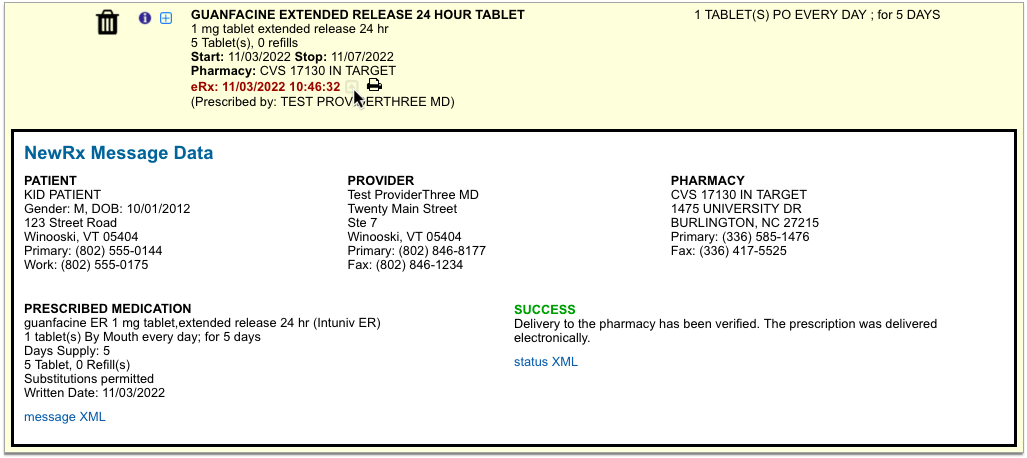
Complete pharmacy information and a delivery status appear in plain text, as well as in the XML message contents. The XML message contains the actual data sent by PCC eRx to the pharmacy.
See Where Prescriptions Were Picked Up
Some pharmacies send messages back to prescribers to indicate that a prescription was picked up. When this information is provided, you can see it in the patient’s Prescription History.

A pill bottle icon indicates that a pharmacy provided dispensing information about the prescription. Click the icon to see what the pharmacy sent.
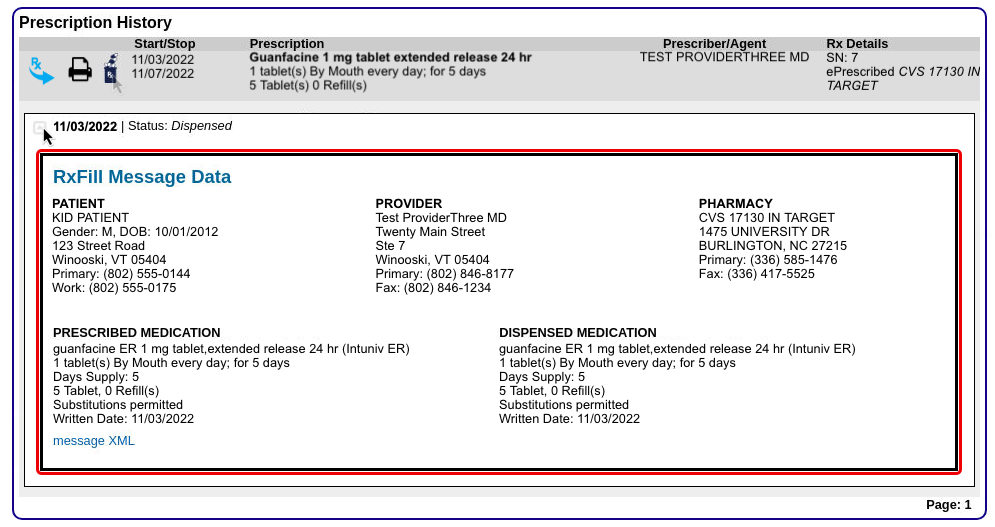
Another place you can sometimes see which pharmacy dispensed a prescription is in the patient’s Retail Rx History. After receiving and recording consent from the patient, click the doctor icon beside any prescription to see what Surescripts was able to find about who prescribed it and where it was dispensed.
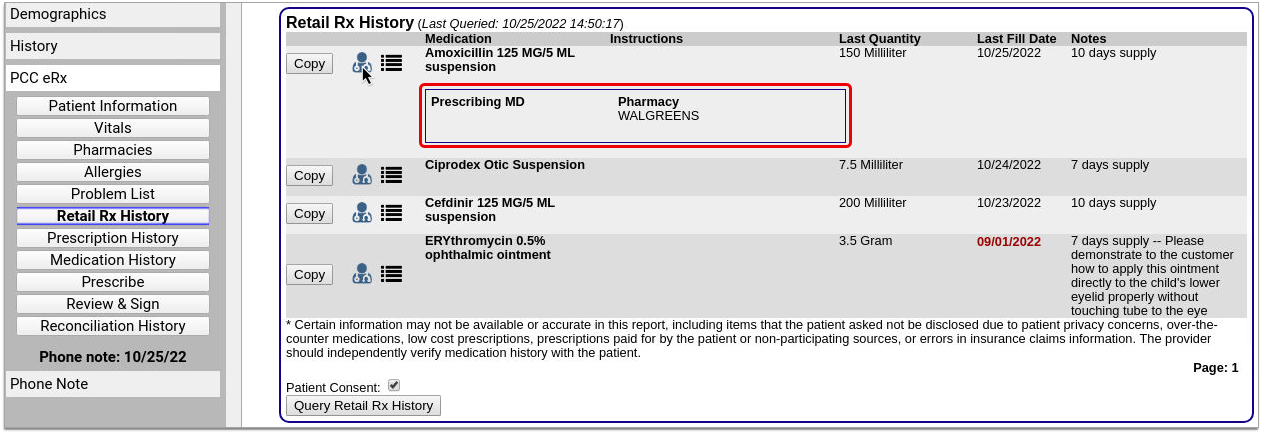
The Retail Rx History is especially useful for learning about prescriptions that were not prescribed from your practice. Please note that you may only query patients’ Retail Rx History once every 24 hours.
Manage Patient Pharmacies
Track your patient’s pharmacies, including their default pharmacy.
The Pharmacies Component
You can track and manage your patient’s pharmacies in the Pharmacies component within PCC eRx. To get to the Pharmacies component, open your patient’s chart and click the PCC eRx button.

If the patient has a visit, phone note, or portal message today, PCC eRx opens to that encounter. If not, you can select a past encounter.

Once in PCC eRx, click the Pharmacies anchor button to jump to the Pharmacies component.

Use the Pharmacies component to create a list of the patient’s preferred pharmacies and set a default pharmacy for all of their future prescriptions.
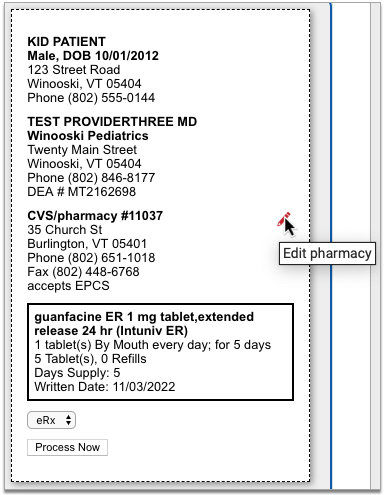
When you search for a pharmacy while writing a prescription, the pharmacies saved in the patient’s Pharmacies component appear at the top of the list for easy selection.
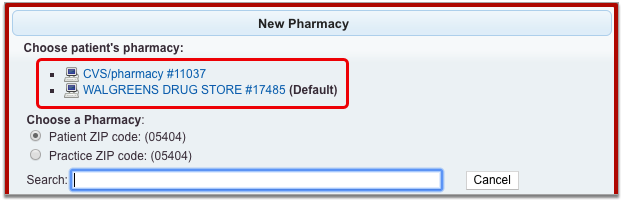
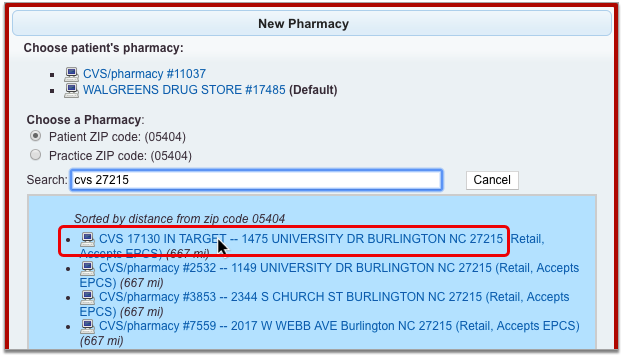
To learn more about picking a pharmacy while you write a prescription, read Find and Select a Pharmacy.
Add a Pharmacy
Click the “Add Pharmacy” button in the Pharmacies component to add a new pharmacy to the patient’s list.
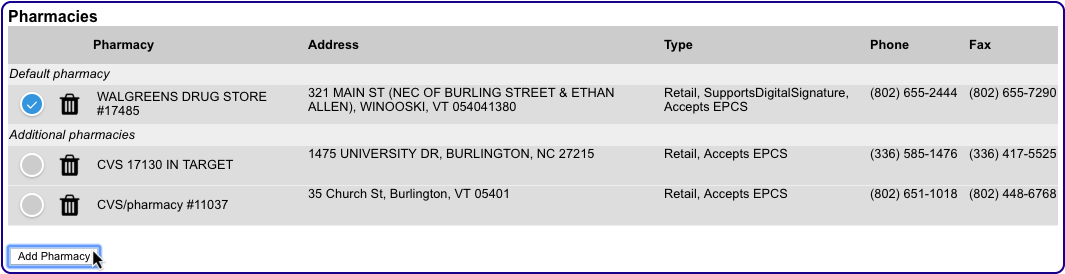
The button launches a window where you can search for pharmacies by name, address, cross street, or custom nickname.

Pharmacies that match your search terms appear in order of distance from the patient’s home ZIP code or that of your practice, depending upon which option you have selected.
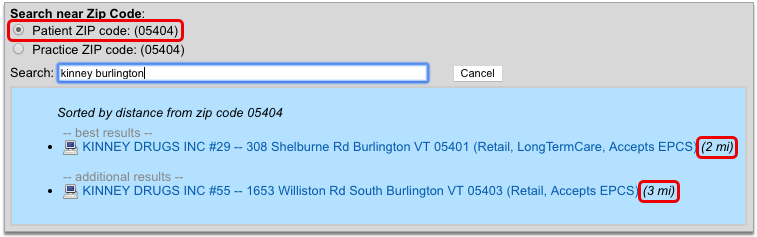
You can change the search terms and ZIP code criterion at any point to refine the pharmacy search results. When you have located the correct pharmacy, select it to add it to patient’s saved pharmacies.
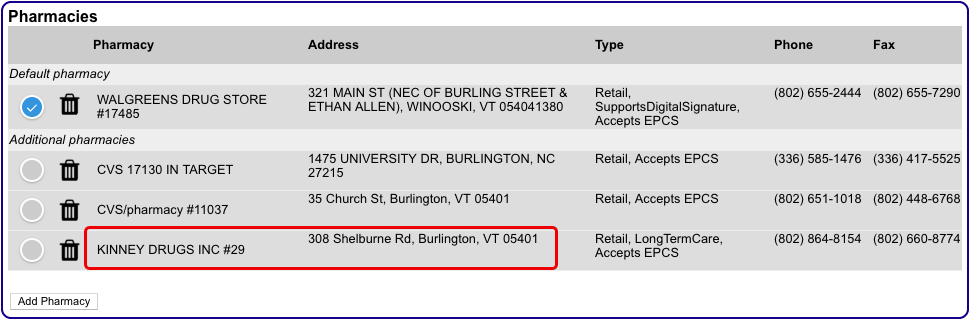
The very first pharmacy you add to the Pharmacies component automatically gets set as the patient’s default pharmacy. The pharmacies you add after that follow your personal default pharmacy setting on the My Settings page. To learn more, read Default Pharmacy Settings.
Prescriptions Always Start Out Using the Default Pharmacy: Prescriptions always start out using your patient’s default pharmacy. If you add a new entry to the Pharmacies component but do not make it the patient’s default, subsequent prescriptions will not start out using that new pharmacy. To use the new pharmacy, edit the prescription and manually select the new pharmacy in the pharmacy search window.
Delete a Pharmacy
To remove a pharmacy from the Pharmacies component, click the trash can icon beside it.
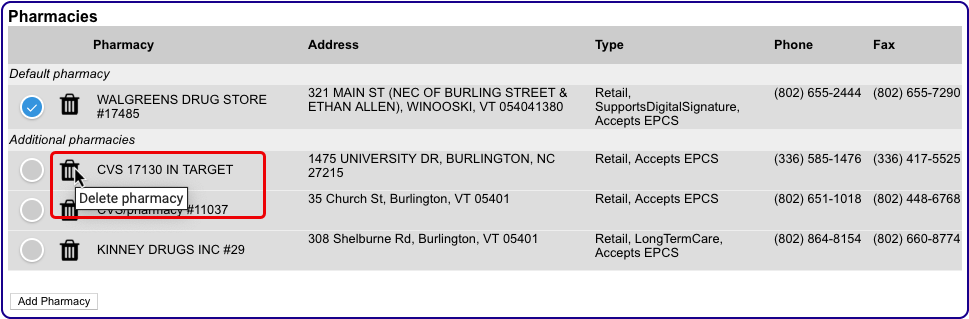
If you delete your patient’s default pharmacy, the first pharmacy alphabetically becomes their new default.
Set a Default Pharmacy
The default pharmacy is the presumed destination for your patient’s new prescriptions. You can see and update your patient’s default pharmacy in the Pharmacies component in PCC eRx.
The first pharmacy you add to the patient’s Pharmacies list automatically becomes their default. As you add other pharmacies, you can manually set the default using the Default radio button.
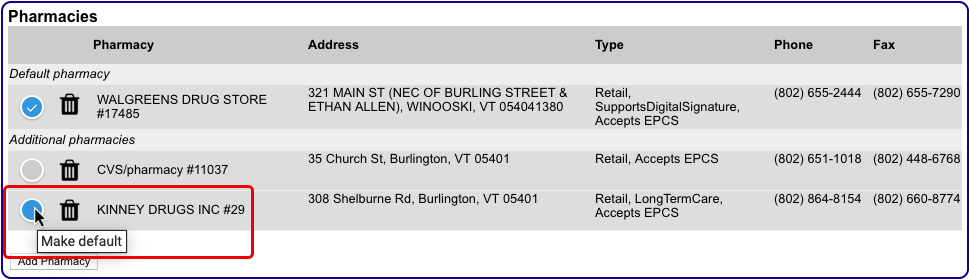
If you delete your patient’s default pharmacy, the first pharmacy alphabetically becomes their new default.
You can configure PCC eRx to automatically make a pharmacy the patient’s default as soon as it’s added to the Pharmacies component. To learn how, read Default Pharmacy Settings.
Keep Sibling Pharmacies in Sync
You can configure PCC eRx to keep pharmacy information up-to-date between siblings. To learn how, read Sibling Pharmacy Settings.
Manage Your Pharmacy Preferences
Make certain patient pharmacy behaviors automatic for your user account in PCC eRx.
Default Pharmacy Settings
You can control how the default pharmacy updates when you add a new entry to the Pharmacies component in a patient’s chart.
Open PCC eRx and go to the My Settings tab.

Find the Pharmacies section. The first group of radio buttons gives you global control over what happens to a patient’s default pharmacy when you add a new pharmacy to the Pharmacies component in their chart.
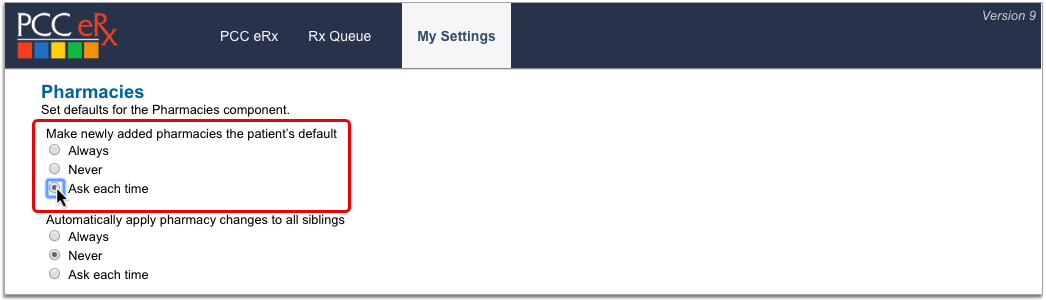
-
Always: Automatically make a pharmacy the patient’s default as soon as it’s added to the Pharmacies component.
-
Never: Never make a pharmacy the patient’s default when it’s added to the Pharmacies component.
-
Ask each time: Prompt me to update the patient’s default every time I add a new pharmacy to the Pharmacies component.
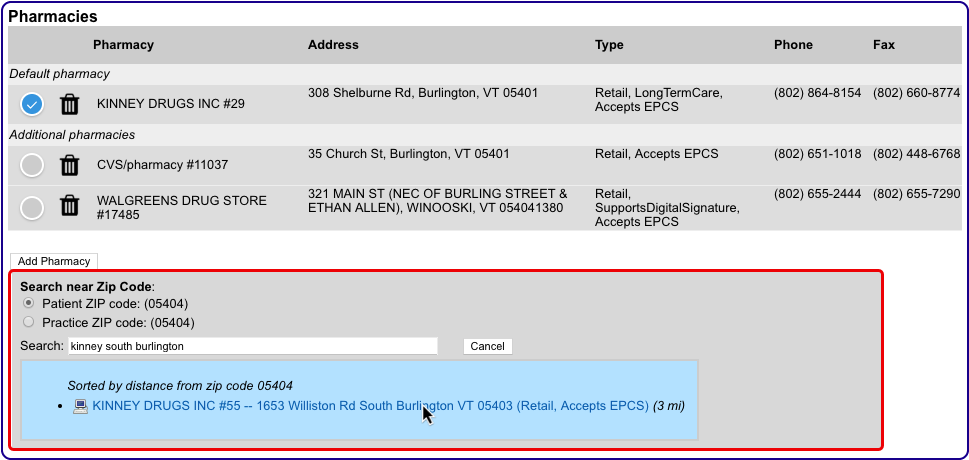
The default pharmacy setting only applies when you add a new pharmacy to the Pharmacies component using the “Add Pharmacy” button. The pharmacies you add while prescribing or finalizing a prescription are not governed by this setting and never update the patient’s default.
Sibling Pharmacy Settings
You can configure PCC eRx to keep siblings’ pharmacies in sync.
Open PCC eRx and go to the My Settings tab.

Find the Pharmacies section. The second group of radio buttons lets you control how a change to one patient’s pharmacies affects their siblings. Changes include adding or deleting a pharmacy in the Pharmacies component, or updating the default pharmacy.
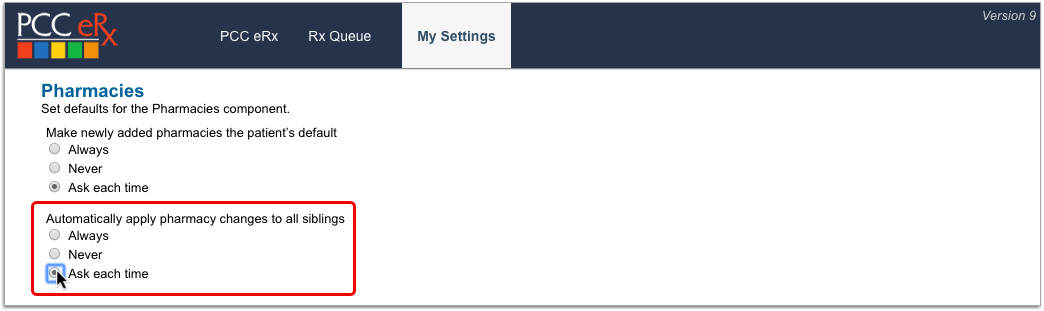
-
Always: Each time I update a patient’s Pharmacies, automatically apply that change to all siblings.
-
Never: When I update a patient’s Pharmacies, never apply that change to siblings.
-
Ask each time: Each time I update a patient’s Pharmacies, prompt me to apply that change to all siblings.
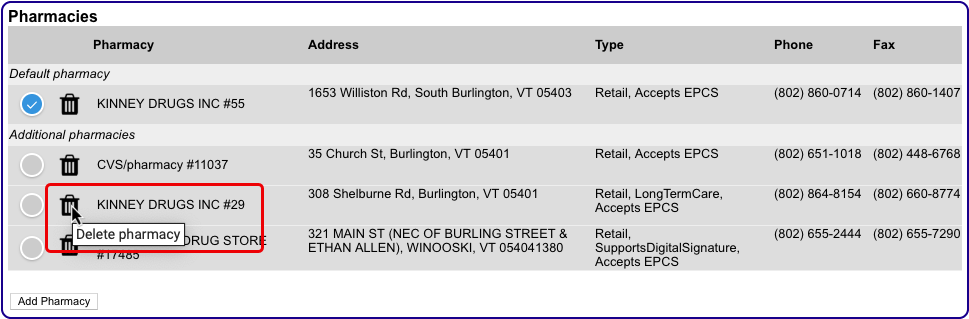
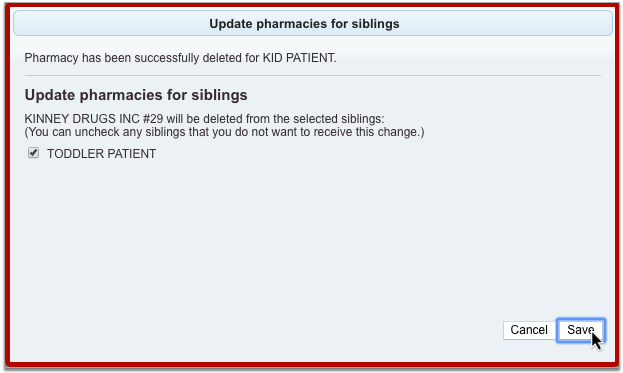
The sibling pharmacy setting only applies when you make changes to pharmacies in the Pharmacies component for a patient who has siblings. The pharmacies you add to a patient while prescribing or finalizing a prescription are not governed by this setting and never get added to siblings.
Create Searchable Pharmacy Nicknames
Users with Administration privileges in PCC eRx can set up practice-wide, searchable nicknames for pharmacies that are otherwise tricky to find.
In PCC eRx, click the Administration tab. Then, click the link for “Pharmacy Nicknames.”
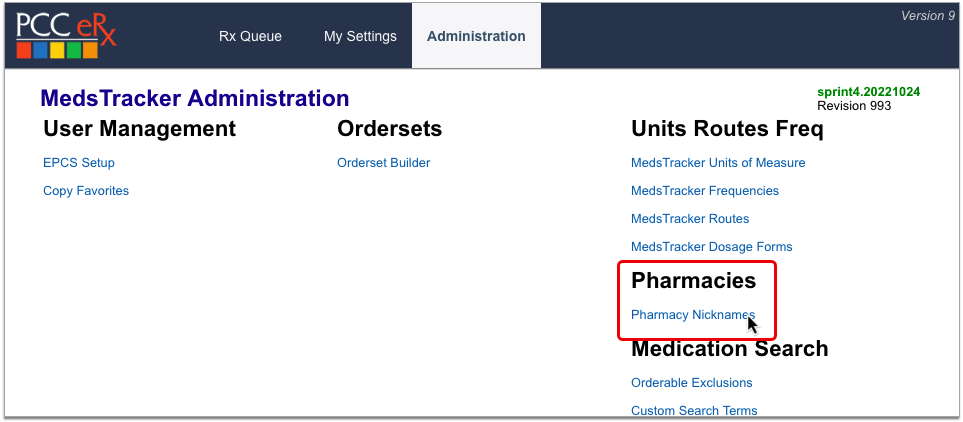
In the Search field, type the name of the pharmacy you want to nickname, then click the “Add” button beside it.
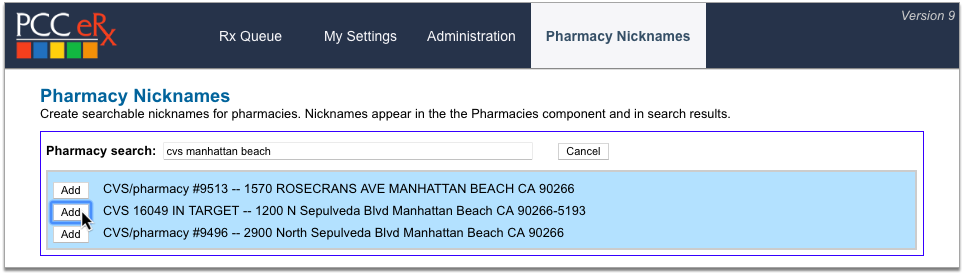
Create a nickname for the pharmacy, optionally leave an internal note explaining the purpose of the nickname, then click “Save”.
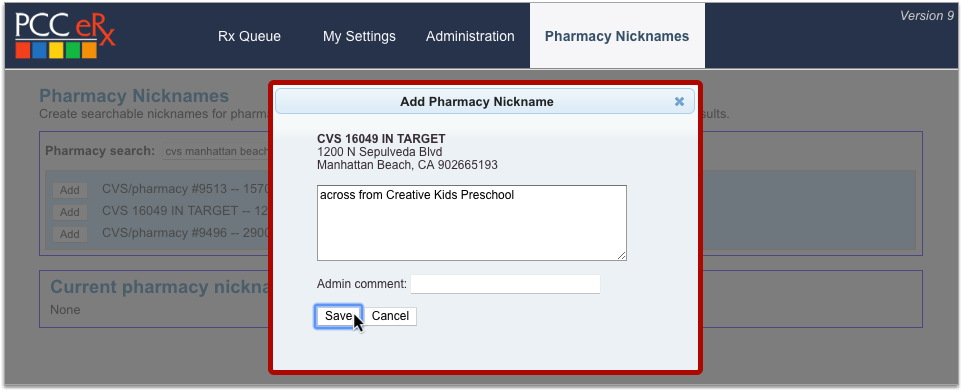
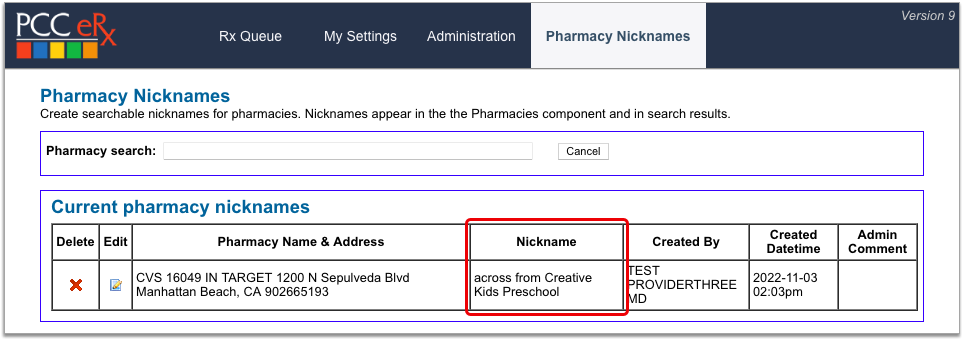
Pharmacy nicknames display anywhere you can see and search for pharmacy information in PCC eRx.
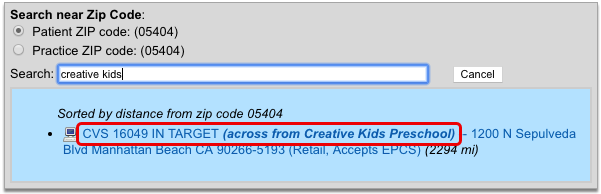

You can edit and delete pharmacy nicknames on the Pharmacy Nicknames configuration page. Click the x icon to delete a nickname or the pencil icon to edit.
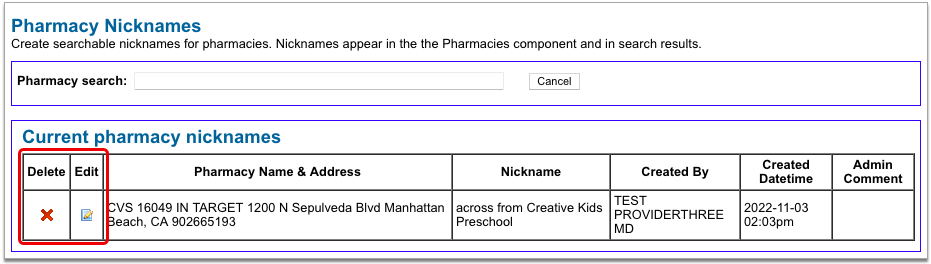
You can also edit a pharmacy nickname by searching for the pharmacy in the search field at the top of the configuration page and clicking the “Edit” button beside it.

Avoid Using Special Characters: For an optimal experience, avoid using special characters in pharmacy nicknames. Nicknames that contain special characters such as double quotes (“), ampersands (&), angle brackets (<>), and at signs (@) cannot be found by searching for those characters and may become difficult to edit once saved.
Prescribe Medications
You can prescribe medications electronically from patient visits, phone notes, portal messages, and other patient encounters in PCC EHR.
Intro Video: To learn the basics of prescribing in less than 5 minutes, watch Prescribe Medications.
New User Training Video: To go deeper as a new user without getting overwhelmed, watch Prescribing 101: PCC eRx Essentials for New Users.
Create and Send a Prescription
Learn the basic workflow of how to prescribe a medication in PCC EHR. You can also prescribe from pocketPCC.
Open PCC eRx
From a visit, phone note, or portal message, click on the “PCC eRx” button.
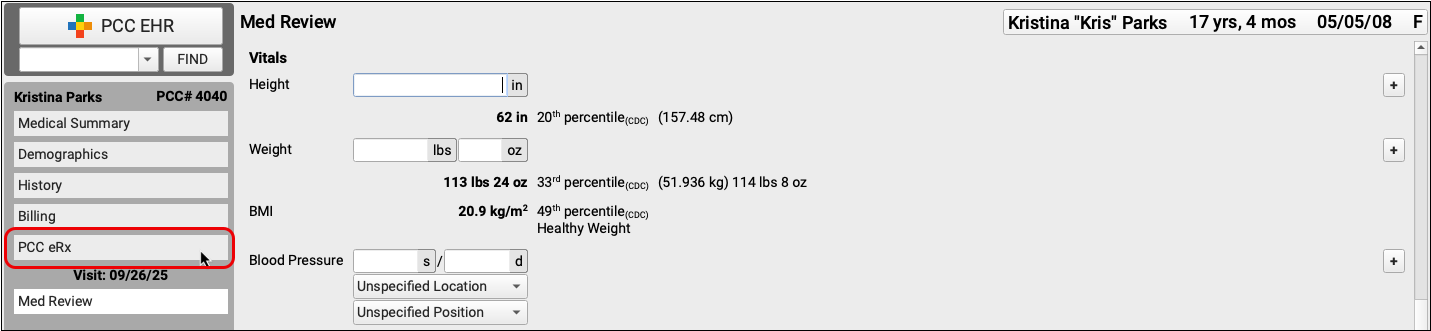
When you click the button, PCC eRx opens within the patient’s chart.
Optionally Create an eRx Encounter: If you wish to review eRx information for a patient and there is no corresponding visit note, phone note, or portal message, click the “PCC eRx” button in the patient’s chart and choose the “Start an eRx Encounter” option from the “Select an encounter” drop-down.
Review the Patient’s Details and History
Within PCC eRx, you can review the patient’s vitals, pharmacies, allergies, problem list, retail prescription history, prescription history, and medication history.
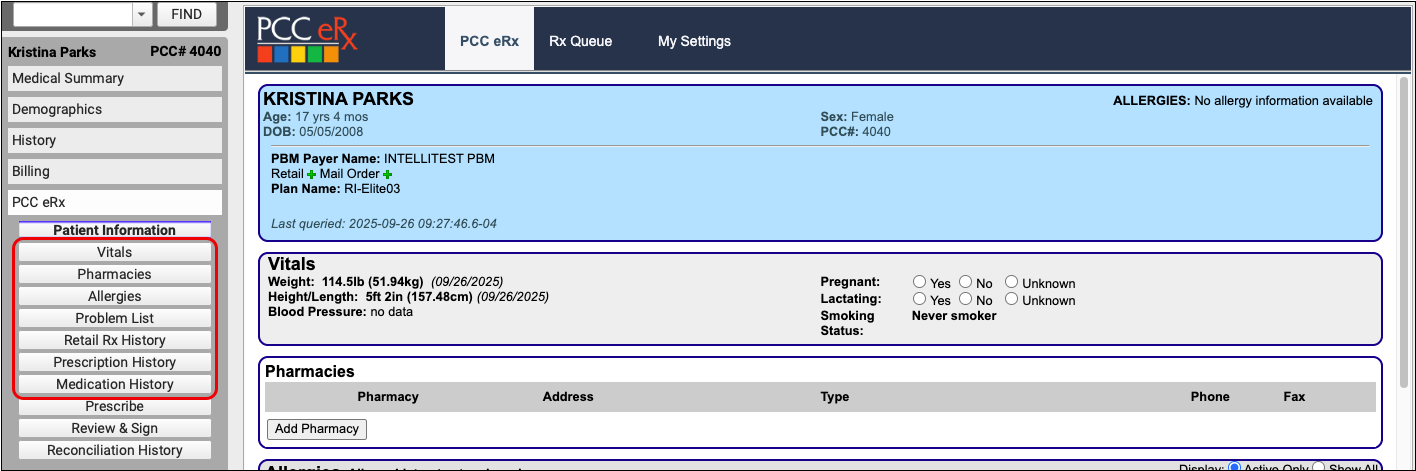
You can take different actions in each component, such as filtering the view to show active and inactive entries, marking the contents as reviewed, adding and retiring entries, or editing what is already there.
Learn About Each Component: To learn what information appears in each component of the PCC eRx screen and which actions you can take, read the PCC eRx Component Reference.
Go to the Prescribe Component
Click on the “Prescribe” button to jump to the Prescribe component of PCC eRx.

The Prescribe component is where you can write prescriptions for your patient.
Renew or Refill a Medication Instead: Instead of writing a new prescription, you can renew or refill a medication that is already in the patient’s history. Click the “blue swish” Renew Medication icon beside any entry in the patient’s Prescription History or Medication History to renew it. You can process refill requests from pharmacies on the Rx Queue.
Choose a Medication
In the Prescribe component, start typing the name of the product you want to prescribe in the “Add Medication” box.
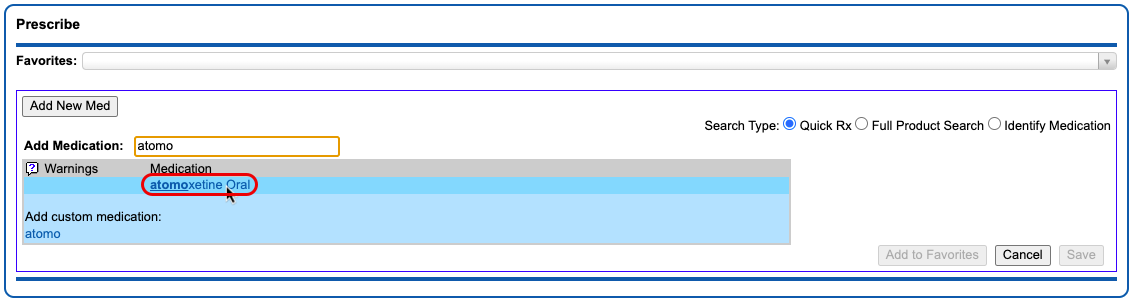
As you type, a list of common, age-appropriate products matching your search term appears. Click on the product you want to prescribe.
Full Product Search: If your initial search turns up no results, select the “Full Product Search” radio button beside the search box. The Full Product Search expands the search beyond common, age-appropriate medications. Prescribers looking to prescribe durable medical equipment, for example, should use the Full Product Search option. Note that the Full Product Search does not account for age-appropriateness when returning results.
Prescribe from Favorites: Another way you can prescribe is from your Favorites list. Learn how to create, prescribe, and manage favorites in the PCC eRx Favorites article.
Optimize Search: You can save time when searching for drugs in PCC eRx by creating practice-wide search shortcuts, hiding unused drugs and dosing statements, and more. Read Optimize PCC eRx Searches with Shortcuts and Hiding to learn how.
Select a Dosing Statement
After you select a product, you are presented with a list of common, age-appropriate dosing statements and instructions. Choose a statement that exactly or closely matches the prescription you intend to write. The statement serves as a shortcut to start a prescription, which you can customize and expand upon in the next step.
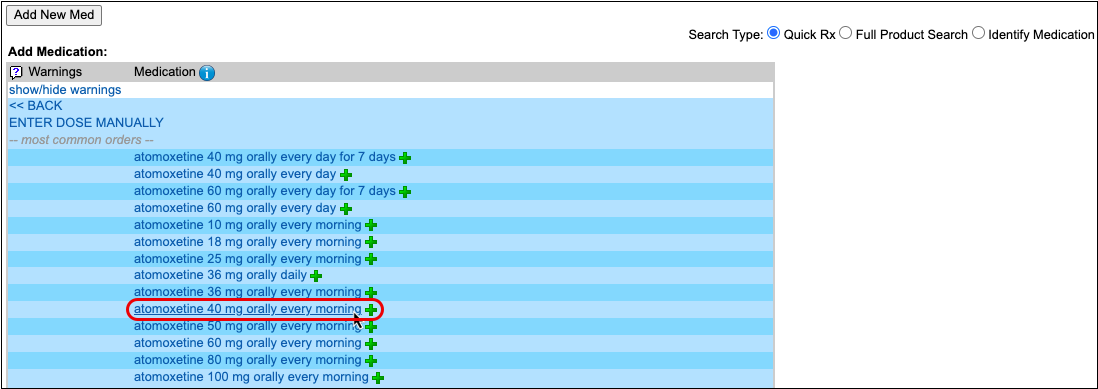
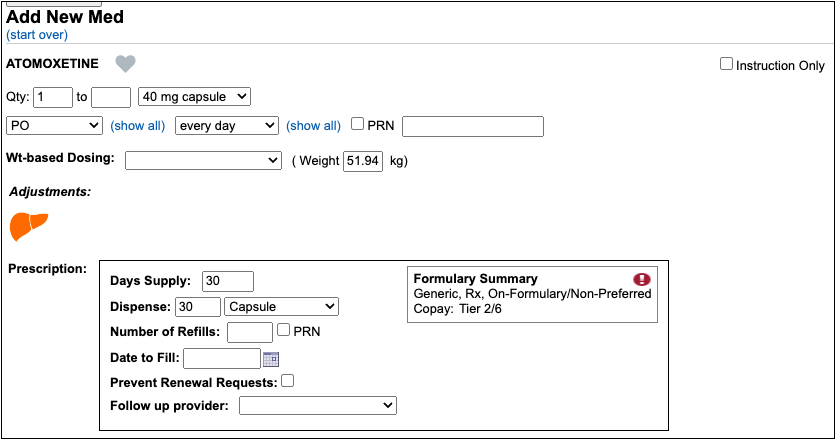
Alternate Prescribing Workflows: If one of the dosing statements matches exactly what you would like to prescribe, you can click the green plus icon beside it to prepare the prescription and queue it to be reviewed, signed, and sent to the pharmacy. If you cannot find a dosing statement that roughly approximates the prescription you are trying to write, you can click “Enter Dose Manually” instead. This starts a prescription from scratch.
Customize and Complete the Prescription
After selecting a dosing statement, review the prescription in detail and fill out the remaining fields.
First, specify the dose form, amount, route, and frequency. This tells the patient how much to take and when to take it.
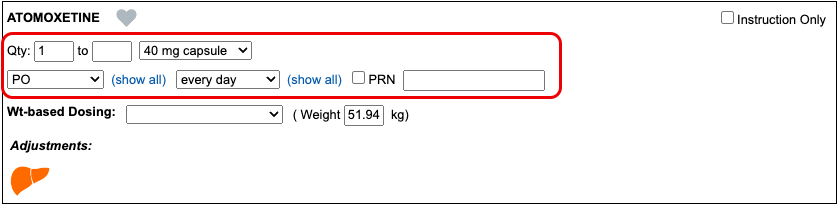
Then, specify the days supply and the dispense quantity and form. This tells the pharmacy how much to dispense and in what form.
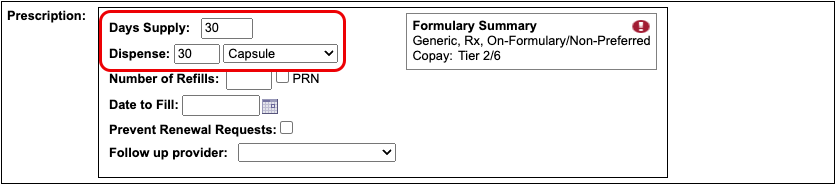
The start date for the prescription defaults to today.
Optionally, you can:
- direct the pharmacy to dispense brand name drugs as written (DAW), disallowing generic substitutions
- specify a number of refills
- specify a date to fill
- indicate whether the pharmacy may send electronic renewal requests for the prescription
- indicate who should receive follow-ups about the prescription, if you are writing it on behalf of another provider
- write out instructions for the patient and pharmacy
- document an internal note that’s only visible to other users at your practice
- set a duration for the prescription
- add indications
- and specify prescription start and stop dates
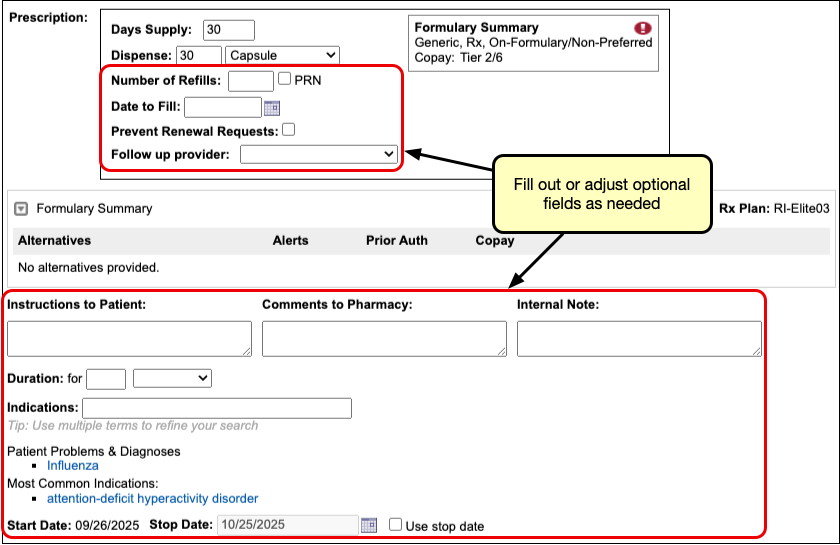
If you prescribe under the supervision of another provider, indicate their name in the “Supervising Provider” field. If you are preparing the prescription on a provider’s behalf, indicate their name in the “Ordering Provider” field.


Days Supply, Duration, and Stop Dates: You can use the days supply, duration, and stop date fields to create prescriptions that stay neat and tidy once added to the patient’s medication history. Learn how in the “Days Supply, Auto-Calculation, Stop Date, and Duration” section below.
If the dosing instructions are more complex than the standard fields for quantity, route, and frequency allow, check the “Instruction Only” box.
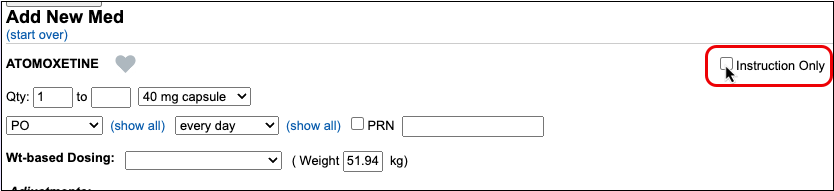
The “Instruction Only” option allows you to write your own dosing instructions for the patient instead of requiring you to use the standard fields for quantity, route, and frequency.
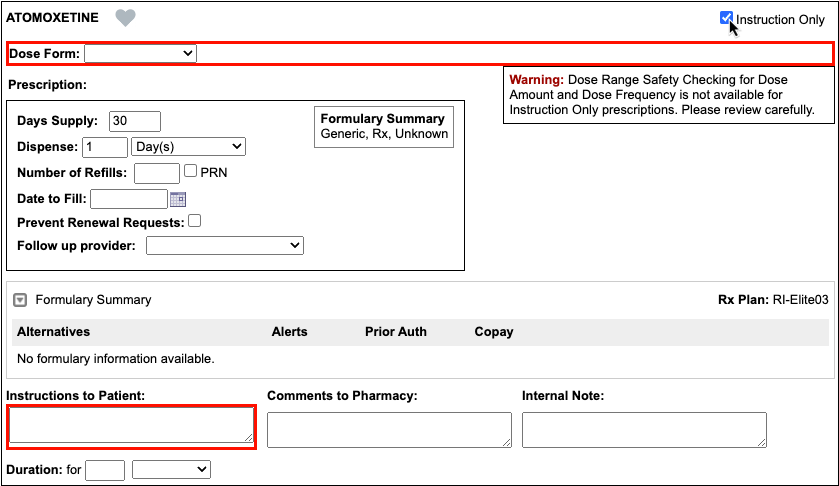
Because instruction-only prescriptions allow you to bypass certain fields that are used for safety checking, they cannot trigger all forms of safety alerts.
Prescribe Multiple Months’ Supply of Schedule II Controlled Substances: If you are prescribing a Schedule II controlled substance, you can turn a single prescription into a three- or two-month supply in one click. Only users in certain roles can prepare, sign, and send controlled substance prescriptions. You can learn more about prescribing controlled substances in the article Prescribe Controlled Substances.
Weight-Based Dosing: When you select a weight-based dosing statement, it starts a weight-based prescription using the patient’s most recent weight measurement. On fixed-dose prescriptions, you can switch to a weight-based dosing scheme by entering values in the “Wt-Based Dosing” and “Weight” fields. To learn more about weight-based dosing in PCC eRx, read the “Weight-Based Dosing” section below.
Real-Time Pricing and Formulary Support: As soon as you start your prescription, PCC eRx reaches out to the patient’s prescription insurance in real-time for pricing and coverage information, then displays the results beside your prescription. To learn more, read Check Prescription Pricing and Insurance Coverage While You Prescribe.
Recommended Adjustments: Drugs that carry considerations for patients with renal, hepatic, or other systemic impairment show the relevant organ in the Adjustments section as you prescribe. The recommended adjustment is based solely on the drug being prescribed, not the patient’s record.
Check Your Work
As you write a prescription, you can see a live preview of what the pharmacy will receive on the right side of the screen.
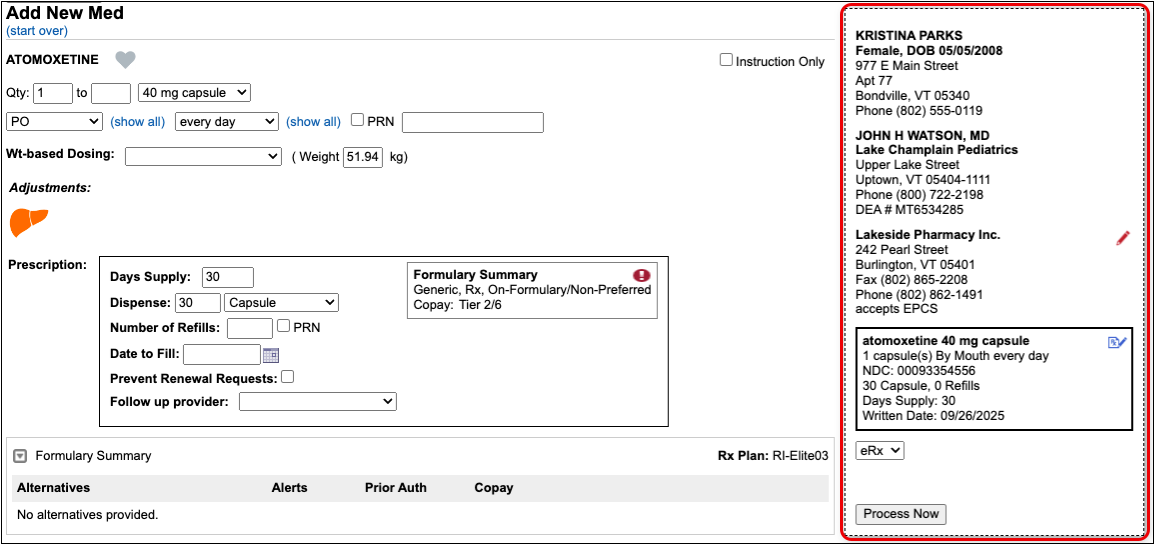
Check the preview and make sure the prescription isn’t missing any key information, such as a destination pharmacy or certain instructions.
You can update pharmacy information right on the prescription preview.
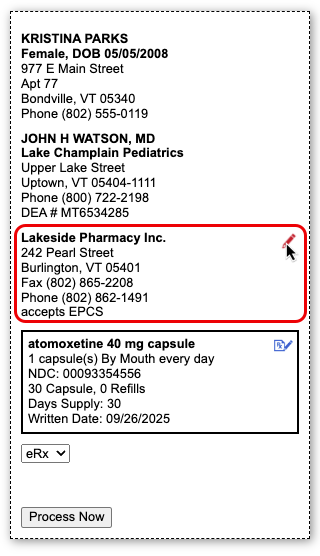
You can also modify the name and NDC that will go to the pharmacy with the prescription. This option is best used in cases where the standard defaults cause confusion at the pharmacy. PCC eRx will remember your selections the next time you prescribe the same drug, strength, and form.
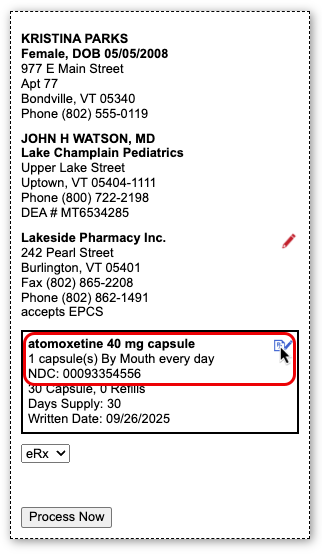
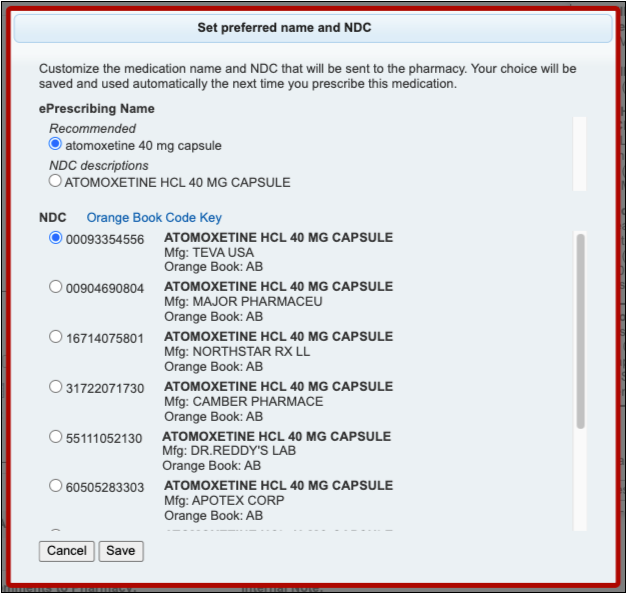
If you are missing certain instructions, red text on the prescription preview tells you what fields you need to fill out.
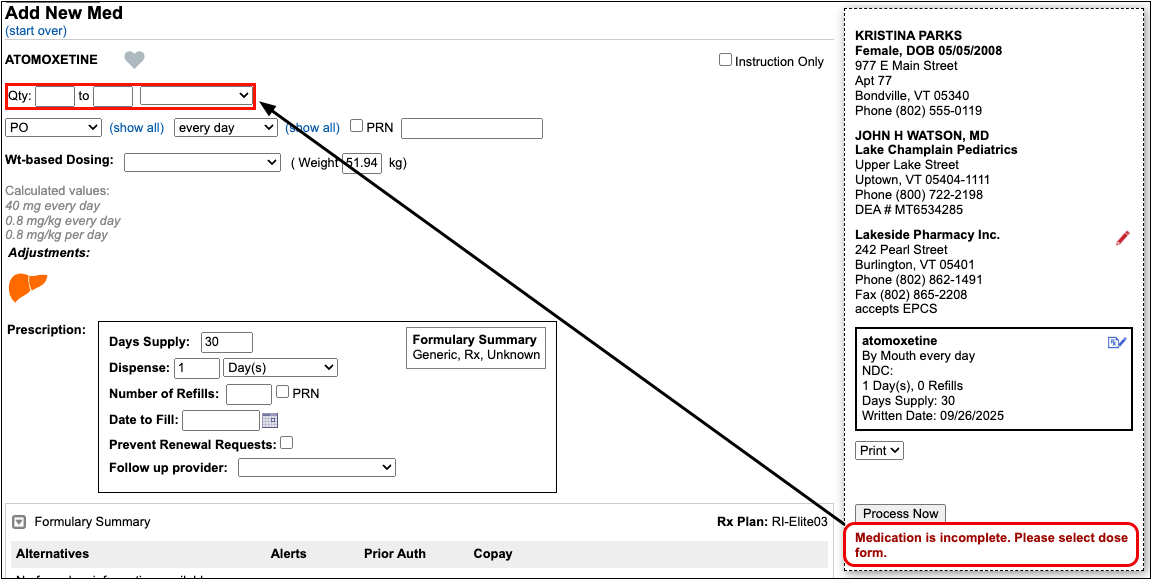
As you fill in the missing information, the preview updates to reflect your changes and the red text disappears, indicating that the prescription is ready to send.
Send, Print, or Save the Prescription
Once written, you can electronically send the prescription to the pharmacy, print a physical copy, or save and process it later.
Option 1: Send the Prescription
To send the prescription electronically, verify that “eRx” is selected on the prescription preview and click the “Process Now” button.
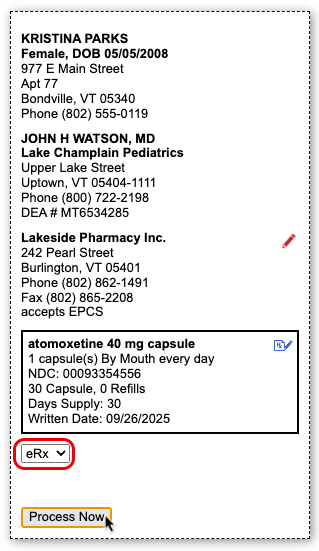
The prescription goes to the pharmacy electronically while you move on to your next task.
Authentication Required for Electronic Prescribing of Controlled Substances (EPCS): When processing electronic prescriptions for controlled substances, you must prove your identity by entering a personal password and a code generated by an electronic authentication token that is tied to your NPI and DEA credentials. To learn more about electronic prescribing of controlled substances and how to obtain an electronic authentication token, read Prescribe Controlled Substances.
Option 2: Print the Prescription
If printing is enabled for prescriptions at your practice, you can print the prescription instead of sending it electronically. Select “Print” on the prescription preview and click the “Process Now” button.
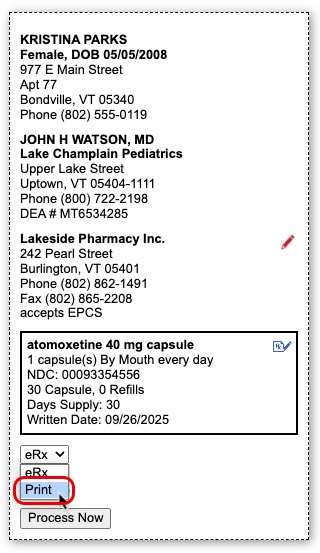
The ability to print prescriptions is only enabled where allowed by local regulations.
Option 3: Save the Prescription and Process it Later
If you want to queue the prescription to send or print later, click the “Save” button at the bottom of the window.
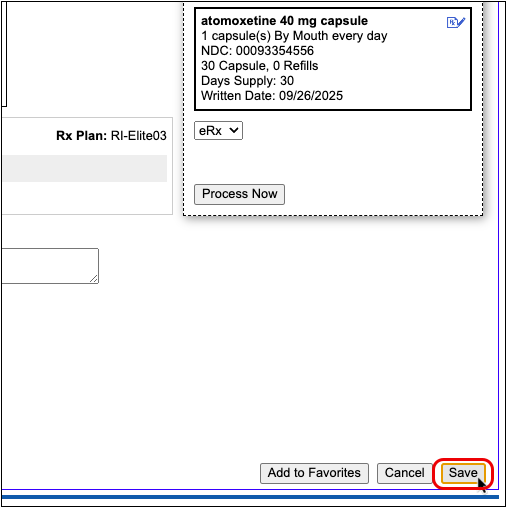
When you click “Save,” the prescription saves into the Review & Sign component of PCC eRx pending further action.

You can edit, send, print, or delete pending prescriptions at any time from Review & Sign.
When you finalize pending prescriptions in Review & Sign, you can put finishing touches on them as a batch before processing them to be printed or sent electronically to the pharmacy.
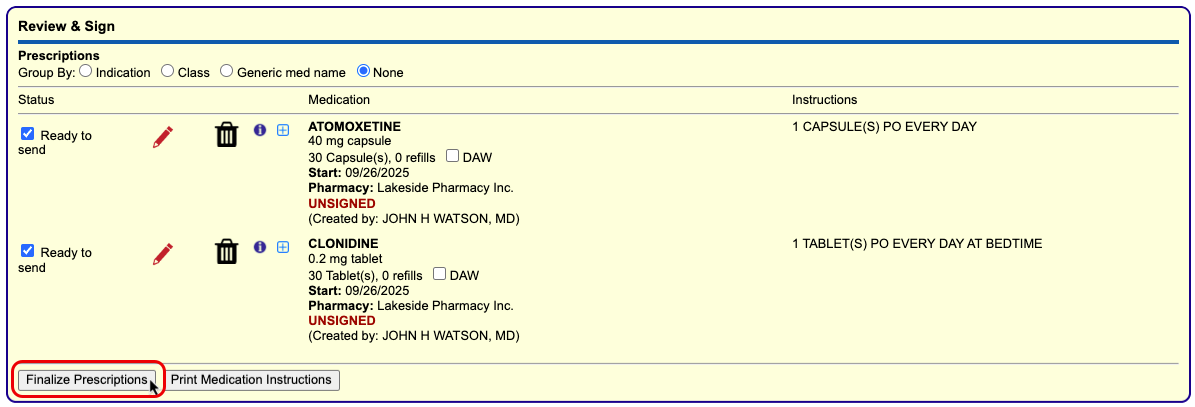
Work With Pending Prescriptions on the Rx Queue: In addition to working from a patient’s specific PCC eRx page, you can also edit, process, and delete pending prescriptions for any patient from the Rx Queue in PCC EHR. Learn more about the Rx Queue in the article The Rx Queue: Alternate Prescribing Workflows.
Review Completed Prescriptions
Prescriptions that have been printed or sent to the pharmacy remain in the Review & Sign component of the patient’s PCC eRx encounter and receive a timestamp indicating how and when they were processed. A bold, green status indicates successful transmission to the pharmacy.
You can find out more information about how and when a prescription was sent to the pharmacy by hovering over the timestamp or clicking the grey disclosure triangle icon beside it. The information in these areas can help you determine precisely when a prescription left your system.
Cancel Sent Prescriptions: Click the trash can icon next to sent prescriptions in Review & Sign to cancel and delete them from the patient’s Prescription History. Where possible, an electronic cancellation is sent to the pharmacy. To learn more about how to cancel and delete prescriptions, read the “Cancel and Delete Sent and Printed Prescriptions” section of this article.
Prescription Features
PCC eRx empowers you to prescribe quickly, effectively, and safely with features that auto-calculate doses and dispense quantities, check for allergy and drug interactions, and more.
Weight-Based Dosing
When you search for a drug that is commonly prescribed using weight-based dosing, such as liquid antibiotics, PCC eRx presents weight-based dosing statements as an option or by default. Dosing statements are shortcuts to pre-fill a prescription, so you don’t have to complete every field manually. Weight-based dosing statements are typically expressed as a number of milligrams per kilogram per day (mg/kg/day) divided into a number of doses per day.
Choose a dosing statement that approximates the prescription you are trying to write. PCC eRx uses the information provided in the dosing statement and the patient’s most recently documented weight to start a prescription expressed as milligrams per kilograms per dose (mg/kg/dose), which you can then edit and refine to your exact liking.
The calculated volume per dose displays in red beside the dosing fields. If the calculation results in a volume that is impractical to measure or dispense, PCC eRx rounds it to the nearest dispensable amount within acceptable range.
You do not have to accept PCC eRx’s dose calculation, and can manually update any dosing field to meet the exact needs of the patient in question.

If you want to recalculate a dose using a different number of mg/kg/dose or patient weight, you can change those values in the Wt-based Dosing section of the prescription and click “Calc Dose for Weight”. When you recalculate a dose, it updates the calculated volume per dose (in red) and the actual values in the dosing fields.
At any point while filling out a prescription that uses weight-based dosing, you can use the Calculated Values section in grey to double-check that the current dose values result in an appropriate total amount of medication for the patient.
Unlike the dose volume calculation in red, which only reflects PCC eRx’s most recent calculation based on a patient weight and number of mg/kg/day, the Calculated Values section updates dynamically whenever you change one of the actual dose values, giving you a real-time appreciation for the total daily dose for which the prescription is currently written.
Trust Your Judgment: Weight-based dosing calculations in PCC eRx are strictly based on your selections, information provided about the patient’s weight, and accepted guidance about the medication. They cannot replace your professional judgment about a patient’s specific needs or situation. Always defer to your own professional judgment when prescribing medications and tailor doses accordingly.
Days Supply, Auto-Calculation, Stop Date, and Duration
When you create a prescription, PCC eRx automatically looks at the days supply to calculate a dispense quantity, stop date, and more.
Days Supply and Auto-Calculation
PCC eRx automatically fills out the Days Supply field when you start a prescription. Days supply is the number of days a prescription is intended to last.
When you renew a medication or pick a dosing statement that specifies a duration, PCC eRx automatically uses that duration to fill out the Days Supply field.
If you pick a dosing statement that has no duration, or you use the “Enter Dose Manually” option, PCC eRx automatically starts a prescription for a 30-day supply.
To auto-calculate a dispense quantity and form, PCC eRx multiplies the dose quantity, frequency, and form by the days supply, then translates the result into something the pharmacy can logically dispense.
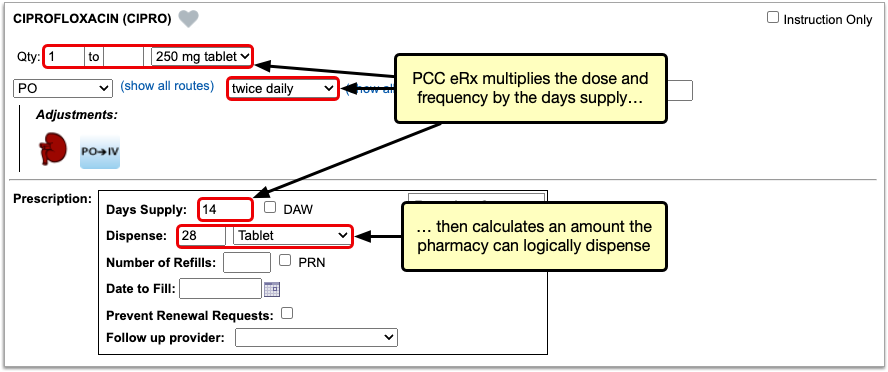
You can manually change the value in the Days Supply field at any time and PCC eRx will auto-calculate a new dispense quantity and form.
There are some cases where the Days Supply field is not used in the dispense quantity calculation, such as when you create a prescription for a piece of equipment, or for a medication that is dispensed as a standard tube, canister, box, or other package. In these cases, PCC eRx defaults to a dispense quantity of one.
When writing a prescription that is dispensed in a standard package size, always double-check that the dispense quantity is sufficient for the intended usage.
Stop Date and Duration
PCC eRx automatically determines the stop date for prescriptions using the days supply. On short-term prescriptions, defined as 29 days or less, PCC eRx also auto-selects the “Use Stop Date” checkbox and fills out the Duration field.
If needed, you can manually alter the stop date, “Use Stop Date” checkbox, and duration of a prescription. When “Use Stop Date” is selected, PCC eRx automatically discontinues the medication in the patient’s Medication History once the stop date has been reached.
Stop dates display in the Prescription History component in PCC eRx, indicating when a prescription is expected to have run its course. You can use this information to validate patient requests for additional medication or to prompt discussions about compliance.
Dispense Brand Name Drugs as Written (DAW)
When you prescribe a brand name drug with a generic equivalent, you can specify that the pharmacist dispense the prescription as written, without substitution. The Dispense As Written (DAW) option only appears on prescriptions for drugs that you search for by brand name.
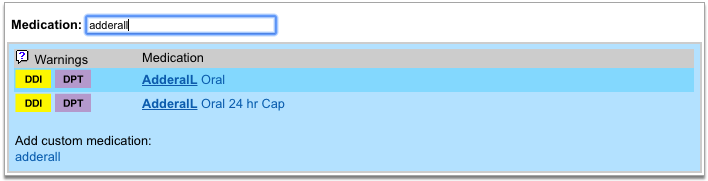
To specify that a drug should be dispensed as written, select the “DAW” checkbox when you write the prescription.
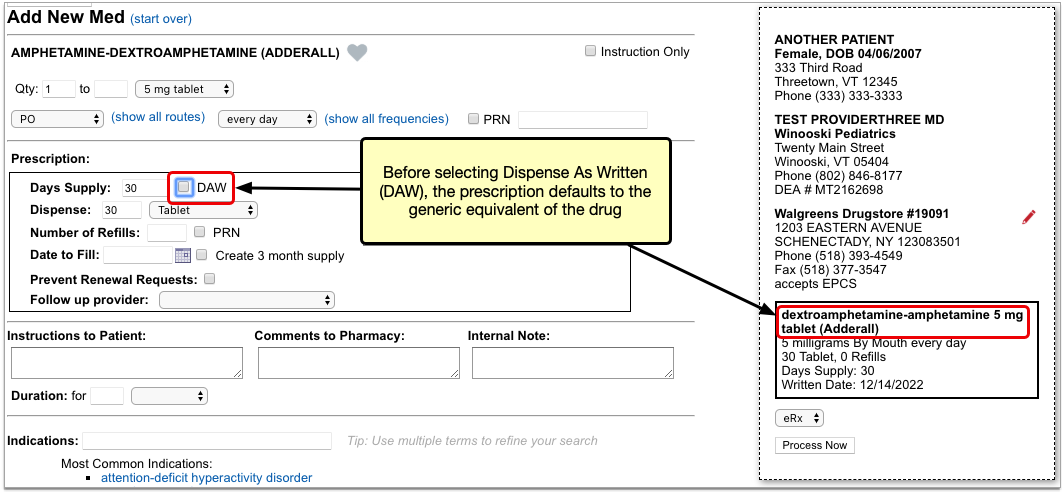
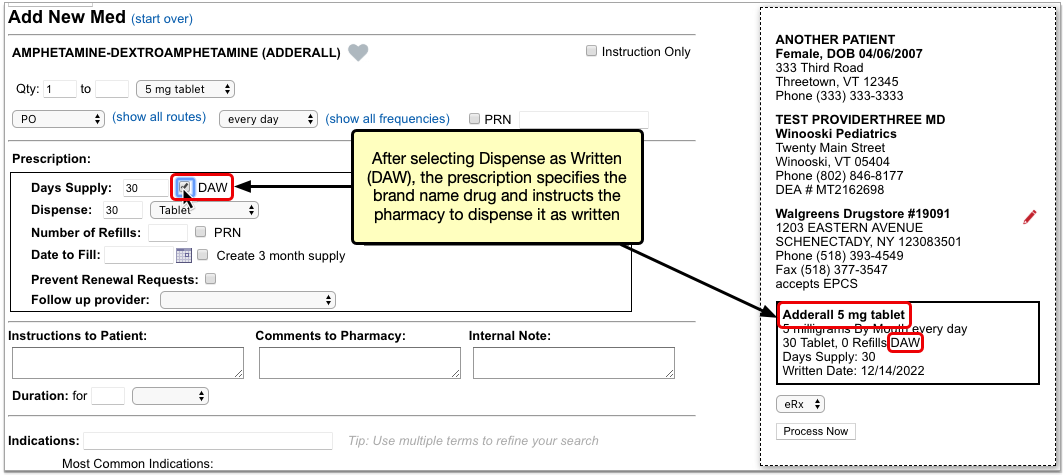
In addition to being available when you create or edit a prescription, the “DAW” checkbox appears beside pending prescriptions in the Review & Sign section of PCC eRx, the Finalize Prescriptions window, and on the Rx Queue.
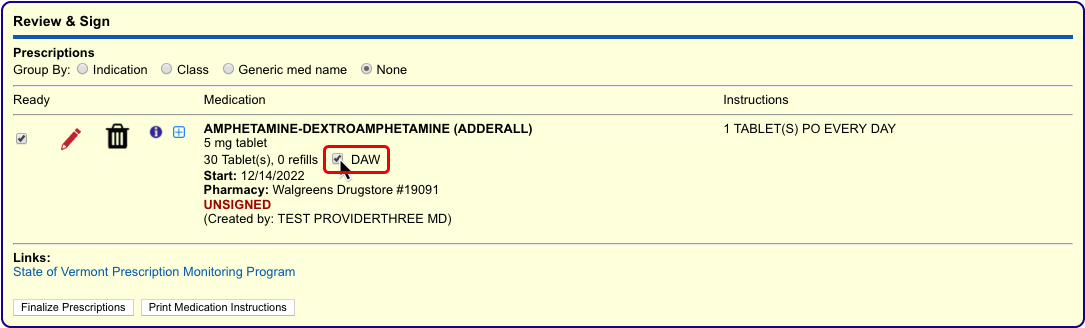
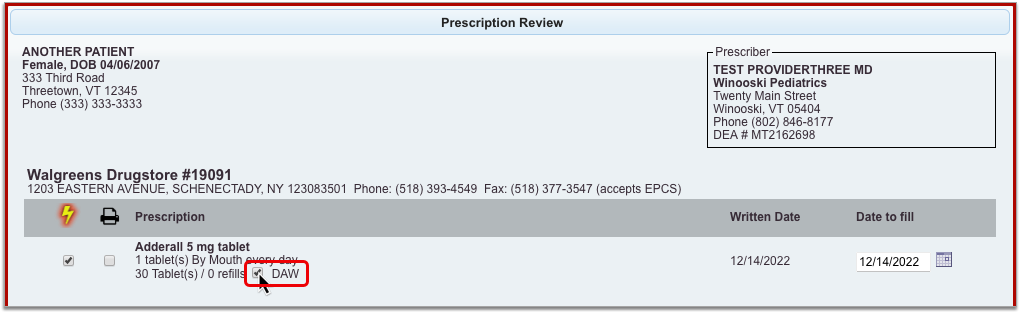
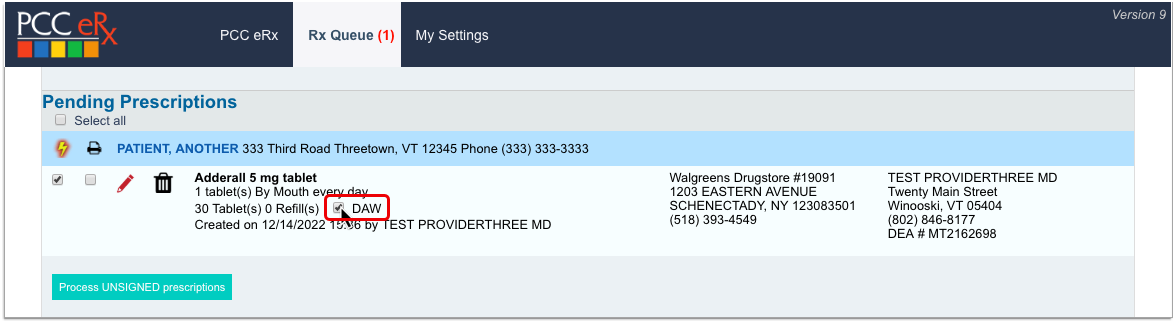
You can check or uncheck the “DAW” box in any of these places before sending the prescription to the pharmacy.
Instruction-Only Prescriptions
The “Instruction Only” option on prescriptions lets you write your own dosing instructions for the patient instead of requiring you to use the standard fields for quantity, route, and frequency.
After starting a prescription, check the “Instruction Only” box to bypass the standard dosing fields. Then, write instructions directing the patient how to use the product.
If the prescription is for a medication, you must also select a dose form so the pharmacy knows what strength to dispense and verify that the total dispense quantity is sufficient for the intended usage.
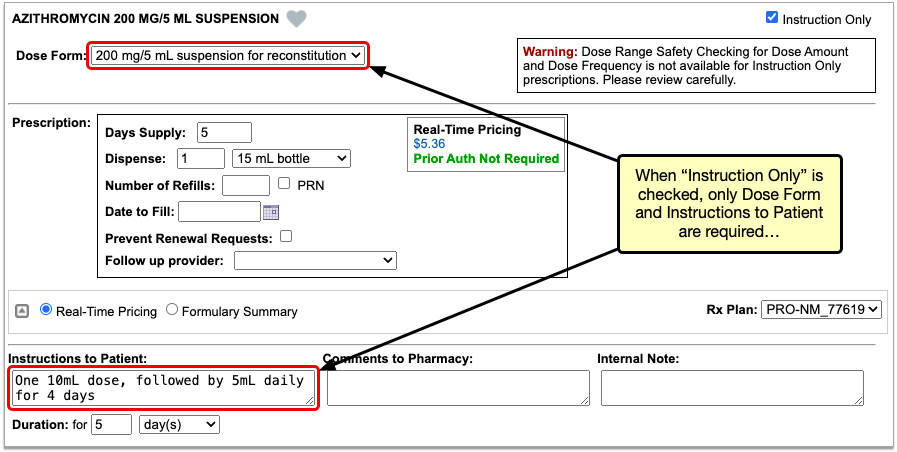
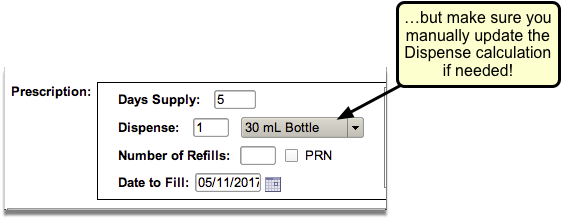
You can use the “Instruction Only” option to prescribe a loading dose or taper, or to create any prescription that cannot be written using the standard dosing fields. You can also use the “Instruction Only” option when you build custom medication items.
Reduced Safety Checking for Instruction-Only Prescriptions: Because instruction-only prescriptions allow you to bypass certain fields that are used for safety checking, they cannot trigger all forms of safety alerts. For example, instruction-only prescriptions are subjected to allergy and duplicate therapy checks, but cannot trigger dose range warnings.
Indications
You can view common indications for medications while you prescribe, and use indications to transmit diagnosis codes with your prescriptions.
Search for a medication in the Prescribe component, then hover over it to view its common indications.
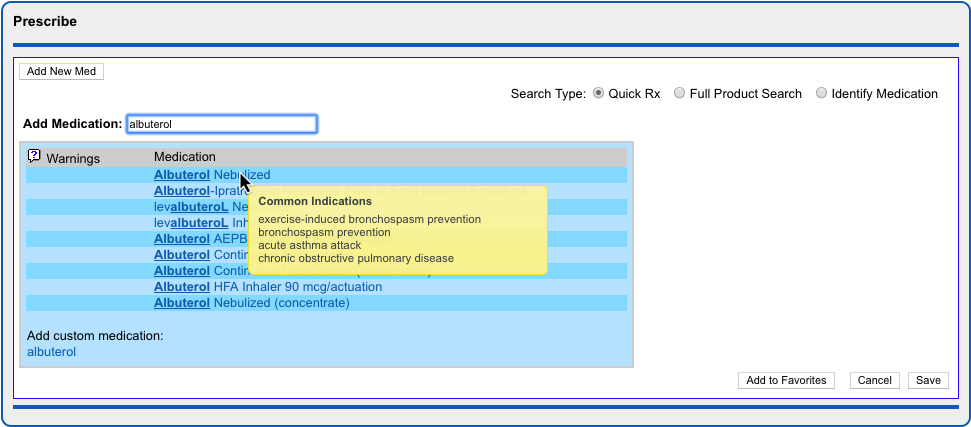
To transmit diagnosis codes with a prescription, add indications to it as you prescribe.
PCC eRx suggests indications from several different sources, such as the patient’s current visit, their problem list, and the most common indications for the medication. Click the suggested indications to add them to the prescription, or search for other options in the Indications field.


Indications map to diagnostic terms in your PCC database, which in turn map to ICD-10 codes. When you save and finalize the prescription, PCC eRx transmits the ICD-10 code for each indication to the pharmacy and documents it in the Review & Sign component.
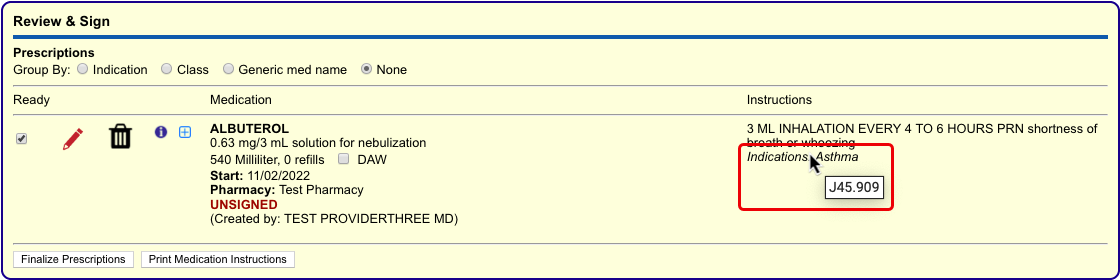
If you add an indication to a prescription that does not map to an ICD-10 code, PCC eRx transmits the text description of the indication to the pharmacy instead.
Indication Mapping is Not User-Editable: Unlike the diagnoses that appear in other parts of your PCC system, you cannot edit how indications in PCC eRx map to ICD-10 codes. If you have concerns about how a specific indication is mapped, contact PCC Support.
Medication Warnings and Safety Alerts
PCC eRx alerts prescribers on the product search screen when a drug may be inappropriate for the current patient’s age, contraindicates one of their documented allergies, interacts with other drugs or certain foods, or duplicates a therapy that they are currently taking.
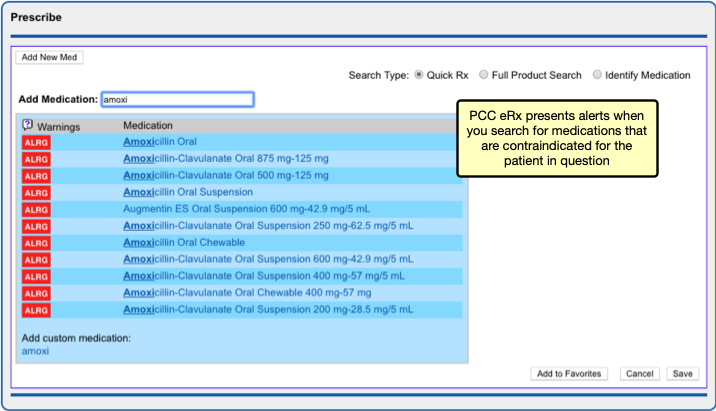
If you choose to prescribe a medication that is contraindicated for some reason or outside of normal parameters for the patient in question, automated safety checking protocols in PCC eRx present you with alerts that you must manually override before you can complete the prescription.
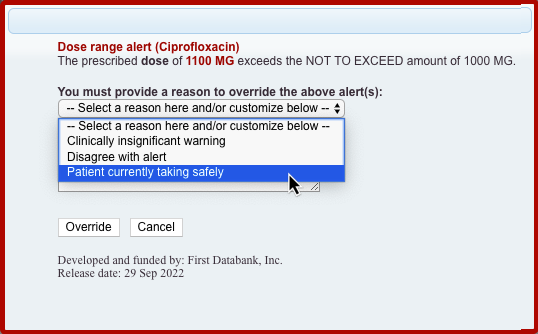
A user with Administration permissions in PCC eRx can customize the frequency and sensitivity of warnings and alerts at your practice, create a list of custom medication warnings, and manage the list of safety checking override reasons. To learn more, read Customize PCC eRx Alerts and Warnings.
Prescription Favorites
You can save your most common — or trickiest — prescriptions in a personalized “favorites” list for easy future prescribing.
To create a favorite, start a prescription then click the heart icon or the “Add to Favorites” button.
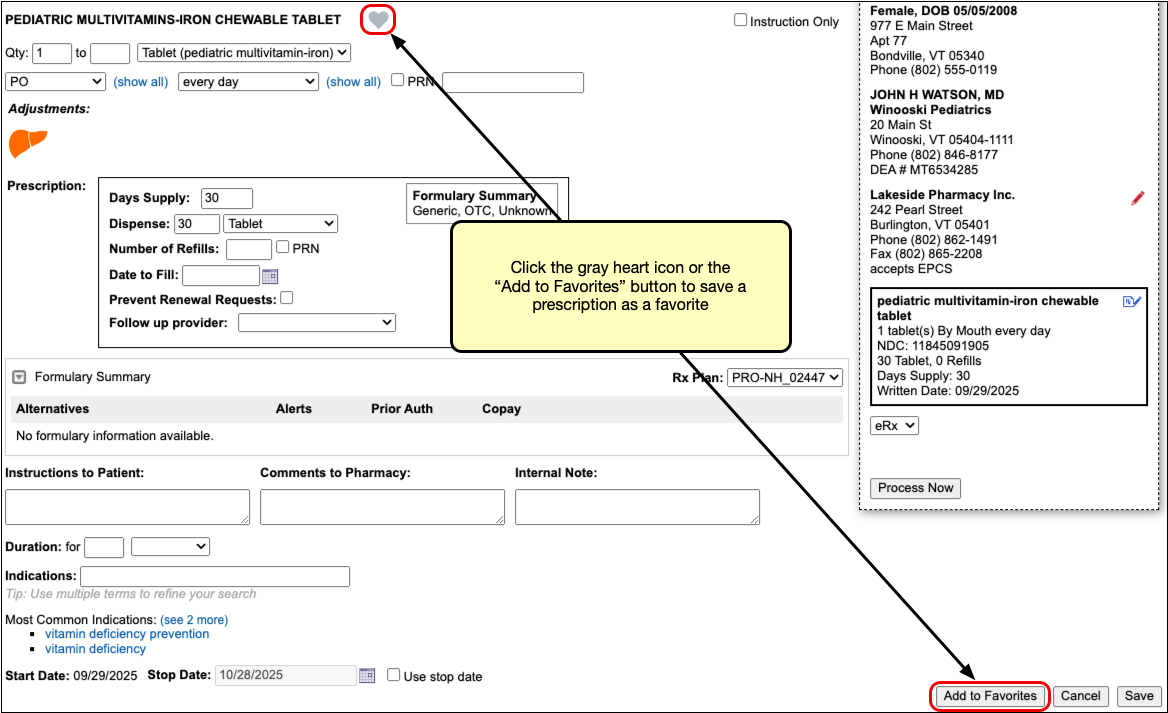
The prescription saves to your favorites list exactly as written, where you can quickly find and re-prescribe it for any patient. Favorites always display at the top of the search results when you start a new prescription from scratch.
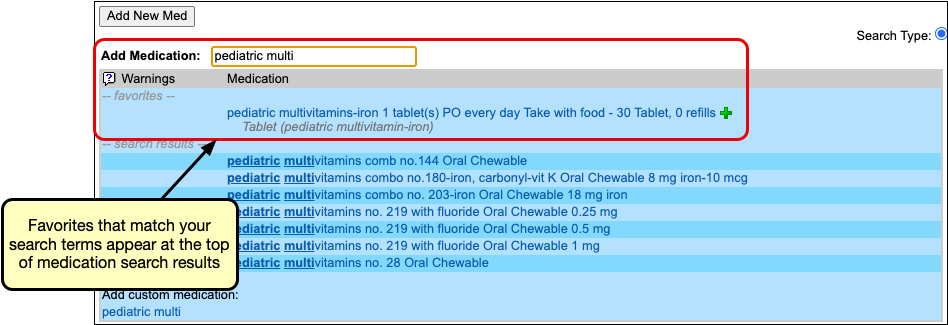
They can also be displayed as thumbnail tiles or in a searchable drop-down list in the Prescribe section in PCC eRx.
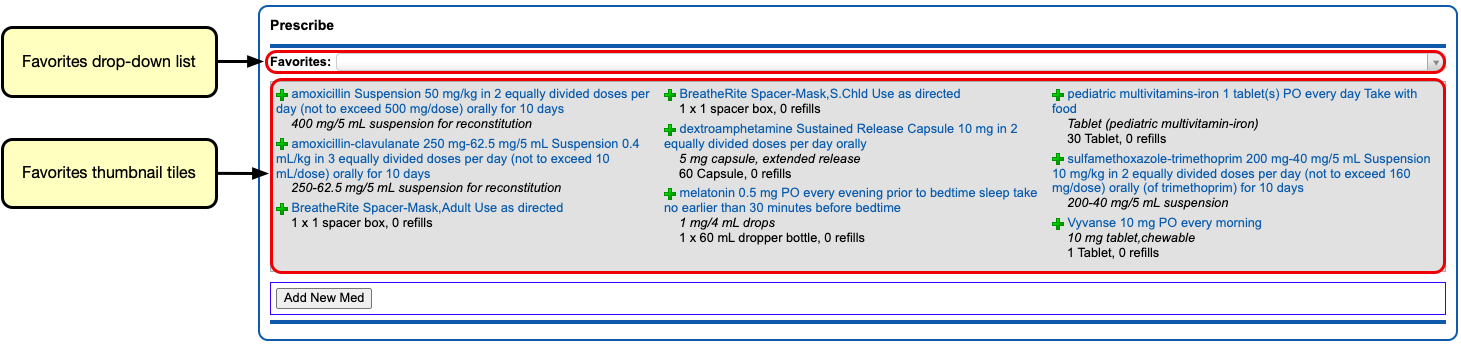
You can customize how your favorites display using the Favorites configuration on the My Settings page in PCC eRx.

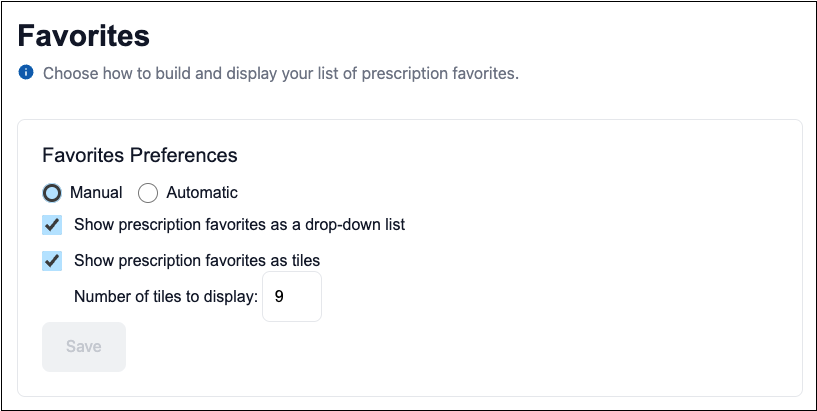
For more in-depth information about prescription favorites, including how to edit or delete them and use automatic favorites, read PCC eRx Prescription Favorites.
Real-Time Pricing and Formulary Support
As you prescribe, PCC eRx checks with the patient’s prescription insurance plan in real-time for patient-specific pricing and coverage information.
The prescription insurance plan details come from Surescripts, the vendor that facilitates digital information exchange for e-prescribing. Using only the patient’s demographic information, Surescripts reaches out to its network of prescription benefit managers and finds the patient’s prescription insurance plan(s). Plan information displays in the Patient Information component in PCC eRx, where you can see the name of the prescription benefit manager, the covered pharmacy types, and the plan name and status.
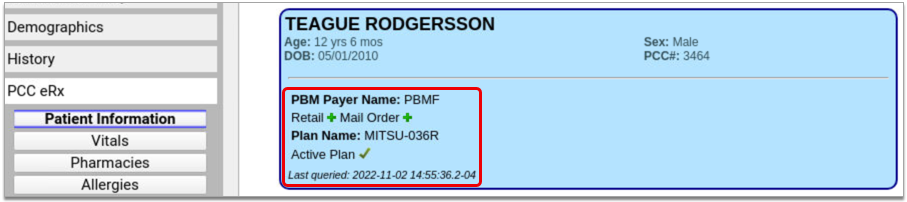
As you prescribe, PCC eRx checks with the patient’s plans for real-time, patient-specific pricing and coverage details, then displays that information beside your prescription.
If a drug is expensive, not covered, or requires prior authorization, check to see if any of the alternatives suggested by the insurance plan could work instead.
To learn everything there is to know about Real-Time Pricing and formulary support in PCC eRx, or to watch the video, visit Check Prescription Pricing and Insurance Coverage While You Prescribe.
Prescription Drug Monitoring Program Links
While PCC does not yet offer direct integrations with prescription drug monitoring programs (PDMP), you can configure PCC eRx to display links to your regional PDMP website and other important reference sites. Once configured, the links display in the Review & Sign component within the PCC eRx section of patient charts.
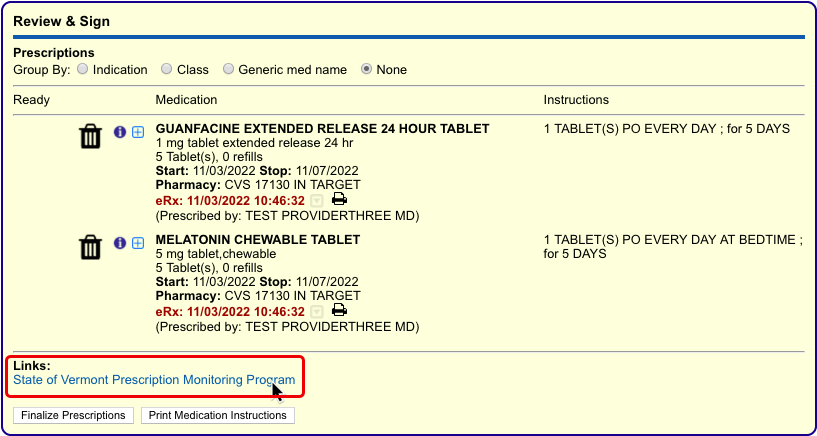
Click any link to open the associated website in a browser tab within PCC EHR. Once open, you can interact with the website just as you would in any internet browser.
When you have completed what you need to do on the website, click the red “x” icon on the browser tab to close it.
Renal, Hepatic, and Other Dosing Adjustments
PCC eRx presents an icon in the shape of a kidney or liver when you prescribe a drug with adjusted dosing for patients with renal or hepatic impairment. Click the icon to view the recommended adjustments.
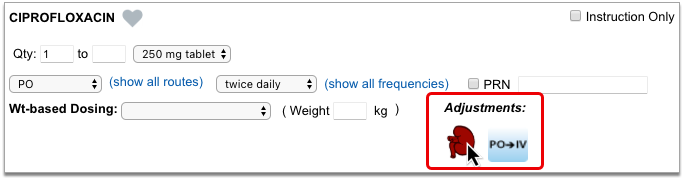
Adjustments are categorized by age and impairment. When you choose an adjustment, PCC eRx recalculates the dose accordingly.
If you want more information about the recommended adjustments, you can open and view the full monograph within the adjustments pane.
PCC eRx presents the renal and hepatic adjustment icons for relevant drugs regardless of the present patient’s problems, diagnoses, or lab results. Use your professional judgment to determine whether adjustments are truly needed for any given patient.
Other Dosing Adjustments: PCC eRx occasionally presents icons in the Adjustments section of a prescription that are not related to renal or hepatic impairment, such as an icon to indicate dosing adjustments for intravenous administration. Simply click the icon to see more details about the recommended dosing adjustment.
Common Prescribing Scenarios
PCC eRx offers flexible options to manage complex yet common prescribing scenarios.
Prescribe from Your Phone
When you’re away from your work computer, you can use pocketPCC to prescribe from your phone, tablet, or other internet-connected device. Learn how.
Prescribe Equipment, Supplies, and Services
When you want to prescribe durable medical equipment (DME) or supplies, use the “Full Product Search” option to search for the item.

If the item you wish to prescribe is available in the list, select it to start a prescription, then prescribe it normally.
If the equipment or supply you wish to prescribe is not available in the full product search, or you wish to prescribe a service such as speech therapy, a user with PCC eRx Administration privileges must create it as a custom medication item before you can prescribe it.
Once the equipment, supply, or service has been created as a custom medication item, you can search for it as you would any other medication and prescribe it normally.
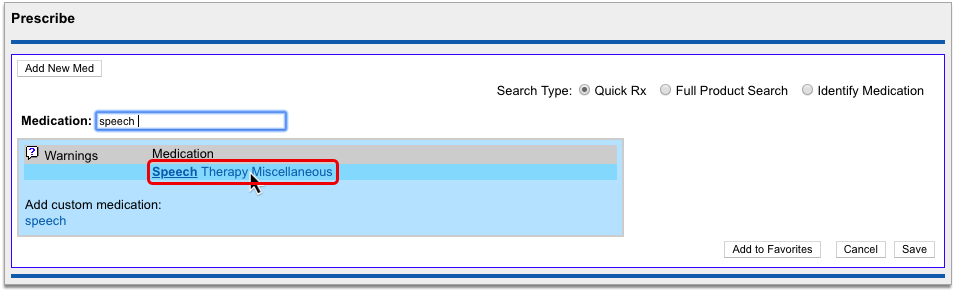
You can learn how to create custom medication items in the article Create Custom Medication Items in PCC eRx.
Contact PCC Support for Help: Special prescribing scenarios carry many considerations, and what works for one practice might not work for another. Contact PCC Support if you need help writing prescriptions for less common items.
Prescribe a Multiple-Month Supply of Schedule II Drugs
In a single click, you can turn a prescription for a schedule II drug into a three-month supply. This function is most commonly used to prescribe maintenance medications for the treatment of ADHD.
Start a prescription for a schedule II drug, then check the “Create 3 month supply” box.
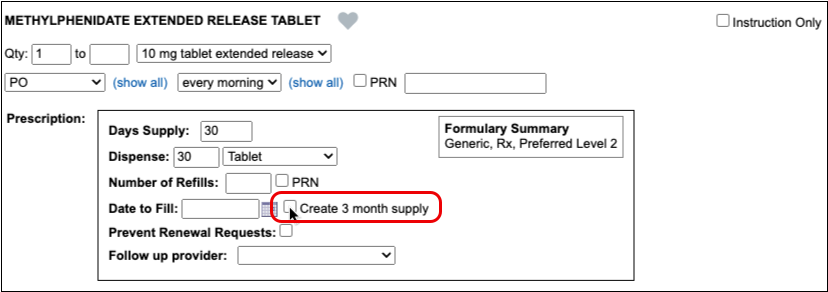
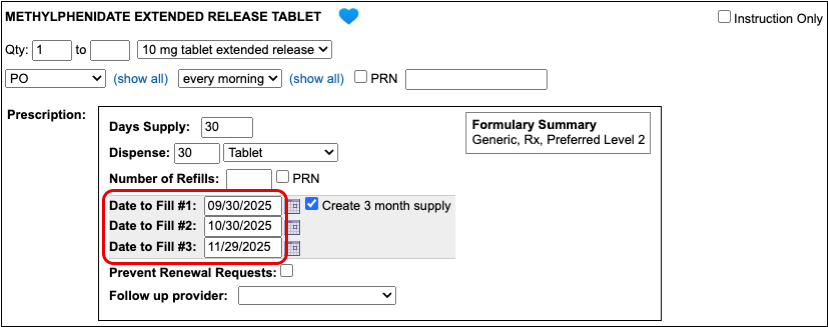
The prescription goes from having one date to fill to having three successive ones that are calculated from today’s date based on days supply. If you delete the third date to fill, you can turn this into a prescription for a two-month supply.
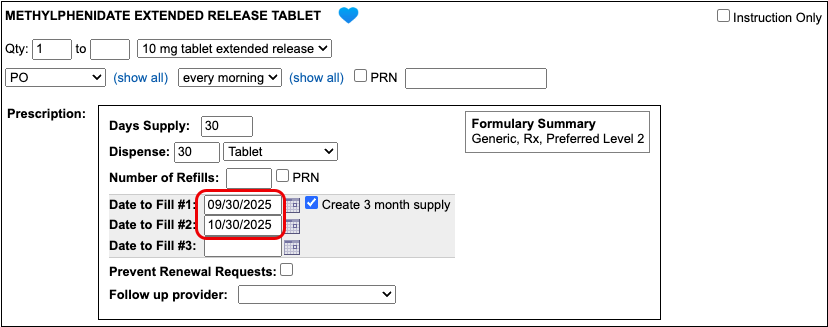
If you want the patient to be able to pick up the second and third prescriptions in the series a little before they’re needed, you can manually adjust the dates to fill. This is called pre-dating.
When you pre-date the second prescription in the series, the third automatically becomes pre-dated by the same number of days. If you want to pre-date the third prescription for a different number of days, you can manually change its date to fill without affecting the first two prescriptions in the series.
If you always want to pre-date the second and third prescriptions in a series of three by a certain number of days, you can set that up in your PCC eRx settings.
When you are ready to send the prescription, process it as usual. You will only be prompted to enter your EPCS credentials once.
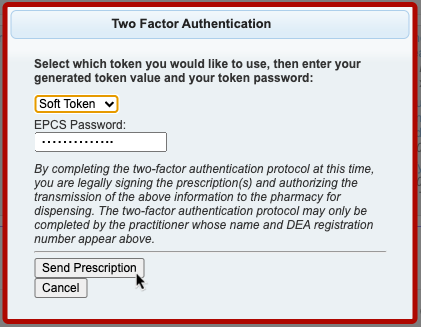
Even though it feels like you are sending one prescription and all three months display as a single entry on the Rx Queue, in the patient’s Medication History, and in their Prescription History, each month’s supply goes to the pharmacy as a separate prescription with unique a serial number.
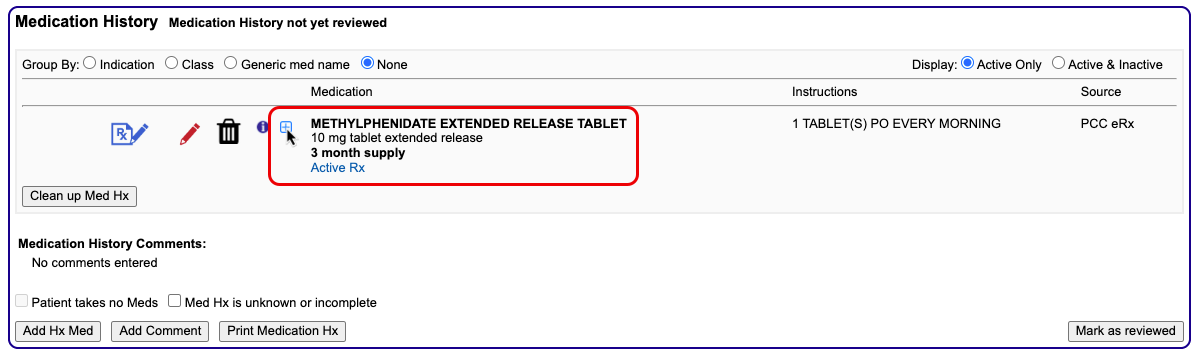
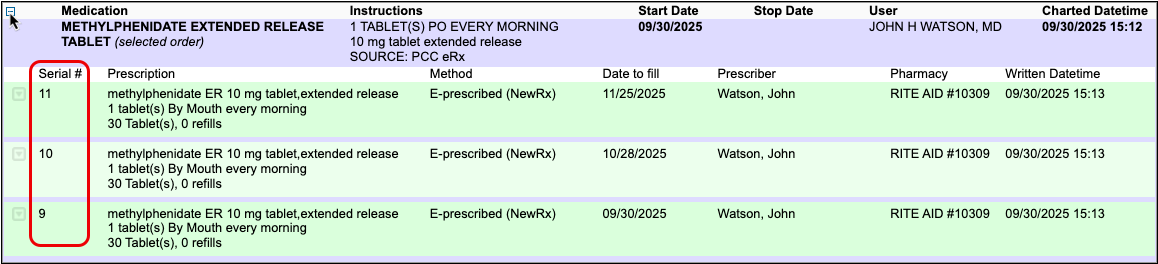
If you need help troubleshooting issues with a prescription for a multiple-month supply, contact PCC Support.
Prescribe from Favorites
You can save your most common — or trickiest — prescriptions in a personalized “favorites” list for easy future prescribing. Depending on your personal settings in PCC eRx, favorites may display in a searchable drop-down list or as thumbnail tiles in the Prescribe component.
Your favorites also appear at the top of the search results when you search for a product in the Prescribe component.
Select a favorite from the searchable drop-down list, thumbnail tile display, or medication search results to start a prescription. From there you can edit the prescription, save and queue it, or process right away.
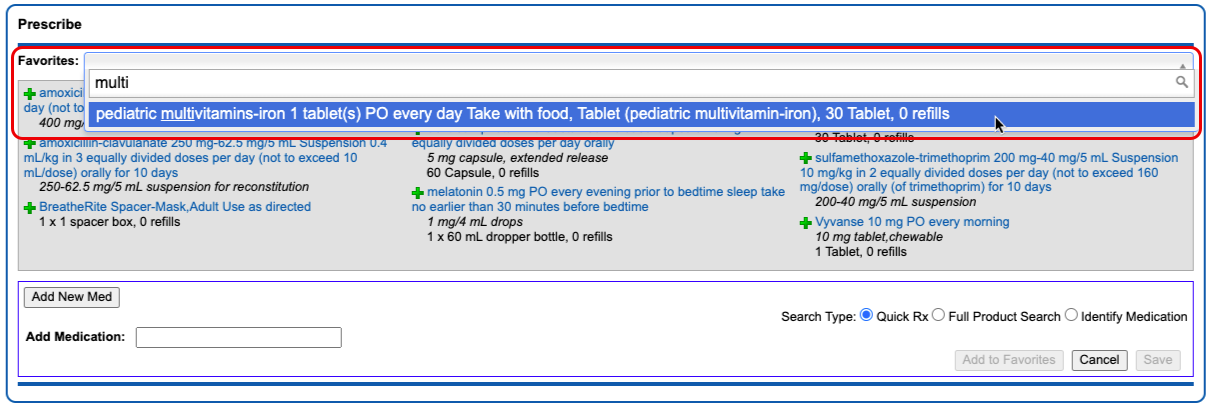
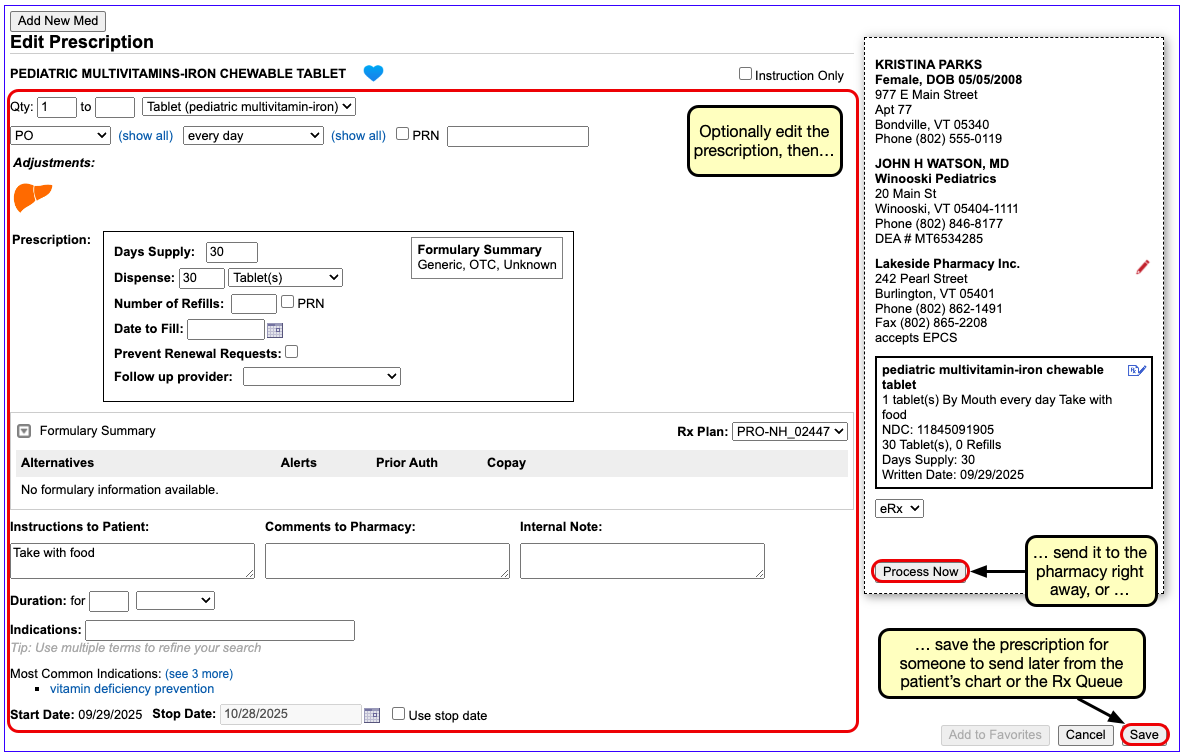
For more information about how to prescribe with, create, edit, delete, or manage the display of favorites in PCC eRx, read PCC eRx Prescription Favorites.
Document Historic, OTC, and Sample Medications
If you provide a sample medication, or a patient reports use of an over-the-counter or historic medication, you can record it directly in the patient’s Medication History.
Click the “Add Hx Med” button to add new entries to the patient’s Medication History.
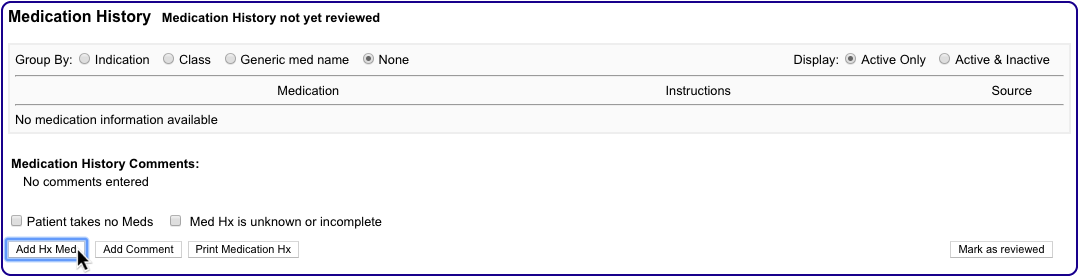
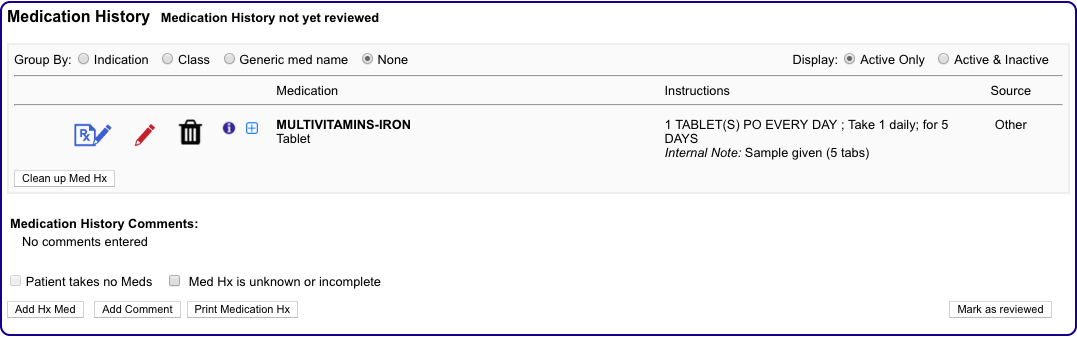
For more information about adding historical medications in PCC eRx, read the Medication History article.
Create a Taper or Loading Dose
When you want to prescribe a taper or loading dose, search for the medication and select a dosing statement that includes the base strength you wish to prescribe.
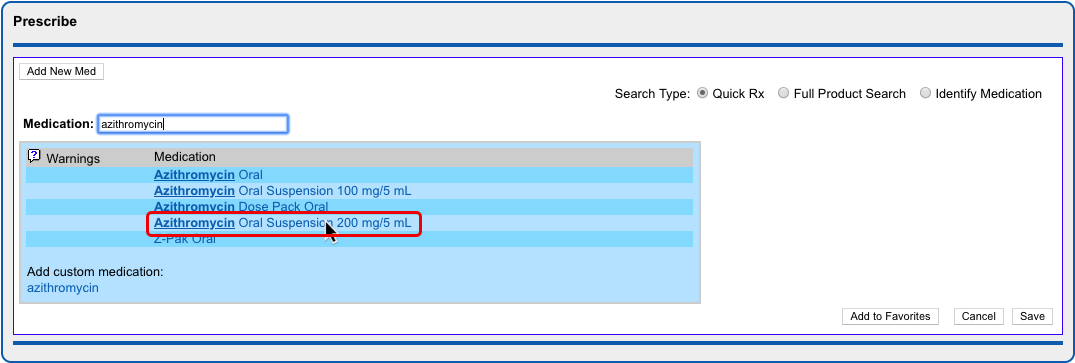
Select the dosing statement that most closely resembles how you want the patient to take the medication.
If you see no dosing statements that match your instructions for the patient, pick any statement and then select “Instruction Only”.

The “Instruction Only” option lets you write your own dosing instructions for the patient instead of requiring you to use the standard fields for quantity, route, and frequency. Note that you must indicate a dose form on instruction-only prescriptions so the pharmacy knows what medication strength to dispense.
Verify Dispense Quantity Before Processing Instruction-Only Prescriptions: Because instruction-only prescriptions allow you to bypass certain fields that are used to auto-calculate a dispense quantity and form, PCC recommends that prescribers double-check that the total dispense quantity of instruction-only prescriptions is sufficient for their intended use.
Reduced Safety Checking for Instruction-Only Prescriptions: Because instruction-only prescriptions allow you to bypass certain fields that are used for safety checking, they cannot trigger all forms of safety alerts. For example, instruction-only prescriptions are subjected to allergy and duplicate therapy checks, but cannot trigger dose range warnings.
Save Common Instructions as Snap Text: You can save common taper or loading dose instructions as snap text, then add them to the Instructions to Patient box on prescriptions by typing a shortcut. Learn how.
Prescribe Compounds
When you want to prescribe a compound, start by searching for it by name in the medication search.
Your PCC system has standard entries for All-Purpose Nipple Ointment (APNO) and Magic Mouthwash. These entries contain itemized lists of ingredients and their ratios, each of which undergoes safety checking when you prescribe.
Standard compound entries may be e-prescribed just like any other medication.
If you wish to change the “recipe” of a standard compound entry or request that a new compound be added to your PCC system, contact PCC Support.
Optionally Create Compounds as Custom Medication Items: You can optionally configure compounds on your PCC system using the custom medication option. While this approach works, it only allows you to create instruction-only prescriptions for compounds, which can be e-prescribed but do not trigger all forms of safety alerts. You can learn more about custom medication items in PCC eRx by reading Create Custom Medication Items in PCC eRx.
Renew Prescriptions
When a patient is out of refills for a prescription, you can renew it from the Prescription History or Medication History component in PCC eRx.
Open the PCC eRx section of the patient’s chart. If the patient does not have a visit, phone note, or portal message today, create an eRx encounter from the drop down.
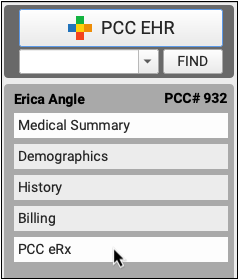
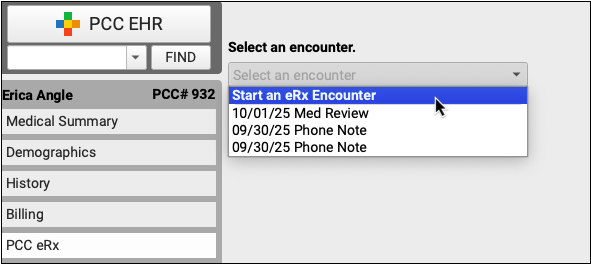
In the patient’s Prescription History or Medication History, find the prescription that needs to be renewed then click the “blue swish” icon to prepare and queue it for processing.
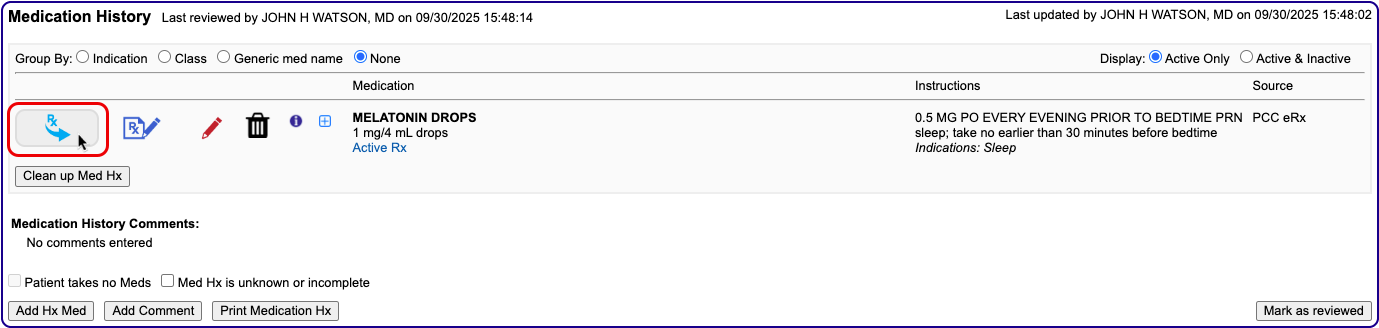
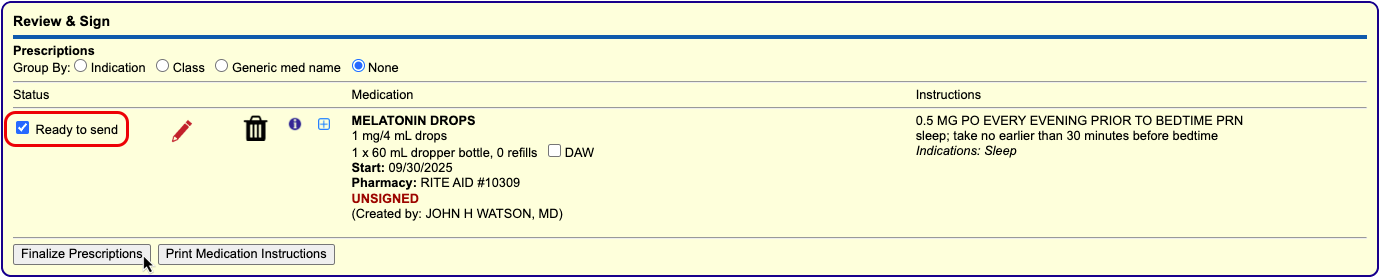
If your Renewal Workflow in My Settings is set to “Open the renewal in an edit window, where I can optionally modify it and send it immediately”, the blue swish icon opens the renewal for editing, where you can process it immediately using the “Process Now” button.
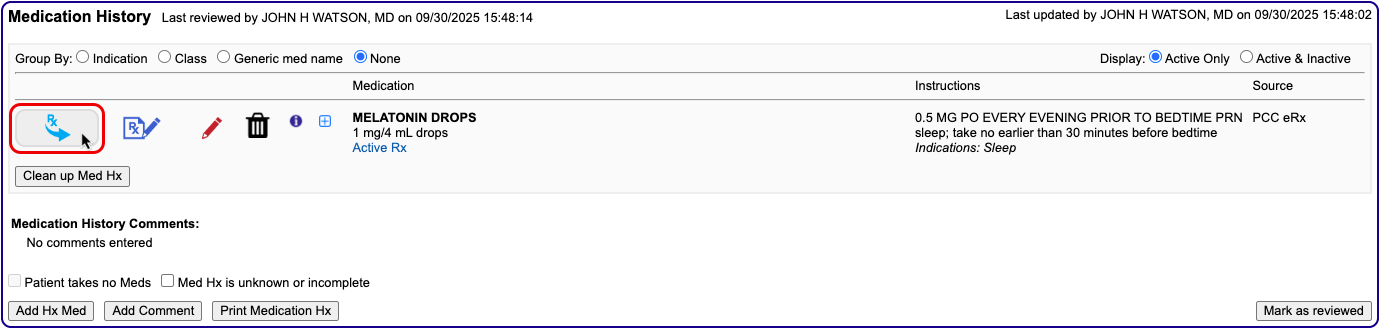
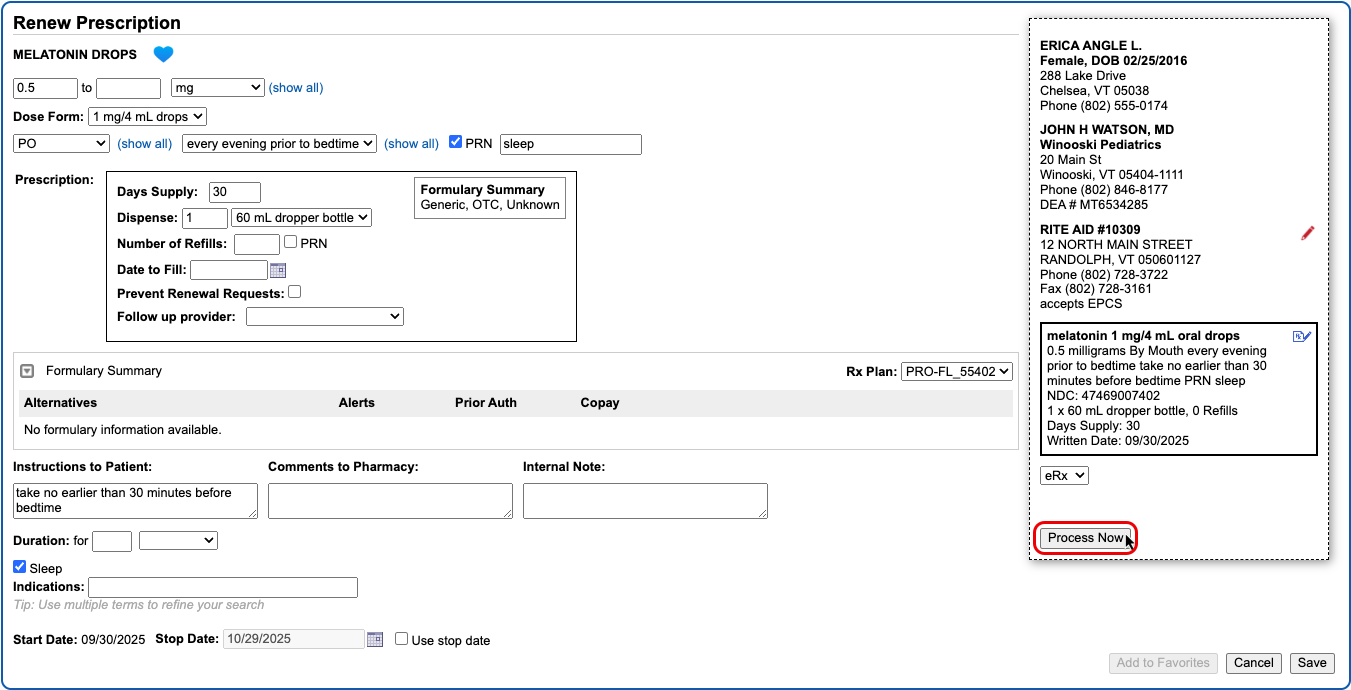
Once you prepare the renewal, process it as you would any prescription.
You can also renew prescriptions by responding to renewal requests from pharmacies on the Rx Queue. Pharmacies most commonly send renewal requests when patients try to fill prescriptions that have no more refills.
You can take different actions in response to a renewal request, such as approving it as written with a number of refills, denying it, replacing it with new prescriptions, or reassigning it to a different prescriber.
Enable or Disable Renewal Requests: You will only receive renewal requests from pharmacies if the renewal request service is enabled for your user account. Someone at your practice with User Administration privileges in PCC EHR may enable or disable the renewal request service for your account in the User Administration tool.
Choose Your Renewal Workflow: You can choose whether the “Renew Prescription” icon opens renewals in an edit window or immediately queues them for sending. Configure your Renewal Workflow in the Renew Prescriptions section of the My Settings page.
Resend a Prescription
For seven calendar days after you send a prescription, you can resend it to a different pharmacy, or to the same pharmacy with different details.
PCC eRx sends a cancellation to the pharmacy for the original prescription when you resend a new version.
The “Resend” button is sensitive to each user’s PCC eRx role and permissions. Only Providers, Mid-Level Providers, and Provider Agents may resend prescriptions for legend drugs. Only Providers and Mid-Level Providers who are registered for EPCS may resend prescriptions for controlled substances. Anyone with permission to prepare and save a pending prescription can queue up a resend for a prescriber’s approval.
To learn more and see it in action, visit Resend a Prescription.
Send Prescriptions to Multiple Different Pharmacies
You can prescribe to several pharmacies at once when you finalize pending prescriptions from the Review & Sign component of a patient’s visit, phone note, or portal message in PCC eRx.
Go to the Review & Sign component and click “Finalize Prescriptions”.
The Prescription Review window lists the patient’s pending prescriptions and the current pharmacy for each. At the bottom of the window you can see the patient’s other saved pharmacies and the option to add a new pharmacy.
You can pair prescriptions and pharmacies, or exchange one pharmacy for another, by dragging the screen elements together. When a yellow highlight appears, release your mouse cursor to complete the pairing or exchange.
Once paired, prescriptions and pharmacies display together. Each prescription may only be paired with one pharmacy.
When all prescriptions have been paired with the correct pharmacy, click “Send Prescriptions” to process all of them at once.
Delete Pending Prescriptions
You can delete pending prescriptions from several places in PCC eRx before they get printed or sent to the pharmacy.
Pending prescriptions save into the Review & Sign component in PCC eRx within the patient’s visit.
You can also find them on the Rx Queue in PCC EHR.
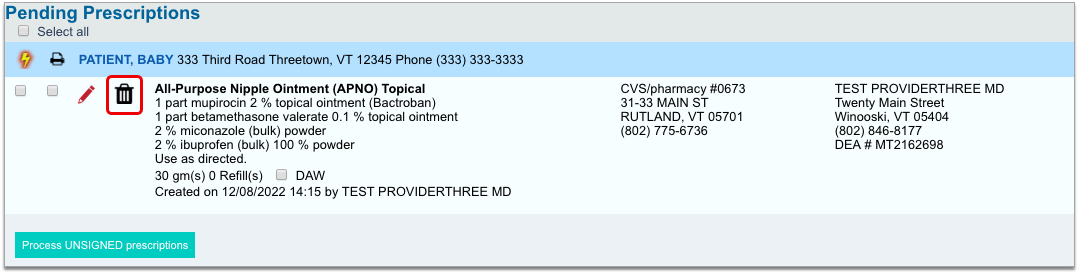
In either place, click the trash can icon beside the prescription to delete it. When you delete a pending prescription, its details do not enter the patient’s medication or prescription histories, nor do they display in the Prescriptions component of the patient’s visit, phone note, or portal message.
Information about deleted pending prescriptions is available in the Rx Audits section of the Rx Logs in PCC eRx. If you need help researching a deleted pending prescription, contact PCC Support.
Delete and Cancel Prescriptions that Were Sent or Printed in Error
In PCC eRx, you can delete and cancel prescriptions that were sent or printed in error.
In the patient’s Visit History, find and open the encounter where the medication was prescribed, then click the PCC eRx button.
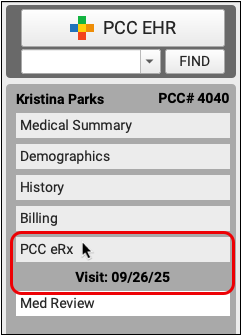
Jump to the Review & Sign section, then click the trash can icon beside the prescription that was sent or printed in error. If the prescription has passed its stop date, you will not be able to delete it.
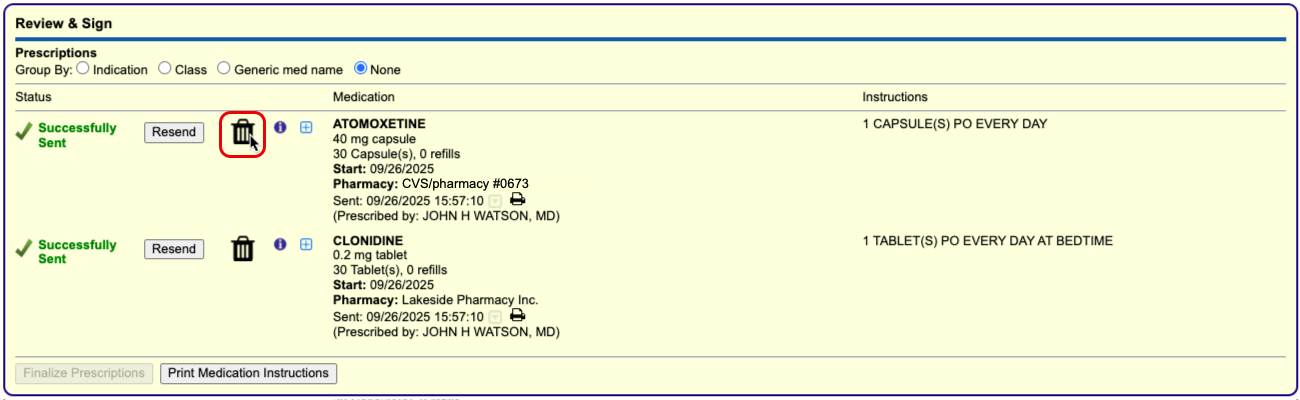
When you delete an electronic prescription, PCC eRx automatically sends a cancellation to the pharmacy and notifies you that a cancellation has been sent. The notification includes the pharmacy’s phone number in case you want to follow up with a phone call.
Deleted prescriptions get removed from the Review & Sign component and the patient’s Prescription History, but the medication remains active in the patient’s Medication History. You can delete the medication from the patient’s history by clicking the trash can icon beside it and recording a reason for deletion.
Deleted medications and their reasons for deletion appear in the inactive section of the patient’s Medication History.
For maximum transparency, prescriptions deleted in this manner continue to appear in the Prescriptions component of the patient’s encounter note in PCC EHR, albeit with an updated status indicating that they have been discontinued.
Learn More About Medication History: To learn more about how to work in patients’ Medication History, read Review and Update Medication History.
Reprint Prescriptions
You can print void and original copies of processed prescriptions from the Review & Sign component in PCC eRx.
Click the printer icon beside any processed prescription to print a void copy of it for documentation purposes.
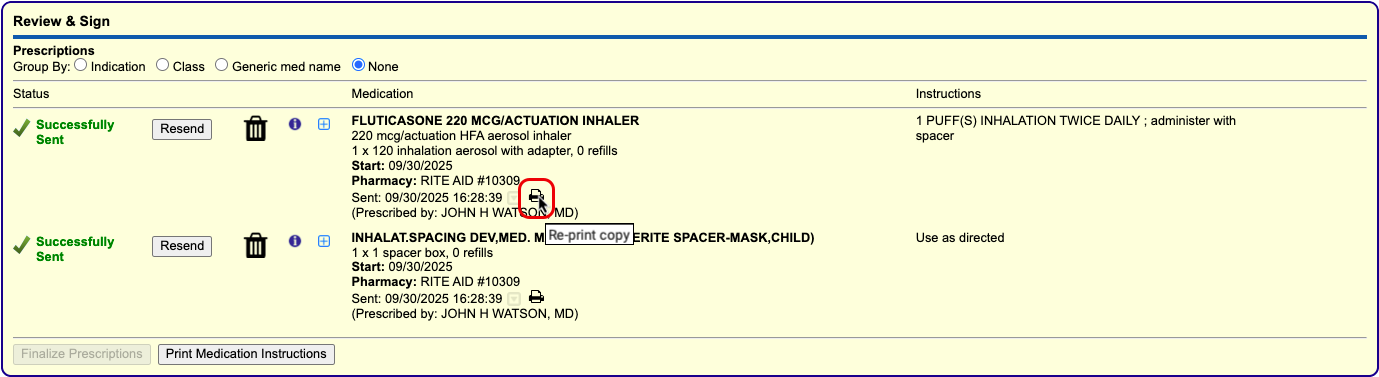
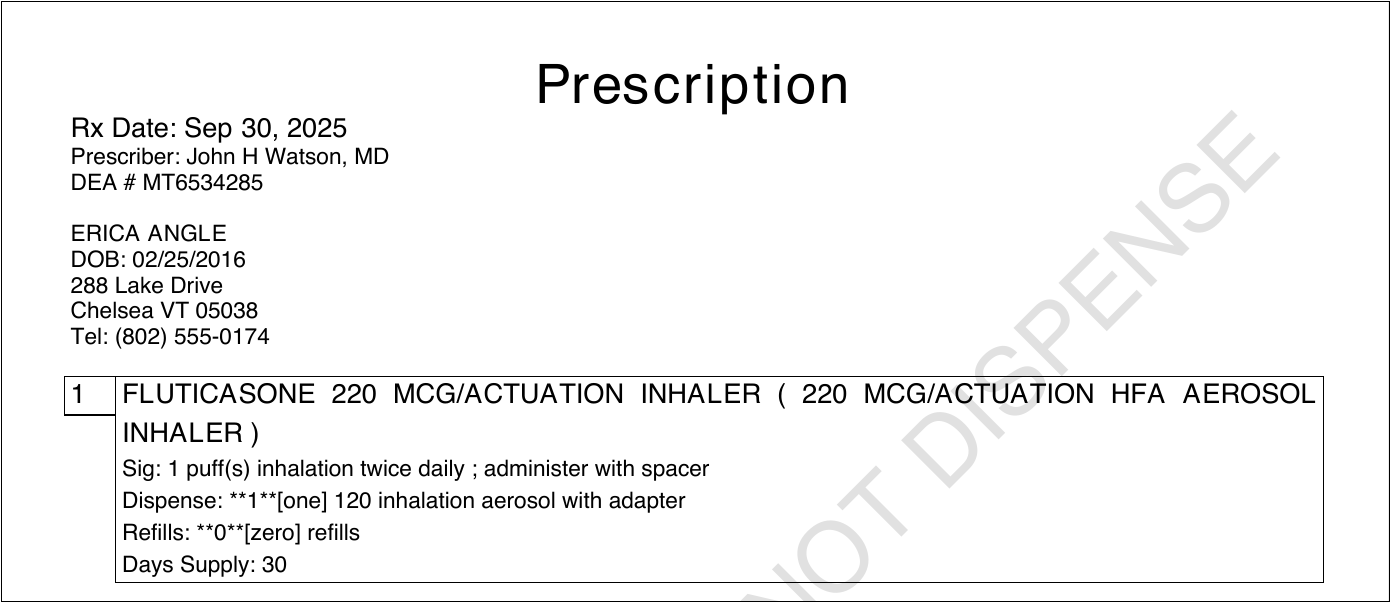
Void copies are watermarked with the words DO NOT DISPENSE so that they cannot be used at a pharmacy.
To reprint an original copy of a prescription for a non-controlled substance, hover over the printer icon in Review & Sign and click the secondary icon that appears beside it.
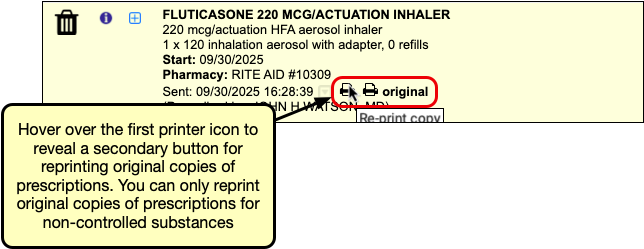
Original copies may be used at a pharmacy to fill the prescription. There is no way to reprint an original prescription for a controlled substance.
In addition to the Review & Sign component, you may also print void copies of processed prescriptions from a patient’s Prescription History.

It is not possible to print original copies of processed prescriptions from the Prescription History component.
Available Where Printing Is Enabled: Local regulations dictate whether prescription printing may be enabled for your practice. The ability to print copies is only available at practices where printing is generally enabled.
Respond to Pharmacy Change Requests
Change requests are electronic messages that pharmacies use to request script clarifications, generic substitutions, therapeutic interchanges, drug use evaluations, or confirmation of a prescribers’ credentials. Pharmacies can also use change requests to notify you when a medication requires prior authorization or is out of stock.
If you have Mid-Level or Provider permissions in PCC eRx, you can optionally enable the change request service for your account.
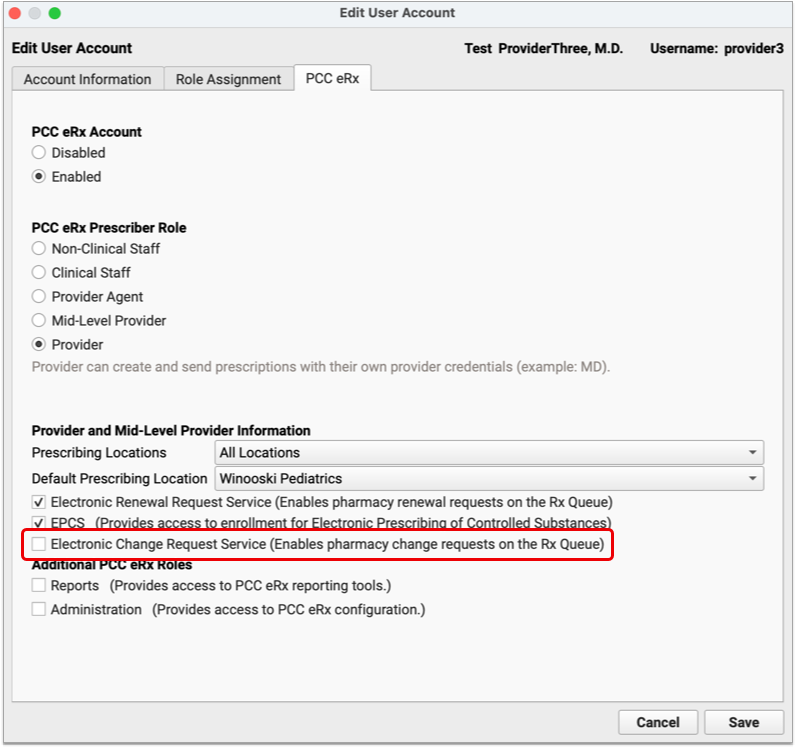
When enabled for your account, change requests sent in response to your prescriptions appear on the Rx Queue in PCC EHR alongside pending prescriptions and renewal requests.
There are five standard response options for change requests:
-
Keep or Edit Original Prescription: Keep or edit the prescription you originally wrote, then send that in response to the change request.
-
Approve Requested Substitution: Approve the substitution suggested by the pharmacy, either as written or with edits.
-
Replace with New Prescription: Start a new prescription from scratch to replace the original.
-
Cancel Original Prescription: Notify the pharmacy that you want to cancel the original prescription.
-
Reassign: Reassign the change request to a different provider at your practice.
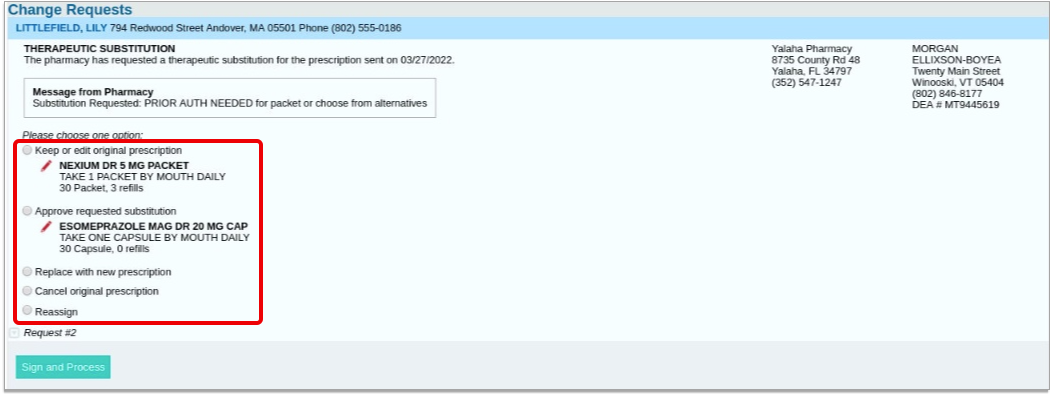
The prescription you send in response to the change request is what the patient will be able to fill. If your response to a change requests is a prescription for a controlled substance, you must enter your EPCS credentials in order to finish processing and sending it.
Prescribe Outside a Visit
You can prescribe from a phone note or portal message in PCC EHR, or create a dedicated eRx encounter if the patient has no other encounter with which to associate a prescription.
To prescribe from a phone note or portal message, open it in PCC EHR, then click the PCC eRx button to access prescribing functions.
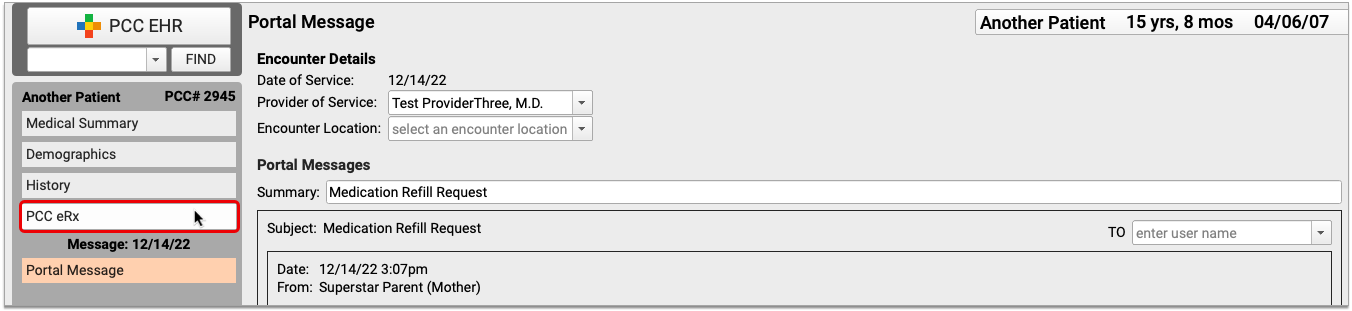
If the patient has no visit, phone note, or portal message on the date you wish to prescribe, you can create an eRx encounter instead. Open the patient’s chart, click the PCC eRx button, and select “Start an eRx Encounter” from the drop-down.
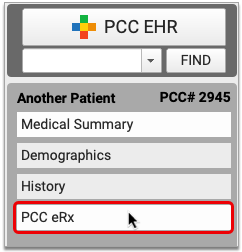
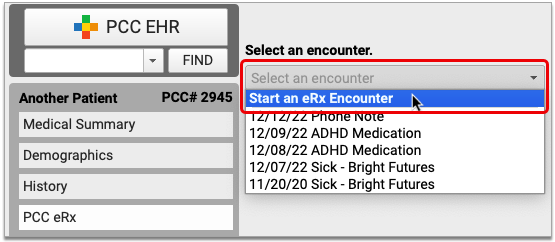
Once in PCC eRx, you can prescribe normally. If there is no encounter location recorded in the phone note or portal message, or you are working in an eRx encounter, PCC eRx will prompt you to select a prescribing location for your prescriptions.
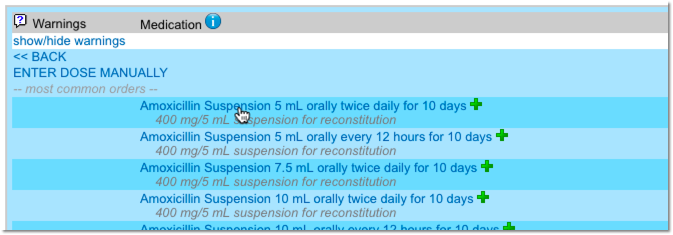
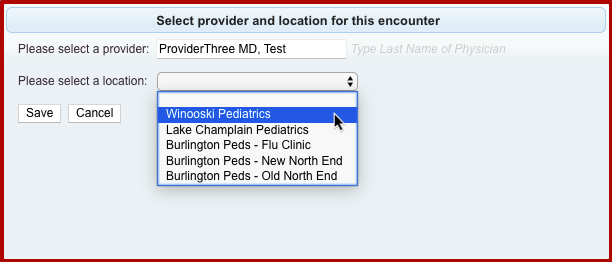
You may also be prompted to select a provider for the encounter.
View and Manage E-Prescribing Errors
Prescription transmission errors can occur when the pharmacy’s system is down, or when Surescripts, the entity that manages the communication between pharmacies and PCC EHR, is unable to process your prescriptions. These transmission issues can prevent prescriptions from reaching the pharmacy. When that happens, PCC eRx displays errors at the top of the Rx Task Queue.
After encountering an error, PCC makes multiple attempts to send a prescription. If you’d like PCC to stop trying to send the prescription so you can take action yourself, click “Stop Retrying” to end the process.
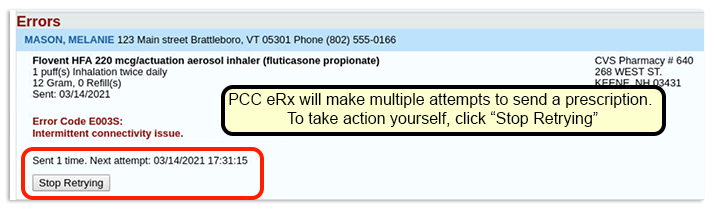
When a prescription fails to send (or when you tell PCC eRx to stop retrying), you can take one of three actions:
- Select “Keep” to indicate that you’ve called the pharmacy and resolved the issue.
- Select “Delete” to delete the prescription.
- Select “Print” to print the prescription to give to the patient or fax to the pharmacy.
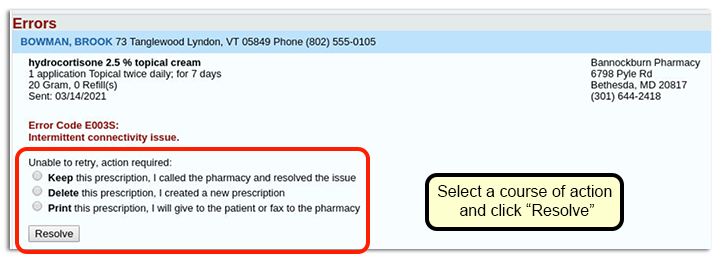
Once you make a selection, click “Resolve” to remove the prescription from the queue.
Transmission errors also appear in the Prescription History section of PCC eRx.

View Medication History and Prescribing Activity Beyond PCC eRx
PCC eRx is a special layer within PCC EHR dedicated solely to medications and prescribing. You can view some of the information and activity recorded in PCC eRx in other places on your PCC system, too. This is especially useful if you aren’t a prescriber yourself and you just need to reference a patient’s Medication History or the prescribing activity from a specific encounter.
Medication History
Beyond PCC eRx, you can see a patient’s medication history and when it was most recently marked as reviewed wherever your practice has chosen to show the Medication History component.

Typically, the Medication History component appears in the Medical Summary portion of the patient chart. It can also be configured to appear in visit protocols, phone notes, portal message encounters, the patient check-in screen, and a few other places.
You cannot edit the information in the Medication History component outside of PCC eRx.
If you want patients and their family members to be able to view their active and inactive medications, your practice can reveal this information in the patient portal.
It is not possible to view, save, print, or reprint prescriptions from the patient portal.
Prescription Activity
When you prescribe something in PCC eRx, the corresponding encounter note in PCC EHR automatically updates to include a Prescriptions component.
The Prescriptions component shows a read-only view of all prescribing activity connected to that visit, phone note, portal message, or eRx encounter.
Encounter-specific prescription activity, general prescription history, and copies of prescriptions are not available in the patient portal.
Prescribing Roles and Permissions
In the User Administration tool in PCC EHR, users may be assigned one of five different PCC eRx roles:
-
Non-Clinical Staff: Non-Clinical Staff may edit patient pharmacies but may not create or send prescriptions.
-
Clinical Staff: Clinical Staff may create prescriptions for providers to review, sign, and send.
-
Provider Agent: Provider Agents may create and send prescriptions on behalf of a credentialed ordering provider. Provider Agent prescriptions automatically appear for signing on the ordering provider’s queue.
-
Mid-Level Provider: Mid-Level Providers may create and send prescriptions under their own provider credentials while indicating a supervising provider.
-
Provider: Providers may create and send prescriptions under their own provider credentials.
Prescribing roles and permissions should be assigned to users according the rules and regulations of the jurisdiction in which you practice. To learn more about prescribing roles in PCC eRx, read Set Up PCC eRx User Access.
Print a Receipt
You can print a receipt whenever you post a payment. You can also print a receipt for any payment(s) in an account’s history.
Watch a Video: Watch Print a Receipt to learn all the ways to generate a receipt in PCC EHR.
Billing Codes and Descriptions Include Confidential Information: When you print or export billing records, including receipts, bills, and histories, the output includes procedures and diagnoses from patient encounters. These codes and descriptions may reflect clinical information that was marked confidential in the chart.
Print a Receipt During Patient Check-In
During patient check-in, you can enter a payment and print a simple payment receipt.

Read Check In a Patient to learn more.
From the Schedule screen in PCC EHR, you can open up the Patient Check-In tool later and print or reprint a receipt.
Print a Receipt When You Post Charges
When you post charges and payments for an encounter, or create a new billing or hospital encounter, you can click a button to generate a receipt when you save the charges.
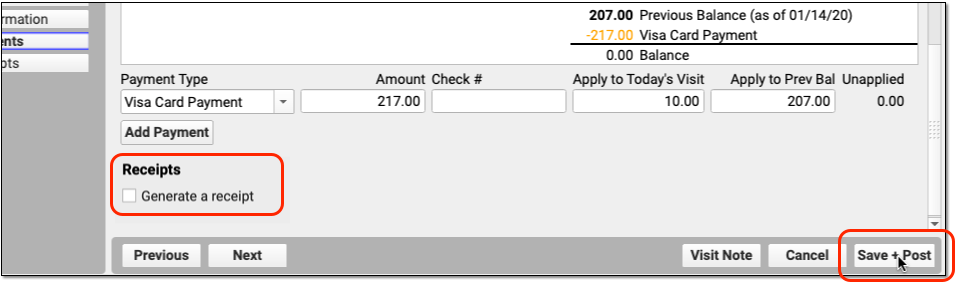
You can also return to the Post Charges ribbon and click “Generate Receipt” later.
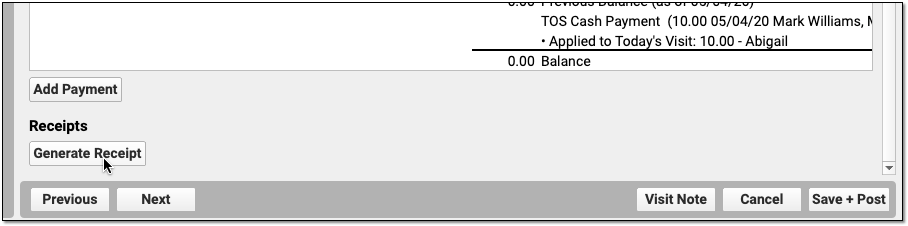
Read Post Charges in PCC EHR, Post Administrative Fees Without an Appointment, or Post Hospital Charges to learn more.
Print a Receipt When You Enter a Payment
When you enter a payment in the Payments tool in PCC EHR, you can click “Print Receipt” to generate a detailed receipt.
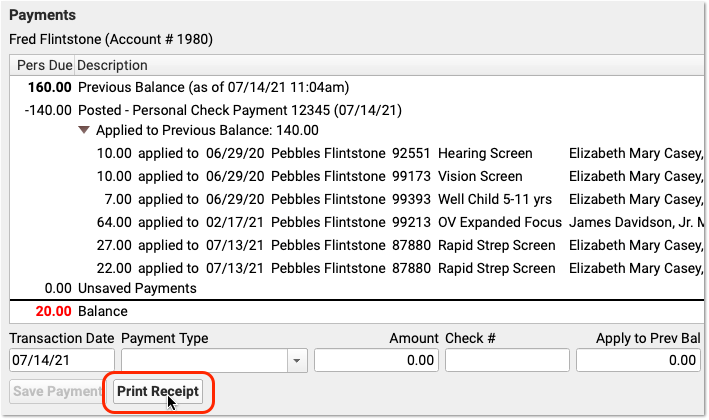
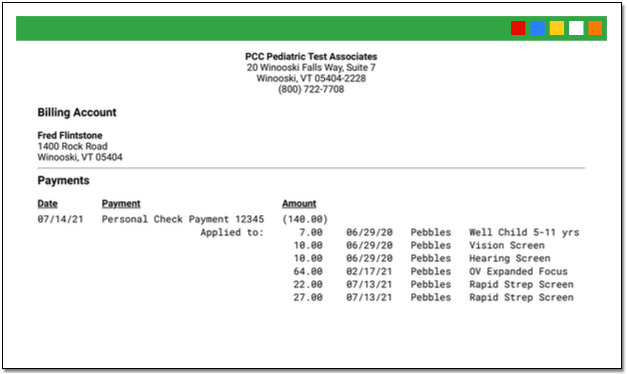
Print Receipts for Any Previously Posted Payments
Use the Payments tool in PCC EHR to print a receipt for any payment(s) on an account.
Open the Payments Tool for the Account
First, open the Payments tool and find an account.
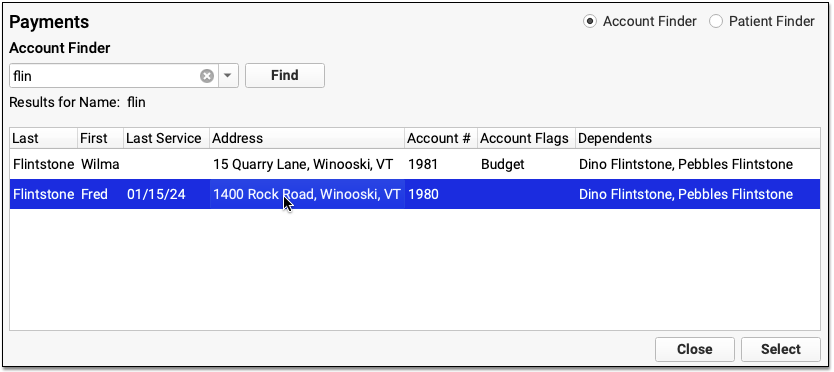
Review the Account’s Payment History
Click on the History tab to view the account’s complete payment history.

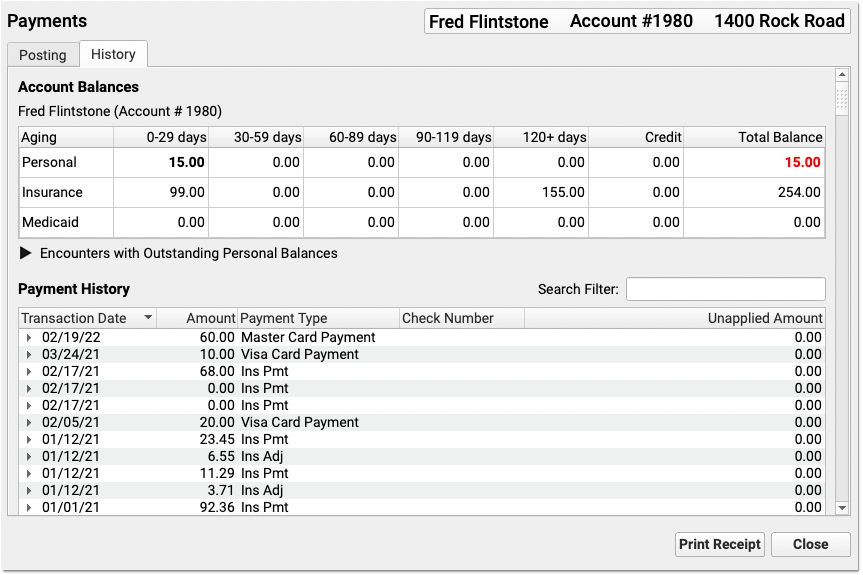
Select One or More Payments
Select a payment.
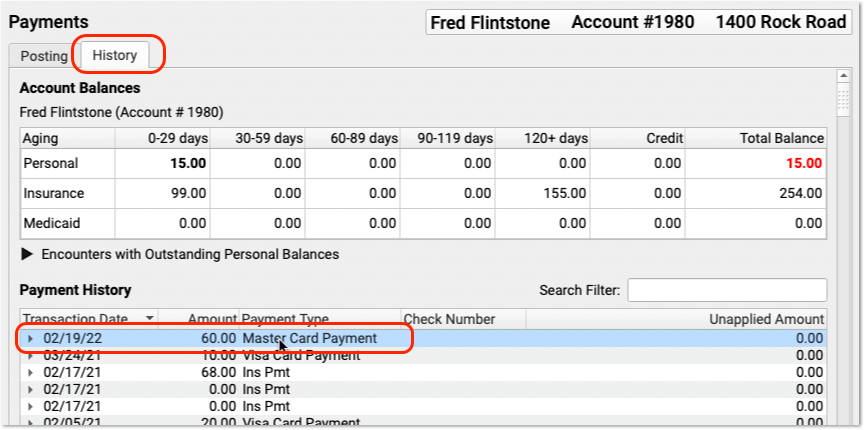
You can shift-click or command-click to select multiple payments in the history.

Click “Print Receipt”
Click “Print Receipt” to generate a new receipt for the selected payment(s).
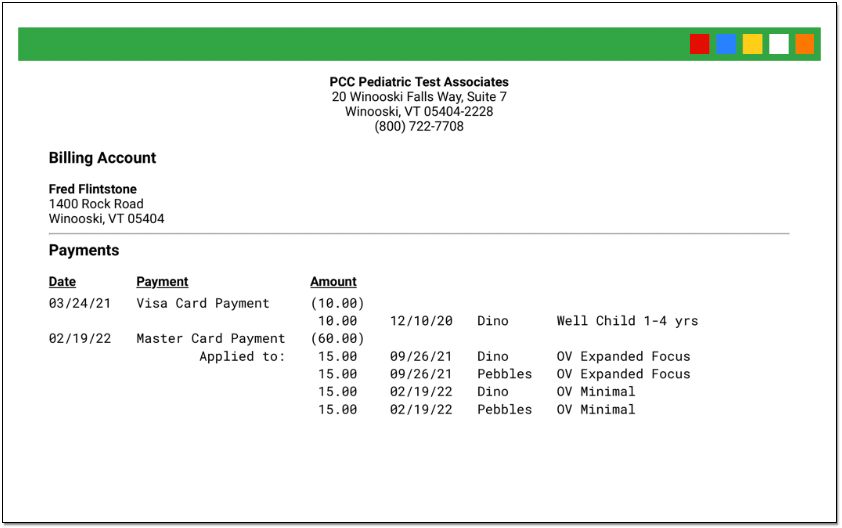
The receipt displays each payment, along with details about which charges each payment applies towards.
Different Receipts for Different Needs: The receipt created from the Payments tool includes more information about the encounter than a simple payment receipt. You can generate a receipt any time you post a payment, and it may not always be appropriate to share a detailed receipt. Your practice should consider when to provide a basic payment receipt or the more detailed payment history receipt. You can also print an encounter’s complete charge and payment history in the Billing History section of a patient’s chart.
Do You Need More Information Than a Receipt?
If you need to provide the family with more details than a receipt provides, you can print the Account History for a given encounter date or print the encounter’s Billing History.
Enter and Review Account Notes
You may wish to record details about an account or billing situation with a family. Read below to learn about Account Notes in PCC.
Watch a Video: You can watch a video to learn how to work with account notes in PCC EHR.
Where Can I See Account Notes?
You can enter and review account notes in the Account Notes component. By default, the component appears in the Payments tool.
After opening Payments and finding an account, scroll down. The Account Notes component appears underneath Account Demographics.
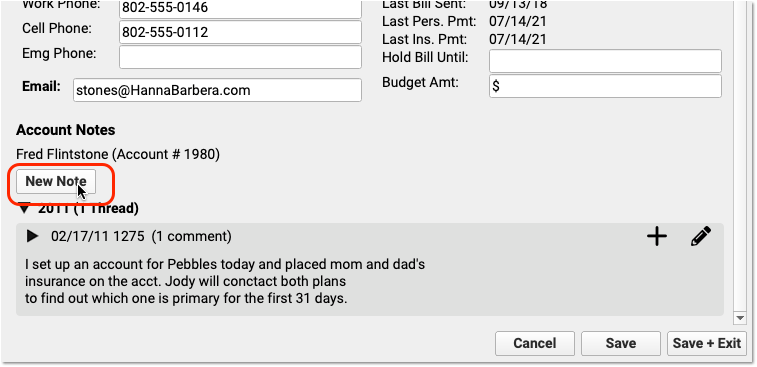
Your practice can also add the Account Notes component to any protocol in PCC EHR. For example, your practice might want to be able to review billing account notes when handling a phone call.
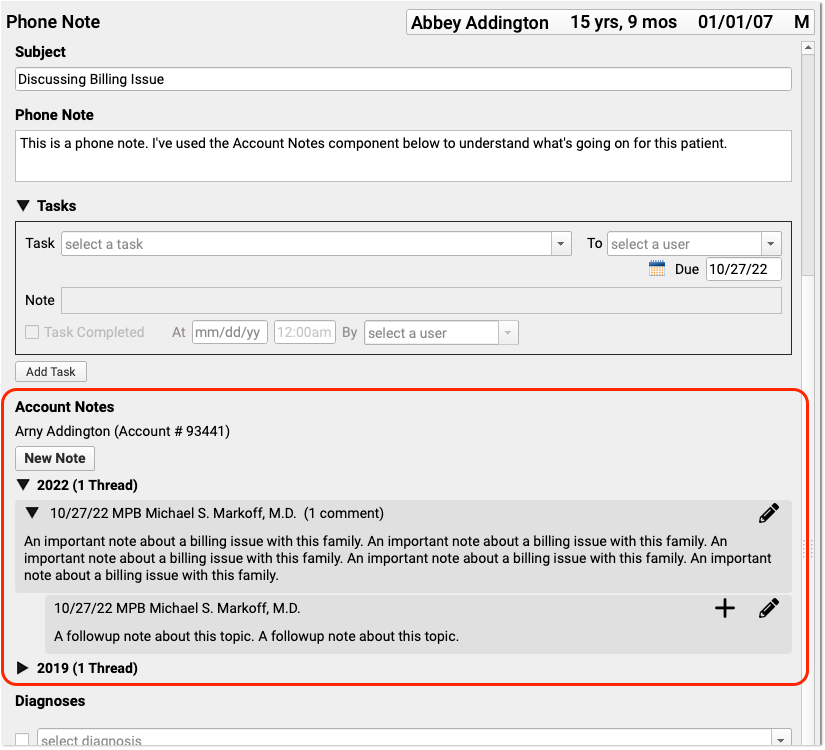
You can use the Account Notes component to track details about family and financial issues. If you add the component to your practice’s Demographics, Patient Check-In, Phone Notes, or Post Charges protocols, then billers and other staff will have easy access to the tool.
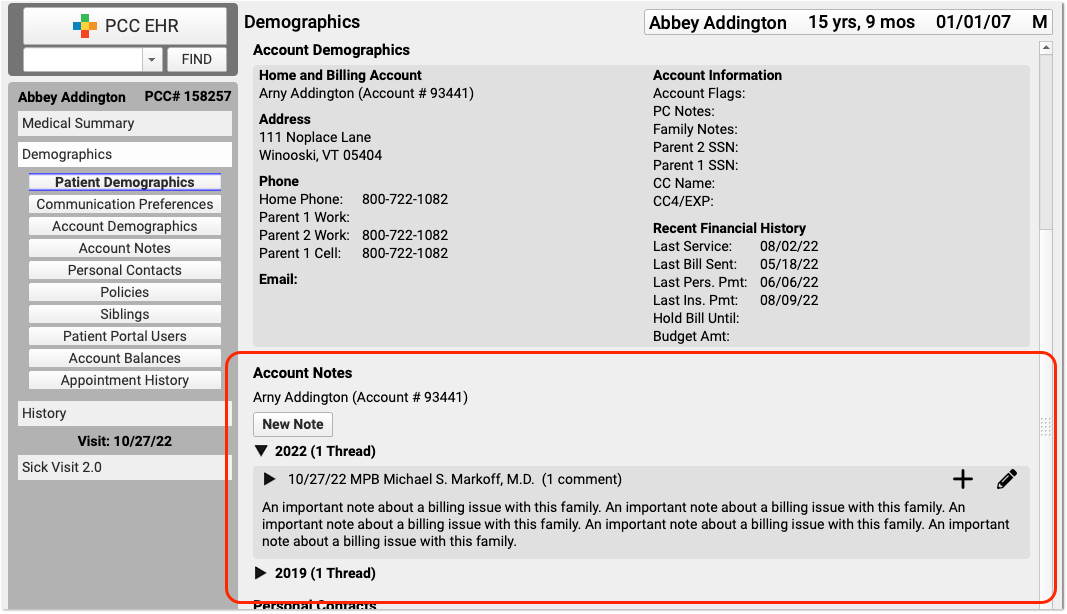
Account Notes always appears in the Payments tool in PCC EHR. Use the Protocol Configuration tool to add the component to other protocols. Contact PCC Support for help.
When you add the Account Notes component to other locations in PCC EHR, consider the following:
-
Permissions: The Account Notes component is not locked down by a user role. If you add the Account Notes to the Patient Check-In protocol, for example, then any user who can access Patient Check-In will also be able to review and update Account Notes. Consider your practice’s ideal workflow as you customize your protocols and assign permissions to each of PCC EHR’s tools.
-
Will You Replace Old Notes Fields?: If your practice begins using Account Notes on other ribbons in PCC EHR, you may want to deprecate the use of other fields. For example, if you used a custom “Billing Notes” text box, you might choose to stop using that field. You could migrate any old notes into a family’s Account Notes when they next visit your practice, and later remove the old field from your protocols.
Add a Note, Edit a Note, and Add a Followup Note
Click “New Note” to create a new note.
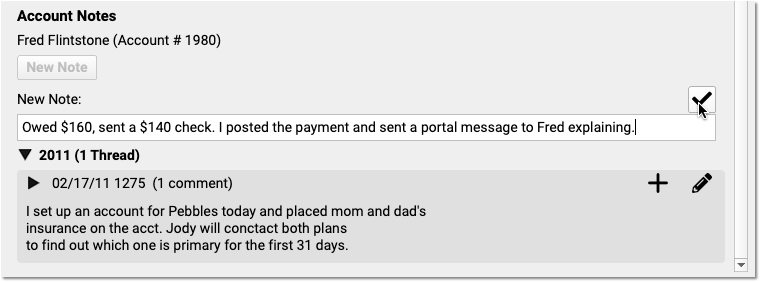
Click the checkbox to save your note.
If you want to add something to your note later, click the pencil icon to edit a note.
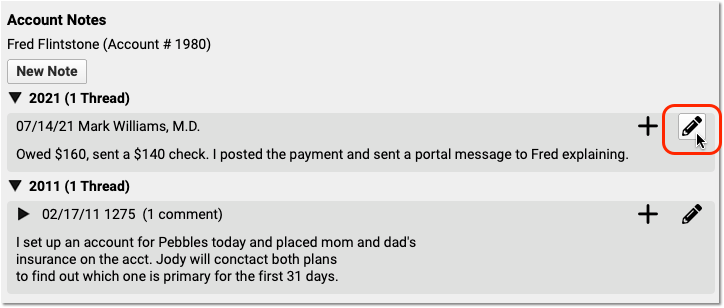

Do you have follow-up information about an existing note? Click the plus symbol (+) to add a follow-up note to an existing note.
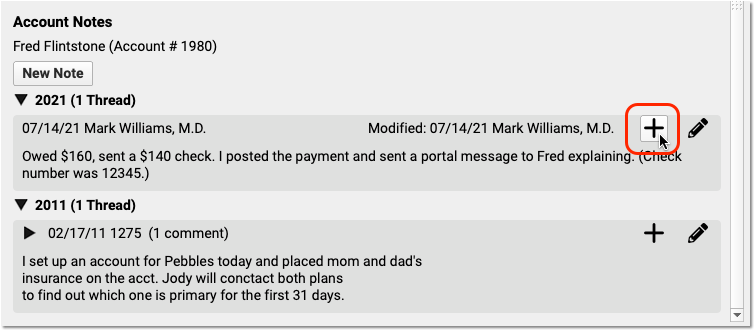
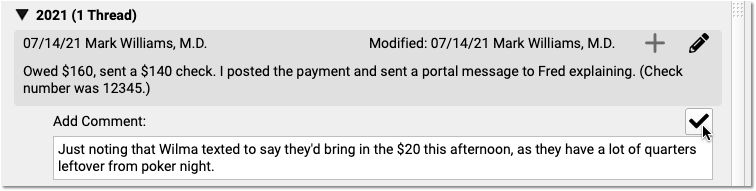
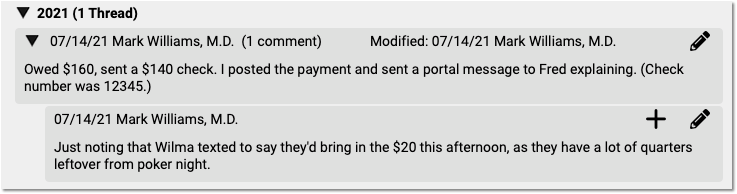
You can create multiple follow-up notes to track a billing issue as it continues.
Review Payment History and Edit Payments
You can review payment history by encounter, or see all payment history for an account. You can also edit payments that were posted incorrectly and adjust how payments are applied to charges. Read below to learn how.
To learn how to enter payments, read Post Personal Payments or Post Insurance Payments. To learn about the many ways to generate a receipt for families, read Print a Receipt.
Watch a Tutorial Video: To see a demonstration of the features in this article, watch Review Payment History and Post Insurance Payments.
Review Payment History for an Encounter
Use the Billing History in a patient’s chart to review detailed charge and payment information for any encounter.
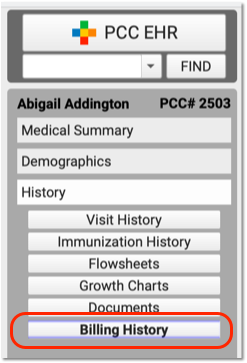
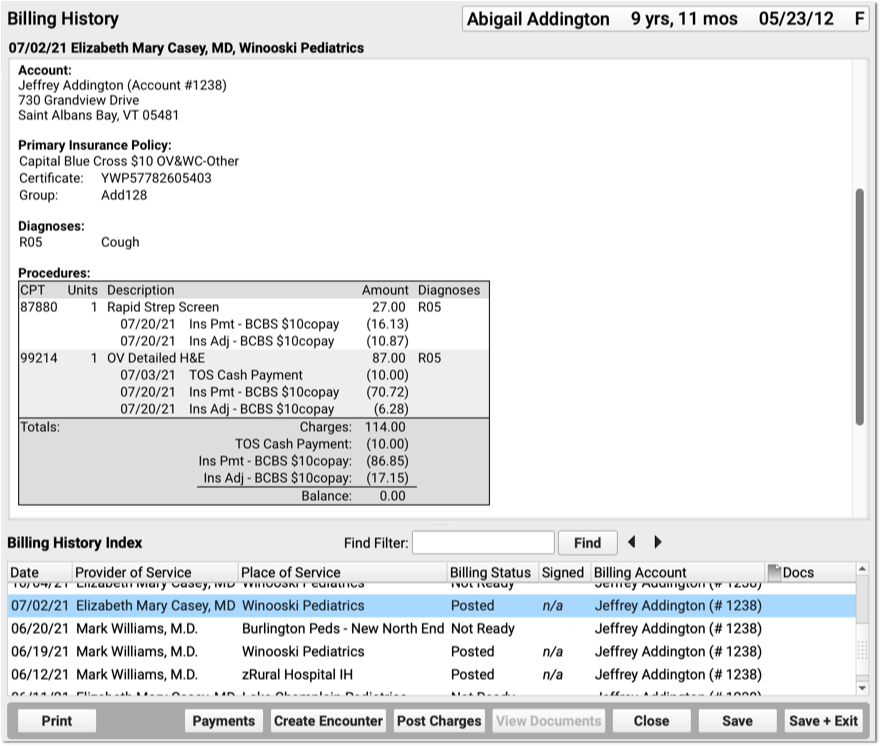
The Billing History displays all of the billing-related information for an encounter.
In the Procedures section, you can review charges for the encounter and a history of all payments.
For each charge, you can see personal payments, insurance payments, and adjustments.
If any unapplied (or “unlinked”) payments on an account are paying off charges, you will see the “Payment (Unapplied)” amount indicated for each charge and in the totals section.
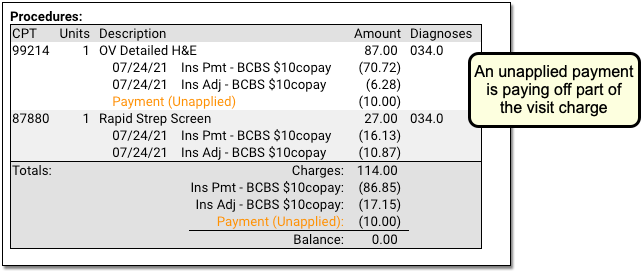
In the Payments section, you can review payments posted on the same date as the encounter. To configure which payment types appear in this section, contact PCC Support.
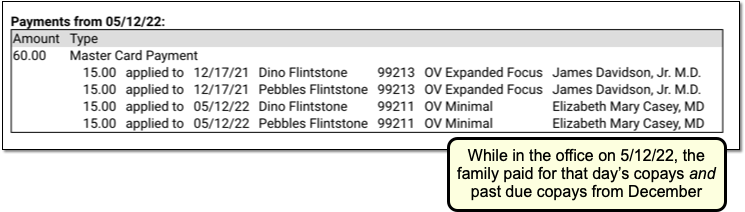
For each payment, you can review what charges the payment applies towards.
See Bounced Checks and Other Payment Reversals
If a payment has been reversed (such as a returned check or a stopped credit card payment), it will appear along with the reversal procedure. The payment description will be struckthrough to help you identify that it was reversed. (If only part of a payment has been reversed, then the payment is still partly valid and the strikethrough line will not appear.) PCC identifies reversals as any account adjustment procedure of the types Receipt-NSF or Receipt.
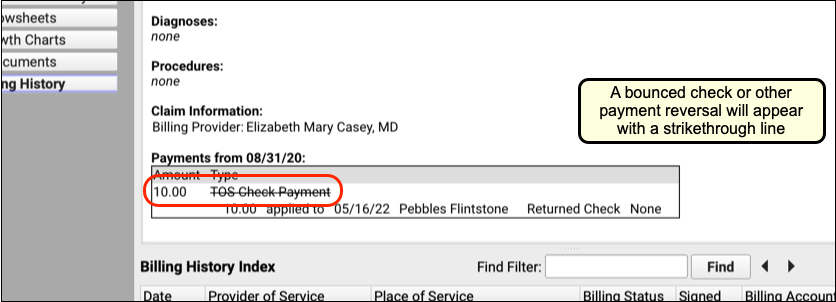
Jump to the Payment History from the Encounter’s Billing History
After you review the charges and payments for an encounter, you may want to work with the billing account’s payment history and make changes. Click the “Payments” button to open the Payments tool.
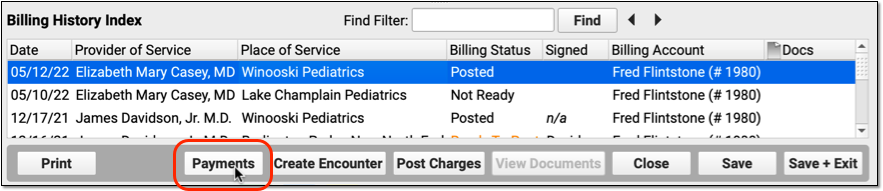
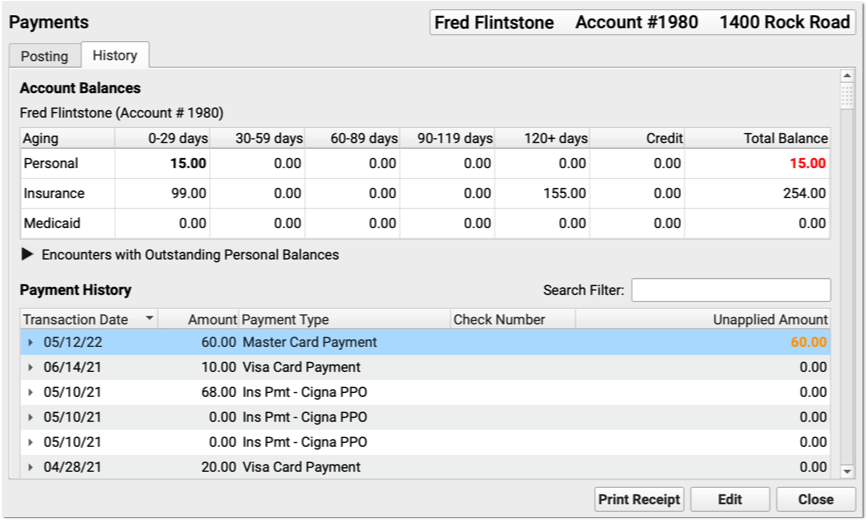
In the Payments tool, you can edit payments, add notes, print a receipt, or make changes to how a payment is applied.
Review an Account’s Complete Payment History
Use either the Payments tool or the Insurance Payments tool to review and edit an account’s full payment history.
Open an Account’s Payment History
You can jump to Payments from within a patient’s Billing History, as shown above. Or you can open it from the Tools menu:
You can search for an account by name or use other search parameters, like an account phone number. The list of matching search results includes a Dependents column to help you confirm that you have the right account.
Alternatively, you can search by patient using the Insurance Payments tool:
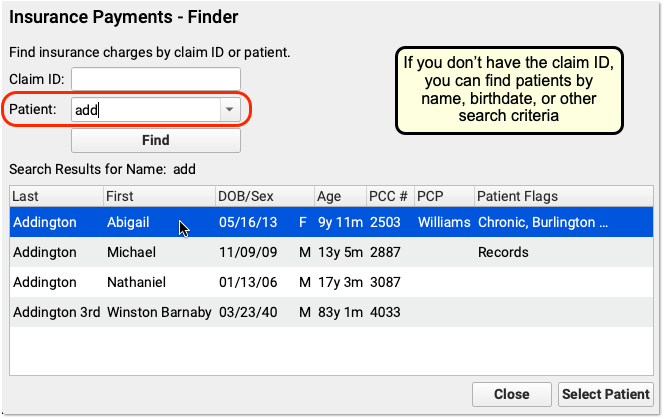
After opening either the Payments tool or the Insurance Payments tool, click on a “History” tab to see the account’s payment history.
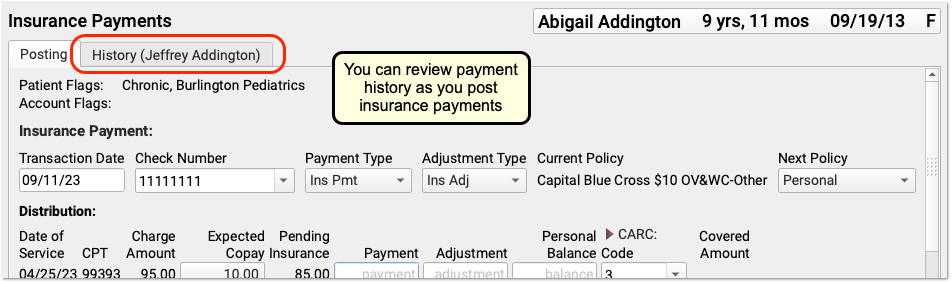
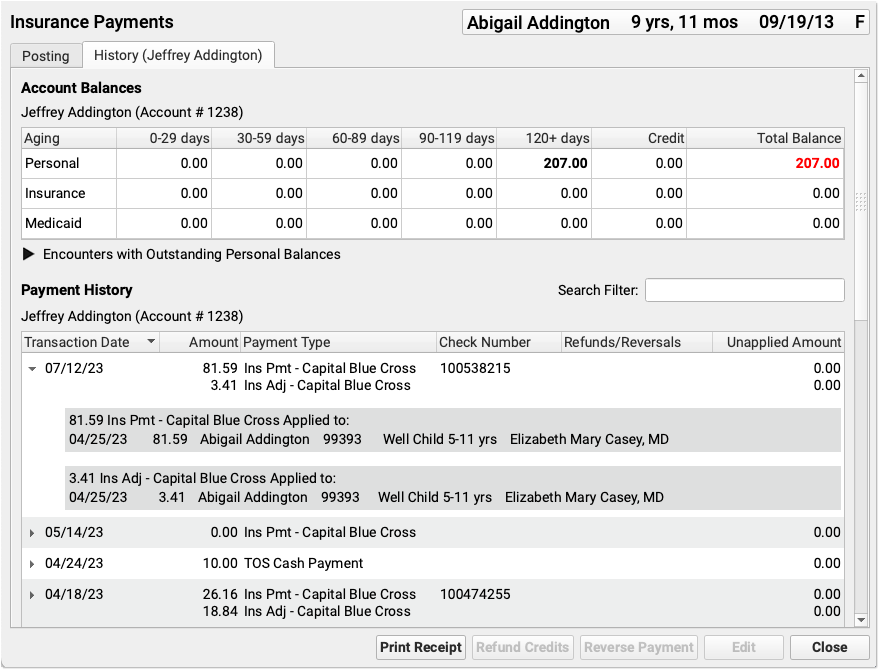
If you are working in the Insurance Payments tool and the patient has had charges with more than one account, you will see two history tabs.
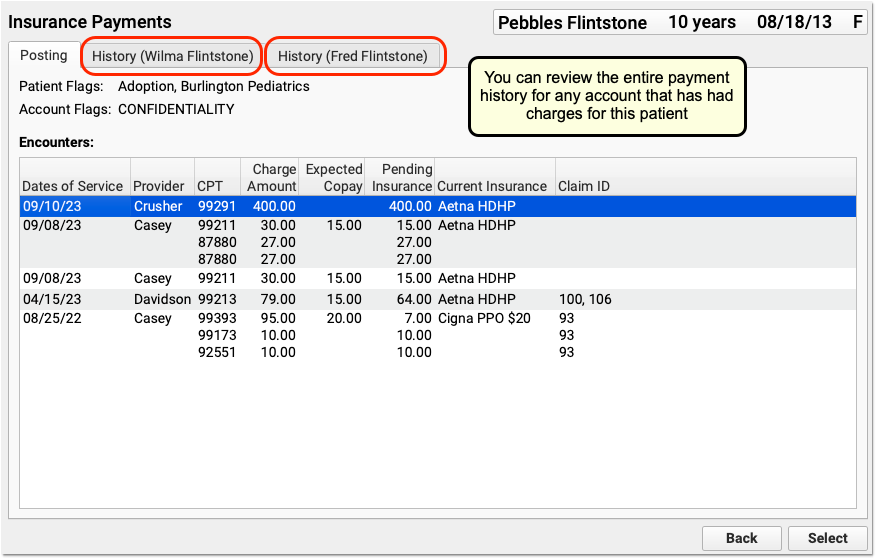
Understand the Payment History
Whether you are reviewing an account’s payment history in the Payments tool or the Insurance Payments tool, the screen is the same.
Aged account totals appear at the top, followed by a list of payments. The most recent payments appear at the top of the list. For each payment, you can identify the Transaction Date, the Amount, the Payment Type, the Check Number, whether any Refunds or Reversals are applied, and any Unapplied Amount.
You can use the scroll bar or the Search Filter to quickly review the full history or find a specific payment.
Check Number or EFT Trace Number?: “Check Number” is the conventional term for the unique number associated with a payment. Depending on how your practice received the funds, the check number may actually be an EFT trace number.
Review Details for a Specific Payment
Click the disclosure arrow next to a payment to see what charges it applies towards.
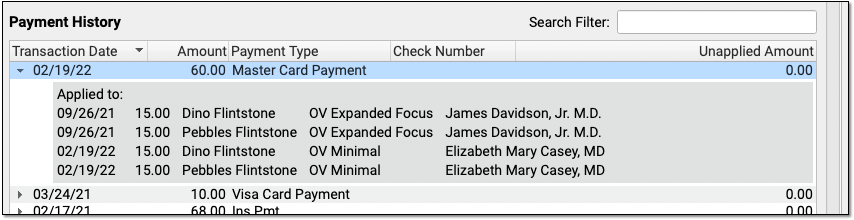
Alternatively, you can click the “Expand All” button to see details for all payments.
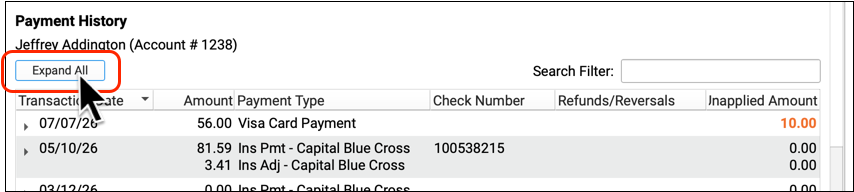
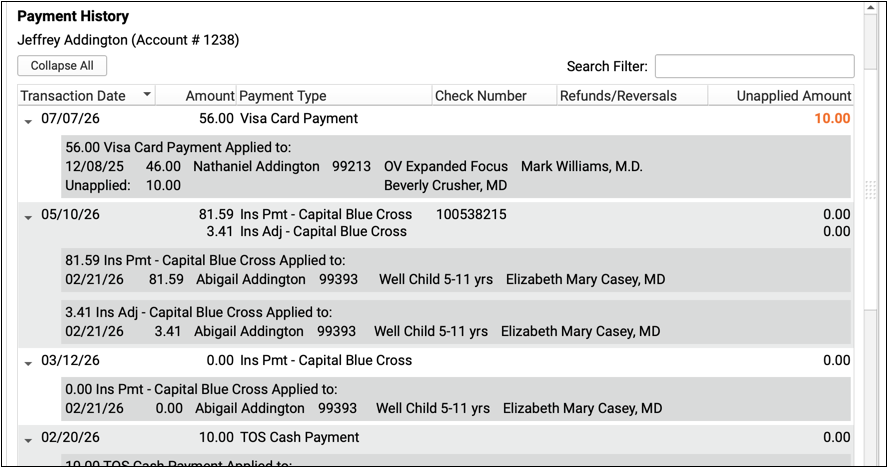
If any portion of a personal payment is unapplied, the payment amount appears in bold orange in the Unapplied Amount column. You can click the disclosure arrow to see more details about unapplied payments.
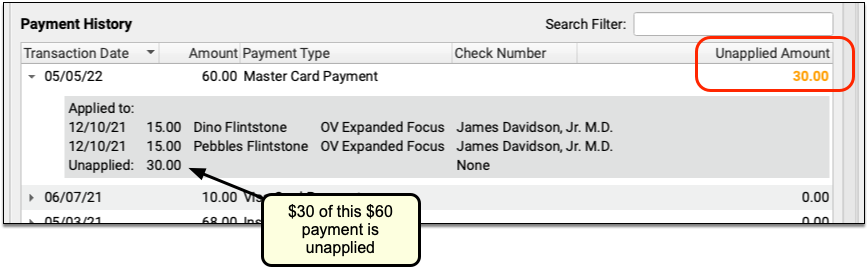
Since insurance payments and adjustments are posted together, they are grouped together in the history.
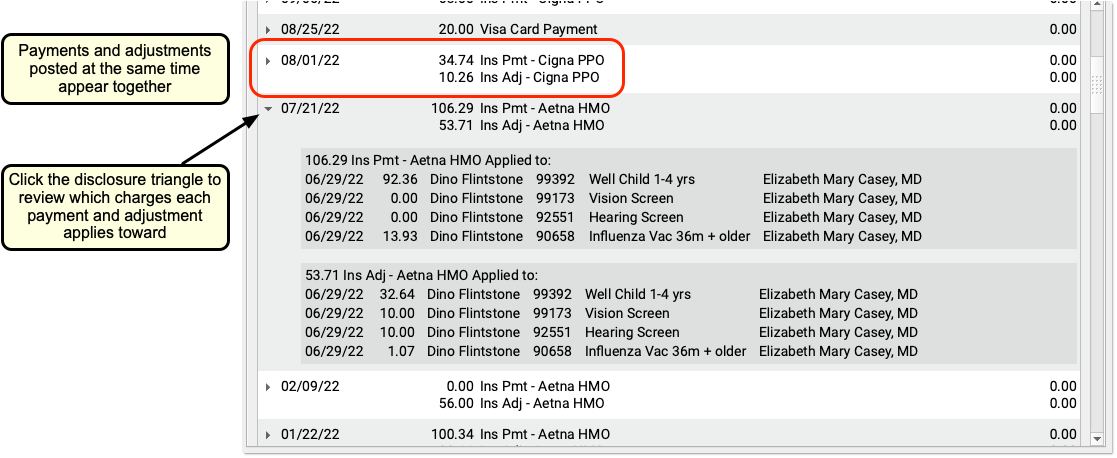
As in the Billing History in the patient’s chart, any reversed payment is struck through, along with details of the reversal. The original payment transaction date, amount, type, and check number are preserved.
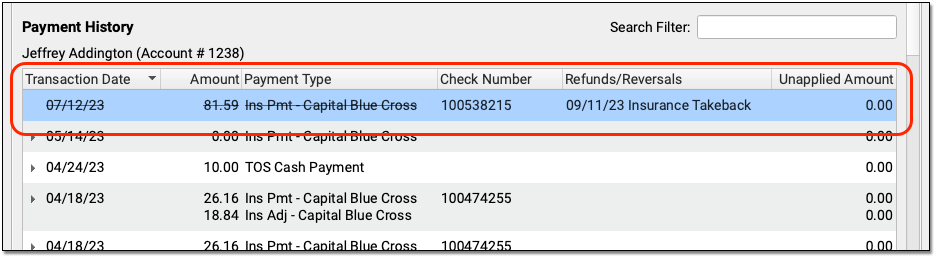
You can use the History tab in the Payments tool or the Insurance Payments tool to review account balance and payment information. Then you can switch to the Payment or Posting tabs to post payments or perform other actions.
Edit Personal Payments
Double-click on a personal payment in the History tab to make changes.
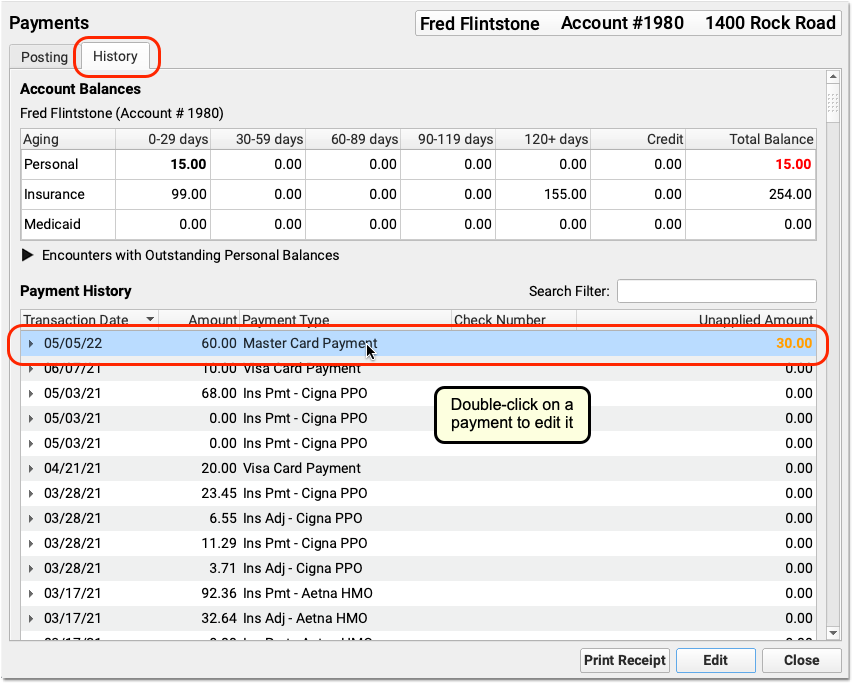
You can modify the transaction date, payment type, amount, or check number. You can also change how much of a payment applies towards balances on personal charges, and you can use the Distribution section to specify which charges the payment applies towards.
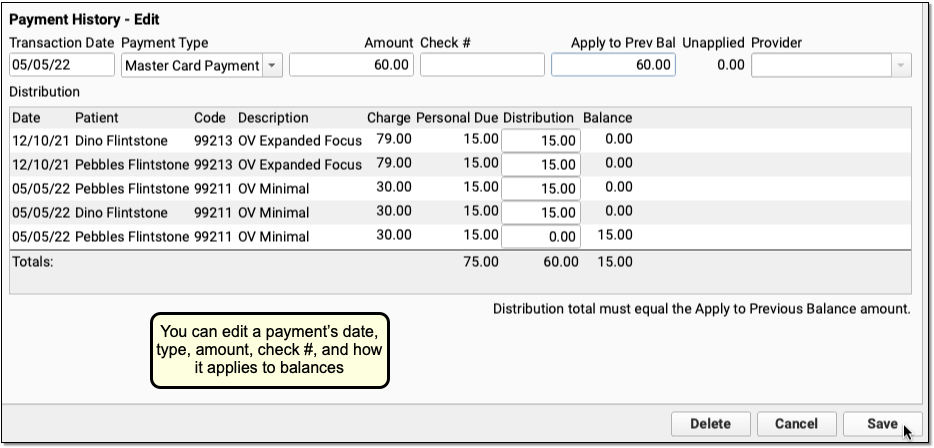
Click “Save” to save any changes to the payment. Or, click “Delete” to delete the personal payment.
In addition to fixing mistakes made during payment entry, your practice can use the History tab to identify unlinked payments, edit them, and apply them towards appropriate charges on an account.
Editing a Payment Updates Your Daysheet and Other PCC Auditing Reports: When you edit a payment, it will update your system’s underlying payment reports. For example, the Daysheet report will display a negative entry and a positive entry, reflecting the removal of the old payment and the addition of the new payment with your saved changes.
Edit Insurance Payments
Double-click on an insurance payment to make changes.
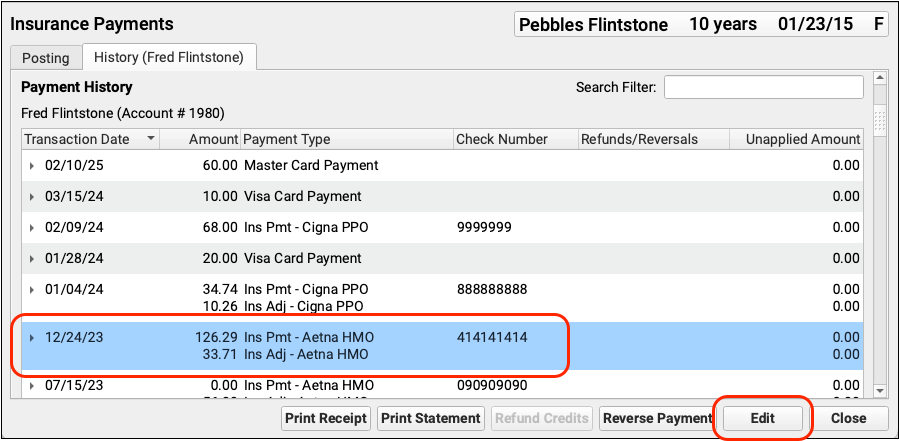
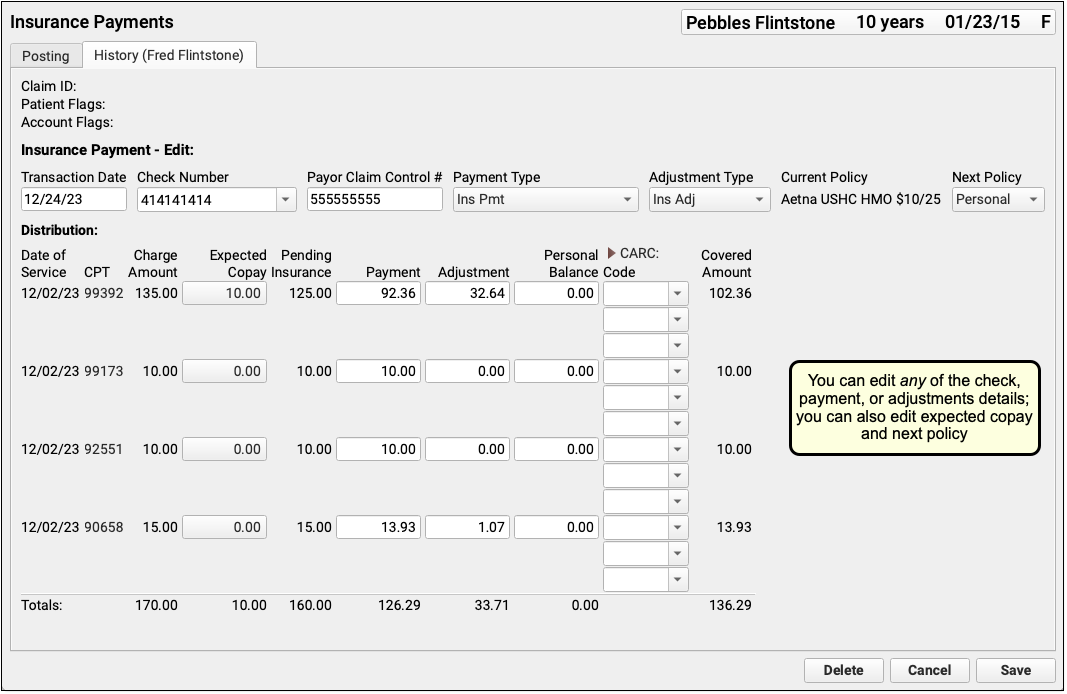
You can edit any aspect of the insurance payment and adjustment, including the transaction date and other payment information, amounts, and CARC information. You can also change the expected copay amount for a procedure. If you’ve learned the patient had another policy for the date of service, you can also update the Next Policy field to change the responsible party for the charges.
For more information, read Post Insurance Payments and Adjustments.
Print Receipts for Posted Payments
In the History tab in the Payments tool, you can select any payment(s) and click “Print Receipt” to print a receipt. For a detailed guide, read Print a Receipt.
Include Signable Policy Documents in Patient Portal Message Templates
Speed up your check-in process by including the Agreement field to a Patient Portal Messaging template, so patients can review and electronically sign policy documents before they arrive.
Create or Edit a Message Template
Open the Patient Portal Configuration tool from PCC EHR’s Configuration menu and open the Messaging Templates tab. Click “Add” to create a new message template, or “Edit” to add the Agreement field to an existing template.
Add The Agreement Field
From the field drop-down menu, select the Agreement Field and click “Add”.
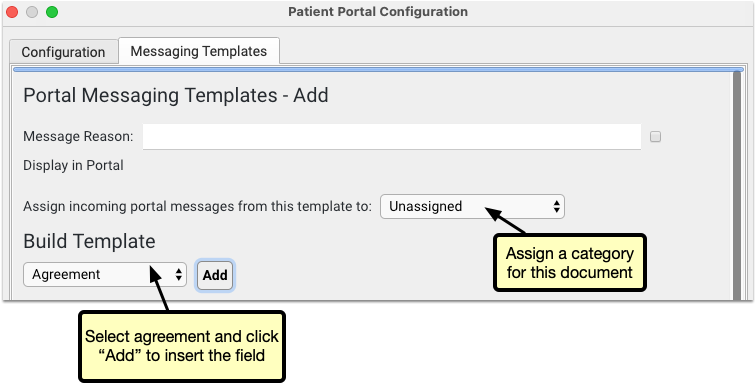
Upload Documents
Click “Attach Document” to select a file. This file will be available for all Patient Portal users to review and sign when they select this message type. Select a document category for this document to be assigned in the chart’s documents.
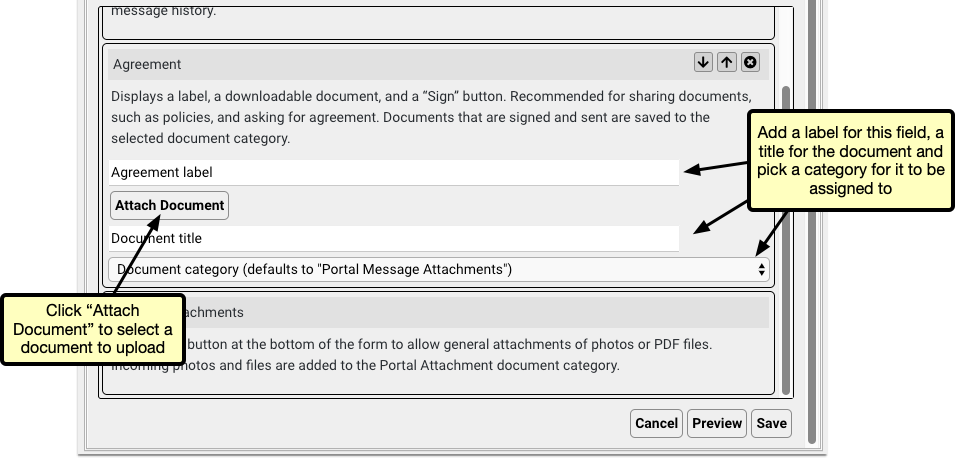
Add a Label and Title
Once you’ve uploaded the document, give it a label and a title. The label will appear in the message template to indicate to the user what the document is, and the title will appear as the file name in the patient’s documents.
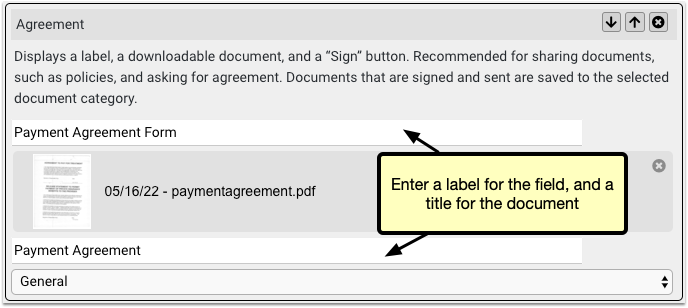
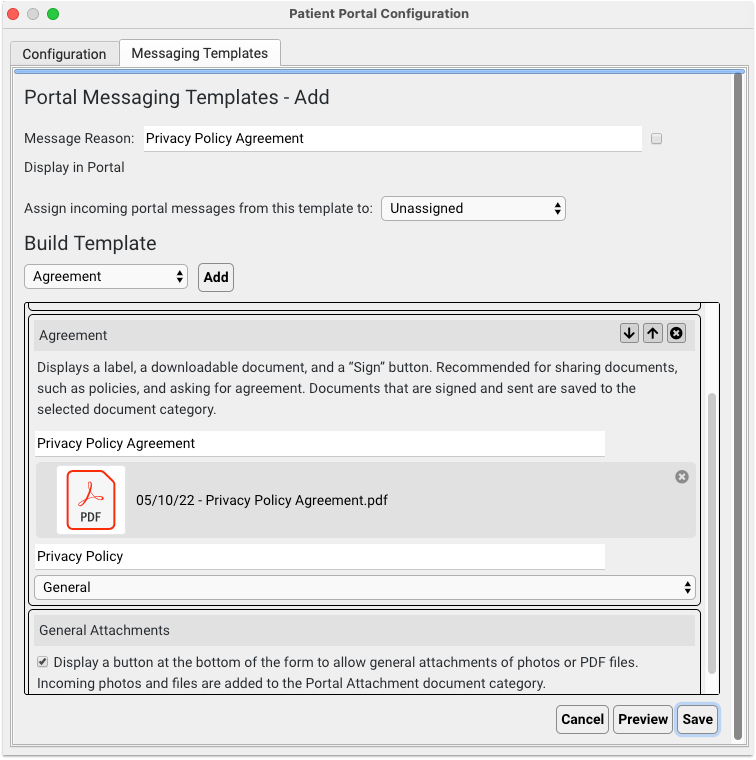
Add Additional Agreements
You can add multiple agreement fields, so if you need several documents signed, add an agreement field for each one, and upload each document.
Optional: Update Your Policy Documents
If you update or create a new policy document, you can replace the document in your Patient Portal Messaging Template and uploading a new one. To remove the document, edit the message template and click the X icon next to the document, then click “Attach Document” to upload a new version of the document.
Portal Users Sign and Send the Documents
When a portal user selects the new template, they’ll find each document waiting for them. They can review each document and click “Sign” to attach an electronic signature, along with a time and date stamp.
Once the user has signed the documents and sent the portal message, you’ll find it in the Messages Queue, the patient’s history and the patient’s documents.
If there are multiple documents in the message template, and the user elects to sign only one, no signed tag or timestamp will appear on the unsigned documents, but the user can send a new message to sign or resign any document.
PCC eRx Prescription Favorites
PCC eRx has the ability to keep track of the medications you most commonly prescribe as “favorites”. Selecting from a list of favorites can save you quite a bit of time as you prescribe.
You can add favorites on-the-fly as you prescribe, or you can opt to allow PCC eRx to automatically adjust your list of favorites based on your ongoing prescription activity.
If you want to manage your favorites list, you can do that in the My Settings tab in PCC eRx.
Favorites Are Set By Prescribers: If you are clinical staff or a provider agent, then you will see the ordering provider’s favorites. For more information about prescriber roles, read PCC eRx Prescriber Roles.
Article Under Construction: This article is being updated to reflect new functionality in PCC 10.4, which arrived on October 12th, 2025. Some steps and images may not match your PCC system.
Prescribe with Favorites
There are three ways that you can see your favorites within the Prescribe component:
- At the top of search results when you begin a new prescription
- As thumbnail tiles (optional)
- In a drop-down menu (optional)
Favorites always appear first whenever you search for a medication.
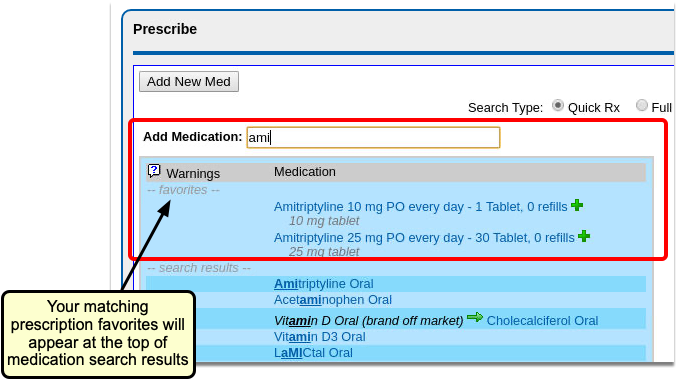
If you would like to see some (or all) of your favorites as you prescribe, you can choose to display them as thumbnail tiles or in a drop-down menu.
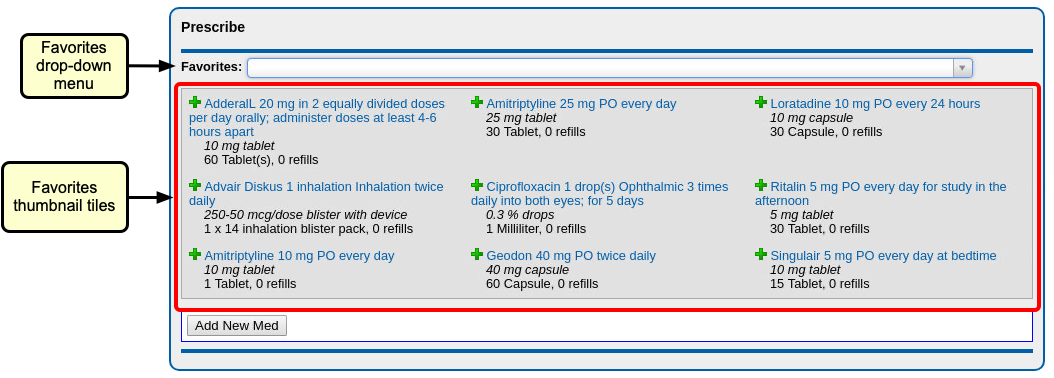
With thumbnail tiles, you can choose how many favorites to display at one time.
Thumbnail tiles also include the green plus icon, which sends the prescription directly to the Review & Sign component, ready to be sent to the pharmacy.
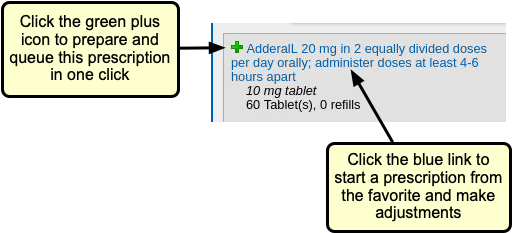
If you have a long favorites list, using the searchable drop-down menu makes it easy to find the right prescription.
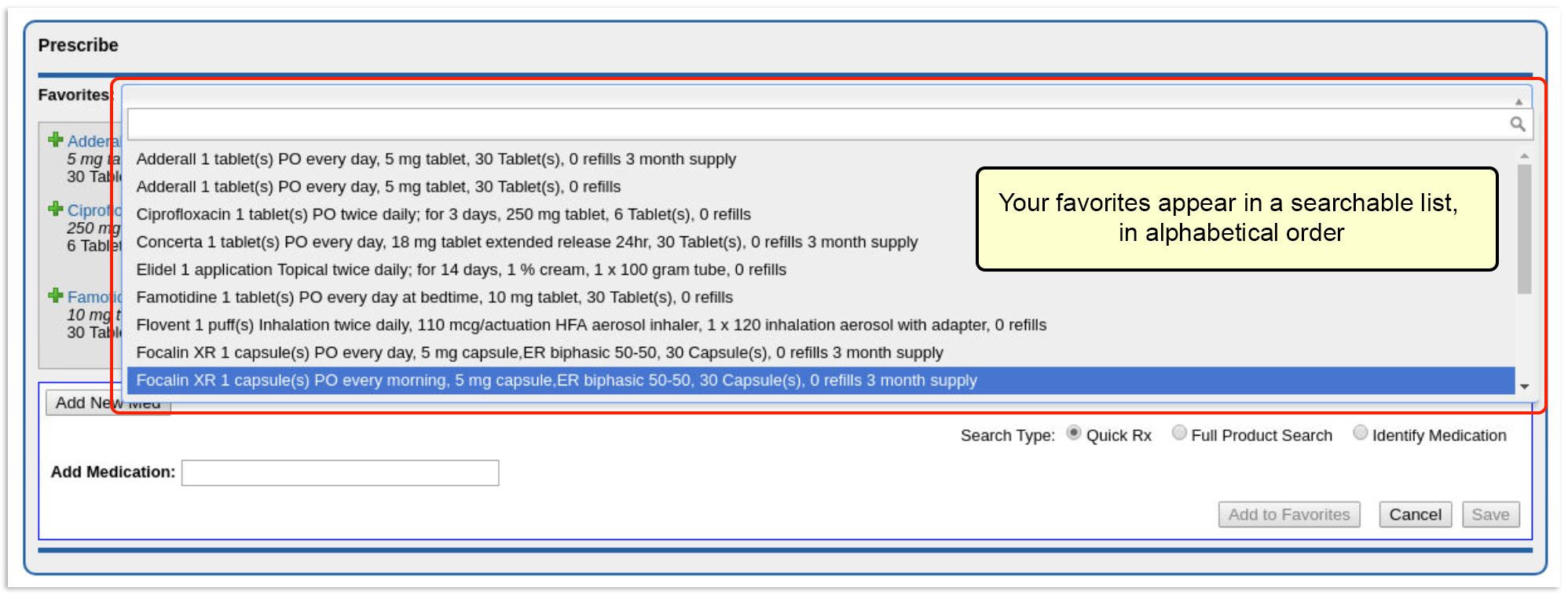

For each favorite prescription, you see the name, dosing statement, quantity, and instructions. When you select a favorite from the drop-down, you will be taken directly to the Edit Prescriptions window, with the dosing statement already filled in.
To see how you can customize your favorites display options, read the section below titled Choose How Favorites Appear in the Prescribe Component.
Add a New Favorite as You Prescribe
You can add new favorites on-the-fly as you prescribe, with one click.
Create a Favorites List All at Once: If you prefer to set up several favorites at one time, you can add favorites manually from the My Settings tab. Weight-based favorites that auto-calculate for you must be added in My Settings.
To create favorites as you prescribe, simply click the gray heart icon next to the drug name, or click the “Add to Favorites” button at the bottom of the Add New Med window.
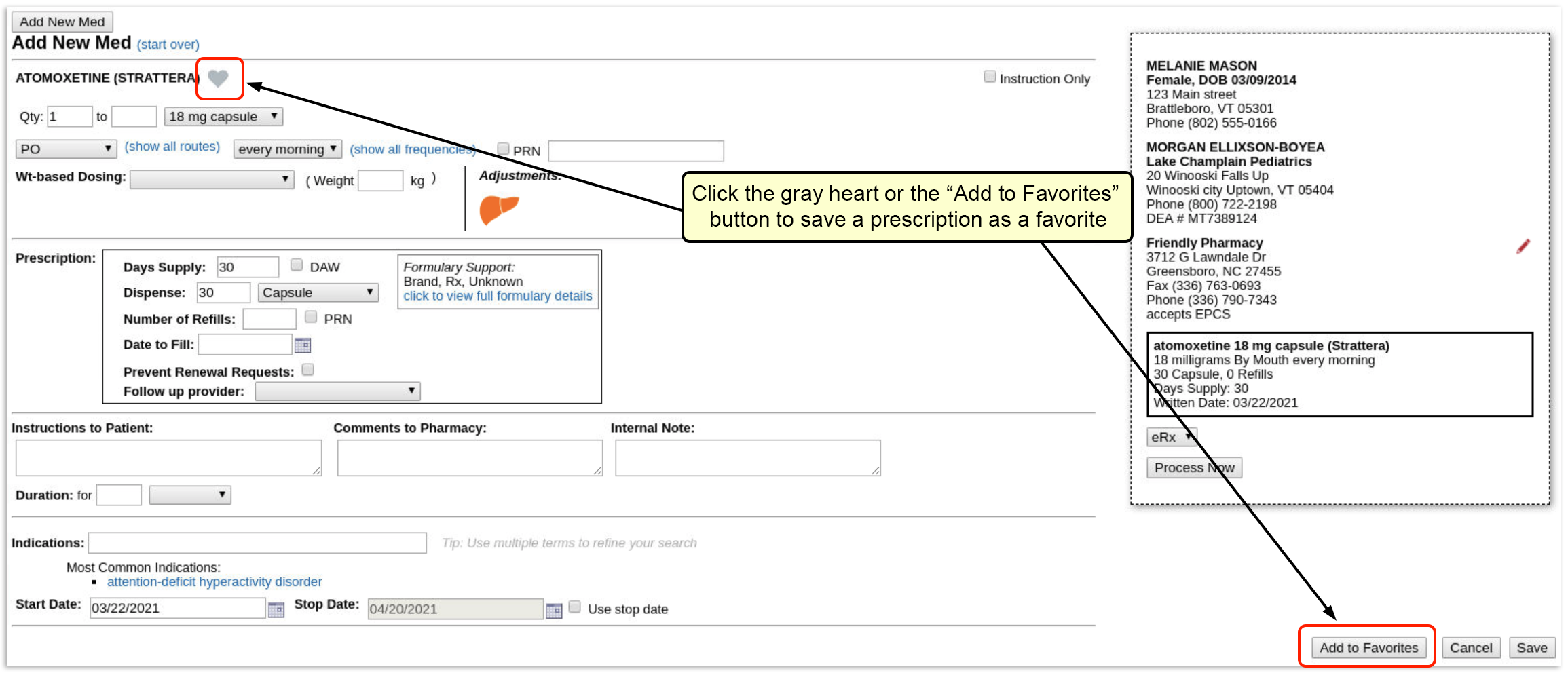
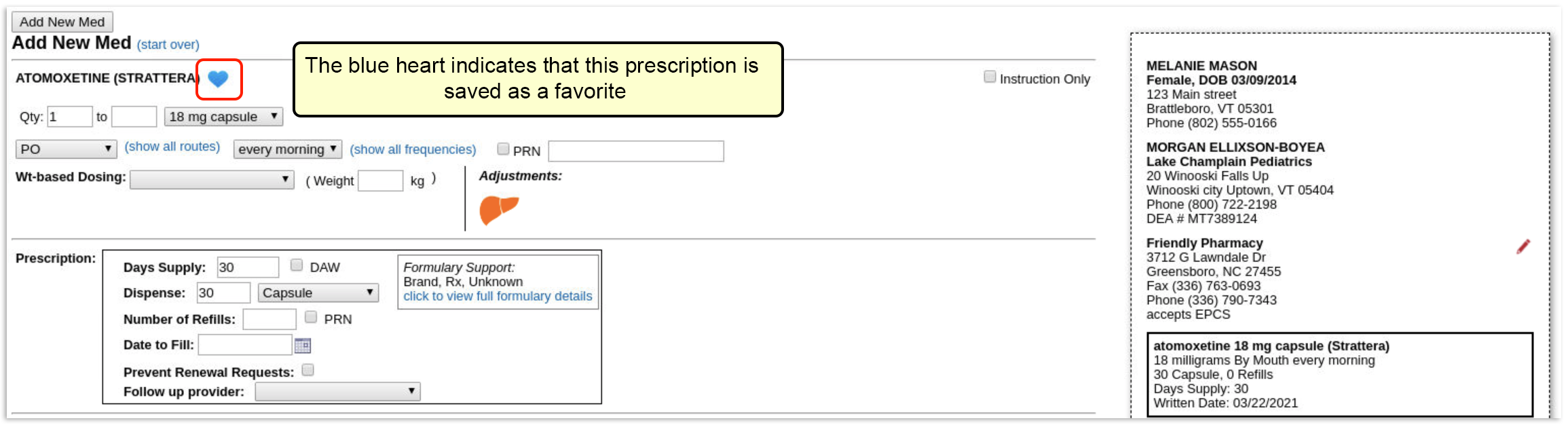
If you are prescribing something that is already a favorite, the heart will be colored blue. If you make changes to that favorite, the heart will turn gray, indicating that it is no longer a favorite. You can then save this new prescription as a new favorite.
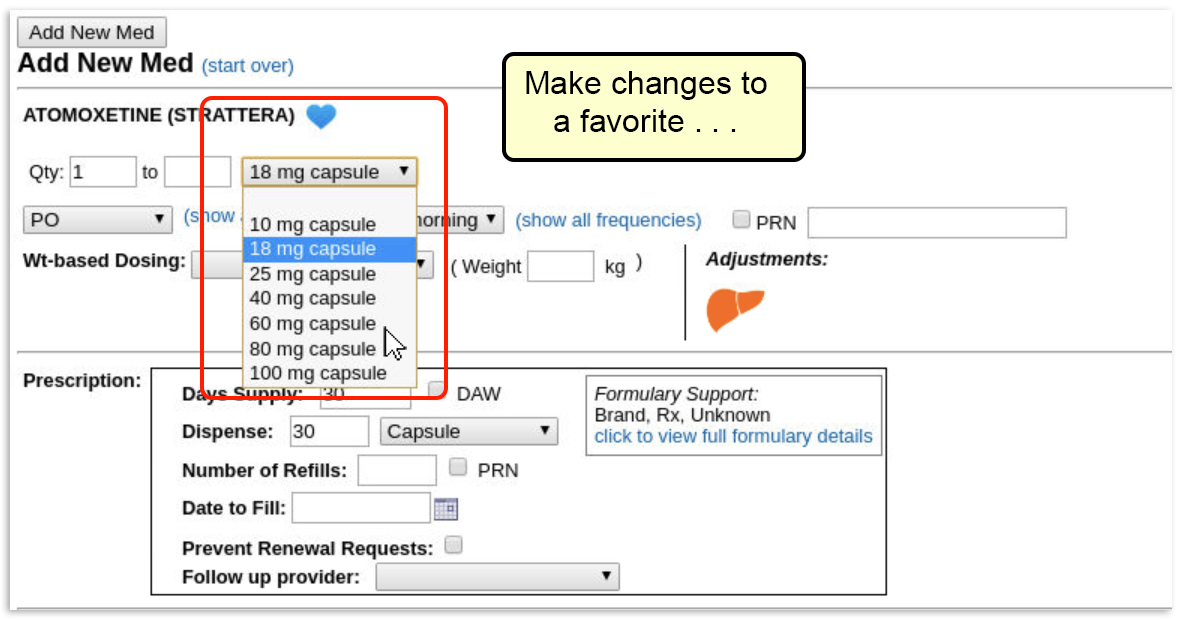
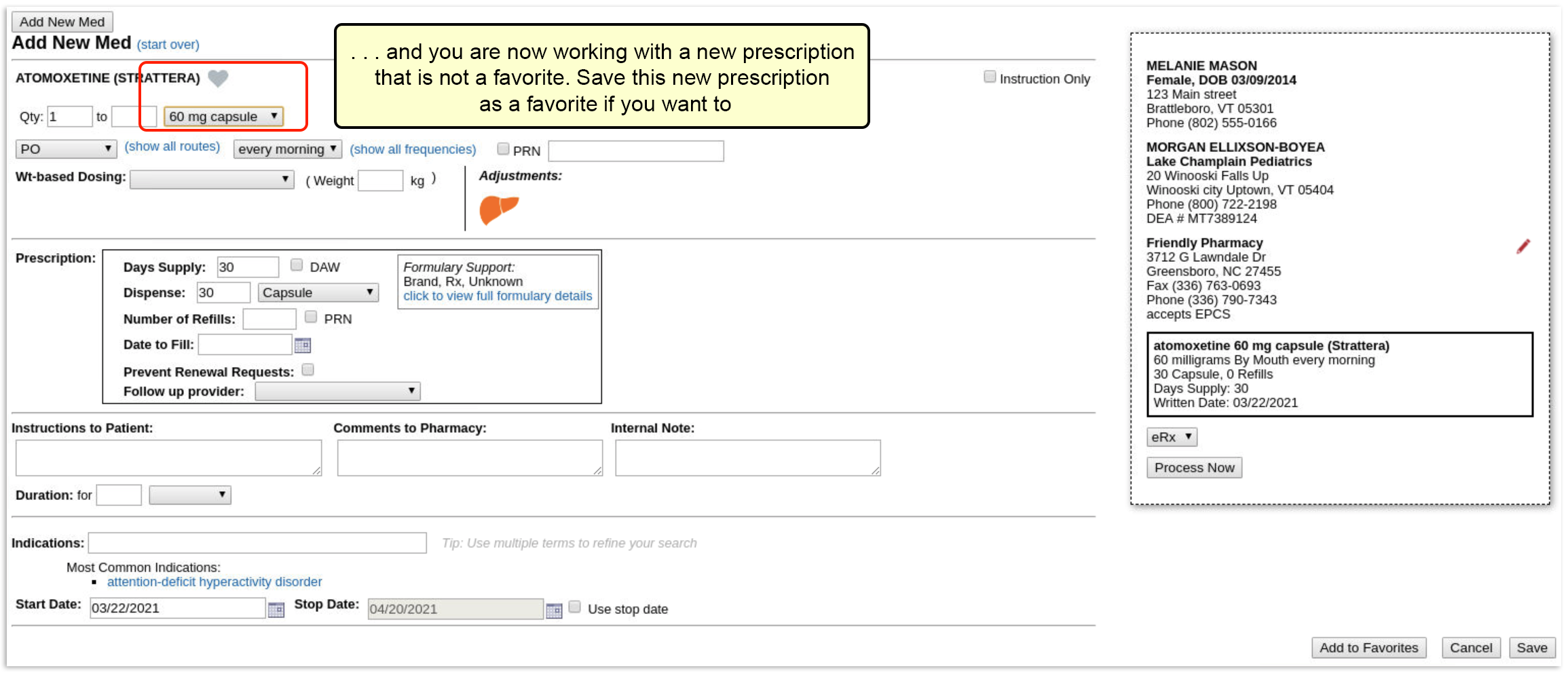
Favorite fields: The following information is saved as part of a favorite: drug name, route, frequency, dosage form, dose, dose max, dose unit of measure, strength, strength max, strength unit of measure, dispense quantity, dispense unit of measure, and refills.
Can I Delete a Favorite?: You cannot remove a favorite while prescribing. To remove something from your favorites list or otherwise manage favorites, go to the My Settings tab in PCC eRx.
Manage Your Favorites from My Settings
Favorites are maintained and managed within the My Settings tab in PCC eRx. Here you can choose how new favorites should be added (automatically or manually), and how favorites will appear when prescribing. The My Settings tab is where weight-based favorites are created, and where you can edit, delete, pin, or exclude existing favorites.
To manage your favorites, click the “My Settings” link on the PCC eRx menu bar, and scroll down to the “Favorites” section.
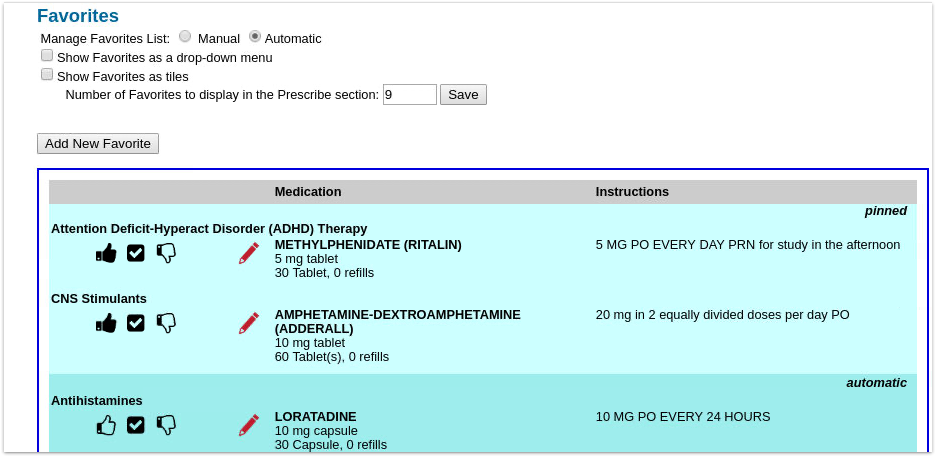
All of your favorites, whether manually created or automatically generated, display in the table, grouped first by status (pinned, automatic, excluded), and then by drug class (ADHD, Antihistamines, Asthma/COPD, etc).
For each prescription, you can see the name, dosing statement, quantity, and instructions.
Turn Automatic Favorites Off or On
If Automatic favorite management is turned on in My Settings, your most commonly prescribed medications are added as favorites automatically. You can still add favorites manually, if you like.
The Manage Favorites List function can be set to either “Manual” or “Automatic”.

When set to “Automatic”, PCC eRx keeps track of your last six months of prescribing activity and automatically updates your Favorites list as you go. This can be a very helpful feature, but keep in mind that slight differences in details will create more than one version of a drug to appear on your Favorites list.
If you would rather not have PCC eRx “remember” your prescribing activity, select “Manual”. When your favorites list is managed manually, medications are only added as favorites when you intentionally do so.
Need Help Cleaning Up Your Favorites List?: Turning off Automatic Favorites does not remove existing auto favorites from your list. If you find that you have too many favorites for your list to be useful, contact PCC Support for help cleaning up your list.
You can edit, delete, and manage how favorites will appear, whether “Automatic” or “Manual” is selected.
Choose How Favorites Appear in the Prescribe Component
When you prescribe with PCC eRx, you can choose how (or if) you want your favorites list to be displayed. You can choose to display them as thumbnail tiles, in a drop-down menu, both ways, or not at all.
In the “Favorites” section of the My Settings tab, check the box beside whichever favorites display method you want to enable (you can choose both if you like).
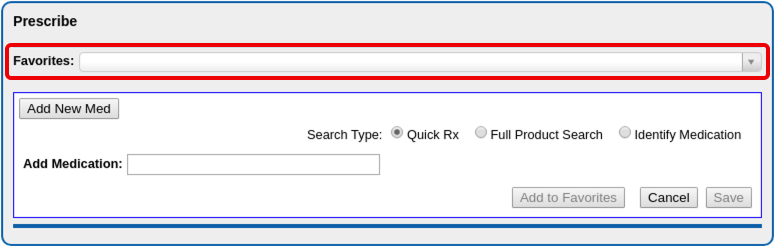
If you choose to display favorites as tiles, you can choose how many tiles to display.
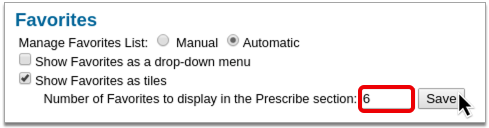
Number of Favorites to Display: If you have chosen to see your favorites as tiles, you can select the number of tiles to show with the “Number of Favorites to display in Prescribe section” field. The Favorites drop-down menu will always contain all favorites.
If you would rather not see a Favorites section displayed as you prescribe, and prefer to only see favorites suggested as you search, you can uncheck both favorite display methods.
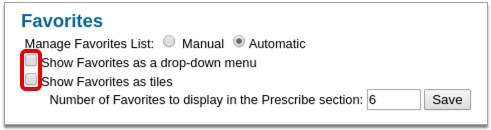
Add Favorites Manually from My Settings
If you want to set up new favorites outside of your prescribing workflow, go to the My Settings tab, scroll down to the Favorites section, and click “Add New Favorite”.
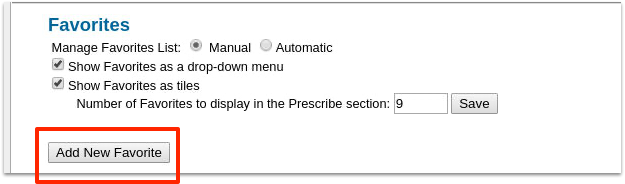
Find the drug (or supply) and dosing statement for the new favorite.
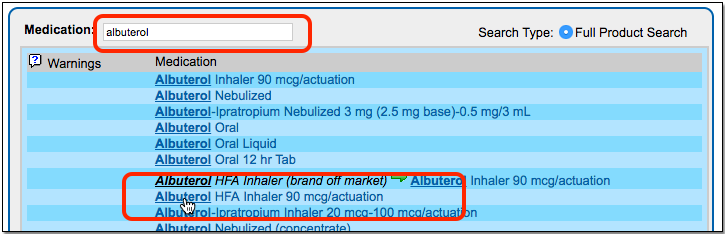
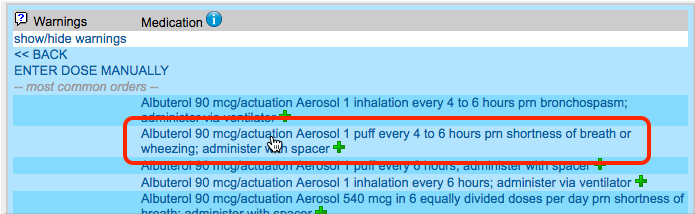
Enter additional prescription details, if needed, and click “Save”.
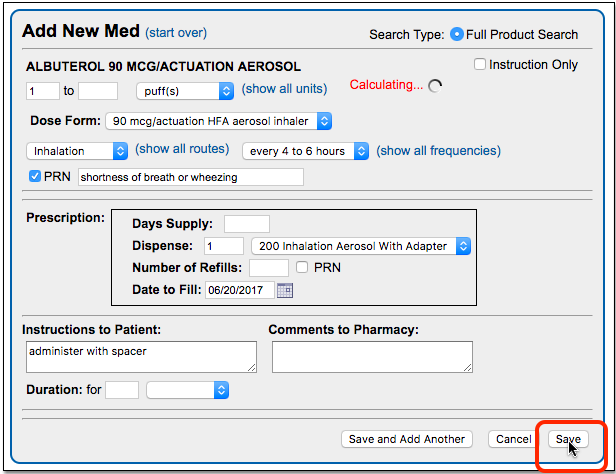
Working with Weight-Based Favorites
You can create weight-based prescription favorites that will automatically calculate volume-per-dose based on a patient’s weight. For weight-based favorites, PCC eRx saves the math, not the actual dose; the dose is calculated when you prescribe from the favorite.
From the Favorites section of the My Settings tab, click “Add New Favorite”.
Find the medication and pick a weight-based dosing statement. (Note: You can pick any dosing statement as a template, but selecting a weight-based dosing statement saves a step.)
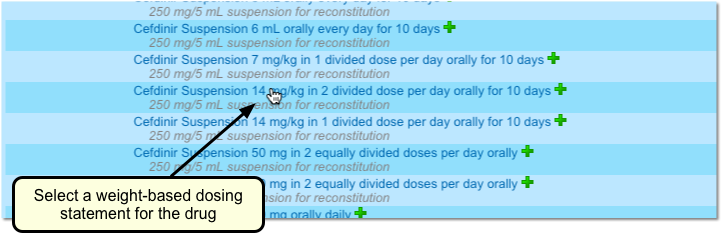
PCC eRx understands that you want to create a weight-based favorite, and it will display the medication with a “milligram/kilogram/dose” value.
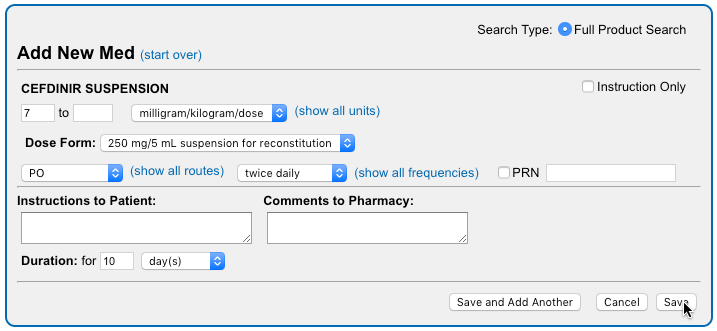
Make any adjustments needed, enter additional prescription details if desired, and click “Save”.
Your new prescription favorite will appear in the Prescribe component.
When you select the favorite to prescribe, PCC eRx will check the patient’s weight and calculate a per-dose value based on the weight of the patient and the strength of the medication.
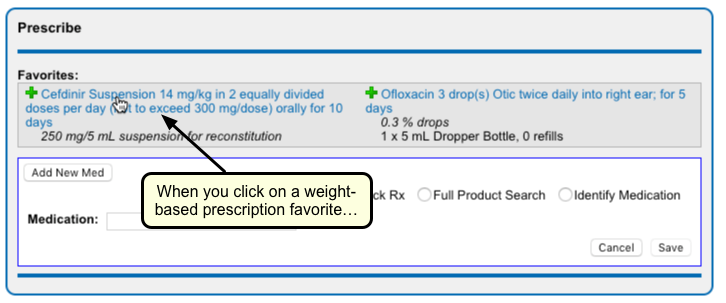
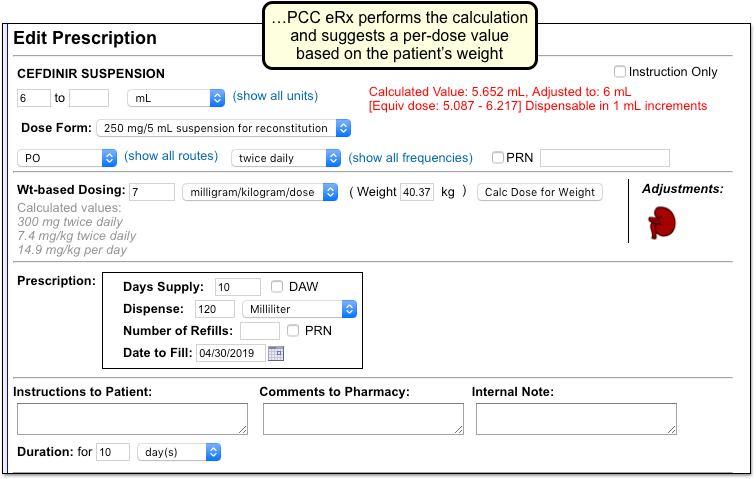
Edit or Delete an Existing Favorite
If you need to adjust a favorite, or delete it, go to the My Settings tab, scroll down to the Favorites section, and find the favorite within the table.
Click the red pencil icon to edit an existing favorite.

In the above example, we changed the Dispense information for the favorite prescription.
Click “Save”. The changes made will be reflected in the Favorites table.
Delete a Favorite: From the edit window, you can also delete a favorite if you don’t want to see it on the list anymore. Just click “Delete” to remove it.
Pin, Unpin, and Exclude
You can use the icons to the left of each favorite within the table to indicate active and inactive favorites, and (depending on your selected favorites display method) which are your preferred favorites.
There are 3 icons within the favorites table:
-
-
thumbs up: The thumbs-up icon denotes a “pinned” prescription. Pinned prescriptions only matter if you have chosen to see your favorites as tiles. If you have more favorites than space within your tiled favorites section, pinned prescriptions are given display preference. All manually added prescriptions are pinned by default. You can un-pin a favorite by de-selecting the thumbs up icon.
-
checkbox: A checked prescription simply means it is an active favorite. Automatically added favorites are checked but unpinned by default. You can choose to pin an automatically added favorite by clicking the thumbs-up icon.
-
excluded: The thumbs-down icon denotes an inactive (excluded) favorite. Inactive favorites are not included in your favorites display or when searching for prescriptions. Marking a favorite as “excluded” is relevant if you have Automatic favorites turned on, because it blocks the specific drug and sig from being added to the list again.
-
Click on an icon to unpin, pin, or exclude a favorite.


Delete or Exclude?: You can click the red pencil icon to edit a favorite and then click “Delete” to remove it. However, if you prescribe the medication again and you have Automatic management turned on, the prescriptions can show up on your Favorites list again. If it a favorite is “excluded”, you will not see it on your Favorites list.
Administrator Only: Share Favorites Among Prescribers
You can pass favorites back and forth among different prescribers at your practice. For example, one pediatrician could create favorites and then have an eRx administrator share them with other pediatricians.
Only a PCC eRx Administrator can copy favorites between users. For more information, read Set Up PCC eRx User Access.
To copy favorites, go to the “Administration” tab. Within the User Management section, click “Copy Favorites”.

Next, use the first search field to find a user from whom you wish to copy favorites. Use the second search field to find one or more users who will receive the copied favorites.
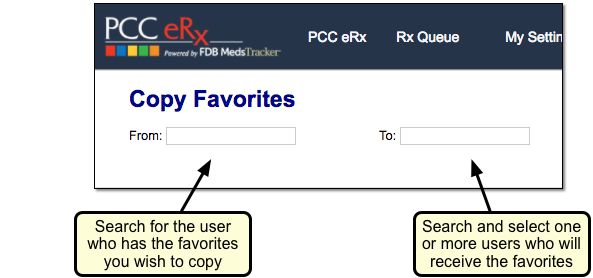
Review the list of favorites for the “From” user. You can de-select any that you do not wish to copy.
Finally, choose one of the options on the right to either add the copied favorites, or completely replace the destination user’s favorites with the copies from the first user.
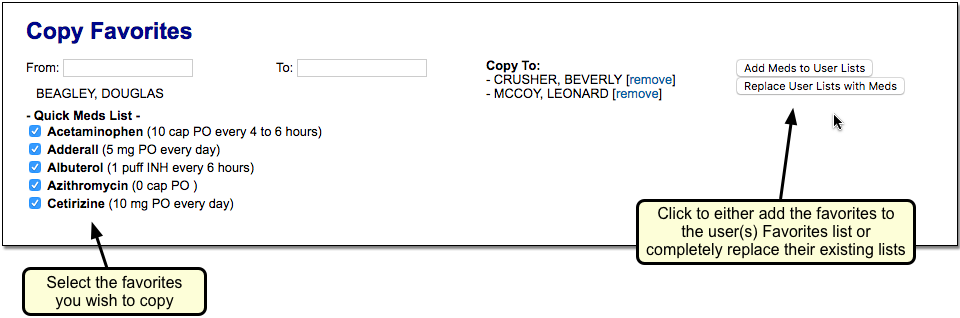
Switch to the Forms Configuration Tool
The Forms Configuration tool in PCC EHR empowers you to create and manage your own auto-filling forms, handouts, policies, and letters. With help and guidance from PCC Support, you can switch to the Forms Configuration tool when the time is right for your practice. Read more to learn why, when, and how to make the switch.
Explore What’s New
Learn about the benefits of the Forms Configuration tool in PCC EHR and evaluate your readiness to make the switch.
The Benefits of Switching
Switching to a new way of doing things takes time and preparation, but there are many reasons your practice might want to put in the effort to switch to the Forms Configuration tool in PCC EHR.
You should consider switching to the Forms Configuration tool if you want:
- More control over the creation and maintenance of your practice’s forms, handouts, policies, and letters in a user-friendly interface
- Fewer back-and-forth emails with PCC Support when you need to make changes to a form
- Smarter functionality for forms that require a signature or include visit-specific data, and
- Better ways to add free text on the fly when generating forms for patients and accounts.
Read Configure Forms in PCC EHR to learn more about what you can do in the Forms Configuration tool, and speak with PCC Support to learn if the time is right for you to make the switch.
Evaluate Your Readiness
The Forms Configuration tool includes early access tools that are still under construction. To learn if the Forms Configuration tool is ready to meet your practice’s needs, contact PCC Support.
PCC Support can explain how the tools work and help you determine whether the time is right for your practice to switch over.
Together, you will explore:
- the functionality of the forms you currently generate in PCC EHR
- whether the Forms Configuration tool can support that existing functionality
- your level of interest in switching to the Forms Configuration tool
- and the amount of time and people power you can devote to the process of switching over.
With these factors in mind, PCC Support will make a recommendation about whether now is the time for your practice to consider switching to the Forms Configuration tool.
Make the Switch
Follow these steps when you decide to make the switch to the Forms Configuration tool.
Give the Green Light
After the evaluation period, tell PCC Support whether you want to make the switch to the Forms Configuration tool. PCC Support will note your interest in activating the Forms Configuration tool and contact you when we are ready to begin your onboarding. When it’s your time to make the switch, PCC Support will actively guide you through the process.
Depending on your current configuration and the amount of time that you and PCC Support have to devote to the transition, the process of switching to the Forms Configuration tool can take anywhere from one hour to several months. Work closely with PCC Support to plan the transition at a pace that works for everyone.
Follow PCC’s Pre-Migration Instructions
Based on the evaluation of your current forms configuration and the functionality that is available in the Forms Configuration tool, PCC Support might recommend that you take certain pre-migration steps. Pre-migration steps typically include things like recreating certain forms as PDFs before you migrate to the Forms Configuration tool.
PCC Support Enables Configuration Mode
When the pre-migration steps are complete, PCC Support will enable the Forms Configuration tool in Configuration Mode.
In Configuration Mode, PCC Support can migrate your current forms into the Forms Configuration tool in PCC EHR and you can finish setting them up without interrupting your practice’s existing workflows.
PCC Support Migrates Your Current Forms
After enabling Configuration Mode, PCC Support will migrate your current forms into the Forms Configuration tool. The migration will take into account the functionality that is available in the Forms Configuration tool and might change the appearance or function of some of your forms, all of which PCC Support should make clear to you well before the migration process begins.
Migrated forms retain their protocol mapping, so you can continue to generate them with a single click wherever you have buttons set up for that in PCC EHR. You can learn more about the Forms component and protocol mapping in the article Generate Forms in PCC EHR.
Once PCC Support indicates that your existing forms have been migrated into the Forms Configuration tool, you can set up user access to the Forms Configuration tool and finish configuring your forms.
Set Up User Access
Users need special permission in order to access the Forms Configuration tool. The ability to delete forms within the tool is also protected by a special permission. You can set up these permissions while in Configuration Mode.
Open the User Administration tool in PCC EHR.
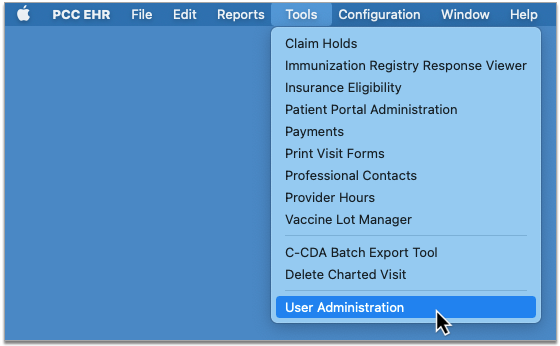
On the Roles tab, create a new Forms Configuration role or add the Forms permission to an existing user role.
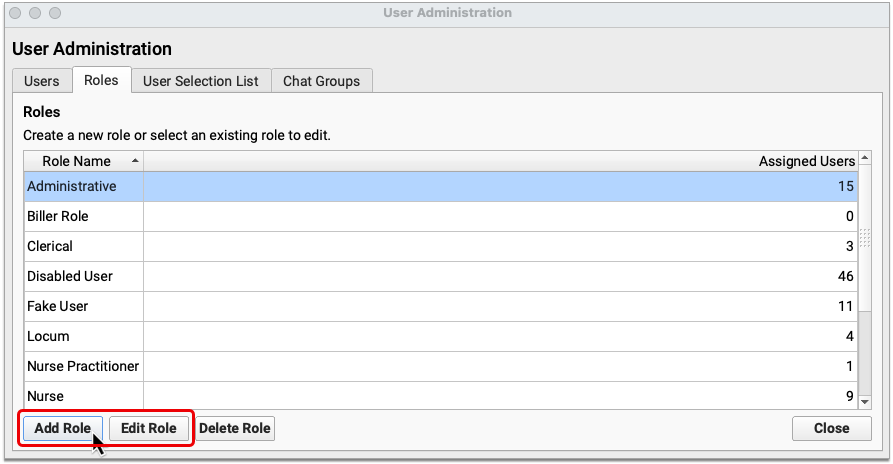
Follow the same steps to assign the Delete Form permission to users at your practice.
Finish Configuring Your Migrated Forms
After PCC Support migrates your existing forms into the new Forms Configuration tool, it’s up to you to finish configuring them for use.
Open Forms Configuration
Open the Forms Configuration tool.
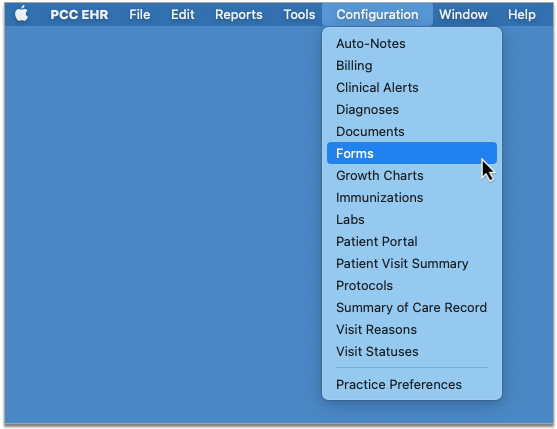
Check that the Right Forms Were Migrated
Review the list of forms and make sure that those you wanted to migrate are present.
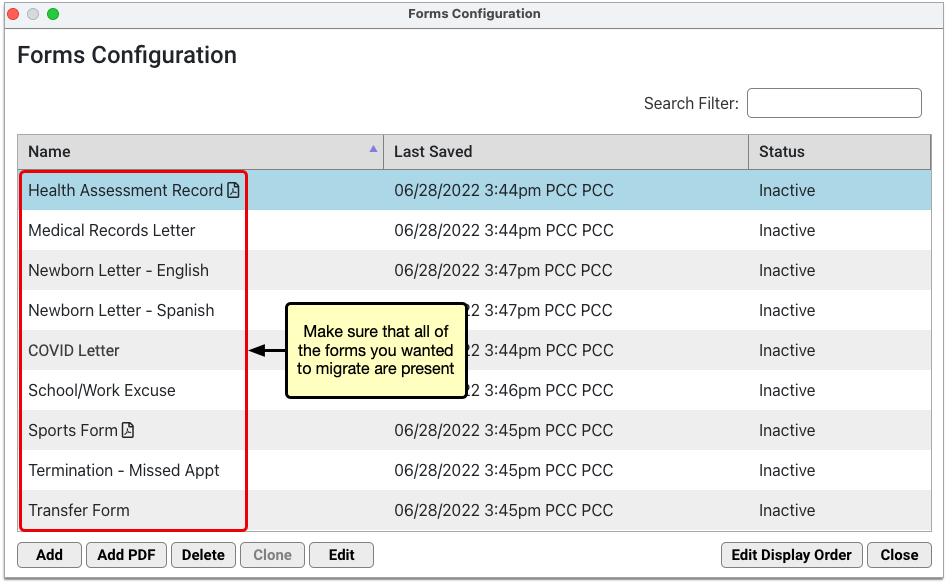
If any of the forms are missing, speak with your contact on PCC Support.
Finish Configuring PDF Forms
Edit the forms that have PDF icons to review and touch up their configuration.
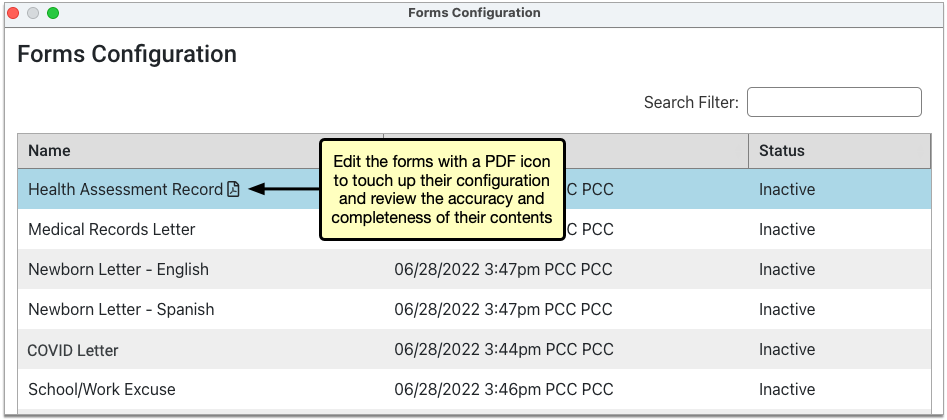
On PDF forms that include user response fields, you can review and edit the prompts that users will see and respond to when they generate the form for patients.
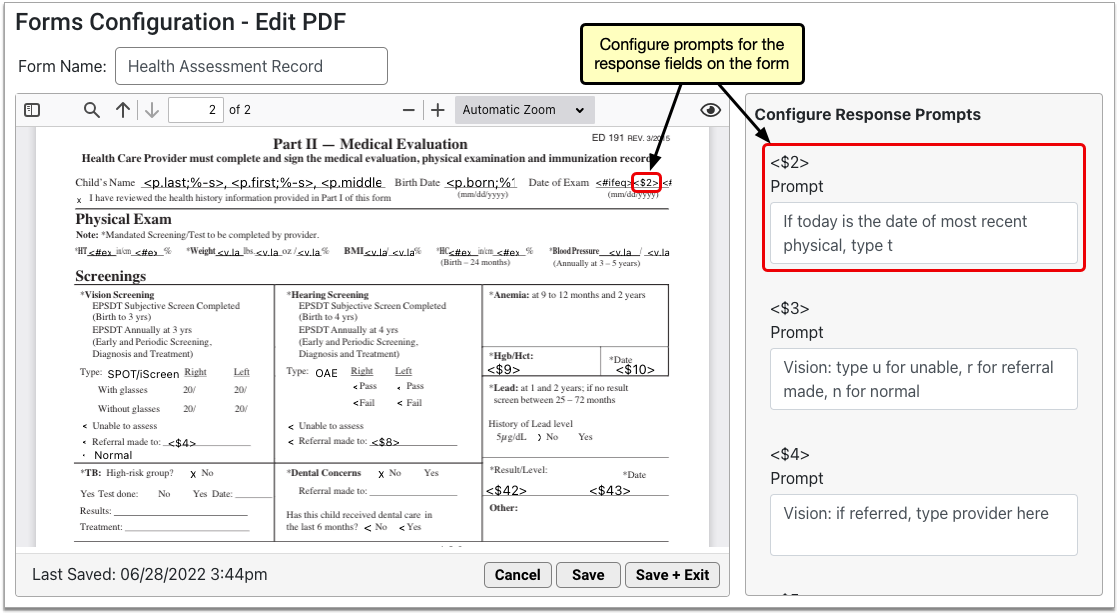
In addition to response prompts, you can configure the names of PDF forms and preview them using real patient data. To learn more about how to work with PDF forms in the Forms Configuration tool, read Configure Forms in PCC EHR.
Recreate Non-PDF Forms Using the Embedded Form Editor
Forms that do not have a PDF icon in the Forms Configuration tool were migrated with only their titles and background protocol mapping and must be recreated in the embedded form editor.
To recreate the forms, edit them in the Forms Configuration tool and use the tools in the form editor to recreate their contents.
At your request, PCC Support can send you copies of the forms that need to be recreated and assist you with the recreation process.
To learn more about how to create and manage forms in the Forms Configuration tool, read Configure Forms in PCC EHR.
Make Your Forms Active
When you have finished configuring your migrated forms, edit them and set their status to active so that other users at your practice will be able to generate them for patients when you finish making the switch to the Forms Configuration tool.
You can learn everything there is to know about working in the Forms Configuration tool in the article Configure Forms in PCC EHR.
Complete a Final Check
When you have finished configuring your migrated forms, complete a final check with PCC Support.
The purpose of this check is to make sure that your forms are working properly, that your questions have been answered, and that you are ready to make the final switch to the Forms Configuration tool.
PCC Support Enables the Forms Configuration Tool
Tell PCC Support when you are ready to switch your whole practice over to using your newly configured forms.
PCC Support will fully enable the Forms Configuration tool.
Once enabled, the Forms component will stop pointing to your old forms and users at your practice will only be able to generate forms that have been configured in the Forms Configuration tool.
Optionally Revert to the Legacy Tools: If you find that the Forms Configuration tool does not work for your practice, PCC Support can disable it and restore your ability to generate forms the old way. This function may also be used to temporarily disable the Forms Configuration tool while PCC Support troubleshoots issues that arise with migrated forms.
Configure Claim Holds and Claim Delay
When your practice needs to prevent certain claims from being submitted, you can create a claim hold. A claim hold prevents claims from going out for specific dates of service, billing providers, places of service, and insurance plans.
You can also configure your practice’s claim delay, which prevents any claim from going out until a certain number of days after the date of service.
Watch a Video: You can watch a video to learn about Claim Holds and Claim Delay.
Review Claim Holds
Open the Claims tool from the Tools menu in PCC EHR and visit the “Holds” tab.
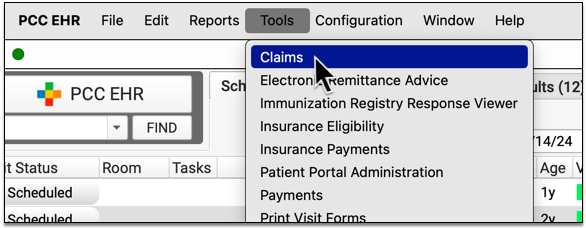
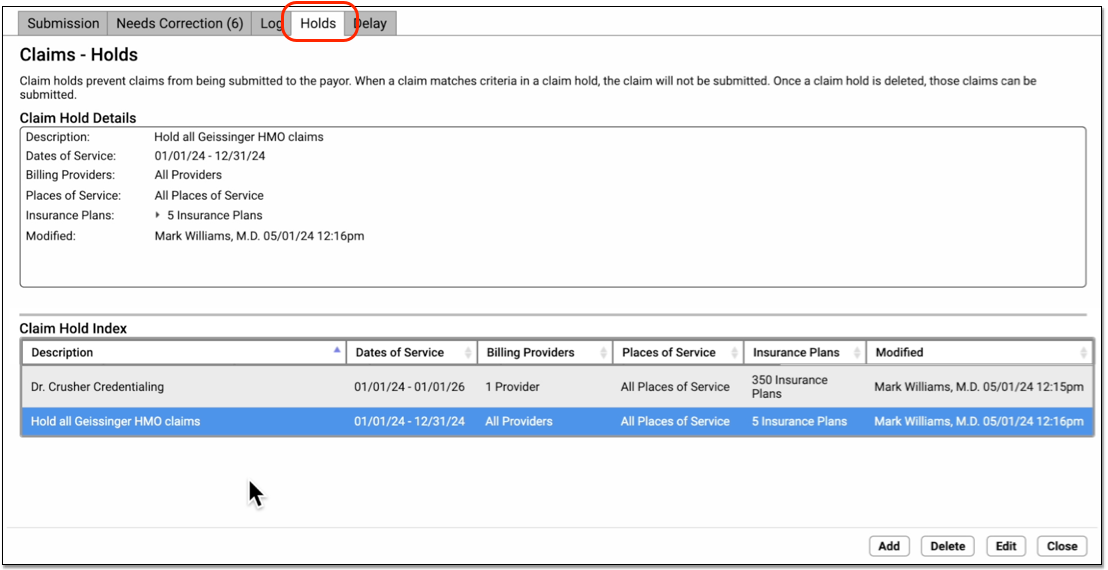
Your practice can use User Roles to specify which users can open the tool. (See Set User Roles for Permissions and Security)
Click on an existing claim hold in the Claim Hold Index to view details.
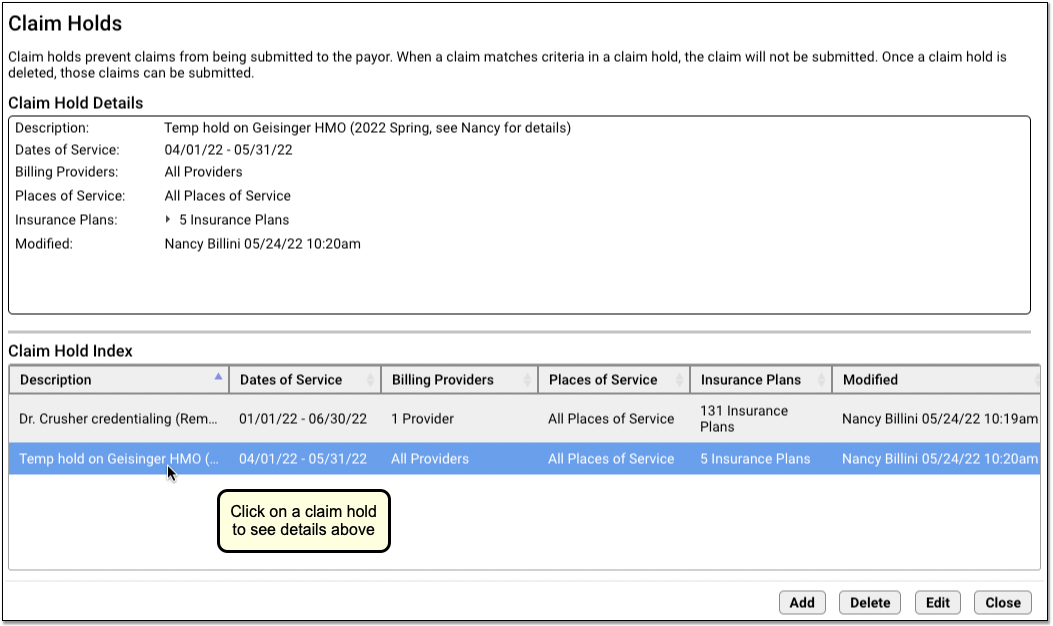
Create a New Claim Hold
Follow the procedure below to create a new claim hold.
Click “Add”
To create a new claim hold, click “Add”.
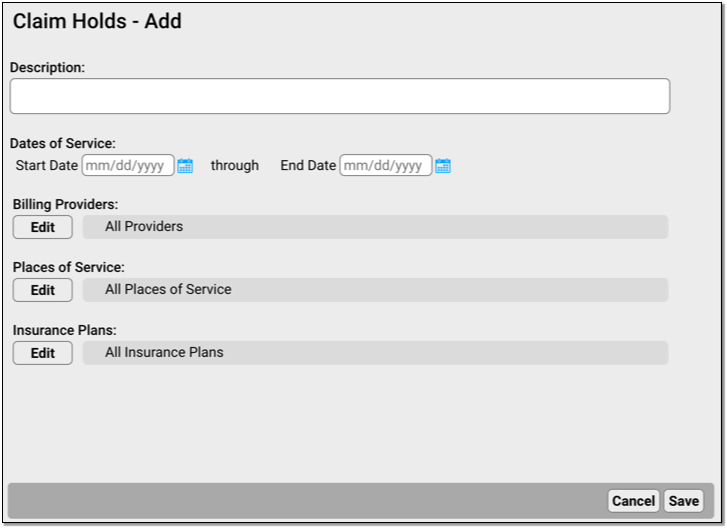
Enter a Description and Dates of Service
A claim hold requires a description and a date range for dates of service.
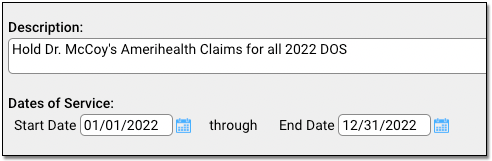
-
Description: You can include a lengthy description indicating the purpose of the claim hold.
-
Dates of Service: Enter the claim hold date range. Claims for these dates of service, including the start and end date, will be held until the hold is deleted or changed.
Select Billing Providers, Places of Service, and Insurance Plans
Select additional optional criteria for the new claim hold. You can restrict a claim hold to specific billing providers, places of service, and/or a subset of insurance plans to which your practice bills.
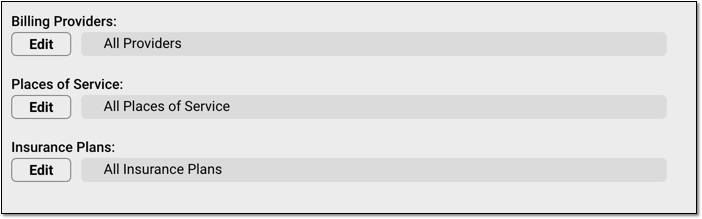
-
Billing Providers: Click “Edit” to select which providers’ claims will be held. When processing claims, PCC will hold claims with a Billing Provider that matches one of the providers listed in the claim hold.
-
Places of Service: Click “Edit” to select which locations’ claims will be held. You can select one or more places of service. When processing claims, PCC will hold claims with a Billing Location that matches places of service listed in the claim hold.
-
Insurance Plans: Click “Edit” to select which insurance plans’ claims will be held. You can search and sort by plan name, plan group, or the payor id used for electronic submission.
When making a selection, you can search a list and use “Select All” and “Select None” to quickly pick groups of providers, locations, or plans.
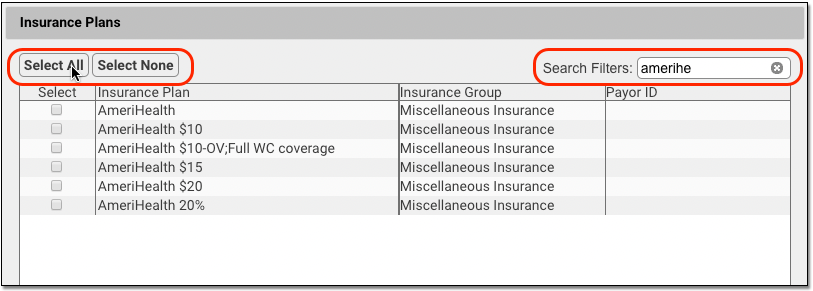
Click “Save”
Click “Save” to finish creating the claim hold.
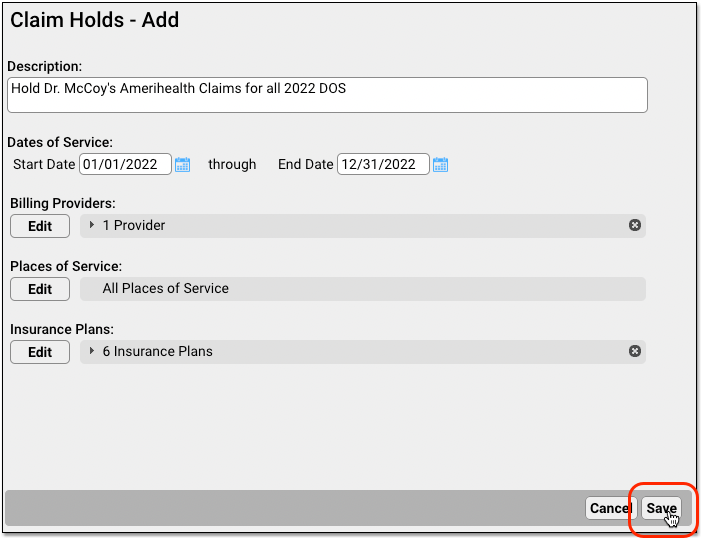
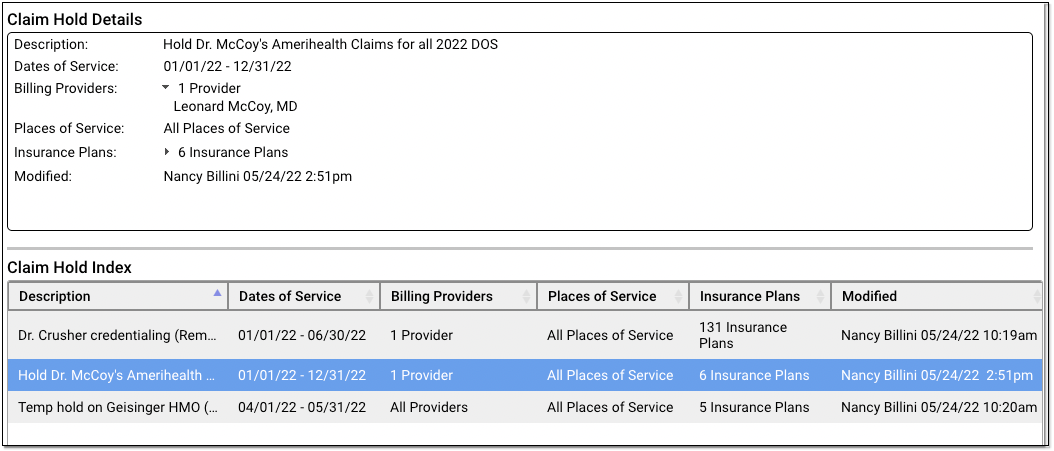
Holds are immediately active. After you create a hold, any claims that match the specified dates of service, providers, locations, and insurance plans will not be sent out when you process claims.
When Does a Claim Hold Expire? Never: Claim holds are based on dates of service, so they never expire. Any claims that match the indicated dates of service and the other criteria for the hold will never be sent. In order to release held claims, you must either delete the hold or edit the dates of service or other criteria to change which claims are held.
View Which Claims Were Held
Your practice’s claim holds stop claims when they are processed for submission.
You can review which claims were held in the Log tab of the Claims tool in PCC EHR.
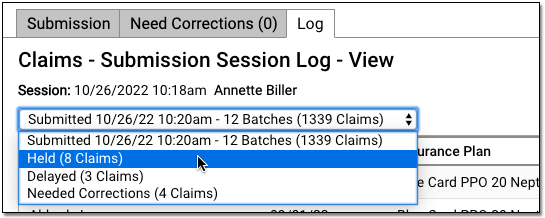
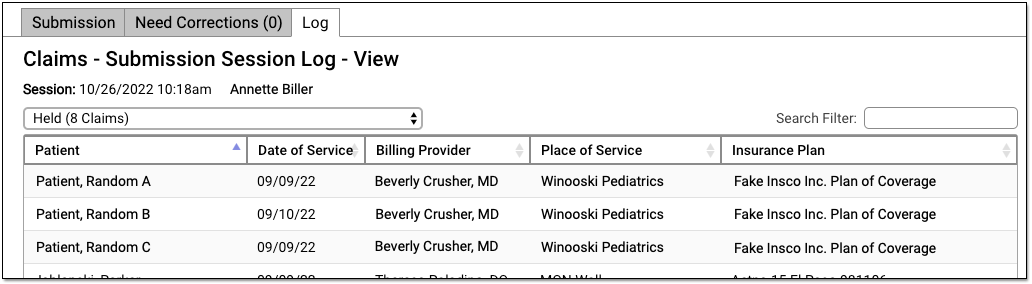
To learn more read Submit Claims.
If your practice submits claims with PCC’s previous claims tool, Prepare/Submit Electronic Claims (preptags/ECS), then no log is created of which claims were held.
Edit or Delete a Claim Hold
Select a claim hold and click “Edit” to make changes.
For example, you may have a claim hold for a new clinician which holds claims for all insurance plans. As they become credentialed with each payor, you can edit the claim hold and make changes to the insurance plan criteria. Doing so will release claims that do not match the new criteria.
Select a claim hold and click “Delete” to delete a claim hold.
The next time you process and submit claims, any claims held by the deleted hold will be processed and sent.
Configure Your Practice’s Claim Delay
Your practice may want to prevent all claims from going out until a day or two after the date of service. This gives billers extra time to complete charge posting or review encounters to make sure all procedures were billed correctly.
When you want to adjust your practice-wide claim delay, open the Claims tool and visit the Delay tab.
Enter your practice’s desired number of days and click “Save”.
Whenever you process and submit claims, the Claims tool will check each date of service and delay any claim that is younger than your claim delay.
Grant User Access to the Claim Holds and Claim Delay Configuration
Your practice can designate which user roles will have access to claim configuration tools.
User the Roles tab on the User Administration tool to edit an appropriate role.
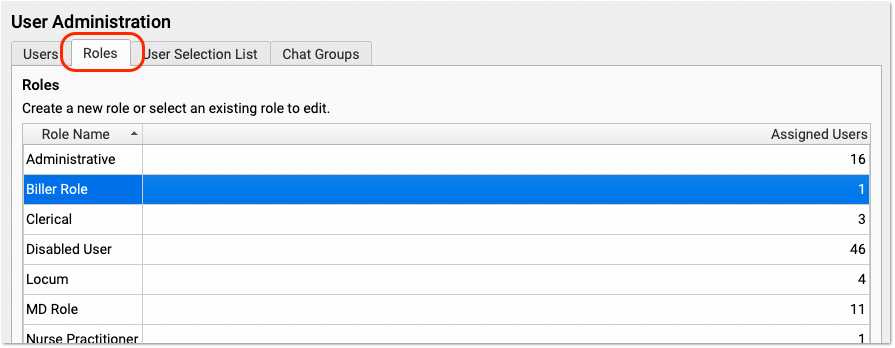
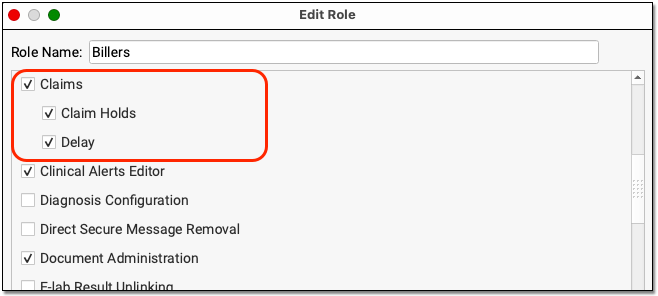
Next, review that appropriate users are assigned that role.
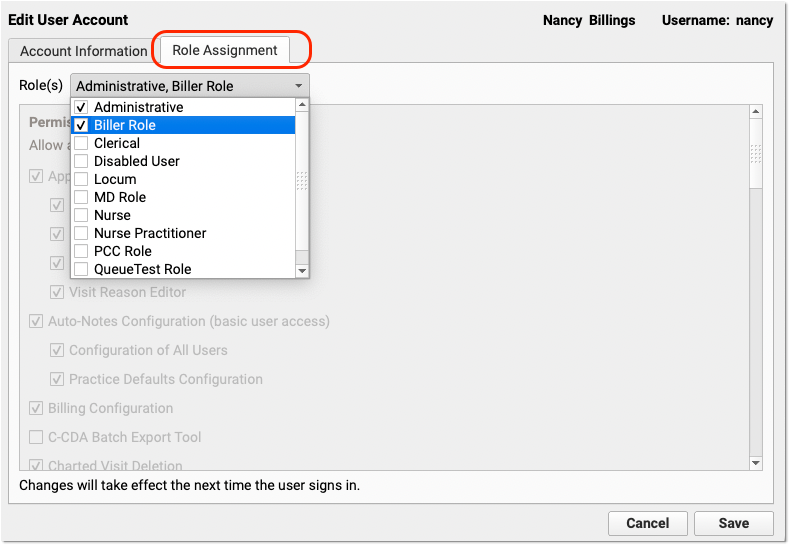
Change the Copay Due on a Charge After Charges are Posted
When you learn that a patient was charged the wrong copay for a visit, how can you change the amount due? You may be trying to manually post an insurance payment and find yourself unable to do so because the copay amount for the office visit procedure is incorrect.
Full Documentation: This is a quick reference guide to a common problem. For more details, read Change the Responsible Party and Copay for Charges.
Edit Charges and Change the Copay
Select the encounter in the patient’s Billing History and click “Edit Charges”.
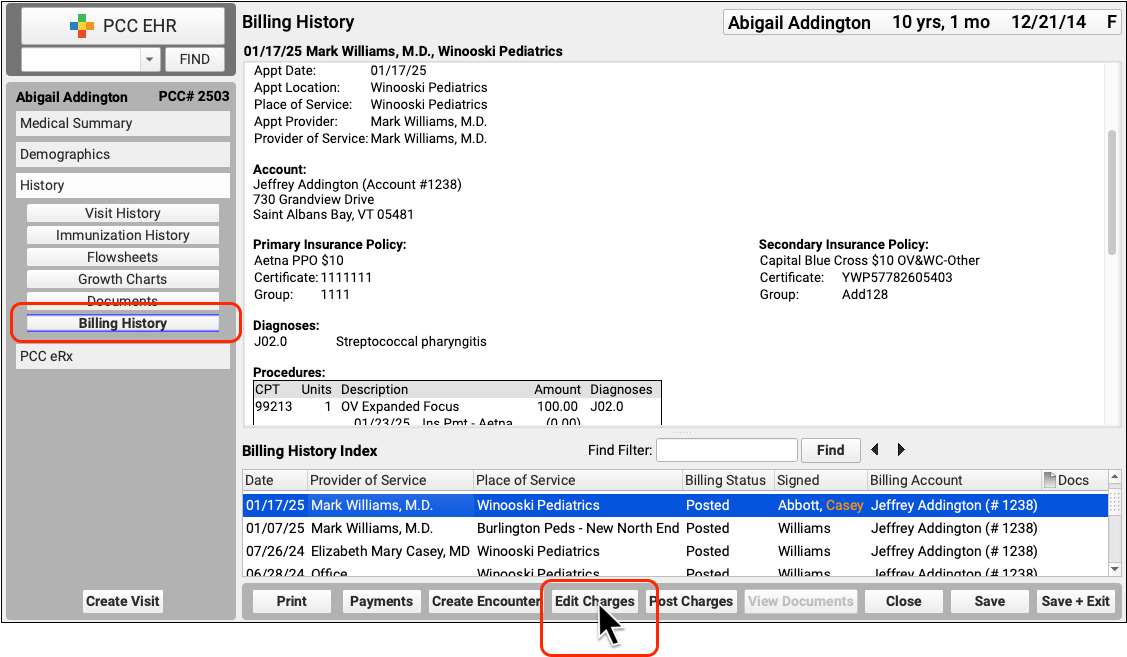
Next, use the Procedures component to change the personal amount due. You can change other details about the charges as needed.
Click “Save + Post” to update the encounter’s charges.
After changing the copay amount, you can immediately queue up a new claim. Read Edit Encounter Charges and Resubmit Claims to learn more.
Change the Copay As You Post Insurance Payments
As you post insurance payments and adjustments, you can change the copay amount if (for example) the payer’s response indicates a different expected amount.
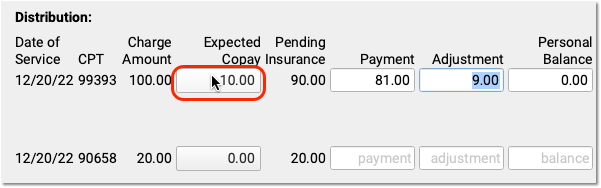
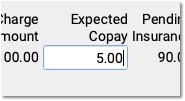
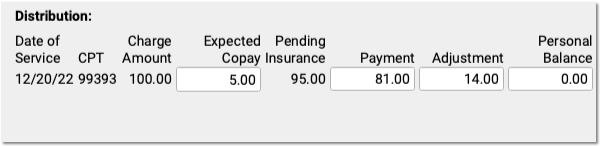
When you save, PCC EHR will automatically unlink personal payments down to the new expected amount, if needed.
Edit Your Practice’s Procedures, Codes, Adjustments, and Prices
When you need to add a new billing code to your PCC system, create a new version of a code that includes modifiers, or adjust your practice’s prices for procedures or adjustment types, use the Tables tool in the Configuration menu.
Watch a Video: Watch Edit Your Prices and Billing Procedure Codes for a video tutorial of these steps.
Procedure Code Guidance: The procedure codes discussed in this article are intended only as examples. You should consult the AMA’s current CPT Coding Guide and work with your insurance payers to verify what codes you should report on claims. Your practice updates and maintains your billable procedure list, codes, and prices in the Procedures table in the Tables configuration tool on your PCC system.
Edit Your Practice’s Billable Procedures, Codes, and Prices
Use the Procedures table in the Tables tool to update your practice’s billing procedures, codes, and prices.
Open the Procedures Table
Open the Procedures table in the Tables tool in PCC EHR.
Review Your Existing Procedures
The Procedures table contains all of your practice’s billable procedures, charges, fees, as well as adjustment offsets used by your PCC system.
Double-click on an entry to open and edit the details of a procedure.
You can search for specific procedures and sort the list by different columns. Click “Export” to download a comma-separated-value (CSV) file of the entire table for use in a spreadsheet. Click on an entry and then click “History” to see a record of all changes made to a procedure.
Clone or Add a New Procedure
Select an entry and click “Clone” to add a new procedure based on an existing one.
It’s easiest to start by cloning a similar procedure. You can also click “Add” to create a new entry from scratch.
Do Not Overwrite or Erase the Name of an Existing Procedure: Never edit and overwrite an existing procedure entry, as this may affect your billing history. Even if a procedure has been retired and replaced with a new CPT code (for example), always clone and create a new entry.
Update the Cloned Procedure’s Name, Group, Type of Service, and Units
At the top of the screen, update the procedure’s name and basic information that indicates how the new procedure entry will be used.
If you cloned an existing procedure, some of these fields will be filled out for you. For a typical billable procedure, the Type of Service will be “Medical Care” and the Accounting Type will be “Revenue”. See the sections below for a complete reference.
Optional: Update Medication Fields
If the procedure is an immunization, injection, or a drug you administer at your practice, enter the NDC and dosage information that will appear on the claim.
Enter the NDC code for the smallest administered dose; use the code found on the vial, not the box or carton. Read Add and Configure Immunizations for more tips on filling out these fields.
Enter the Billing Code
Enter the procedure billing code in the procedure code field for Schedule A. Then click “Duplicate Code (A)” to populate the alternative code schedules.
Under rare circumstances, your practice might enter different codes, or a code with a modifier, in different schedules for particular insurance payers. See the sections below to learn more.
PCC does not provide or distribute CPT billing codes, and the example above is for illustration only.
Enter Your Price for the Procedure
Enter your practice’s price for the procedure in the Schedule A Price field. Then click “Duplicate Price (A)” to populate the alternative price schedules.
Under rare circumstances, such as when using the same procedure for both medicaid and non-medicaid immunizations, your practice might use an alternate fee schedule for particular insurance payors. See the sections below to learn more.
PCC does not provide pricing recommendations, and the example above is for illustration only.
Save Your Changes
Click “Save” to save your changes.
Configure Orders, Billing, and Chart Notes
After you add or update a billing procedure on your PCC system, you may want to take these additional steps:
-
Contact PCC to Complete Immunization Configuration: If you are adding a new immunization to your PCC system, contact PCC Support. Read Add and Configure Immunizations to learn more.
-
Update Your Practice's Orders: When you link a procedure billing code to an order, PCC EHR will automatically add it to the encounter when the clinician clicks “Order”. Read Configure Order Billing, Diagnoses, and the Bill Window to learn more.
-
Add New Orders to Chart Notes: When you add a new procedure and configure a new order on your PCC system, you may want to add the order to chart notes. When you make an order a default on a chart note protocol, the clinician can create the order and add the billable procedure to the encounter with a single click. Read Configure Protocols to learn more.
-
Update the Bill Window: You can edit your practice’s Bill window, a.k.a. “the electronic encounter form”, to make it easy to select a common procedure or fee when a clinician codes an encounter.
Procedures Table Field Reference
A procedure includes a name, accounting type, and other values.
-
Procedure Name: You can name a billing procedure anything that will be useful for your practice. Your clinicians, billers, and the patient’s family will see this name in various contexts, such as a receipt or bill. Insurance payers do not review or verify a procedure’s name, relying instead on the billing procedure code.
-
Accounting Type: Billable procedures you perform in your practice should have an accounting type of “Revenue”. Other Account Types, such as “Receipt” and “Revenue – Non-Service” are used for refunds, insurance write offs, and other less common accounting situations.
-
Procedure Group: The Procedure Group field is a customizable value used for reporting purposes; it does not usually affect billing or how a procedure is ordered or completed.
-
Type of Service: The Type of Service field was originally used to indicate a code on claims, but it is no longer part of the claim standard. For most procedures performed by your practice, use “Medical Care”. If the procedure is a lab, select “Diagnostic Laboratory”. When your PCC system formats claims, it includes an appropriate CLIA identifier for procedures with a type of service “Diagnostic Laboratory”.
-
Units: If you always bill a procedure as a set number of multiple units, you could adjust the Units field. Normally, units are selected when your practice bills an encounter, so this field is almost always set to “1”.
-
NDC: For immunizations or drugs you administer in your practice, enter the National Drug Code. The National Drug Code is an 11-digit number used to identify the vaccine or medication you administer. NDC codes found in the Vaccine Lot Manager are used for your state registry, but are not used for billing. NDC codes needed for billing should still be managed through the Procedures Table. For examples and more details, see Add and Configure Immunizations in PCC EHR.
-
Dose Amount and Dose Units: For immunizations or drugs you administer in your practice, enter the dose and dose units found on the vial, pouch, or tube that you administer. For example, if a vaccine is administered as 0.3 mL, you would enter “0.3” and “mL”. For more details, see Add and Configure Immunizations in PCC EHR
-
Code Schedule A: The billing code that will appear on the claim for this procedure.
-
Code Schedule B-Z: Alternate billing codes for unusual configuration needs. Normally, you will click “Duplicate Code” in order to enter the same code for all schedules. PCC supports optional schedules due to deprecated “local codes”, which are no longer part of the claim standard used in the U.S. If your practice has a schedule specifically configured for Medicaid billing, and your state Medicaid program requires a modifier, you can enter the full code and the modifier into a CPT field for that schedule. PCC Support can configure which claims will use a custom code schedule. Alternatively, your practice can clone a Procedure entry and create a specific version of the procedure for Medicaid billing, for example.
-
Price Schedule A: The price you will bill for the procedure.
-
Schedule Codes B-Z: Alternate prices for unusual configuration needs. Normally, you will click “Duplicate Code” in order to bill the same price for all schedules. In unusual circumstances, such as when you have a special contract with a payor or wish to use the same procedure entry for medicaid (VFC) immunizations vs non-medicaid immunizations, you might use an alternate price schedule. PCC Support can configure which claims will use a custom price schedule.
Adding a Procedure with a Code Modifier
If your practice needs a code with one or more modifiers, such as the common -25, you should clone an existing procedure and adjust the clone’s title and code schedules to indicate the modifier.
Common modifiers include -25, -26, and -59, but the CPT standard and payer requirements sometimes use more complex modifiers, such as -Q6, and CMS has developed HCPCS Level II Modifiers, such as -E1, -TC, and -XS (see AAPC).
When your practice adds a modified version of a code to your procedures table, it becomes available to all users when they post charges or edit charges for an encounter.
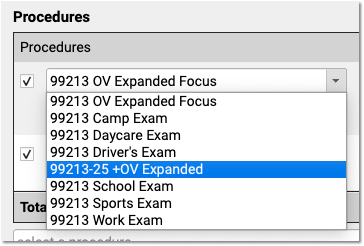
Configure Adjustments, Fees, and Refunds with an Appropriate Code and Accounting Type
In addition to billable clinical procedures, the Procedures table includes your practice’s adjustments, fees, refunds, and any accounting item that would increase an account’s balance or offset a payment.
Claims require a linked diagnosis, so PCC’s software requires a linked diagnosis for any procedure billing code that has five or more characters, such as a “99213”. If you are creating or updating your practice’s administrative fees (or other charges that do not require a diagnosis), use a billing code with fewer than five characters. For example, if you are creating a “Forms Fee” or “Missed Appointment Fee”, you could use a billing code of “X” or “FEE”, or whatever would be clearest for your practice.
When you edit refunds, adjustments, and other unusual procedures, the Accounting Type field indicates their purpose. Various PCC reports include or exclude different accounting types, or put them in special columns, in order to provide your practice with a better understanding of your accounts receivable.
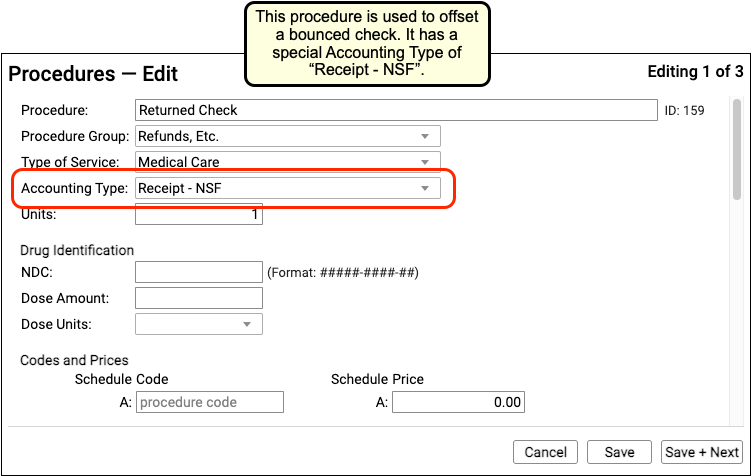
Procedure Accounting Type Reference
The table below describes different categories of these procedures, their related “Accounting Type” in the table, and how they are used for each accounting operation.
What Are Adjustments in the Procedures Table Used For?: For examples of how you would use the procedures with these accounting types, see Refund or Write Off Account Credits and Reverse a Payment.
| Procedures | Accounting Type | Explanation and Usage |
|---|---|---|
| All clinical procedures performed in a practice | Revenue | Billable procedures you perform in your practice should have an accounting type of “Revenue”. Office visits, immunizations, and more are examples of revenue procedures. You can post these procedures as charges in the Post Charges window. |
| Non-Clinical service fees | Revenue – Svc Chg | Tasks you perform for a family that are non-clinical, and have a charge, have an accounting type of “Revenue – Svc Chg”. Examples include record transfer fees, form fees, rebilling fees, and similar. |
| Fees or other non-service fees | Revenue Non-Service | When your practice charges a bounced check fee, a forms fee, or some other fee that is not billed to an insurance payer, you use a procedure with an accounting type of “Revenue Non-Service”. The procedure will appear like any other charge on the account. |
| Capitation, incentive payment, insurance interest, or withhold payment adjustments | Revenue Non-Service | When an insurance company sends you a capitation payment, interest payment, or other type of less-common payment, you post an adjustment procedure with an accounting type of “Revenue Non-Service” to indicate what the payment is for. Then you post the payment. For more information see Post Capitation Checks, Incentive Payments, Interest Payments, and Withhold Payments. Prior to the PCC Fall 2026 update, some practices would use a holding account and a procedure of type Revenue Non-Service to process overpayments. This workflow has been deprecated. Overpayments and insurance credits now reside in patient charts. See: Use Overpayments to Keep Track of Insurance Credits. |
| Write off a credit that you will not refund | Revenue Credit W/O | When you wish to classify a credit on an account as income, you can offset it with an adjustment procedure with an accounting type of “Revenue Credit W/O”. This means you are classifying the credit as income to the practice, and you do not intend to refund it. |
| Returned check or other stopped payment adjustment | Receipt – NSF | When a check bounces or another type of payment is stopped, your practice negates the payment by linking it to an adjustment procedure with an accounting type of “Receipt – NSF”. You might also post a fee. |
| Credit refunds | Receipt – Refund | When you refund a credit to a family, you post an adjustment procedure to the account with an accounting type of “Receipt – Refund”. |
| Insurance takebacks and other insurance refund adjustments | Receipt – Refund | When you need to issue an insurance refund, or an insurance company issues a “takeback” for a payment you already posted, you post an adjustment procedure with an accounting type of “Receipt – Refund”. Then you link the original payment to that adjustment procedure. |
Provide Good Faith Estimates for Pediatric Encounters
If a family does not have insurance, or the family won’t be using insurance for an encounter, then a pediatric practices needs to provide a “Good Faith Estimate” for the cost of care when an encounter is scheduled more than 3 days in advance.
This requirement came into effect on January 1st, 2022 as part of the “No Surprises Act”, and it aims to reduce the likelihood of a family receiving an unexpected medical bill.
Apply the Good Faith Estimate Rules for Pediatrics
Under what circumstances would a pediatric practice need to provide a Good Faith Estimate, and what should the estimate include?
Review the Types of Encounters You Schedule
Your practice schedules a variety of encounters, including physicals or “well visits”, next-day or same-day sick appointments, rechecks, and various consultations.
A typical pediatric practice should be prepared to offer Good Faith Estimates for their well visits, recheck visits, or consults—any appointment that would likely be scheduled more than three days in advance. It is unlikely you will need to provide a GFE for typical “sick” encounters, but you may wish to create one anyway for less-common circumstances.
Develop Estimates That Are Within $400
When you provide a Good Faith Estimate, it should declare the expected cost of services typically performed during the type of encounter, with an accuracy within $400.
For example, your Well Visit Good Faith Estimate might list expected amounts for a well visit and immunization administrations for each age, including amounts for common screenings.
While you are not required to detail the individual costs associated with an encounter, your practice may choose to list common procedures and prices to help the family understand what is included in the GFE.
Always Verify Payment Information When You Schedule
Medical professionals are not required to provide GFEs if the patient or family intends to bill insurance for the encounter, or if the practice will bill an insurance payer on behalf of the family.
Therefore, in addition to developing a GFE form for certain encounter types, your practice should review how you schedule appointments.
Whenever you schedule any encounter, your practice should:
- Ask the patient or family how the encounter’s charges will be paid
- Collect or update the patient’s insurance information
- Provide a GFE if the encounter will not be paid by insurance
PCC software includes customizable tools that can help your practice complete these tasks, such as Clinical Alerts which can appear during scheduling, the customizable Patient Details ribbon, and the ability to check insurance eligibility at any time (including a tool for reviewing eligibility for all scheduled patients). Contact PCC Support for help getting started with any of these tools.
No Insurance, Or Not Using Insurance For a Given Encounter: When a patient or family indicates that they do not have insurance, or that they do not intend to bill insurance for a specific encounter, and the appointment is scheduled three or more days in advance, you should provide a Good Faith Estimate that lists the expected charges with an accuracy within $400.
Develop a Workflow for Sending out GFEs
When your practice knows that a family will not be paying for an encounter with insurance, you should provide them with a Good Faith Estimate within three days of scheduling the appointment.
Your practice could use various methods to accomplish this. You can produce the required form immediately after you schedule the appointment, using the Forms component, and then deliver it using the patient portal.
If the family does not have a portal account, you can generate a PDF and use email or physical mail. You can work with PCC Support to adjust your forms and customize reports to meet this need.
Create Good Faith Estimate Forms
Your practice can develop quick Good Faith Estimate forms to help you provide a Good Faith Estimate whenever it is needed. For example, you could create a form letter that lists your GFEs for each type of encounter, and then send that form to families through the Patient Portal.
VFC and TOS Cash Discounts: If your practice administers VFC or other reduced-rate immunizations, you may wish to account for that difference in your GFEs. Similarly, if your practice offers a discount for payment received at time of service, you can include that information on your GFE forms.
While your practice is not required to provide an itemized charge list, many practices are choosing to do so in order to define the amounts included in the Good Faith Estimate.
Olney Pediatrics in Maryland and North Augusta Pediatrics has shared a sample Well Visit form (charge amounts have been removed for this image), which allows them to quickly create a GFE by checking off the details for a scheduled encounter and entering a total:
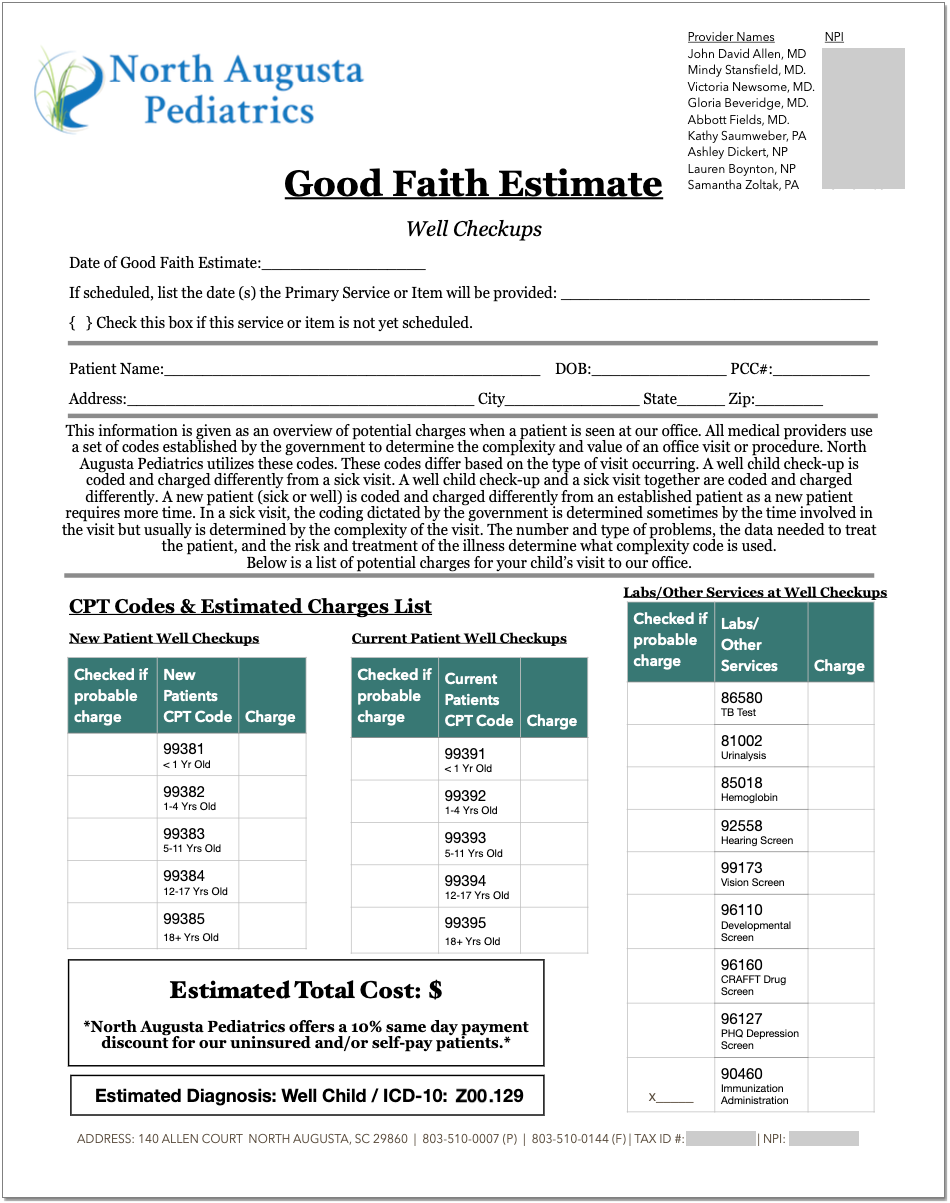
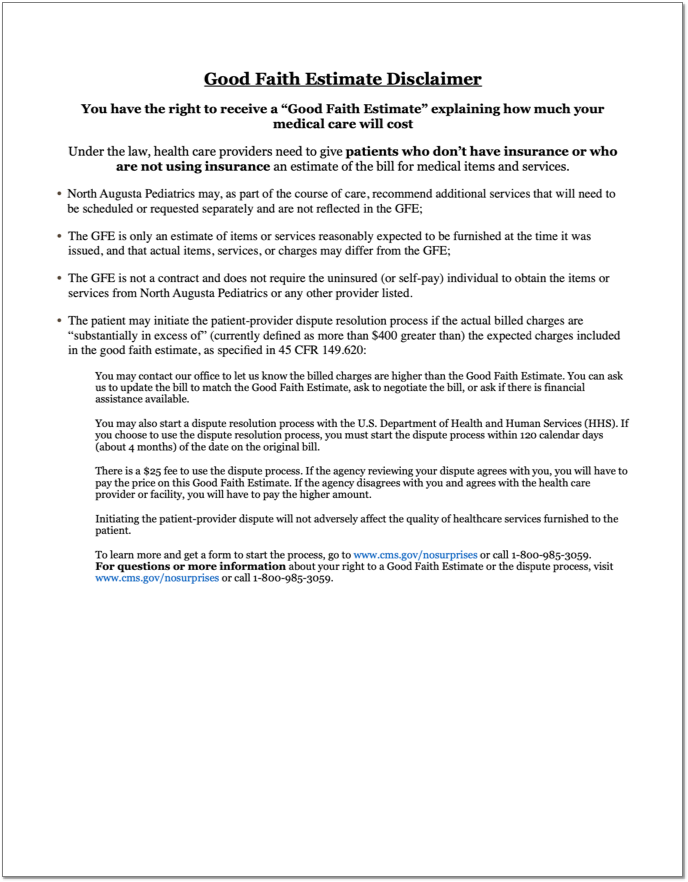
You can download a Microsoft Word file version for use at your practice.
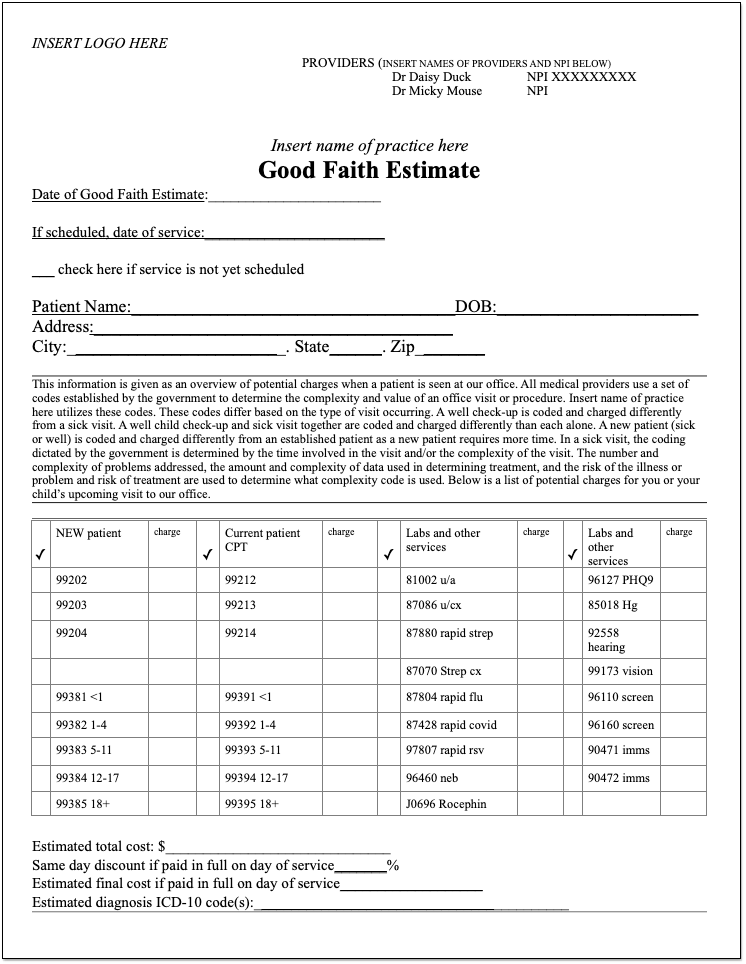
The AAP has also created several sample forms:
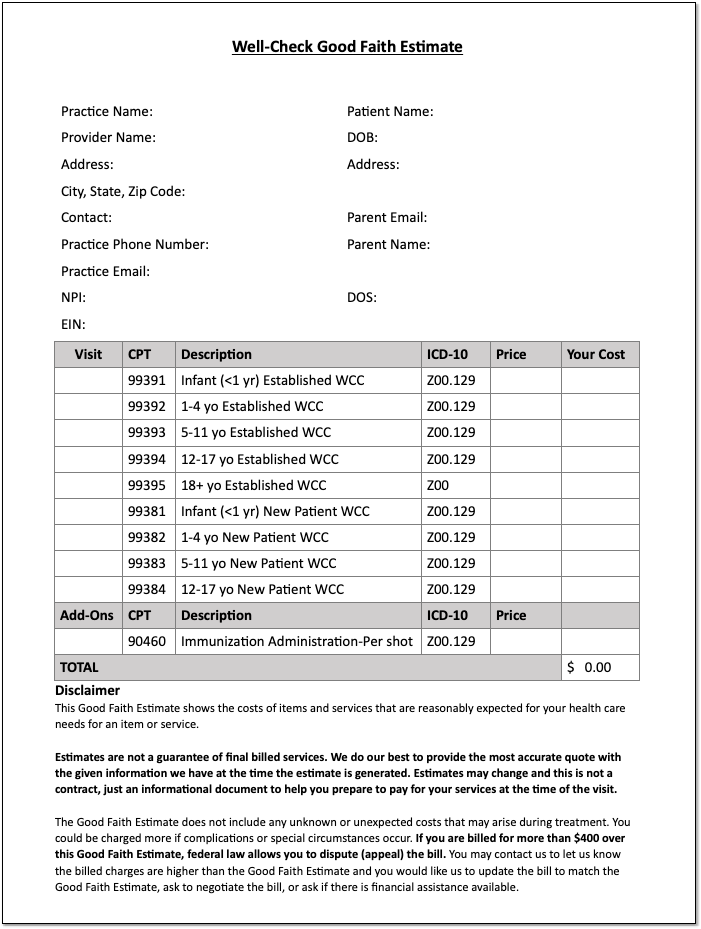
In order to provide an accurate GFE for lab work that may occur outside of your practice, you may want to contact your lab companies. The AAP created a sample letter:
You can access the above AAP’s materials through the SOAPM website.
Contact PCC Support for help setting up your Good Faith Estimate forms.
Configure the Immunization History
The Immunization History appears in the History section of patient charts and in the Immunizations section of visits, phone notes, and portal messages.
The Immunization History has two parts: Vaccines and Diseases. The Vaccines section shows patients’ vaccine history, organized by immunization name. The Diseases section shows patients’ history of vaccine-preventable disease.
You can customize the default layout of the Immunization History to optimize it for all users and patients at your practice.
Configure the Vaccines Section
You can configure the layout and default display functionality of immunizations in the Vaccines section of the Immunization History.
Open the Configuration menu in PCC EHR and select the Immunizations option.
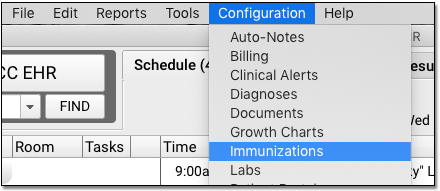
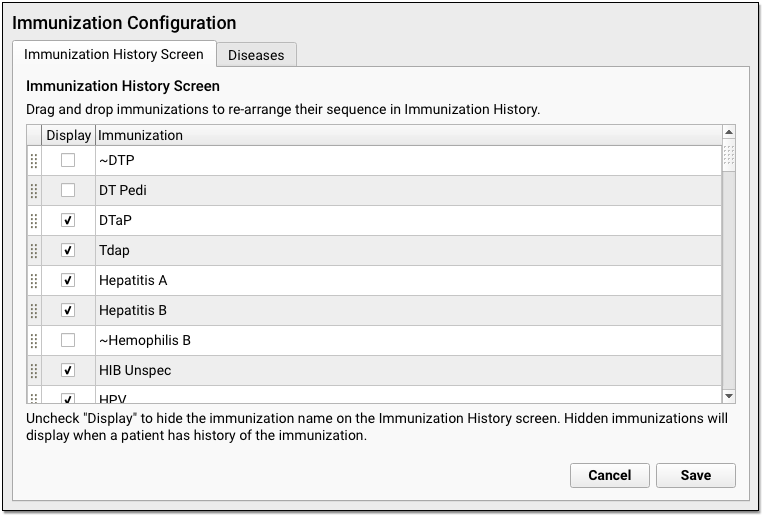
On the Immunization History Screen tab, click and drag the immunization rows to reorder them. Immunizations display on the Immunization History in the order you establish here.
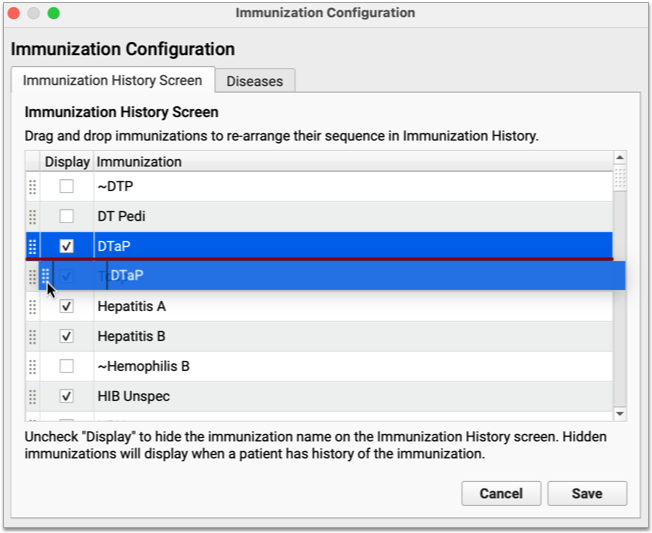
To display immunizations by default on the Immunization History, check the “Display” box. Immunizations configured this way display as rows on the Immunization History even when patients have not received them.
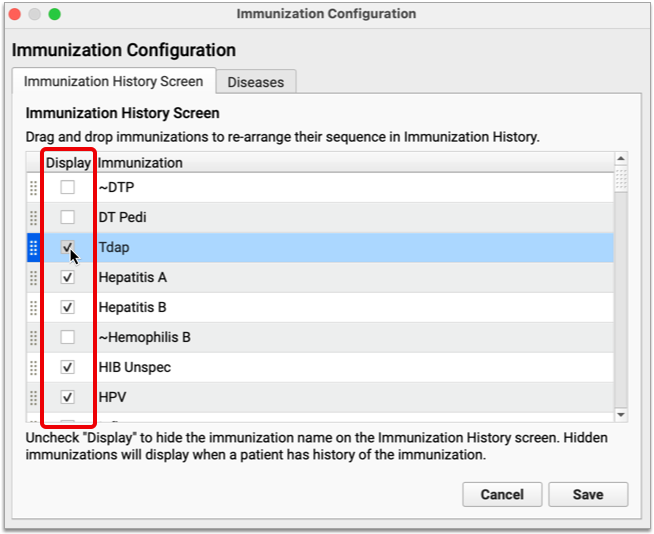
Immunizations where the “Display” checkbox is blank remain hidden from the Immunization History until patients have received them.
When you have finished configuring the Vaccines section of the Immunization History screen, click “Save” to commit your changes and exit the tool.
Call PCC Support to Edit Immunizations or Add Combination Vaccines: The list of available immunizations in PCC EHR comes from your Immunization and Diseases table and other configuration under the hood in the Practice Management window. Contact PCC Support for help editing immunizations or adding new combination vaccines.
Configure the Diseases Section
You can customize the layout of diseases on the Immunization History screen.
Open the Configuration menu in PCC EHR and select the Immunizations option. Once in the configuration tool, click the Diseases tab.
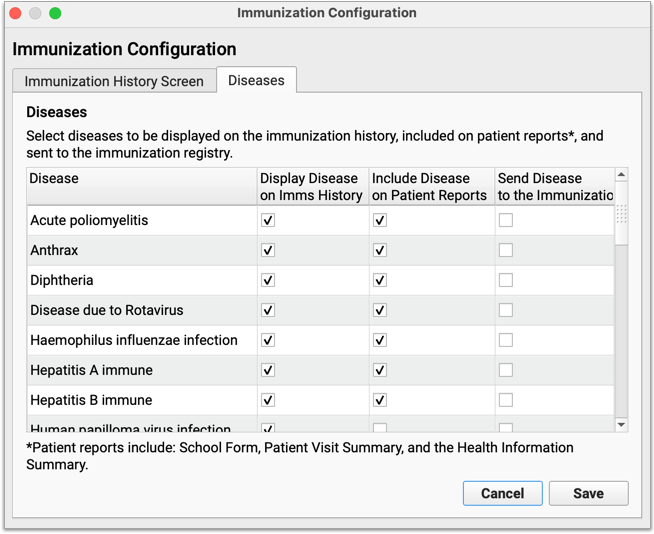
On the Diseases tab, you can configure which vaccine-preventable diseases display on the Immunization History and elsewhere in PCC EHR. Vaccine-preventable diseases that are checked off in this configuration pane only display for patients who have received a diagnosis.
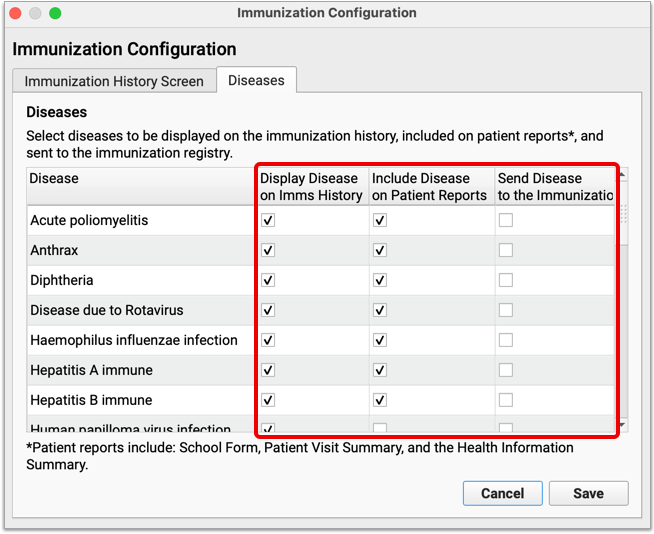
Check with PCC Support About Immunization Registry Configuration: Not all registries accept vaccine-preventable disease information for patients. If you would like to learn whether the registry with which you interface accepts this information, contact PCC Support to speak with an immunization registry specialist.
When you have finished configuring the Diseases section of the Immunization History screen, click “Save” to commit your changes and exit the tool.
Canceling and Rescheduling CHADIS Appointments and Moving CHADIS Results
When your patients and families complete CHADIS questionnaires,the results are automatically assigned to the patient’s upcoming visit. Canceling a visit will also cancel those orders, making CHADIS results unavailable in the patient’s history or in a newly scheduled visit. Use the following workflow and suggestions to ensure that assigned and completed questionnaires are saved and available in a patient’s chart.
Whenever possible, reschedule an appointment instead of canceling it. Rescheduling maintains the same appointment data, so completed CHADIS questionnaires are moved to the new date along with any other information added to the visit where it was originally scheduled.

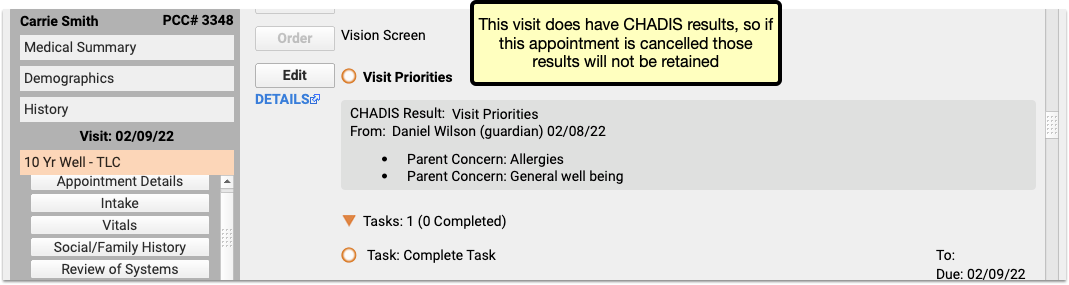
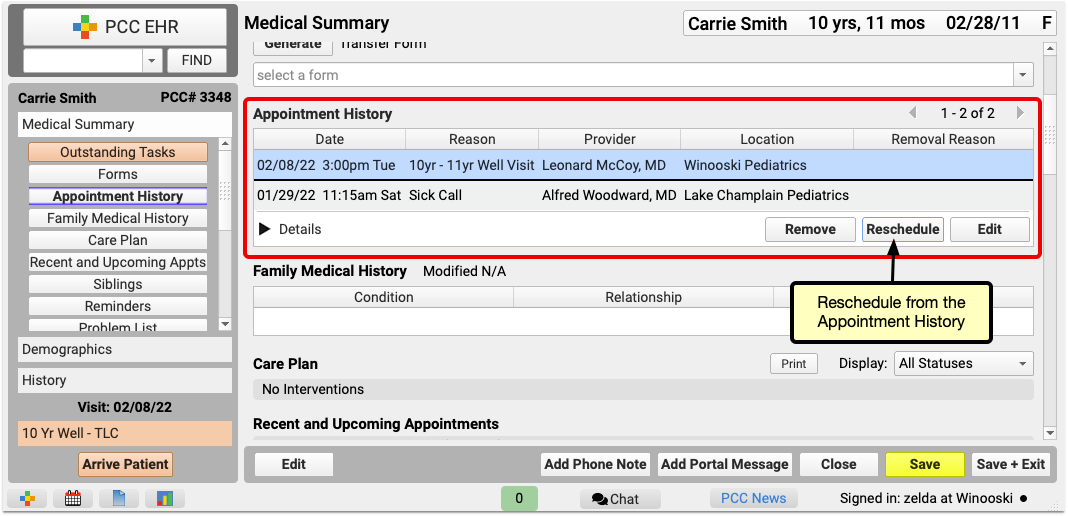
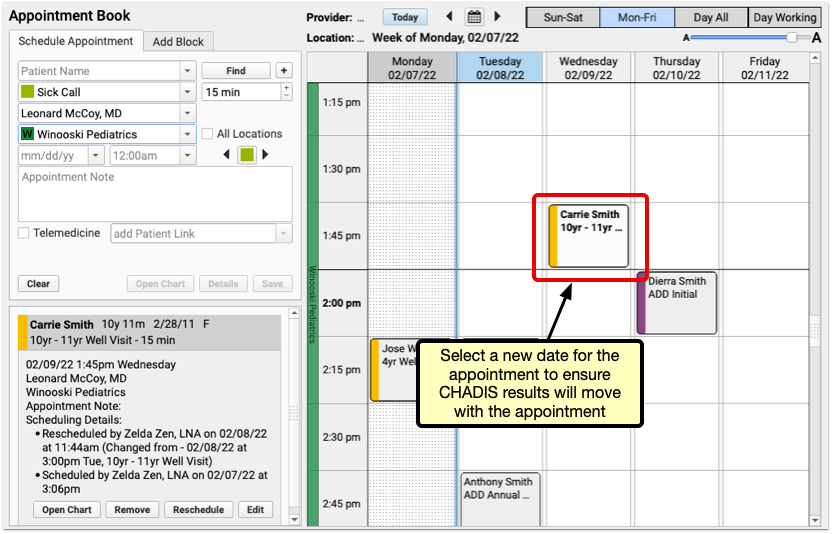
If an appointment with CHADIS results needs to be canceled, or will be rescheduled for a future date yet to be determined, cancel the appointment. When the time comes to schedule the replacement appointment, restore the appointment through the patient’s appointment history, and then reschedule it as above.
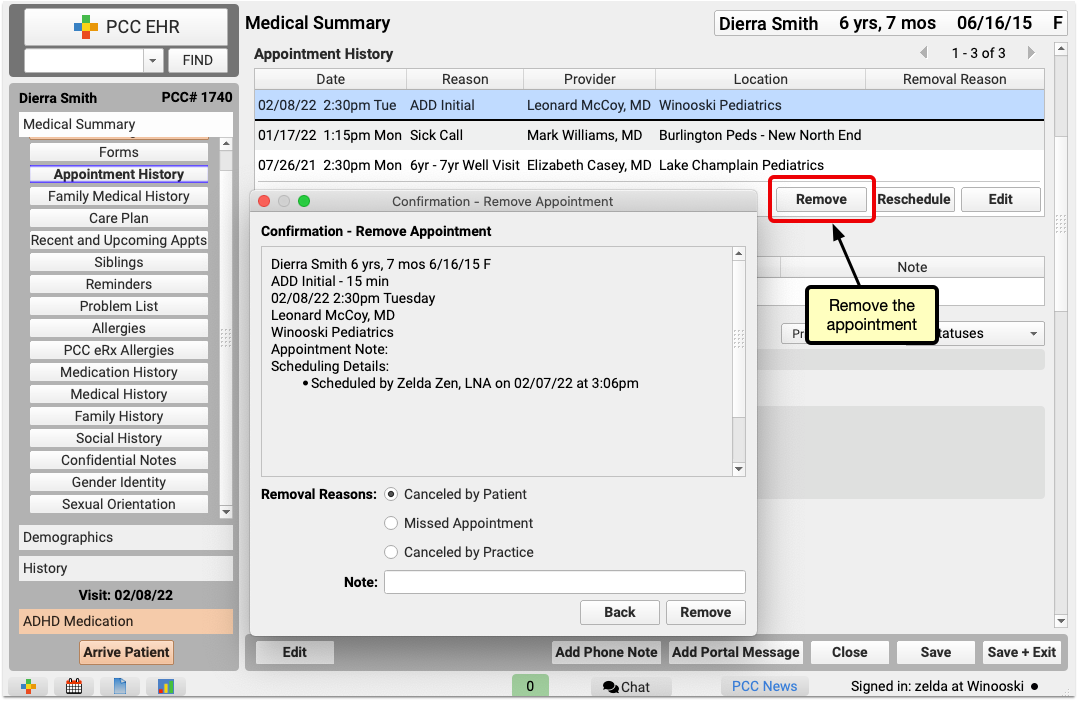
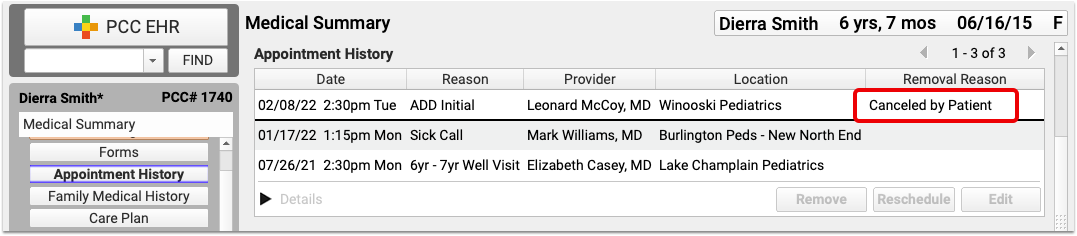
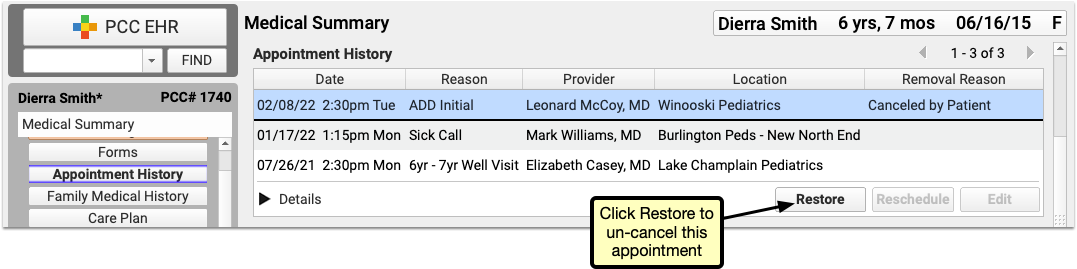
Rescheduled visits are not counted as canceled visits. If you want to mark a visit as “canceled by patient”, but still move the CHADIS results to a replacement appointment, then reschedule the visit with the CHADIS questionnaire, as above, and then create a new visit for the original time and date, and cancel that one. The canceled and the rescheduled visit will appear in the patient history, with the earlier one marked as canceled.
Other tips
- Any appointment scheduled for the following seven days could include CHADIS results, so be sure to check for results before canceling any appointments in the near future.
- CHADIS results will trigger the orange ball in the patient’s history and the EHR schedule queue, but there’s no way to tell that results have arrived in the Appointment Book, so it’s best to manage cancellations and rescheduling through the Appointment History component in the patient’s Medical Summary.
- If an appointment with CHADIS results is canceled instead of rescheduled, there’s no way to move that data to another appointment. The only option is to print the results to the EHR then attach the document to the new appointment.
- CHADIS will not reassign the same questionnaires to a patient twice within a number of days, (usually 14, though that can be changed through the CHADIS web interface). If an appointment with CHADIS results is canceled, and a new appointment is scheduled outside of that date range, then CHADIS will reassign the questionnaires and the user will need to complete them again.
Move CHADIS Results to a Different Encounter
When a patient misses or cancels an appointment after completing CHADIS questionnaires, you can move those CHADIS results and orders to another encounter, so that no results are lost, and no users need to repeat any questionnaires.
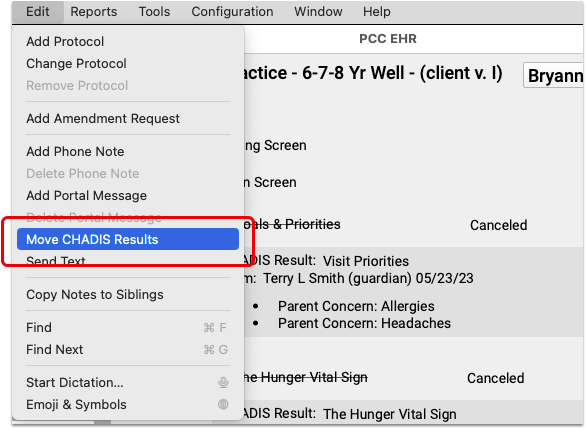
When viewing a visit that includes CHADIS orders and results, select “Move CHADIS Results” from the Edit menu. Move CHADIS Results opens a window with a drop-down menu including the patient’s visits and the option to create a new Unsolicited Chadis Results encounter.
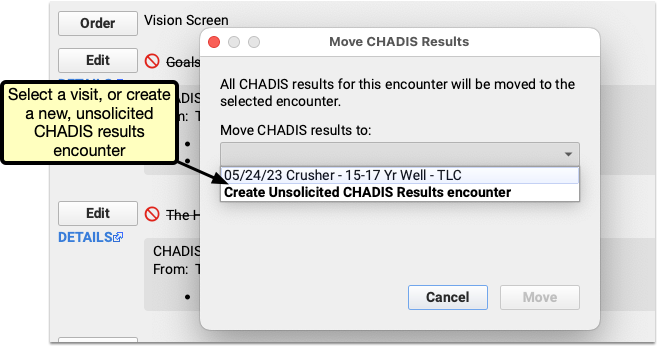
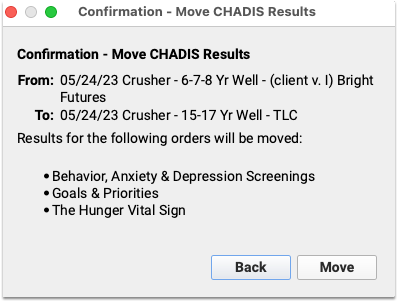
After making your selection and clicking move, you’ll have the opportunity to confirm your choice, or click “Back” to return to the previous visit selection window.
Once you confirm your selection by clicking “Move” the orders and results will appear in the visit you selected.
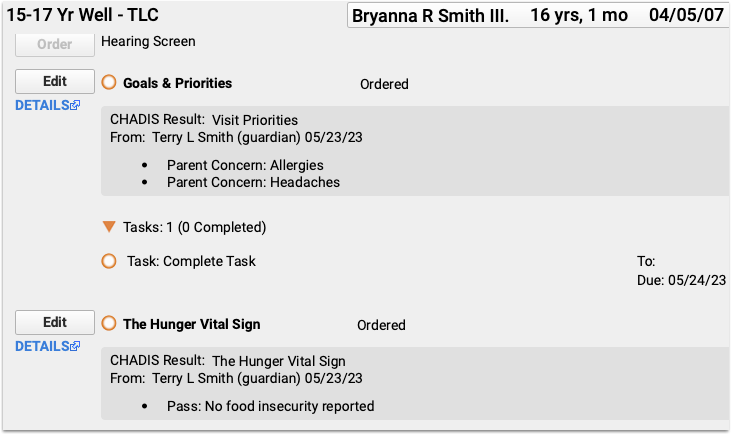
Use a Billing Service with PCC
Some pediatric practices use a billing service instead of (or in addition to) in-house billing staff.
PCC maintains an index of billing services that have used PCC in the past, along with a quick “things to consider” Billing Service Shopping List for practices who are looking into using a billing service.
Billing Service List
Not a Recommendation or Endorsement: PCC makes no recommendation for particular billing services. Inclusion on this list means we know that the service has used PCC software at some point, and that they’ve shared their contact information with us.
| Name | Contact | Phone | Website | Business Address | |
| Altus Pediatric Billing | Emily Floyd | emily@altussolutionsgroup.com | (972) 607-4130 | https://altuspediatricbilling.com/ | 7200 State Highway 161, Suite 350, Irving, TX 75039 |
| AM Med Solutions | Sunny Gazahi | sg@ammedsol.com | 888-811-5391 x100, Fax: 1-646-292-5178 |
www.ammedsol.com | 247 Prospect Ave, Suite 4C, Brooklyn, NY 11215; 1368 N US 1, Suite 404, Ormond Beach, FL 32174 |
| Bookkeeping & Business Services, LCC (BBS) | Diane Richards | info@bbs1040.com, drichards@bbs1040.com | (978) 794-1919 | Bookkeeping & Business Services, LCC | 302 Broadway, Methuen, MA, 01844 |
| IPMSO Remote Biller | Susanne Morgana Brennan | brennan@ipmso.org | (877) 774-7726 (877-771-PRCM) | The Verden Group | 48 Burd St Suite 104 Nyack, NY 10960 |
| Medical Solutions | Stephanie Dubert | info@sotxbilling.com | (956) 630-2225 | Medical Solutions | 612 Nolana, Suite 330, McAllen, TX 78504 |
| PedsOne | Tim Rushford | tim@pedsone.com | (866) 371-6118 | PedsOne | 10 East Allen Street, Suite 100 Winooski, Vermont 05404 |
| Sweet Pea Solutions | Heidi Chamberlin | info@sweetpeamroc.com | (888) 538-1089 | Sweet Pea Solutions | PO Box 73, Sheldon Springs, Vermont 05483 |
Billing Service Shopping List
PCC created a Billing Service Shopping List guide in 2021. It includes questions to ask and things to consider when you research a billing service.
Contact PCC
Get in touch with PCC if you have questions about our policies and procedures for working with billing services. If you begin working with a billing service, let us know!
You can find other PCC clients who use billing services on PCC Community.
Run Reports About Your Patient Portal Usage
The Patient Portal category in PCC EHR’s Report Library includes a wide range of reports to help you maximize your practice’s use of the Patient Portal. You can track your practice’s usage, manage patient and family accounts, and ensure that patients are linked to the appropriate portal users.
The Report Library offers several built-in reports, which your practice can customize and refine to get exactly the information you need.
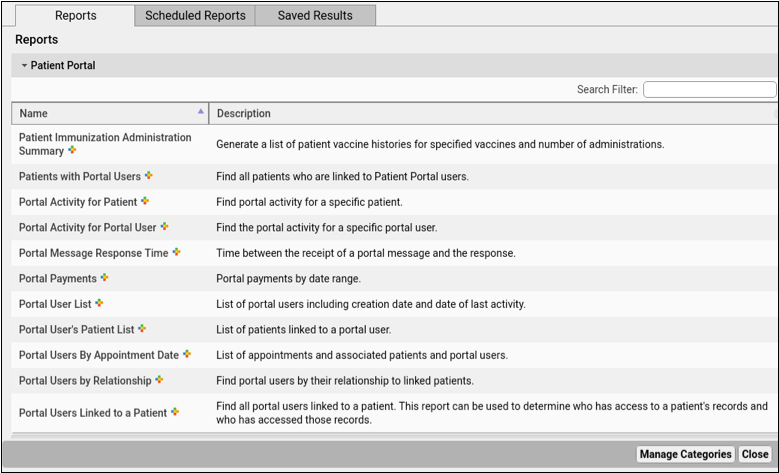
Patients with Portal Users
The Patients with Portal Users report lists patients with or without a portal account.
It can be limited to just patients with or without an associated portal account, or select both to build a list based on all your existing patients. To leave out transferred, deceased, or other groups of patients, click the edit button next to the “Exclude by Patient Flag” list to adjust which flags will cause the patient to be left out of the results.
Portal Activity for Patient and Portal Activity for Portal User
Portal Activity for Patient shows all actions of any user associated with a single patient, and Portal Activity for Portal User lists all actions by a single Portal user. Use this report to find out who accessed patient data, sent a message, or made a change to an account.
Because each action generates a new line in the portal, this report’s results can be very large, especially if your date range is wide. To ensure you get a manageable amount of data, try to build the report for the smallest possible range of dates.
Portal Message Response Time
Use the Portal Message Response Time to ensure that your Portal Users are getting prompt replies to their messages. It lists all messages within a selected date and time range, and calculates the time between when a portal message was received, and when a response was sent from your practice.
Portal Payments
Use the Portal Payments report to find and list incoming portal payments to your practice. You can limit the report by card type, transaction type, status, or result: approved, declined or error, and thereby find payments that need correction, processing or other work.
Portal User List
Generate a list of all portal users created within a range of dates, including user details, last activity and linked billing accounts.
Portal User’s Patient List
Portal User’s Patient List generates a list of all patients associated with a selected portal user. Use this report to ensure that portal users have access to the correct patients. By default, it includes a wide range of user information, including the user’s email address, name, phone number, linked billing account, and creation date.
Portal Users by Appointment Date
Ensure that all of your upcoming appointments have portal accounts associated with the scheduled patient by using the Portal users by Appointment Date report. It lists upcoming appointments and each portal user associated with those patients. If a line’s Portal User column is blank, you can be ready to create a portal user when the patient arrives.
Portal Users by Relationship
See how your Portal users are associated with their linked patients, parent, sibling, grandparent, et cetera. This is especially useful for finding users with a Portal User Relationship of “unknown” so that you can correct the relationship and ensure that CHADIS questionnaires are properly assigned.
Portal Users Linked to a Patient
The reverse of the above report, Portal Users Linked to a Patient generates a list of all users associated with a single patient. As above, this is useful to double check that a patient is associated with the correct users, so that no information is shared with the wrong person.
Share and Print Lab Results Through the Patient Portal
Your patients and families can download and print lab results from PCC’s Patient Portal, so there’s no need to upload COVID-19 and other test results manually. Portal users can access test results from their phone or computer, to print and share wherever they’re needed.
When you check “Include on Patient Reports” while ordering a lab in PCC EHR, the lab order automatically appears in the Patient Portal in the patient’s Labs section, and in the lab component of the visit itself.
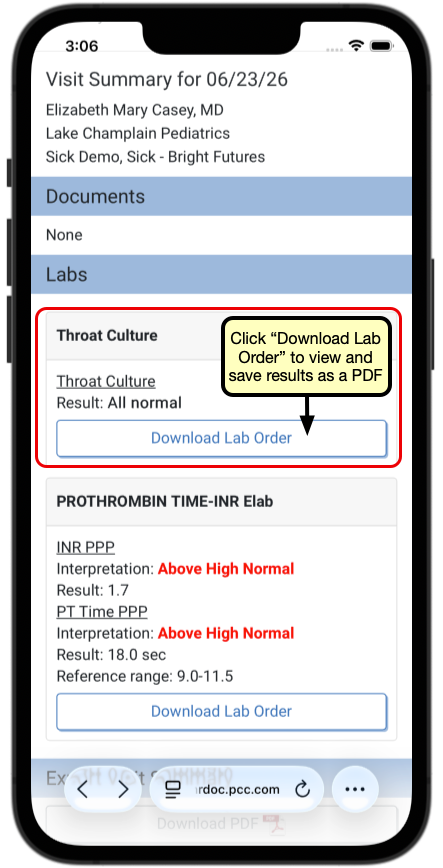
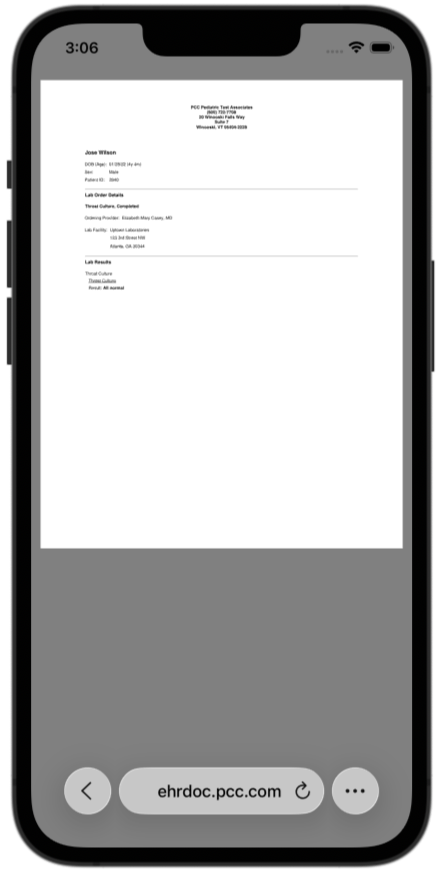
The Download Lab Orders button generates a PDF file of the lab results. The PDF is very similar to the lab order details view in PCC EHR, though some minor items are changed to make the lab results clearer and easier to read.
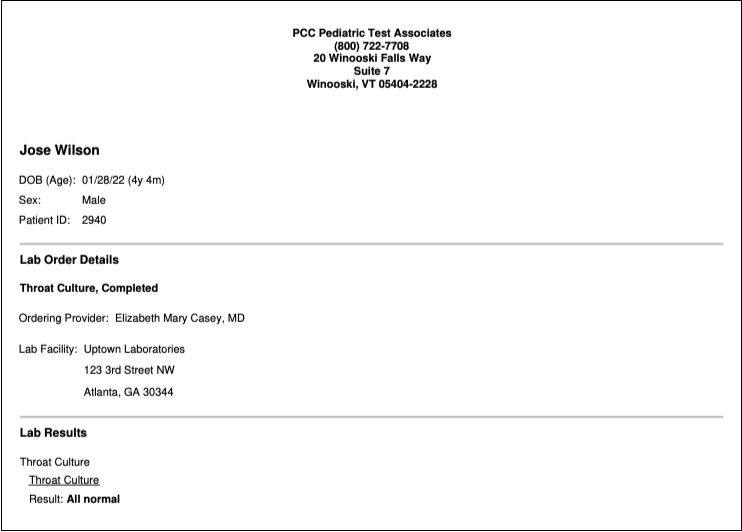
Portal users can save the PDF to their phone or computer, or print it and have it in hand for schools, camps, and any other occasion where test results are needed.
Configure Forms in PCC EHR
The Forms Configuration tool in PCC EHR allows you to create and manage your own auto-filling forms, handouts, policies, and letters, that you can edit and generate more easily.
Watch a Video: Learn how to create a form from scratch, or clone and edit a form with the Create a Form and Clone and Edit a Form videos.
Create or Edit a Form
Use the Forms Configuration tool to build, preview, and publish your own auto-filling forms, handouts, policies, and letters.
Add a New Form
To create a new form letter from scratch, add a form in the Form Configuration tool.
Open the Forms Configuration Tool
Select “Forms” from the Configuration menu to open the Forms Configuration tool
Choose a Form Type
Choose the type of form you want to create. Each type of form has a specific set of variables, based on the recipient of the form.
- Patient forms are generally directed to the family, school, or specialists. These might include excuse forms, asthma action plans, referral forms, and so on.
- Account forms are directed to the account holder (the guarantor or custodian). These are usually billing- or insurance-related forms such as past due letters, address verification letters, or policy-related mailings.
Add a New Form
Click the “Add” button to create a new patient or account form.
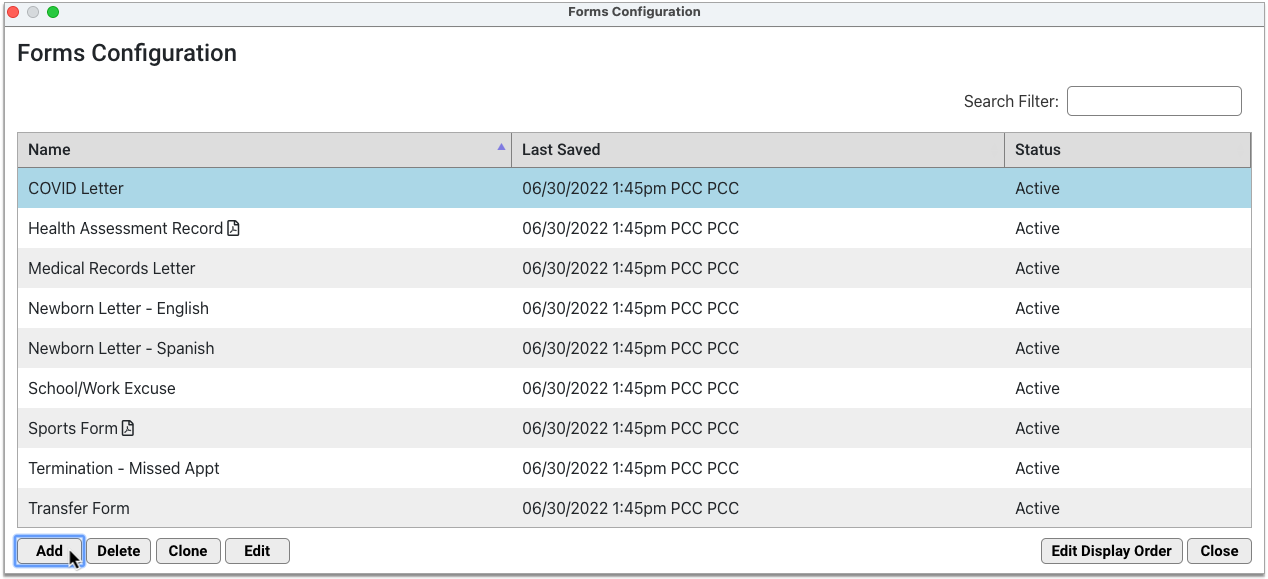
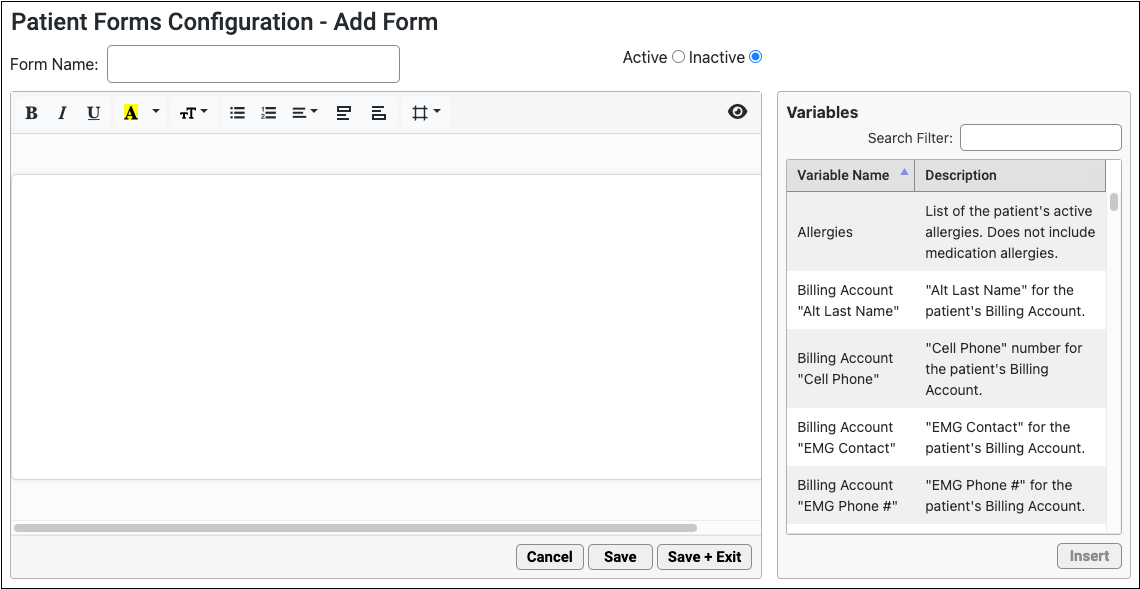
The default workspace is an 8.5 x 11-inch page with 1-inch margins.
Name the Form
Give the form a unique name.
Other users at your practice will see this name on the Patient or Account Forms component drop-down list n the patient’s chart. The name will also be used as the default document title when you generate the form.
Add Letterhead
To add your header or footer (or both) to any form, click the header or footer icons.
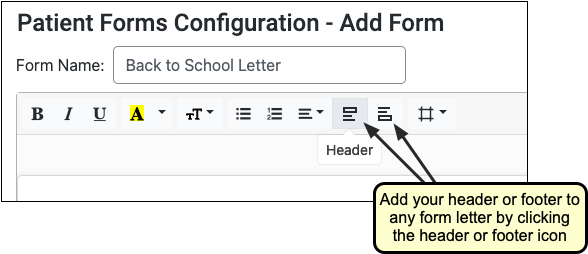
Compose Text
Click on the workspace and type or copy and paste to add text.
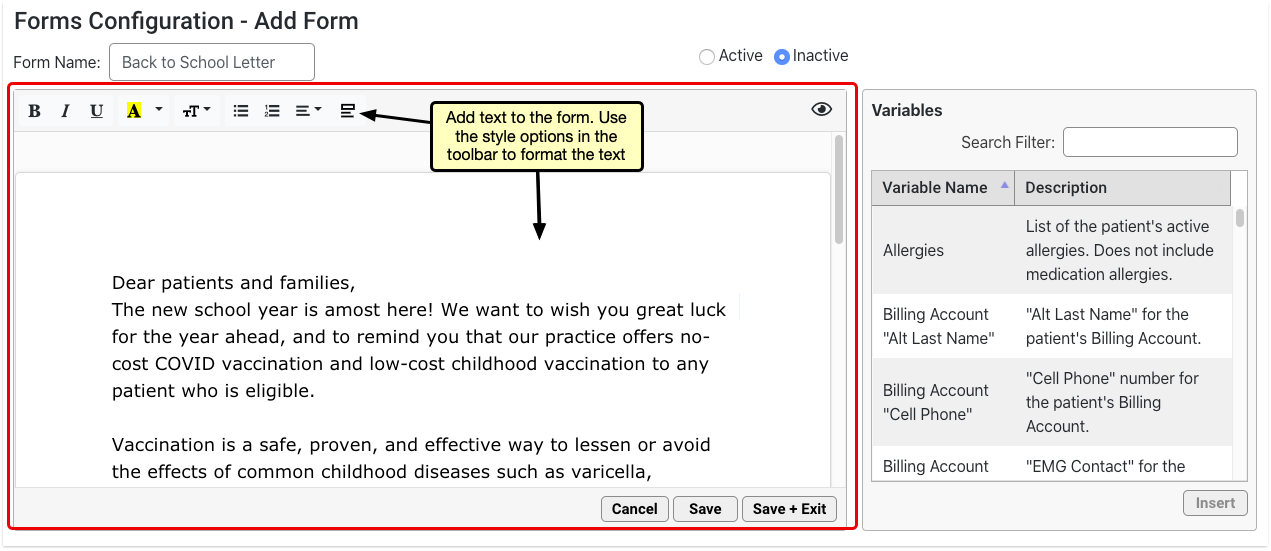
Use the style options in the toolbar to customize the font size, weight, and color, as well as the text alignment and list style. Only one font is available at this time.
Search For and Insert Variables
Use the Variables pane to find and insert variables. Double-click on any variable to insert it onto the form, or select the variable and click the “Insert” button.
The variable inserts where your cursor is placed on the form.
You can optionally add variables using the variables shortcut. To learn more, read Use the Variables Shortcut.
Fill Decision Variable Fields As Needed
Click on orange variables to fill out the required field in the options pane.
Add Response Variable Prompts As Needed
Configure each Response variable with a prompt. The prompt should tell the person filling out the form what kind of information to include in their response.
Add a Provider Signature Image and Related Variables
Find and insert a provider signature image variable wherever you want the selected provider’s signature to display.
Only one provider’s signature image can be selected at the time of form generation. You can add the signature provider’s full name, NPI or Tax ID in addition to the signature image.
To learn more about configuring provider signatures, read Configure Provider Signatures.
Adjust Margins
Click the icon to view the margin size choices and, optionally, adjust the margins.
When you select a different margin size, the form updates in real time.
Preview
Click the eye icon in the top right corner of the form to preview it at any time.
The form renders in real time. Variables auto-fill with real data. Where there is no data to auto-fill, the variable renders as blank.
Make the Form Active
When the form is complete and ready to be added to the Patient or Account Forms component in the patient’s chart, change its status to Active in the top right corner of the form configuration window.
New forms start out as Inactive by default to prevent other users at your practice from generating them before they are ready.
Save the Form
Click “Save” or “Save + Exit” to save your work.
A “Last Saved” timestamp at the bottom of the form editor tells you the last time the form was saved.
Optionally Test Printing
If your practice generates form letters that have unusual formatting, use response variables or other special features, you may want to confirm that they print as expected.
Clone an Existing Form
When you need to create a variation on an existing form, clone a saved form instead of starting from scratch. Your practice can create a base form, such as a simple letter with today’s date and demographic variables, to reduce the time you to spend composing new forms.
To make a copy of a saved form, select it and click the “Clone” button.
The copy opens in the form editor, where you can start making changes right away without affecting the original form.
Rename your form and make your edits, then save the copy as you would a new form. Forms that are not renamed will be saved with “Copy” at the end of the original form’s name.
Edit or Delete a Form
You can update and make changes to saved forms at any time.
Find the Form
Use the Search Filter to narrow down the list or click the column headers to change how the list is sorted.
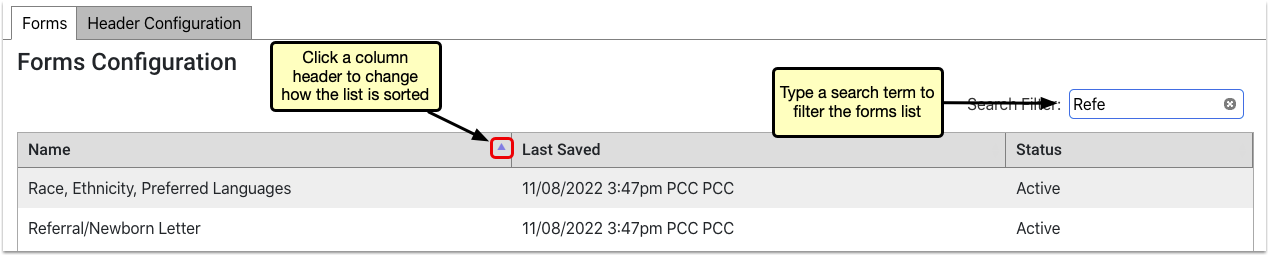
Open the Form
To open a saved form, double-click it or select it and click the “Edit” button.
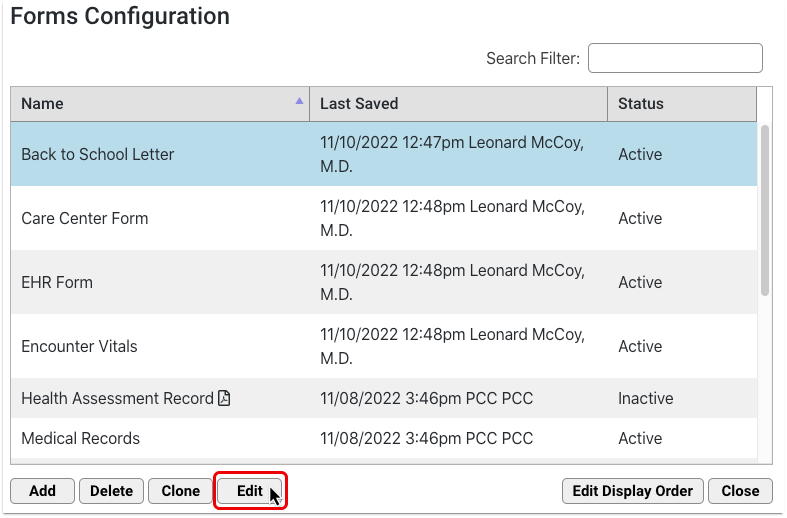
Edit the Form
You can make changes to your form name, text, formatting, variables and status.
To discard all changes to a form that you are currently working on, click the “Cancel” button.
Save the Form
When your edits are complete, click “Save + Exit”.
Optionally Delete a Form
To delete a saved form, select it and click the “Delete” button. This action is protected by a special user permission in the User Administration tool.
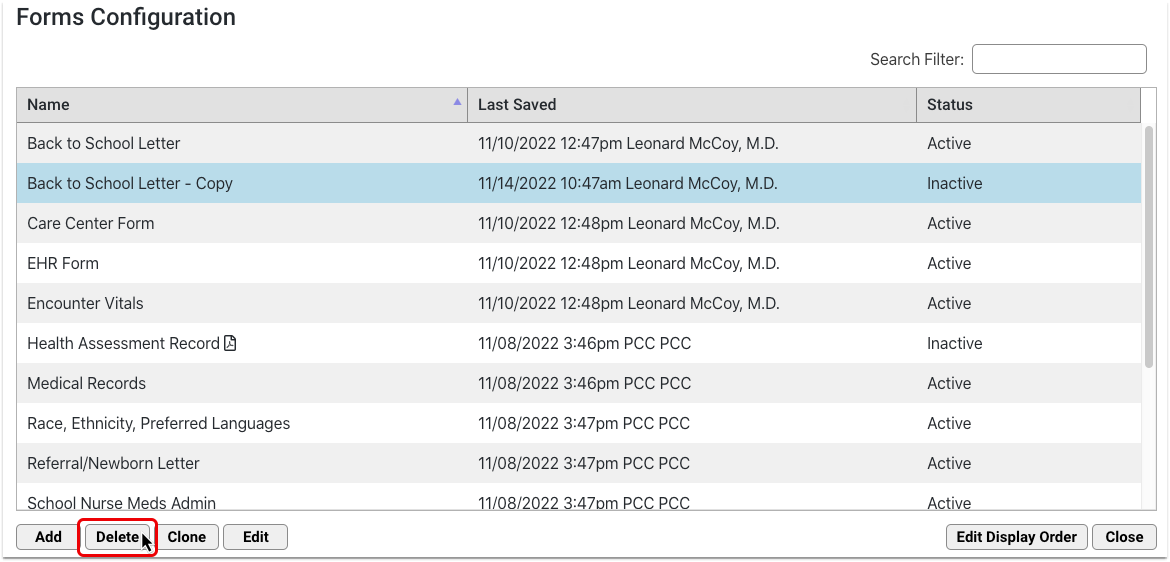
Deleted forms are removed from both the Forms Configuration tool and the Patient or Account Forms component. If you need to restore a form that was deleted by accident, contact PCC Support.
Generate or Print a Form
When you need to generate or print a form, use the chart-wide Patient or Account Forms component to generate a patient form, enter additional information as needed, and work with the form in the document viewer. Your practice can add the Patient or Account Forms component to any protocol ribbon in PCC EHR.

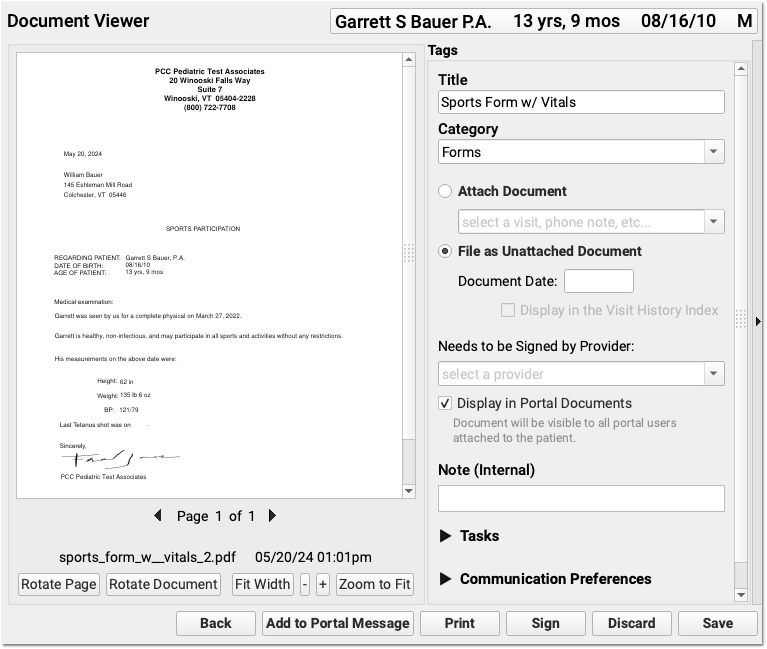
For more detailed information on how to generate forms in PCC EHR, read Generate Forms in PCC EHR.
Configure Variables
Variables are placeholders in patient and account forms that populate specific information when the form is generated. Some variables require further configuration.
- Simple variables auto-fill with patient data. Some simple variables are configurable.
- Decision variables require additional setup when creating the form in the Forms Configuration tool.
- Response variables require configuration when creating the form. These allow staff and providers to input text when the form is generated.
Click on any inserted variable to open its configuration options in the pane to the right of the workspace and follow the instructions in the pane. Contact PCC Support at 802-846-8177 or 800-722-7708 with any questions.
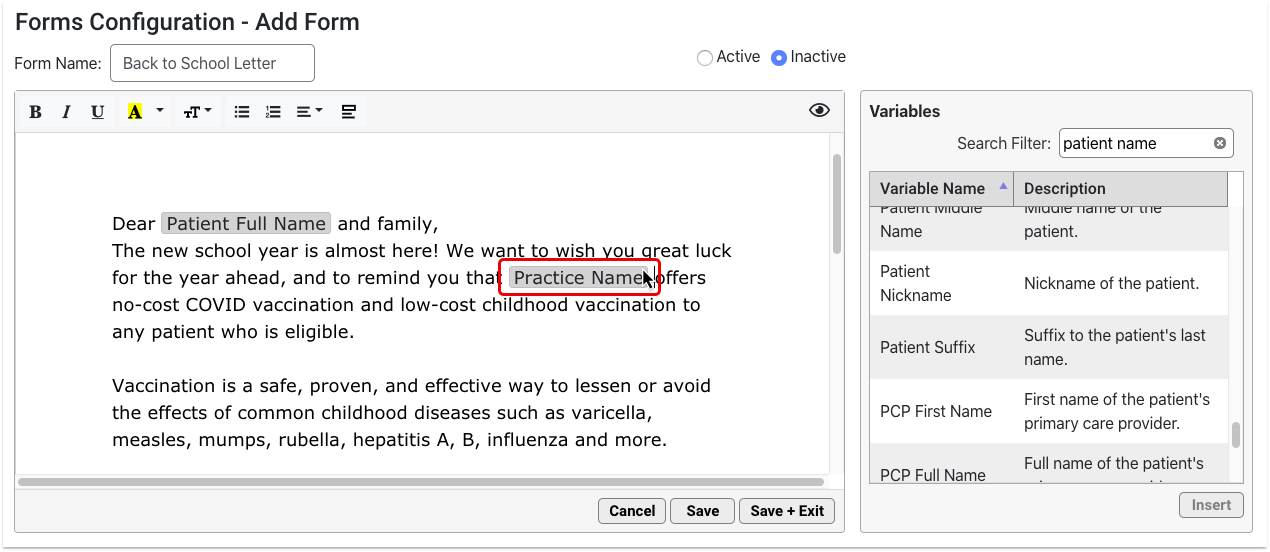
Configure Simple Variables
Most simple variables have no configuration options and only provide a description.
Some simple variables have formatting options. For example, you can customize the date format for date variables.

Configure Decision Variables
Decision variables turn orange as soon as you insert them. These require further configuration.
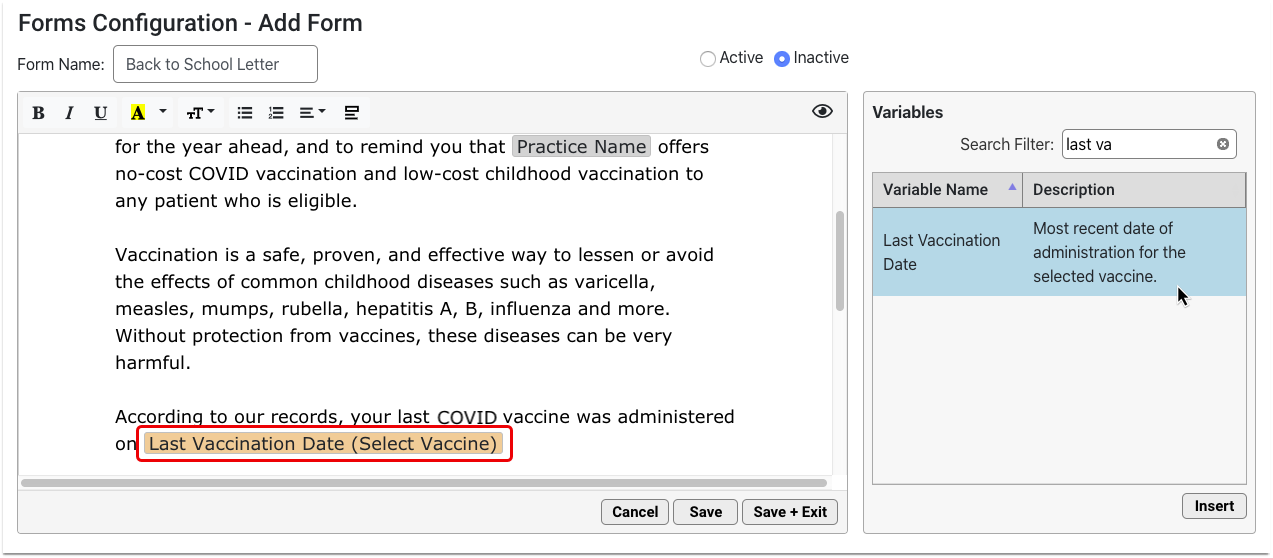
Click on the orange variable and fill out the required field in the options pane. The required field is also highlighted in orange.
Once configured, the orange highlight goes away and the variable name updates to reflect the settings you chose.
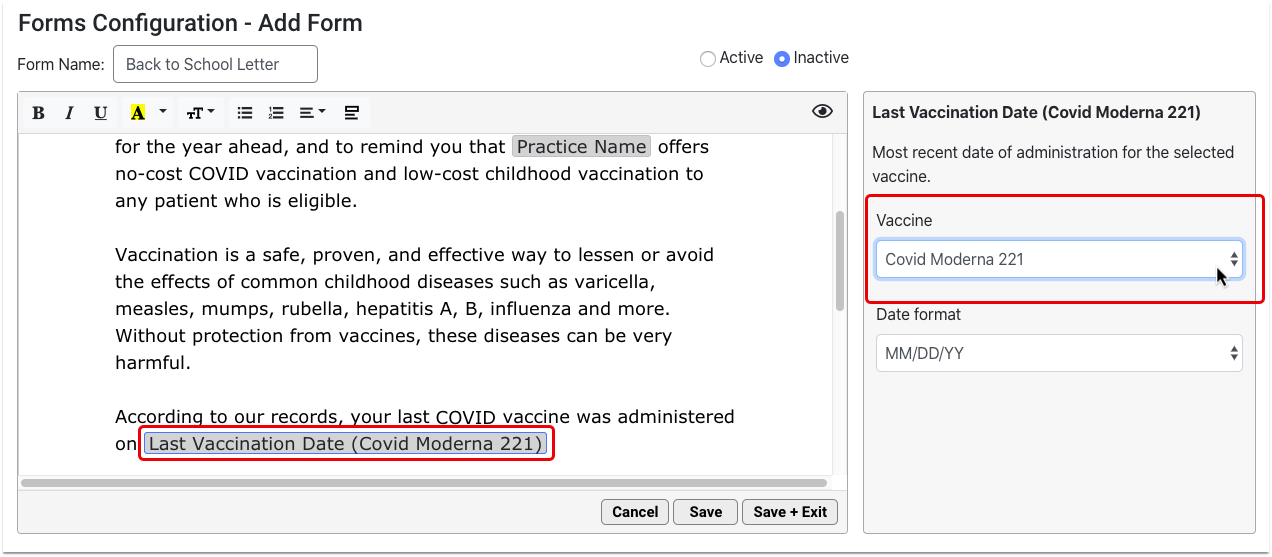
You must configure all orange decision variables in order for the form to work properly.
Configure Response Variables
Response variables prompt anyone who generates the form to add a free text response. That response populates onto the generated version of the form.
Add Response variables wherever you want providers and staff to contribute free text responses to the form.
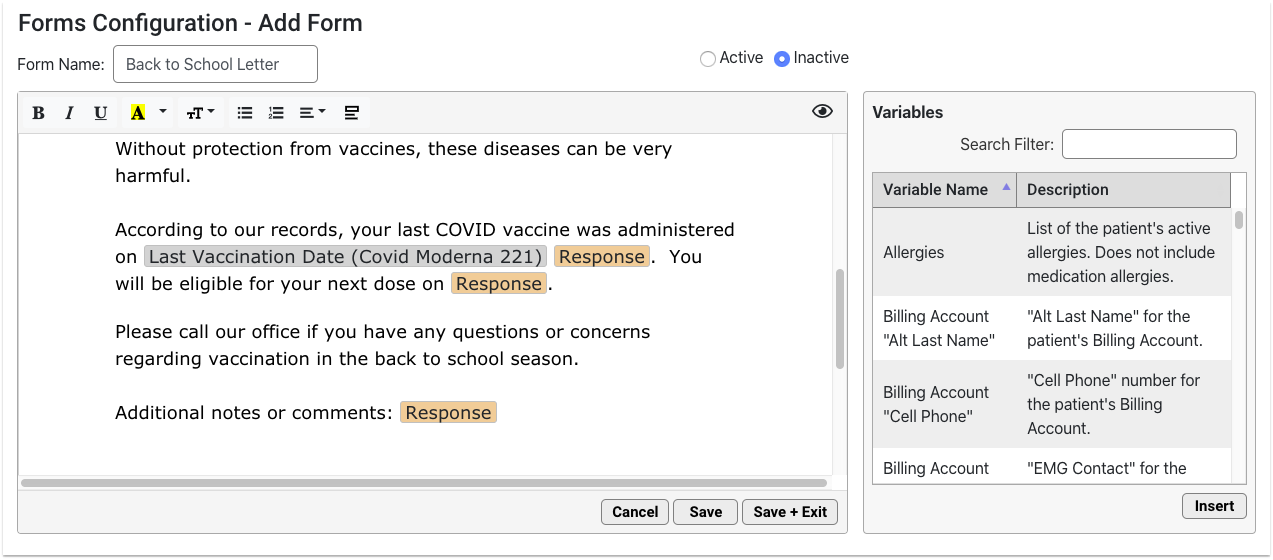
Configure each Response variable with a prompt. The prompt should tell the person filling out the form what kind of information to include in their response.
You can add as many Response variables as you want.
Use the Variables Shortcut
You can quickly insert a variable while you are typing in your form.
Open the Variable List
When you get to a spot in the text where you would like to insert a variable, type “<” to call up the quick-insert variable list.
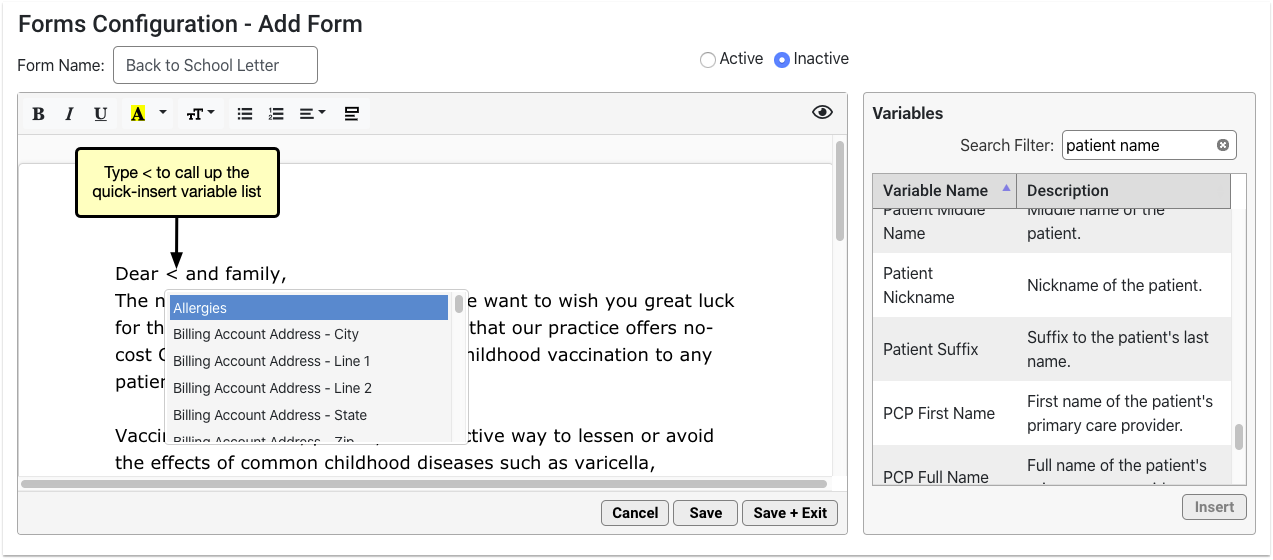
The quick-insert variable list is identical to the list in the Variables pane.
Narrow the List
Narrow down the list by typing a few letters of the variable you want to insert.
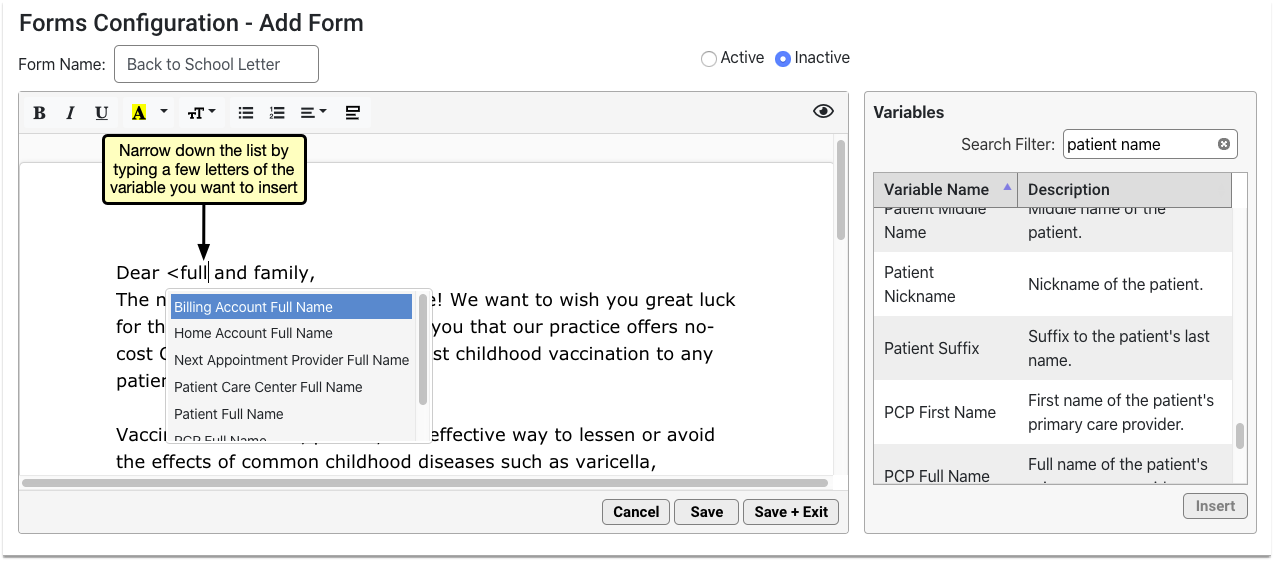
Select the Variable
Use your arrow keys or mouse cursor to select the variable you want from the list, then press the enter key or click to insert it onto the form.
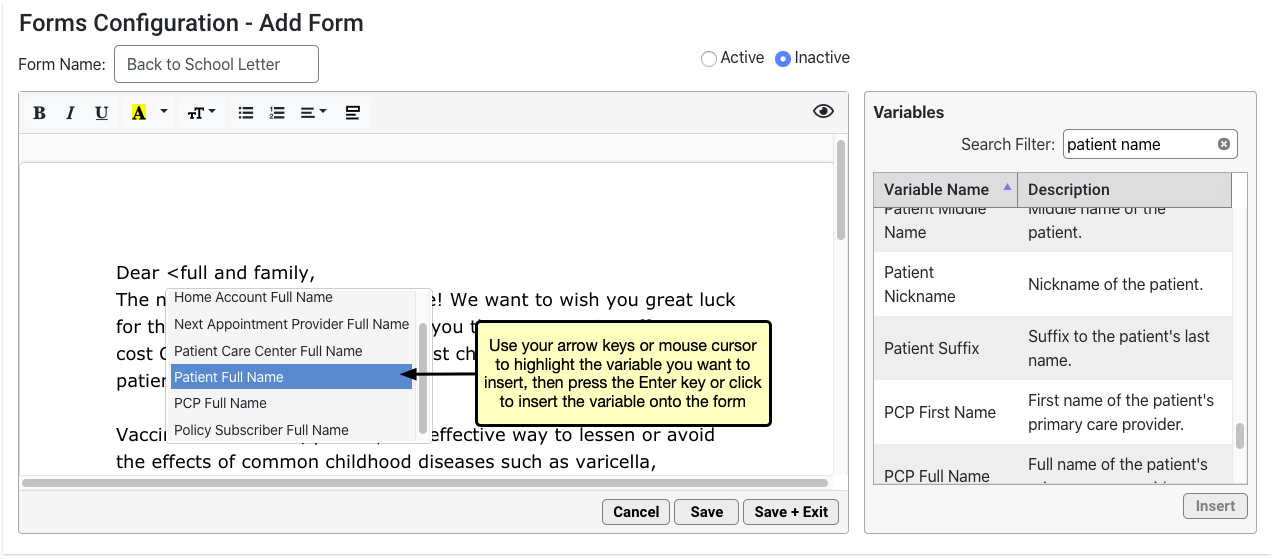
The variable replaces the quick-insert text that you typed.
Understand the Form Preview Screen
You can preview the form as you build it to see how it will look and feel when generated for patients or accounts.
Click the eye icon in the top right corner of the form to preview it.
The form renders in real time. Variables auto-fill with real data. Where there is no data to auto-fill, the variable renders as blank.
The data comes from the patient or account that is selected in the Preview Settings pane. Anyone using the Forms Configuration tool can change the selected patient or account at any time. Preview remembers the patient or account that was most recently selected by any user in the Forms Configuration tool.
If the form includes Response variables, you can test out how providers and staff will interact with them. Read and respond to the prompts in the Preview Settings pane.
As you type responses, the text appears inline on the form.
The response boxes and the form itself grow to accommodate the response text.
When you have finished previewing the form, click the pencil and paper icon in the top right corner of the form to return to edit mode.
You can switch between preview and edit modes as often as needed.
Customize Your Letterhead
Configure your letterhead in advance of composing forms so that you can add a header or footer to any form with one click. Letterhead in PCC EHR consists of one header option and one footer option. Configuration is applied to all forms that contain a header or a footer.
Open the Letterhead Tab
To create a new header and footer, open the Letterhead tab.
Add Variables or Text
Insert variables using the Variables list or the quick-insert shortcut list. You can type or copy and paste text in your letterhead.
Upload a Logo
If you have a letterhead image or a logo, click the picture icon to upload it from your computer or enter the URL of the image.
Optionally Resize or Format
Adjust the size, orientation, or text wrapping by clicking the image and selecting from the menu. Any variable or text can be resized or formatted using the toolbar options.
Optionally Adjust Margins
You can adjust the margins on your forms and practice letterhead to improve their appearance and make better use of space.
Hover over the margins icon to see current margin settings.
Save and Test
Once you’ve completed your letterhead, click “Save”. To test the layout, add your header and footer to a form and generate or print it.
To make further edits to your letterhead, click back into the Letterhead tab and make your edits. Any changes will be applied to all forms that include a header or footer.
Set Up a Provider Signature
Your practice can upload electronic signatures for each of the providers at your practice. Once the signature image is uploaded, you can set permissions for which staff members are allowed to generate the signature. When a signature image is not allowed to generate, the signature area remains blank, so that the provider can sign the form by hand.
Signatures should be written using a black pen on white unlined paper and scanned at a high resolution.
To read more about preparing and configuring signatures, read Configure Provider Signatures.
Work with PDF Forms
Some forms come to your practice pre-formatted or are too complex to build in the Forms Configuration tool. Common examples of these are state or school forms. PCC Support can upload PDF versions of these forms into the Forms Configuration tool, where you can view, configure, and manage many aspects of them yourself.
Alternate Layouts: Some organizations will accept alternate formatting or layouts as long as the form contains the same information as the original. Contact the sending organization to find out more.
Add a PDF Form
Contact PCC
Contact PCC Support at 802-846-8177 or 800-722-7708 if you think you need to upload a PDF form into PCC EHR.
Send the Original Form to PCC
PCC Support will request a copy of the PDF form. When you send the original form via email or support ticket, please identify the following:
- Which fields on the form should auto-fill with patient or account data
- Where to insert free text response fields
- Whether the form needs to be able to be signed by more than one provider
PCC Support will use the information you provide to build a smart version of the form that can be saved as a PDF and added to the Forms Configuration tool. This may take some time.
Copyright Protected Forms: If you want to upload a form created or owned by a third party, ensure that you have permission to use the form beforehand. PCC assumes no responsibility for verifying that you have permission to use a form.
View the PDF
Once the PDF form is available in the Forms Configuration tool, you can view, configure, and manage many aspects of it on your own. PDF forms are marked by a PDF icon on the main page of the Forms Configuration tool.
Double-click on a PDF form to open it in edit mode. You can also select it and click the “Edit” button.
Edit the PDF
In edit mode, you can:
- view the form contents and any smart configuration that PCC Support built in
- Rename the form
- Configure prompts that tell providers and staff how to fill out the free text response fields on the form
- Preview the form using real data from any patient on your PCC system
- Set the status of the form to Active or Inactive, which controls whether providers and staff can find it in the Patient or Account Forms components and generate it for patients
You cannot edit the body of PDF forms in the Forms Configuration tool. Contact PCC Support to request changes to the body contents of PDF forms.
Forms Need Unique Names: In order to save a form, you must give it a unique name. The form editor prevents you from saving forms that do not have unique names.
Configure New Prompts as Needed
If a PDF form is migrated with more user response fields than it used to have, additional response prompt lines will automatically appear in the “Configure Response Prompts” pane when you edit the PDF.
Reasons for Extra Prompts: Response fields are a versatile tool for creating forms that optimally serve your practice and patients. In the process of migrating your PDF forms to the new forms solution, PCC Support might realize that additional response fields are needed to improve the form’s function for your practice. These additional fields should not come as a surprise to you. Be should be sure to write prompts that help users understand how to fill them out when they generate the form for patients.
Delete Unneeded Prompts
Some PDF forms might prompt you to delete unneeded response prompts when you first edit them. This happens when the PDF form contains fewer response fields than it used to and it no longer requires the same number of prompts. Typically, PCC Support will adjust this for you, but you might encounter it yourself from time to time.
If you do encounter the prompt to delete unneeded response prompts when you open a PDF form, either contact the person on PCC Support who helped you with that form, or read through the original list of prompts associated with the form and delete those that are no longer needed.
Reasons for Unneeded Prompts: When PCC Support helps you migrate your PDF forms into the Form Configuration tool, they will adjust your forms to work within the Forms Configuration tool. In the process, the number of response fields on your PDF forms may be reduced. The step of deleting unneeded prompts when you first open a migrated PDF form is the final step of adjusting the form to take advantage of all functionality in the Forms Configuration tool.
Save and Test the PDF
Save any changes you made, and generate or print the form to test it out. If your practice generates PDFs that contain unusual features, be sure to test that they work as expected.
Optionally Adjust Printer Settings for Watermarks
If you worked with PCC to generate a watermark on your forms, you may need to adjust the printing settings on your workstation for the watermark to print at the right darkness level.
Contact PCC for PDF Edits and Unusual Requirements
If PCC Support helped you set up a custom form with unusual scripting or special information requirements, you will need to coordinate with PCC Support to make additional adjustments after uploading and testing your PDF.
Preview a PDF Form
When you edit a PDF form in the Forms Configuration tool, click the eye icon in the top right corner of the form canvas to preview it.
The auto-filling variables on the form render with real data from the patient selected in the Preview Settings pane. Where there is no data to auto-fill, variables render as blank.
You can change the preview patient to any patient on your PCC system, and fill out the user response fields to test out the experience of generating the form.
Click the “Refresh Preview” button to test out the form with the new data you entered into the Preview Settings pane.
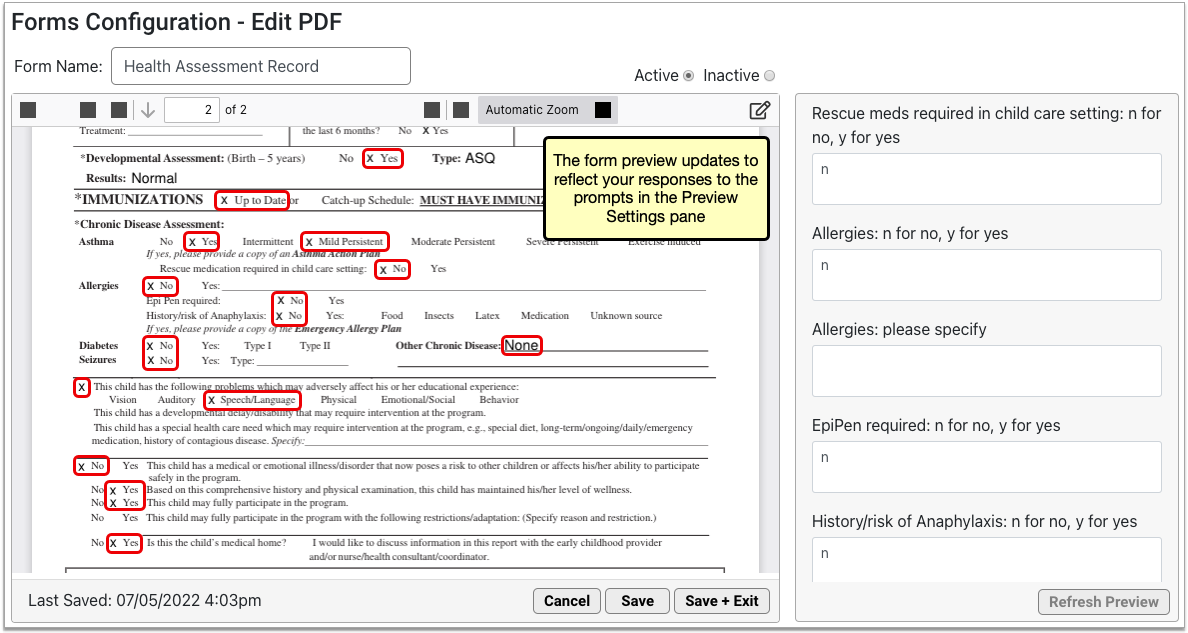
The form preview updates to reflect the information you entered in the Preview Settings pane.
Delete a PDF Form
You can remove the PDF forms your practice no longer needs from PCC EHR.
On the main page of the Forms Configuration tool, select the PDF form you want to remove and click the “Delete” button.
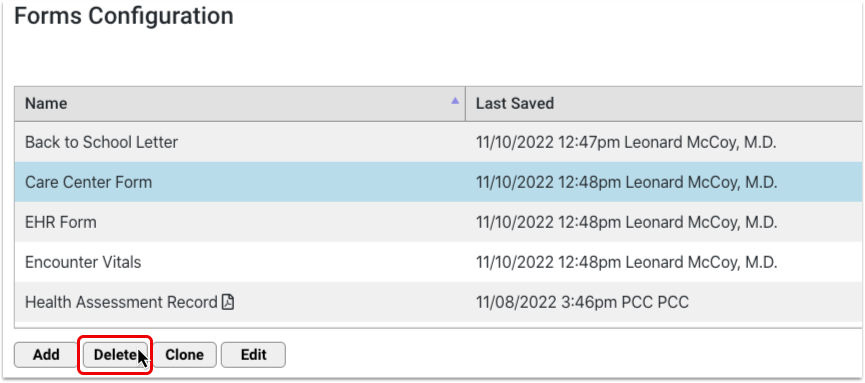
The “Delete” button is protected by a special user permission in the User Administration tool.
Configure the Patient and Account Forms Component
You can control which forms appear in the Patient and Account Forms components, the order in which they are listed, their names, and whether they appear by default for single-click generation in patient charts.
Adjust Default Forms Category
By default, PCC EHR will save a form letter into a Patient or Account Forms category, which you can later review in the Documents section of a patient’s chart.
You can use the Document Administration tool to change the default category for forms.
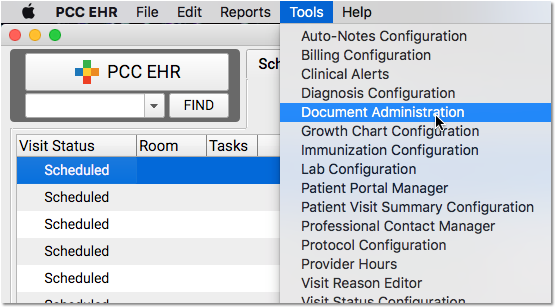
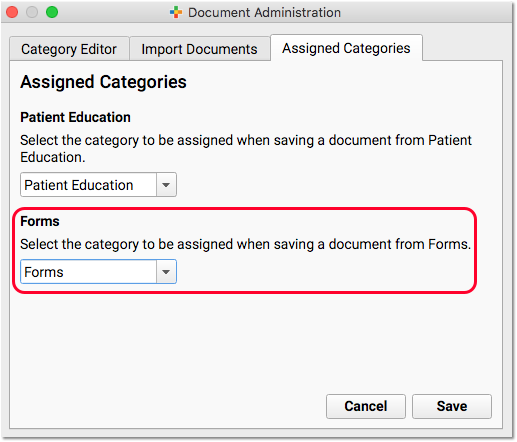
Show or Hide Forms in the Patient and Account Forms Components
The status of a form determines whether it appears in the Patient and Account Forms components. Active forms appear in the Patient and Account Forms component; inactive forms do not.
You can change the status of a form by selecting a different status in the top right corner of the window.
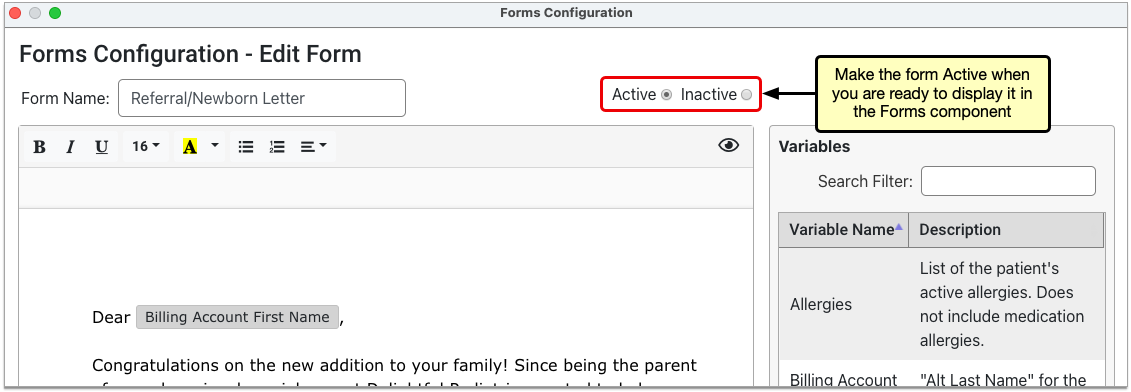
The new status takes effect as soon as you save the form.
Contact PCC for Assistance: If you have not switched to using the Forms Configuration tool in PCC EHR, contact PCC Support for help adding or removing forms from the Patient and Account Forms components.
Set the Display Order of Forms
You can control the order in which forms display in the Patient and Account Forms components.
Open the Forms Configuration tool, then click the “Edit Display Order” button.
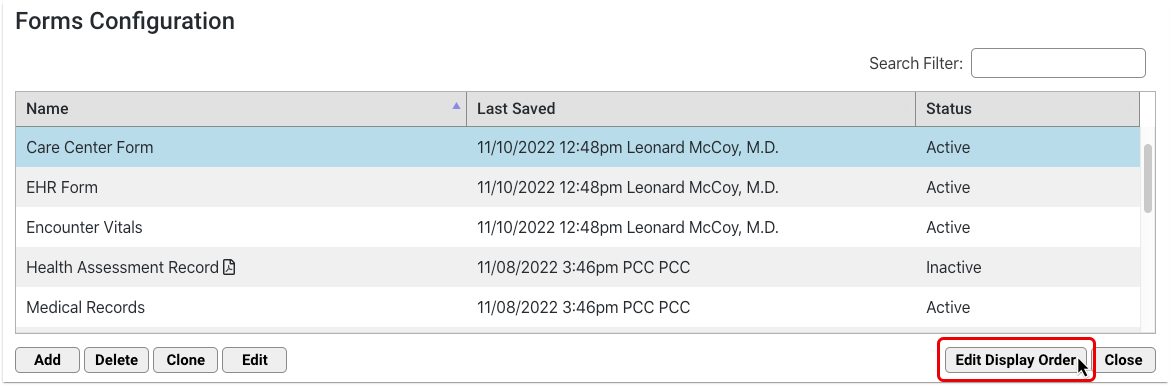
Drag and drop the forms to rearrange the list order.
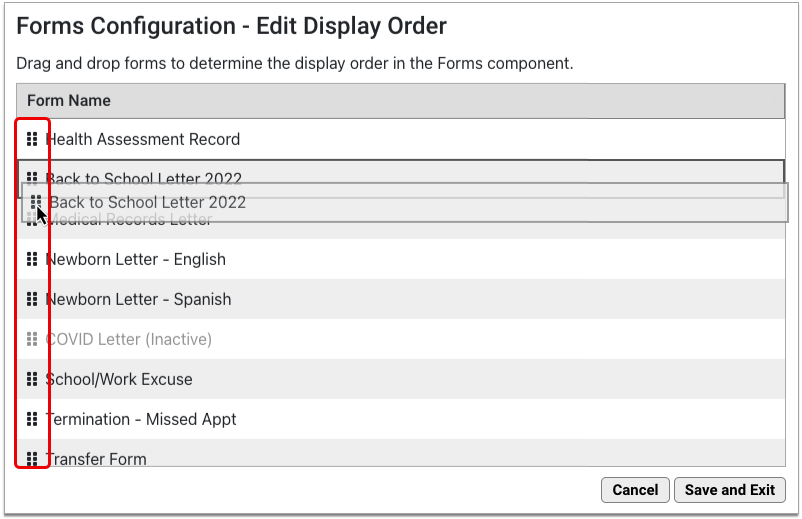
The list includes both active and inactive forms, but only active forms display in the Patient and Account Forms components.
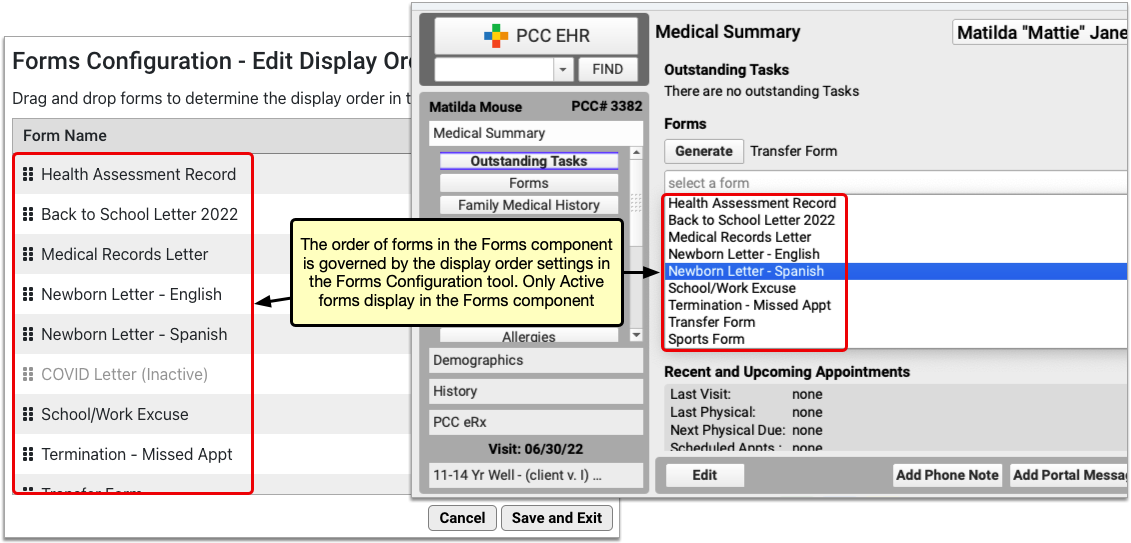
Click “Save and Exit” to save your work and return to the main page of the Forms Configuration tool. The Patient and Account Forms components will update to reflect your changes as soon as you click “Save and Exit”.
Where Are My Changes?: Lists of forms in the Forms Configuration tool always display in alphanumeric order. Changes made in the Edit Display Order window dictate how active forms display in the patient and account forms components within PCC EHR.
Configure Single-Click Form Generation
You can improve form letter workflow for your practice by making sure the right forms appear on the right protocols. You can add buttons to your visit protocols that let you generate forms with a single click.
When you have decided which protocols will contain the Patient and Account Forms components, follow the instructions below to adjust which forms appear as single-click forms by default.
Open Your Protocol in Protocol Configuration
Open the Protocol Configuration tool and pick a chart section or protocol where you will add or move the Patient and Account Forms components.
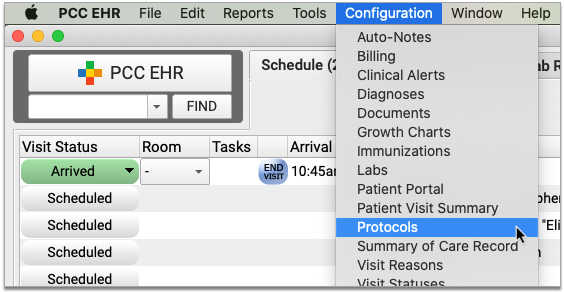
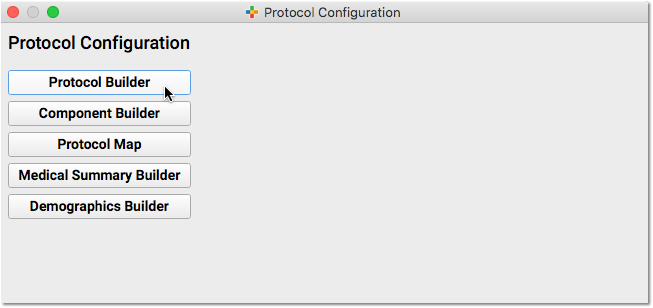
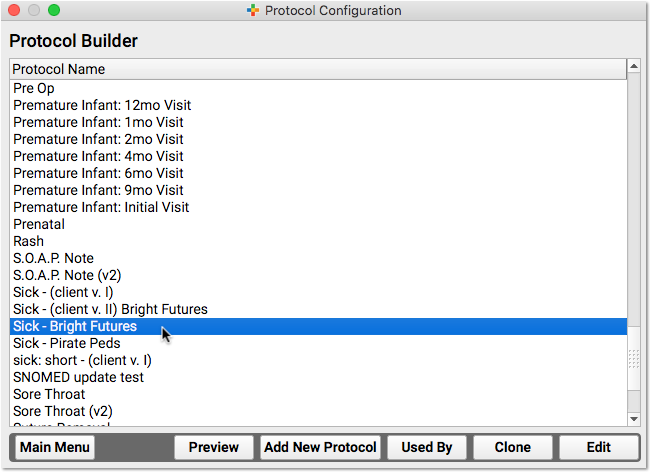
When a practice does not have the Forms Configuration tool enabled, the Account Forms component will appear, but not be selectable.
Add the Patient or Account Forms Component
Click “Add” to add the Patient or Account Forms component to your protocol. Use the tab on the side to slide it to a new location in the protocol.
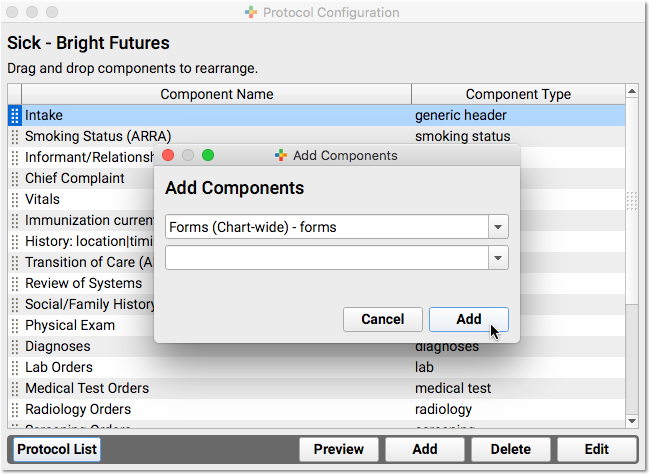
Select Single-Click Forms
Double-click on the component to set up default forms for that chart note or chart section. For example you could configure School/PE Excuse letters to be single-click in sick visits, or make form letters single-click in the Medical Summary or Demographics chart sections.
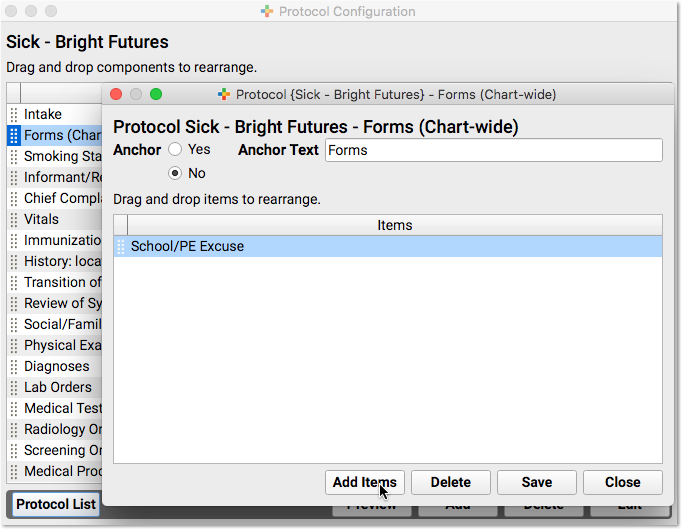
Enable the Forms Configuration Tool
PCC must enable the Forms Configuration tool at your practice before you can create and manage your own auto-filling forms, handouts, policies, and letters in PCC EHR.
Learn how to enable the Forms Configuration tool.
If you decide to switch to the Forms Configuration tool in PCC EHR, tell PCC Support what you like about it and what would make it more useful for your practice. Your feedback will guide the development of the new forms solution.
Set Permissions for the Forms Configuration Tool
Use the User Administration tool to adjust which user roles can access the Forms Configuration tool as well as which user roles can delete forms or configure signatures.
To find out more about setting permissions, read Set User Roles for Permissions and Security.
Set Up a Brother ADS Scanner
Read the procedures below to set up and configure a Brother ADS-XXXXX scanner.
Prepare for Setup
You will need to take the following actions before you can set up your scanner.
Contact PCC Support to Set Up Scanner Bucket
If you do not have an existing scanner bucket, call or email PCC Support at (800)722-7708 or support@pcc.com to request a new scanner bucket.
Replacing an existing scanner?: If you are replacing an existing scanner you can use your old scanner’s bucket. To find your existing bucket number, log in to PCC EHR, select Documents from the Configuration menu, visit Import Documents, and choose a bucket from the “File Source” column.
Find Your Wireless Information
Ask your Office Manager, Managing Provider, or local IT person for the name of your office wireless network and password.
Connect Your Scanner to Your Wireless Network
Follow the steps included with your device to connect to your wireless network. You can also search for instructions on the Brother Tech Support site here. If you need assistance, call PCC Support.
Find Your Scanner’s IP address
Turn on your scanner and use your scanner’s control panel to follow the steps in this image. Choose WLAN for step 3 if you are using a wireless internet connection.
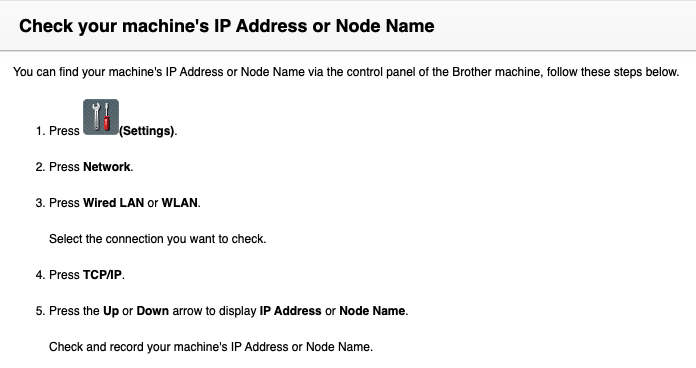
Find Your Scanner’s Default Login Password
The default password is either “initpass” or the password located on the back or bottom of the machine after “Pwd”.
Configure Your Profile Settings
Access Your Scanner in a Browser Window
Open a web browser and type the IP address of your scanner. (Example: https://10.40.1.112) Log in with your Login Password if prompted.
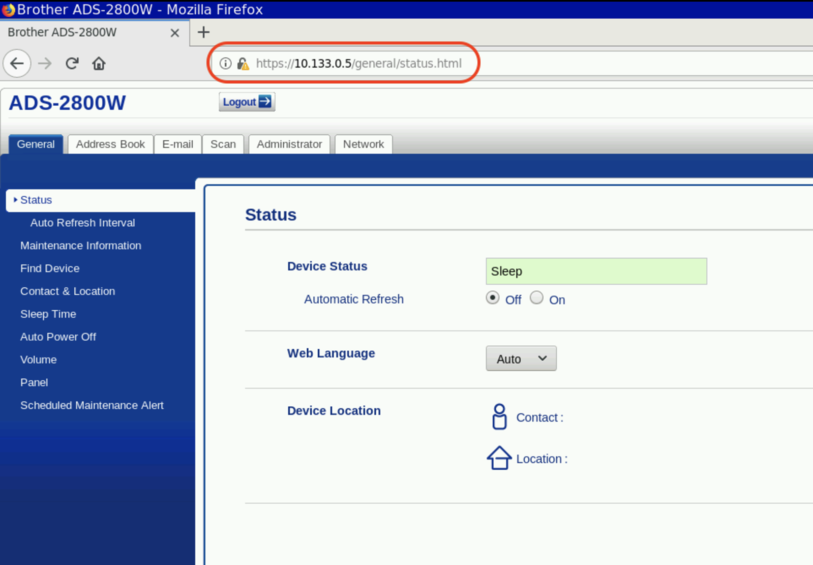
Sync Date and Time With Server
Select the “Administrator” section and then select “Date & Time”. Enter your current date, time, and time zone. Set Auto Daylight to “On”. Select Synchronize with SNTP server.
Click “Submit” or “Save” if prompted.
Set Profile to Network
Click on the “Scan” section. Then click “Scan to FTP/SFTP/Network”. Set Profile 1 to “Network”.
Save Profile Settings
Click “Save” at the bottom of the page.
Confirm Profile Settings
Click on the “Scan” section. Then click “Scan to FTP/SFTP/Network Profile” and confirm that Profile 1 is set to “Network”.
Set Profile Path
Click on “Profile 1” and set or verify the following:
- Profile Name: PCC EHR
- Network Folder Path: \\acro\scanning\bucket### (Example: \\gkp\scanning\bucket001)
- File Name: Use default
- Quality: Color 150-200 dpi
- File Type: PDF Multi-Page
- Document Size: Letter or Auto
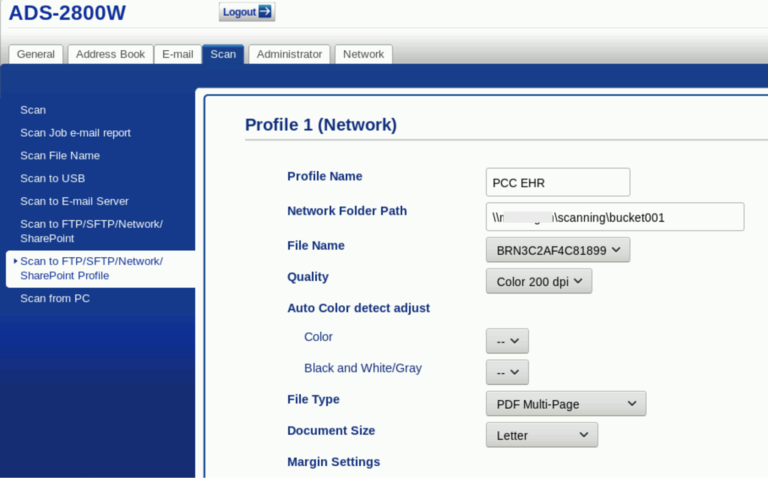
Continue Setting Profile Path
Scroll down and set the following:
- Enter the scanning username: nobody
- Enter the scanning password: nobody
- Reenter the scanning password: nobody
- Leave all other settings on the default.
Click “Submit”.
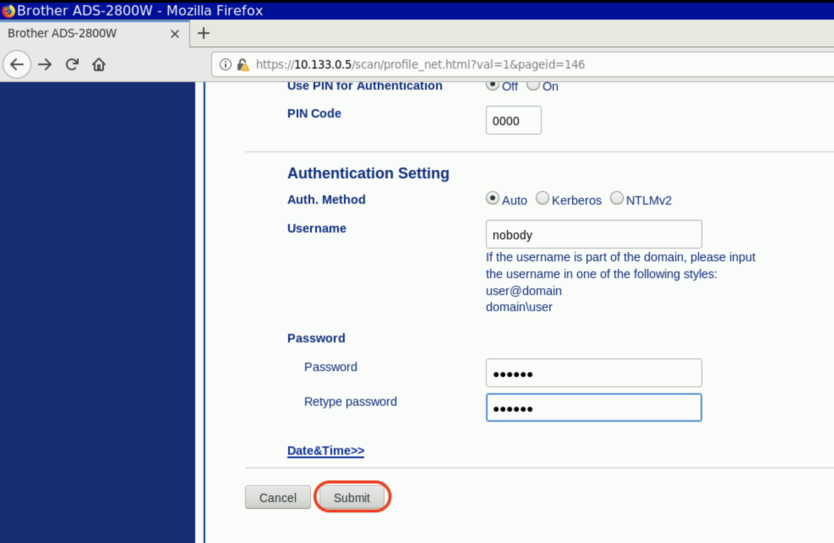
When you click “Submit”, the software will test communication between the scanner and the server. You will see a green “OK” or a red “Failed” to indicate whether your configuration was successful. Call PCC Support for assistance as needed.
Test Your Scanner
Your scanner is now configured. Follow the instructions in your manual to run a test page. Upon completing a scan, your scanned document will appear in the Import Documents tool in PCC EHR. For more information, review this article: Attach a Document to a Patient’s Chart
Downloadable versions of Brother manuals and user guides can be found here.
Virtual Advanced Training Sessions
PCC offers online Virtual Advanced Training on topics designed to help your practice take better advantage of PCC’s features and tools. You’ve been using PCC EHR for a little while, and now you’re ready for a deep dive into how PCC can best intersect with your practice’s day-to-day workflow.
PCC hosts VAT sessions monthly, providing instruction followed by live discussion where you can ask questions, hear about what other practices are doing, and discuss implementation with PCC experts.
You can catch up on the recorded, instructional parts of these sessions any time using the links in the list below:
- Post Personal Payments and Write Off Charges
- Review Payment History and Edit Personal Payments
- Autopost ERAs in PCC EHR
- Manually Post Insurance Payments and Adjustments
- Reverse an Insurance Payment (Post a Takeback)
For more information, or to find out how to attend a live session, contact PCC Support at 802-846-8177 or 800-722-7708.
Also, for a self-guided overview based on roles, see Training for New PCC Users.
Update Your PCC Email Preferences
PCC reaches out to one or more folks at your office via email, and PCC services (like the online PCC Community) have optional email notifications.
If your practice has a new Office Manager, or you get a new email address, how do you update the ways that PCC contacts you? How do you set your preferences for different kinds of email communication from PCC?
Set Email Preferences for PCC Updates and Announcements
PCC sends information about software updates, disruptions to services, news about important issues facing pediatricians, and more to an email mailing list.
PCC recommends that at least one person at your practice sign up for these emails, such as an Office Manager or managing provider. We are careful to limit how many emails we send, and you can set which types of email messages you receive. These emails are sent from the pccmarketing@pcc.com address.
-
Subscribe: To subscribe to PCC updates and announcements, call 802-846-8177 or 800-722-7708 or send an email to support@pcc.com.
-
Change Your Email Address: To change the email address you use to read PCC communication, send an email to support@pcc.com to subscribe your new email address. Then, in your old email address account, use the Unsubscribe link from the bottom of an email from PCC.
-
Unsubscribe or Change What Messages You Receive: To change your email preferences or the address that you use, click on a link to “Manage Preferences” or “Update your email preferences” found at the bottom of an email from PCC.
You can find links to unsubscribe or change email preferences at the bottom of emails from PCC.
When you click a link to manage preferences, you can indicate whether you would still like to receive emails about PCC EHR and Company News, Pediatric Resources, the Pediatric Insights Blog, The Independent Pediatrician, Job Notifications, and emails from PCC Sales.
Click the “Update email preferences” button at the bottom to save your changes.
Set Email Preferences for PCC Community and PCC Talk
PCC Community is an online forum where you can ask questions of other pediatric practices and learn about important issues in pediatrics. It’s also a place where you can get caught up on PCC news, blogs, and announcements. Learn more by reading the PCC Community help article.
PCC Community can automatically send you email notifications about new posts, or digests collecting the new posts since you last visited.
-
Sign Up: To sign up for PCC Community, which can include email updates, see the instructions in the PCC Community help article.
-
Unsubscribe, Change Email Address or Change What Messages You Receive: To change your email preferences for PCC Community, see the instructions in the “How do I adjust my email settings and other user preferences?” and “Can I redirect PCC Community messages to a different email address?” questions in the PCC Community help article.
Change Email and Contact Information for Individual Communication from PCC
PCC Support sometimes needs to email your practice directly about support issues, software update migration, and other issues.
PCC keeps a list of contacts for your practice, with corresponding emails and phone numbers.
To change who PCC should contact, or to change the email address or phone number they should use, call 802-846-8177 or 800-722-7708 or email support@pcc.com.
Install a Fujitsu fi-7160 Scanner for PCC EHR
PCC recommends the Fujitsu fi-7160 scanner because of its reliability and performance. Older models of the fi series, like the 6110, are acceptable alternatives. All scan settings are controlled through the included PaperStream software.
Install a Fujitsu fi-7160 Scanner for PCC EHR on Windows
Follow the steps below to install and configure a Fujitsu fi-7160 on a Microsoft Windows PC for use with PCC EHR.
Download the Scanner Driver and Application
Unplug Your Scanner
Unplug your scanner from your workstation before software installation. Fujitsu fi-7160 scanners plug into workstations with a USB cable.
Visit Fujitsu’s Downloads Page
Open a web browser to Fujitsu’s fi Series downloads page (https://imagescanner.fujitsu.com/global/dl/).
Download the PaperStream IP Driver
Select your scanner’s series, scanner model, and your PC workstation’s operating system. Click “Display software list”.
Click “Download” next to PaperStream IP (TWAIN)
If the download does not begin automatically, click the “Download” link called PSIPTWAIN(version number).exe
If prompted to run or save, select “Save”.
Download the PaperStream Capture Application
Click the “Back” button on your browser to view the previous page. In the applications section, click “Download” next to PaperStream Capture.
Enter your scanner’s serial number.
If the download does not begin automatically, click the “Download” link containing PSC(version number).exe. If prompted to run or save, select “Save”.
Install the Scanner Driver and Application
Launch the PaperStream IP Driver
Open your Downloads folder and launch the driver installer, PSIPTWAIN(version number).exe. If prompted to allow changes to this computer, select “Yes”. The installer will run a script to install necessary files, and then open a PaperStream IP Driver Setup window. Click “Next” to continue.
Install the PaperStream IP Driver
On the following screen, confirm that PaperStream IP and Scanner Central Admin are both checked, then click “Next”.
Read the agreement, check the “I accept…” box and click “Install”.
Installation may take several minutes. When complete, all three boxes (PaperStream, Software Panel and Scanner Agent) will be checked, and the “Stop” button will change to “Close”. Click “Close” to complete the driver installation.
Install PaperStream Application
Return to your Downloads folder and open the PaperStream application installer. You may be prompted to choose your language, and a PaperStream setup window will open.
- Check “I accept the terms…”
- Select “Basic (use basic functions with no limitations)”.
- Uncheck “Display sample profiles”.
- Uncheck “Show Welcome on startup”.
Click “Install”. When the installation is completed, click “Finish”. Click “OK” when prompted.
Configure Scanner Buttons
Plug in Your Scanner
PCC recommends that you plug your scanner into a USB 3.0 port for optimal speed.
Open the Windows Printers & Scanners Settings Panel
Find and open the Printers & Scanners settings window from your Windows Start menu. The fi-7160 should appear on the list of added devices.
Select Scanner and Properties
Click the device once, then click the “Manage” button.
Next, click “Properties”.
Configure the Scan Button to Launch PaperStream Capture
Select the Events tab.

- Confirm that “Select an event:” is set to “Scan Button”.
- Select “Start this program:”
- Choose PaperStream Capture from the drop-down menu.
Now PaperStream Capture will run when the scan button is pressed on the physical scanner. Click “OK” to close this window.
Configure Scanner Profile and Destination
In this section you will configure the scanner’s settings and route the finished scans to PCC EHR.
Open the PaperStream Capture Application
Open the PaperStream Capture Application from the Start menu or desktop icon.
Create a Scanner Profile
Click the Lines menu next to the blue Scan button.
Select “Configure Profiles” from the drop-down options and click on the plus (+) button to add a scanner profile.

On the left menu select “1. Name” and add the Name “EHR”.
Confirm that PaperStream IP fi-7160 is in the Source Box
Select “2. Source” from the left menu. PaperStream IP fi-7160 should be visible in the “Source” box.

If the PaperStream IP fi-7160 is not in the “Source” box, there may be a problem with installation. Contact support at 1(800)722-7708 or support@pcc.com to troubleshoot the issue.
Configure Source Parameters
In the Source Parameters box, set the following:
- Color Mode: Auto Color
- Resolution: 200 dpi
- Leave the Paper Size, Sides, and Continuous Scan as defaults.
Configure Display Options
In Display Options, set the following:
- “Release After Scan”
- “Minimize App. During Scan”
- Do not select “Exit App After Scan”, as this can slow scanning time.
Leave Mark Options on the default settings.
Save and Name Your Profile
Click “Save As” under the Scanner Driver Profile drop-down. Name this driver profile “EHR” at the prompt.
Configure Your Scanner Profile Destination
Select “3. Destination” on the left menu. Change the default TIF to a PDF.
In the Folder field, type: \\acro\scanning\bucket###. Replace “acro” with your PCC practice acronym and “###” with your chosen bucket number (bucket001, for example). Use only lowercase for the acronym, and backslash “\” as opposed to “/” forward slash.
Which Bucket?: To pick a bucket number, log in to PCC EHR, select Documents from the Configuration menu, visit the Import Documents tab, and choose a bucket from the “File Source” column. For more information on buckets, visit Configure Document Categories, File Sources, and Default Behaviors.
Save You Scanner Configuration
Click “Save”. If a warning pops up, click “Yes” and “Close”.
Return to the Main Screen
Click the “Back” button to return to the main screen.
Map Your Scanner to the EHR Profile
Click the Lines menu and select the Administrator Tool. Select “Usability” from the left menu. Choose the “EHR” profile from the Scan drop-down.
Save Your Scanner Profile
Click “Save” and then “Close” to return to the main screen. Your EHR profile and rules are now set and you are ready to try a test scan.
Test Scanning a Document to PCC EHR
Follow the Fujitsu fi-7160 instructions to scan your first document. This first scan will be slow as the service is running for the first time.
When the scan completes, log into PCC EHR and navigate to Import Documents. The PaperStream application will flash orange on your toolbar as the scan is processed and the “Load New Files” button on the Import Documents screen will highlight yellow. Click the “Import Documents” button to load the scan into PCC EHR.
By default, you will see documents from all sources. You can change the File Source drop-down to select a specific bucket. Your scanner is now fully installed. For more information on importing documents, visit Attach a Document to a Patient’s Chart.
Configure Incoming CHADIS Questionnaire Results
When your patients, parents, and other users complete a CHADIS questionnaire, the results are automatically returned to PCC EHR, so you can review results quickly, without logging in to CHADIS at all.
To configure results, and ensure that incoming results are matched to the correct visit type, begin by linking questionnaires to orders through the Protocol tool in PCC EHR’s Configuration menu.
Open Protocol Configuration
In Protocol Configuration, select Component Builder, and open the Screening Orders component.
Any of these orders can be associated with a CHADIS questionnaire.
Open Questionnaires
Click “Add a Questionnaire” to open the full list of CHADIS questionnaires.
Select Questionnaire
Select one or more questionnaires to link it to the screening order selected above. You can use the search box in the upper right corner of the window to narrow the list of questionnaires and find exactly the questionnaire you need.
Each Questionnaire Can be Assigned Once: Each order can have multiple questionnaires assigned to it, but each questionnaire can only be associated with a single order. If a questionnaire is gray and cannot be selected, that questionnaire is already assigned to an order.
Some things to consider as you’re adding questionnaires to orders:
- The simplest configuration is to add one order per questionnaire. For example, if you use CHADIS questionnaire #947, ADHD Developmental Intake Form, then create an order called “ADHD Developmental Intake Questionnaire” and assign the questionnaire to it.
- For questionnaires that have different versions sorted by age, consider assigning all ages to a single order. Assigning all ages to one screening order, means you only need to configure billing for one order, rather than a separate order for each age.
- Some questionnaires have different versions based on the respondent. For example, the Pediatric Symptom Checklist questionnaires include versions for both the parent and patient. Assigning both to the same order will group the results together in the visit, making it easier to compare the two without and closing two separate orders.
- Consider the workflow for incoming results. If results require creating a task, such as manually updating medical history, assign those medical history questionnaires to a single order, and then assign one task from that order.
Decide If a Signature is Required
If a signature should be required on the results when they arrive, check the signature required box. Any questionnaire that requires a signature will appear on the signing queue when the result arrives.
Link LOINC codes to Screening Orders
To track CHADIS screening questionnaires for Clinical Quality Measures and PCMH, add matching tests to each Screening Order. Under the “Tests to Include” heading, click “Add a Test” and select the appropriate test. When tracking for Clinical Quality Measures, depression screenings require a result before they will appear in CQM reports.
Tasks are automatically assigned a due date the same day as the visit, so that tasks won’t appear on the task list before the patient arrives.
When a provider opens the visit, the results are available to review. New tasks can then be assigned and results entered.
Clicking “Details” opens the CHADIS results. If an order includes results from multiple respondents, each respondent’s results will have their own tab.
If a CHADIS result arrives that has not been assigned to a patient or portal user, results will appear unassigned in the messaging queue.
Unassigned results are similar to documents or lab results. Select them, search for the patient and assign them to a visit. Once results are assigned the patient and visit, they can be reviewed, signed and marked complete.
Mark an Appointment As Missed or Canceled
When a patient doesn’t show up for a visit or your practice needs to cancel an appointment, you can change the appointment’s status in PCC EHR and report on it later.
Mark an Appointment as Missed or Canceled in the Patient’s Chart
You can mark an appointment as missed or canceled in the Appointment History component within a patient’s chart.
Open the Patient’s Chart
Use the search box in the top left corner of the PCC EHR window to search for the patient whose appointment you need to mark as missed or canceled.
Select the patient from the search results to open their chart.
Find the Appointment History Component
Find the Appointment History component within the patient’s chart. Usually it appears in the patient’s Medical Summary.
Where is the Appointment History Component?: The Appointment History component can be configured to appear in patient charts and other places in PCC EHR. If you can’t find the Appointment History component, speak to an administrator at your practice and ask to have it added, or contact PCC Support for help.
Find the Appointment and Mark It Missed or Canceled
Within the Appointment History component, find and select the appointment you want to mark as missed or canceled.
Click the “Remove” button, then choose a reason for removing the appointment.

Optionally leave a note, then click the “Remove” button to finish marking the appointment as missed or canceled.
Missed and canceled appointments do not appear on the schedule screen in PCC EHR, and also get removed from the Appointment Book.
You can report on missed and canceled appointments in the PCC EHR Report Library.
Mark an Appointment as Missed or Canceled in the Appointment Book
It’s easy to mark appointments as missed or canceled when working in the Appointment Book.
Open the Appointment Book
Find the calendar icon in the bottom left corner of your PCC EHR window and click it to open the Appointment Book.

You can also open an Appointment Book window from the File menu in PCC EHR.
Go to the Day of the Appointment
Once in the Appointment Book, go to the day of the appointment that was missed or needs to be canceled.
You can advance the calendar view one week or day at a time by using the arrows at the top of the Appointment Book window.
You can also click on the calendar icon at the top of the Appointment Book and use it to select the day you want to view.
Find the Appointment in the Schedule
Once on the right day in the Appointment Book, locate the appointment you need to mark as missed or canceled.
Depending on how you are viewing the schedule, you might need to scroll up and down or from side to side in order to find the appointment.
Select the Appointment and Mark it Missed or Canceled
Click on the appointment with your mouse.
Once selected, details about the appointment appear on the left edge of the Appointment Book window, along with buttons which allow you to take actions.
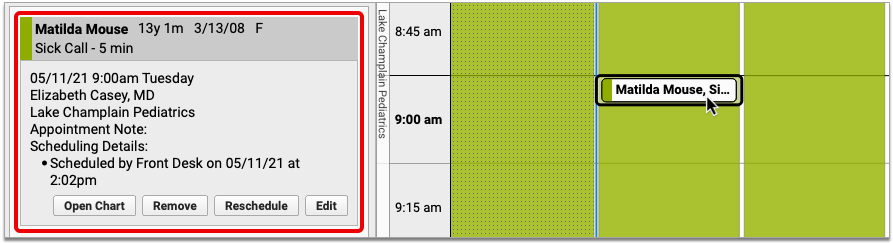
Click the “Remove” button, then choose a reason for removing the appointment and optionally leave a note.
Click the “Remove” button to finish marking the appointment as missed or canceled.
Missed and canceled appointments do not appear on the schedule screen in PCC EHR, and also get removed from the Appointment Book.
You can report on missed and canceled appointments in the PCC EHR Report Library, or look up any patient’s missed and canceled appointments in the Appointment History component in their chart.
Report on Missed and Canceled Appointments
You can generate lists of missed and canceled appointments in the PCC EHR Report Library, then use them to post missed appointment fees or to identify patterns of cancellation at your practice.
Build a Custom Report for Missed and Canceled Appointments
You can create custom reports to identify missed and canceled appointments.
Open the Report Library
Open the Report Library from the Reports menu in PCC EHR.
Open the Appointments Report
Once in the Report Library, select the “Appointment” category, then open the “Appointments” report.
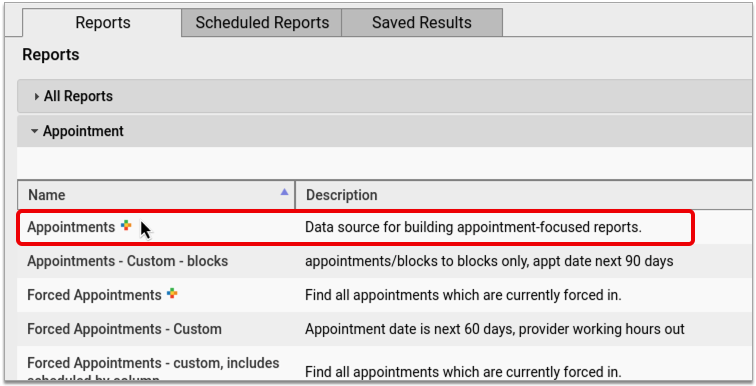
Customize the Appointments Report
In the Appointments report, click the “Customize” button at the bottom right of the window to begin setting up a custom report for missed and canceled appointments.
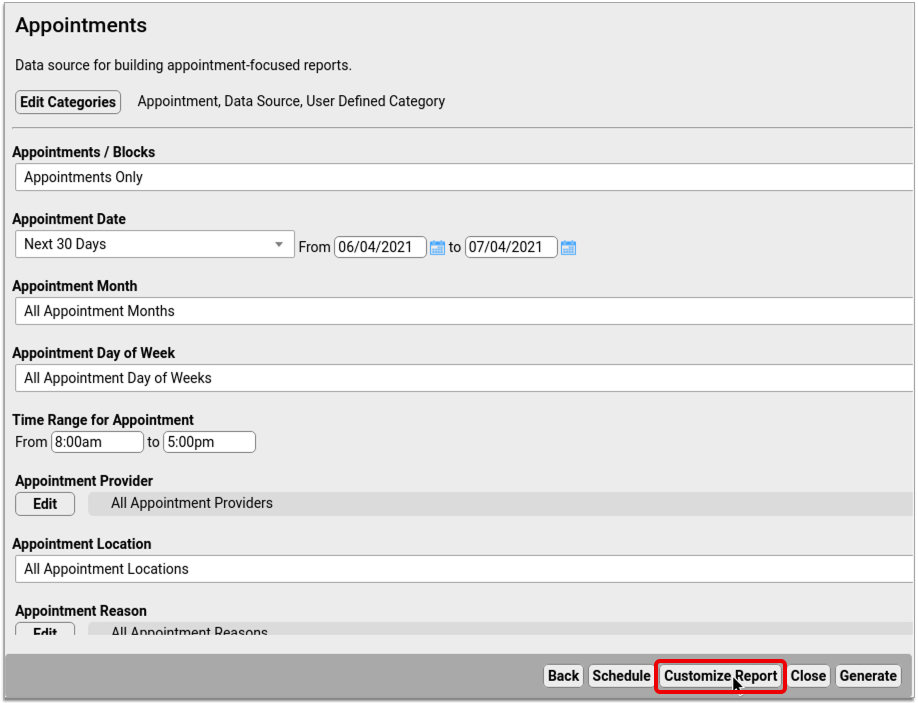
Set Up the Report to Find All Missed and/or Canceled Appointments
Set up a basic report that will allow you to find all missed and canceled appointments.
First, the report a unique title, description, and category so that you can find it again later.

Click the “Edit” button in the “Select Columns to Include” section, then select the columns you want to see on the final report. At a minimum, you should make sure to include the “Last Scheduling Action” column.
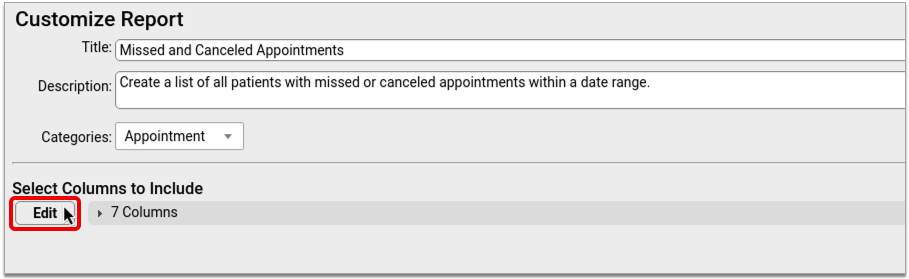
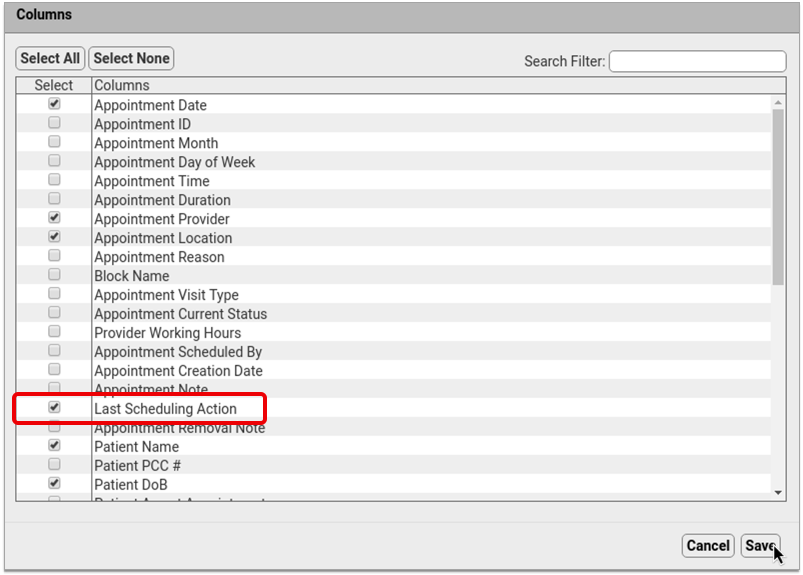
Once you have picked and saved the columns for your report, click the “Select Criteria” button and choose the report criteria. At a minimum, your report should include the “Appointment Date” and “Last Scheduling Action” criteria.
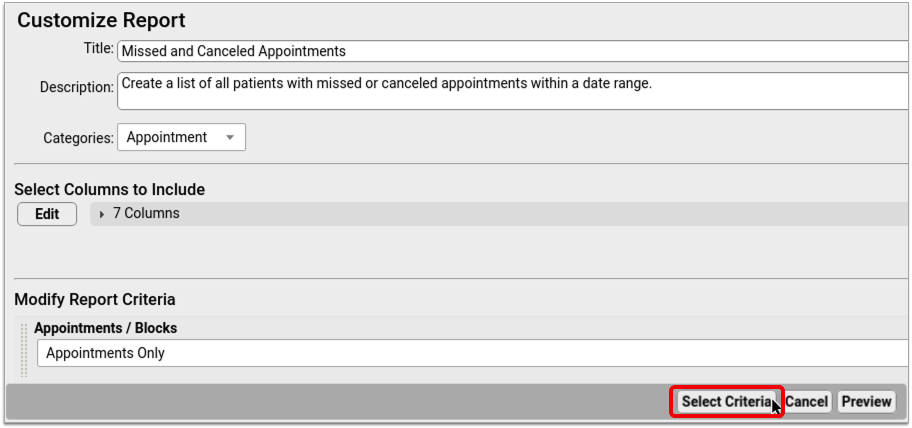
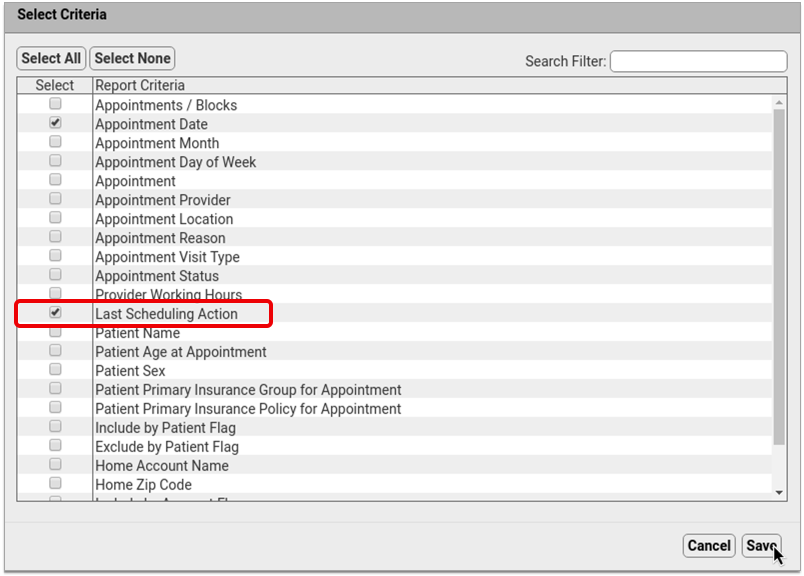
Once you select the criteria, set up their default values. These settings will be used as a default whenever you generate this report.

These criteria will allow you to find all missed and/or canceled appointments within a selected date range.
Add More Criteria for More Granular Reporting: You can include additional criteria in your report if you want to be able to filter the results in a more granular fashion. For example, if you want to be able to generate a list of all missed or canceled appointments for a particular provider, visit reason, or location, select those criteria from the list now to add them to your report settings.
Preview Your Custom Report and Adjust the Output
After setting up criteria for your custom report, click the “Preview” button to see how the report will look once generated.
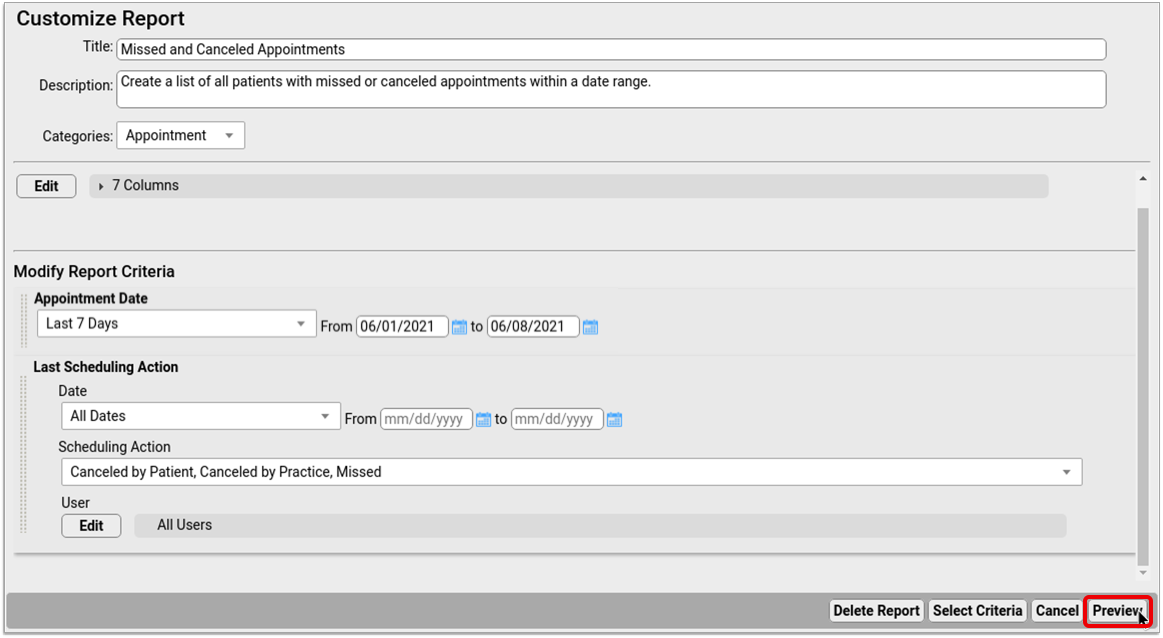
In the preview screen, open the “Columns” drop-down list and select whichever columns you want to display on your report by default. Be sure to include the column called “Last Scheduling Action”.
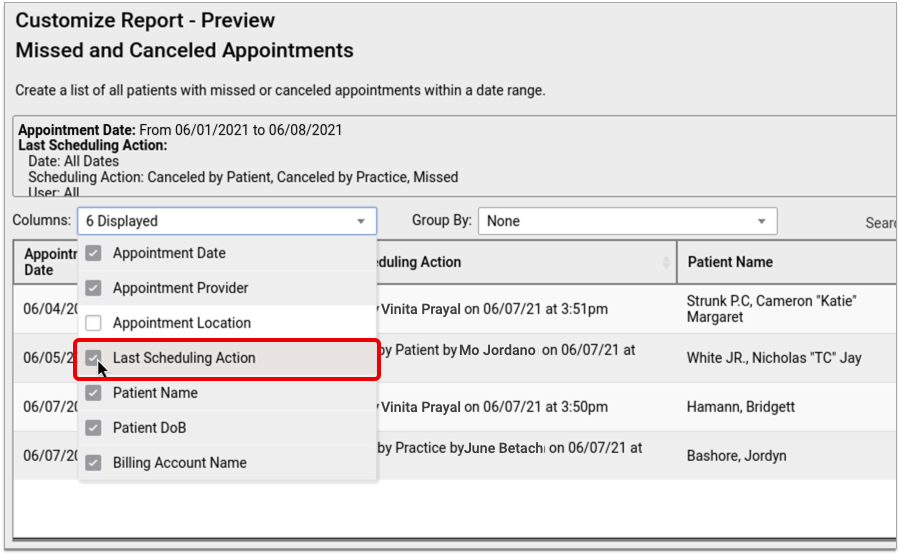
If you want to make other changes to the way your report looks when you generate it, do that now. You can click, drag, and drop columns to rearrange them, group your results, or re-sort the list by clicking on column headers.
The display settings you choose now will be the default for this report.
Save Your Custom Report
Click “Save As” to save your custom report.
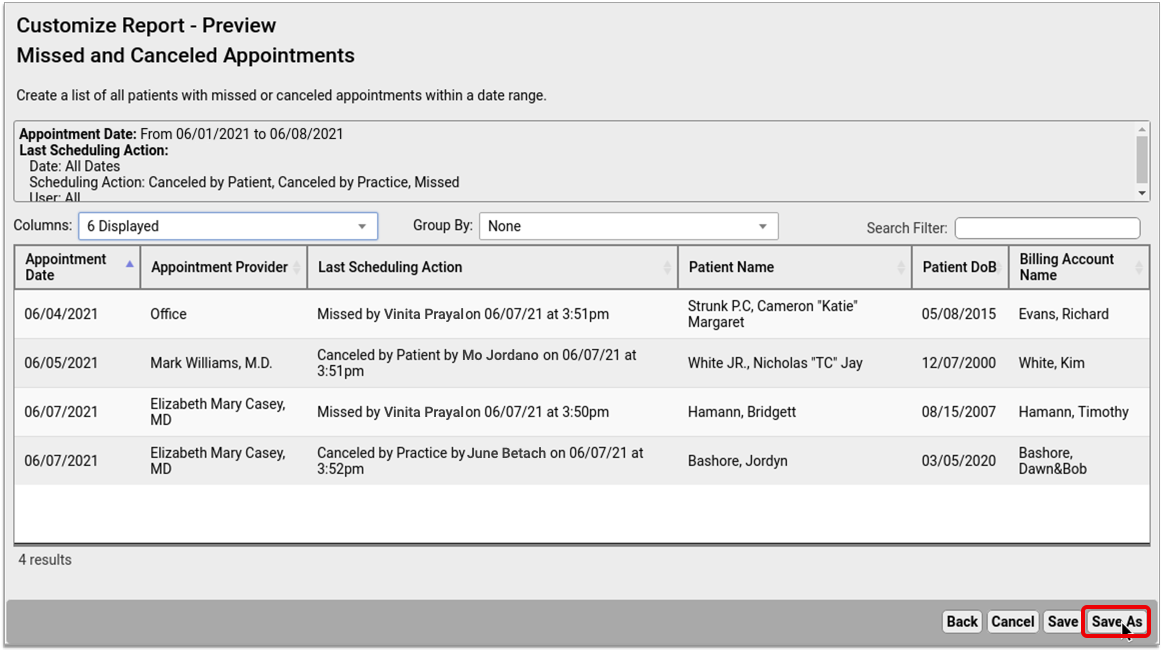
Generate Your Custom Missed and Canceled Appointment Report
Once you create a custom report for missed and canceled appointments, you can generate it at any time in the Report Library in PCC EHR.
Find Your Custom Missed and Canceled Appointments Report in the Report Library
In the Report Library in PCC EHR, find your custom report for missed and canceled appointments.

If you don’t know which specific category the report is in, you can find it under “All Reports”.
Generate the Report and Review the Results
In the report criteria screen, pick a date range of appointments to report on, then click the “Generate” button.
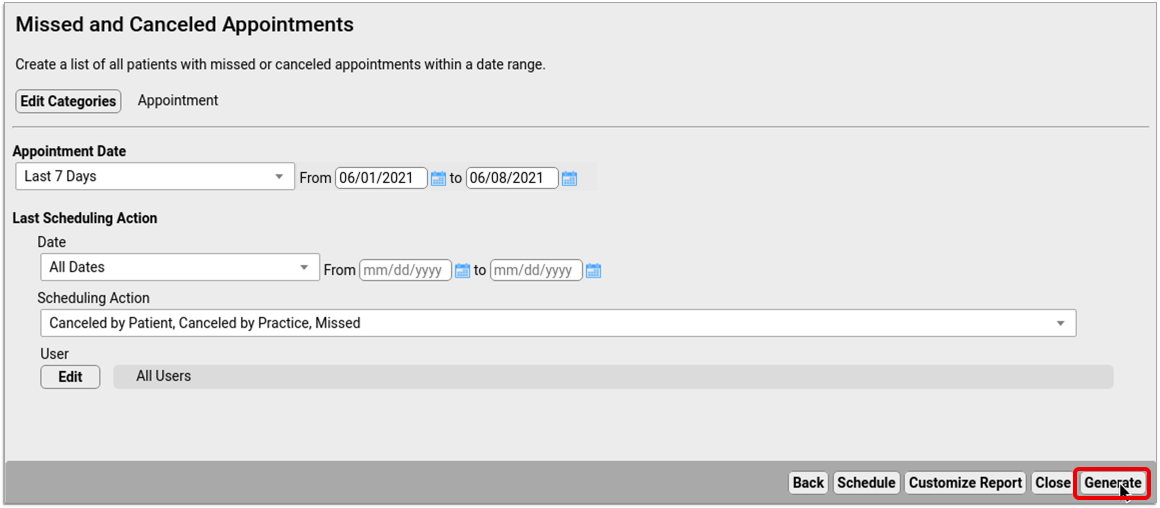
There might be a pause while the results generate. Once the results appear on the screen, check that the list contains the information you need.

You can sort on a certain column, reorder the columns, or group the results to suit your purpose.
If you need to change the report settings, click the “Back” button, make adjustments to the criteria, then re-generate the report.
Optionally Export the Results and Save Them to Your Workstation
Once you are happy with the way your report results are organized on the screen, you can export the list from PCC EHR and save it on your local workstation.
Click the “Export” button, then choose an output format.
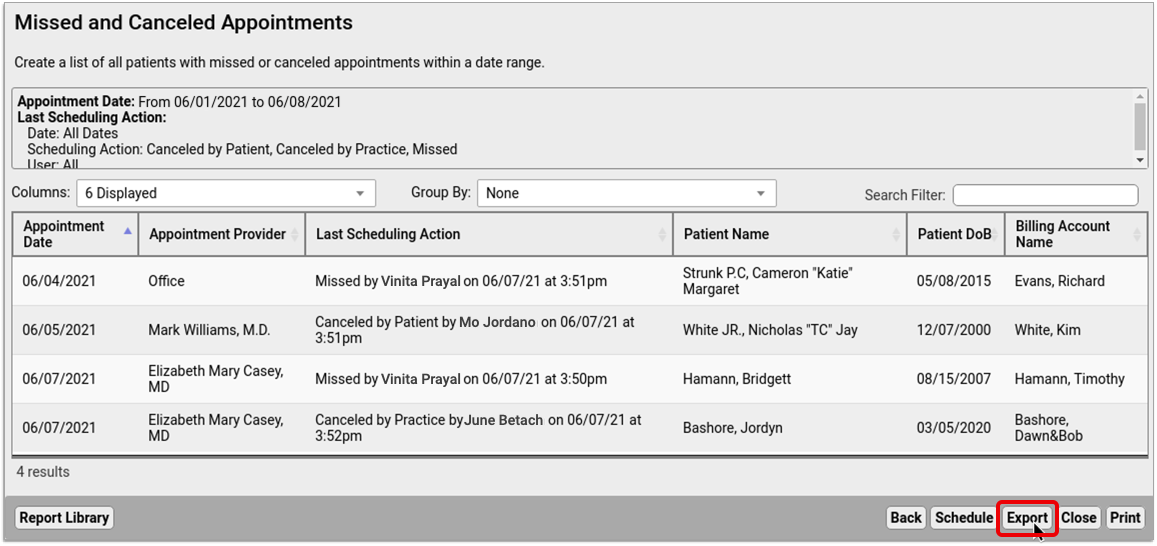

Click the “Save” button, then choose where to save the report file on your local workstation.
Optionally Print the Results
If you need to be able to scribble on the report and make notes in pencil or pen, you can print the list out of PCC EHR.
Click the “Print” button, then choose a printer.
Click the “Print” button to finish sending the report to your printer.
Optionally Schedule the Report to Run Again at a Later Date
If you like your report and plan to use it routinely, you can schedule it to run automatically at set intervals.
Click the “Schedule” button at the bottom of the report results window, then choose a name, the frequency with which you want to run the report, and the time of day at which you want it to generate.
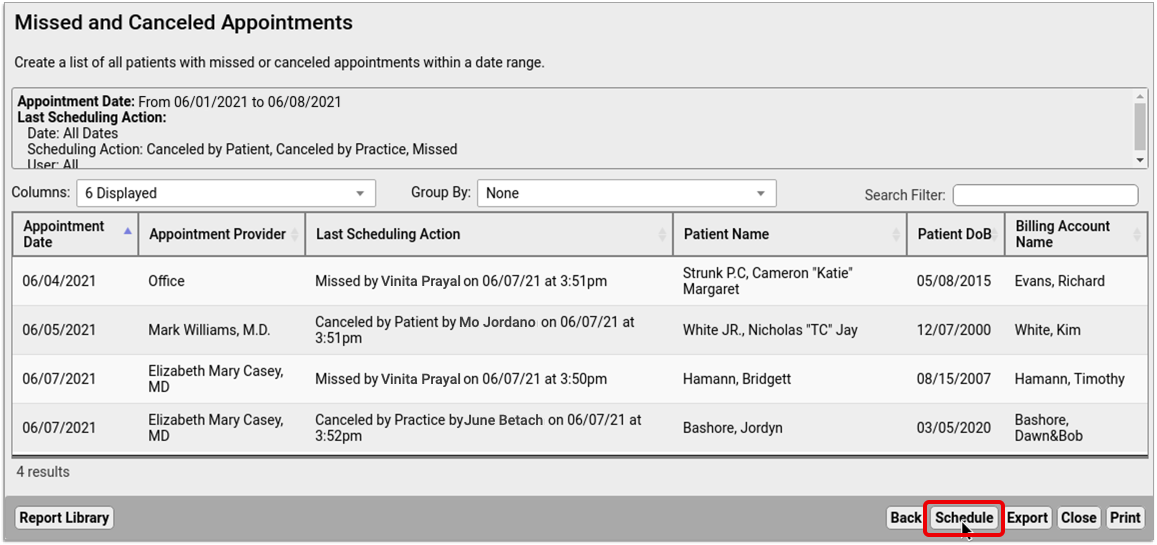
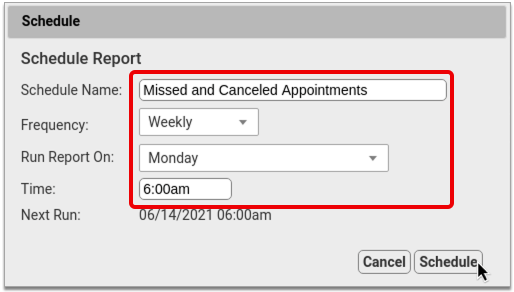
Click “Schedule” to finish scheduling the report to run at regular intervals. You can find the results of scheduled reports in the “Saved Results” tab of the Report Library.
April 2021 SNOMED-CT Update
On April 11, 2021, PCC updated the SNOMED-CT diagnostic terms on your practice’s PCC system to the latest code set.
PCC regularly updates your system’s ICD-10, LOINC, SNOMED-CT, NDC, RVU, VIS, and other standardized lists so you won’t encounter challenges when you chart, order a lab, interface with a care provider, or bill for a visit. (Your practice’s local system automatically updates your practice’s procedure codes.)
Read below to learn about changes to preferred terms that may affect searching, new allergies, common diagnosis descriptions that were removed from SNOMED-CT, and new additions to your practice’s quick search Favorites.
Changes to the Preferred Term for Common Descriptions
The April 2021 SNOMED-CT update changes some terms that are used at pediatric practices. Clinicians may need to type a different search word to find these descriptions than what they used before. For example, the spelling of “weal” has been changed to “wheal”, and “Adverse reaction to vaccine product” is now “Vaccine adverse reaction”.
Here is a table of common SNOMED-CT diagnosis descriptions that have new preferred terms. PCC identifies these as possibly requiring a different search term, or just being useful to know for awareness.
| New Preferred Term | Old Preferred Term |
| Bilateral infantile esotropia of eyes | Bilateral congenital esotropia of eyes |
| Bullous wheal | Bullous weal |
| Childhood granulomatous periorificial dermatitis | Facial Afro-Caribbean childhood eruption |
| Chronic irritant contact dermatitis of hands | Cumulative irritant contact dermatitis of hands |
| Contact dermatitis caused by chlorinated hydrocarbon | Contact dermatitis due to chlorocompound |
| Contact dermatitis caused by feces | Feces-induced contact dermatitis |
| Contact dermatitis caused by fiberglass | Fiberglass dermatitis |
| Contact dermatitis caused by poison primrose | Contact dermatitis due to primrose |
| Contact dermatitis caused by ragweed | Contact dermatitis due to ragweed |
| Contact dermatitis caused by saliva | Saliva-induced contact dermatitis |
| Contact dermatitis caused by urine | Urine induced contact dermatitis |
| Contact dermatitis of hand | Contact hand eczema |
| Decreased body mass index | Body mass index below normal parameters |
| Dermatosis in childhood | Dermatosis in a child |
| Erythema multiforme due to viral disease | Erythema multiforme caused by virus |
| Exanthem due to varicella | Exanthem due to chicken pox |
| Fetal disorder due to disease in mother | Fetal damage from disease in the mother |
| Increased body mass index | Body mass index above normal parameters |
| Infantile esotropia | Congenital esotropia |
| Infantile esotropia of left eye | Congenital esotropia of left eye |
| Infantile esotropia of right eye | Congenital esotropia of right eye |
| Infection caused by Paragonimus westermani | Infection by Paragonimus westermanii |
| Irritant contact dermatitis caused by ring | Ring dermatitis |
| Irritant contact dermatitis due to lip-licking | Lip-licking eczema |
| Irritant contact dermatitis of hand | Irritant contact hand eczema |
| Mass of head and/or neck | Mass in head or neck |
| Normal body mass index | Body mass index within normal parameters |
| Pervasive developmental disorder with disorder of intellectual development and absence of functional language with loss of previously acquired skills | Pervasive developmental disorder with disorder of intellectual development and abscence of functional language with loss of previously acquired skills |
| Psoriasis of scalp | Scalp psoriasis |
| Psoriasis with eczema | Psoriasis-eczema overlap condition |
| Swelling of ear | Swelling of ear structure |
| Vaccine adverse reaction | Adverse reaction to vaccine product |
| Wheal | Weal |
New Allergies of Interest to Pediatrics
The April 2021 SNOMED-CT update adds 14 allergies which may be of interest to pediatric clinicians.
| Acute allergic otitis media of left middle ear |
| Acute allergic otitis media of right middle ear |
| Allergic contact dermatitis caused by grease |
| Allergic contact dermatitis caused by oil |
| Allergic contact dermatitis caused by poison primrose |
| Allergic contact dermatitis caused by ragweed |
| Allergic contact dermatitis caused by soap |
| Allergic contact dermatitis caused by urushiol from Eastern poison ivy |
| Allergic contact dermatitis caused by urushiol from poison sumac |
| Allergic contact dermatitis due to jewelry |
| Allergic reaction caused by Hevea brasiliensis latex protein |
| Allergy to hair dye |
| Bilateral acute allergic otitis media of middle ears |
| Bilateral chronic allergic otitis media of middle ears |
Deprecated SNOMED Diagnosis Descriptions
The April 2021 SNOMED-CT update removes or replaces many codes common to pediatric practices. Your practice may want to take special note of them.
Here are the top codes used by PCC’s pediatric practices that were removed from the international SNOMED-CT diagnosis library in 2021. When practices had these codes available for one-click selection on a chart note protocol, PCC added a replacement. For other diagnoses, your providers can find related descriptions with a search, but you may want to plan ahead.
| Allergy to dairy food | 425525006 |
| Allergy to latex | 300916003 |
| Blood in feces symptom | 249624003 |
| C/O – cough | 272039006 |
| C/O – low back pain | 161894002 |
| C/O – postnasal drip | 162382001 |
| C/O nasal congestion | 272034001 |
| C/O: a rash | 162415008 |
| Fetal or neonatal effect of maternal problem unrelated to pregnancy | 206001006 |
| Knee pain | 30989003 |
| O/E – erythematous rash | 135888007 |
| O/E – expiratory wheeze | 162894004 |
| O/E – general eye examination | 162806009 |
| O/E – intoeing | 275864001 |
| O/E – itchy rash | 304386008 |
| O/E – pyrexia of unknown origin | 164288004 |
| O/E – rash present | 268911002 |
| O/E – rhinorrhea | 164184005 |
| O/E – speech delay | 391099000 |
| O/E-herpes labialis-cold sore | 163139004 |
| Tick bite without infection | 443930005 |
| Unilateral earache | 162358006 |
| Unilateral undescended testis | 268227001 |
New Favorites Available in Diagnosis Quick Search
The SNOMED-CT update adds 1710 diagnosis descriptions to your system.
In preparation for the update, PCC’s certified coder, Jan Blanchard, assembled a list of 314 new SNOMED-CT descriptions of interest to pediatricians. The update added these diagnoses, which include the COVID-19 diagnosis, to your practice’s default Favorites list for quick searching, unless your practice has specifically requested otherwise.
What is a diagnosis 'Favorites' list?: As you type or search in any diagnosis field, PCC EHR automatically searches a customizable list of Favorites. Use the Diagnosis Configuration tool to adjust your practice’s list of Favorites. You can also right-click on any diagnosis field in PCC EHR to search your system’s full SNOMED-CT diagnosis library.
| Acquired cryptorchidism | Acquired cryptorchidism of left testis | Acquired cryptorchidism of right testis | Acquired structural abnormality of pharyngotympanic tube following procedure |
| Acute allergic otitis media of left middle ear | Acute allergic otitis media of right middle ear | Acute COVID-19 | Acute mucoid otitis media of left middle ear |
| Adverse reaction to amoxicillin and/or clavulanic acid | Adverse reaction to ampicillin and/or floxacillin | Adverse reaction to COVID-19 antigen vaccine | Adverse reaction to COVID-19 mRNA vaccine |
| Adverse reaction to COVID-19 vaccine | Adverse reaction to sulfamethoxazole and/or trimethoprim | Allergic contact dermatitis caused by grease | Allergic contact dermatitis caused by oil |
| Allergic contact dermatitis caused by poison primrose | Allergic contact dermatitis caused by ragweed | Allergic contact dermatitis caused by soap | Allergic contact dermatitis caused by urushiol from Eastern poison ivy |
| Allergic contact dermatitis caused by urushiol from poison sumac | Allergic contact dermatitis due to jewelry | Allergy to hair dye | At increased risk of forced marriage |
| At increased risk of human trafficking | At increased risk of institutional abuse | At risk for medication error | Bilateral acute allergic otitis media of middle ears |
| Bilateral adhesive otitis media of middle ears | Bilateral cracked nipples | Bilateral distortion of visual image of eyes | Bilateral mucoid otitis media of middle ears |
| Bilateral swelling of ears | Bilateral swelling of wrist joints | Bilateral synovitis of joint of knees | Bilateral talipes calcaneovarus |
| Bilateral talipes equinovarus | Bilateral testicular agenesis | Blount disease | Body piercing |
| Breakthrough pain | Bronchial irritation | Bulimia nervosa in full remission | Bulimia nervosa in partial remission |
| Bursitis of left wrist | Bursitis of right wrist | Carbuncle of left axilla | Carbuncle of left lower limb |
| Carbuncle of left thigh | Carbuncle of right axilla | Carbuncle of right lower limb | Carbuncle of right thigh |
| Carrier of Staphylococcus epidermidis | Chronic papillomatous dermatitis due to contact with urine and/or feces | Chronic perichondritis of left external ear | Chronic perichondritis of right external ear |
| Chronic post-COVID-19 syndrome | Chronic rhinosinusitis | Chronic tubotympanic suppurative otitis media of left middle ear | Chronic tubotympanic suppurative otitis media of right middle ear |
| Cleft of left hard palate | Cleft of right hard palate | Complete cleft of left hard and soft palate | Complete cleft of right hard and soft palate |
| Conductive hearing loss of left ear | Conductive hearing loss of left ear with normal hearing on right side | Conductive hearing loss of right ear | Conductive hearing loss of right ear with normal hearing on left side |
| Congenital clinodactyly of finger | Congenital clinodactyly of little finger | Congenital dislocation of bilateral elbows | Congenital dislocation of joint |
| Congenital short ear | Congenital stenosis of male external urethral orifice | Congenital subluxation of left hip joint | Congenital subluxation of right hip joint |
| Congenital torsion of left ovary | Congenital torsion of right ovary | Contusion of head and/or neck | Dermatitis due to cat mite infestation |
| Dermatitis due to chicken mite infestation | Dermatitis due to dog mite infestation | Dermatitis due to exposure to man-made ultraviolet light | Dermatitis due to mouse mite infestation |
| Dermatitis due to northern fowl mite infestation | Dermatitis due to rabbit mite infestation | Dermatitis due to rat mite infestation | Developmental dysplasia of left hip |
| Developmental dysplasia of right hip | Distortion of visual image of left eye | Distortion of visual image of right eye | Does participate in outdoor sporting activities |
| Domestic abuse victim in household | Enlargement of left tonsil | Enlargement of right tonsil | Epidermal burn of left upper arm |
| Epidermal burn of right upper arm | Epidermal nevus of left lower eyelid | Epidermal nevus of left upper eyelid | Epidermal nevus of right lower eyelid |
| Epidermal nevus of right upper eyelid | Excessive intake of ascorbic acid | Excessive intake of calcium | Excessive intake of energy |
| Excessive intake of iron | Excessive intake of niacin | Excessive intake of phosphorus | Excessive intake of plant fiber |
| Excessive intake of potassium | Excessive intake of protein and protein derivative | Excessive intake of riboflavin | Excessive intake of thiamine |
| Excessive intake of zinc | Female genital Trichomonas vaginalis infection | Fissure of left nipple during lactation | Fissure of right nipple during lactation |
| Food security | Fracture of knee | Frequent attender of emergency room | Furuncle of left ankle |
| Furuncle of left forearm | Furuncle of left hand | Furuncle of left hip | Furuncle of right ankle |
| Furuncle of right forearm | Furuncle of right hand | Furuncle of right hip | Headache after cough |
| Hemiparesis of left side of face | Hemiparesis of right side of face | Hyperactive labyrinthine dysfunction of left inner ear | Hyperactive labyrinthine dysfunction of right inner ear |
| Hypersensitivity to SARS-CoV-2 mRNA vaccine | Immunization series incomplete | Inadequate intake of ascorbic acid | Inadequate intake of calcium |
| Inadequate intake of energy | Inadequate intake of fat and oil | Inadequate intake of iron | Inadequate intake of niacin |
| Inadequate intake of plant fiber | Inadequate intake of potassium | Inadequate intake of protein and protein derivative | Inadequate intake of riboflavin |
| Inadequate intake of thiamine | Inadequate intake of zinc | Indirect left inguinal hernia | Indirect right inguinal hernia |
| Infection of left nipple during lactation | Infection of right nipple during lactation | Injury of head and/or neck | Injury of muscle and tendon of lower leg |
| Injury of muscle of lower leg | Injury of shoulder and/or upper arm | Injury of tendon of lower leg | Injury of wrist and/or hand |
| Irritant contact dermatitis caused by chlorine in swimming pool | Irritant contact dermatitis caused by feces | Irritant contact dermatitis caused by grease | Irritant contact dermatitis caused by oil |
| Irritant contact dermatitis caused by saliva | Irritant contact dermatitis caused by urine | Irritant contact dermatitis due to concrete | Irritant contact dermatitis due to jewelry |
| Irritant contact dermatitis due to stoma | Irritant contact dermatitis of hand caused by grease | Irritant contact dermatitis of hand caused by oil | Irritant contact dermatitis of hand due to concrete |
| Itching of both hands | Lack of support for smoking cessation | Lesion of nasal cavity | Localized swelling of toe of left foot |
| Localized swelling of toe of right foot | Marfan syndrome type 1 | Mass of left axillary region | Mass of right axillary region |
| Middle ear effusion | Multisystem inflammatory syndrome in children | Neonatal conjunctivitis of left eye | Neonatal conjunctivitis of right eye |
| Neonatal disorder due to abnormal maternal blood chemistry | Neonatal disorder due to and following amniocentesis | Neonatal disorder due to and following fetal blood sampling | Neonatal disorder due to and following operative procedure on fetus |
| Neonatal disorder due to and following operative procedure on mother | Neonatal disorder due to and following sampling of chorionic villus | Neonatal disorder due to chronic maternal cardiovascular disease | Neonatal disorder due to chronic maternal respiratory disease |
| Neonatal disorder due to disease in mother | Neonatal disorder due to maternal disorder of urinary tract | Neonatal disorder due to maternal gestational edema and proteinuria without hypertension | Neonatal disorder due to maternal hypertension |
| Neonatal disorder due to maternal nutritional disorder | Neonatal disorder due to maternal obesity | Neonatal disorder due to maternal obesity with adult body mass index 30 or greater but less than 40 | Neonatal disorder due to maternal obesity with adult body mass index equal to or greater than 40 |
| Neonatal disorder due to maternal overweight | Neonatal disorder due to maternal periodontal disease | Neonatal disorder due to maternal renal disease | Neonatal disorder due to maternal respiratory disease |
| Neonatal disorder due to maternal traumatic injury | Neonatal spontaneous cerebellar hemorrhage | Neonatal vitamin B12 deficiency due to maternal vitamin B12 deficiency | Neural hearing loss of left ear |
| Neural hearing loss of right ear | No cells seen in urine via microscopy | Nondependent abuse of tobacco | Nonvenomous insect bite of gum |
| Nonvenomous insect bite of nose | Nonvenomous insect bite of scrotum | Not entitled to social services assistance due to income above limit | Onychia of finger of left hand |
| Onychia of finger of right hand | Onychia of left thumb | Onychia of right thumb | Otalgia of left ear |
| Otalgia of right ear | Pain in left abdominal lumbar region | Pain in left lumbar region of back | Pain in right abdominal lumbar region |
| Pain in right lumbar region of back | Pain of joint of knee | Pain of knee region | Pain of left breast |
| Pain of right breast | Performs social distancing | Premature baby less than 26 weeks | Rhinoconjunctivitis |
| Steroid-modified tinea infection of foot | Steroid-modified tinea infection of lower limb | Strain of muscle and tendon of lower leg | Strain of muscle of lower leg |
| Strain of tendon of lower leg | Superficial contusion of skin of thigh | Superficial foreign body in abdominal wall | Superficial foreign body in anus |
| Superficial foreign body in axilla | Superficial foreign body in back | Superficial foreign body in breast | Superficial foreign body in buttock |
| Superficial foreign body in cheek | Superficial foreign body in chest wall | Superficial foreign body in ear | Superficial foreign body in face |
| Superficial foreign body in flank | Superficial foreign body in groin | Superficial foreign body in gum | Superficial foreign body in hand |
| Superficial foreign body in interscapular region | Superficial foreign body in lip | Superficial foreign body in neck | Superficial foreign body in nose |
| Superficial foreign body in penis | Superficial foreign body in perineum | Superficial foreign body in scapular region | Superficial foreign body in scrotum |
| Superficial foreign body in trunk | Superficial foreign body in vagina | Superficial foreign body in vulva | Superficial foreign body of abdominal wall with infection |
| Superficial foreign body of ankle with infection | Superficial foreign body of anus with infection | Superficial foreign body of axilla with infection | Superficial foreign body of back with infection |
| Superficial foreign body of breast with infection | Superficial foreign body of buttock with infection | Superficial foreign body of cheek with infection | Superficial foreign body of chest wall with infection |
| Superficial foreign body of ear with infection | Superficial foreign body of elbow with infection | Superficial foreign body of face with infection | Superficial foreign body of finger with infection |
| Superficial foreign body of flank with infection | Superficial foreign body of foot with infection | Superficial foreign body of forearm with infection | Superficial foreign body of groin with infection |
| Superficial foreign body of gum with infection | Superficial foreign body of hand with infection | Superficial foreign body of hip with infection | Superficial foreign body of interscapular region with infection |
| Superficial foreign body of lip with infection | Superficial foreign body of lower limb with infection | Superficial foreign body of neck with infection | Superficial foreign body of nose with infection |
| Superficial foreign body of penis with infection | Superficial foreign body of perineum with infection | Superficial foreign body of scalp with infection | Superficial foreign body of scapular region with infection |
| Superficial foreign body of scrotum with infection | Superficial foreign body of shoulder with infection | Superficial foreign body of testis with infection | Superficial foreign body of thigh with infection |
| Superficial foreign body of toe with infection | Superficial foreign body of trunk with infection | Superficial foreign body of upper arm with infection | Superficial foreign body of vagina with infection |
| Superficial foreign body of vulva with infection | Superficial foreign body of wrist with infection | Superficial foreign body with infection | Superficial injury of gum |
| Superficial injury of scapular region | Superficial injury of scrotum | Superficial injury of skin of eyelid | Sustained viral response |
| Tenderness of left abdominal lumbar region | Tenderness of left lumbar region of back | Tenderness of right abdominal lumbar region | Tenderness of right lumbar region of back |
| Undescended left testicle | Undescended right testicle | Victim of forced sexual activity | Viral load increased |
SNOMED Codes Mapped to ICD-10 for Billing
The SNOMED-CT update includes new mappings to ICD-10 billing codes. Many previous mappings have been updated.
You may wish to review billing configuration for your diagnoses. You can open the Billing Configuration tool to configure which ICD-10 diagnoses are mapped to each SNOMED-CT description in PCC EHR. You can also use the snomedmap report to examine your practice’s diagnoses that may need updating.