
Configure Pre-Check-In
Your patients and families can add, confirm, and update patient, billing and insurance information through the patient portal, ahead of their visit through Pre-Check-In PCC’s patient portal.
Pre-Check-In is completed through the patient portal. When configured, Pre-Check-In is available within the patient portal seven days before an appointment. A notification is sent to the patient portal users associated with the patient two days before the appointment. Pre-Check-In.
Pre-Check-In is triggered by upcoming appointments, so if a patient portal user has multiple patients with appointments on the same day, the user will need to complete Pre-Check-In individually for each appointment.
Multiple Patient Portal users can complete Pre-Check-In. Use the Pre-Check-In Recipient component to allow additional portal users to complete Pre-Check-In.
Pre-Check-In works in conjunction with PCC EHR’s check-in feature. Information submitted through Pre-Check-In appears in the Check-In component where it can be reviewed and imported.
Contents
Pre-Configuration: Review Your Practice Workflow
Phone Numbers and Phone Number Labels
Make sure you’re only using the phone number fields for numerical phone numbers. Any other text, such as “ex” to record an extension, for example, will be stripped out of the information presented during Pre-Check-In. When a user updates or confirms a phone number during Pre-Check-In, the updated, or re-formatted version will overwrite any existing text or phone number in PCC EHR.
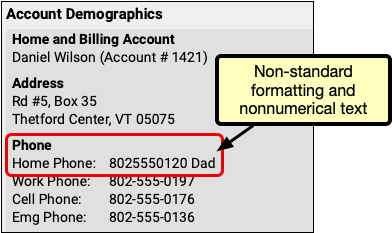
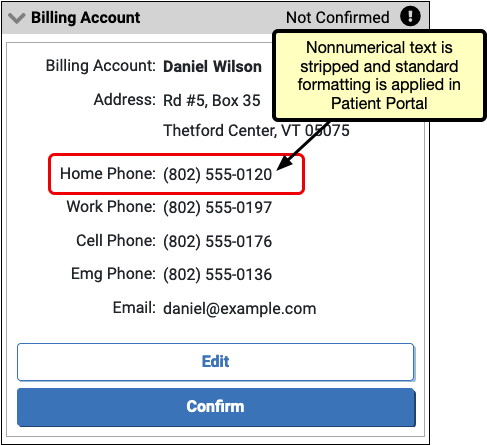
Account Demographics phone number labels are customizable and managed through the Practice Management window in PCC EHR. The labels are visible in Patient Portal during Pre-Check-In. Ensure that they are appropriately labeled and that they will make sense to your patients and families if they need to update any numbers you have on file. If you need help adjusting phone labels, contact PCC support.
Notifications
Review how you communicate with patients and families in advance of a visit. A notification to complete the Pre-Check-In process is sent two days before the scheduled visit. Consider how this additional notification fits into your overall patient communication. If you use Notify, Broadcast Messaging, CHADIS, and Pre-Check-In, that could result in a flood of reminders and messages prior to an appointment. Consider adjusting your Notify or Broadcast Messaging usage to let the Pre-Check-In notification serve as an additional reminder.
If someone in your office manually makes appointment reminder calls, use that opportunity to remind patients and families to complete Pre-Check-In.
Eligibility
Users can submit updated insurance information through Pre-Check-In. Be prepared to review any Pre-Check-In results when checking Insurance Eligibility before a visit, so you can ensure that you have the most up-to-date insurance information for each patient.
Check For Patient Portal Accounts During Each Interaction
Your practice need not have 100% of your billing accounts linked to patient portal accounts to use pre-check-in, but the more you have the more effective and useful pre-check-in will be. Take advantage of your interactions with patients and families to ensure that as many as possible have a patient portal account assigned to their billing account.
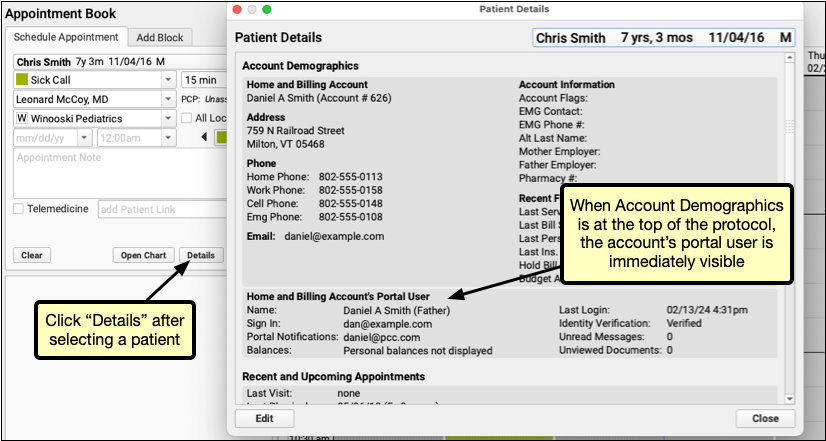
With the Account Demographics component at the top of the Appointment Book – Patient Details Protocol you can quickly check if a portal user is linked while scheduling an appointment and can create or link an existing patient portal account during the call.
Patients and families without a patient portal account will not be able to complete pre-check-in, so they’ll need to check-in when they arrive at your office. That’s an easy reminder to check their billing account and portal user so they’ll be able to use Pre-Check-In for their next visit.
Prepare Accounts and Portal Users for Pre-Check-In
Link Portal Users to EHR Accounts
Each patient scheduled for an appointment needs a Patient Portal account associated with their billing account to receive Pre-Check-In notifications and to complete the Pre-Check-In process.
If your practice is already using Patient Portal, existing Patient Portal billing accounts need to be linked to EHR accounts. Use the “Add” button in PCC EHR’s demographics component to link the EHR account to the matching person’s Patient Portal account or create a new Patient Portal account as needed.
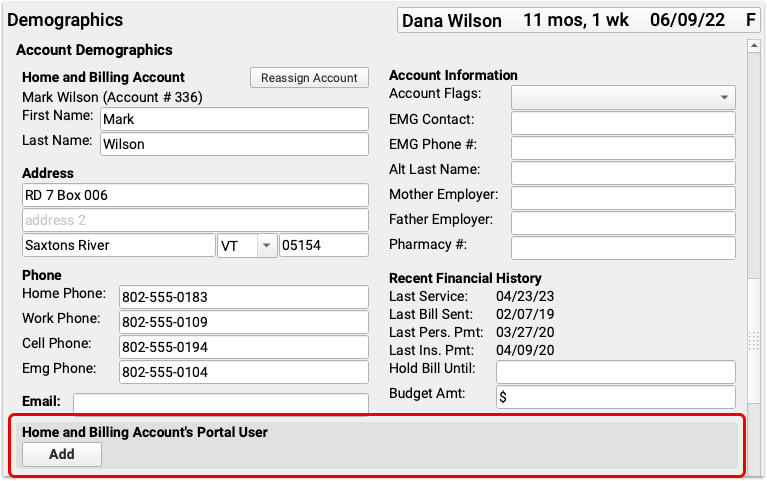
For more information on managing Patient Portal accounts, click here.
Add Additional Pre-Check-In Users
If needed, add additional Pre-Check-In users, so multiple patient portal users can complete Pre-Check-In for each patient.
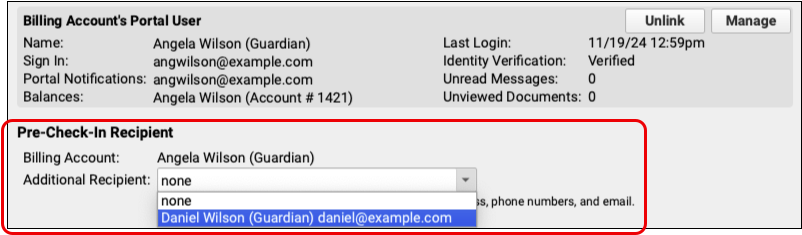
The Pre-Check-In Recipient component in each patient’s demographics includes a drop-down menu listing all patient portal users linked to the selected patient.
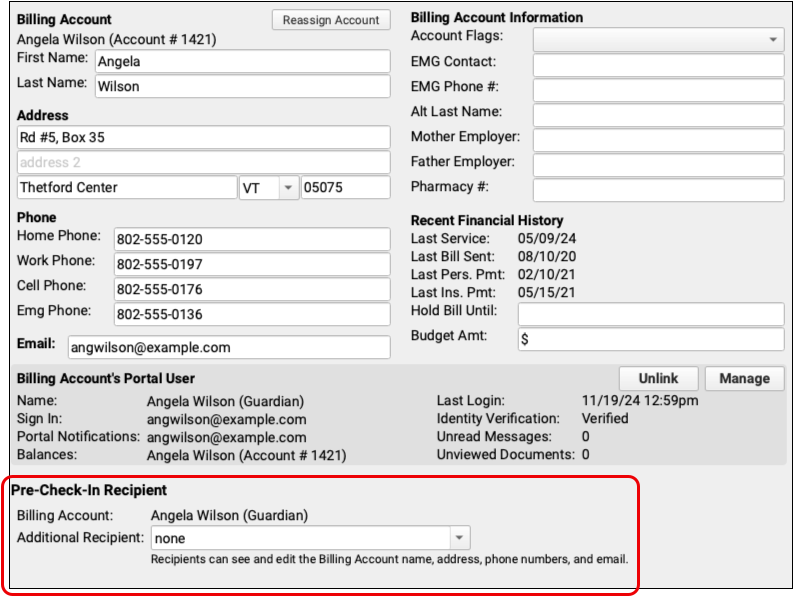
Select an patient portal user linked to this patient to receive the Pre-Check-In notification and option to complete Pre-Check-In.
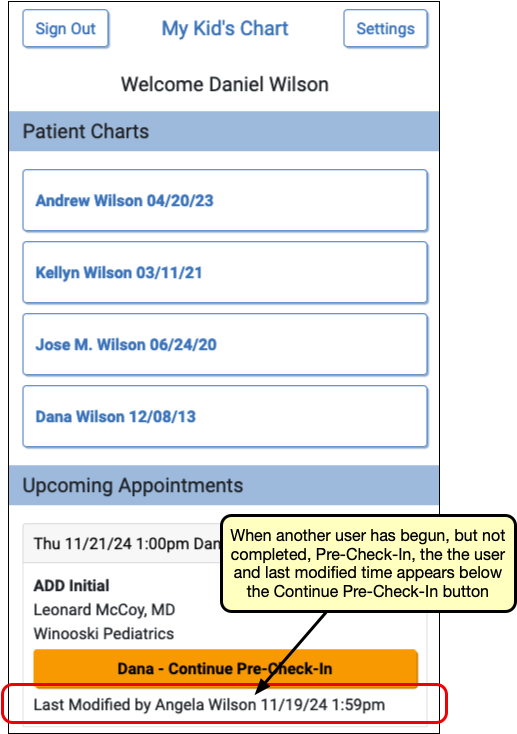
Once a user begins Pre-Check-In, the additional user will be notified that Pre-Check-In is in progress on the patient portal home page.
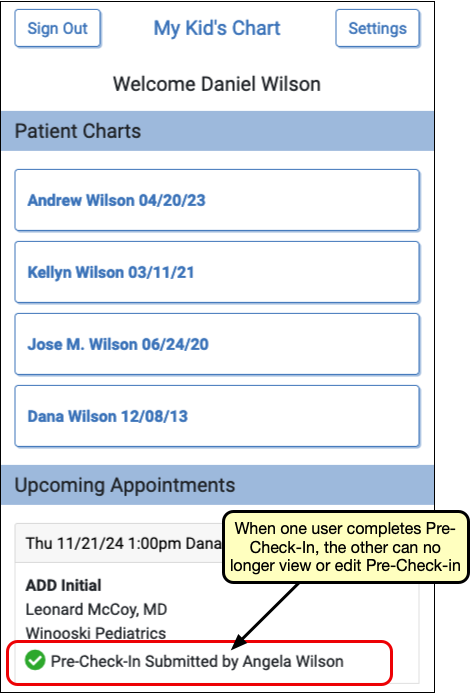
Any Pre-Check-In recipient can continue Pre-Check-In, but once any user submits Pre-Check-In, check-in is complete, and ready to be reviewed and imported in PCC EHR.
Configure Pre-Check-In
Adjust the Appointment Book – Patient Details Protocol
Adjust the Appointment Book – Patient Details Protocol so you can quickly check if a patient has a Portal User associated with their billing account during scheduling.
Open the Protocol Tool in PCC EHR’s configuration menu and select Appointment Book – Patient Details under “Chart-wide Builders”. Move the Account Demographics component to the top of the protocol, so it will be immediately visible when you click the Details button in the Appointment book.
Select a Pre-Check-In Document Category
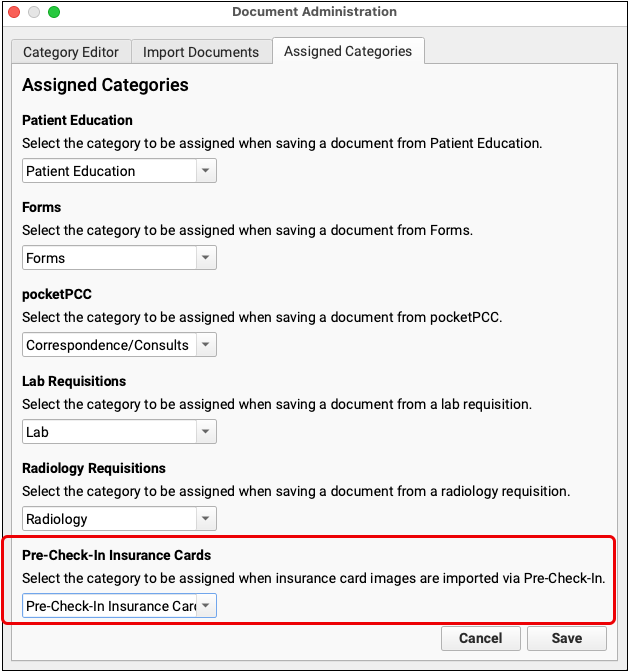
When Pre-Check-In is enabled, a new document category called “Pre-Check-In Insurance Cards” is automatically created. By default, insurance card images are added to this category. If you already have an insurance card category, or prefer to create a category with a different name, you can manage how Insurance Card Images are categorized through the Document Administration tool in PCC EHR’s Configuration menu.
Pre-Check-In Insurance Cards appears at the bottom of the Assigned Categories tab. Select your existing category in the drop-down menu, and click save.
Select Visit Reasons for Pre-Check-In
PCC EHR’s Visit Reason Editor includes two Pre-Check-In configuration options, so your practice can set which visit reasons should use Pre-Check-In and which should not.
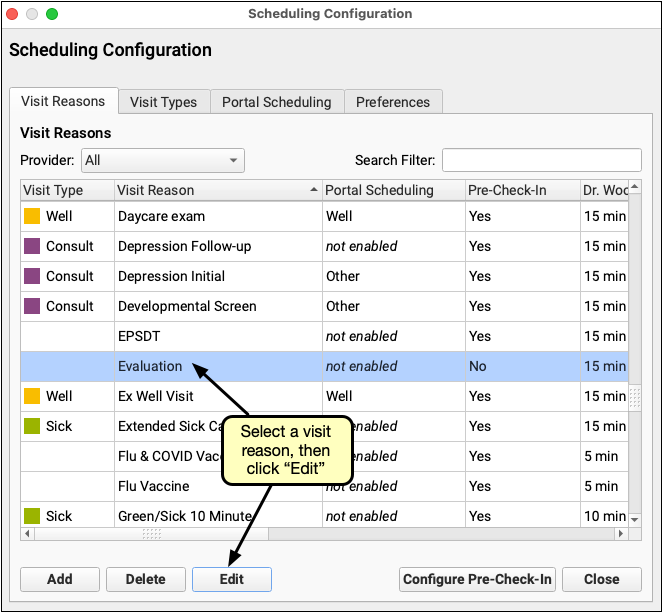
By default, all visit reasons are set to use Pre-Check-In. Open Scheduling from PCC EHR’s Configuration menu. In the Visit Reason tab, select a visit and click “Edit”.
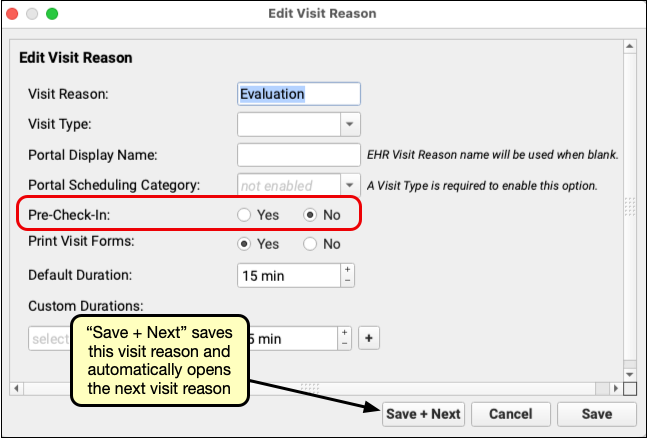
Edit Visit Reason includes a “Pre-Check-In” line with a “Yes” and “No” button. Selecting “No” will disable Pre-Check-In for the selected visit reason.
Patients scheduled with a visit reason set to “No” will not find the orange “Start Pre-Check-In” button when they log into the Patient Portal and will not receive the notification inviting them to complete Pre-Check-In.
Click “Save” to save your work and close the window or click “Save + Next” to save and automatically edit the next visit reason in your list.
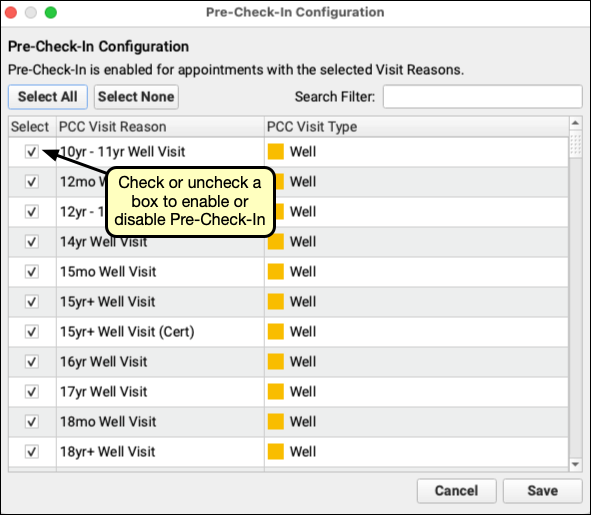
You can configure multiple visit reasons by clicking “Configure Pre-Check-In “ on the Visit Reason Configuration window. 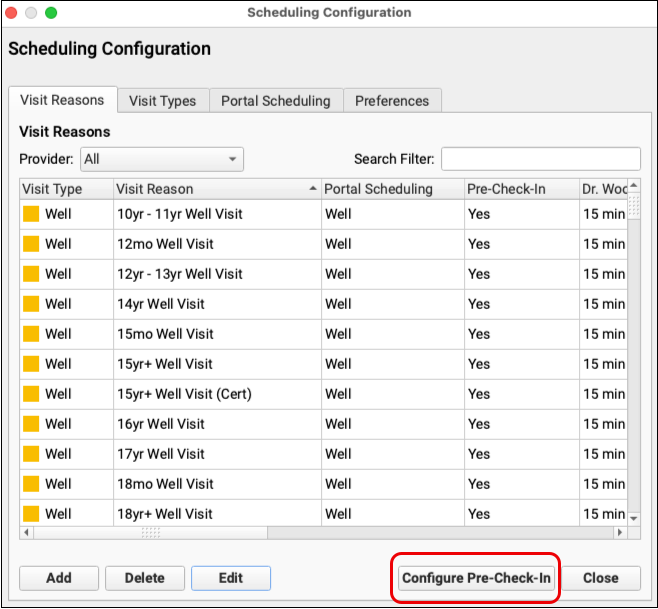
Pre-Check-In Configuration lists all your Visit Reasons with a column of check boxes. Use the Search Filter to narrow the list to the visit reasons you need, or work through the list line by line. Unchecking a box will disable Pre-Check-In for that visit reason.
Include Signable Documents in Pre-Check-In
You can optionally add documents to Pre-Check-In, so your patients and families can sign and submit your HIPAA, consent, and other policy documents, before they arrive at your office.
Coming Soon: Signing Documents during Pre-Check-In will be included with PCC’s Fall 2026 release.
Prepare Forms for Signing in Patient Portal
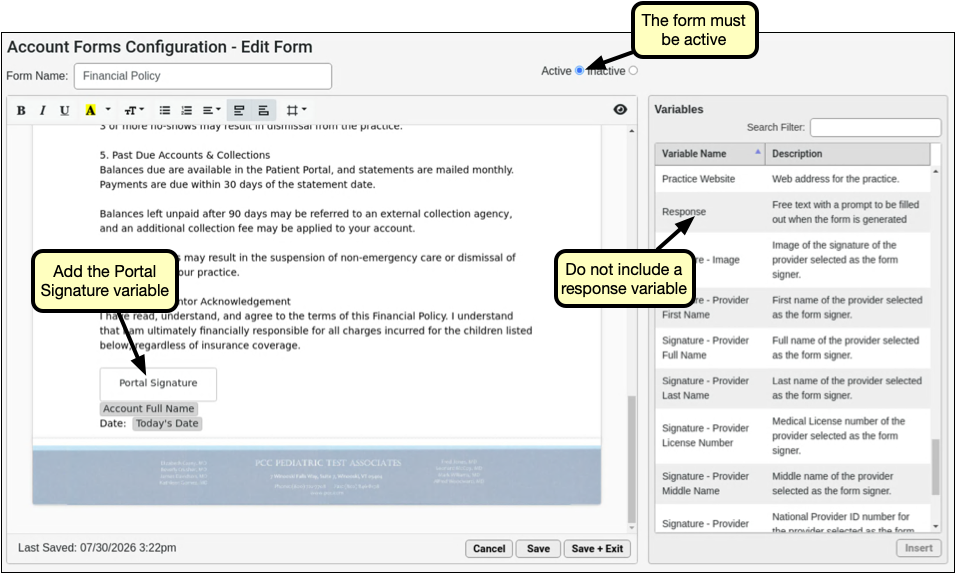
Create or edit forms to make them available for signing during Pre-Check-In. PDF based forms cannot be included for signing during Pre-Check-In. In the Forms Configuration tool any patient or account form that meets three criteria can be signed in Pre-Check-In:
- They must be set to active
- They must include the Portal Signature Variable
- They must not include any response variables
During configuration, you will select a category to assign to incoming signed documents. Consider creating a new document category for signed policy forms.
For more detailed information about managing forms, visit Configure Forms in PCC EHR.
Configure Signing in Pre-Check-In
Signing documents in Pre-Check-In is configured through Scheduling in the Configuration menu.
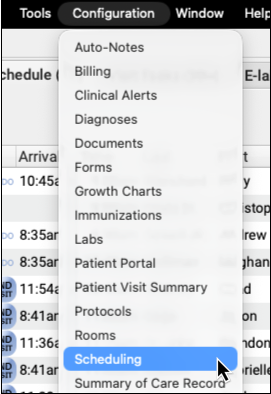

Use the Pre-Check-In Documents tab to build groups of forms, link those groups to visit reasons, and set the frequency at which those forms should be presented to patient portal users.
Create a new Document Group
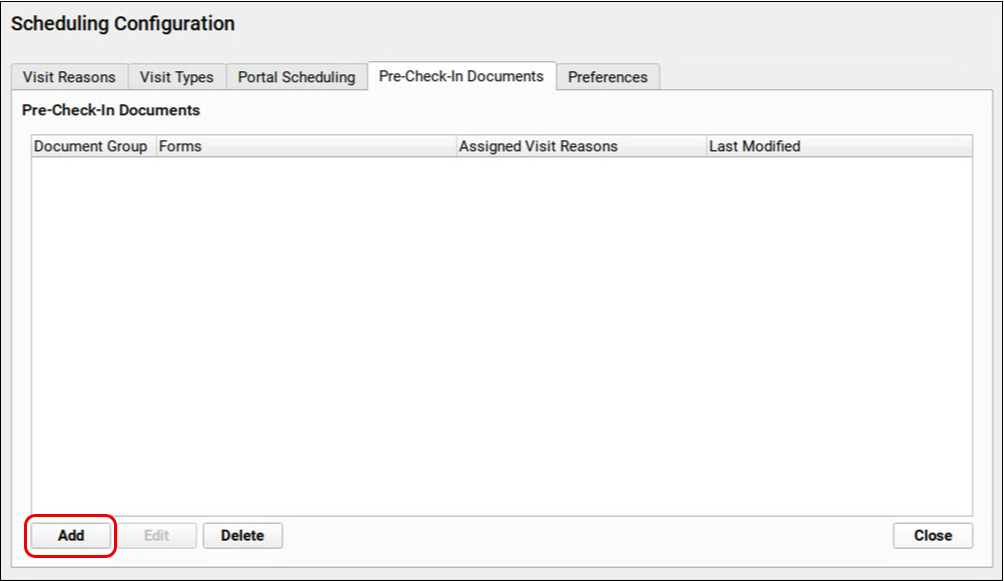
Open Scheduling Configuration from PCC EHR’s Configuration menu, and select the Pre-Check-In Documents tab. Click the “Add” button to create a new document group.
Assign Visit Reasons
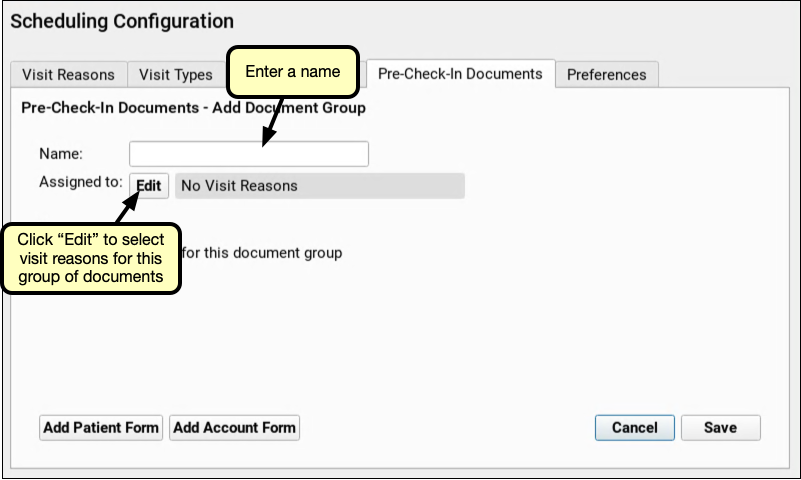
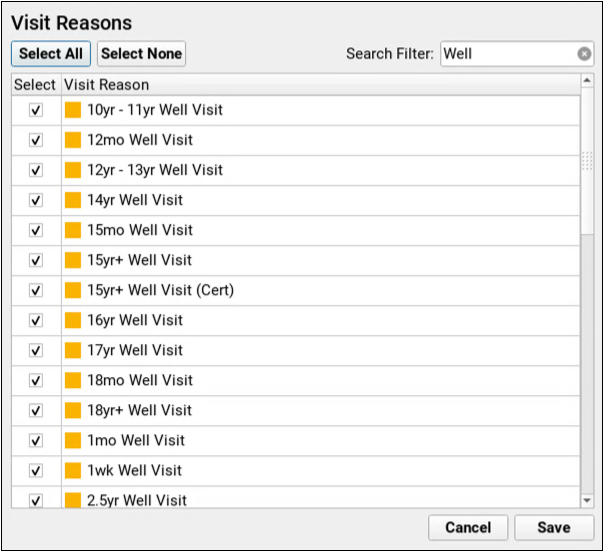
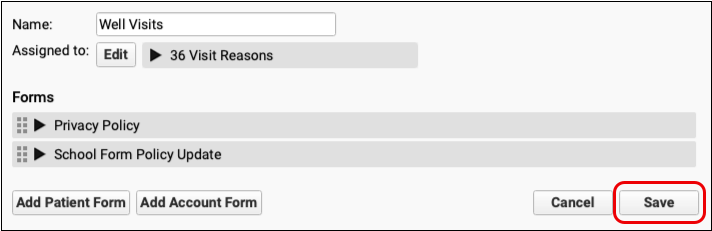
Name the document group, Click “Edit” and select one or more visit reasons. Each visit reason may only be added to a single Document Group.
Add Forms
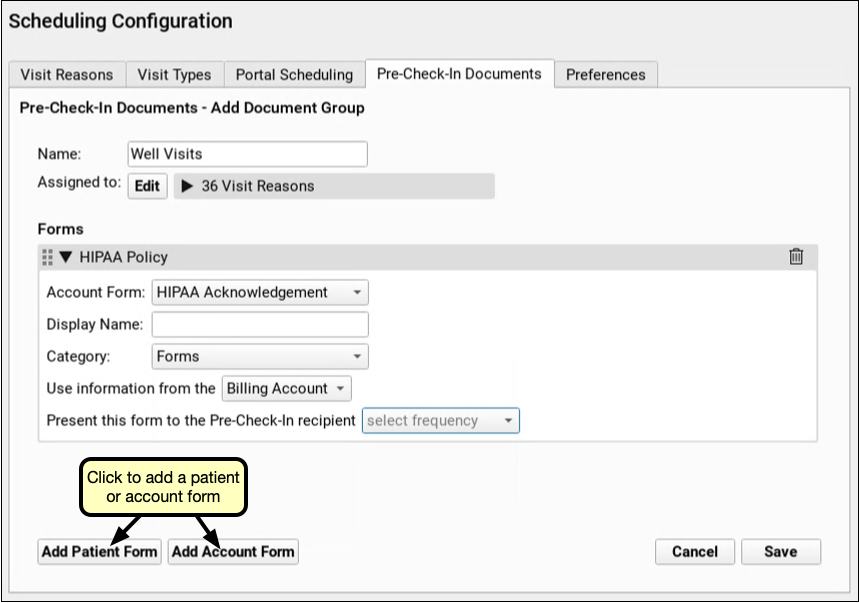
Click “Add Patient Form” or “Add Account Form” to select forms for this group. A combination of Patient and Account forms can be added to any document group.
Enter Form Options
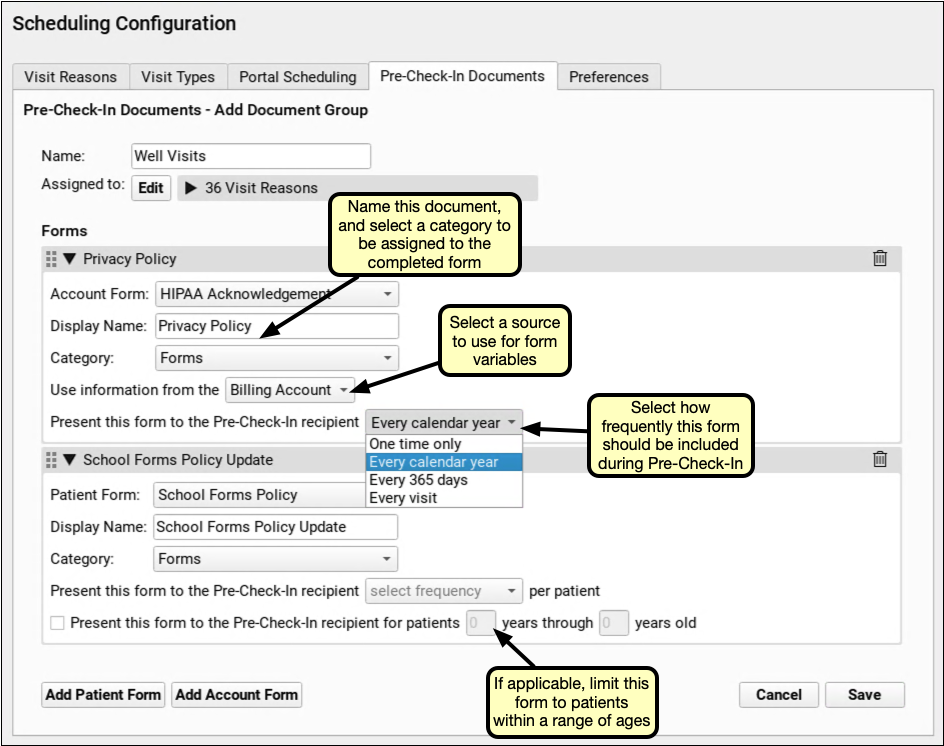
As you add forms, give each a display name to display as the title of the document in the patient portal.
Variables, such as patient names, account addresses, insurance, and other details will be filled in when the form is generated for Pre-Check-In. Select if information from the Billing or Home account should be used to fill those variables. This selection also determines under which account the document will be saved in the Documents section of the patient’s chart.
Select the document category to be assigned to the completed form.
Finally, select how often this form should be included in Pre-Check-In: every visit, every 365 days, every calendar year, or one time only.
Adding a patient form includes an additional option: limiting forms by patient age. Check “Present this form to the Pre-Check-In recipient…” and enter a range of ages. The selected patient form will not be included during Pre-Check-In for any patient outside of that age range.
Save
Click “Save” to complete the document group and return to the list of document groups.
On the Pre-Check-In Documents tab, you can build another document group by clicking “Add,” or select a group and click “Edit” to adjust an existing group, or you can use the “Delete” button to remove a document group.