
Run Reports About Your Patient Portal Usage
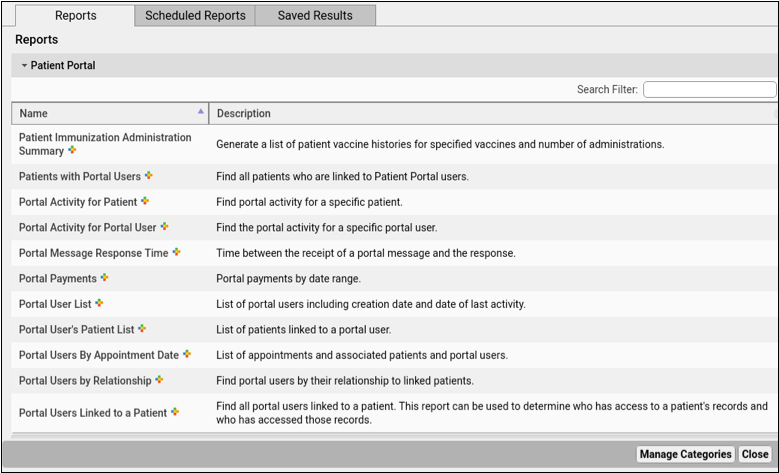
The Patient Portal category in PCC EHR’s Report Library includes a wide range of reports to help you maximize your practice’s use of the Patient Portal. You can track your practice’s usage, manage patient and family accounts, and ensure that patients are linked to the appropriate portal users.
Contents
The Report Library offers several built-in reports, which your practice can customize and refine to get exactly the information you need.
Patients with Portal Users
The Patients with Portal Users report lists patients with or without a portal account.
It can be limited to just patients with or without an associated portal account, or select both to build a list based on all your existing patients. To leave out transferred, deceased, or other groups of patients, click the edit button next to the “Exclude by Patient Flag” list to adjust which flags will cause the patient to be left out of the results.
Portal Activity for Patient and Portal Activity for Portal User
Portal Activity for Patient shows all actions of any user associated with a single patient, and Portal Activity for Portal User lists all actions by a single Portal user. Use this report to find out who accessed patient data, sent a message, or made a change to an account.
Because each action generates a new line in the portal, this report’s results can be very large, especially if your date range is wide. To ensure you get a manageable amount of data, try to build the report for the smallest possible range of dates.
Portal Message Response Time
Use the Portal Message Response Time to ensure that your Portal Users are getting prompt replies to their messages. It lists all messages within a selected date and time range, and calculates the time between when a portal message was received, and when a response was sent from your practice.
Portal Payments
Use the Portal Payments report to find and list incoming portal payments to your practice. You can limit the report by card type, transaction type, status, or result: approved, declined or error, and thereby find payments that need correction, processing or other work.
Portal User List
Generate a list of all portal users created within a range of dates, including user details, last activity and linked billing accounts.
Portal User’s Patient List
Portal User’s Patient List generates a list of all patients associated with a selected portal user. Use this report to ensure that portal users have access to the correct patients. By default, it includes a wide range of user information, including the user’s email address, name, phone number, linked billing account, and creation date.
Portal Users by Appointment Date
Ensure that all of your upcoming appointments have portal accounts associated with the scheduled patient by using the Portal users by Appointment Date report. It lists upcoming appointments and each portal user associated with those patients. If a line’s Portal User column is blank, you can be ready to create a portal user when the patient arrives.
Portal Users by Relationship
See how your Portal users are associated with their linked patients, parent, sibling, grandparent, et cetera. This is especially useful for finding users with a Portal User Relationship of “unknown” so that you can correct the relationship and ensure that CHADIS questionnaires are properly assigned.
Portal Users Linked to a Patient
The reverse of the above report, Portal Users Linked to a Patient generates a list of all users associated with a single patient. As above, this is useful to double check that a patient is associated with the correct users, so that no information is shared with the wrong person.