
Complete Patient Intake
Does your practice measure height and weight on the way to the exam room, or do you take vitals all at once in the room? The answer might be different depending on the age of the patient. Follow the steps below to learn how to complete a typical patient intake.
Review Visit Statuses
Find out who is checked in and ready for intake by reviewing statuses on the Schedule screen.
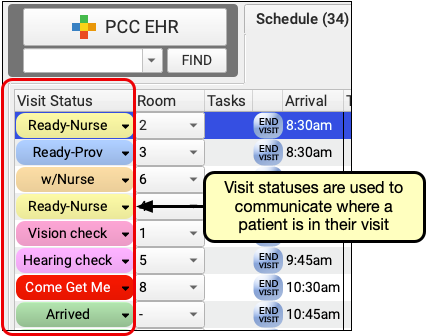
Update Patient Visit Status and Room Number
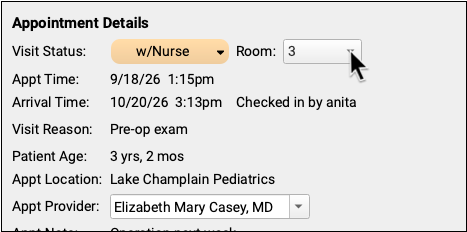
When you bring a patient back, change their visit status so the practice knows you’re with the patient.
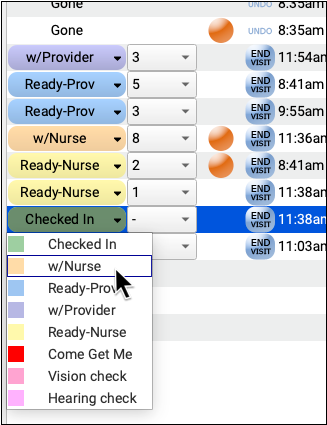
And pick the room number so that the rest of the practice knows where the patient can be found.
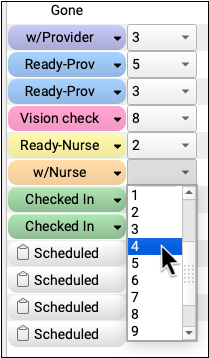
To learn more about visit statuses and room lists, read these articles: Configure Visit Statuses and Manage Your Practice’s Room List
Open the Patient’s Chart
Double-click on the row in the schedule to open the patient’s chart.

Address Clinical Alerts As Needed
If you see an alert, check if you need to take any specific action before closing it and proceeding to the patient chart.
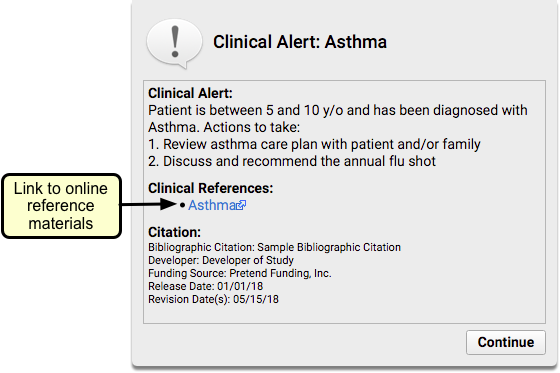
You can find out more about Clinical Alerts in this Clinical Alerts article.
Review Patient Information
Review patient information in the Medical Summary, at the top of the patient chart. This chart section covers relevant notes, medication history, upcoming appointments, family history, and more.
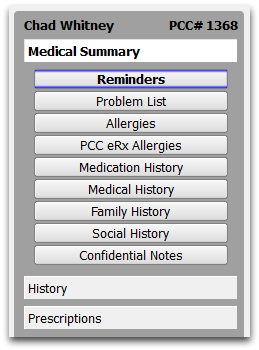
Depending on the reason for the visit, reviewing this section can help you know more about the patient prior to the intake conversation.
To learn more about the Medical Summary chart section, read The Medical Summary.
Optionally Update Visit Status and Room Number
If you already have the chart open as you’re rooming the patient, you can change visit status and room number at the top of the visit protocol.
Enter Intake Notes
Enter the chief complaint, and any subjective notes or patient narratives that your practice likes to collect.

Enter Patient Vitals
Collect the patient’s vitals and enter them in the appropriate fields.
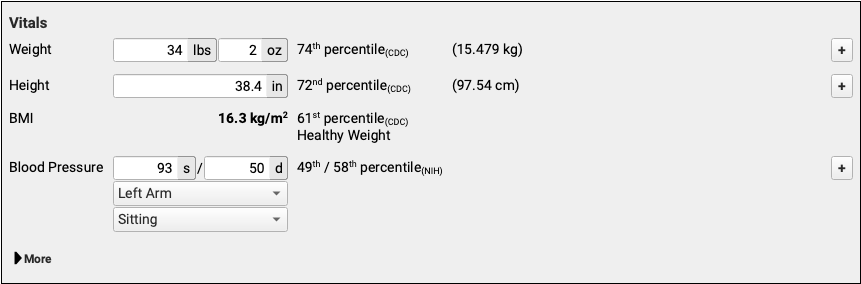
PCC displays percentiles as you enter data. Percentiles are calculated using standards from the World Health Organization, CDC, and AAP. Your practice can configure how vitals display using the strategies outlined in this Configure Vitals article.
Optionally Enter More Vitals
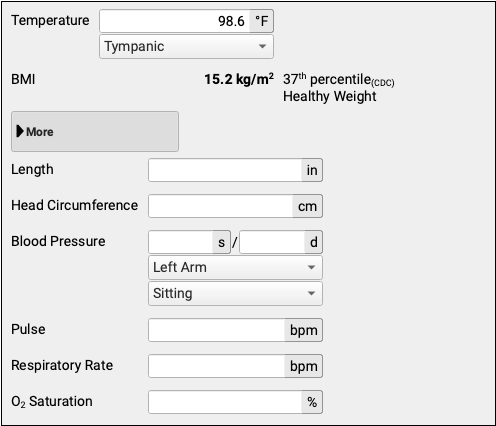
To enter any vitals that aren’t set to display by default for a particular protocol, click the “More” button.
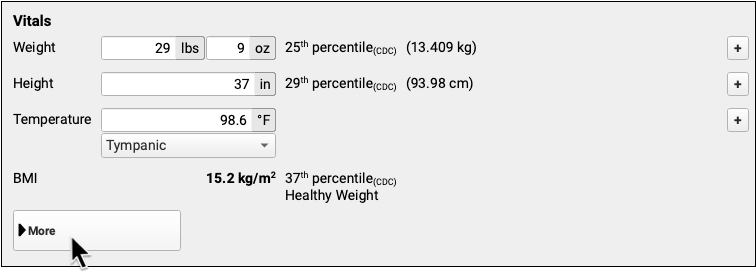
If you need to take a second measurement of any vital field, click the plus sign on the right.
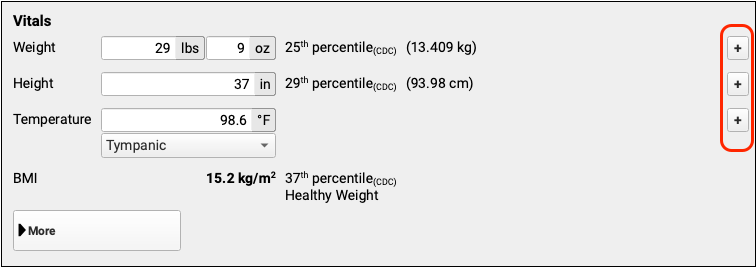
PCC will record as many sets of vitals data as you need.
Review Data Points As Needed
If growth charts are included in the visit you are charting, click “Save” and review the new point in the chart or tabular data to make sure you haven’t made any typos.
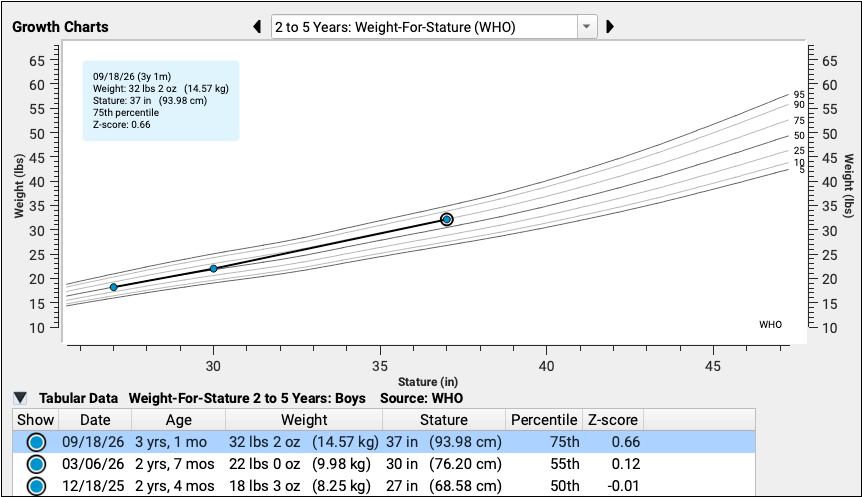
Your practice can configure where your growth charts display, and which charts show up on the drop-down. To learn more, read these articles: Growth Charts and Configure Growth Charts.
Optionally Enter Other Intake Information
If your practice’s workflows include other intake components, such as Nutrition and Development, gather any other information that you are expected to collect.
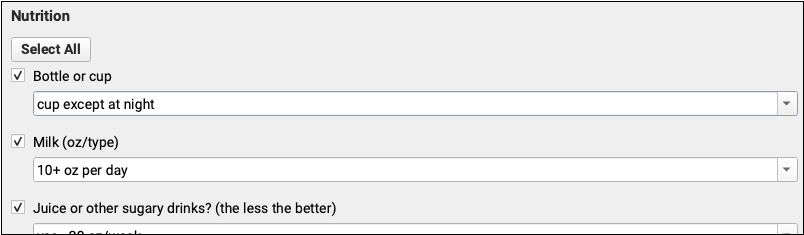
For a full charting a visit workflow, read Chart a Visit in PCC EHR.
Optionally Update VFC Status
If you are the person who will be administering vaccines, and your practice updates VFC eligibility status status as part of intake, click the Immunizations anchor button and update the VFC eligibility status.
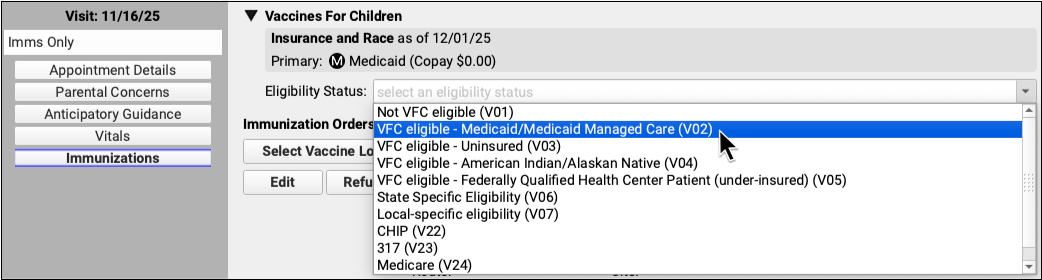
Read Report on VFC Eligibility Status in the Report Library for more information on VFC data collection and reporting.
Optionally Confirm the Patient’s Pharmacy
If your practice updates the patient’s pharmacy as part of intake, click the PCC eRx section of the chart and confirm or update pharmacy information.
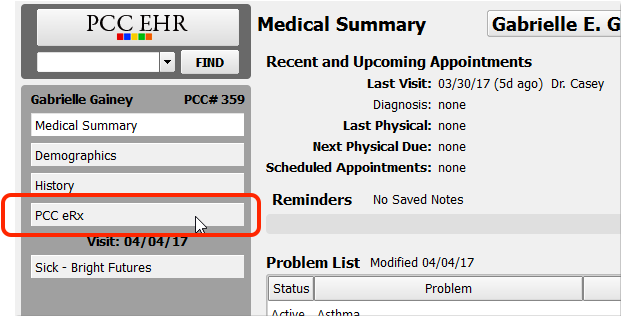
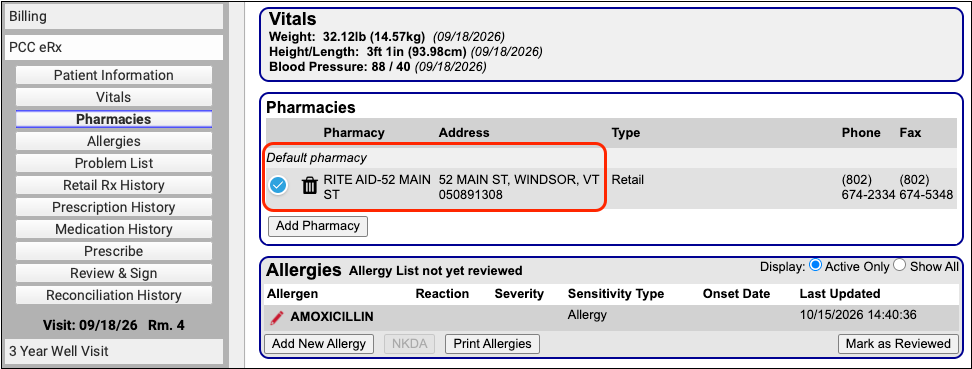
To learn more about prescribing in PCC eRX, read Prescribe Medications.
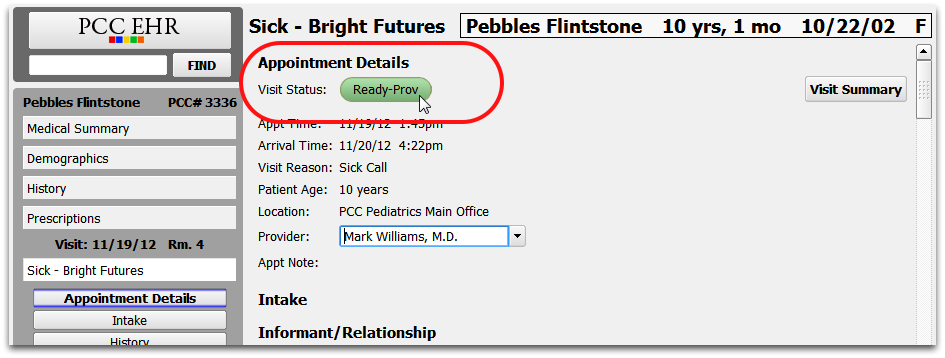
Update Visit Status
When the intake is complete, return to the appointment details section at the top of the visit, and change the visit status to “Ready for Provider”, or your practice’s equivalent status, so the doctor knows that intake is complete and the patient is ready to be seen.
Save and Exit the Chart
Click “Save + Exit” to return to the Schedule and bring the next patient back for their appointment.
