
Make Your Own PCC Scribe Templates
You can use the default settings provided by PCC, but you’ll get the most out of PCC Scribe if you build templates that work with your visit protocols.
Video: Watch Make Your Own PCC Scribe Templates to see templating in action.
Contents
What Is a Scribe Template?
PCC Scribe knows that it’s a pediatric medical scribe, but it doesn’t know how you like to organize your notes. That’s where templates come in.
Templates tell PCC Scribe what information to pull out of the visit transcript and how to organize that information into a note. Templates are customizable and can be linked to your visit protocols.
PCC provides a default template to all Scribe users, but you’ll get the most out of PCC Scribe if you make templates that pair well with your practice’s existing visit protocols.
To find your Scribe templates, open My Account from the File menu, then click on the Scribe Templates tab.
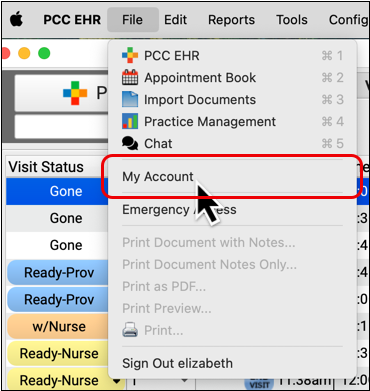
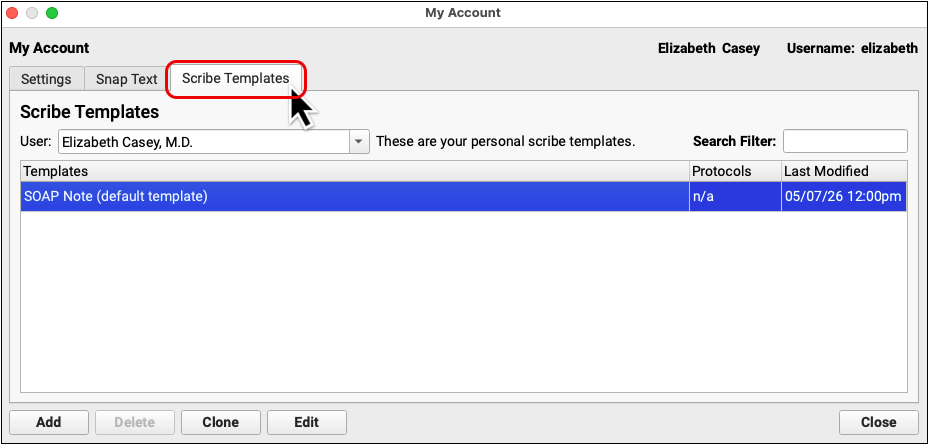
Scribe templates are user-specific. You can create, edit, and delete templates in your account without affecting anybody else.
Get to Know the Default Template
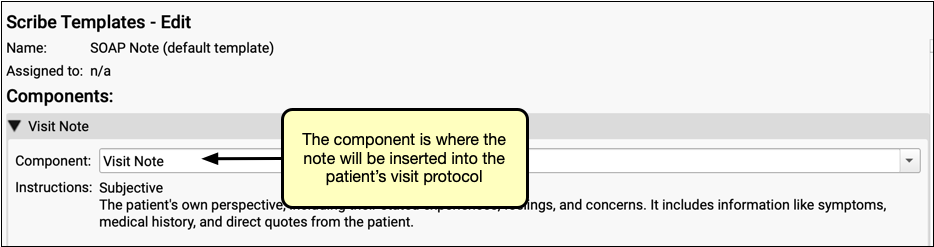
PCC provides a default SOAP Note template to every Scribe user. Double-click to edit it and see how it’s set up.

The template has one component, which every new Scribe user needs to set before using the tool. That component contains instructions for the entire SOAP note.
-
Component: Where the SOAP note will be inserted into the visit protocol when you add it to the patient’s chart.
-
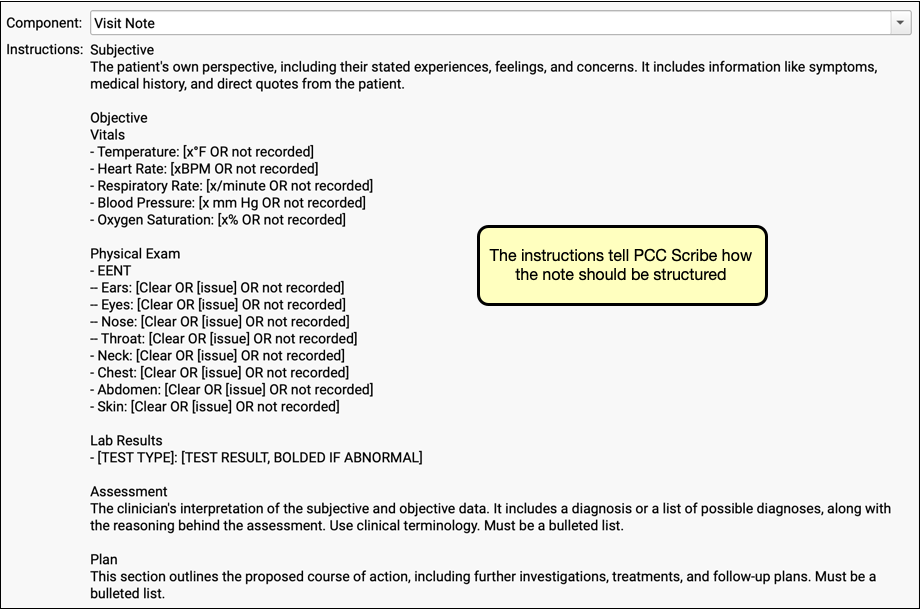
Instructions: What information should be included in the note and how it should be formatted. PCC Scribe uses your instructions to analyze the visit transcript and generate text.
The instructions tell PCC Scribe to create a note with four sections: Subjective, Objective, Assessment, and Plan.
-
Subjective: The Subjective section of the note instructs PCC Scribe to summarize the patient’s perspective on the issue that brought them in for a visit and to format it as a narrative using direct quotes.
-
Objective: The Objective section of the note instructs PCC Scribe to list vitals, physical exam findings, and lab results, or else print “not recorded”. You may not be accustomed to stating vitals measurements, physical exam findings, and lab results out loud, so this section may contain very little information when you use this template.
-
Assessment: The Assessment section of the note instructs PCC Scribe to summarize the clinician’s interpretation of the situation and to format it as a bulleted list using clinical terminology.
-
Plan: The Plan section of the note instructs PCC Scribe to summarize the proposed course of action and to format it as a bulleted list.
You can use the default SOAP note template to start scribing right away, or make your own custom templates.
Create a Custom Template
Create templates that pair with your practice’s visit protocols and the way you like to chart.
Start a New Template
There are three ways to start a new template: Add a new template, clone one of your own, or copy another user’s template.
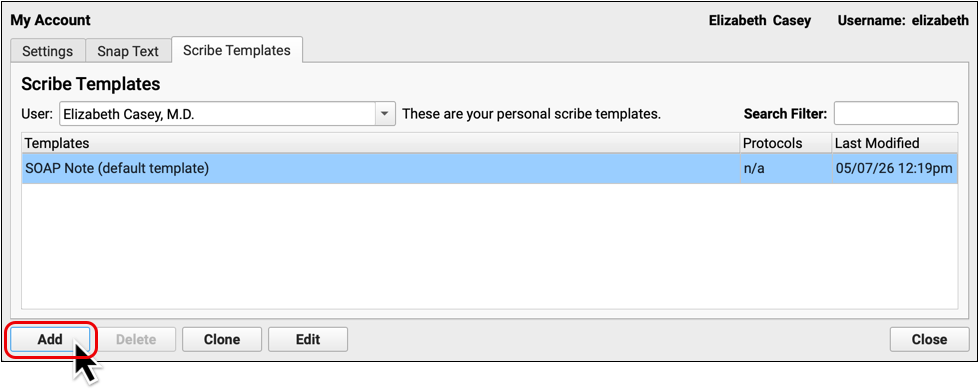
Click “Add” to start a new template from scratch.
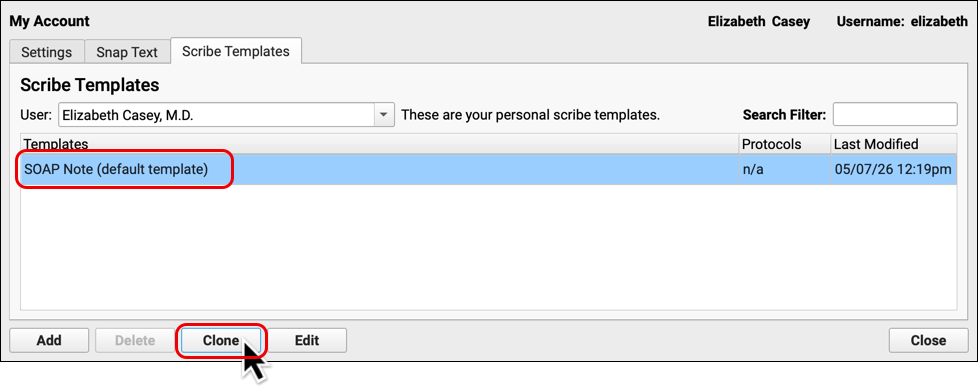
You can also clone one of your existing templates to use as a starting point. Select the template and click “Clone” to create a copy.
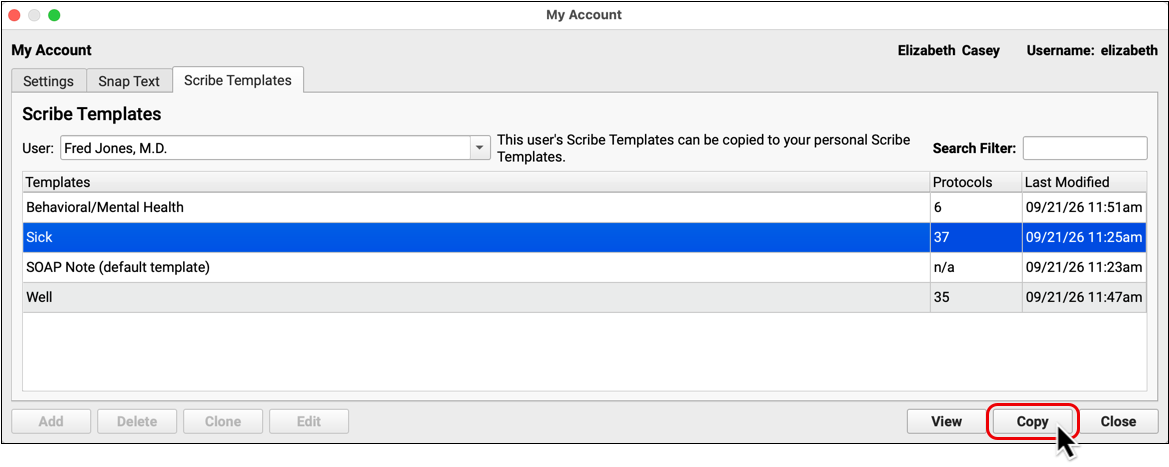
Finally, you can copy templates from other users at your practice. Pick a user name from the drop-down at the top of the Scribe Templates tab, select a template, then click “Copy”.
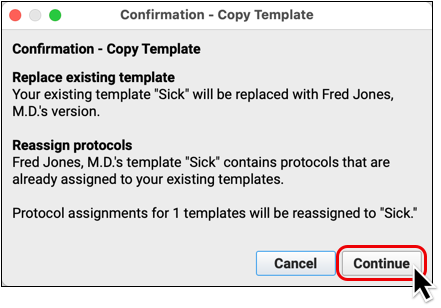
If the copy could overwrite some of your existing configuration, PCC Scribe will let you know.
Once the template has been copied to your account, you can edit all of its parameters without affecting the user you copied it from.
If you want to view the contents of a template before copying it to your account, select it, then click the “View” button.
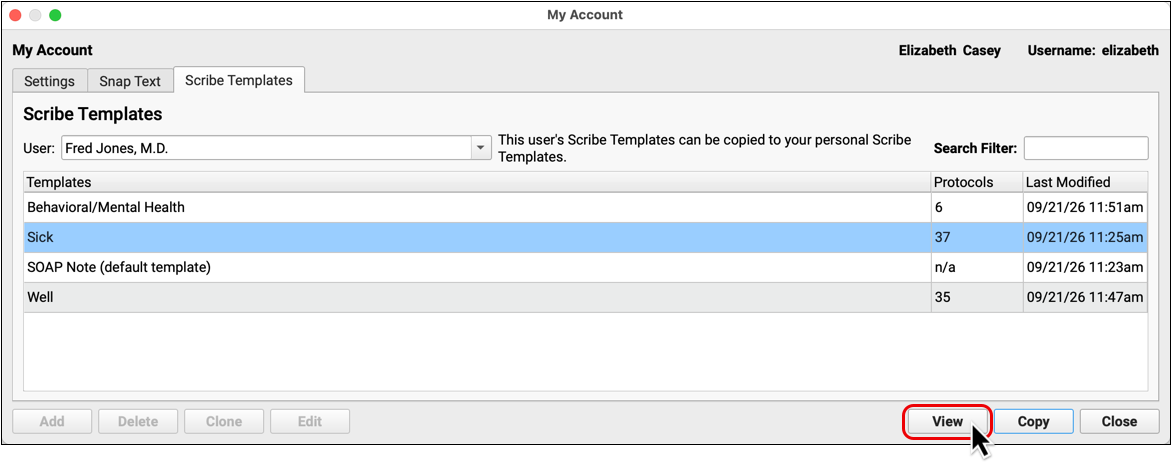
You can optionally copy text from the template, then paste and repurpose it elsewhere.
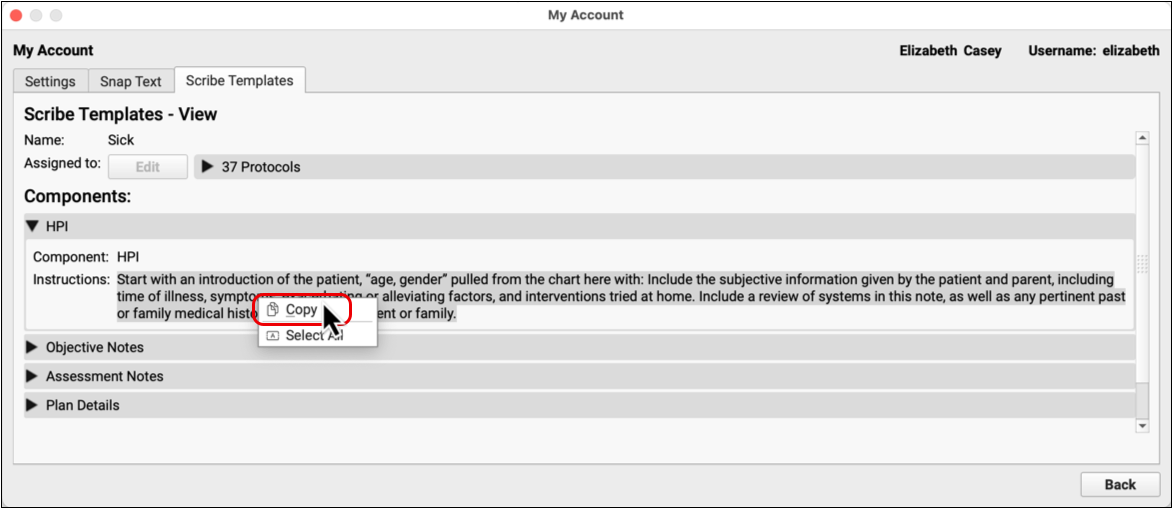
To proceed with copying the entire template to your own account, click the “Back” button, then click “Copy”.
Name the Template
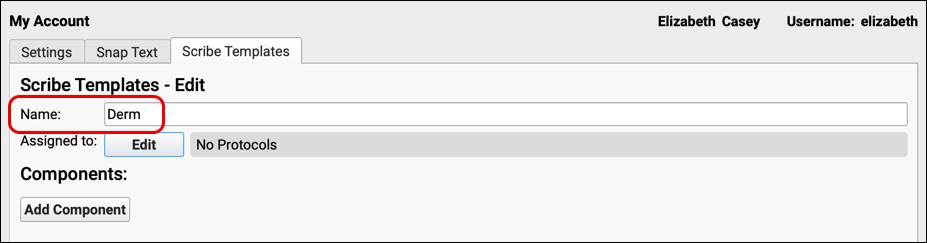
Give your template a unique name. The name should be something that helps you understand what kind of note the template will generate, such as “Derm” for a template that will be used for dermatological visits.
Link to Protocols
Select the protocols for which you are designing this template.
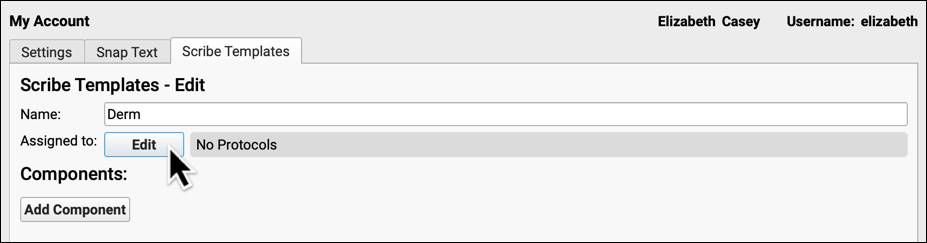
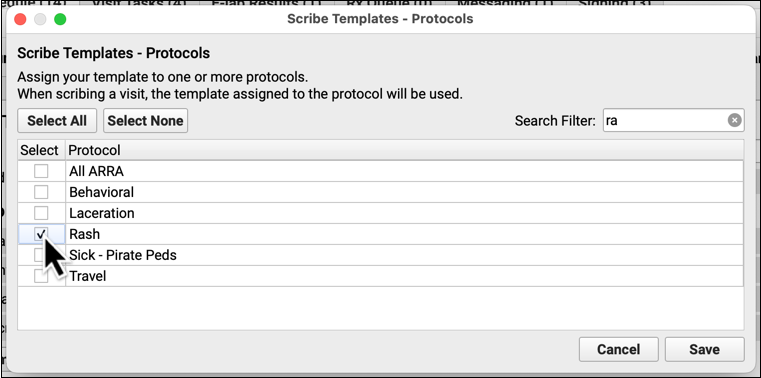
This step is optional but strongly recommended, since PCC Scribe is most useful when it can create notes that are closely tailored to your practice’s visit protocols.
Add Components
Think about which components of the selected visit protocol(s) you want PCC Scribe to be able to fill out, then add them to your template in the order you want them to appear.
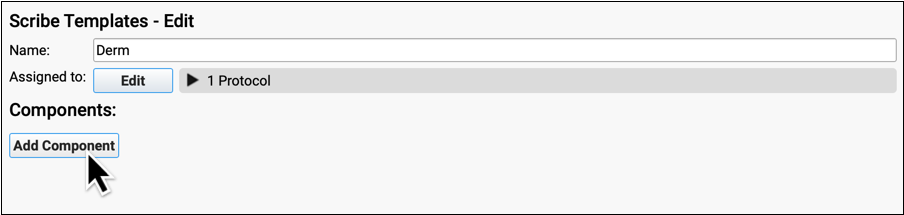

At this time, PCC Scribe can only fill out generic text edit components. These are the large text boxes typically used for recording HPI and other narrative parts of the visit.

As your practice integrates the use of PCC Scribe, you may wish to create new components and update your visit protocol configuration. These kinds of changes may optimize your workflows, but they are not essential for getting started with PCC Scribe.
Create Instructions
For each component in your template, create instructions that tell the Scribe what to document and how to format the information.
For example, if you like to document the History of Present Illness as a concise narrative, your instructions to PCC Scribe for the History of Present Illness component could be: “Generate a concise chronological narrative of the patient’s current illness, starting from the first sign or symptom up to the present encounter.”

Alternatively, you could phrase your instructions as a description of what should go in the component: “A concise chronological narrative of the patient’s current illness, starting from the first sign or symptom up to the present encounter.”

You can also tell the Scribe to exclude certain kinds of information, and how it should handle things that aren’t mentioned in the transcript.
For example, your instructions for a scribed Physical Exam could tell PCC Scribe to assume that any system you don’t explicitly mention is normal.
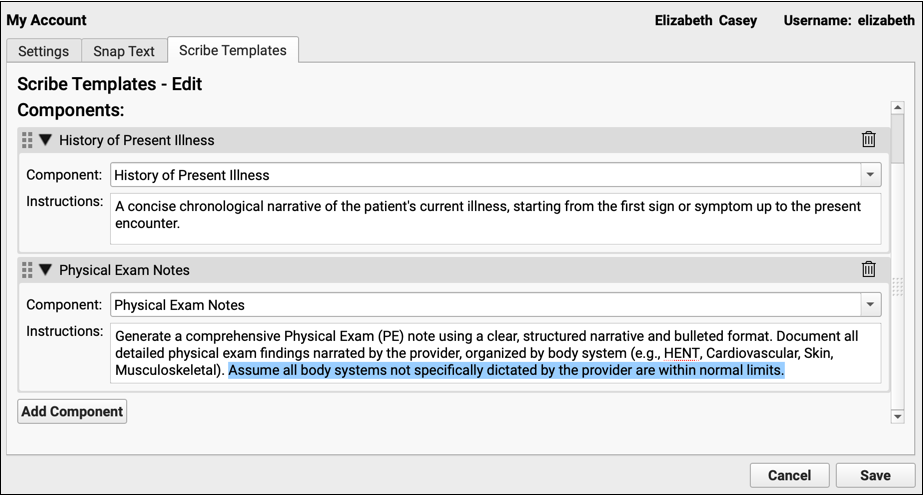
Draft chart note quality is subjective, so no single set of instructions will work for every clinician, but PCC has created some examples to help you get started.
Sample Instructions by Component
Click on each component below to see sample instructions. You can copy and paste these instructions into your templates as a way to get started, or simply use them for inspiration.
Review of Systems
Generate a comprehensive Review of Systems (ROS) section in a bulleted format.
Include all symptoms mentioned by the patient or guardian, documenting them as positive findings.
Explicitly summarize Constitutional, Musculoskeletal, and Neurological findings related to the patient’s chief complaint.
For all other body systems not specifically addressed or discussed in the visit transcript (including HENT, Cardiovascular, Respiratory, Gastrointestinal, Genitourinary, Integumentary, Psychiatric, and Endocrine), document them as ‘Negative (Not mentioned during the encounter).’
Physical Exam
Generate a comprehensive Physical Exam (PE) note using a clear, structured narrative and bulleted format.
Document the review of interval growth, noting height, weight, head circumference, and BMI (if the patient is 24 months or older), including their percentiles and assessment of changes along the chart’s curve. Reference the use of CDC-recommended growth charts.
Summarize the patient’s general appearance and clearly document the assessment of parent/caregiver-child interactions. Include an explicit statement regarding the assessment for potential signs of abuse.
Document all detailed physical exam findings narrated by the provider, organized by body system (e.g., HENT, Cardiovascular, Skin, Musculoskeletal).
Assume all body systems not specifically dictated by the provider are within normal limits.
History of Present Illness
Generate the History of Present Illness (HPI) section of the pediatric visit note. The HPI must be a chronological description of the patient’s current illness, starting from the first sign/symptom up to the present encounter.
Extract the primary reason for the visit.
Based on the visit transcript, document the development of the current illness. Include the date/time of the event, mechanism of injury, initial symptoms (e.g., pain location, crying), duration, and any mitigating factors (e.g., medication taken, attempts to use the affected area).
Do not include the Review of Systems (ROS) or Past, Family, and Social History (PFSH) in this HPI section. The output should focus exclusively on the History of Present Illness as defined.
Nutrition/Dietary History
Create a complete dietary history for the patient based on the visit transcript. Format the information as a brief, high-density narrative summary. The note must include an estimate of the quantity, quality, and timing of dietary intake. Specifically capture all typical foods, beverages, medications, and supplements consumed, the portions, the quality of foods, the time and duration of consumption, and the location of consumption (at home or elsewhere).
Plan
Generate the Plan of Care section for the visit note. The plan must address every problem discussed during the visit. Format the information as a concise, action-oriented bulleted list. Since this is a pediatric setting, ensure the plan includes, if discussed in the transcript, any recommendations for developmental assessment, and any necessary accommodations related to the patient’s education, school, or community activities.
Developmental Assessment
Generate the Developmental Assessment section of the visit note. Summarize all relevant observations and discussions concerning the patient’s development. Organize the findings by focusing on the four broad areas of early childhood development (physical/physiologic, neurodevelopmental, cognitive, and psychosocial). Additionally, include specific details about any progress or concerns mentioned related to the five developmental streams: gross motor, language, visual-motor problem-solving, social skills, and adaptive skills. The final output should be a concise, structured narrative summary of the assessment.
Time Spent in the Visit
List the start time, stop time, and total time spent scribing this encounter.
– Start Time: HH:MM:SS EST
– End Time: HH:MM:SS EST
– Total Time: X minutes
Try Using a Generative AI Tool to Create Instructions
If these examples inspire you to create your own instructions but you’re not sure how to get started, you can try asking a third-party generative AI tool for help.
For example, you could ask the tool to: “Create a set of instructions for an ambient pediatric medical scribe to document the patient’s Social History.”
When PCC tried this out, the instructions the generative AI tool came up with were:
“Generate a structured summary of the patient’s Social History based on the visit transcript, organized into a clearly labeled bulleted list. The summary must include the following categories, using explicit statements of “Not Discussed” if information for a category is absent from the transcript:
-
Living Situation: Document who the patient lives with (parents, guardians, siblings, etc.) and the primary caregiver(s).
School/Childcare: Document the patient’s current grade or daycare setting, academic performance (including any concerns or strengths mentioned), and attendance. -
Activities/Hobbies: List the patient’s regular activities, sports, or interests.
-
Substance Exposure/Use (as appropriate for age): Document any discussion of exposure to tobacco, alcohol, or illicit substances in the home. For adolescents, document any self-reported substance use. Explicitly state ‘No substance exposure/use discussed’ if not mentioned.
-
Safety/Environment: Document information related to home safety (e.g., smoke detectors, firearm presence/storage), car seat/booster seat use, and helmet use.
-
Pets: Mention any household pets.”
The best way to learn how to write instructions for Scribe templates is to try it out. Create some instructions, see how well they perform when you generate a draft chart note, and refine them to give you better output.
Save and Test the Template
Save the template. Now it’s time to see how it works!
Use the template to generate a draft chart note.
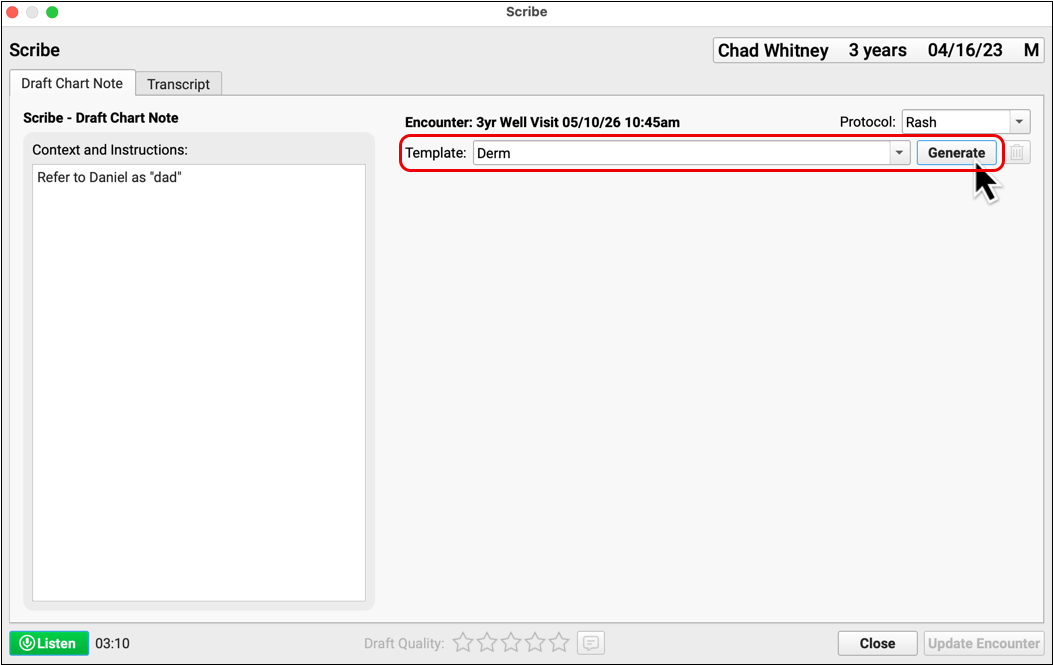
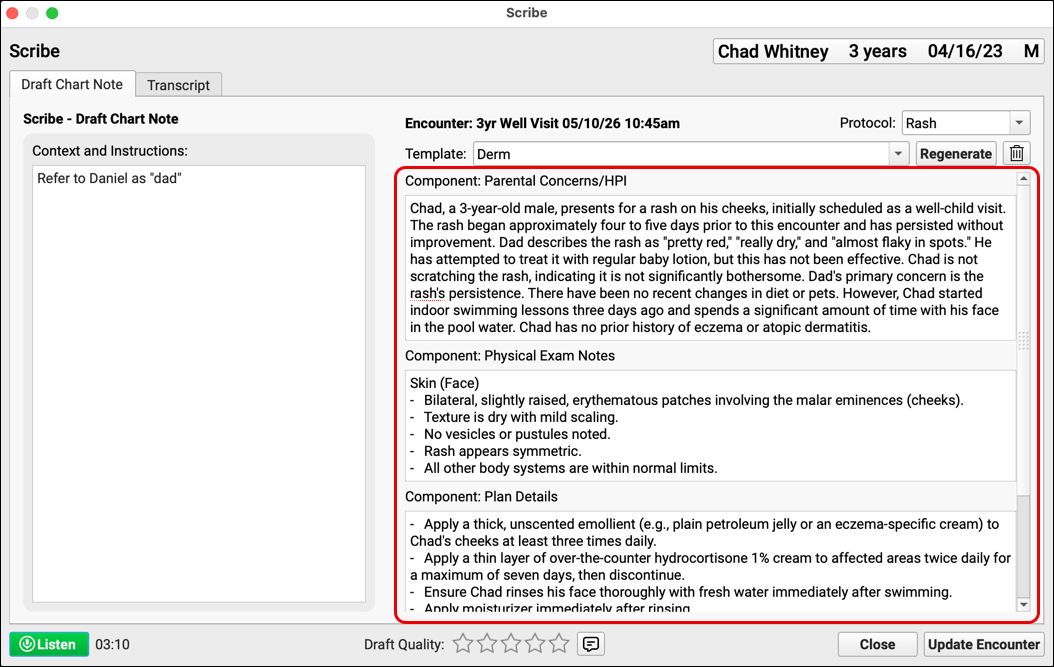
Notice what works and doesn’t work. Ask yourself:
- Is each piece of information in the right component?
- Are the components in the right order?
- Is all of the information formatted correctly?
- Is any information missing?
- Is the terminology correct?
- Does the note include any extraneous information?
When you insert the note into the patient’s chart:
- Does the information show up where you expect it to within the visit protocol?
- Are there parts of the note that are redundant?
- Did someone else already chart some of the information also contained in your note?
If the template doesn’t quite meet your standards, make some adjustments and test it again. The best way to learn the art of template creation is through experimentation.
Sample Templates
See how experienced virtual scribe users configured their PCC Scribe templates for a few standard visit types and learn why their instructions work. These instructions may be copied into your PCC Scribe templates and adjusted to suit your preferences.
Sick Visit
Four clinicians shared their PCC Scribe templates for sick visits. Click a clinician’s name to see their template and an explanation of why it works.
Dr. Lavania
Template: Sick Visits
Dr. Lavania uses a simple template to document the patient’s narrative of symptoms, her assessment, and her plan. This template is linked to 36 complaint-specific sick visit protocols.
| Component | Instructions | Why It Works |
HPI |
The patient’s own perspective, including their stated experiences, feelings, and concerns. It includes information like symptoms, medical history, and direct quotes from the patient. | Whole sentences and specific examples clearly tell PCC Scribe what to include in this section of the note. |
Plan Notes |
Assessment The clinician’s interpretation of the subjective and objective data. It includes a diagnosis or a list of possible diagnoses, along with the reasoning behind the assessment. Use clinical terminology. Must be a bulleted list. Plan |
The clinician wants this part of the note organized into two subsections with headers, so the instructions are formatted that way.
Whole sentences and specific examples clearly tell PCC Scribe what to include in each subsection. Terminology and formatting instructions tell PCC Scribe what kind of language to use and how to present the information. |
Dr. Herron
Template: RRP SOAP Note Sick Visit
Dr. Herron uses a detailed template with ample formatting cues to comprehensively document sick visits. This template is linked to one generic sick visit protocol.
| Component | Instructions | Why It Works |
HPI |
Start with an introduction of the patient, “age, gender” pulled from the chart here with: Include the subjective information given by the patient and parent, including time of illness, symptoms, exacerbating or alleviating factors, and interventions tried at home. Include a review of systems in this note, as well as any pertinent past or family medical history noted by the patient or family. | Whole sentences and specific examples clearly tell PCC Scribe what to include in this section of the note. |
Objective |
Vital signs should be listed as noted below if they are recorded in the chart. If they were not noted aloud, then do not include them in the note. Temp: HR: BP: Resp rate: Pulse ox: Weight: in kg Change in weight from last visit: [listed as “increased or decreased by x kg”] Height: in inches Physical Exam Additional Physical exam: Only include the Abdominal, Neuro and Musculoskeletal components of the exam if they are mentioned by the examiner and if included, follow the rules below: Labs: |
The clinician formats the instructions in the manner that she wants the note organized, with headers, labels, and lists.
Vitals are listed in a particular order with instructions about when to include each data point and how to record it. The physical exam is organized by body system. Conditional instructions tell PCC Scribe which body systems should always be noted and which should be included only if mentioned. The instructions also define how to record normal findings and which findings are of particular note for a given body system. The lab results subsection defines specific test results that should be noted if mentioned and how to format abnormal results. |
Assessment |
Include the differential diagnosis, and the patient’s status as it related to hydration, respiratory distress, and toxicity. A normal, non-concerning child would be listed as nontoxic child with no respiratory distress or signs of dehydration. Then list the likely diagnosis or diagnoses noted. | Whole sentences and specific examples clearly tell PCC Scribe what to include in this section of the note. Additional instructions define what PCC Scribe should record when a patient is not concerning. |
Plan Notes |
Include the plan in medical terminology in a bullet list. List medications, future labs, follow up plan and reasons to return to the office. | Whole sentences, formatting instructions, and specific examples clearly tell PCC Scribe what to include in this section of the note and how to present it. |
Scribe Consent |
Default to “verbal consent for use of virtual scribe given to physician by patient/parent” if no definitive consent is transcribed. | The clinician defines the exact phrase PCC Scribe should use when noting patient and parental consent for scribing.
The need to obtain and document consent to transcribe visits is defined on a regional level. Speak with legal counsel to confirm the best way to meet the obligations imposed by your jurisdiction. |
Dr. Branco
Template: Sick Visit (Scribe)
Dr. Branco’s template combines the patient and provider’s narrative of symptoms into one section while breaking out the assessment and plan into separate sections. This template is linked to one generic sick visit protocol built specifically for use with PCC Scribe.
| Component | Instructions | Why It Works |
CC/HPI/ROS |
Start by listing the chief complaint or reason for the visit.
The patient’s own perspective, including their stated experiences, feelings, and concerns. It includes information like symptoms, medical history, and direct quotes from the patient. Please list all symptoms related to the chief complaint first, then create a separate paragraph with the review of symptoms – other signs and symptoms that are asked about but not directly related to the defining the chief complaint or current illness. |
Whole sentences and specific examples clearly tell PCC Scribe what information to include in this section. The clinician defines the sequence of information, the format, and which perspectives should be represented. |
Assessment |
The clinician’s interpretation of the subjective and objective data. It includes a diagnosis or a list of possible diagnoses, along with the reasoning behind the assessment. Use clinical terminology. Must be a bulleted list. | The clinician narrowly defines the type of information to include, which terminology to use, and how to format it. |
Treatment Plan |
This section outlines the proposed course of action, including further investigations, treatments, and follow-up plans. Must be a bulleted list. Organize the plan by diagnosis – list each of the diagnoses and the plan for that problem specifically. | The clinician defines the purpose of the section, what type of information to include, and how to organize the information. |
Dr. Birch
Template: Acute Note
Dr. Birch uses a simple template to document the patient’s narrative of symptoms, his assessment, and his plan. This template is linked to one generic sick visit protocol.
| Component | Instructions | Why It Works | |
HPI |
Subjective The patient’s own perspective, including their stated experiences, feelings, and concerns. It includes information like symptoms, medical history, and direct quotes from the patient. |
Whole sentences and specific examples clearly tell PCC Scribe what to include in this section of the note. | |
Assessment & Plan |
This is the clinician’s interpretation of the subjective and objective data. It includes a diagnosis or a list of possible diagnoses, along with the reasoning behind the assessment. Use clinical terminology. Use numbered list of diagnoses with bullets for the assessment/plan. Put into format of assessment (diagnosis with appropriate ICD-10 code) and plan for that diagnosis underneath which includes the proposed course of action, including further investigations, treatments, and follow-up plans. Do not include physical exam findings. | Whole sentences and specific examples clearly tell PCC Scribe what to include in this section. The clinician defines a specific format, terminology preferences, and which details to exclude. The clinician also asks for administrative support by requesting an ICD-10 code for each diagnosis. |
Teen Well Visit
Four clinicians shared their PCC Scribe templates for teen well visits. Click a clinician’s name to see their template and an explanation of why it works.
Dr. Lavania
Template: Well Check
Dr. Lavania uses a simple template to document the patient’s concerns and her plan. This template is linked to 55 age- and issue-specific well visit protocols,15 of which are for patients ages 11 and up.
| Component | Instructions | Why It Works |
Concerns |
The patient’s own perspective, including their stated experiences, feelings, and concerns. It includes information like symptoms, medical history, and direct quotes from the patient. | Whole sentences and specific examples clearly tell PCC Scribe what to include in this section of the note. |
Plan Notes |
This section outlines the proposed course of action, including further investigations, treatments, and follow-up plans. Must be a bulleted list. | Whole sentences and specific examples clearly tell PCC Scribe what to include in this section of the note. Formatting instructions define how the information should be presented. |
Dr. Herron
Template: 15-21 WCC VS Template RRP
Dr. Herron uses a detailed template with ample formatting cues to comprehensively document well visits. This template is linked to one age-specific well visit protocol.
| Component | Instructions | Why It Works |
Interim History |
Include in this section a one line description of the age of the patient and the reason for the visit (for example, 15 year old here for well child visit). Include in this section any parental concerns, interim history, updates to family or personal medical history, or medications mentioned. Also include discussion of periods, school and extracurricular activities, jobs, or college/vocational plans. | The clinician defines a specific introductory sentence, then enumerates specific examples of what to include in this section using whole sentences. |
Development |
Include in this section any developmental milestones or discussion, bulleted by type of development: School Achievement (grades, behavior in school); Sleep (sleep quality and quantity); Nutrition (fruits/veggies/balanced diet with portion control); Behavior (emotional regulation, feelings of stress or sadness, friends); Mental Health (anxiety, stress, depression) | The clinician defines a specific list format for this section with headers for each list item and descriptions of what should be recorded for each. |
HEADS Exam |
Include in this section anything that refers to subjective information given by the patient about home life, education, activities, drug use, suicide or mental health, and sexual activity | In a complete sentence, the clinician explicitly defines which perspective and topics should be recorded in this section. |
Objective |
Vital signs should be listed as noted below if they are recorded in the chart. If they were not done, then do not include them in the note.
Weight: in percentiles Physical Exam: Labs: Screenings: |
The clinician formats the instructions in the manner that she wants the note organized, with headers, labels, and lists.
Vitals are listed in a particular order with instructions about when to include each data point and how to record it. The physical exam is organized by body system. Conditional instructions tell PCC Scribe which body systems should always be noted and which should be included only if mentioned. The instructions also define how to record normal findings and which findings are of particular note for a given body system or patient. The lab results subsection defines specific test results that should be noted if mentioned and how to format abnormal results. The screenings subsection defines which test results to include. |
Assessment and Plan Notes |
Start this section with one sentence summary of visit and reason for visit, include statement on development (normal and delayed, and if delayed, in which type of development) and growth (on track or if any issues). Then by bullet list, list any concerns and the advice given for each problem/update/item. Then list the immunizations given today and a line confirming verbal consent for vaccinations Then list the follow up visit recommendations |
Whole sentences, formatting instructions, and specific examples clearly tell PCC Scribe what to include in this section of the note and how to present it. The clinician further defines a specific sequence for this section of the note, and which details should be included for each part. |
Anticipatory Guidance |
Include in this section any anticipatory guidance given throughout the visit including sleep recommendations, nutrition/eating guidelines, safety, CPR, pool and water safety, car seats, behavior modifications, poison control, phone and screen time, stranger danger, driving, smoking/drug and alcohol use, sexual activity. | Whole sentences and specific examples clearly tell PCC Scribe what to include in this section of the note. |
Immunization Counseling |
If there is vaccine hesitancy and a discussion about vaccines that is more than a quick consent, please outline that conversation in this section, including risks of undervaccination and non-immunization, the RRP vaccine policy, and the parents’ decision on vaccination. Also, include the amount of time in minutes spent in this discussion. | Whole sentences and specific examples clearly tell PCC Scribe what to include in this section of the note when the content of the visit warrants it.
The clinician makes an agentic request by asking PCC Scribe to provide an estimate of the amount of time spent on this part of the visit. |
Scribe Consent |
Default to “verbal consent for use of virtual scribe given to physician by patient/parent” if no definitive consent is transcribed. | The clinician defines the exact phrase PCC Scribe should use when noting patient and parental consent for scribing.
The need to obtain and document consent to transcribe visits is defined on a regional level. Speak with legal counsel to confirm the best way to meet the obligations imposed by your jurisdiction. |
Dr. Branco
Template: Teen Well Visit (Scribe)
Dr. Branco takes a granular approach for his teen well visit template, with separate sections for major topics in addition to his basic note elements. This template is linked to one age-specific well visit protocol built specifically for use with PCC Scribe.
| Component | Instructions | Why It Works |
Parental Concerns/HPI |
The patient’s own perspective, including their stated experiences, feelings, and concerns. It includes information like any current illness or symptoms, medical history, and direct quotes from the patient or parent.
If there is any illness, please list all symptoms related to the chief complaint first, then create a separate paragraph with the review of symptoms – other signs and symptoms that are asked about but not directly related to the defining the chief complaint or current illness. This is a place to note any chronic or acute concerns brought up by the patient or parent. Please try to document whether the concern or question came from the parent or the patient. Do not document any information that should be confidential, such as substance use, sex, gender and sexual orientation. |
Whole sentences and specific examples clearly tell PCC Scribe what information to include in this section. The clinician defines the sequence of information, the format, and which perspectives should be represented.
The clinician also defines which information should not be documented if mentioned during the visit. |
Chronic Health Concerns |
This is where any chronic health concerns or diagnoses are listed, individually, with a follow up note about the status of the condition, current medications or treatments, specialist visits or any needed referrals or changes in treatment. | The clinician defines a particular format for this section, describing the sequence in which specific details should be listed for each condition. |
School/Activities (text) |
Start with the name of the school and grade. Comment on how the patient is doing in school, classes they are taking and any academic issues or concerns they or the parents may have. This is where we note any school supports or tutoring that is being received.
Note how the child is doing socially at school. Comment on any hobbies, activities or sports that the child is doing. This is where the answer to the question “What do you want to be when you grow up” should be noted. |
Dedicated instructions for a narrow topic help PCC Scribe pick relevant details out of the transcript. Whole sentences and specific examples make it clear what content should be included in this section of the note.
Prior to using PCC Scribe, the clinician charted this information by checking off items in a list. |
Nutrition (text) |
Comment on the child’s diet, specifically noting if they are eating fruits and vegetables, getting enough protein and sources of calcium. Note whether the patient is eating breakfast every day, and whether they have dinner with their family or others.
This is also where special diets or other eating/nutritional issues should be noted. |
Dedicated instructions for a narrow topic help PCC Scribe pick relevant details out of the transcript. Whole sentences and specific examples make it clear what content should be included in this section of the note.
Prior to using PCC Scribe, the clinician charted this information by checking off items in a list. |
Menstrual History (text) |
Note the age at menarche (if stated), LMP, whether periods are regular or irregular and what the schedule is if stated. Comment on how heavy the periods are by noting how many pads or tampons are used per day. Note whether the patient has cramps with their periods and how they are managed. | Dedicated instructions for a narrow topic help PCC Scribe pick relevant details out of the transcript. Whole sentences and specific examples make it clear what content should be included in this section of the note.
Prior to using PCC Scribe, the clinician charted this information by checking off items in a list. |
Dental (text) |
Note whether the child is getting regular dental visits, brushing regularly, and flossing. Note if they mention braces or are seeing an orthodontist. If they state their dentist’s name, note it here. | Dedicated instructions for a narrow topic help PCC Scribe pick relevant details out of the transcript. Whole sentences and specific examples make it clear what content should be included in this section of the note.
Prior to using PCC Scribe, the clinician charted this information by checking off items in a list. |
Home |
This is the place for noting who the child lives with, what the relationship is like between the patient and parent, and whether there have been any changes in the home situation. This is also the place to note if the child is helping with chores or cleaning up. | Dedicated instructions for a narrow topic help PCC Scribe pick relevant details out of the transcript. Whole sentences and specific examples make it clear what content should be included in this section of the note. |
Safety (text) |
This is where you will put information about wearing a seatbelt, safe driving including putting screens away, helmet wearing and any other safety issues that may come up. | Dedicated instructions for a narrow topic help PCC Scribe pick relevant details out of the transcript. Whole sentences and specific examples make it clear what content should be included in this section of the note.
Prior to using PCC Scribe, the clinician charted this information by checking off items in a list. |
Screen Time (text) |
Note how much screen time the patient has per day. Comment on whether they are using a phone before bed and if they have a time when they turn off their phone and other screens. | Dedicated instructions for a narrow topic help PCC Scribe pick relevant details out of the transcript. Whole sentences and specific examples make it clear what content should be included in this section of the note.
Prior to using PCC Scribe, the clinician charted this information by checking off items in a list. |
Sleep (text) |
Note whether the patient has a regular bedtime and what time they go to bed and wake up. This is where any sleep issues or concerns should be noted. | Dedicated instructions for a narrow topic help PCC Scribe pick relevant details out of the transcript. Whole sentences and specific examples make it clear what content should be included in this section of the note.
Prior to using PCC Scribe, the clinician charted this information by checking off items in a list. |
Assessment |
The clinician’s interpretation of the subjective and objective data. It includes a diagnosis or a list of possible diagnoses, along with the reasoning behind the assessment. Use clinical terminology. Must be a bulleted list. | The clinician narrowly defines the type of information to include, which terminology to use, and how to format it. |
Treatment Plan |
This section outlines the proposed course of action, including further investigations, treatments, and follow-up plans. Must be a bulleted list. Organize the plan by diagnosis – list each of the diagnoses and the plan for that problem specifically. | The clinician defines the purpose of the section, what type of information to include, and how to organize the information. |
Dr. Birch
Template: Well Child Check (11+)
Dr. Birch takes a granular approach for his teen well visit template, with separate sections for major topics in addition to his basic note elements. This template is linked to two age-specific well visit protocols.
| Component | Instructions | Why It Works |
Assessment & Plan |
This is the clinician’s interpretation of the subjective and objective data. It includes a diagnosis or a list of possible diagnoses, along with the reasoning behind the assessment. Use clinical terminology. Use numbered list of diagnoses with bullets for the assessment/plan. Put into format of assessment (diagnosis with appropriate ICD-10 code) and plan for that diagnosis underneath which includes the proposed course of action, including further investigations, treatments, and follow-up plans. Do not include physical exam findings. Always have well child check as the first diagnosis in this area. If everything is normal state:
1. Well Child Check: |
Whole sentences and specific examples clearly tell PCC Scribe what to include in this section. The clinician defines a specific format, terminology preferences, and which details to exclude. The clinician also asks for administrative support by requesting an ICD-10 code for each diagnosis, and provides verbatim language for PCC Scribe to use when everything is in a normal state. |
Caregiver Concerns |
List any concerns that are brought up by the caregiver, use patient friendly language. | A concise instruction nevertheless gives PCC Scribe information about formatting and linguistic preferences. |
Mood/Attention/Mental Health Concerns |
The patient’s own perspective, including their stated experiences, feelings, and concerns. It includes information like symptoms, medical history, and direct quotes from the patient about any issues or concerns about mood, attention and any mental health concerns either in the past or current struggles | The instructions are written in whole sentences that describe exactly what content needs to appear in the section, with prompts to include direct quotes about specific subjects. |
Feeding/Nutrition |
The patient’s own perspective, including their stated experiences, feelings, and concerns about feeding including how they are feeding (breast vs bottle) any solid foods, baby foods or concerns about foods | Although these instructions were copied from a well baby template, they still work in the teen context because of the overall instruction to present the patient’s narrative. |
Interval History |
List anything discussed that has occurred since the last visit, if nothing is mentioned then just put: none | A concise instruction nevertheless gives PCC Scribe information about what to record if nothing on the topic is mentioned. |
Stooling/Elimination |
The patient’s own perspective, including their stated experiences, feelings, and concerns. It includes information like symptoms, medical history, and direct quotes from the patient about stooling, urination including constipation issues or urination concerns | Whole sentences with specific examples tell PCC Scribe what information to include in this section and how to document it. |
Sleep |
The patient’s own perspective, including their stated experiences, feelings, and concerns. It includes information like symptoms, medical history, and direct quotes from the patient about any issues or concerns around sleep, sleep training | Whole sentences with specific examples tell PCC Scribe what information to include in this section and how to document it. |
School |
The patient’s own perspective, including their stated experiences, feelings, and concerns. It includes information like symptoms, medical history, and direct quotes from the patient about any issues or concerns about preschool, daycare or school, particularly with academics and peer relationships | Whole sentences with specific examples tell PCC Scribe what information to include in this section and how to document it. |
Activities/Exercise |
The patient’s own perspective, including their stated experiences, feelings, and concerns related to non-academic activities such as sports, clubs and social groups or other means to staying physically active | Whole sentences with specific examples tell PCC Scribe what information to include in this section and how to document it. |
Behavioral/Mental Health Visit – Initial
One clinician shared her PCC Scribe template for an initial ADHD, depression, or anxiety visit. Click the clinician’s name to see her template and an explanation of why it works.
Dr. Lavania
Template: ADHD/Depression/Anxiety Initial
Dr. Lavania uses a detailed template to document the patient’s concerns and her care plan. This template is linked to two protocols, one for ADHD, the other for depression and anxiety.
| Component | Instructions | Why It Works |
History of Present Illness |
The patient’s own perspective, including their stated experiences, feelings, and concerns. It includes information like symptoms, medical history, and direct quotes from the patient. It also includes what medication they are currently taking, side effects they have. Also include sleep and diet habits. Include family history of ADHD, mental health disorders. Include when symptoms were first noted and differentiate home and school behavior. | Whole sentences and specific examples clearly tell PCC Scribe what to include in this section of the note. The instructions define which medication management, behavioral, family history, and contextual details should be recorded. |
Plan Notes |
## Assessment *The clinician’s interpretation of the subjective and objective data.* * **Instructions:** Provide a diagnosis or a list of possible diagnoses, along with the reasoning behind the assessment. Use clinical terminology. Must be a bulleted list. ## Plan *This section outlines the immediate proposed course of action.* * **Instructions:** Must be a bulleted list. Detail further investigations, treatments, and follow-up plans. Always include that the patient needs to be seen every three months or sooner if needs arise, and that the family can portal message for updates. ## Care Plan > **LLM Directives:** Do not omit this section or any sub-bullets below. If a specific sub-bullet was not discussed during the visit, output “[Sub-bullet name]: Not discussed during this visit.” Do not leave blank. **Problem List:** List the active diagnoses relevant to this visit, including ICD-10 codes if available. Include the primary condition being managed, any contributing comorbidities, and relevant developmental or behavioral concerns. Be specific, not vague (e.g., ‘ADHD, combined type’ not just ‘attention issues’). **Goals:** State 2 to 4 measurable, clinically relevant goals for this patient. Goals should be time-bound where possible and tied directly to the problem list. Focus on functional improvement, not just symptom reduction (e.g., ‘Improve sustained attention to complete homework independently within 60 days’). **Expected Outcome:** Describe the realistic expected trajectory if the plan is followed (controllable with appropriate intervention). Reflect what is achievable with good adherence and appropriate medical management. Acknowledge what is and is not within our control (genetics, home environment, school capacity). **Parent/Patient Goals:** Summarize what the family has told us they want most from treatment. Use their exact language, not clinical terminology. (e.g., ‘I just want my kid to stop having meltdowns every morning’). **Barriers to Goals:** List real, identified obstacles discussed in the visit—not hypothetical ones. (e.g., cost, insurance, school resistance, inconsistent routines at home, caregiver burnout, language barriers, transportation, or the child’s own insight and buy-in). **Plan to Overcome Barriers:** For each barrier listed above, provide a concrete, actionable step. Avoid generic advice like ‘improve communication.’ Instead, use specific steps like: ‘Contact school counselor this week to request 504 meeting.’ Match specificity to what is actually feasible for this family. **Medications:** List current medications with dose, frequency, and indication. Include the start date if known. Note any recent dose adjustments and the rationale. Flag if medication is being trialed vs. established. **Medications Tried in the Past:** List prior medications with the reason they were discontinued. Include any documented side effects, lack of efficacy, or family preference as the reason for stopping. **Strictly format as:** `[Medication name] — [dose if known] — [reason stopped] — [side effects if any]`. **School Interventions:** List any active accommodations or services including 504 plans, IEPs, tutoring, resource room, behavioral support, or occupational therapy. Note what has been requested versus what is currently in place. If nothing is in place, flag if a referral or letter is needed. **Follow-up:** State the follow-up interval based on clinical need (minimum every 3 months for any patient on stimulants or with active medication management). Include the actual next appointment date if available. If a sooner visit is anticipated for medication adjustment, note that explicitly. Include any documented side effects, lack of efficacy, or family preference as the reason for stopping. Format as: [Medication name] — [dose if known] — [reason stopped] — [side effects if any]. – School Interventions – List any active accommodations or services including 504 plans, IEPs, tutoring, resource room, behavioral support, or occupational therapy. Note what has been requested versus what is currently in place. If nothing is in place, flag that a referral or letter may be needed. – Follow-up – State the follow-up interval based on clinical need — minimum every 3 months for any patient on stimulants or with active medication management. Include the actual next appointment date if available. If a sooner visit is anticipated for medication adjustment, note that explicitly |
The clinician knows exactly what format she wants and strictly defines it. Markdown code tells PCC Scribe exactly how to format the care plan. Each subsection uses whole sentences and extensive detail with specific examples to clearly define what content to include. Conditional instructions guide PCC Scribe in the inclusion of certain details based on set criteria. |
Behavioral/Mental Health Visit – Follow Up
Two clinicians shared their PCC Scribe templates for a follow-up visit for behavioral or mental health. Click a clinician’s name to see their template and an explanation of why it works.
Dr. Lavania
Template: Med Check
Dr. Lavania uses a detailed template to document the patient’s symptoms and her care plan following the initial encounter for behavioral or mental health concerns. This template is linked to two protocols, one for ADHD follow-up, the other for depression and anxiety follow-up.
| Component | Instructions | Why It Works |
History of Present Illness |
The patient’s own perspective, including their stated experiences, feelings, and concerns. It includes information like symptoms, medical history, and direct quotes from the patient. It also includes what medication they are currently taking, side effects they have. Also include sleep and diet habits. | Whole sentences and specific examples clearly tell PCC Scribe what to include in this section of the note and from what perspective. The instructions define which medication management, behavioral, and family history details should be recorded. |
Plan Notes |
Assessment The clinician’s interpretation of the subjective and objective data. It includes a diagnosis or a list of possible diagnoses, along with the reasoning behind the assessment. Use clinical terminology. Must be a bulleted list. Plan Care Plan – Summarize details discussed for each of the items below |
The clinician knows exactly what format she wants and strictly defines it using a mix of strong language and formatting cues. Each subsection uses whole sentences and extensive detail with specific examples to clearly define what content to include. Conditional instructions guide PCC Scribe in the inclusion of certain details based on set criteria. |
Dr. Branco
Template: ADHD Follow Up (Scribe)
Dr. Branco takes a granular approach for his ADHD follow-up template, with a combined chief concern, history of present illness, and review of systems section designed specifically for behavioral health visits. This template is linked to two visit protocols built specifically for use with PCC Scribe, one of which is for telemedicine follow-ups.
| Component | Instructions | Why It Works |
CC/HPI/ROS BH |
Start by listing the chief complaint or reason for the visit.
This section should include the patient’s own perspective, including their stated experiences, feelings, and concerns. It includes information like symptoms, medical history, response to therapy and medications and direct quotes from the patient. Include specific information about whether the patient perceives that their medications are effective. Include information about school, activities, social connections and support, sleep, exercise and substance use. Please mention any suicidal ideation or self-harm, and note that it was not present if that is explicitly stated. No need to mention it if it was not discussed. The types of symptoms that should always be noted if mentioned are: anhedonia, sleep disturbance, irritability, oppositional behavior, appetite, psychosomatic complaints, low self-esteem, academic concerns or changes, bipolar features, high risk behaviors, stressors, substance use or significant social or family changes. Please list all of the history noted above first, then create a separate paragraph with the review of symptoms – other signs and symptoms that are asked about but not directly related to the defining the chief complaint, current illness or the behavioral health concerns that are the primary reason for the visit. |
Whole sentences define in extensive detail what should be recorded in this section of the note. PCC Scribe presents the details in the sequence they are requested. The clinician strictly requests that certain details always be presented in the note if mentioned in the transcript. Explicit formatting instructions tell PCC Scribe how to present the information according to the clinician’s preference. |
HPI-ADHD Med F/U |
In this section, include all of the information about which medications are being taken, how consistently the medications are being taken and on which schedule and reported effect and side effects.
If the patient is on stimulants, please comment in a bullet form, on these side effects: |
A narrow topic, whole sentences, and specific examples aid PCC Scribe in picking out relevant details for this section. Additionally, the clinician defines a particular format where it matters, describing how reported side effects should be listed and categorized. |
Assessment |
The clinician’s interpretation of the subjective and objective data. It includes a diagnosis or a list of possible diagnoses, along with the reasoning behind the assessment. Use clinical terminology. Must be a bulleted list. | The clinician narrowly defines the type of information to include, which terminology to use, and how to format it. |
Treatment Plan |
This section outlines the proposed course of action, including further investigations, treatments, and follow-up plans. Must be a bulleted list. Organize the plan by diagnosis – list each of the diagnoses and the plan for that problem specifically. | The clinician defines the purpose of the section, what type of information to include, and how to organize the information. |
Letters
Two clinicians shared their PCC Scribe templates for creating letters for referrals and IEPs. Click a clinician’s name to see their template and an explanation of why it works.
Dr. Lavania - 504/IEP
Template: Letter for 504/IEP
Dr. Lavania uses PCC Scribe to generate content for a letter supporting the patient’s 504 plan or IEP evaluation request. This template is linked to a protocol built specifically for the creation of this letter.
| Component | Instructions | Why It Works |
Letter |
Write a letter from a pediatrician supporting a 504 plan [or IEP evaluation request] for a [age/grade] student with [diagnosis]. Explain how this condition impacts their ability to access education, describe relevant symptoms or limitations in the school setting, and recommend specific accommodations. Use professional but accessible language appropriate for a school team audience. For accommodations, you can use https://www.psea.org/contentassets/ac6695903bd94d27aa14e85c3a12d90e/504-accommodations-guide.pdf as a resource. Do not include placeholders — flag anything you need me to fill in with [BRACKETS]. “Emphasize functional impact on learning, not just the diagnosis” “Avoid overly technical jargon — this will be read by teachers and administrators” “Do not make legal demands — phrase as a professional recommendation” “Include a line inviting the school team to contact my office with questions” 504: Accommodations only, Gen Ed Setting, Less Process-Heavy, Good for: ADHD, asthma, anxiety, diabetes |
Whole sentences define in clear detail what should be recorded in the letter. The clinician requests that brackets be used to highlight missing data the clinician needs to supply once the letter has been generated. Specific instructions about which language to use and what to avoid help PCC Scribe dial in the tone of the letter.
While the clinician provides a reference URL, PCC Scribe has safeguards in place that prevent it from accessing websites or executing coded instructions. |
Dr. Lavania - Referral to Specialist
Template: Referral Note to Specialist
Dr. Lavania uses PCC Scribe to generate content for a letter referring the patient to a specialist. This template is linked to a protocol built specifically for the creation of this letter.
| Component | Instructions | Why It Works |
Letter |
Write a referral note from a pediatrician to a [specialist type] for a [age/sex] patient with [chief complaint or diagnosis]. Include reason for referral, relevant history, what you’ve already tried or ruled out, and what specific question you want the specialist to answer. Use concise clinical language. Do not include placeholders — flag anything you need me to fill in with [BRACKETS]. “Include relevant birth history if pertinent” (premature, NICU stay, birth trauma) |
Whole sentences define in clear detail what should be recorded in the letter. Specific instructions with examples define which details are relevant to include for the specialist referral. The clinician requests that brackets be used to highlight missing data the clinician needs to supply once the letter has been generated. |
Dr. Birch - Referral to Specialist
Template: Letter
Dr. Birch uses PCC Scribe to generate content for a letter referring the patient to a specialist. This template is not linked to any protocols. He uses the template to generate a summary which he then copies and pastes into a form, or adds to whichever protocol is in use for the visit.
| Component | Instructions | Why It Works |
Letter |
Create a summary of this visit to send to an outside referral (such as a therapist or medical specialist), include a summary of the HPI (history of present illness) as well as details on assessment and plan with labs, imaging or other interventions discussed. | Concise instructions use whole sentences to generate a summary that can be sent to a specialist. The instructions define specific details that should be recorded. |
Our Sources
PCC assembled this guide with help from real pediatricians who have years of experience using ambient scribes for medical documentation. PCC thanks Drs. Birch, Branco, Herron, and Lavania for the use of their templates in this guide.