
The Medical Summary
When you open a chart, the Medical Summary is the first screen. It contains a configurable summary of patient information.
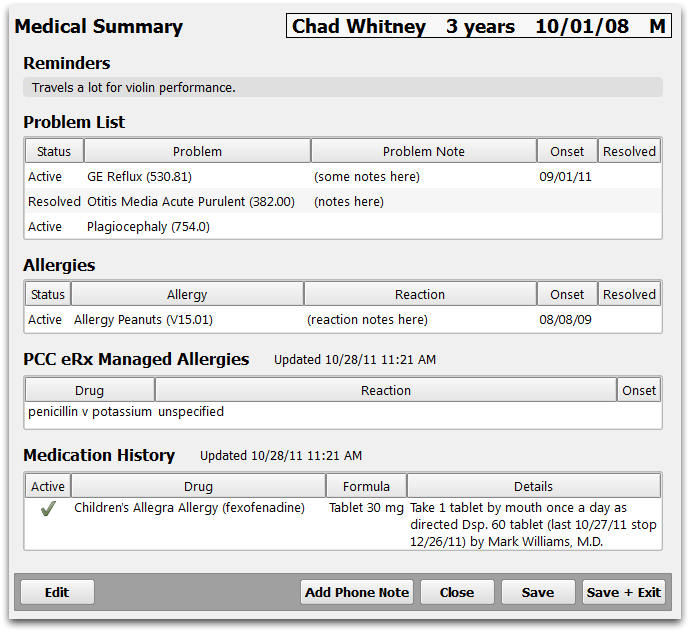
This article gives you the basics of what to expect and how to use the Medical Summary in PCC. Please reach out to PCC Support with any questions.
Contents
What Appears on the Medical Summary?
Your office can decide which components appear on the Medical Summary. The default components include:
- Recent and Upcoming Appointments
- Reminders
- Problem List
- Problem List from PCC eRx
- Care Plan
- Family Medical History
- Siblings
- Medication History
- Medical and Social History notes
- Confidential Information
- Allergy Lists (both general and Medication related lists)
Custom Components: In addition to these default components that ship with PCC EHR, your office can create custom Medical Summary components to store other chart-wide information, such as Care Plan Notes or Hospitalization Notes.
Reusable Components: Medical Summary components can also appear right on your visit chart notes, for easy access while charting. The information in these components is chart-wide, and not limited to any single visit.
Configuration: Read the Configure the Medical Summary article to learn how to change the layout and content of your practice’s Medical Summary chart section.
While working anywhere in the patient chart, you can return to the Medical Summary screen at any time by clicking on the top navigation button.
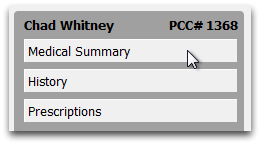
Use the Medical Summary anchor buttons to jump directly to a specific section.
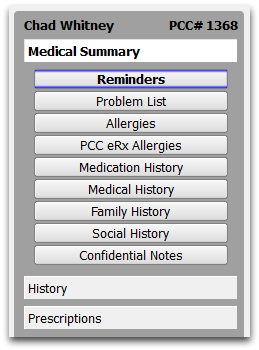
Configurable: The Medical Summary anchor buttons are configurable. Your office can decide which items need an anchor button and customize the button text.
Make Changes
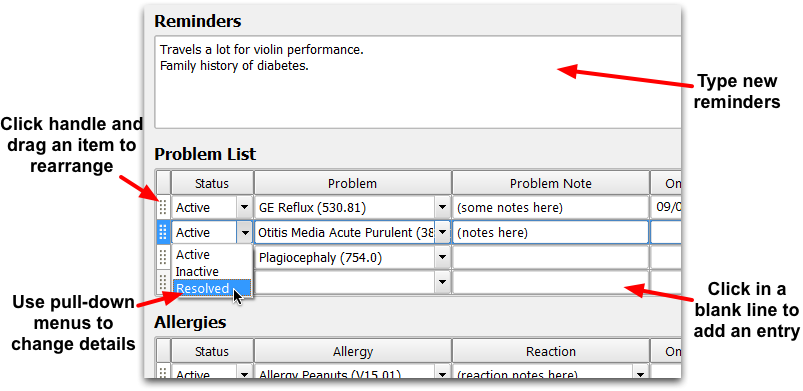
Click Edit to make changes and enter notes and history in Medical Summary components.
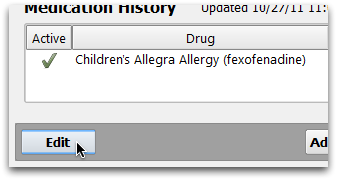
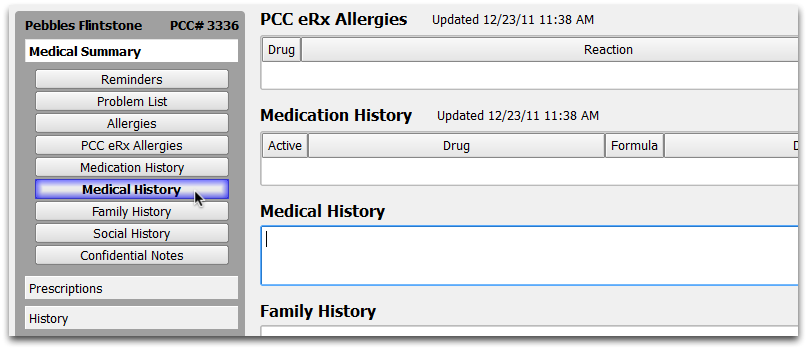
While you are in Edit mode, you can click an anchor button to place your cursor directly into the desired field or section.
Make Changes Elsewhere in the Chart
Some items in the Medical Summary change based on activity in the chart or in other chart sections. For example, the Medication History draws from the patient’s Prescriptions section in PCC eRx, and users can add diagnoses to the Problem List on-the-fly while charting diagnoses in a visit.
Chart-wide Medical Summary components can be added to chart notes, so users can edit any of these items while charting a visit, too.
Search the Medical Summary
If your practice stores a lot of patient information on the Medical Summary, you may want to search for specific text. You can select Find from the Edit menu or use your operating system’s keyboard shortcuts to find text and cycle through multiple found results. For more information, read the Search a Chart Note or Protocol-Based Chart Note help article.
Copy Notes to Siblings
Medical Summary note components, like the Reminders, Social/Family/Medical History, and Confidential Notes, may contain information that should be added to a sibling’s chart as well.
When you want to copy notes to a sibling’s chart, right-click on the note and select “Copy (Component Name) to Siblings”.

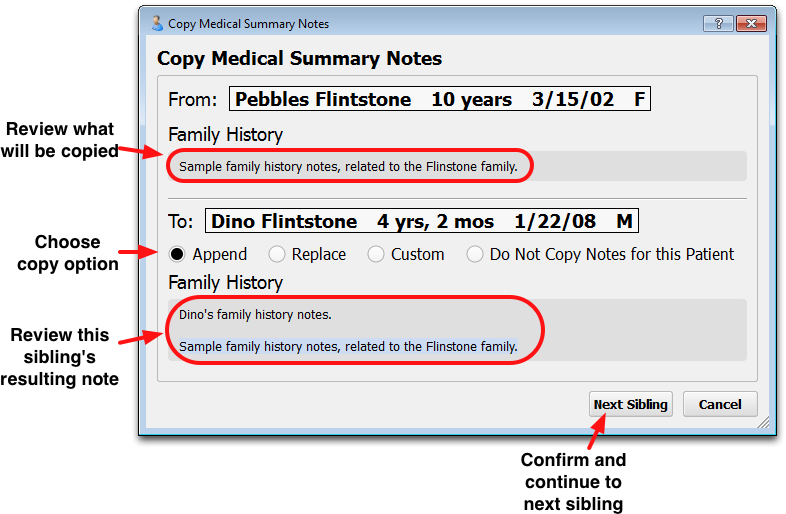
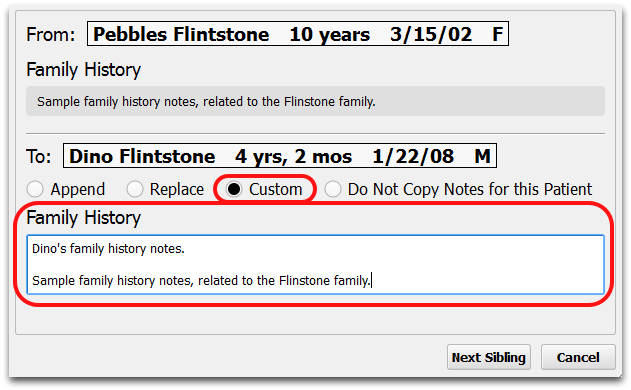
You can choose whether to append, replace, or customize what will be copied to the sibling. You can review exactly what the sibling’s new note will contain. Use the “Custom” option if you want to make changes. After selecting “Custom”, you can revise the note.
Smart Copy: PCC EHR will save you time by ignoring identical text between sibling charts. For example, if both siblings already have exactly the same text at the beginning of a Family History note, PCC will only prompt you to copy the new text to the sibling’s chart.
Edit Menu: Instead of right-clicking on the note field that you wish to copy to siblings, you can also select “Copy Notes to Siblings” from the Edit menu and then choose which type of note to copy.
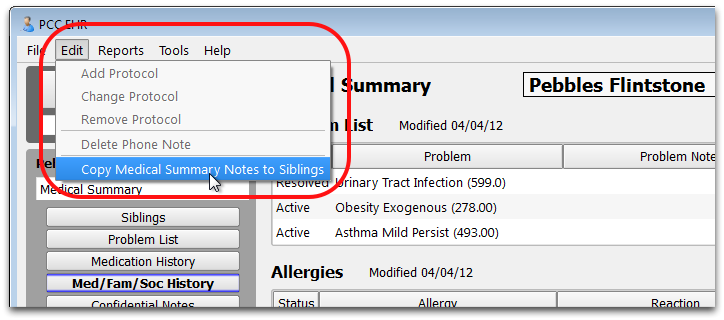
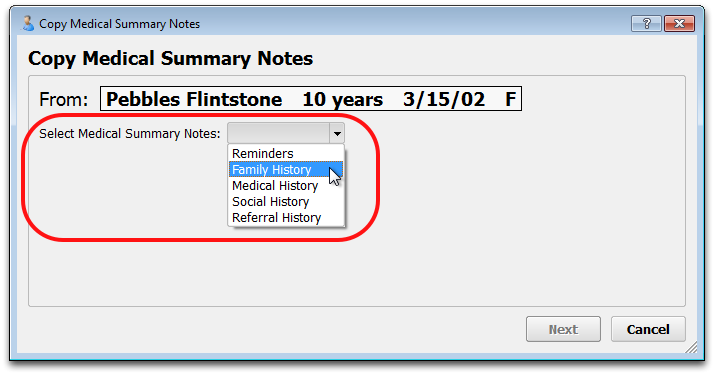
Only Medical Summary notes that contain text will appear on the drop-down menu. If the patient only has one note, such as “Reminders”, PCC EHR will automatically select that one for you