
Use PCC Scribe
While you take care of your patient, PCC Scribe takes care of documenting the visit.
Video: Watch Get Started with PCC Scribe to see how to configure and start using PCC Scribe in just a few minutes.
Contents
Overview
PCC Scribe is a powerful tool for increasing your sense of connection in the exam room and reducing documentation burden. PCC Scribe transcribes while you tend to your patient, then creates a draft chart note for you to review, edit, and insert into the patient’s visit protocol.
Open the Visit
Open your patient’s visit.

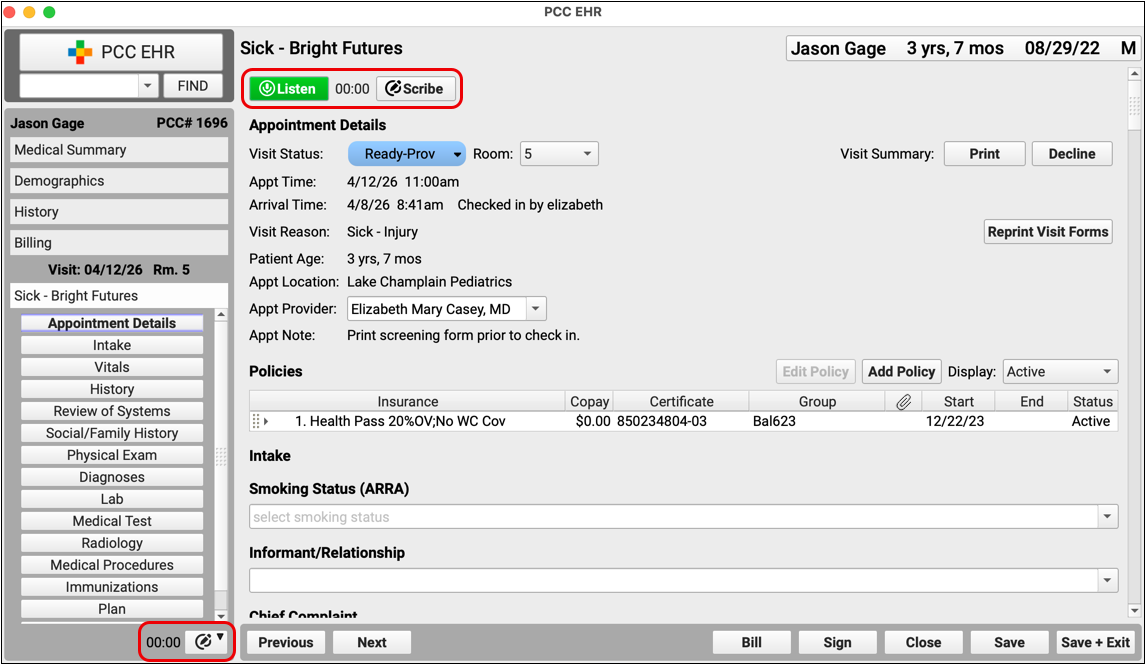
PCC Scribe controls appear at the top of the visit and in the bottom left corner of the open chart.
Begin Listening
Click the “Listen” button to start PCC Scribe.

PCC Scribe will transcribe everything it hears as you conduct your visit.
Stop Listening
Click “Stop” when you want PCC Scribe to stop listening.

You can start and stop as many times as you want.
Open the Scribe Tool
Click the “Scribe” button to open the full PCC Scribe tool.

Generate a Draft Chart Note
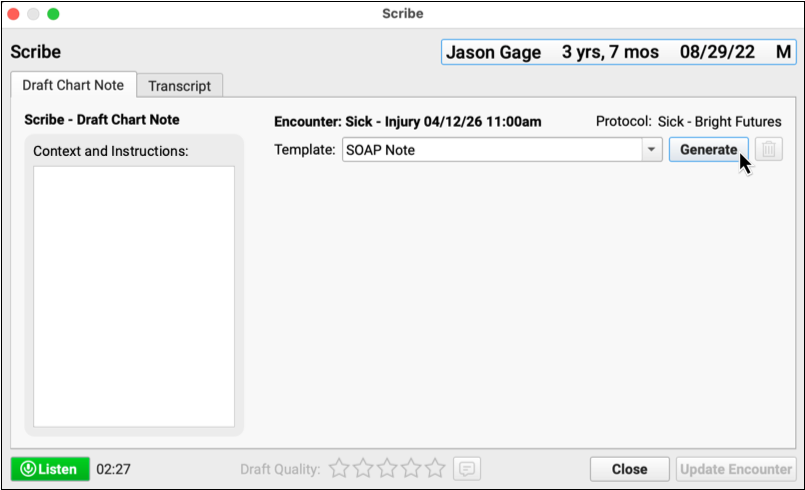
Click the “Generate” button to create a draft chart note from the visit transcript. The draft chart note will be formatted according to your selected template.
Review and Edit the Draft Chart Note
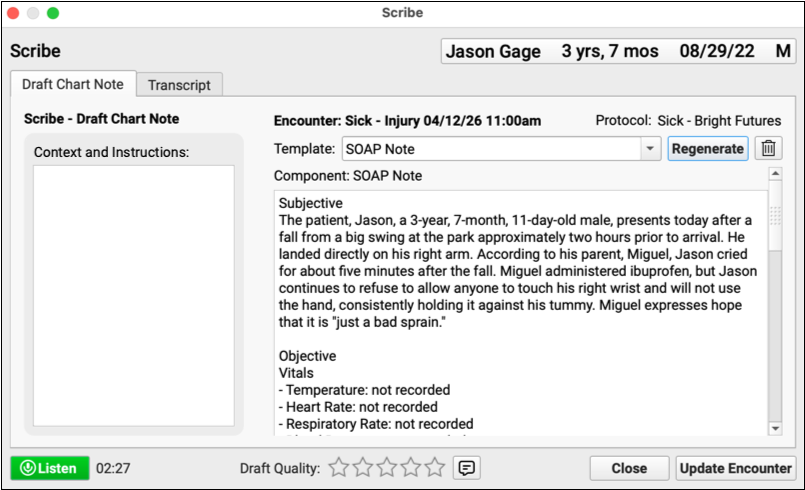
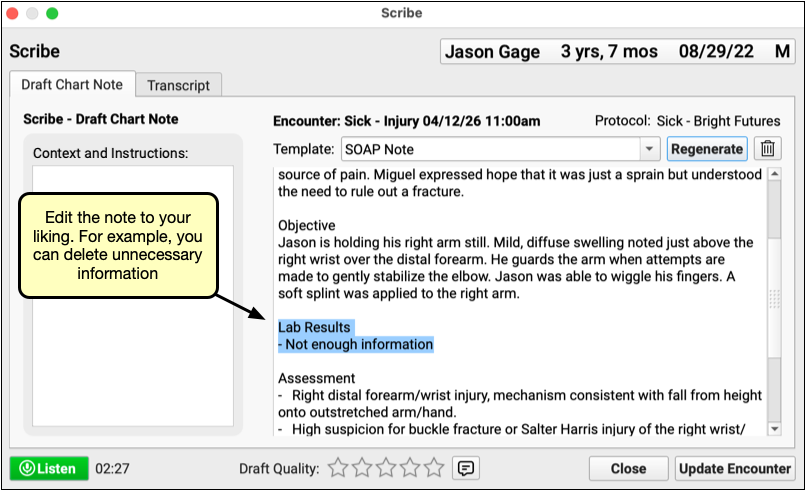
Carefully review the draft chart note generated by PCC Scribe and make edits as necessary.
Import the Note into the Visit
Click “Update Encounter” to import the draft chart note into your patient’s visit protocol.
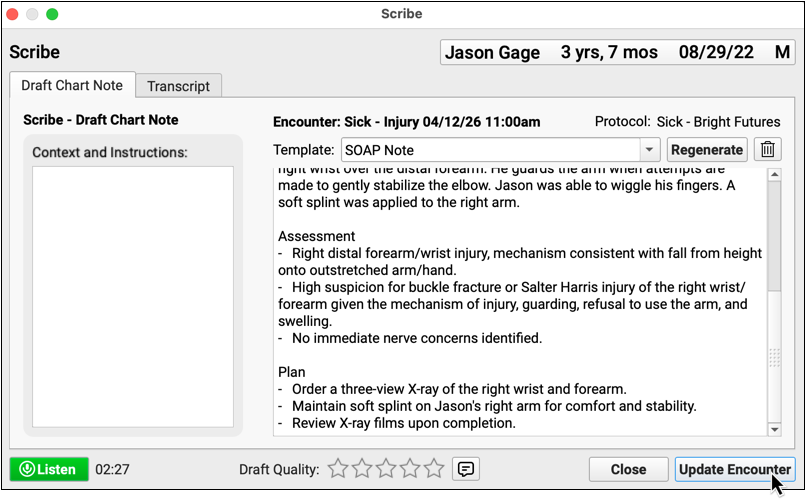
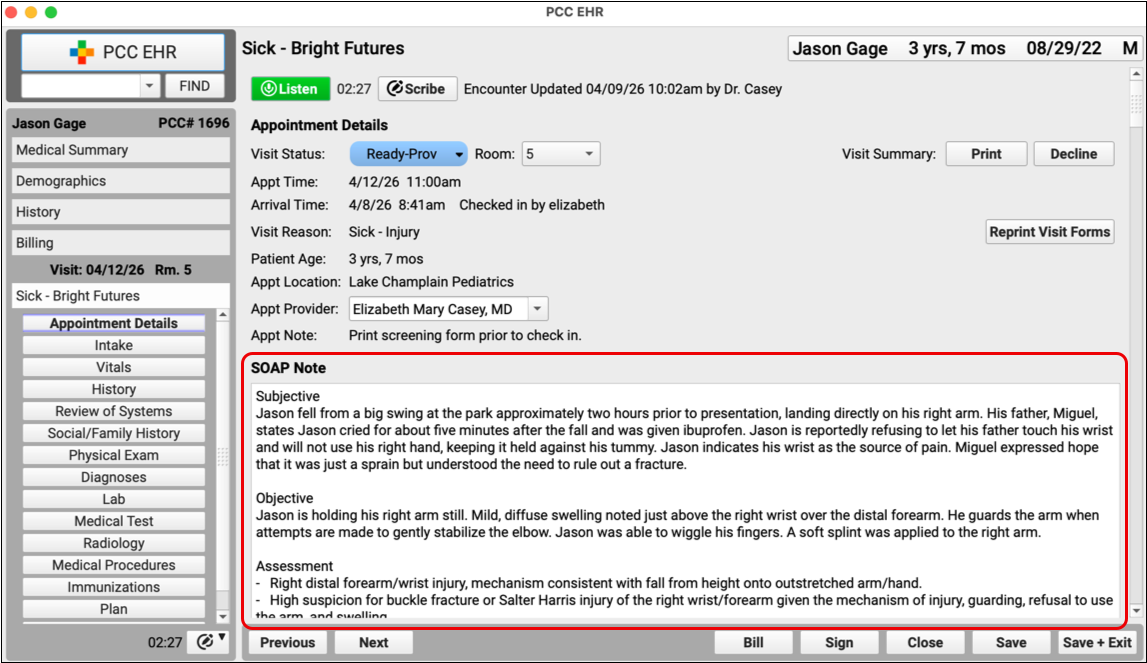
The note appears in your patient’s chart under your name and behaves just like any other chart update. You can continue to make edits after the note has been imported.
Congratulations, you just scribed your first note!
Set Up Your Scribe Templates
A template tells PCC Scribe what kind of note to generate and where to insert the note into the patient’s visit protocol. Every Scribe user starts out with a default template provided by PCC, but you can also copy templates from other users and even create your own.
Finish Setting Up the Default Template
To help new users get started with PCC Scribe, PCC provides a default template.
Before you can use the default template, you need to finish setting it up. Follow the steps below to learn how.
Open Your Scribe Templates
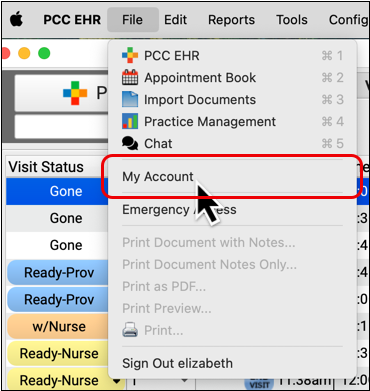
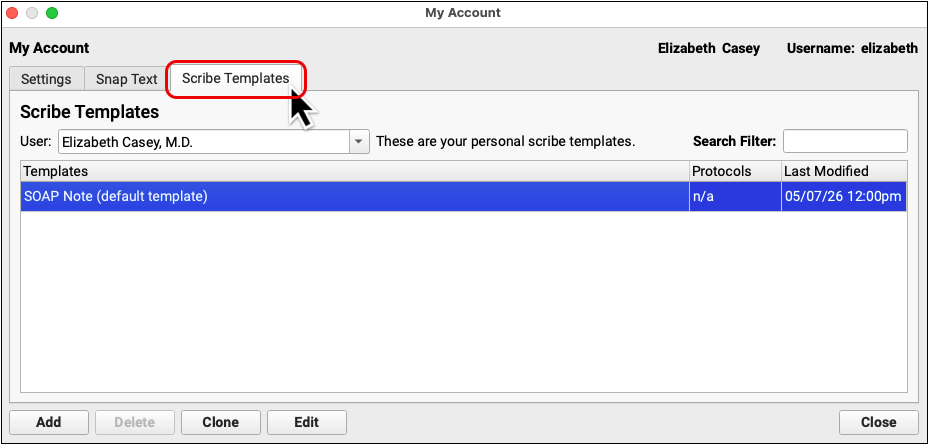
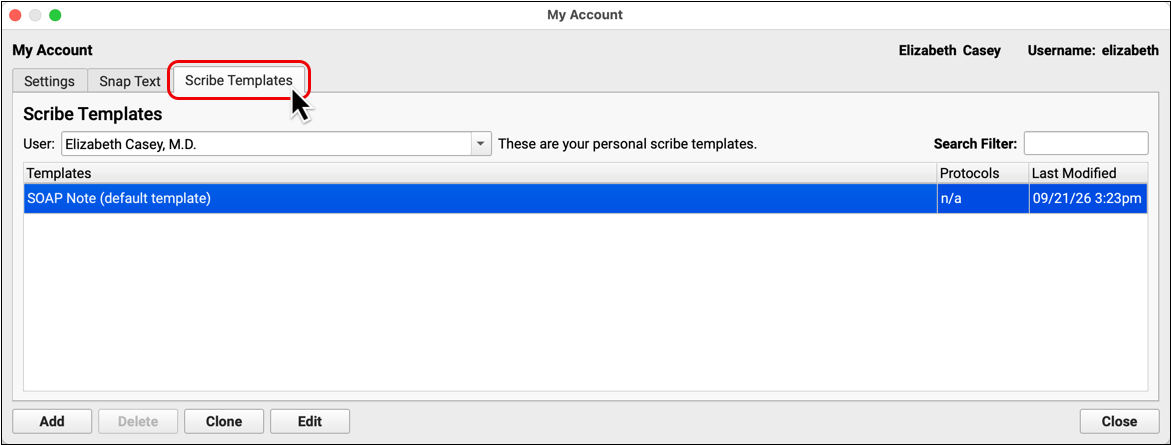
Open the File menu and select My Account. Then, switch to the Scribe Templates tab.
Edit the “SOAP Note” Template
The default template is called “SOAP Note”. Select the template then click the “Edit” button.

You can also double-click the template to edit it.
Select a Component
The default template turns the visit transcript into a SOAP note that can be imported into a single component within the patient’s visit protocol. Select that component now.
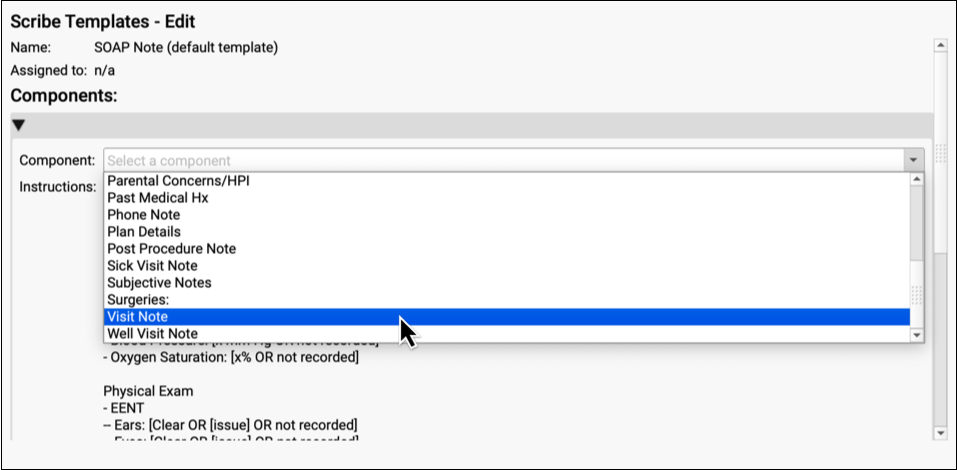
Don’t worry if you select a component that doesn’t appear in every one of your visit protocols. Components that aren’t already present in the visit protocol are inserted when you save the note.
Save and Start Scribing
Click the “Save” button to save your work.

As soon as you configure the default template, you can start using PCC Scribe to document patient visits. Keep in mind that you may want to copy additional templates from other users or build your own templates that integrate with your practice’s visit protocols.
Copy Scribe Templates from Other Users
Most practices have one or two users who set up PCC Scribe templates for everybody else to use. Speak with your practice administrator or managing provider to see whose Scribe templates you should use, then copy them to your account.
Open Your Scribe Templates
Open the File menu and select My Account. Then, switch to the Scribe Templates tab.
Select the User to Copy From
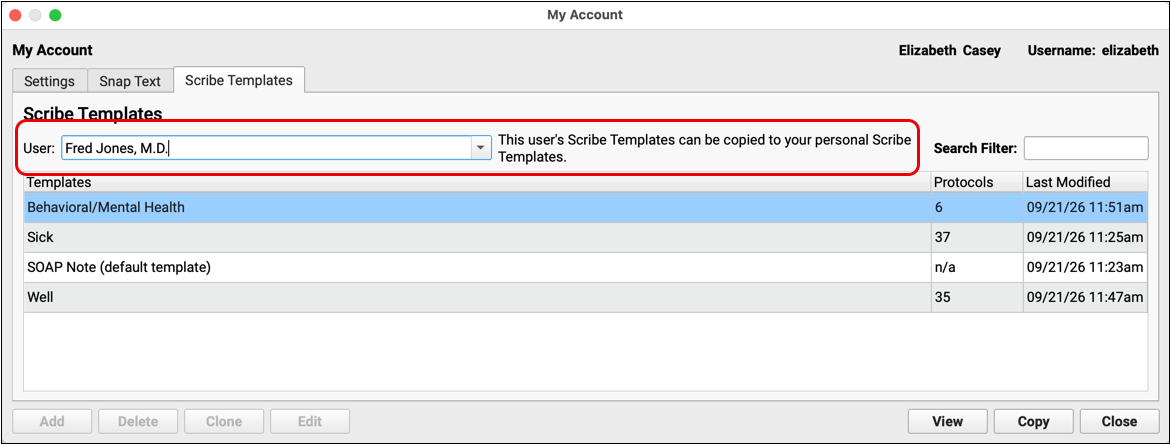
Select the user whose templates you want to copy in the drop down at the top of the window.
Optionally View Template Contents
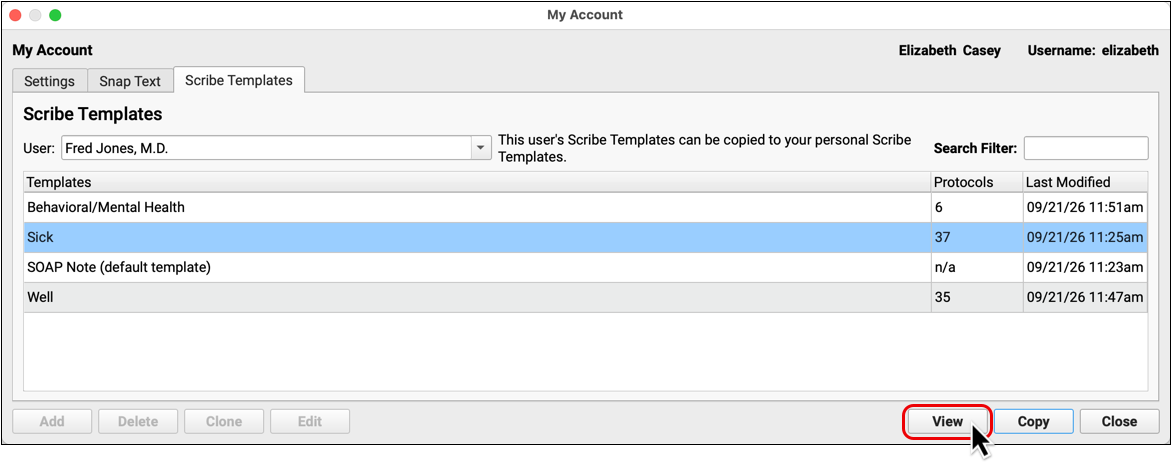
Select any template and click the “View” button to see its contents.
You can select and copy text from the template’s components.
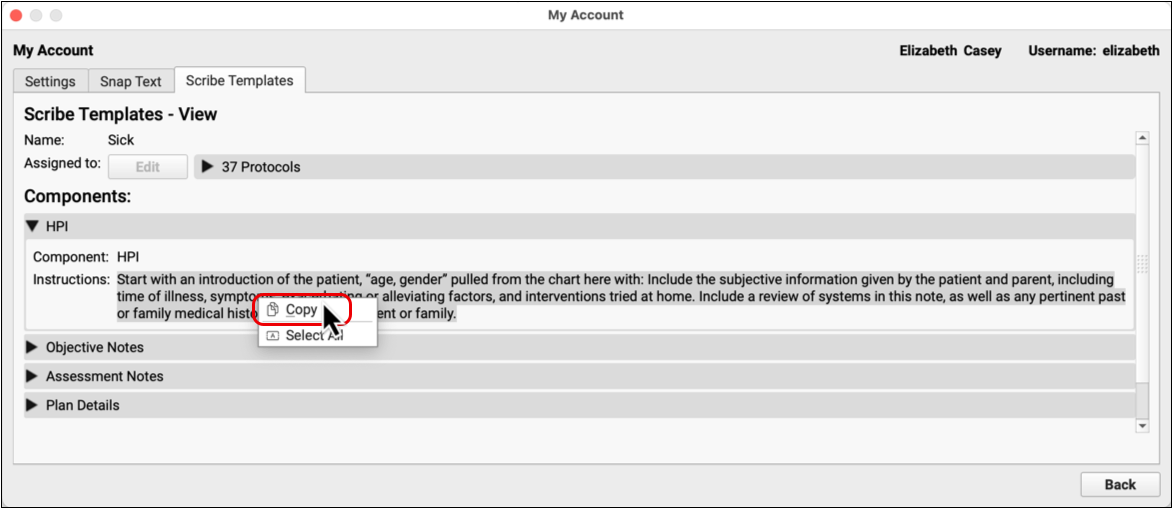
To copy the entire template to your account, click “Back” then proceed to the next step.
Copy a Template
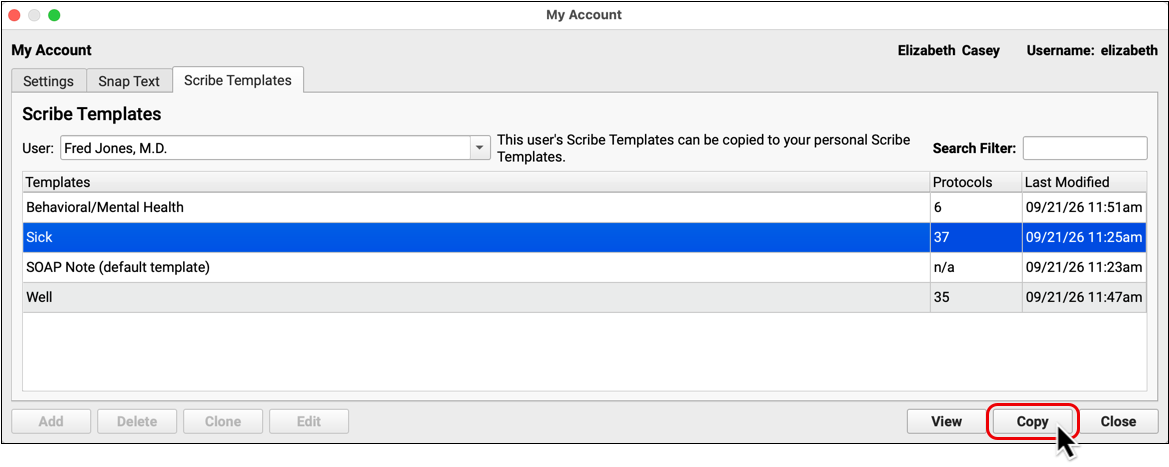
Select any template, then click “Copy” to copy it to your own account.
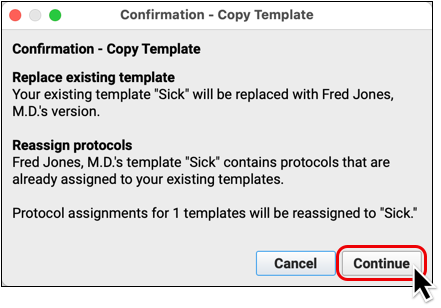
PCC EHR will let you know if the copy action will affect your existing template configuration.
Check Your Work
Select yourself in the drop down at the top of the window to view copied templates.
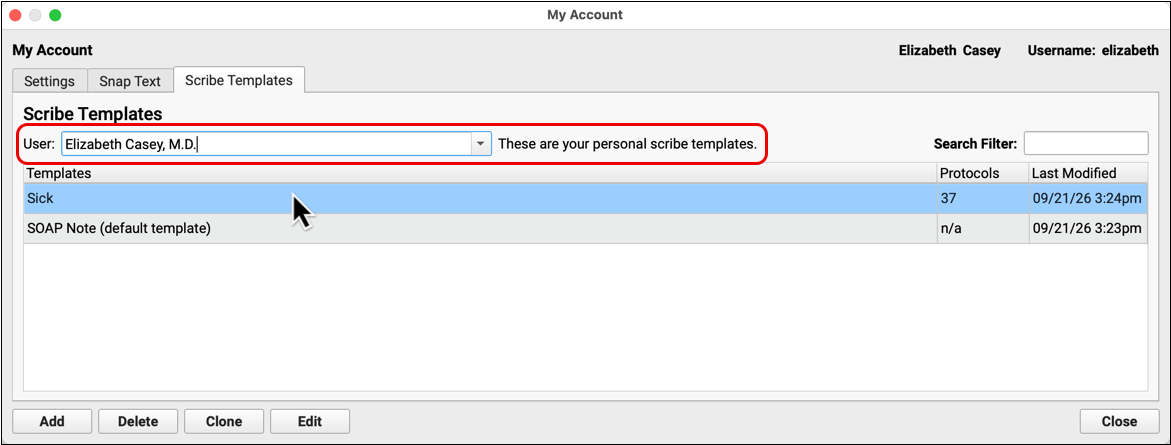
Once copied to your account, you can edit templates and make modifications as you see fit.
Every practice has its own approach to Scribe template creation and maintenance. If you’re not sure whether it’s okay to edit your own templates or where to begin, speak with your practice administrator or managing provider. If you have technical questions, contact PCC Support.
Make Your Own PCC Scribe Templates
As you become more familiar with using PCC Scribe, you may want to create your own Scribe templates.
To learn how, read Make Your Own PCC Scribe Templates.
Transcribe a Visit
PCC Scribe can transcribe audio while you conduct a visit.
Open the Visit
Open your patient’s visit.
Whenever you have a visit open, the controls for PCC Scribe appear at the top of the visit protocol in addition to being anchored in the bottom left corner of the open chart. These controls are interchangeable. The anchor remains accessible as you move around the patient’s chart.
You can only use PCC Scribe for visit encounters. It is designed for in-person visits but may work for telemedicine visits, too, depending on how your telemedicine platform handles audio input.
PCC Scribe is not available for phone note, portal message, billing, or PCC eRx-only encounters.
Obtain and Document Patient Consent
Inform the patient that you are using an ambient scribe to assist you in documenting today’s visit.
In some places, providing notice is enough to meet your obligations under state law and state professional standards. In other places, you may need to obtain and document consent from the patient and their companion.
There are different ways to obtain and document consent, ranging from an annual form to written or verbal consent obtained at every visit and documented in the visit protocol. What is required varies from state to state. Consult your legal counsel for specific advice.
If you choose to obtain verbal consent as part of the visit transcript, be sure the patient’s affirmative response is captured as part of the final visit note and saved to the visit protocol.
Start Listening
Click the “Listen” button to start transcribing audio.
PCC Scribe transcribes in 30-second increments so you have a near real-time record of what it hears.
You can stop and start transcription as often as needed and move around the patient chart while transcription is active.
Transcript Required: You have to create a transcript if you want to use PCC Scribe to chart the visit.
Optionally Transcribe Visits with pocketPCC: Use pocketPCC on any device, like your smartphone or a tablet, to transcribe audio for PCC Scribe. This is useful if you can’t connect to a microphone within PCC EHR, or if you just want flexibility in your workflow. Learn more.
Talk to the People in the Room
Speak with your patient and whoever brought them in. PCC Scribe listens to your conversation and transcribes it so that you can turn it into a note later. If you need to switch between sibling charts and want to record different portions of the conversation for different kids, you can start, pause, and resume listening for each patient in turn.
Narrate Exam Findings
When charting on paper or a screen, you don’t have to state your findings out loud. If you want PCC Scribe to capture details from your physical exam or the review of systems, try narrating your findings out loud to the patient or the person who brought them in. For example, “Your ears look clear.”
You can switch tabs within the patient’s chart, open different EHR windows, open a sibling’s chart, and open documents without pausing transcription. PCC Scribe listens until you click “Stop”, switch to a different encounter within the chart—like a past visit, phone note, portal message, or billing encounter—or leave the chart entirely.
Dictate Notes
You can dictate to PCC Scribe before, during, and after the visit. Dictation can be useful to provide context before heading into a visit or to quickly capture some verbal notes after a visit with a patient who did not give consent for the content of their visit to be transcribed. Some clinicians never transcribe visits and only use dictation to chart with PCC Scribe.
See Siblings Together When It Makes Sense
When you see siblings together, you can transcribe the entire encounter on one chart, then create a unique note for each patient in just a few clicks.
To learn how, see Chart Sibling Visits.
Create a Note
Turn the visit transcript into a draft chart note.
Open the Scribe Tool
Open the Scribe tool from the top of the visit protocol or the controls in the bottom left corner of the open chart.
If you haven’t already, click “Stop” to stop transcribing.
Optionally View the Transcript
Click on the Transcript tab to see what PCC Scribe transcribed for the visit.
PCC Scribe transcribes audio in 30-second increments and does not differentiate between different speakers. This does not impede PCC Scribe from summarizing different perspectives in the draft chart note.
PCC Scribe transcribes what it hears, but, just like a person, it may not always hear things right. Remember that the transcript is just a tool for generating a draft chart note that you can review and edit before it enters the patient’s official medical record.
When you have finished looking at the transcript, switch back to the Draft Chart Note tab.
Transcripts are deleted after 21 days, or whatever time frame your practice has defined in Practice Preferences.
Optionally Add Context and Instructions
In addition to the transcript, PCC Scribe already knows the patient’s age, sex, and pronouns (if marked public in the chart), the name of the appointment provider, the length of transcription time, the day of the week, and the date.
You can optionally share more context with PCC Scribe by typing or pasting pertinent details into the Context and Instructions box.
For example, you could enter:
- an active problem or suspected allergy
- a recent lab or screening result, or
- the care plan from the last visit
You can also use the Context and Instructions box to enter on-the-fly instructions for PCC Scribe.
For example, you could instruct the Scribe to:
- refer to the person accompanying the patient by a certain title
- exclude jokes and humorous comments, or
- use short sentences to aid in patient comprehension
IMAGE instructions
PCC Scribe takes context and instructions into account when generating the draft chart note.
Optionally Change the Protocol and Template
PCC Scribe knows which visit protocol you are charting on and automatically selects the template linked to that protocol.
The template tells PCC Scribe how to chart for the protocol, and where to insert the note when you are ready to save it to the patient’s chart.
If there are multiple protocols associated with the visit, you can switch between them. The template automatically updates based on which protocol is selected.
If the visit protocol isn’t linked to a specific template, PCC Scribe falls back to the default SOAP Note template provided by PCC.
You can manually select any template regardless of which protocol is tied to the visit.
Don’t worry if you don’t get the protocol and template selection right on the first try; you can change these settings later if needed and regenerate the note.
If you do not have at least one template configured, you cannot use PCC Scribe. The default template provided by PCC requires a small piece of configuration before you can use it.
Generate the Note
Click the “Generate” button to generate a draft chart note.
PCC Scribe uses multiple sources to draft the note:
- the instructions in the selected template
- the visit transcript
- your on-the-fly context and instructions
- limited metadata about the patient and encounter
As long as there is a transcript for the encounter, you can generate a note. Once the transcript reaches the automatic deletion threshold or you manually delete it, PCC Scribe can no longer generate a note for the encounter.
Metadata Used by PCC Scribe for Note Generation: Along with the visit transcript, the template instructions, and your on-the-fly context and instructions, PCC Scribe uses certain metadata about the patient and encounter to facilitate accurate note generation. That data is limited to: the name of the person generating the note, the patient’s age, the patient’s pronouns (if marked public in the chart), the patient’s first name, the length of transcription time, the day of the week, and the date. PCC’s agreements with the third-party LLM service ensure none of this information is retained. PCC does not share additional identifying patient information with third-party service providers, nor does PCC use patient data to train PCC Scribe. A BAA protects your data in PCC’s use of third-party services.
Review and Edit the Note
Review the content of the draft chart note to check for completeness and accuracy.
You can change the contents, format, and tone. After all, this is your note!
If the note generally does not meet your expectations or you notice that you are repeatedly making a certain kind of edit, consider revising the instructions in your Scribe template. The more specific you can be with your instructions, the better PCC Scribe will become at generating draft chart notes that meet your expectations.
Optionally Regenerate the Note
If you need to generate a new version of the note, click the “Regenerate” button.
The new draft chart note replaces the previous one.
There are several reasons you might want to regenerate a note. For example, you might want to incorporate new information that was added to the transcript or restructure the note using a different template.
Optionally Provide Feedback to PCC
Every time you generate (or regenerate) a note, you can rate the note quality and provide feedback to PCC. PCC uses ratings and feedback to generally monitor and improve PCC Scribe.
Hover over the stars and click to submit a rating. If you want to leave a comment with your star rating, click the “Feedback” button and submit a written response.
You can re-rate and submit feedback for a given draft chart note as many times as you want.
PCC does not use ratings and feedback to provide immediate assistance to PCC Scribe users. If you are having a problem with PCC Scribe, please contact PCC Support directly.
Finish Up
When you’re happy with the note, insert it into the patient’s chart.
Insert the Scribed Note into the Visit Protocol
When you are ready to insert the note into the patient’s chart, click “Update Encounter”.
PCC Scribe inserts the note into the visit protocol, placing each section into the component defined on the template.
If the note has components that aren’t part of the visit protocol, PCC Scribe inserts them at the top.
Once inserted, Scribed content is attributed to you and you can edit it just like anything else you document in the visit protocol.
If you don’t want to use the draft chart note produced by PCC Scribe, you don’t have to.
PCC Scribe exists to support your work, not replace your skill and judgment. You always have the option to close the Scribe tool without updating the encounter.
Chart Details That Weren’t Scribed
Visit protocols usually contain components that PCC Scribe cannot help you fill out, like vitals, orders, lab and screening results, diagnoses, prescriptions, and other elements that aren’t Generic Text Edit components.
If you haven’t already done so, finish charting these elements before signing off on the visit.
Try Other Speedy Charting Tools: PCC Scribe isn’t the only tool that makes charting easier. You can also rely on and snap text for fast, easy charting.
Optionally Finish Charting Remotely
After you leave the office, you can log in remotely and use PCC Scribe to finish charting visits that already have a transcript.
For example, if you see patients at the office in the morning then go home for the afternoon, you can sign into PCC SecureConnect and generate notes for the visits you transcribed earlier in the day.
Due to technical limitations around microphone access, you cannot create any new transcripts while logged in via SecureConnect, terminal server, or remote desktop.
Optionally Delete Scribe Tool Content
You can manually delete draft chart notes, context, instructions, and transcripts from the Scribe tool.
The reasons to manually delete this content come down to personal preference and practice procedure. Perhaps a transcript contains information that you decide is too sensitive to leave in the chart until the automatic deletion kicks in, or you want to delete a draft chart note that you never ended up using.
Anything you do not manually delete from the Scribe tool will be automatically deleted after 21 days or the time frame your practice defines in Practice Preferences.
Deleted Scribe tool content cannot be retrieved or restored.
Support for Today’s Pediatric Practice
PCC Scribe is designed for the modern pediatric practice with mobile transcription support and the ability to chart sibling visits and visits where multiple languages are spoken.
Transcribe Visits with pocketPCC
Use pocketPCC on any device to transcribe audio for PCC Scribe. This is useful if you can’t connect to a microphone within PCC EHR, or if you just want flexibility in your workflow.
Video: To see this feature in action, watch Transcribe Visits for PCC Scribe in pocketPCC.
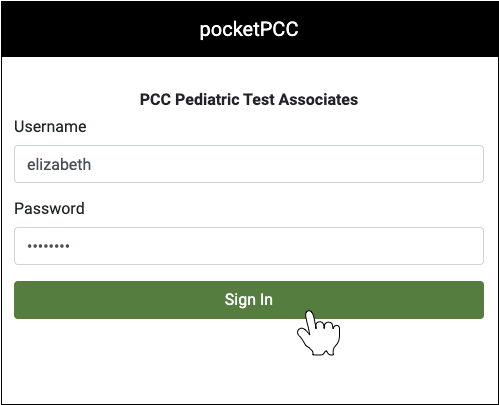
Log into pocketPCC
Log into pocketPCC on your phone, tablet, or laptop.
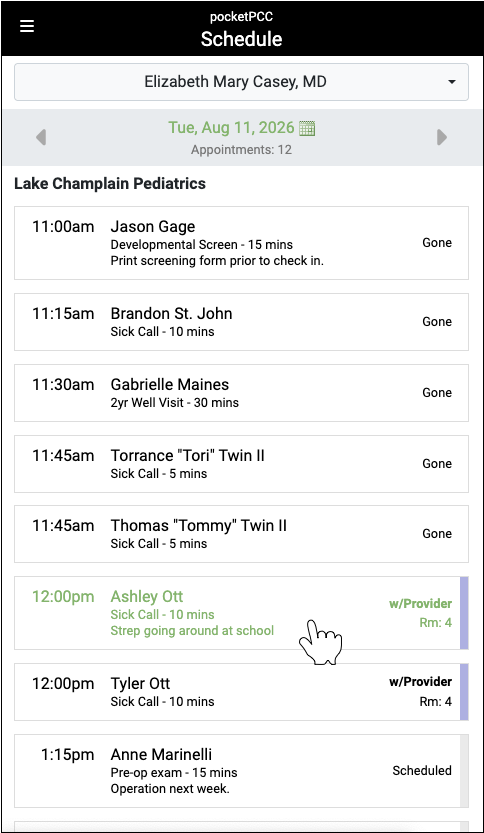
Open Your Patient’s Chart
Use the Schedule screen or the Find Patient option to open your patient’s chart.
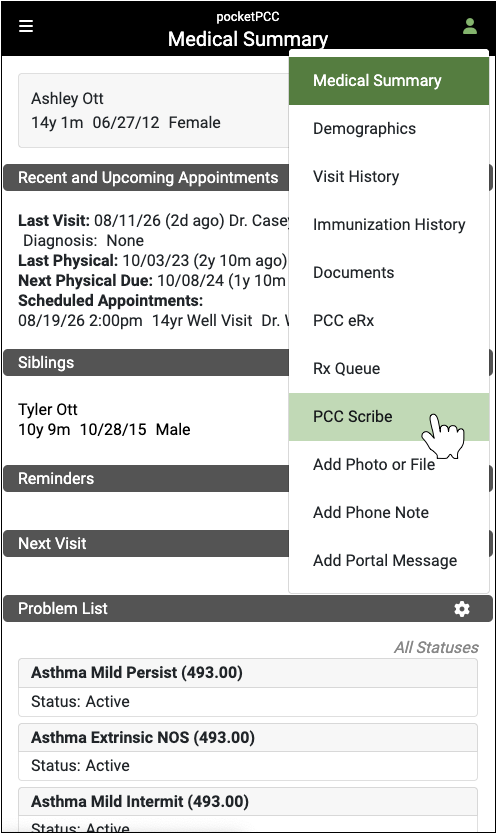
Open PCC Scribe
Select “PCC Scribe” from the righthand menu.
Transcribe the Visit
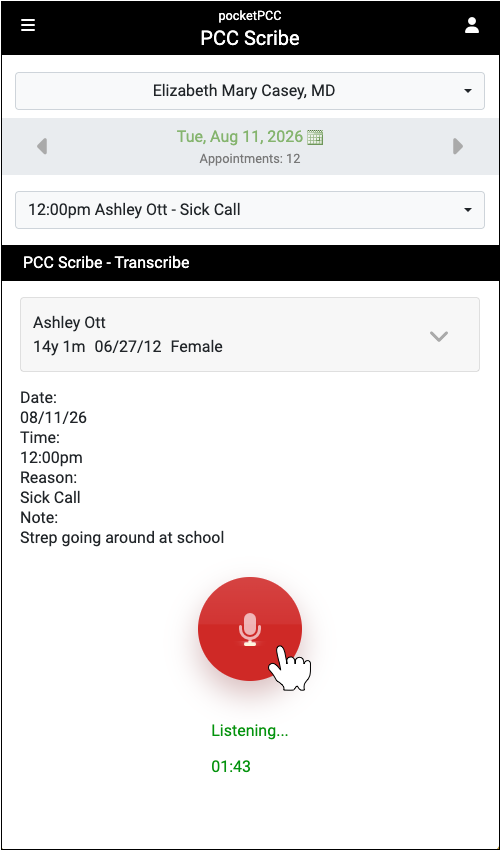
Verify that the right encounter is selected on the PCC Scribe screen, then tap the green button to start transcribing.
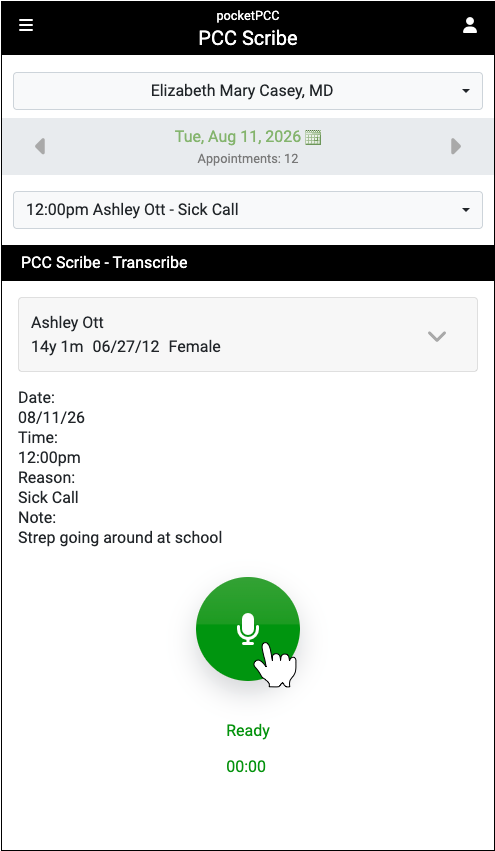
The button turns red to indicate that transcription is active, and PCC Scribe uses your device’s default microphone to transcribe the visit.

See When Transcription is In Progress Across Devices: Any time transcription is in progress in pocketPCC, you can see that activity on the patient’s visit in PCC EHR. When transcription is active in PCC EHR, you can see that activity on the patient’s visit in pocketPCC.
Stop Transcribing
Tap the red button to stop transcribing. You can start and stop as many times as necessary.
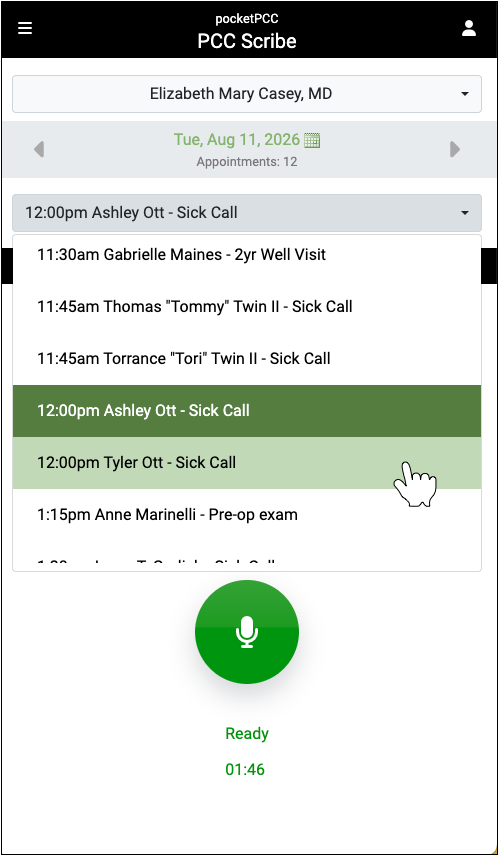
Optionally Jump to Your Next Patient
If you want to continue on to transcribing your next patient encounter, use the encounter drop-down to jump to it directly.
To view a transcript created with pocketPCC or to generate a draft chart note, open the Scribe tool within the patient’s visit in PCC EHR.
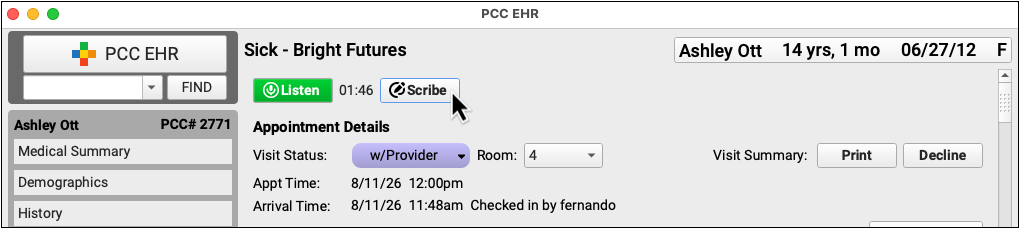
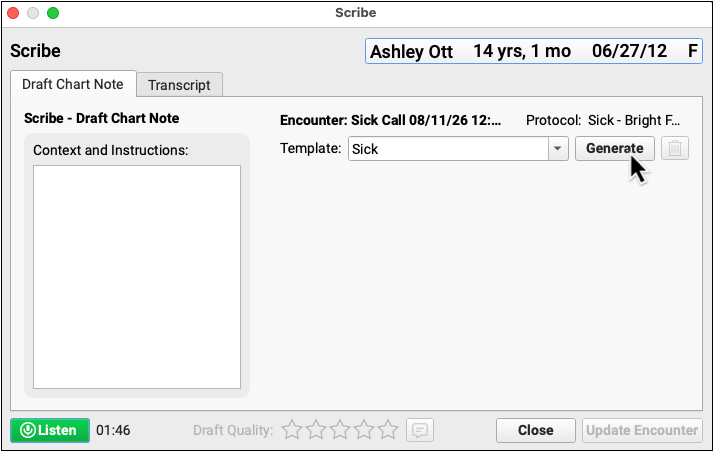
Chart Sibling Visits
When the whole family enters the exam room, the focus of the visit often jumps between siblings in no particular order. You can transcribe the entire visit on one chart, then generate a unique note for each patient in just a few clicks.
Video: To see this feature in action, watch Chart Sibling Visits with PCC Scribe.
Sibling Relationship Required: This workflow is for patients who share a Home or Billing Account in PCC EHR and appear in each others’ Siblings component.
Same Visit Date and Provider Required: This workflow is for sibling visits conducted on the same day with the same provider.
Start Transcribing the Visit on One Patient’s Chart
Open today’s visit for one of the patients in the exam room, then click the “Listen” button to start transcribing.
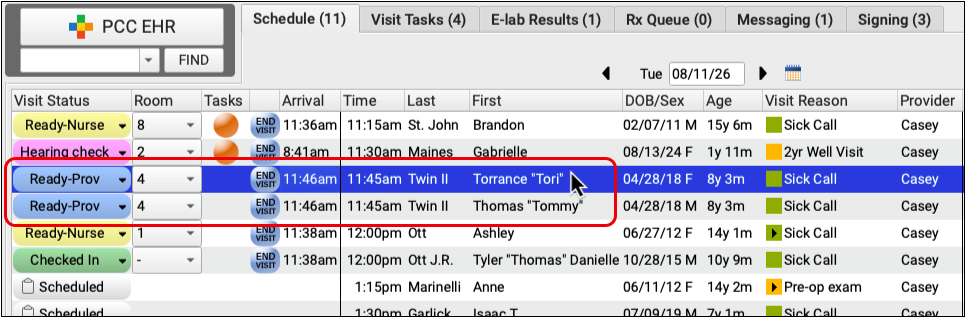

Conduct the Visit with All Patients
Leave PCC Scribe running on the original chart while you conduct the entire family visit, moving around sibling charts as needed.
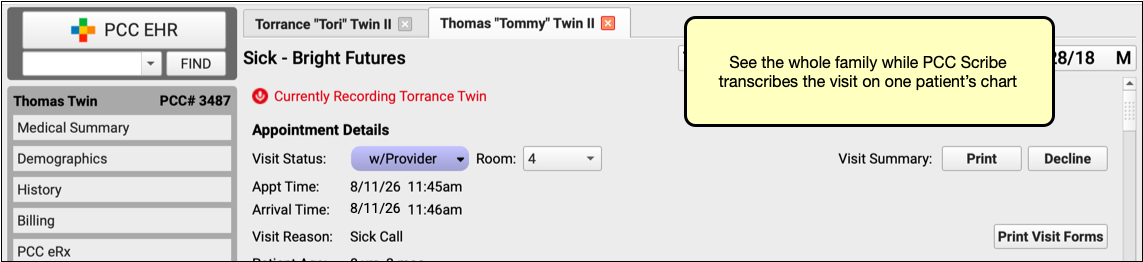
Import the Visit Transcript into the Other Patients’ Charts
When the visit is over, go into each patient’s chart, open the Scribe tool, and import today’s visit transcript.
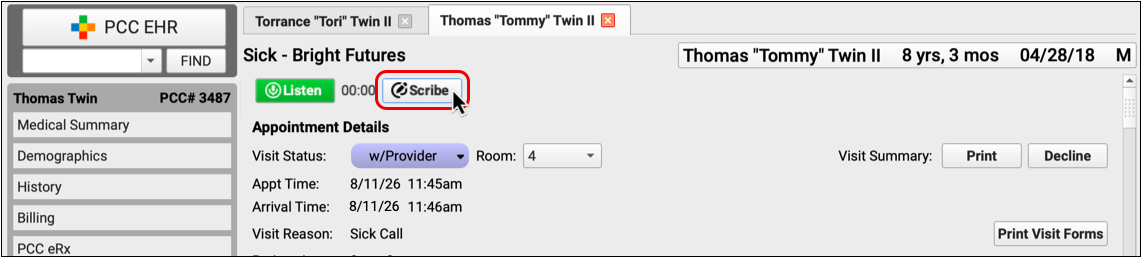
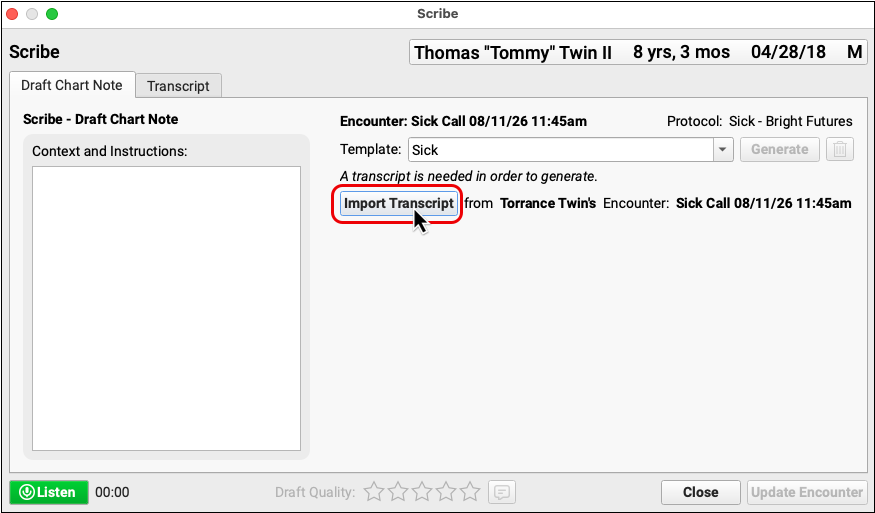
You can optionally add to the imported visit transcript by clicking the “Listen” button.
Import Only Available When No Other Transcript Exists: If a visit already has a transcript, you cannot import one from a sibling’s encounter.
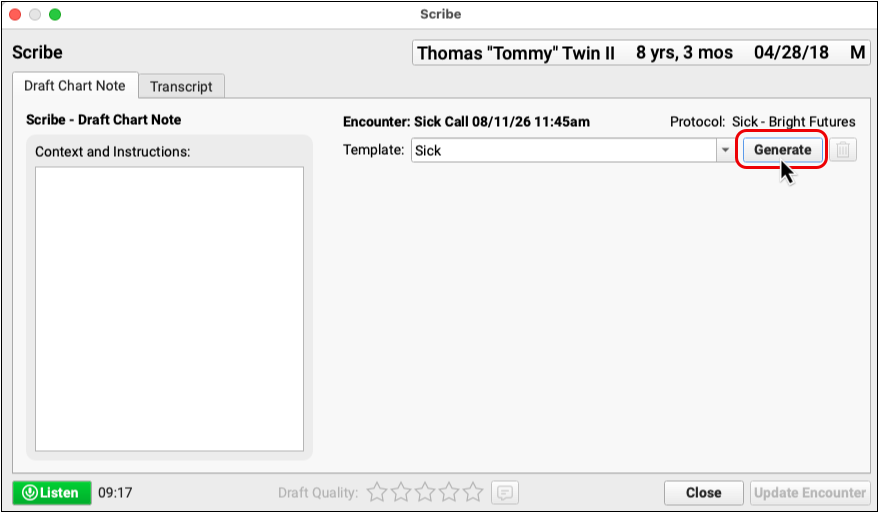
Generate a Chart Note
After importing the visit transcript, you can generate a draft chart note. PCC Scribe automatically creates a note that is focused on the patient whose chart you are in.
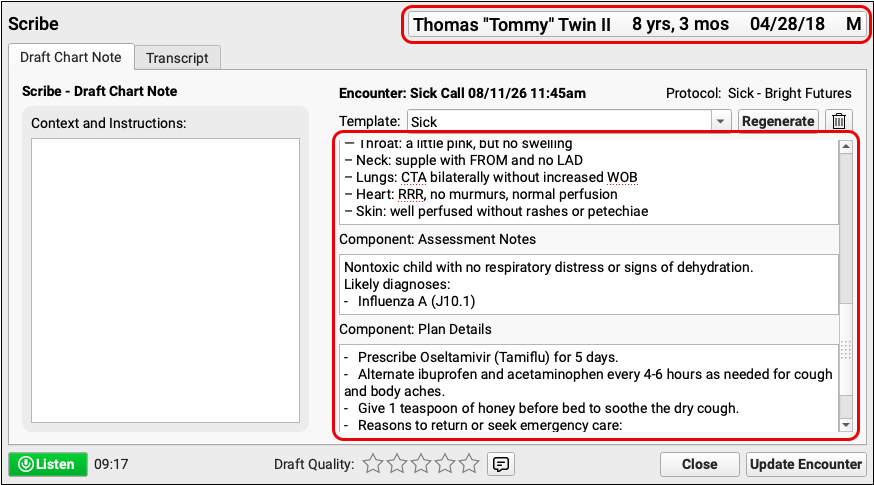
How Does That Work?: Along with the visit transcript, the template instructions, and your on-the-fly context and instructions, PCC Scribe uses certain metadata about the patient and encounter to facilitate accurate note generation. That data is limited to: the name of the person generating the note, the patient’s age, the patient’s pronouns (if marked public in the chart), the patient’s first name, the length of transcription time, the day of the week, and the date. PCC’s agreements with the third-party LLM service ensure none of this information is retained. PCC does not share additional identifying patient information with third-party service providers, nor does PCC use patient data to train PCC Scribe. A BAA protects your data in PCC’s use of third-party services.
Review and Edit the Note
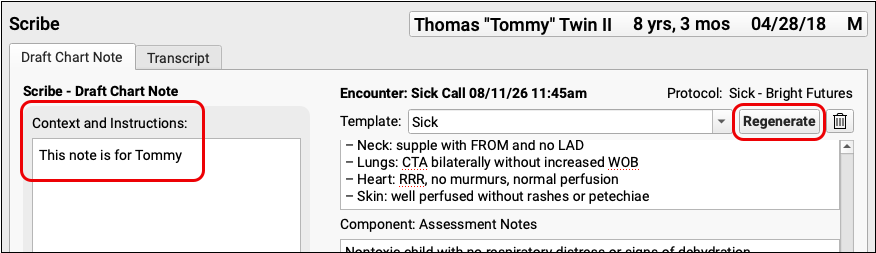
Review the note for accuracy and completeness. If the first draft needs refinement, use the Context and Instructions box to prompt PCC Scribe to focus on the right patient, then click “Regenerate” to get a new draft.
Save Your Work
Once the draft note is satisfactory, click the “Update Encounter” button to save it to the patient’s chart.
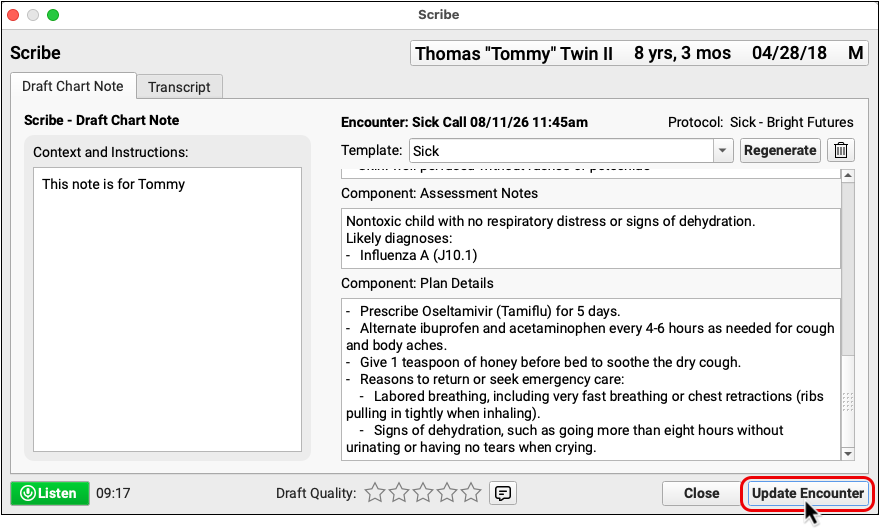
Repeat this for each patient seen during the encounter.
Chart Multilingual Visits
PCC Scribe can transcribe conversations in different languages, but should not be used as a replacement for a medical interpreter.
Regardless of the language that was transcribed, you can generate a note in English.
While it is possible to create Scribe templates that generate notes in other languages, PCC strongly advises against doing so if you cannot personally review and attest to the accuracy of those notes.
Report on PCC Scribe Activity
Scribe activity is logged in the PCC EHR Audit Log.
The easiest way to find Scribe activity is to filter by activity date, patient, user, and “Create” events.
Then, look for lines where the Source column begins with “audit.scribe.”
The start of transcription is logged as “audit.scribe.session”. The import of a scribed note into the chart is logged as “audit.scribe.summary_import_log”. You can see which components the note was saved into by looking at the “Component” lines immediately preceding the “audit.scribe.summary_import_log” event.
Troubleshoot Errors, Warnings, and Common Issues
PCC Scribe tries to warn you when problems occur. Here are the most common errors, warnings, and issues and what to do when you encounter them.
Cannot authenticate. Contact PCC.
PCC Scribe cannot connect to transcription and note generation services due to an issue with the background credentials for your practice or user account.
Solution: Contact PCC Support to fix the credentials.
Microphone not detected.
PCC Scribe cannot detect a microphone to use for audio transcription. This can happen if:
- you are connected to PCC EHR via SecureConnect, terminal server, or remote desktop
- your workstation has no microphone
- the connection to your microphone was lost, or
- no default microphone is specified on your operating system
Solution: Check that you meet all of the following criteria: you are logged into a locally-installed instance of the PCC EHR application, your workstation has a microphone, and your microphone is set as the default device in your operating system settings. If you need help, contact PCC Support.
Alternatively, Try pocketPCC: You can optionally use the PCC Scribe option in pocketPCC to transcribe visits when PCC EHR cannot detect a microphone. Learn how.
Microphone configuration issue.
PCC Scribe doesn’t have permission to access your microphone, or there is some other microphone configuration issue.
Solution: In your operating system settings, grant the PCC EHR application permission to use your microphone. If the issue persists, contact PCC Support.
Transcription Error: Audio Not Detected Last 30 Seconds
PCC Scribe is actively transcribing but hasn’t detected any sound in the last 30 seconds.
Solution: Speak up, move closer to the microphone, and take some notes because PCC Scribe missed at least part of what was said.
Connection Error: Audio Cannot Be Transcribed
PCC Scribe has lost connection to transcription services and cannot transcribe audio. This can happen if your workstation loses internet connection.
Solution: PCC Scribe automatically tries to restore connectivity. Start taking notes because PCC Scribe missed at least part of what was said. PCC Scribe can resume transcription once internet connectivity is restored.
Issue: You Are Not Prompted for Microphone Permission the First Time You Use PCC Scribe, or You Accidentally Denied Permission
The first time you use PCC Scribe, you don’t receive a pop-up prompting you to allow PCC EHR to access your microphone or you accidentally denied permissions. Now you can’t transcribe audio and you have no way of granting microphone access permissions.
Solution: Close PCC EHR, then relaunch the PCC EHR application as a workstation administrator and sign back in. Open a visit. PCC EHR will prompt you to allow microphone access. You only need to do this once in order for PCC Scribe to gain access to your microphone. If you do not know how to launch PCC EHR as a workstation administrator or you do not have permission to do so, contact your local IT provider. If they cannot help, contact PCC Support.
Issue: No Note Can Be Generated for a Particular Scribe Template
Whenever you have a particular Scribe template selected, PCC Scribe cannot generate a note.
Solution: Review the instructions on the problematic template and see if they are consistent with the role of a medical scribe in a pediatric practice. If the template includes instructions that fall outside of this role, you may be asking PCC Scribe to do something it cannot comply with at the highest level of background instruction. For example, PCC Scribe may not be able to generate notes from your partner meeting transcript, or follow frivolous instructions like telling you where to get lunch. Adjust the instructions on the template, or consider using a different notetaking method for your situation. Contact PCC Support if the instructions on the non-functional template do fall within the role of a medical scribe in a pediatric practice, or if you need help making adjustments.
Issue: The Last Few Seconds of the Transcript Were Lost After Exiting the Chart
You exit the chart without stopping transcription or immediately after stopping it. When you view the transcript, you note that the last few seconds of the conversation were not transcribed.
Solution: Get into the habit of clicking “Stop” and waiting a few seconds before closing the chart to give PCC Scribe time to finish transcribing the last moments of the conversation. If you consistently find that the last few seconds of your transcripts are missing, contact PCC Support for help.