
Use Budget Payment Plans and Hold Bills to Work With Non-Paying Accounts
As you work with families on outstanding balances, your practice may make an arrangement for a family to pay a certain amount each month or agree upon a future date when they will be billed. Additionally, your practice may want to delay billing a family for another reason, such as when dealing with newborn charges and insurance enrollment.
Use PCC EHR’s “Hold Bill Until” and “Budget Amount” fields, along with account status flags, to modify when a family will be billed and whether or not they will see a budget amount on their statement.
Contents
Work with Accounts and Add Payment Plan Details
Read the procedure below to learn how to identify accounts that need a special billing arrangement, work with the family, and update their records with payment plan information.
Find Accounts with Unpaid Personal Balances
Use the Personal Balances tool to work down personal A/R and identify accounts you wish to contact.
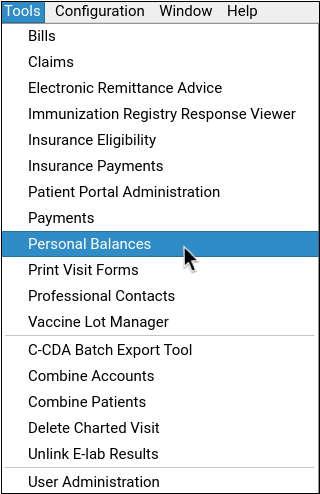
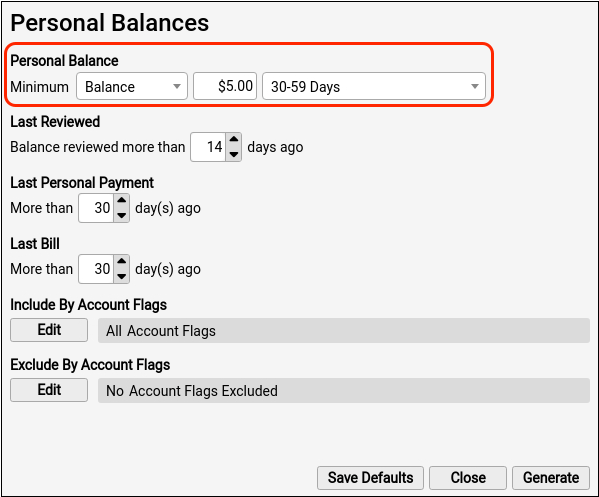
You can use the criteria in Personal Balances to focus on families with a particular balance amount above a certain age, for example. Read Work Personal Balances to learn more about the Personal Balances tool.
Identify and Open an Account
Use the Personal Balances worklist to identify an account that may need a payment plan or other special arrangement. You can click on column headers to sort the list.
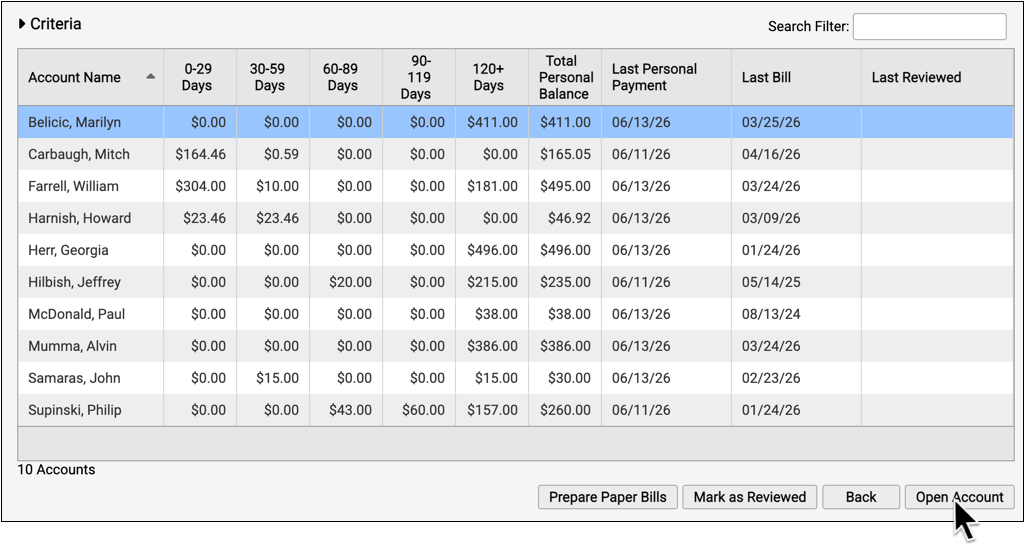
When you have identified an account, double-click on the row to open it (or select the account and click “Open Account”).
Contact the Family, Make a Plan, and Enter Notes
Use the demographic details in the Payments tool to contact the family, review outstanding balances, and make a plan for payment.
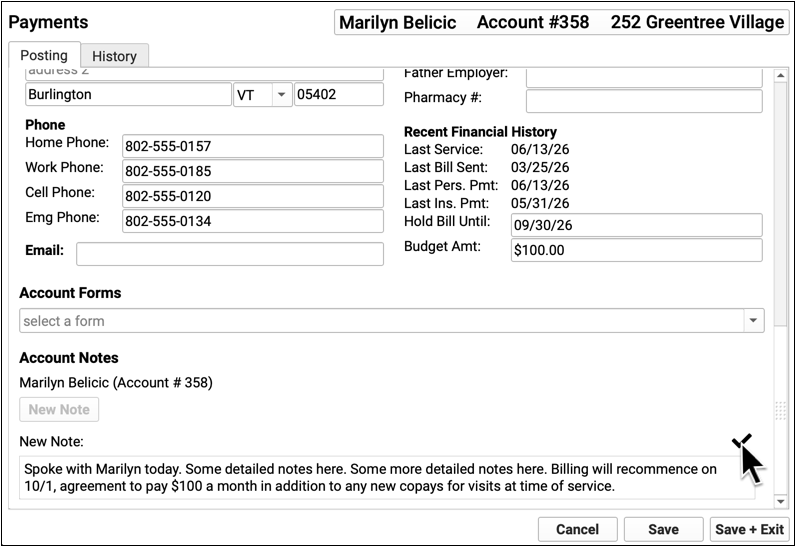
Enter an account note detailing any decisions.
Add a Hold Bill Until Date
If your practice will delay the next bill until a certain date, enter a Hold Bill Until date.
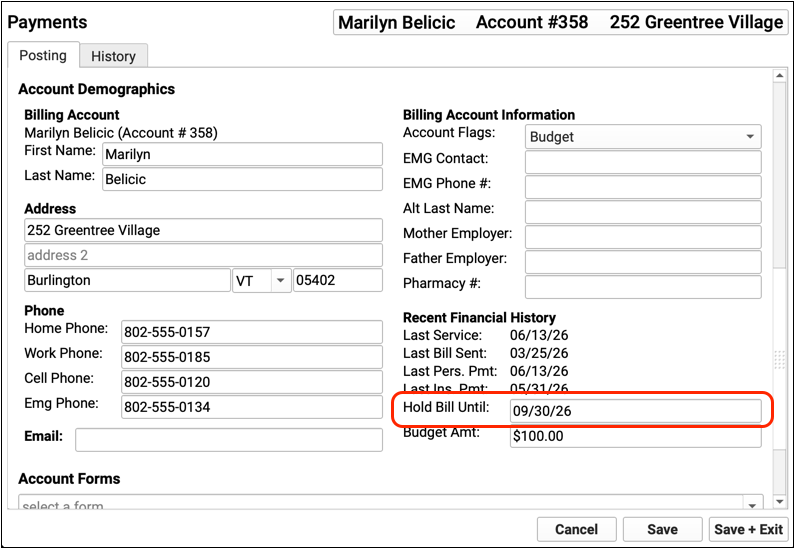
Adding a date to the Hold Bill Until field will prevent batch bill runs, performed through the Bills tool, from generating a bill for the family until the day after the specified date. For more details, see below.
Add a Budget Amount
If the family has agreed to pay a certain amount during each bill cycle, enter that amount in the “Budget Amount” field.
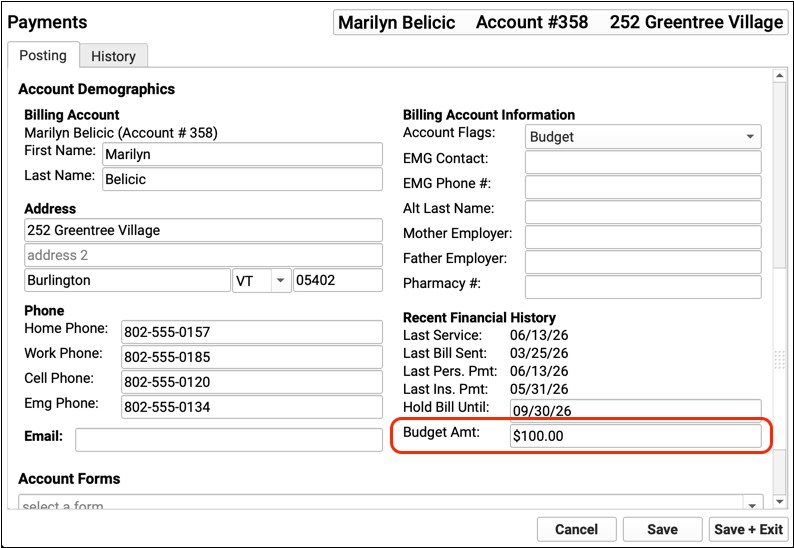
When a family has a budget amount, the printed statement will include a line of text indicating the budget amount. Both the statement and the patient portal will still display the account’s total balance due. For more details, see below.
Add Account Flag(s)
Your practice can use one or more account status flags to track and report on accounts with a payment plan or special billing arrangement.
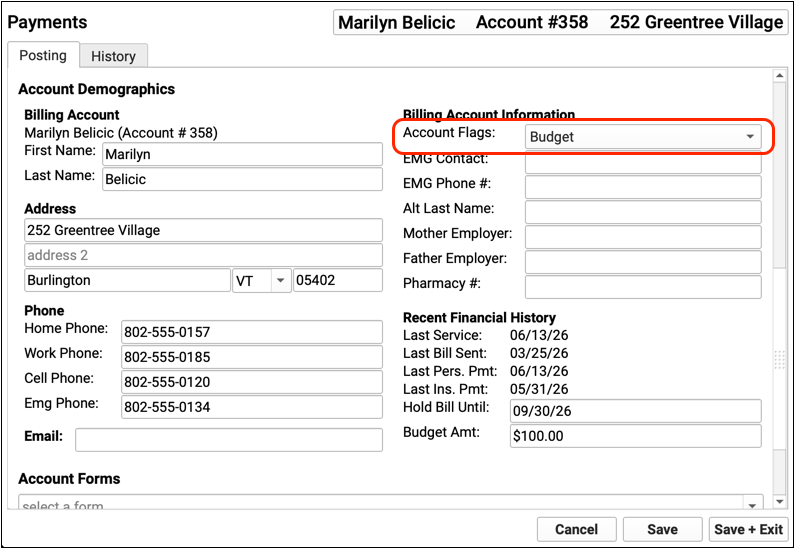
An account status flag allows you to include and exclude accounts from specific reports and worklists.
Read below to learn more about status flags for both reporting and blocking personal bills.
Follow Up on Accounts with Special Billing Arrangements
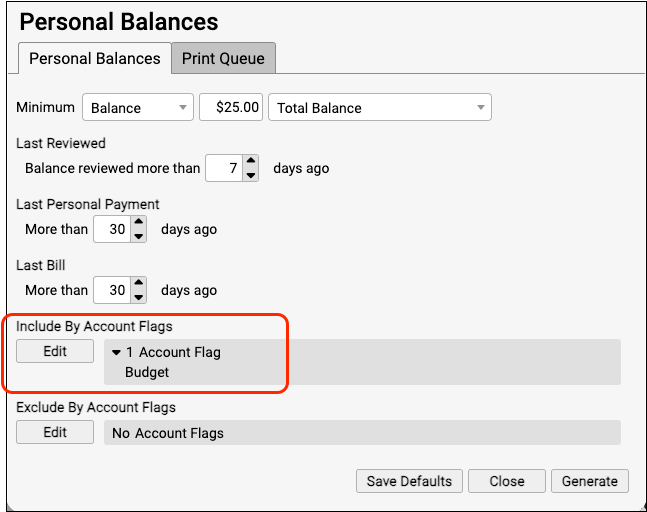
Use the Personal Balances tool to create lists of accounts on budget plans or that have other account statuses. For example, you can use Personal Balances to create a worklist of all families with “See Billing”, “Collections”, or “3rd Letter” status flags.
Update Hold Bill Until, Budget Amounts, and Account Flags When Families Pay
As families pay down their balances, update their Hold Bill Until date, Budget Amount, and Account Flags to keep your records up-to-date and resume normal billing for the family when appropriate. Add an account note to help your practice track the ongoing changes to a family’s billing status.
Hold Bill Until
Giving an account a “Hold Bill Until” date prevents batch bill runs, performed through the Bills tool, from generating a bill for the family.
The date is inclusive, which means that if you wish to start sending the family bills on November 1st, you should enter a Hold Bill Until date of October 31st.
When they have a Hold Bill Until date, families will still see their full outstanding balance in the patient portal. Your practice can still manually generate a single bill for the family in the Payments tool.
Do You Use 'Hold Bill Until' for Newborns?: Some practices use the Hold Bill Until feature for families with a newborn, delaying personal bills for a month, to provide time for insurance enrollment. Other practices do not post the charges until enrollment is confirmed. Other practices post the charges and allow them to appear on the account’s bill, as the charges are their responsibility. They may also send a form letter explaining that insurance reimbursement is still pending the child’s enrollment, and this can remind a family take action if the patient has not yet been added to their policy.
What About Bills Generated in Personal Balances?: If your practice or billing service generates batches of bills through the Personal Balances tool instead of the Bills tool, then you are pushing bills out regardless of the Hold Bill Until date. If you wish to exclude families from bills printed from Personal Balances, add a specific status flag to those accounts and exclude by it when you generate the account worklist.
Budget Amount
When a family has a budget amount, both the printed statement and the patient portal will still show the full amount due to the account.
The printed bill will display an additional line in bold text, indicating the family’s budget amount. For example, “Budget Amount: $100.00“.
Use Status Flags to Manage Budget Accounts
You can use account status flags to make it easier to identify families in reports and the Personal Balances tool.
For example, by adding a “Payment Plan” or “Budget” status flag, your practice can use Personal Balances to create a worklist of all accounts with a special billing arrangement.
You could also exclude families with a particular status flag, if you use Personal Balances to print personal statements.
When you run reports in the Report Library, you can include or exclude by flags. Your practice can also create Clinical Alerts based on flags, which will alert your practice about the family’s status when scheduling or during other workflows.
As families pay down their balance, it is important to review the accounts and update flags to match the account’s new status.
Stop Bills for a Family
In addition to the Hold Bill Until field, your practice can use a custom status flag to prevent bills being generated for the family.
First, use the Tables tool to review and update the Account Flags on your system.
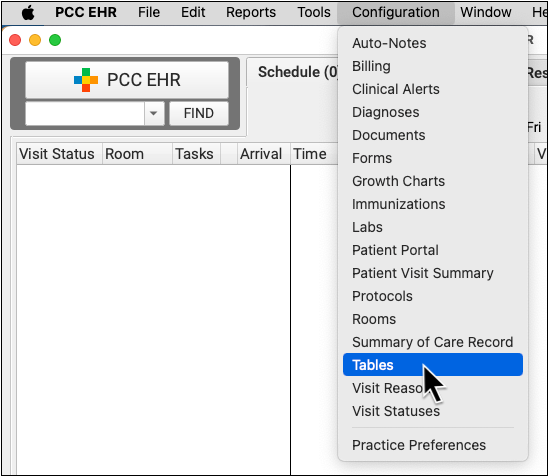
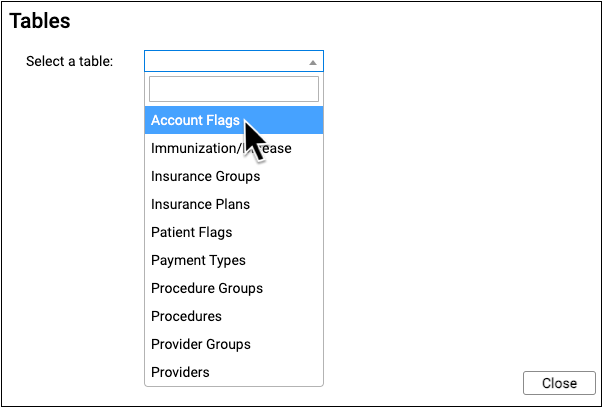
When you edit a flag, you can set whether or not a flag should stop bills for the account.
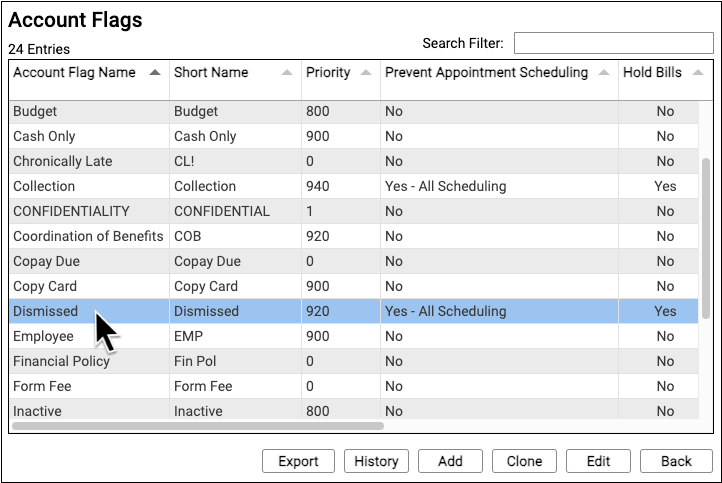
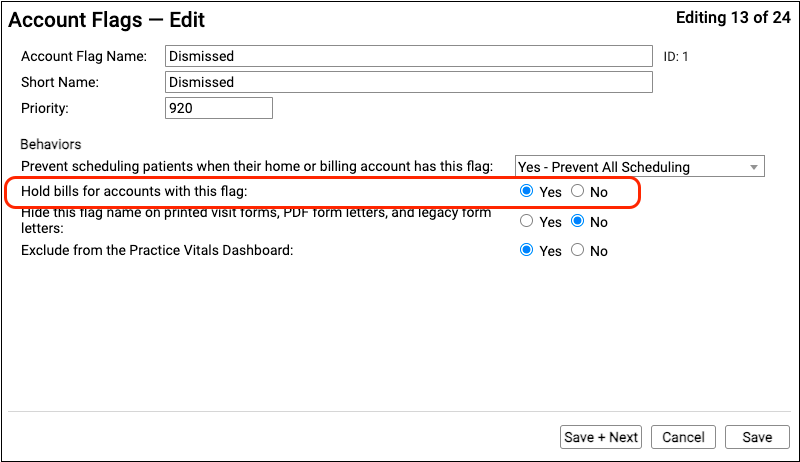
When bills are generated in the Bills tool, families with a flag that holds bills will not receive a bill. Your practice can still manually generate an up-to-date statement for any account, regardless of their status, in the Payments tool. For more information, see Use Custom Flags for Scheduling, Alerts, and Reporting.
As always, remember to review and update account flags when a family’s situation changes.
Other Personal A/R Resources for Non-Paying Accounts
In addition to arranging a payment plan and holding bills so you can work with a family directly, PCC EHR includes other features to help manage families with overdue, unpaid balances.
Custom Reminder Notes and Letters
Your practice can automatically include custom notes on bills and optionally generate billing reminder letters based on the age of the balance.
To learn more, see Customize the Messages on Personal Bills and Work Personal Balances.
Automatically Charge a Late Billing Fee
Your practice can configure an automatic late billing fee, based on amount due and other custom criteria.
See Automatically Charge Billing Fees for Overdue Accounts to learn more.
Turn an Account Over to Collections
If your practice needs to send an account to collections, there are several workflows you can use to track the process and its result. See Turn an Account Over to Collections to learn more.