
Credit Card on File: Faster, Easier Account Payments
Instead of sending a bill, keep your families’ credit cards on file so you can process outstanding balances as soon as insurance payers respond.
Video: Watch Credit Card on File to learn more.
Contents
Add an Account’s Credit Card
At the front desk, or whenever you are working with a family, you can use the Payments component to add the account’s credit card information.
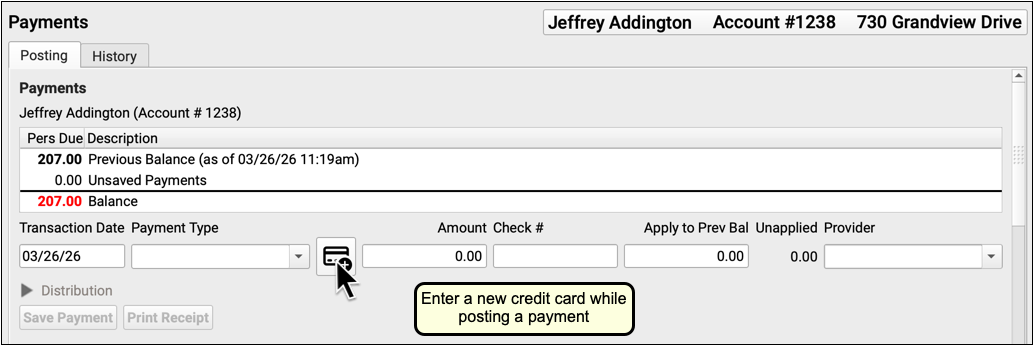
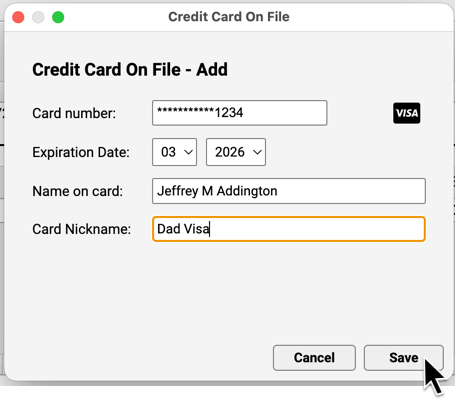
Credit card numbers are stored through an encrypted connection to a third party and are not kept on your PCC system.
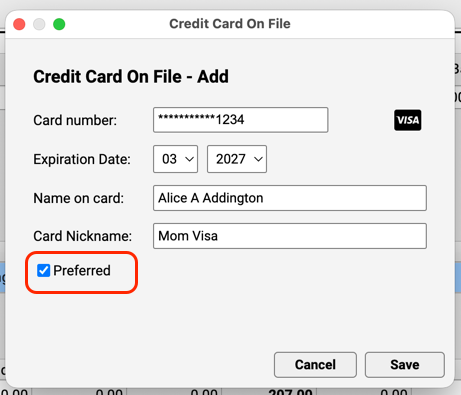
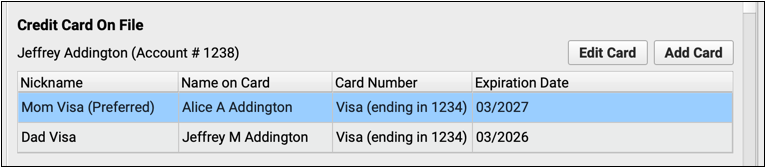
You can also add a card and manage all credit cards for a family in the Credit Card On File component. When a family has more than one credit card, you can designate one of them as preferred.

Post a Payment with a Credit Card on File
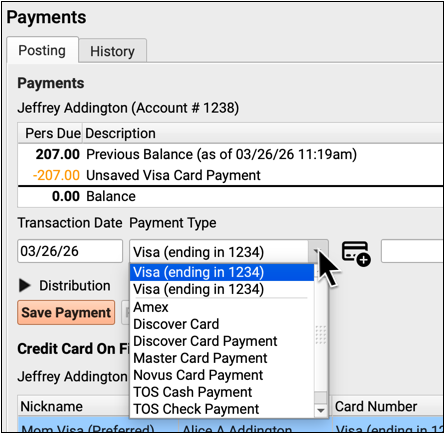
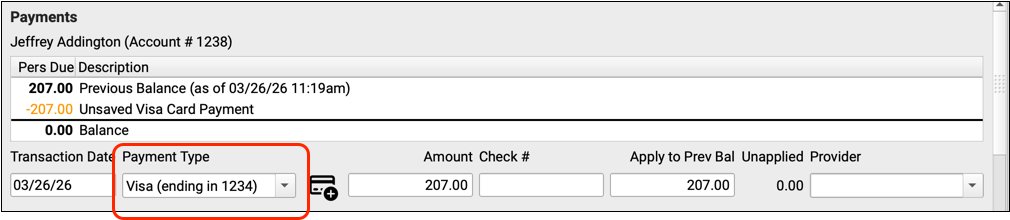
Once you’ve recorded credit card information for a family, it will be immediately available whenever you enter personal payments. Active cards will appear at the top of the Payment Type options. The preferred card will appear first.
Set Up CCOF For Your Practice
Follow the steps below to get started with credit card on file at your practice.
Establish an ISV Merchant Account with Payment Pros
Credit card on file requires an ISV merchant account with PCC’s payment processing partner, Payment Pros.
Contact Payment Pros at https://www.paymentpros.net or info@paymentpros.net to create an account.
If you already have a merchant account with Payment Pros, reach out to them to migrate your existing merchant account to an ISV merchant account.
Payment Pros will provide you with a merchant ID, an access URL, a username, and a password.
How Does an ISV Account Differ from a Traditional Merchant Account?: An ISV or Independent Software Vendor account allows PCC to exchange credit card tokens with Payment Pros on your behalf. Credit card numbers are never stored on your PCC system.
Open Practice Preferences
Open the Practice Preferences configuration tool from the Configuration menu.
Enter Your Merchant ID and Credentials
Enter the information provided to you by Payment Pros, including your CardPointe merchant ID and username and password. The vendor URL will appear for you automatically.
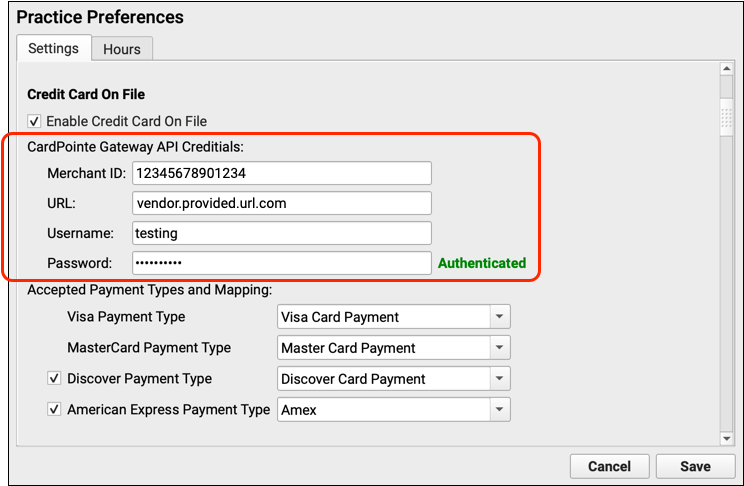
PCC EHR will automatically validate the account when you finish entering the username and password.
Optionally Add Additional Merchant Accounts
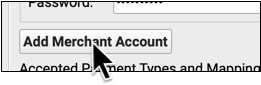
If your practice has more than one merchant account, you can enter credentials for multiple accounts. Click “Add Merchant Account” to add a new one.
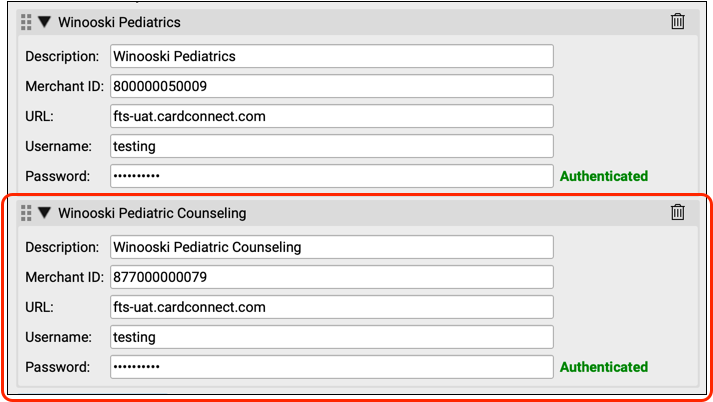
You can return to Practice Preferences at any time and click the trash icon to remove an account.
Define Payment Types for Tracking and Reporting
How will credit card on file payments appear in your records? Use the Credit Card on File section of Practice Preferences to designate payment types for credit card on file payments.
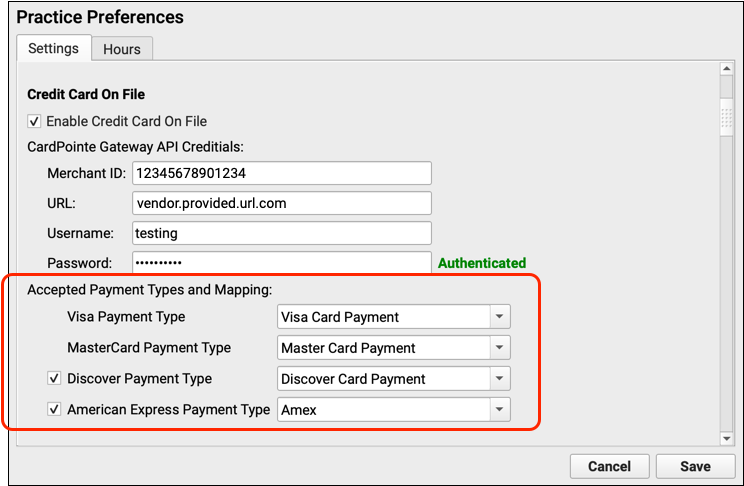
In addition to Mastercard and Visa, indicate whether or not your practice accepts Discover and American Express.
Create New Payment Types: To create new payment types, clone and rename existing types in the Payments table in the Tables tool.
Turn On Credit Card on File for Your Practice
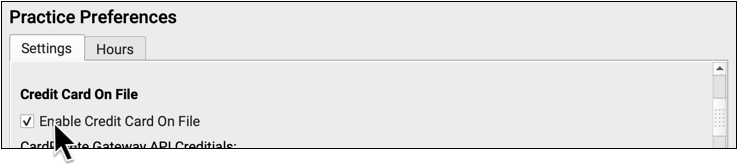
After you have entered credentials and choosen payment types, you can click “Enable Credit Card On File” to turn on the service for your practice.
Test Your CardPointe Connection
After completing the above steps, test your credit card on file connection by adding a card to an account and processing a credit card payment. Report any problems to Payment Pros, and contact PCC Support if you need additional assistance.