Print Paper HCFA Claim Forms

Hopefully your practice can submit almost all of your claims electronically. Some claims must still be printed on paper, however.

Video: Watch Print a Paper HCFA Claim Form to learn more.

Read the Submit Claims article to review the basic steps of submitting both electronic and paper claims.

This reference article provides additional details about generating paper claims.

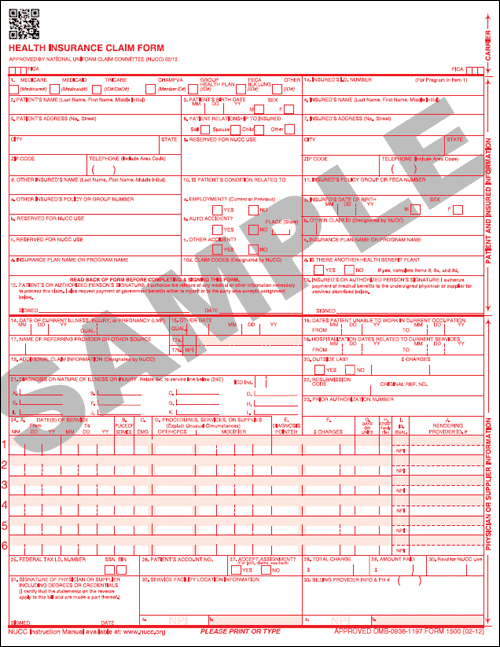
What Claims Require a Paper HCFA 1500 Form?

Why would you need to print a paper claim?

  • Secondary Claims That Require EOB: In some cases, a secondary claim requires a copy of the EOB from the primary payer, and therefore can not be submitted electronically. You will need to print out the claim and staple a copy of the EOB to it.

  • Unusual Rendering Provider Situations: When a charge is posted to a non-provider, such as the “Office” provider or a nurse, you may encounter a situation where a claim can not be submitted electronically. You should speak with PCC Support for help configuring which providers are valid for electronic submission. Whenever you add a new provider, inform PCC Support so they can properly configure your provider for electronic claim submission.

  • Family Request: In unusual billing situations, your practice might generate a paper claim form on behalf of a patient or family.

Print a Single Paper Claim

When you need a paper claim, you can print one from the Edit Charges screen.

Open the patient’s chart, find the encounter in the patient’s Billing History, and click “Edit Charges”.

You may wish to make changes to the encounter, such as adjusting the responsible party.

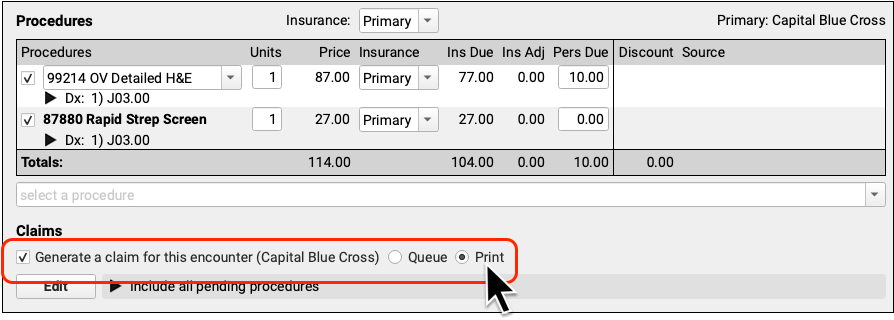
When you are ready to print a claim, select “Generate a claim for this encounter” and then click “Print”.
When you click “Save + Post”, you’ll be prompted to print the claim form from your workstation.
Print Batches of HCFA 1500 Claim Forms

As you submit electronic claims, unusual payor situations may require some claims be printed. Use the Claims tool to print batches of claims that are routed to paper.

Open the Claims Tool

Open the Claims tool from the Tools menu.
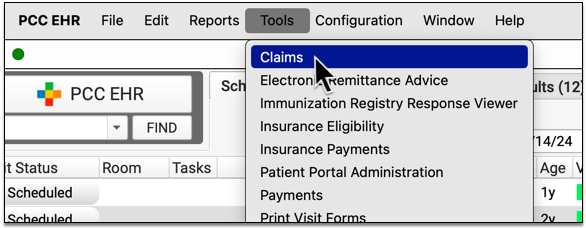
Route Claims to Paper By Preparing and Submitting Electronic Claims

Before printing paper claims, process and submit your electronic claims. Click “Prepare Claims”, review the results, and then click “Submit Claims” to send out electronic claims.

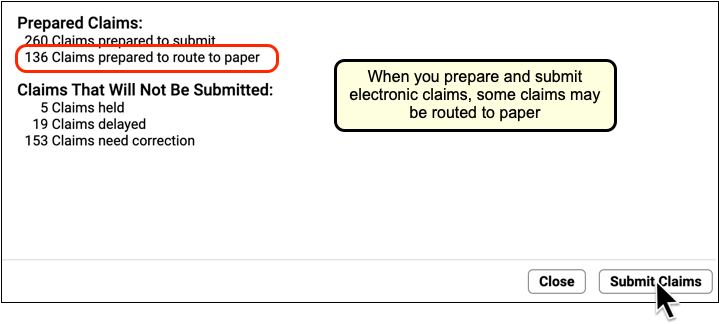
If any claims require printing on a paper HCFA form, based on your practice’s claim configuration, they will be routed to a paper batch during this step.

Visit the Paper Claims Tab and Review Batches to Print

Click “Paper Claims” to see a list of insurance batches with claims waiting to be printed.
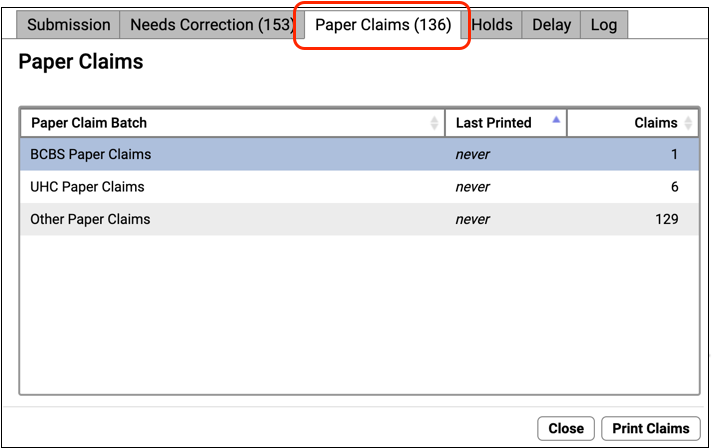
Select a Batch and click “Print Claims”

Select one of the insurance batches and click “Print Claims”.


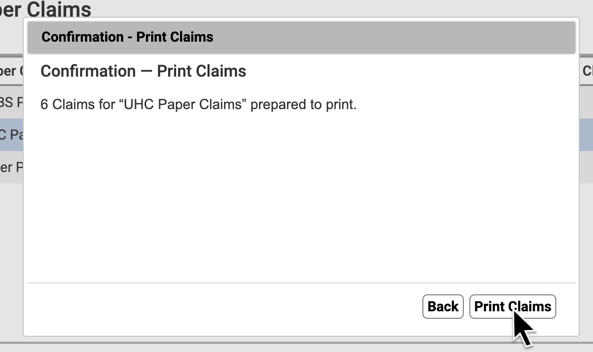
Put Claim Paper into Your Printer and Confirm

Ensure that HCFA claim forms are in your printer and click “Print Claims” to continue.
Optionally Review Log of Printed Claims and Reprint

You can review a record of all claims generated by your office, either electronically or on paper, on the Log tab.
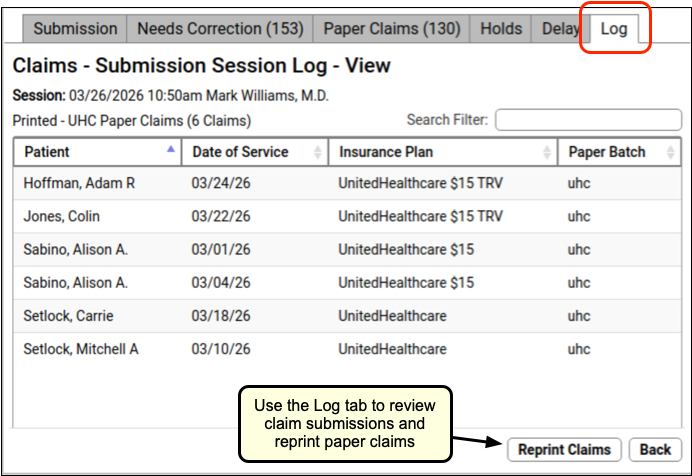
If you need to reprint a batch of paper claims, you can do so by viewing the log and clicking “Reprint Claims”.

Print Batches of HCFA 1500 Claim Forms (Partner)

If you have not transitioned to PCC EHR’s Claims tool, you may still be using PCC’s legacy claim printing tool found in the Practice Management (Partner) windows.

Open the HCFA Program

Select the Print Paper Claims (hcfa) program in the Insurance Billing & Collections section of your Practice Management window.

Review and Select Claim Batches

When you run hcfa, you are first presented with a list of batches.

On this screen, you can review the number of waiting claims, the date the batch was last printed, and the name of each batch. Select any batch and press Enter to begin printing.

Is that the Number of Claims that Will Print?: The number of claims in this list does not represent the exact number of claims that will print. When you select a batch and press Enter, PCC processes the claims and may discover that some of the claims no longer exist, were printed and submitted earlier, reference charges that have been deleted, or reference charges that have been corrected and regenerated (creating an unneeded duplicate tag).

What are the ECS Batch Lines For?: The hcfa program can generate paper claims for any set of claims waiting to be submitted. You can even print out claims that are supposed to be submitted electronically by selecting one of the “Z_ECS” lines listed in hcfa. This is not recommended and should only be done in an emergency (i.e., your internet connection is down and a timely filing limit is approaching). Even then, it is probably preferable to open a patient’s chart and use the Edit Charges option to print the claims you need one at a time.

Review Claims as They Are Prepared

The hcfa program processes all of the tags waiting in the batch you chose. You will see a message listing the claims:

        I am getting ready to process the claims.
I am now processing the claims.
Flinstone, Pebbles 07/01/04 $ 50.00 B MEDICAID
Flinstone, Bam Bam 04/02/04 $ 50.00 C MEDICAID
Canning, John 03/03/04 $ 26.00 C MEDICAID
I am done processing the claims, and am ready to print them.

Optionally Print a Test HCFA 1500

Next, hcfa gives you the option to print a sample form to make sure your paper is properly aligned. This is especially important if you print HCFA 1500 forms on a pin-fed printer.

        I can print a test form for you, so that you
can check the alignment of the paper.
Do you want a test MEDICAID form printed (yes or no)? Yes
Do you want another test MEDICAID printed (yes or no):

You can print as many test forms as you need.

Confirm You Are Ready to Print

The hcfa program double-checks that you are ready to print your claims. You can type “No” and then follow the prompts to quit, or type “Yes” to print out your claims.

        I am all ready to print these MEDICAID forms.  Are you?
If you say yes, I will print them, otherwise I won’t:

Confirm Printing Was Successful

In case there was an error while printing, hcfa asks if the claims printed successfully. You should wait until the claims finish printing and review them before answering “Yes” to this question.

        Here Goes…  I am printing the forms.
Are you satisfied with the MEDICAID forms printed? If you are,
I shall clear out the queue for this type of form. If you are
not, I will give you another chance to print them.
Are you satisfied with the MEDICAID forms?

Print a Log of Which HCFA Forms You Printed: A log of all the HCFAs generated will automatically print out when you quit the HCFA program.

Reprinting Batches

Your PCC system stores a record of the last printing of each HCFA Batch so you can easily reprint it. At the bottom of the list of batches, you will find options to reprint the last run of each batch:

If you need just a log of the last batch printed, but do not need to print the batch itself, simply select the “Reprint…” option for the needed log, and then answer “No” to the subsequent questions (do not print any claims). Upon quitting the hcfa program, the log will reprint.

Force a Large Number of Claims to Requeue

If you need to requeue a large number of claims for some reason, contact PCC Support for help. This is not a common need. For more information, read Requeue Large Numbers of Claims.

  • Last modified: May 11, 2026