
Navigate a Patient’s Chart
After you open a patient’s chart in PCC EHR, you can use the navigation buttons on the left to review the full chart.
Watch a Video: Watch Review a Patient’s Chart in PCC EHR to learn more.
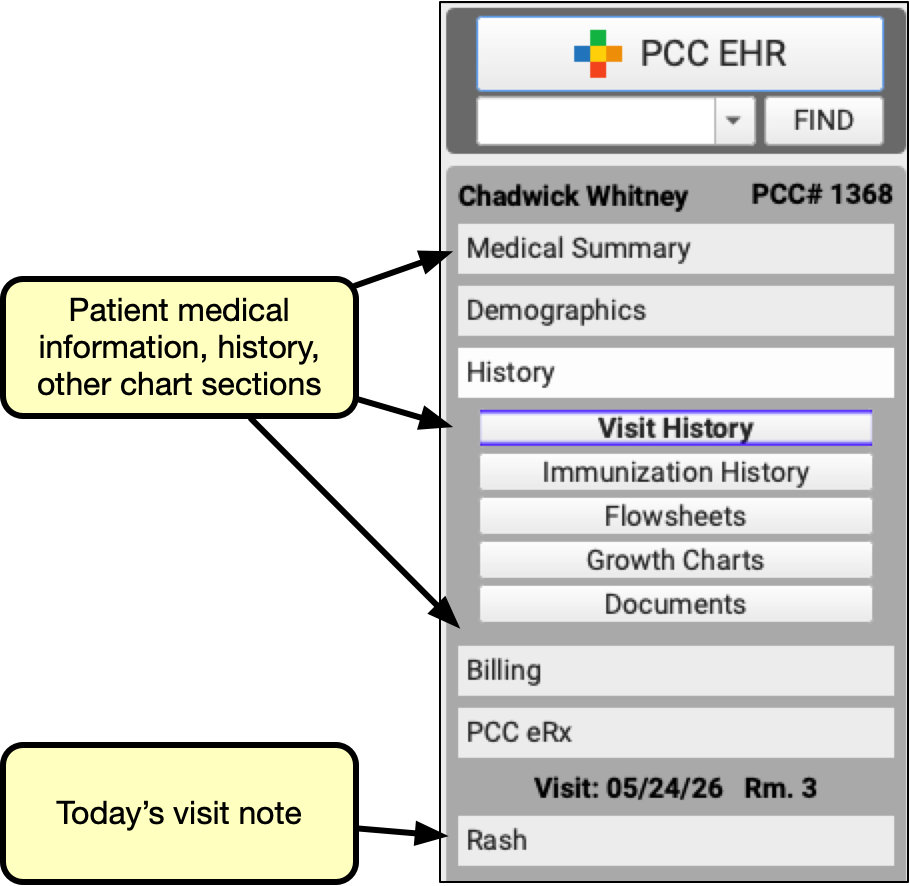
When you first open a chart, you will see the Medical Summary screen. You can navigate to different sections of the chart using the buttons on the left.
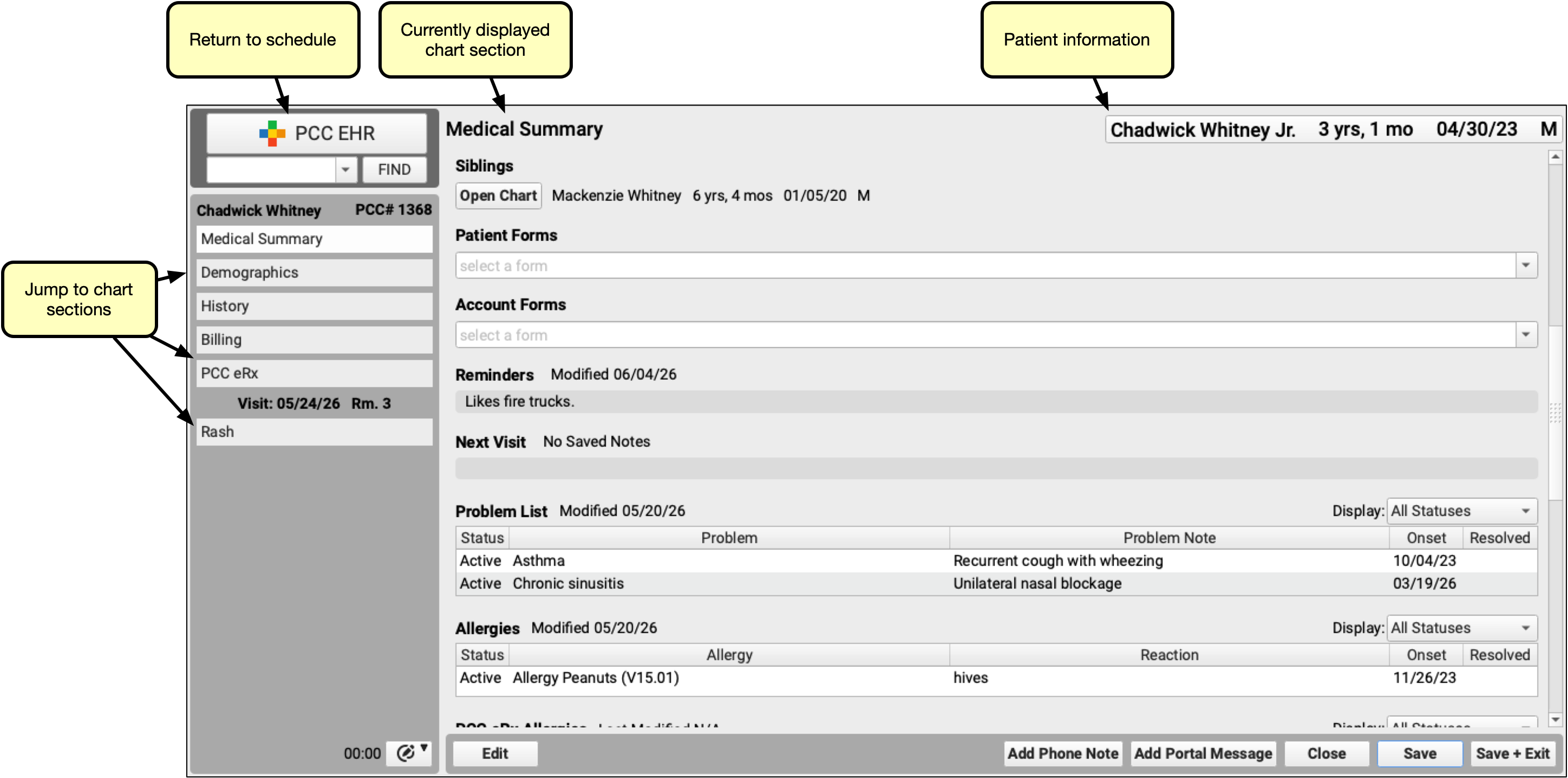
The chart has several standard sections:
-
Medical Summary: The Medical Summary provides quick access to key details about the patient and their health.
-
Demographics: The Demographics section displays patient and family demographic information, such as the patient’s name, age, sex, personal contacts, home and billing account names, addresses, contact information, and more.
-
History: The History section gives access to a complete history of visits, phone notes, portal messages, and other types of encounters documented in the patient’s chart. It also gives access to the patient’s immunization history, flowsheets showing diagnoses, vitals, test results, and screening results over time, growth charts, and documents.
-
Billing: The Billing section gives access to billing history for the patient’s billed encounters and an account history of billing activity for the whole family.
-
PCC eRx: The PCC eRx section jumps you to prescribing information for the patient, including medication allergies, medication history, prescription history, and different prescribing functions.
If the patient has an appointment today, or the provider is reviewing an old chart note, the patient chart will also display a button for jumping to today’s chart note.
Other Chart Features
-
Return to the Schedule: Click the “PCC EHR” logo button to return to your schedule or other working queue.
-
See Patient's Most Recent Weight, percentile, PCP, and Active Policies At Any Time: As you review a patient’s chart, you can quickly review their most recently recorded weight, percentile, and their primary care physician.


When you need patient weight for prescribing, or other basic patient information for another purpose, click on the patient’s information label in the upper-right corner. The weight appears with the date it was last taken, which can help you decide whether you need to check weight again.
-
Refresh and Conflicts: If multiple users in your office open and make changes to a patient chart, then the “Save + Refresh” button will turn yellow. Click the button to save your own changes and display any changes made by other users. PCC EHR records changes to a patient chart independently, by user; multiple changes can not conflict.
-
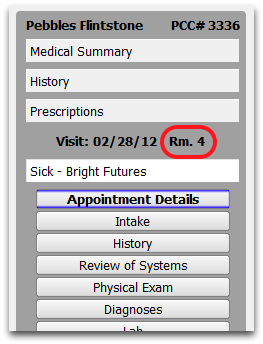
Room Number/Location: If the patient has an appointment today, and is currently placed in an exam room, their location will appear by the visit date.
-
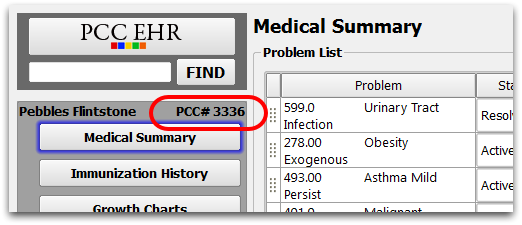
Patient PCC #: The patient PCC # or “Patient Account Number” is a unique number on your PCC system. You can use this number to search and locate a chart quickly, and the number appears next to the patient’s name in the chart.
-
Duplicate Charts: If a patient appears twice in PCC EHR, they may have two patient records in the billing system. Contact your office’s billers to double-check the accounts. See Merge Duplicate Patients and Accounts.
To learn about specific chart sections, visit Review a Patient’s Chart.