
Use Overpayments to Keep Track of Insurance Credits
Sometimes you need to track an insurance payment without applying it towards an encounter’s balance. You might receive a duplicate payment, need to resubmit a claim without showing a payment, or a payor might pay more than the amount due on a charge.
Use the Insurance Payments tool to enter an overpayment or change an existing payment into an overpayment. You can associate an overpayment with an encounter, along with adjustment information, without directly applying it towards the balance. Then you can track insurance credits on the account without interrupting the rest of the billing process. Later, you can easily reverse the payment (if you receive a “takeback”) or apply the payment to the encounter.
Video: Watch Use Overpayments to Keep Track of Insurance Credits to learn more.
Contents
Post an Overpayment
Read the procedure below to learn how to post an overpayment.
Open the Insurance Payments Tool
Select Insurance Payments from the Tools menu.
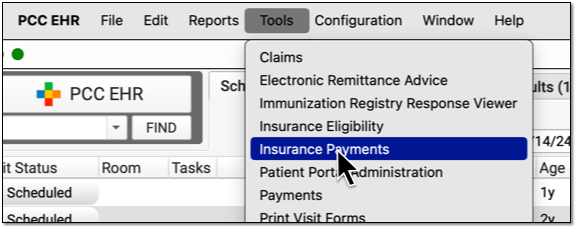
You can also jump to the Insurance Payments tool from other screens, like Unpaid Encounters and Posting Exceptions.
Find the Patient
Use a Claim ID or find the patient by name to review a list of their encounters.
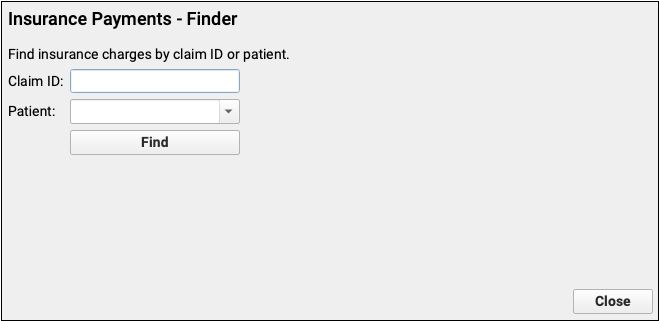
If you enter a Claim ID, you can jump directly to the payment screen.
Select an Encounter
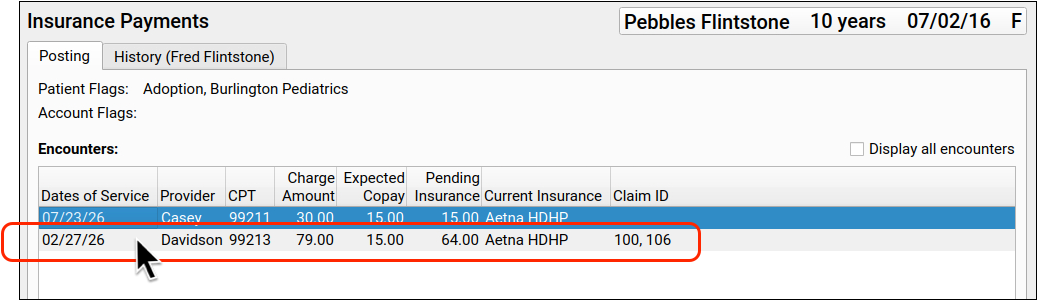
If you found the patient by name, next select the correct encounter from the list of the patient’s encounters. Double-click on an encounter to open it.
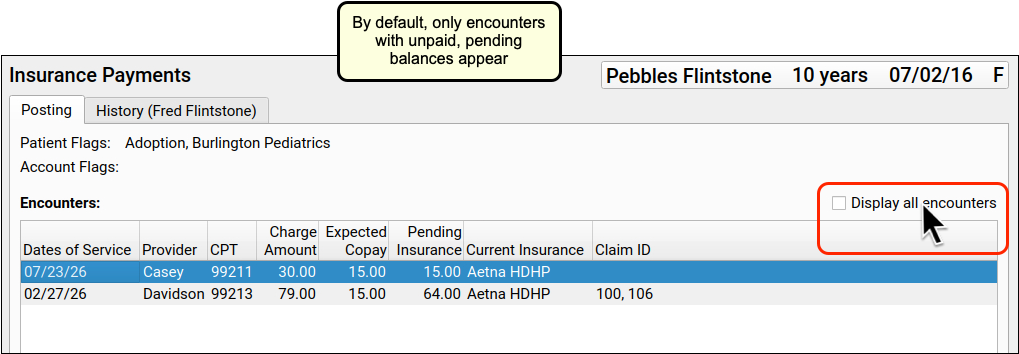
If the payment is for an encounter that is already paid off or no longer pends insurance, check the “Display all encounters” checkbox to include encounters for which there are no pending charges.
Select the Policy
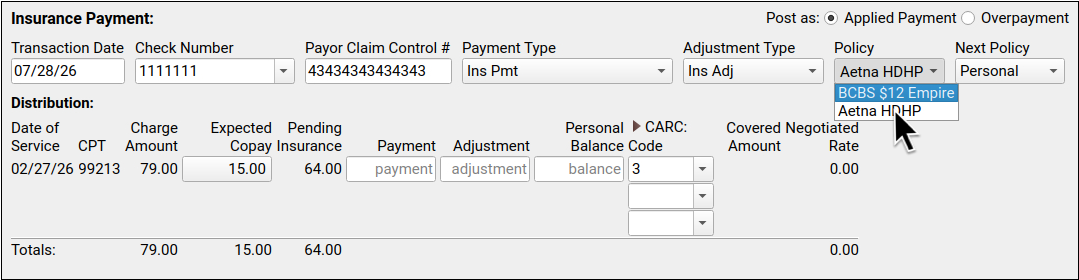
Before you enter payment amounts, indicate the payer who made the payment by selecting a policy. The responsible party is selected by default, but an overpayment might arrive from any of the patient’s active policies.
Indicate that the Payment is an Overpayment
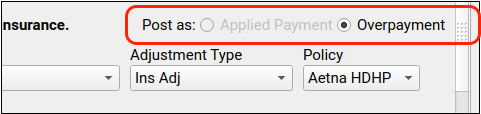
If the encounter has no unpaid charges pending insurance, the “Overpayment” checkbox will be selected for you. When there’s nothing due, a new payment must be an overpayment.
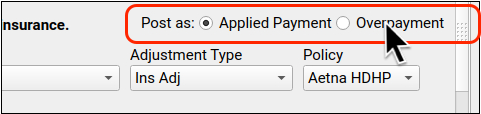
If there is a pending balance for the encounter, but you still wish to post a payment that will not apply towards that balance, select “Overpayment” manually.
Enter Remittance Information, Including Payments, Adjustments, and CARC Details
Review and update the transaction date, check number, and claim ID. Then enter the payment and adjustment amounts along with CARCs from the ERA or EOB.
As overpayments are frequently reversed or need to be reapplied later, it’s useful to enter all adjustment and CARC information, and not just the payment amount. As with the payment amount, these “informational” adjustments will not affect the balance.
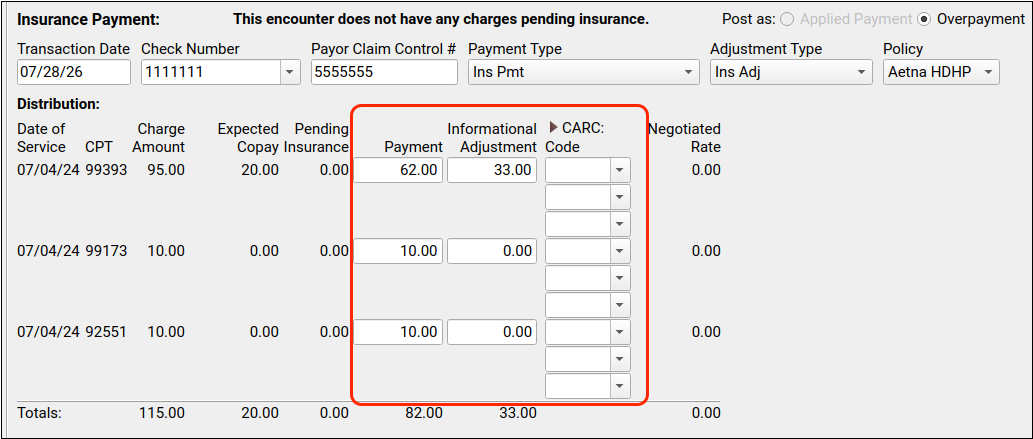
What is an 'Informational Adjustment?': Just like payment amounts, adjustment information for an overpayment will not affect the balance due in any way. So why post the adjustments at all? You may need to review the adjustments that the payer indicated for each charge, especially if the payment ends up being applied later on. When you change an overpayment into an applied payment, the adjustments also apply, eliminating the extra work of finding the original ERA.
Optionally Review Family Information and Enter Notes
As always, you can use other components on the Insurance Payments posting screen to better understand the history and issues with the claim.
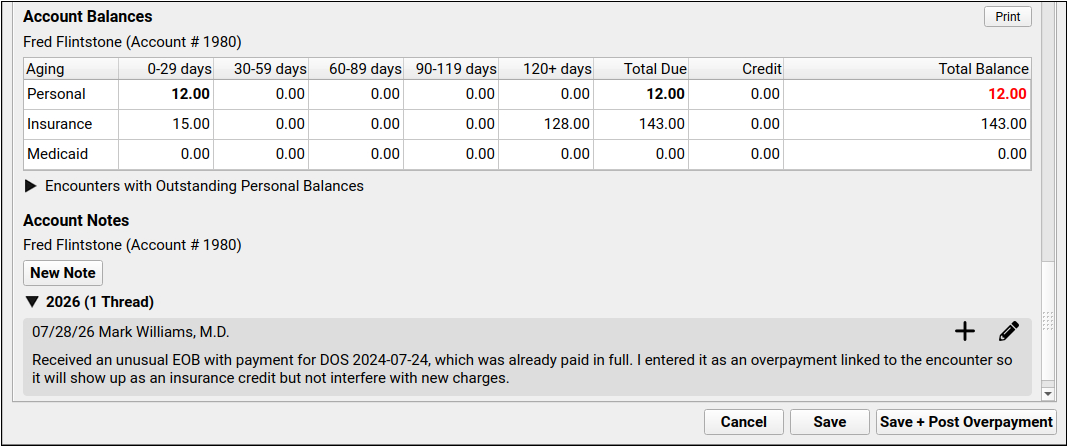
You can also enter a note in the Account Notes component to record the circumstances of the overpayment.
Click “Save + Post Overpayment”
Save your payment and any changes to the account.
Apply Part of a Payment, and Post the Rest as an Overpayment
In most cases, an overpayment or duplicate payment will either remain as an overpayment, be taken back or reversed later, or else the existing payment will be reversed and the overpayment will be changed to an applied payment.
But what if your practice wants to post part of the payment now, against the remaining balance, and post the rest as an overpayment?
In that case, post two separate payments with the same check number and Claim ID. First, open the encounter in the Insurance Payments tool and post the payments and adjustments you wish to apply to the charge(s). Next, view all encounters, open the same encounter again, and post the remaining payment and adjustment amounts as an overpayment.
This process makes for more work later when a payor reverses a payment, but your practice may know ahead of time that this is not going to happen, and prefer for your A/R and amount received per-procedure (for example) to directly reflect the amount collected.
Review Overpayments on an Account or an Encounter
Where can you see the overpayments (and the total insurance credit) on an account?
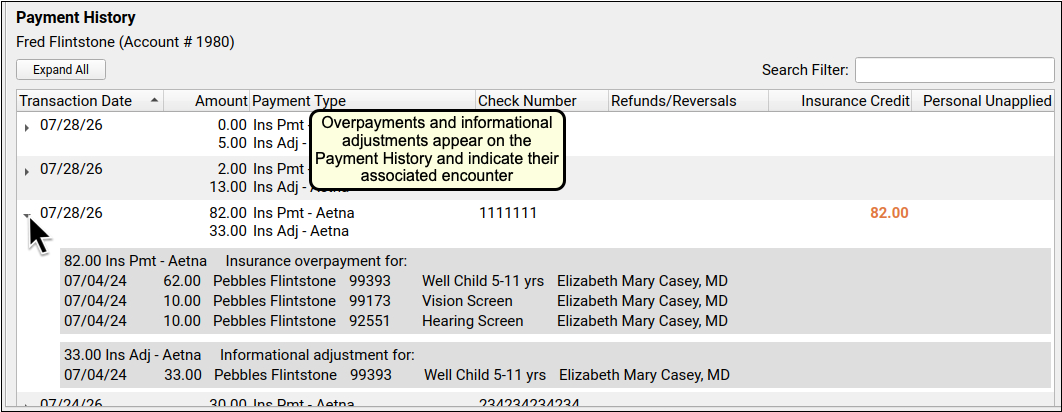
The Payment History tab displays overpayments along with accompanying informational adjustments. You can click a disclosure arrow to view associated charges. The overpayment and informational adjustment will not affect the balance on those charges.
The Account Balances component will indicate that there is an insurance credit on the account, which is separate from the outstanding insurance balance.

You can also see details of an overpayment in the account history found in the patient’s chart.
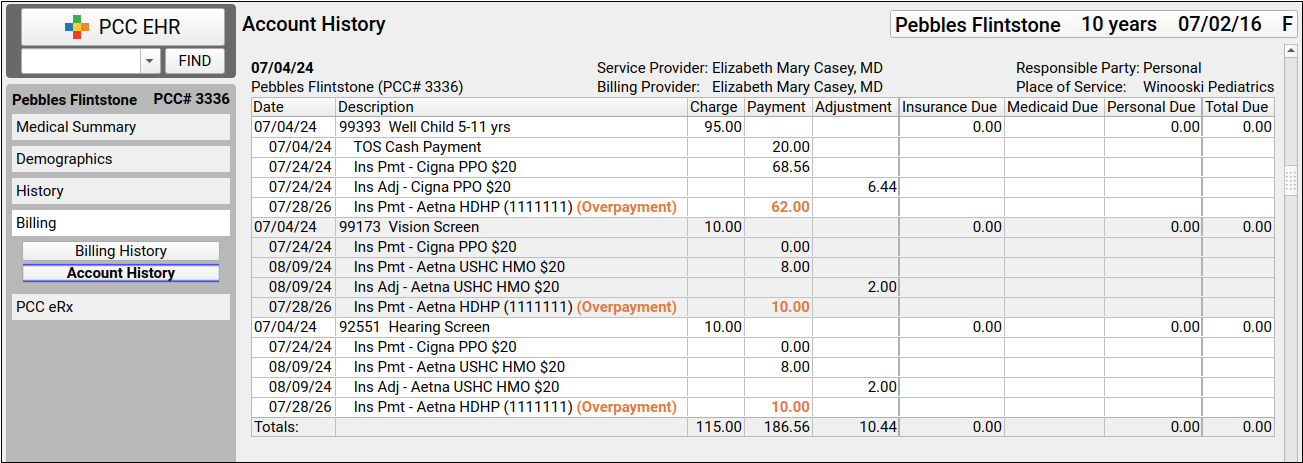
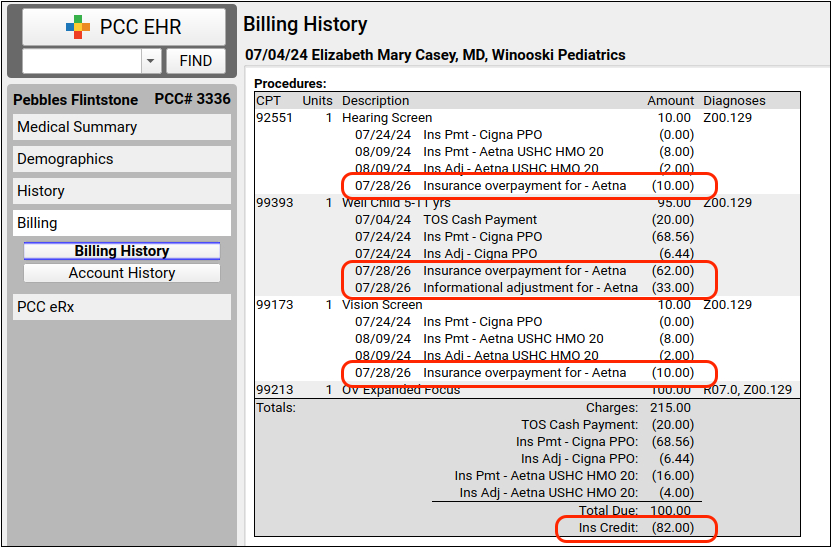
Overpayments and the resulting insurance credit amount are also included in the encounter’s billing history.
Change a Payment into an Overpayment, Reverse an Overpayment, Turn an Overpayment into an Applied Payment, and More
In addition to creating an overpayment, you can edit any insurance payment and turn it into an overpayment. You can do this whenever you need to unlink an insurance payment from an encounter, but still need to keep track of it on the patient’s record.
Later, if an overpayment is taken back, you can reverse it in the Insurance Payments tool just as you would reverse any other payment. You can also edit an overpayment and turn it into an applied payment.
All of these accounting changes can be completed on the History tab in the Insurance Payments tool.
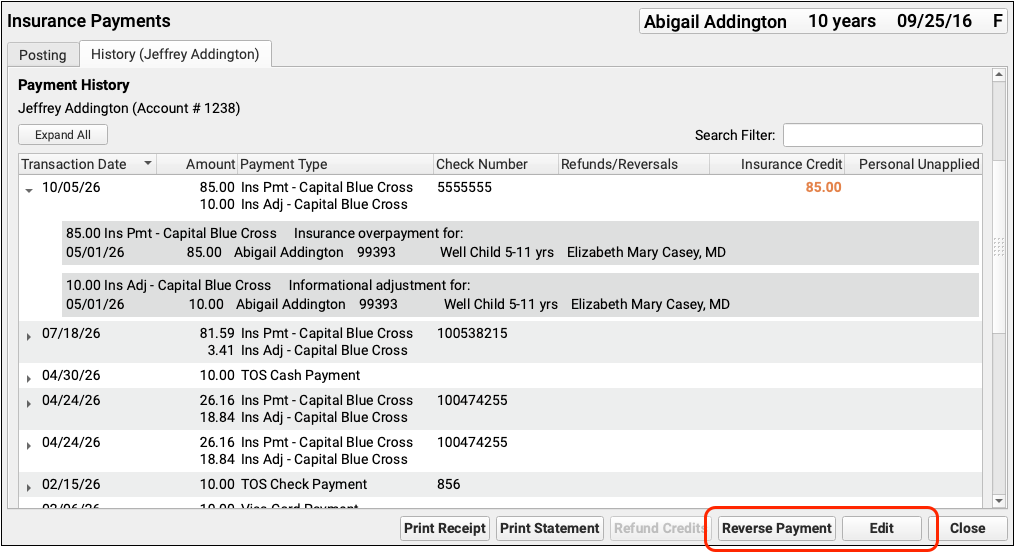
Select a payment and click “Reverse Payment” to post a reversal. Select a payment and click “Edit” to edit any payment and make changes.
To learn more about reversing a payment, read Handle Insurance Reversals.
PCC Fall 2026 Overpayment Implementation Notes
Overpayments were introduced in the PCC Fall 2026 software release (PCC 11.1). If your practice formerly turned insurance payments into personal credits on accounts or used overpayment holding accounts, you should review the details below and adjust your practice’s workflows. Overpayments in the Insurance Payments tool are an improved method for handling insurance payments that you do not wish to, or cannot, apply towards charges.
Discontinue Use of Unlinked Insurance Payments
By using the new overpayment functionality in PCC EHR, you can discontinue the use of unlinked insurance payments on accounts. Unlinked insurance payments apply towards an account’s personal balance, becoming a personal credit. If you change an insurance payment into an overpayment instead, you will prevent inaccurate personal balance amounts.
The PCC 11.1 update did not change the behavior of any previous payments, change account balances, or affect insurance A/R totals in any way. Any unlinked insurance payments acting as a personal payment will continue to do so, though the payments will no longer be associated with a specific policy.
PCC recommends offices discontinue the use of the Correct Mistakes (oops) tool to unlink insurance payments, and instead use the Insurance Payments tool in PCC EHR to either reverse payments or edit them and turn them into overpayments.
Discontinue Use of Overpayment Holding Accounts
If your practice formerly used overpayment “holding accounts”, as is still necessary for incentive payments (for example), you should discontinue their use.
PCC’s recommended best practice is to use overpayments in the Insurance Payments tool (as shown above), available on all PCC client systems as of October 2026, to track insurance credits with the patient and encounter indicated on the ERA.
Later, you can edit the overpayment or post a reversal to accurately track what the payor communicates in each remittance.