
Handle Insurance Reversals (Post a “Takeback”)
When you receive an insurance payment reversal or “takeback” on an ERA, your practice can process and post it automatically or manually. The original payment for the encounter is adjusted off and then the updated adjudication is posted.
Video: Watch Reverse an Insurance Payment (Post a Takeback) to learn more.
Contents
Post Reversals Automatically
When you autopost an ERA that contains a payment reversal, PCC EHR can usually post both the reversal and the updated adjudication from the payor.
When this occurs, a reversal adjustment is linked to the original payment and associated with the provider of the originally linked charges. Then the rest of the ERA (which usually includes an updated adjudication for the original encounter) is posted.
Sometimes PCC will not automatically post a reversal.
-
Reversal Doesn't Match Your Records: If charge, payment, or claim details don’t match what is found in your PCC system, PCC cannot autopost the reversal. For example, if the amount reversed does not match your payment records, or the payor fails to provide claim identification information, the takeback will not autopost.
-
Paper EOB or Alternative Notification of a Reversal: PCC processes incoming ERA 835s from payors. If you receive a reversal notification by mail, and no electronic remittance is sent to your office, the reversal cannot be posted automatically.
-
Your Practice Wishes to Post All Reversals Manually: If your practice decides that reversals should not be automatically posted, and you wish to post each one manually, you can turn off autoposting for reversals in Practice Preferences.
-
Payment or Adjustment Type Misconfiguration: By default, your system is configured with an adjustment type for use in posting reversals. If your practice has made changes to your payment and adjustment types, or switched the assigned reversal type in Practice Preferences, PCC may not be able to automatically process reversals.
When reversals do not post automatically, they are marked as a posting exception on the ERA. You can review them and post them manually from the Posting Exceptions worklist.
You can also open the Insurance Payments tool for any patient, at any time, and reverse a payment manually.
Manually Reverse an Insurance Payment
You can post a reversal manually using the Insurance Payments tool.
Open the Insurance Payments Tool and Find the Patient
Open the Insurance Payments tool and find the patient for the takeback.
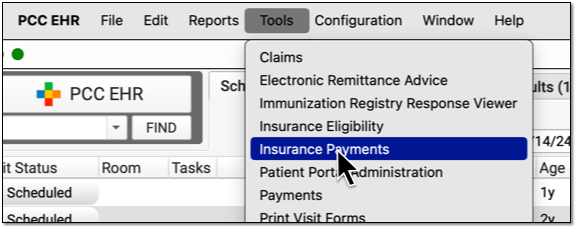
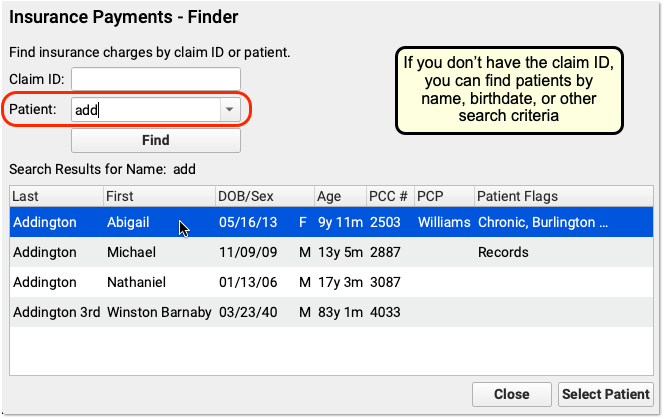
Jump Directly to the Claim: If you are working on reversals found on the Posting Exceptions worklist in the Electronic Remittance Advice tool, you do not need to find a patient. You can jump directly to the account.
Select the Payment the Payor is Reversing
On the History tab, find and select the payment that must be reversed.
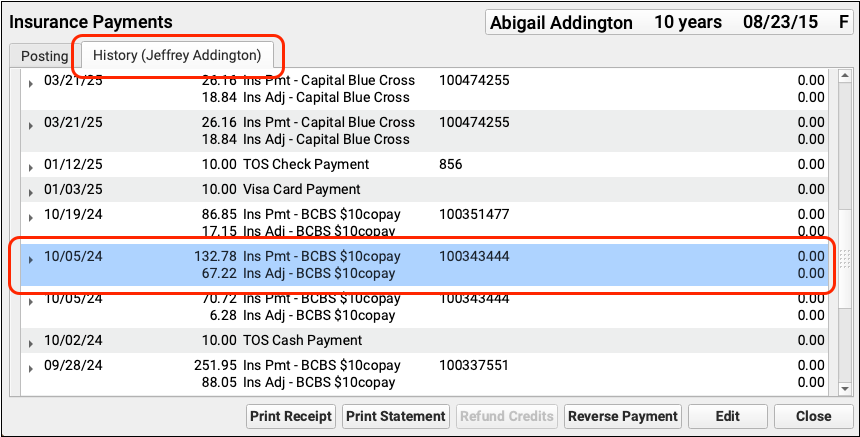
You can use the Search Filter and the disclosure triangles to ensure you have identified the payment and adjustment indicated by the payor.
Click “Reverse Payment”
Click “Reverse Payment”.

Update the Transaction Date, Transaction Type, and Check Number
On the Reverse Payment screen, update the transaction date for the reversal. Then select an appropriate Transaction Type, such as a “Takeback” adjustment. Finally, enter the check number for the reversal so it will be associated with the ERA on which it appeared.
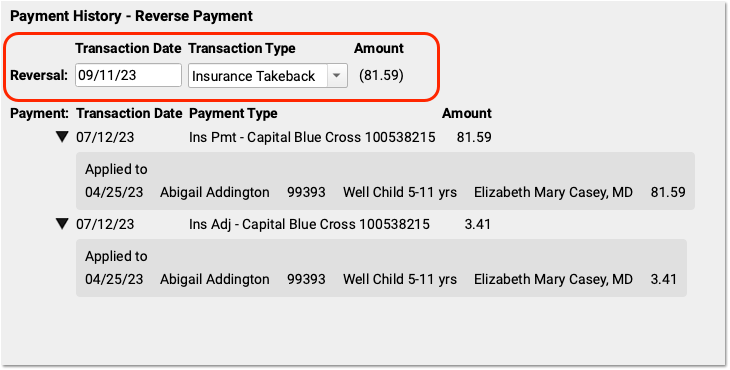
You can use the original payment details on the screen to double-check that you are working with the correct encounter.
Click “Save”
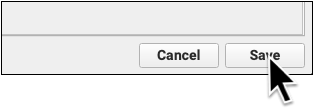
After entering reversal details, click “Save”.
After you make a selection, the payment will be reversed and any adjustment(s) deleted. The encounter charges will pend the original payor.
Optionally Set Responsible Party for the Charges and Choose Whether to Repost
By default, the charges of a reversed payment will return to pending the original payor. You can optionally pend the charges to any patient policy that was active for the date of service, or pend the charges to the family.
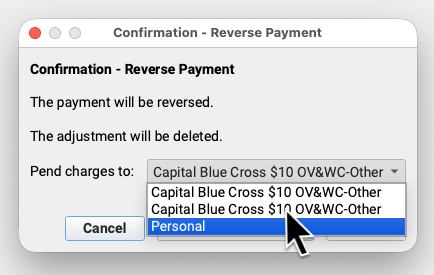
Next, decide whether to immediately repost the payment (and make changes), or just reverse the payment.
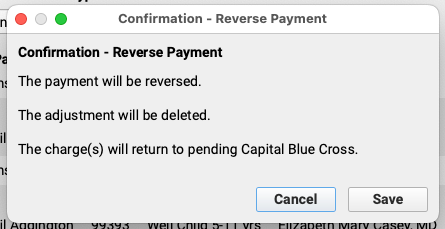
After you make a selection, the payment will be reversed and adjustment(s) deleted.
Post Updated Adjudication, or the Denial, and Add an Account Note
If you chose to immediately post the updated adjudication, PCC EHR will jump to the insurance payment posting screen. Typically, an ERA or EOB that indicates a reversal also includes updated adjudication information for the encounter.
Enter the new transaction date and new check number. Then review how the original payment was applied and make the changes found on the new ERA.
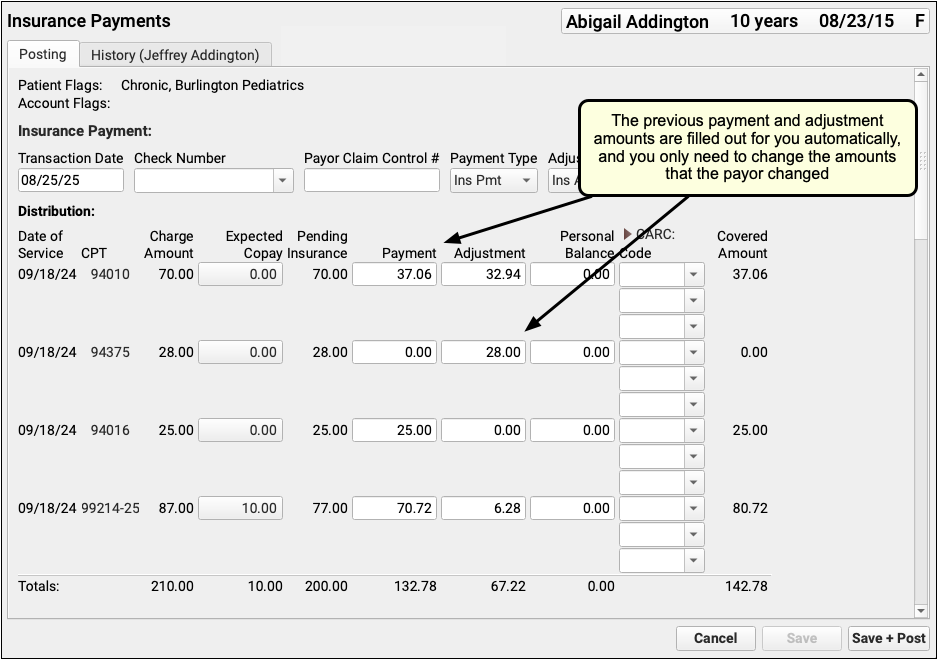
As you post the updated payor response, you can use the components on the screen to update policy information, contact the family, and record additional details about the reversal in Account Notes.

Review the Results
Back on the History tab, you will see that the original payment is struck through, with the date and reversal transaction listed in the Refunds/Reversals column.
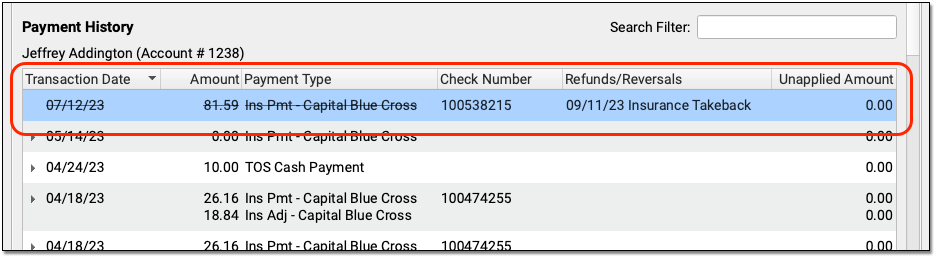
Reversing a Payment Posts an Adjustment: When you reverse a payment, you create an adjustment that links to the original payment. The adjustment behaves like any charge or procedure on your PCC system, and it is associated with the provider of the original charge (or charges) paid off by the payment.
Reversals That Appear With Other Encounters vs Sending a Check: After you post a takeback, you might continue posting other responses on the same ERA. The check’s total is often lowered by the reversed amount, and when you run reports to review posting, you will see the reversal in a “Refunds” column. In some cases, you may be required to mail a check to the insurance company.
Undo (Delete) an Insurance Payment Reversal
If you post a reversal to the wrong account or encounter, you can delete it and the payment will be redirected to the original charges.
First, find reversal in the History tab of the Payments tool. Double-click or click “Edit” to make changes.
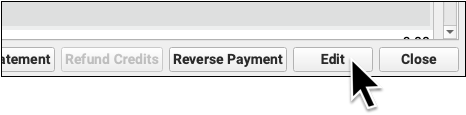
Then click “Delete” to remove it from the account record. PCC EHR will reapply the payment towards the original charges for which it was intended.
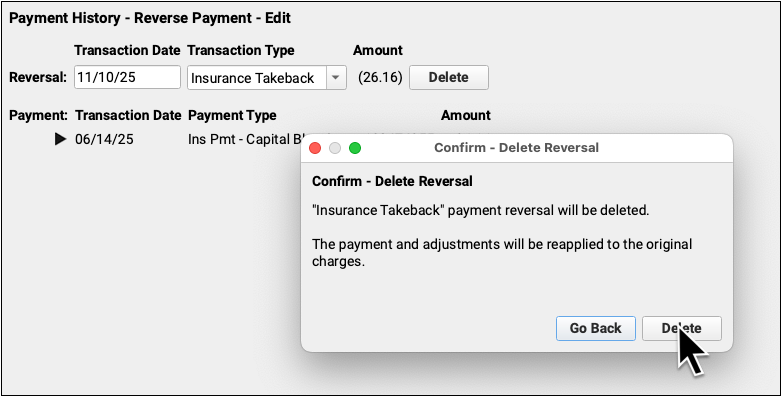
Insurance Reversals Need an Amount Due: If you delete an insurance reversal, what happens to the insurance payment? PCC EHR will reapply the insurance payment towards the original charges for which it was posted.
If the original charges have been paid off or deleted, you will not be able to delete the reversal. First edit the encounter’s payments and make charges due again, and then you will be able to delete the reversal.
Reverse an Insurance Overpayment
You can reverse an insurance overpayment just as you would any payment. To learn more about working with overpayments, see Use Overpayments to Keep Track of Insurance Credits.
Reconcile Insurance Checks That Include Reversals
You can use end-of-day reports to reconcile your insurance check totals, even when they include reversals. This is possible when reversals were autoposted (which automatically collects check numbers) or if your practice manually enters the check number for the reversal. (This is available for all reversals posted after PCC 11.0, the summer 2026 release.)
Autopost Incoming ERAs
When you autopost an ERA that includes a reversal, PCC EHR will associate the check number with the refund used for the reversal.
Optionally Manually Post Reversals
If instead you manually post reversals, you can indicate the check number as you enter the reversal in the Payments tool.
See Your Check Totals in the ERA Tool
In the ERA tool, you can view processed ERAs and see the total amount of each check sent to you by the payor. That total includes payments and refunds (such as reversals or takebacks).
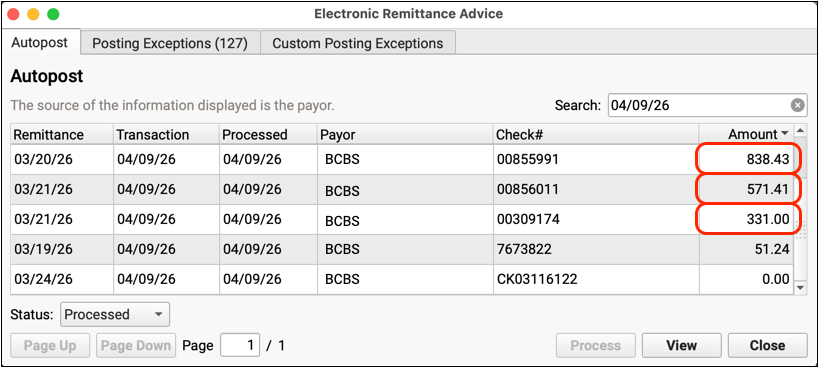
Compare to the Payment Totals by Check Number Report
The Payment Totals by Check Number report provides a list of totals which match the amounts in the ERA tool.
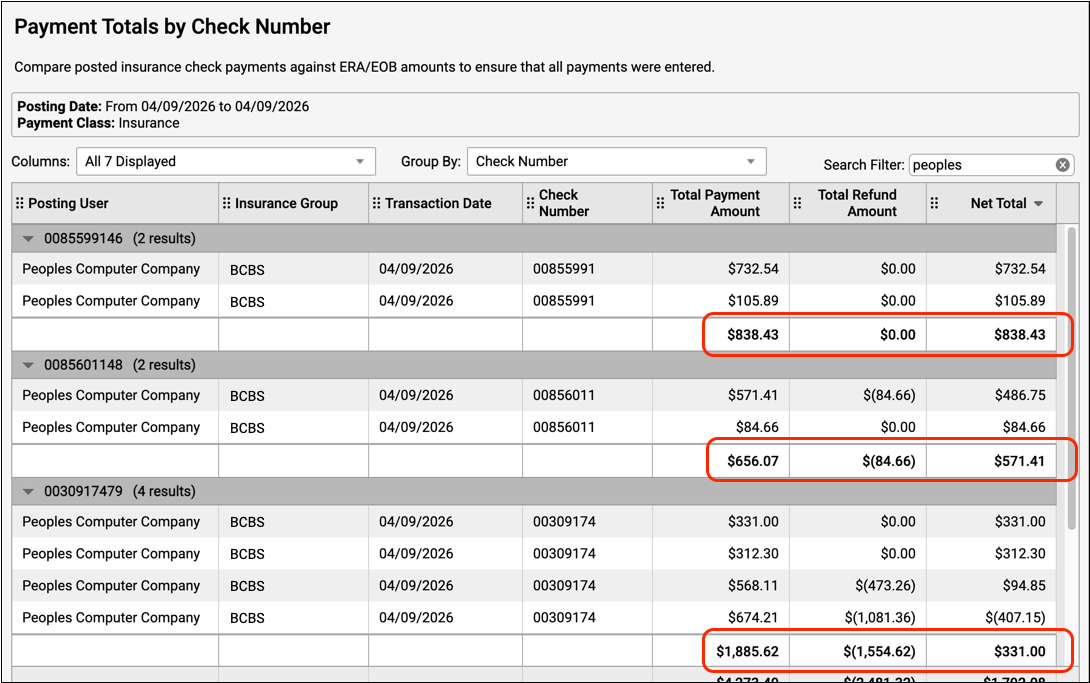
Did everything post properly? By using this report, and grouping by check number, you can ensure that the posted amounts match the checks. Reversals and other unusual adjustments are totaled in the Total Refund Amount column.
Dig Deeper With the Payment Details by Check Number Report
When you need to dig deeper and track down a discrepancy, the Payment Details by Check Number report includes everything posted and displays reversals in a Refund Amount column.
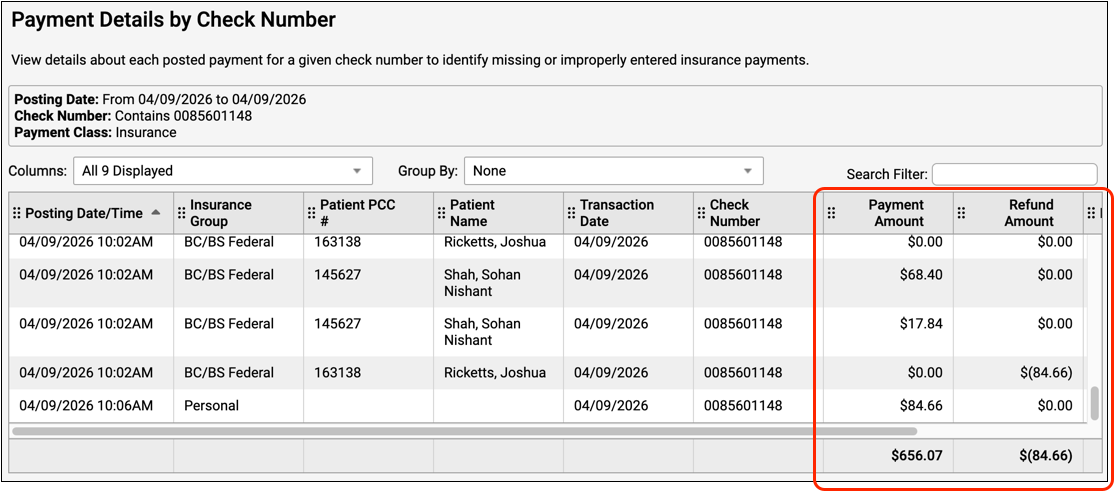
You can review each individual post and better understand how a reversal or other refund impacted the total amount on the check.
Examine Reversals Over Time
You can review aggregate data of all refunds over a period of time with the Total Charges and Payments by Provider and Month report.
Configure Reversal Posting and Transaction Types for an Insurance Payment Reversal
When you autopost an ERA that includes a reversal, your PCC system posts an adjustment and links the original payment.
In Practice Preferences, you can set whether or not PCC should autopost reversals. You can also set what the default adjustment type will be for those reversals.

When you manually post a reversal, you can select a Transaction Type to record the event.
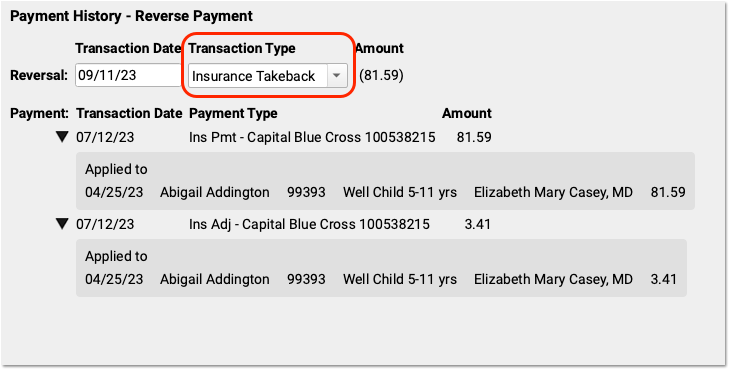
By default, PCC systems include an “Insurance Takeback” or “Insurance Reversal” transaction type. If you need to edit or update your available transaction types, use the Procedures table in the Tables tool. All procedures with an accounting type of “Receipt – Refund” are available in the Transaction Type drop-down menu when you post an insurance reversal.
For help making changes, contact PCC Support at 802-846-8177 or 800-722-7708 or support@pcc.com.