
Prevent Certain Claim Responses from Autoposting
You can autopost most incoming payments and adjustments on your ERAs. But what if you have a special situation with a payor? Or a particular adjustment reason that deserves extra scrutiny?
You can create a custom rule that prevents autoposting, based on payor and CARC. Then you can autopost all ERAs and work on your exceptions manually on the Posting Exceptions worklist.
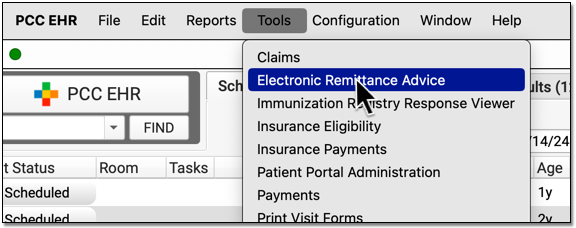
Open Electronic Remittance Advice
Open the Electronic Remittance Advice tool from the Tools menu.
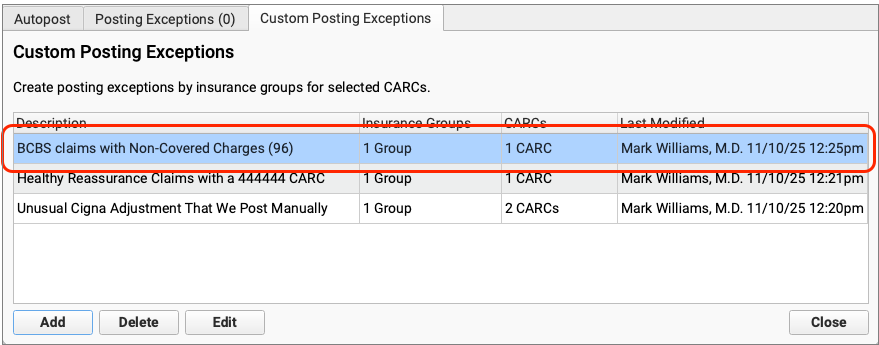
Click “Custom Posting Exceptions”
Visit the Custom Posting Exceptions tab.
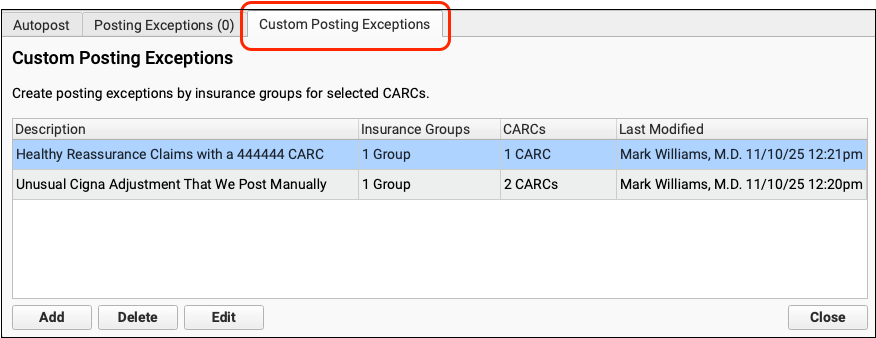
The Custom Posting Exceptions tab displays all of your practice’s custom posting exceptions. Whenever you autopost ERAs, PCC EHR checks each of these rules for each encounter before it posts the adjudication.
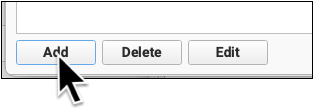
Click “Add” To Create a New Exception
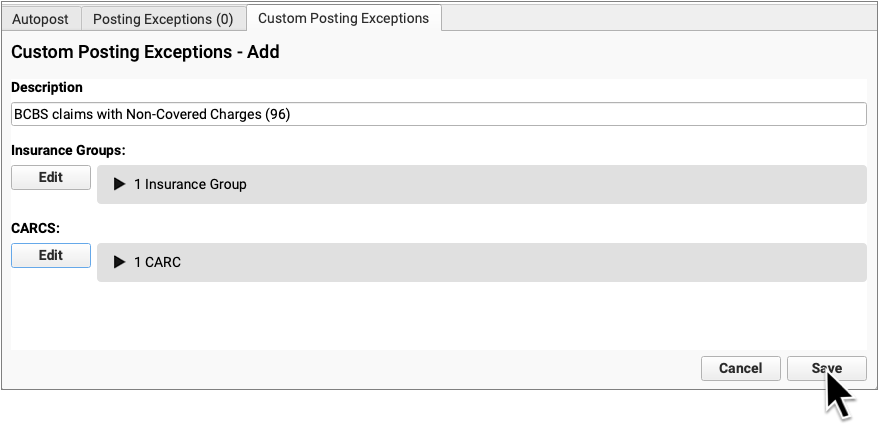
Name Your New Posting Exception
Enter a description for your exception rule.
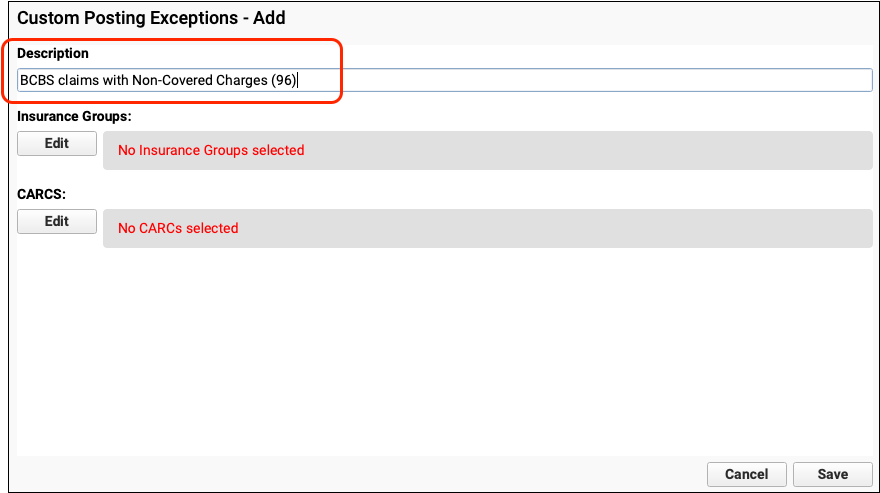
Use a name that will help your practice quickly understand which ERA responses will be held back for manual posting.
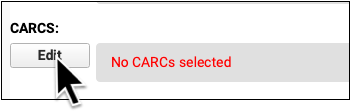
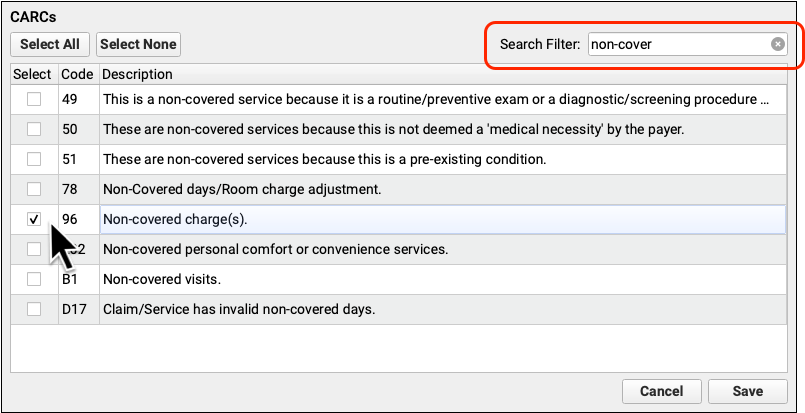
Select Payors and CARCs
Select the payors and CARCs that will cause an ERA response to be held for manual attention.
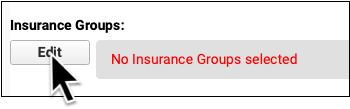
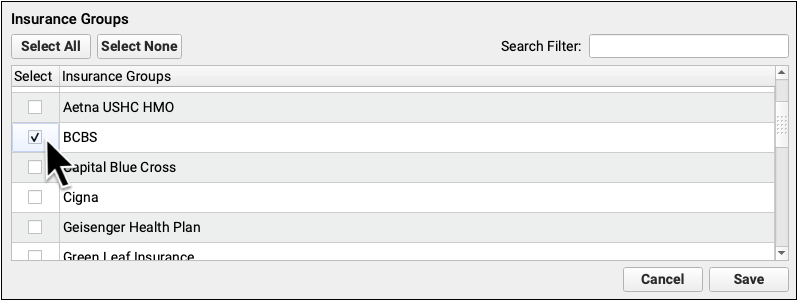
You can use the search filter to quickly jump to the CARC you need.
Save Your New Rule
Click “Save” to save your new rule and review it on your list of Custom Posting Exceptions.
When you autopost ERAs, PCC EHR will hold back any claim responses that match the criteria in your custom posting exceptions. On the Posting Exceptions worklist, you can sort and filter the responses that need manual attention, double-click to open one up, read the details, and post manually.
To learn more about handling those responses, read Handle Claim Responses That Were Not Autoposted.