
Report on VFC Eligibility Status in the Report Library
What percentage of your patient population is eligible for Vaccines for Children (VFC)? Find the overall VFC eligibility status of your patient population for annual registry reporting using the VFC Patient Population report in the Report Library.
Contents
Eligibility-Based Reporting: This report is not based on vaccine billing. The VFC Patient Population report is based on the patient’s VFC eligibility status at the time of the patient’s most recent visit during which they received immunizations.
VFC Tracking Best Practices
If you administer VFC immunizations, your practice should check VFC eligibility at every visit and then order, prepare, and administer patient VFC immunizations based on the patient’s VFC eligibility status.
- Check VFC Eligibility for every patient at every visit. Eligibility status review can happen at check in, during intake, or right before ordering immunizations. To learn more about how to set VFC eligibility, read Check VFC Status and Collecting the Right Data. Patients eligibility may fluctuate throughout the year, and the Eligibility Status field populates with the last answer selected, so it is important to check the patient’s status at every visit.
- Order VFC immunizations when applicable. If the patient is eligible for VFC vaccines, select VFC vaccines when ordering immunizations. For a run down of how to order a vaccine, read Order Immunizations and Optionally Assign Tasks.
- Prepare and scan, or enter, VFC immunizations when administering the vaccine. Keep your inventory accurate by making sure to prep and scan the vaccine that matches the VFC order and eligibility status. Read Vaccine Inventory Management to learn more about managing your vaccine inventory.
- Communicate directly with your state’s immunization registry as needed. Different registries may implement immunization data submission guidelines in different ways. Many states split out specific populations, such as Native American or Alaskan Native, for eligibility reporting. If you need to add a population, PCC can help you set the drop-down options for your immunizations. Contact PCC Support at support@pcc.com or (800-722-7708). For information on immunization registry submission, read Submit Immunization Records to Your Registry.
- Review your vaccine inventory regularly. For lot, dose, or patient-based or patient-based report, you can use the Vaccine Lot Report or the Patient Immunization Administration Summary Report. For more information on how to manage your vaccine inventory, read Use Reports and Worksheets to Manage Inventory.
Run the VFC Patient Population Report
The VFC Patient Population report looks at the VFC Eligibility Status field setting in the patient’s chart for the most recent visit, within the selected date range, during which the patient received an immunization.
Open Report Library
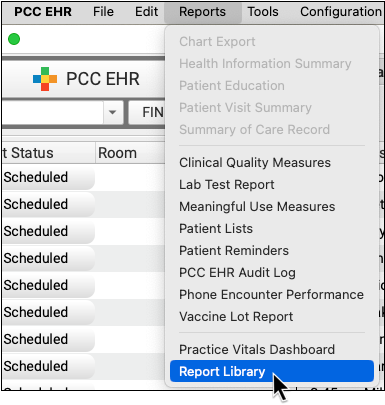
Open the Report Library from the Reports menu in PCC EHR.
Open the VFC Patient Population Report
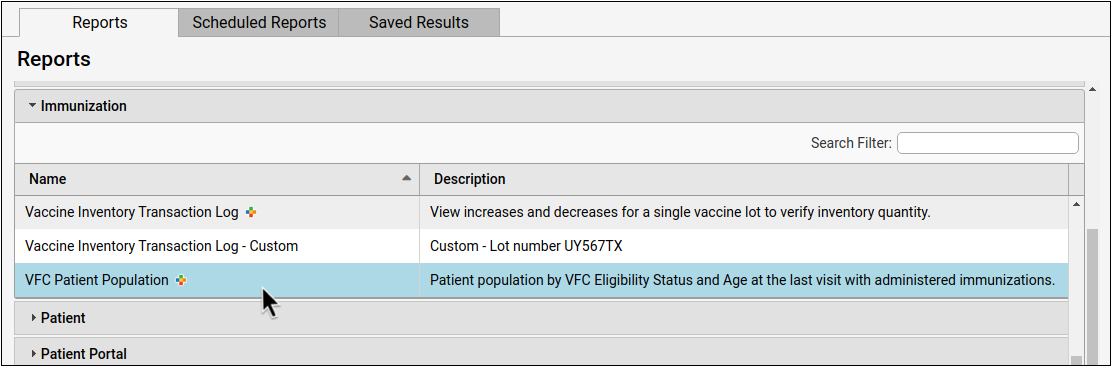
Double-click the VFC Patient Population report to open it.
Set Your Date Range
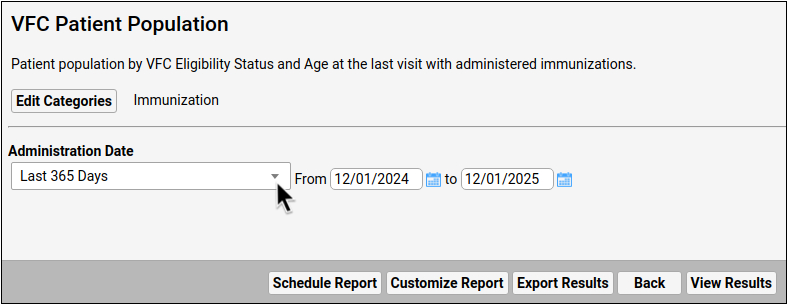
Choose the date range that you would like to report on. When you are ready to see the report results, click “View Results”.
View Report Results
Click “View Results” to see the report results output.

Review and Adjust the Report Results
The report results display the total eligibility of your patient population over time and location. This report counts each patient only once. The following is a breakdown of the criteria measured in this report.
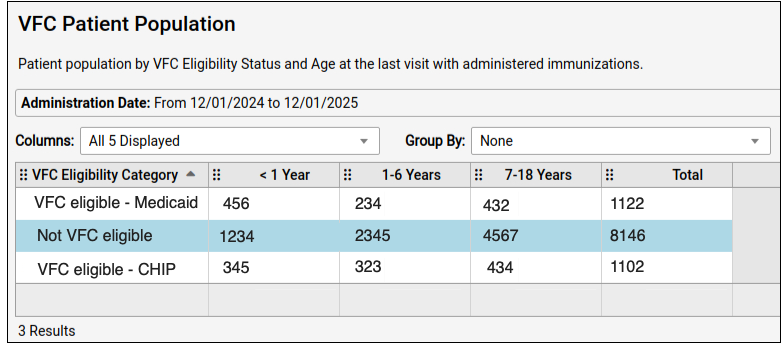
- Age Range: The patient’s age at the most recent visit with administered immunizations is the age that is counted in this report. Age ranges are inclusive of the ages named in the range. For example, an age range of 1-6 years will include a patient’s 1st birthday and will also include the day before a patient’s 7th birthday (the entire 6th year).
- Eligibility Status: The patient eligibility status is the status selected at the most recent visit with administered immunizations, within the selected date range.
- Location: The location in this report is the location at which the most recent visit with administered immunizations occurred, within the selected date range.
- Historical Immunizations: Immunizations that were added manually in the Immunizations History component are not included in this report.
You can sort and group this report just like any other Report Library report. To learn more about how to work with report results in the Report Library, read Adjust Report Output.
Optionally Export or Print.
Click the “Export” button to export a PDF or CSV to your workstation. Click “Print” to print a paper copy of your report results.

Customize by Location and Additional Age Ranges
If you need a reporting breakdown based on location, choose Location during report customization, then sort the report results by Location.
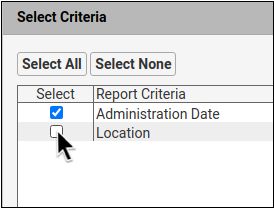
If your state requires a different age range breakdown, choose from the alternative age ranges during customization.
For more details on how to customize a report, read Create a Custom Report.
Assign an Eligibility Status to Unassigned Patients
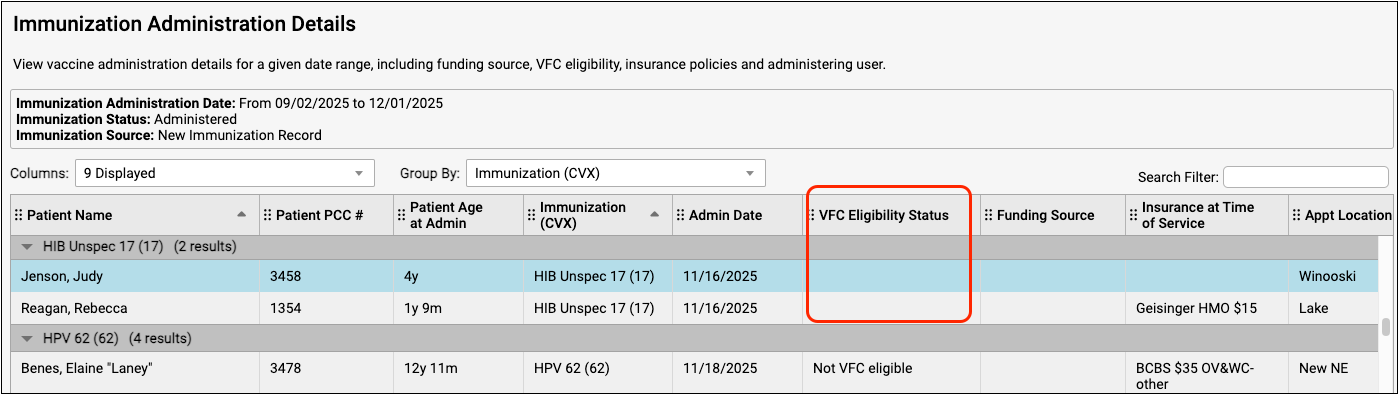
A blank row at the top of your VFC Patient Population report indicates that there are a number of patients whose VFC eligibility is not assigned. Follow the steps below to clear up all items in this row by assigning an eligibility status to these patients.
Discover Which Patients Are Unassigned
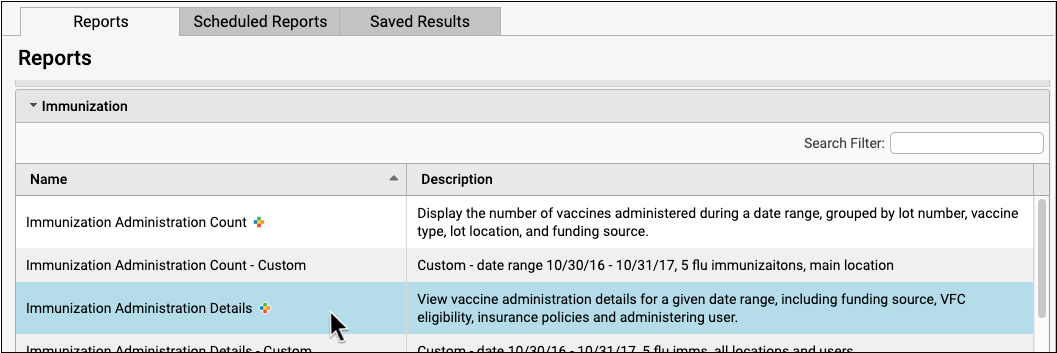
Run the Immunizations Administration Details report for the same date range, then group by “VFC Eligibility Status” to see a list of patients who are not assigned a status.
Determine Eligibility for Each Patient
Open each patient’s chart and review their demographics and policy information. If necessary, contact the patient to confirm their eligibility status.

Update the Patient’s Status
Update the patient’s eligibility status in the Immunization History section of the chart, or in the Immunizations component within the most recent visit where Immunizations were administered.
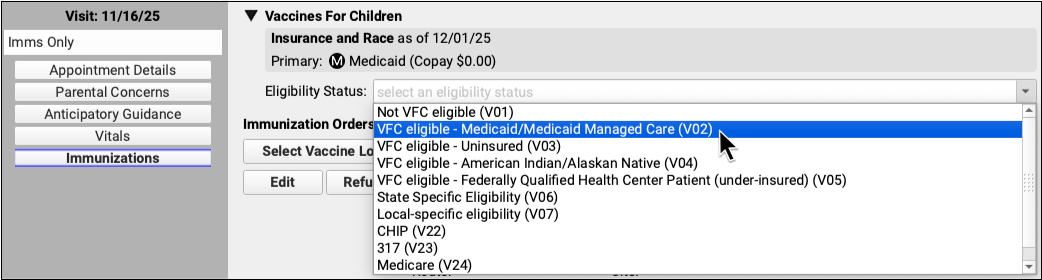
- If the immunization was already sent to the registry, an update message will be created and queued for their registry including the new VFC status.
- If the immunization has not been sent yet, the VFC status will be added to the initial registry message.
Save Your Changes
Make sure to save any changes that you made to the patient’s chart and immunization orders.

Rerun the VFC Patient Population Report
Once you have updated the eligibility status of all unassigned patients, rerun the VFC Patient Population report for a more accurate count of your patient’s eligibility.