Cancel Appointments From the Patient Portal
Reduce no-shows, save your front desk work, and make managing appointments easier for everyone. Your patients and families can now cancel appointments from the patient portal.
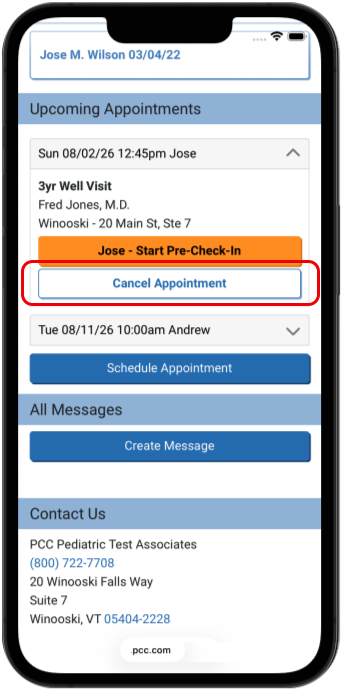
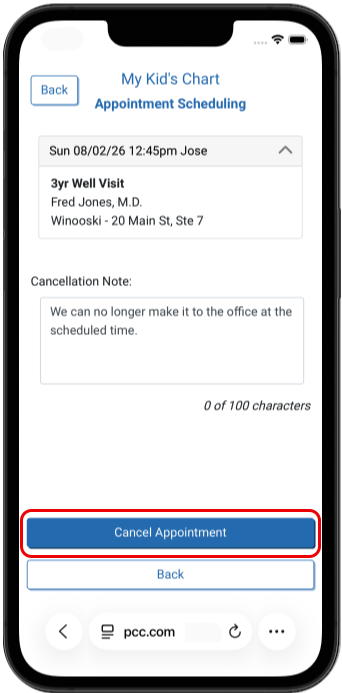
When enabled, a “Cancel Appointment” button is available beneath each upcoming appointment. A portal user can click the button to cancel an appointment, and add an optional cancellation note.
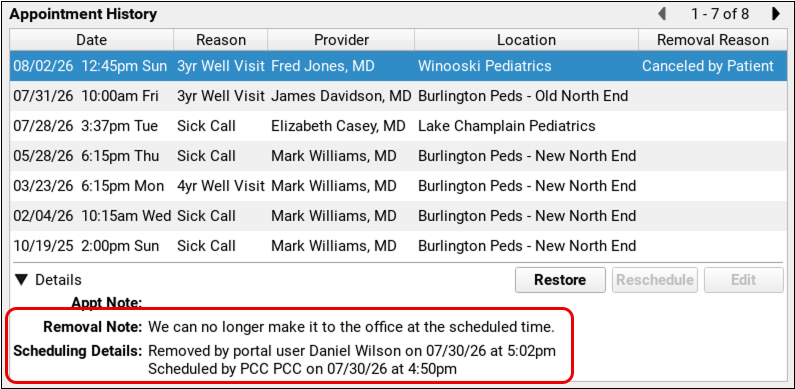
In the patient’s Appointment History, canceled appointments are labeled “cancelled by portal user” along with the name of the portal user.
Enable Canceling Appointments in the Patient Portal
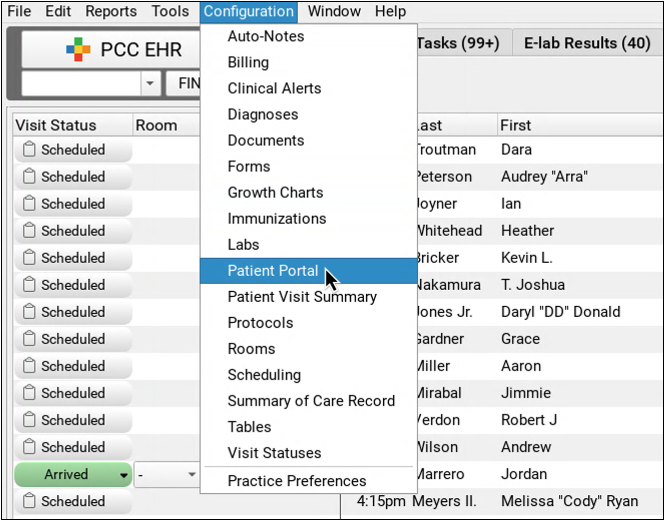
Canceling appointments from the patient portal can be enabled in the Patient Portal Configuration tool in PCC EHR’s Configuration menu.
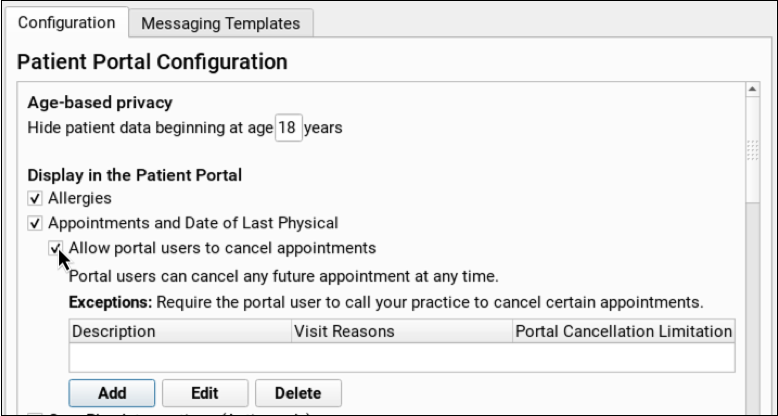
Check “Allow portal users to cancel appointments” in Patient Portal Configuration. When checked, portal users will have the option to cancel any upcoming appointment at any time.
You can prevent visit reasons from being canceled, or limit how close to the scheduled time an appointment can be cancelled, by creating an exception in Patient Portal Configuration.
Create Exceptions
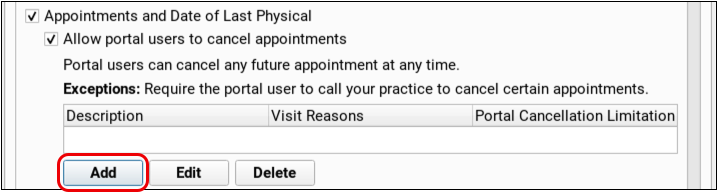
Click “Add” to create a new exception.
Select Exception Visit Reasons
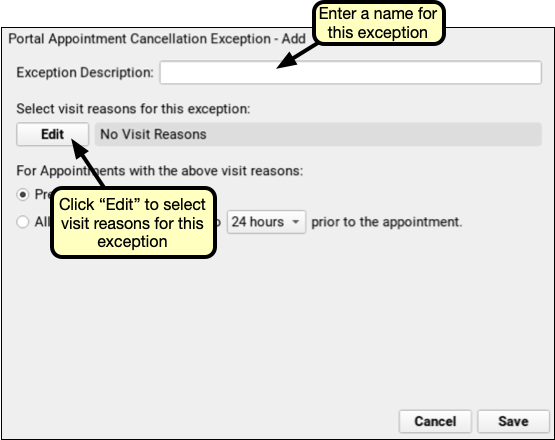
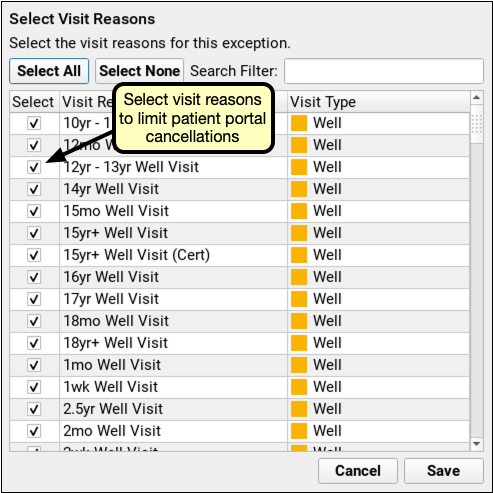
Enter a name for this new exception, and click “Edit” below. Select one or more visit reasons, and click save.
Prevent or Allow Limited Cancellations
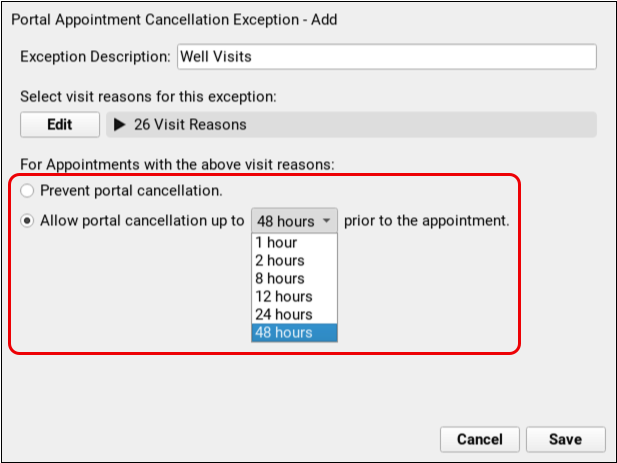
Choose whether to prevent all cancellations for these visit reasons, or to allow limited cancellations.
- Select “Prevent portal cancellation” to disallow patient portal users from canceling the selected visit reasons.
- Select “Allow portal cancellations up to…” to limit how close to the appointment time portal users may cancel. Select the time limit in the drop-down menu.
Save and Review
Click “Save” to create the exception.
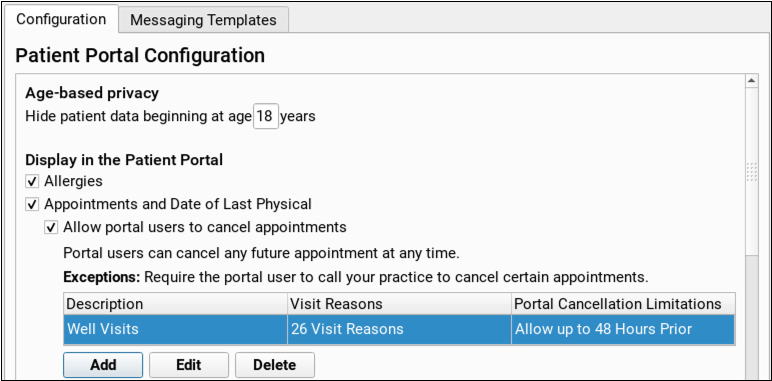
The exceptions table will show the name, number of visit reasons, and selected limitations for each exception. You can edit or delete an exception by selecting a row in the table and clicking the corresponding button.
Find Appointments Canceled by Portal Users
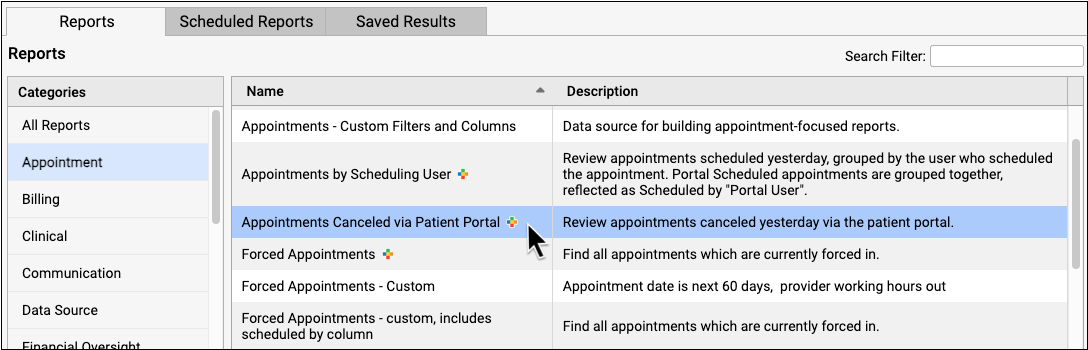
To review and follow up on appointments that were canceled by portal users, use the Appointments Canceled via Patient Portal report in the Report Library. For more complex portal cancellation reporting needs, you can customize any Appointment report and add both the Appointment Cancellation Method and the Appointment Removal Date fields.
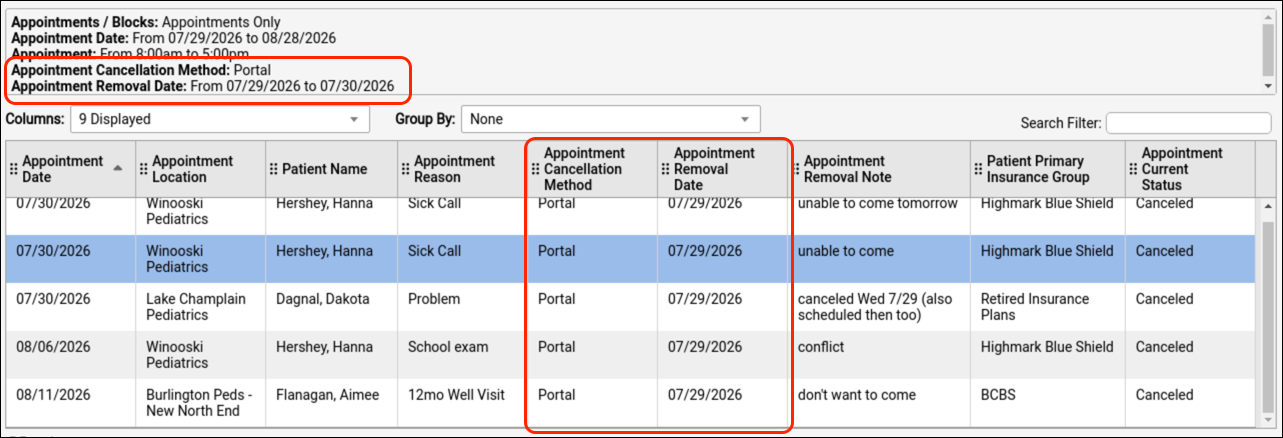
Follow the procedure below to learn how.
Open an Appointment Report
In the Report Library, open the Appointments Canceled via Patient Portal report.
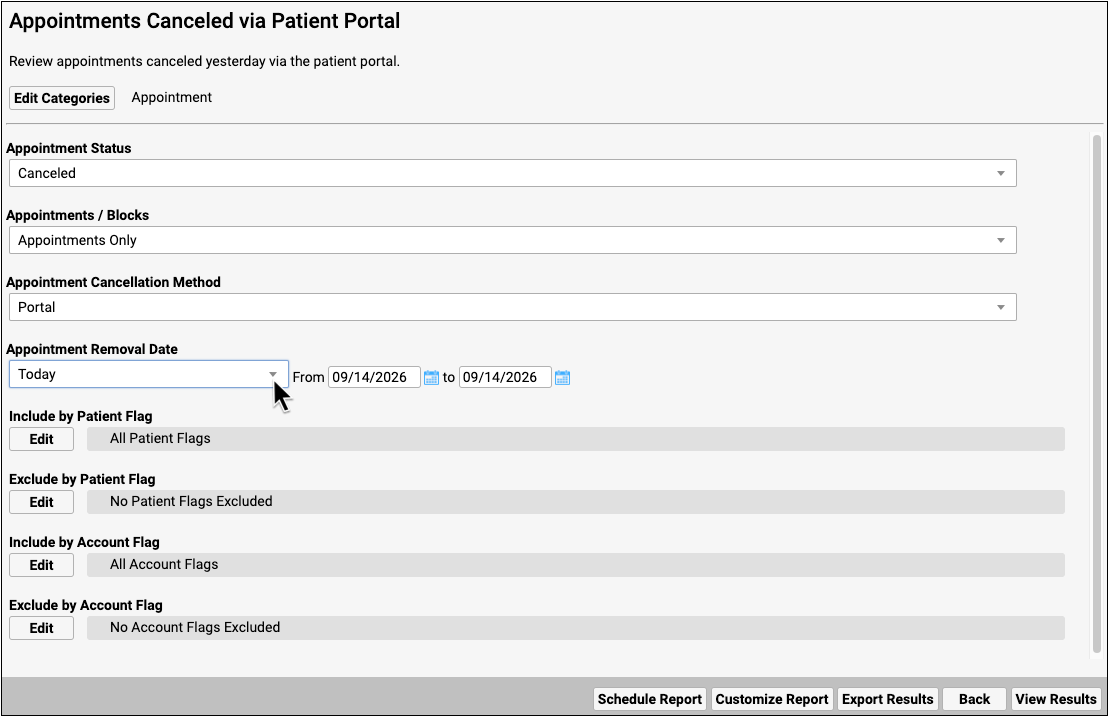
Select Criteria
Set criteria selections that you want to see in your report output.
View the Report Results
Click “View Results” to see your report output.

Filter the report output to include appointment details as needed.
Open a Patient Chart and Follow Up
Optionally, select a row and click “Open Chart” to open the patient’s chart and find out more about the patient’s appointment history before following up.
