
PCC Futures
Billing
Work On Claims that Couldn’t Be Submitted
As you work on the list of claims that need corrections, you can review more details and jump to different tools to correct issues.
Check Insurance Eligibility Without an Appointment
Before you schedule an appointment, you can check the insurance eligibility for a patient using today’s date.
Configure Your Practice’s Claim Delay
Control how many days all of your practice’s claims will pause before they can be submitted.
Print Outstanding Personal Balances During Checkin in PCC EHR
Provide a quick summary of all outstanding personal balances to families.
Instantly Review a Patient’s Active Policies
While working in a patient’s chart, see a list of their active insurance policies with a single click.
Enter a Custom Transaction Date When Autoposting ERAs
When you autopost ERAs in PCC EHR, you can optionally enter your practice’s transaction date, overriding the payor’s remittance date.
Automatically Change Expected Copay to $0 When a Patient Has Medicaid
When you autopost ERAs in PCC EHR, and a patient has an active medicaid policy for the date of service, the expected copay will be reduced to $0.
Review Posted ERAs for Special Cases
While reviewing a posted ERA, you can drill down to those special circumstances that may require your review and attention.
See a More Detailed Claim History in PCC EHR
Use the Billing History in the patient’s chart to see when claims for an encounter were held, delayed, processed, received by the payer, and more.
Read Claim Acknowledgements and Other Responses in PCC EHR
While viewing the claim history for an encounter in a patient’s chart, click to open the full response from the payor.
Generate Personal Bills in PCC EHR
Generate statements for families in PCC EHR and send them electronically to your printing service or print them.
Reconcile or Prove Out Insurance Payments in the Report Library
Review insurance checks by detail and total within the Report Library.
Hand the Parent an Up-To-Date Paper Bill
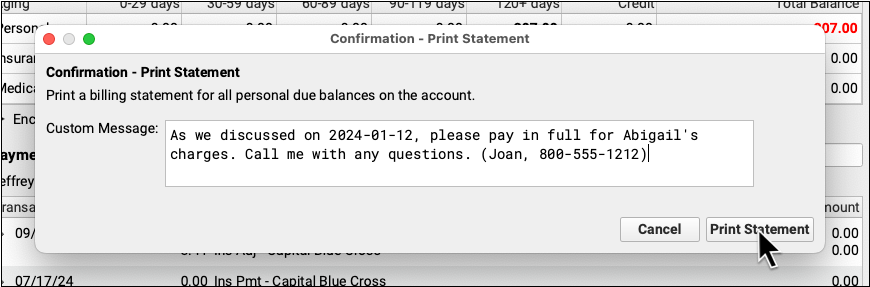
While working on an account in PCC EHR, generate a single up-to-date bill for them at any time.
Edit Your Practice’s Configuration Tables
Edit the underlying configuration tables used by your PCC system in an improved interface with new export and history features.
Update Your Prices and Codes
Update your practice’s list of procedures along with their codes, prices, and other details, in PCC EHR.
Edit Encounter Charges and Resubmit
For any encounter, edit the provider, location, diagnoses, procedures, diagnosis linking, responsible party, and other claim information. Then optionally generate a new claim.
Keep Your Billing Notes Right on the Encounter
As you bill and work on problem claims, keep encounter-specific notes in the billing history for an encounter.
Hand the Parent an Up-To-Date Paper Bill
While working on an account in PCC EHR, generate a single up-to-date bill for them at any time.
Automatically Grab the PCCN So Your Resubmissions Will Get Paid
When autoposting or posting manually, PCC EHR can store the Payor Claim Control Number from ERAs and EOBs, making it easier to resubmit claims.
Get Credits Off Your Books
Use a quick and easy interface to either refund or write off account credits.
Prevent Billing Problems with a Required Policy Start Date
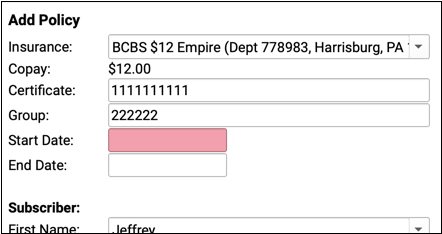
Patient policy records in PCC EHR now require a start date, which will lead to fewer billing problems and less time wasted by your practice.
Work Personal Balances in PCC EHR
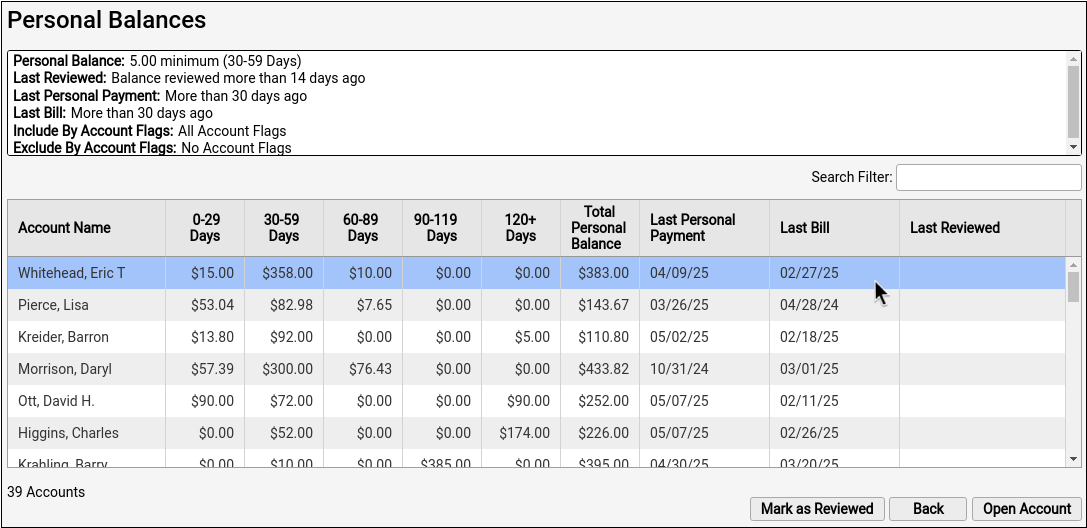
How do you know which families owe you money, and who you need to call? Use the Personal Balances tool to work down a list of accounts, contact them, and collect.
Handle Claim Responses that Can’t Be Autoposted
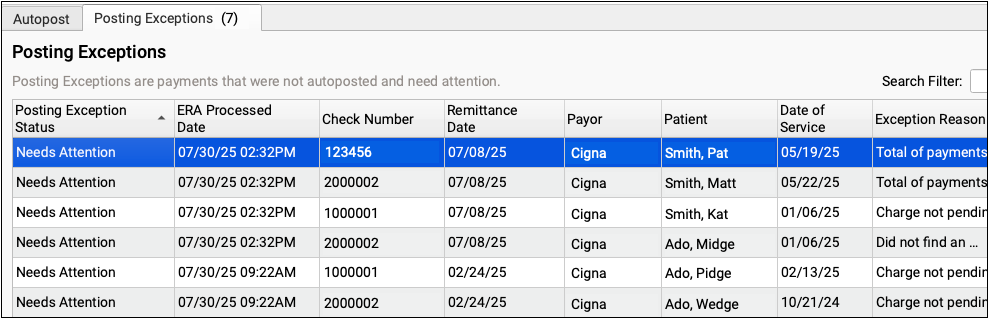
When something unusual arrives on an ERA, sometimes PCC can’t automatically post the adjudication. Use the new Posting Exceptions worklist to review and resolve payor responses that can’t be autoposted.
Respond to Every Claim Rejection
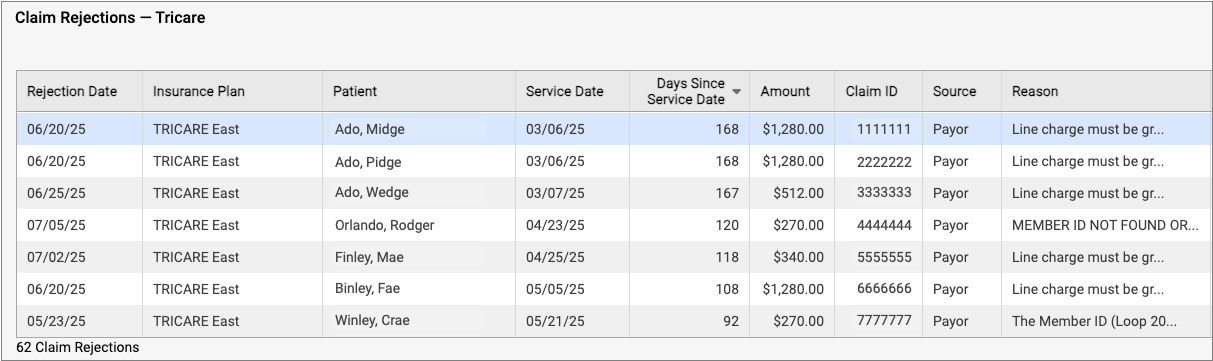
If unaddressed, rejected claims result in lost revenue. Use the new Rejected Claims worklist to review and respond to every claim rejection sent to your practice.
Generate 30-Day Letters in PCC EHR
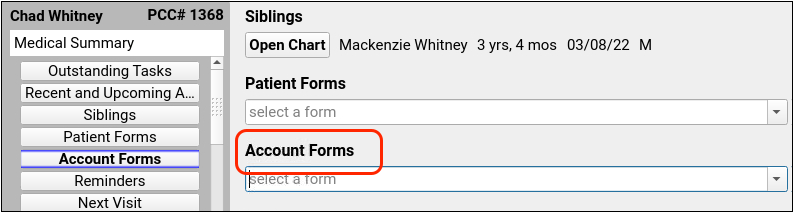
Want to generate a 30-day letter right from a chart? Practices using the Forms Configuration tool can generate account forms with specialized account variables such as account balance and missed appointments.
Update Billing Identifiers to Prevent Claim Rejections

To get paid, every claim needs a tax ID, an NPI, and a taxonomy code. Quickly update these vital identifiers for your clinicians in the PCC EHR Tables tool.
Use a Family’s Account History to Resolve Billing Issues
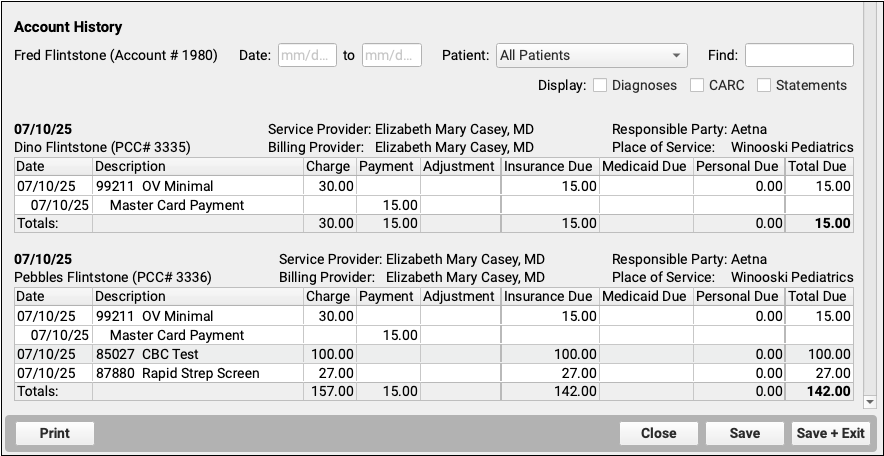
When you need to troubleshoot a billing issue for an account, or a family asks for an annual account record, use the new Account History in the patient’s chart.
Follow Up on Unpaid Encounters with Insurance Balances
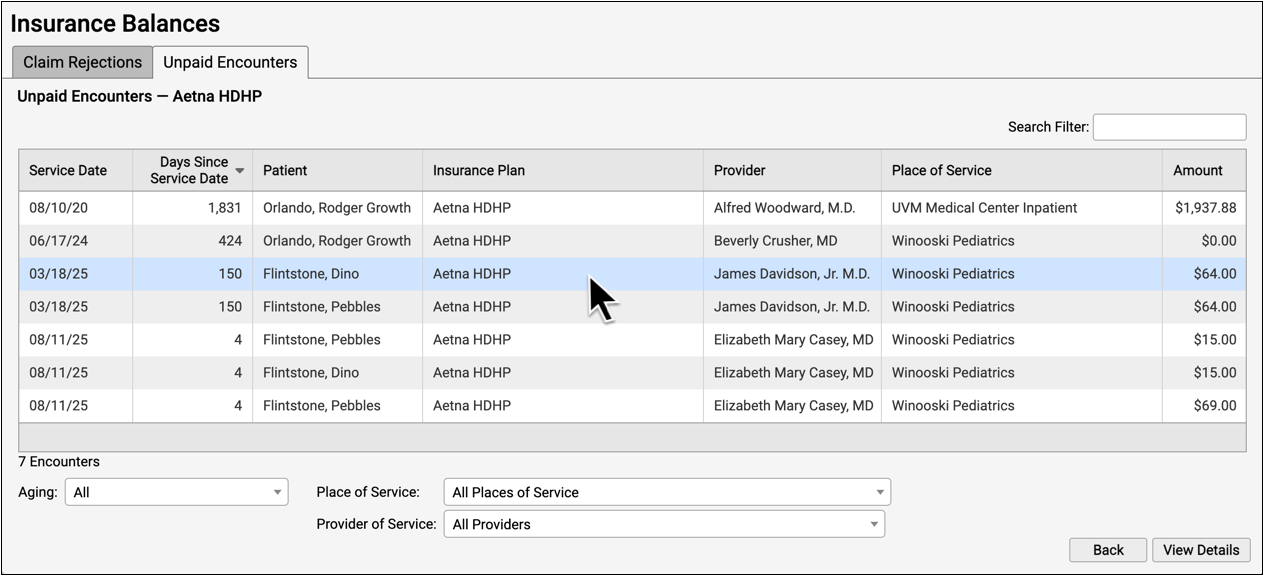
How can you track your practice’s insurance A/R and keep tabs on unpaid claims? Use the new Unpaid Encounters worklist.
Reverse and Repost: Takeback Only Part of an Insurance Payment
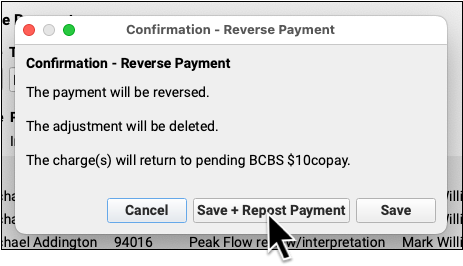
When a payor’s reversal changes only part of a posted payment, you can now more easily reverse the original payment and repost. You can just enter the changes; you don’t need to re-enter the entire payment.
Customize Your Flags for Alerts, Scheduling, and Reporting in PCC EHR
Need to track accounts with billing problems? Prevent scheduling of certain patients? Customize your practice’s account and patient flags in the Flags table in PCC EHR.
Create Account Forms
Build your own account forms, such as billing communications and letters to families, with the PCC EHR Forms tool.
Find All Claims That Are Out on Appeal
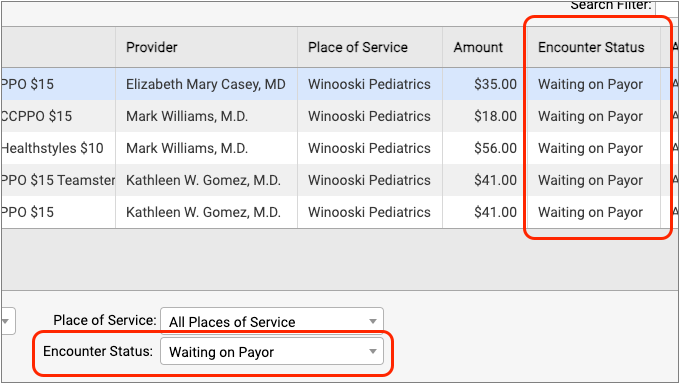
As you work on your practice’s insurance A/R, you can mark encounters with a status, such as “Waiting on Payor” or “Under Review”. Then you can track, organize, and filter your A/R by that status.
Find the Unpaid Encounters Assigned to You
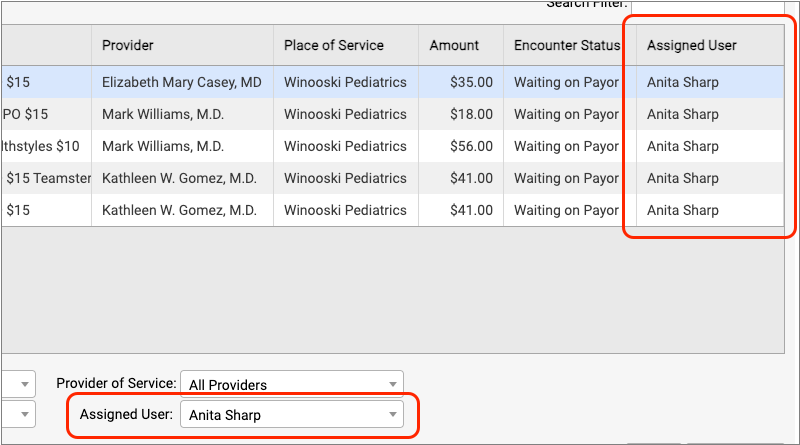
Do you need to make sure you followup on an encounter? You can assign it to yourself or another biller at your practice.
Your Billing Notes, Where and When You Need Them
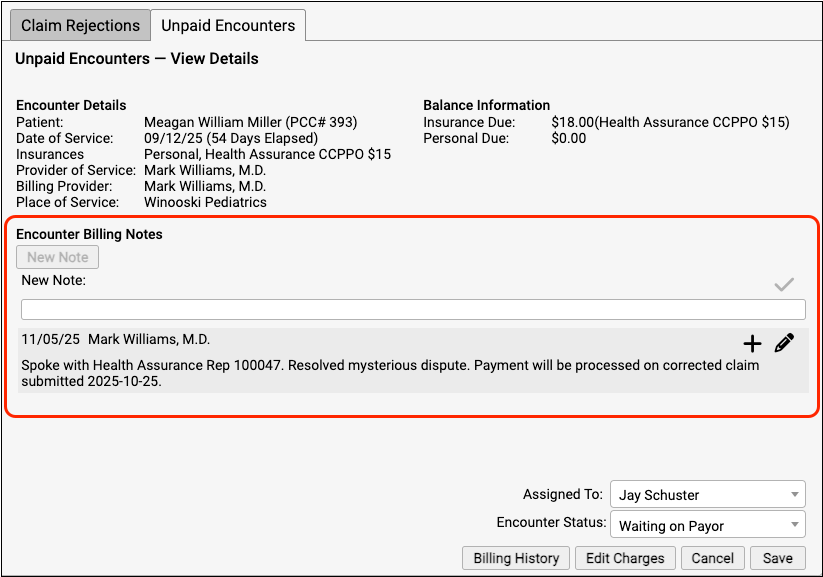
As you work on a rejection message or any unpaid encounter, you can update the encounter’s billing notes without leaving your worklist.
Don’t Send Ear Piercings on Corrected Claims
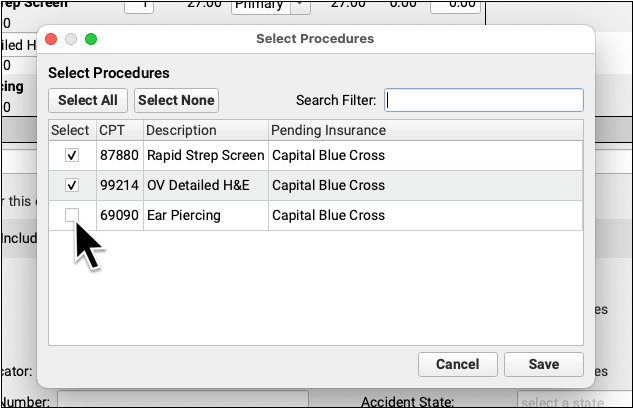
As needed, send only part of an encounter to a specific payor. Pick exactly which procedures from an encounter should appear on the claim.
Quickly Pend All Charges Back to the Payor
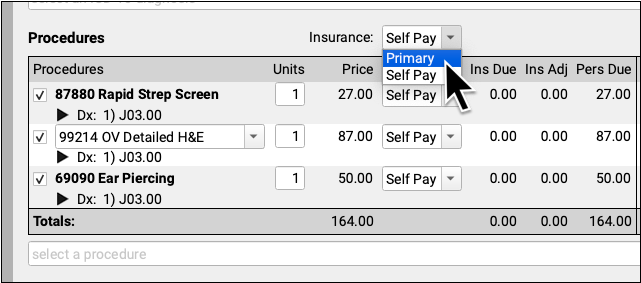
Do you need to pend an encounter back to the family’s primary, or switch all the charges to personal? Now you can adjust the responsible party for all procedures with two clicks.
Check the Current Status on a Claim in PCC EHR
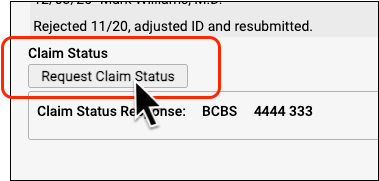
Instead of opening the payor’s website or calling them, see their latest claim status right in PCC EHR. This feature was pilot tested in PCC 10.5, for claims sent after the PCC update, and is now available to all practices.
Prevent Certain Claim Responses from Autoposting
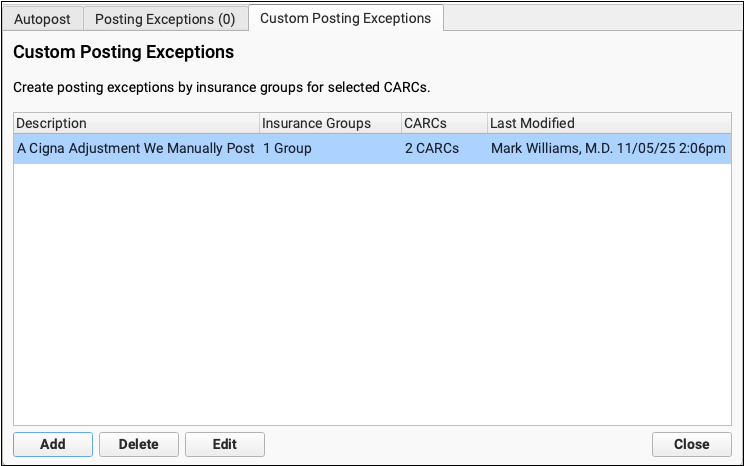
Got a special situation with a payor? Create your own custom rule that will prevent autoposting (based on payor and adjustment type) so you can process them on a manual worklist instead.
Easily Delete Refunds, Write-Offs, and Takebacks Posted By Mistake
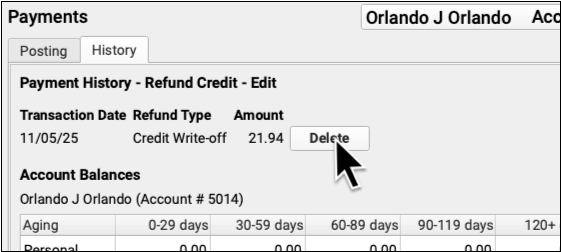
Oops! You posted an insurance takeback to the wrong account. PCC 10.5 makes it easy to quickly delete refunds, write-offs, and reversals.
Quickly Print a Paper HCFA Claim Form
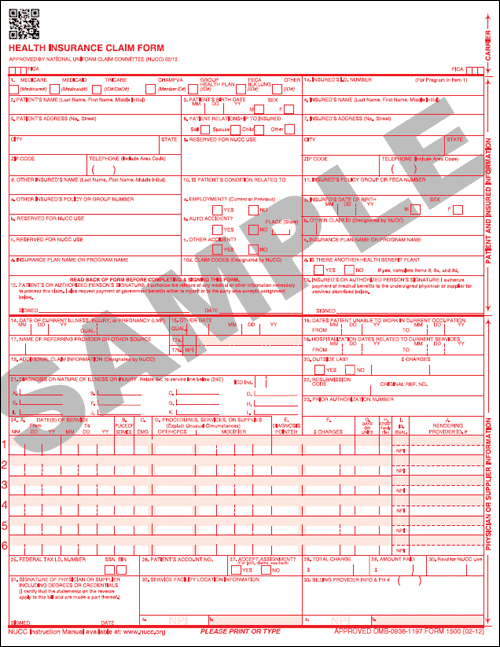
Sometimes, you still need a HCFA! In those rare cases when you need a paper claim, print one with the click of a button.
Print Batches of Paper Claims
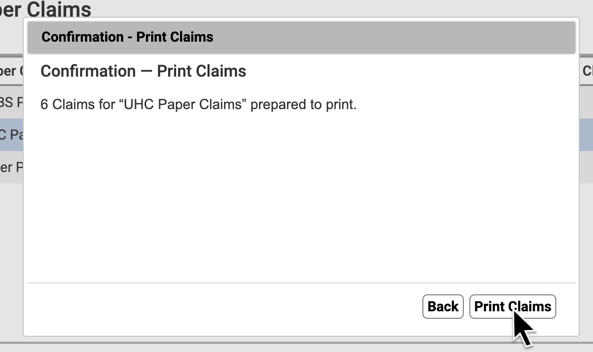
When a large number of claims need to “drop to paper”, quickly select that batch of claims, process them, and send them to your printer.
Prioritize Your A/R with Custom Statuses
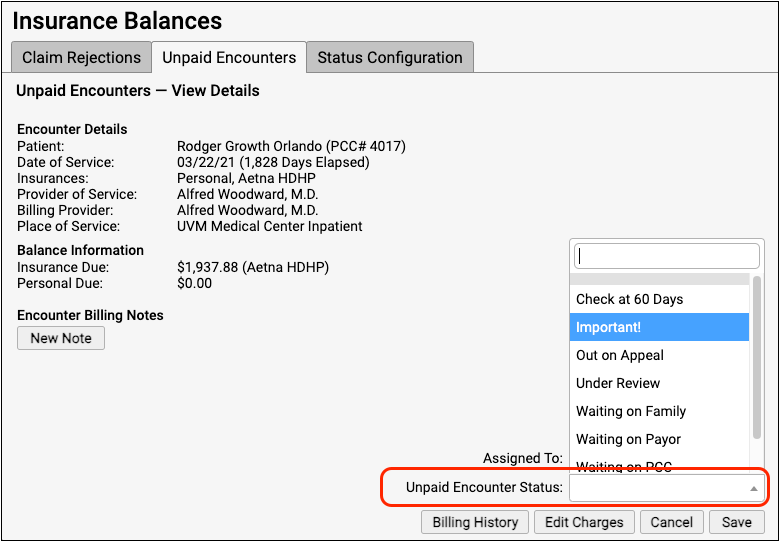
Do you want to track all claims that are out on appeal? Or create a worklist of unpaid encounters that you need to check on weekly? Your practice can organize and prioritize your unpaid encounters with custom statuses.
Automatically Charge Billing Fees for Overdue Accounts
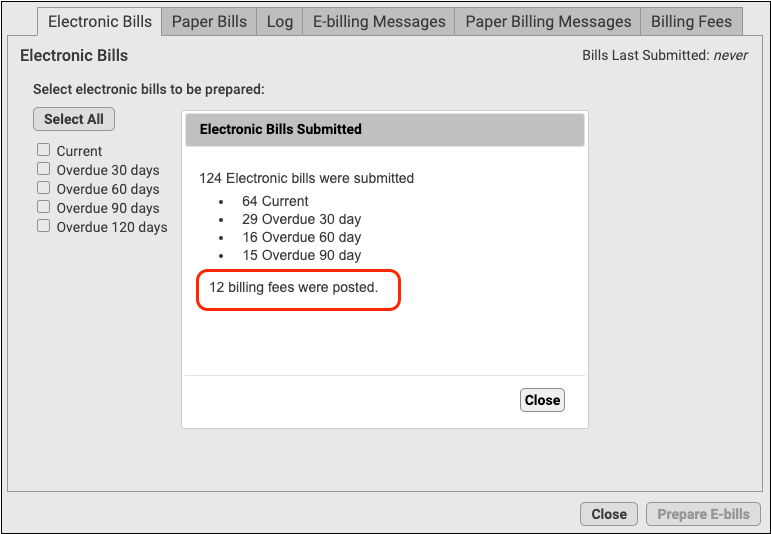
When you generate personal bills, automatically charge your practice’s billing fee for overdue balances.
Credit Card on File: Faster, Easier Account Payments
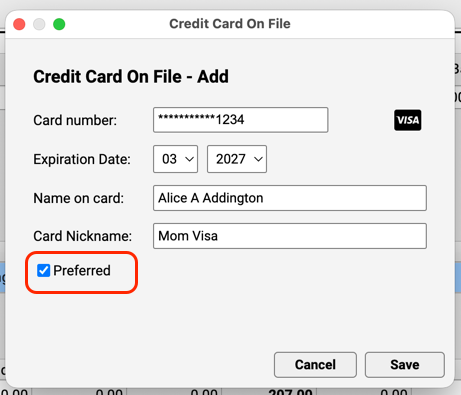
Paper bills are over! Instead of sending a bill, get paid immediately for personal balances due. Your PCC system can integrate with a third-party vendor to securely store credit card information.
Print Bills for Any Group of Accounts
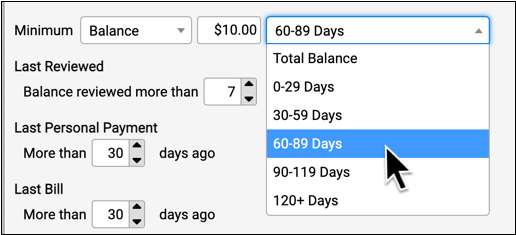
Need to generate bills for all families with a specific status? Want to customize your billing run for overdue accounts? Use the Personal Balances tool to create bills for any group of accounts, based on your criteria.
Report on Insurance at Date of Service for Ready-to-Post Encounters
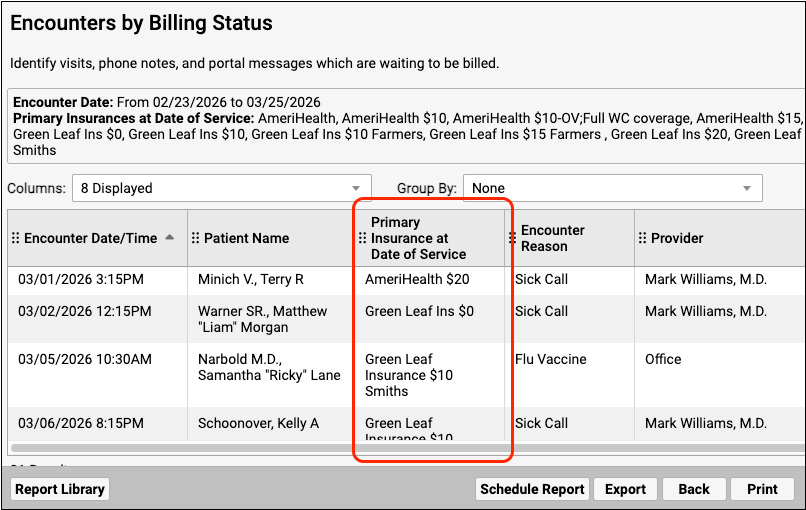
Catch up on posting with a report of ready-to-post encounters organized by primary insurance plan so that you can pick which encounters to prioritize.
Quickly Find Patients’ Primary Insurance on the Schedule Screen
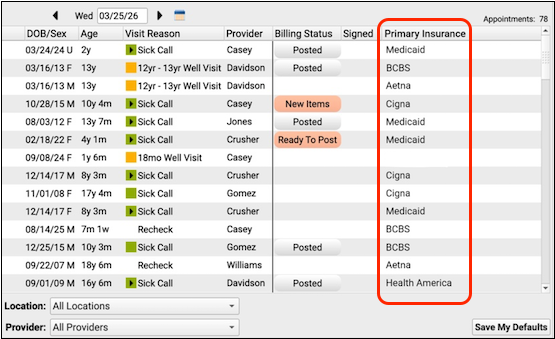
Use the schedule screen to quickly find out a patient’s current primary insurance group so that you can prioritize which encounters to post first.
Edit Policies More Quickly and Easily

Your office will love two small improvements to policy editing: fewer clicks and review the scanned card side-by-side as you type!
Print Form Letters for a Group of Accounts
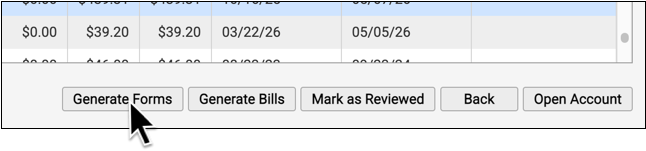
Need to send out a letter to all your Medicaid families? Or how about all families with a 120+ due balance? Quickly print form letters for a specific list of accounts based on your criteria.
Distribute Today’s Payment Towards Past Charges During Patient Checkin
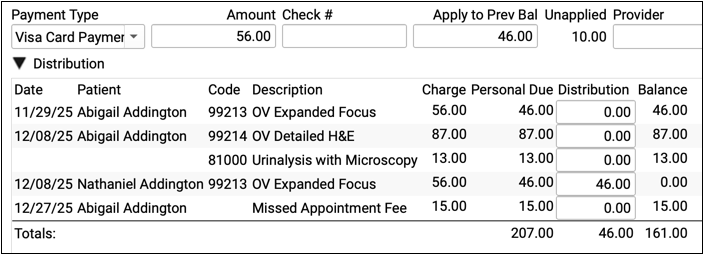
A parent just wrote a check? Your front desk can select specific outstanding balances on the account. You’ll end up with fewer unlinked payments for the biller to clean up.
Process Multiple ERAs at Once
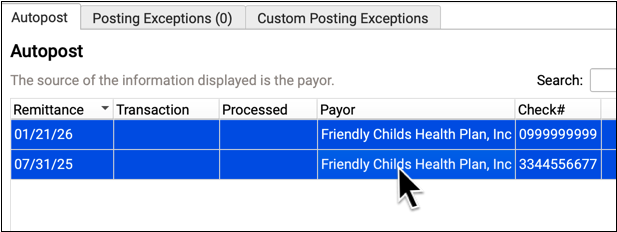
Power through your ERAs by quickly posting a large batch of incoming checks with just a few clicks.
Use Overpayments to Enter and Track Insurance Credits
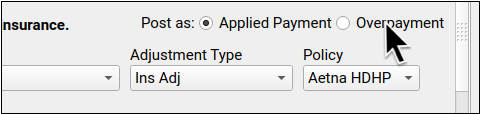
Post overpayments to track unlinked insurance credits without interrupting the rest of the billing process.
See ERAs and Statements with a Single Click
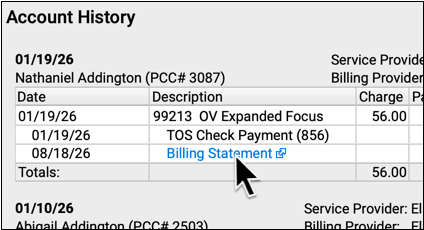
Need to better understand a payment or see a family’s bill? On the Account History, you can open an ERA or a statement with a single click.
See Payment History Details with a Single Click
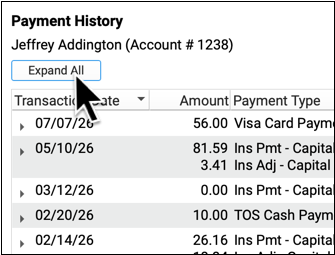
When you’re trying to find a payment that needs editing or reversing, you can open details for all payments with a single click.
Pick from Paid Claims When Posting an Insurance Payment
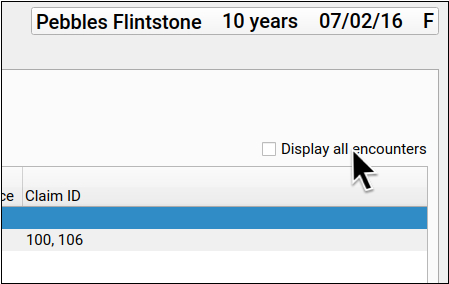
If you need to manually enter an EOB, but the charges no longer pend insurance for some reason (or are paid off), you can now select from paid encounters.
Change the Payer as You Post a Payment
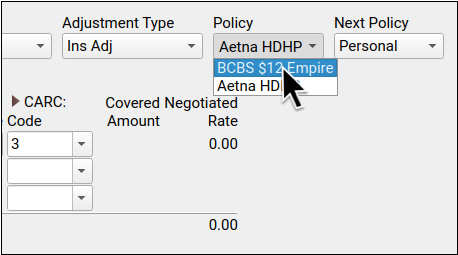
Did you receive an unexpected payment from a different insurance policy? When you post insurance payments manually, you can switch the source of payment on-the-fly.
See DOB and Member ID as You Work on an Unpaid Encounter
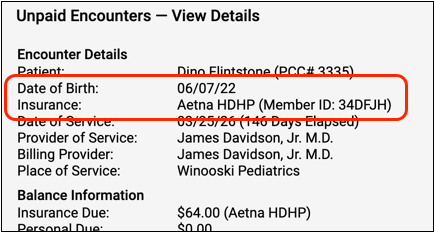
As you work down unpaid claims, use date of birth and member ID to verify the patient.
Guaranteed Valid IDs Leads to More Reliable Patient Eligibility
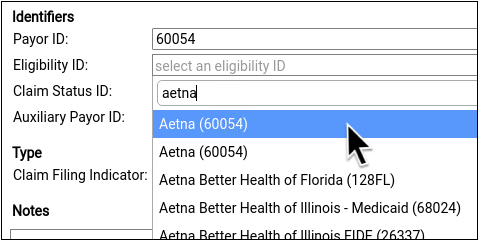
You can now select from a list of valid eligibility IDs, improving your access to eligibility information, which in turn leads to more reliable revenue for your practice.
Prepare and Print Paper Bills More Easily
When printing bills at your office, you can prepare batches and perform other actions while the bills process. Also, you can now direct bills to any printer.
Jump to the Chart While Posting Payments
Entering a payment and need to verify patient information? Quickly hop over to the chart to see account history, edit encounter details, and more.
Pick a Specific Configuration When You Print a Claim Form
For unusual claim submission needs, sometimes a single encounter is split into two claims that are submitted in different ways with different configurations. You can now select the claim configuration you need as you print a paper HCFA.
Communicate Balances Clearly with an Improved Printed Bill
When you need to print out paper bills, PCC EHR will generate an easier to read, modern paper bill.
Search All ERAs for Payment Details
Want to double-check there’s no payment for an encounter? You can quickly search through all ERAs for a patient or encounter.
Clinical
Export a Patient’s Whole Chart
Export a password-protected version of your patient’s whole chart in just a few clicks, with the option to include information marked as confidential.
Import More Document Types from Hospitals and Other Health Care Providers
You can already retrieve Continuity of Care Documents (CCDs) from hospitals and other health care providers and import them into PCC EHR. Now, you can additionally import PDFs, image files, and text documents.
See Vitals in Chronological Order on Summary of Care Reports
When you generate a Summary of Care report for a patient in PCC EHR, their vitals measurements will display chronologically by encounter date.
Bidirectional Exchange with Immunization Registries in New Hampshire and New Mexico
Pull immunization records on-demand from NHIIS, New Hampshire’s immunization registry, and NMSIIS, New Mexico’s immunization registry, and import relevant updates into your patient’s history. Bidirectional exchange also includes automatic nightly submission of your immunization data to the registry.
Print Lab Specimen Labels
When you order labs in PCC EHR, print specimen labels with the patient’s name, date of birth, sex, and specimen collection date, time, and source in a format that is compatible with your DYMO label printer.
Record a Specimen Source for Lab Orders
When you order a lab in PCC EHR, record a specimen source as part of the order. When you print a specimen label, the source appears with the collection date and time.
See Refused and Contraindicated Immunizations when Importing from the Registry
When you retrieve patient immunizations from your registry, you can clearly identify which ones were Refused or Contraindicated and decide whether or not to import them into the patient’s chart.
Filter Pharmacy Communications by Location
Use the Location filter the Rx Queue to focus on the renewal requests, change requests, and prescription errors that are relevant to the location where you work. With less clutter, it’s easier to tell when you need to take action.
Register for EPCS in Fewer Steps
When you register for electronic prescribing for controlled substances (EPCS), your credentials become active as soon as you complete identity proofing and register your tokens.
C-CDA Improvements
PCC 10.1 reduces C-CDA communication errors with vendors by improving how email addresses are extracted from your PCC system. Additionally, PCC EHR will provide test result interpretation codes and reference ranges with C-CDA Summary of Care records whenever possible.
Small But Mighty eRx Improvements and Bug Fixes
PCC 10.1 delivers another batch of small but mighty improvements and bug fixes. We’re tuning up dose limit warnings for patients who meet adult dosing criteria, fixing issues with stubborn fields on Augmentin prescriptions, preventing asynchronous errors when renewing prescriptions, and more.
Better Handling of Clinical Data Associated with Portal Messages During Chart Exports
Patient chart exports only include documents, diagnoses, orders, prescriptions, vitals, and other clinical data associated with portal messages when portal messages themselves are selected for export.
Spend Less Time Exporting Charts
Changes under the hood improve the speed of chart exports so you can move on to other tasks sooner.
Cancel Stalled Chart Exports and Resume Work in PCC EHR
When a chart export is taking too long, you can cancel it and resume work in PCC EHR.
Prescribe from Your Smartphone
Prescribe from anywhere! Log into pocketPCC on your mobile device and click over to PCC eRx to review patient medications and prescribe just the way you’re used to doing on your laptop or desktop computer.
Lab Flow Sheet Improvements
Improved display of lab orders and tests so that a provider can more easily find and review the results they need in a useful order or grouping.
Display Document Images for All Documents in pocketPCC
View documents directly within pocketPCC, without the need to download them.
Align Blood Pressure Percentiles with Current AAP Standards
Updating PCC EHR’s calculation of patients blood pressure percentiles using the AAP’s updated normative tables from 2017.
Retrieve and Save TIFF Files from Other Health Care Organizations
When partner healthcare organizations in the Carequality network provide images in the TIFF file format in response to your practice’s Clinical Document Exchange queries, you can retrieve and save them to your patients’ charts in PCC EHR.
Support for Quest Business Units
In preparation for the ability to order labs electronically from PCC EHR, PCC introduces background configuration and infrastructure to support Quest Business Units. Quest Business Units are regional subsidiaries of Quest Laboratories that each have their own test code compendia, which are essential for accurate test and result routing. Every practice that contracts with Quest Laboratories belongs to a Business Unit.
Optionally Include Phone Notes with Patient Chart Exports
Choose whether to include phone notes and all associated clinical data when you export a patient’s chart. Chart exports exclude phone notes by default.
Bidirectional Immunization Registry Connections in Texas (ImmTrac2), Hawaii (HIR), and Massachusetts (MIIS)
Practices in Texas, Hawaii, and Massachusetts can pull immunization registry records on demand in PCC EHR in addition to being configured for automatic nightly submission to the registry of immunizations administered in-office.
Use Snap Text in PCC eRx
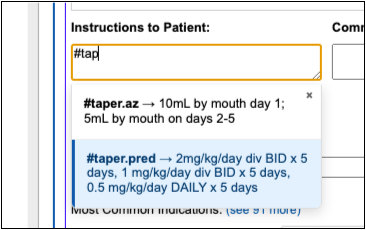
Use Snap Text shortcuts to quickly enter taper instructions and other common prescribing phrases whether you are prescribing from your computer or your phone.
Easier Access to Snap Text While Charting
Quickly review and find the Snap Text you need while charting.
More Options for Resending Prescriptions
Resend prescriptions from more spots in PCC eRx; train clinical staff to re-queue corrected prescriptions for a prescriber to send later; and resend or reroute any prescription in a three-month supply when the patient is ready to fill it.
Simpler Identity Proofing for EPCS
A new Exostar identity proofing method lets new providers register to prescribe controlled substances by submitting a picture of their photo ID instead of answering questions based on their credit histories.
Find Settings More Easily in PCC eRx
PCC is freshening up the My Settings page in PCC eRx so you can find options faster.
Better Control over the Drug Name and NDC You Send to the Pharmacy
For drugs that have a range of brand equivalents with different release mechanisms, like methylphenidate ER, communicate your intent to the pharmacy by choosing the specific drug name and NDC you want to have appear on your prescription.
Mid-Parental Height Right Where You Need It
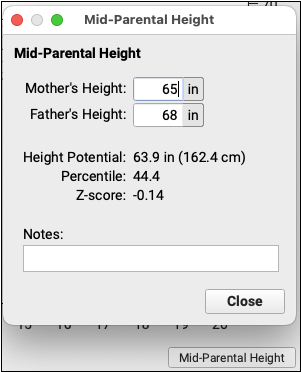
Record parents’ heights and calculate mid-parental height in the 2 to 5 and 2 to 20 year growth charts.
Jump from a Patient to a Sibling in pocketPCC
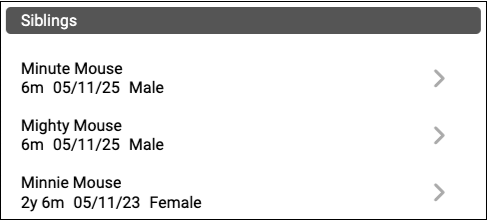
Jump from one sibling to another with a single tap. The siblings component in pocketPCC now includes a link to each sibling’s chart.
Track Visit Statuses from Anywhere
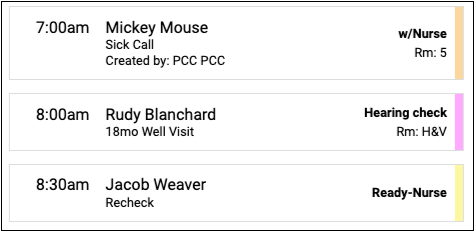
Stay updated on the status of every visit at your practice from your phone. PocketPCC now displays the status of each visit on the schedule page.
Chart Hands-Free with PCC Scribe
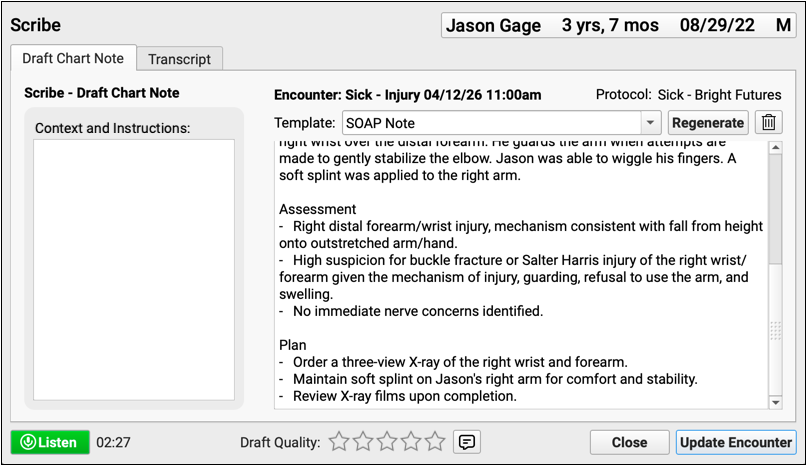
Focus on your patients without sacrificing note quality. PCC’s built-in scribe seamlessly and securely turns conversations into visit notes that follow your content and formatting preferences.
One “Mark as Reviewed” to Rule Them All
Regardless of where in the chart you are reviewing your patient’s medications and medication allergies, when you click “Mark as Reviewed,” you can see evidence of that action everywhere medication history and medication allergies display.
Approve pocketPCC Prescriptions Using Your Tablet, Your Watch, or Another Device
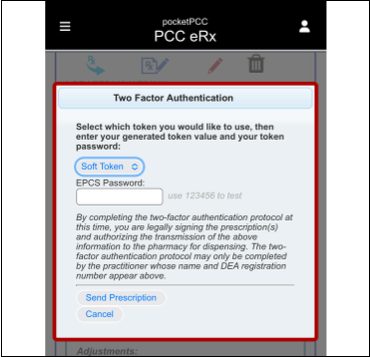
Use your Authy soft token to approve controlled substance prescriptions prepared in pocketPCC.
Import Files While Working Remotely
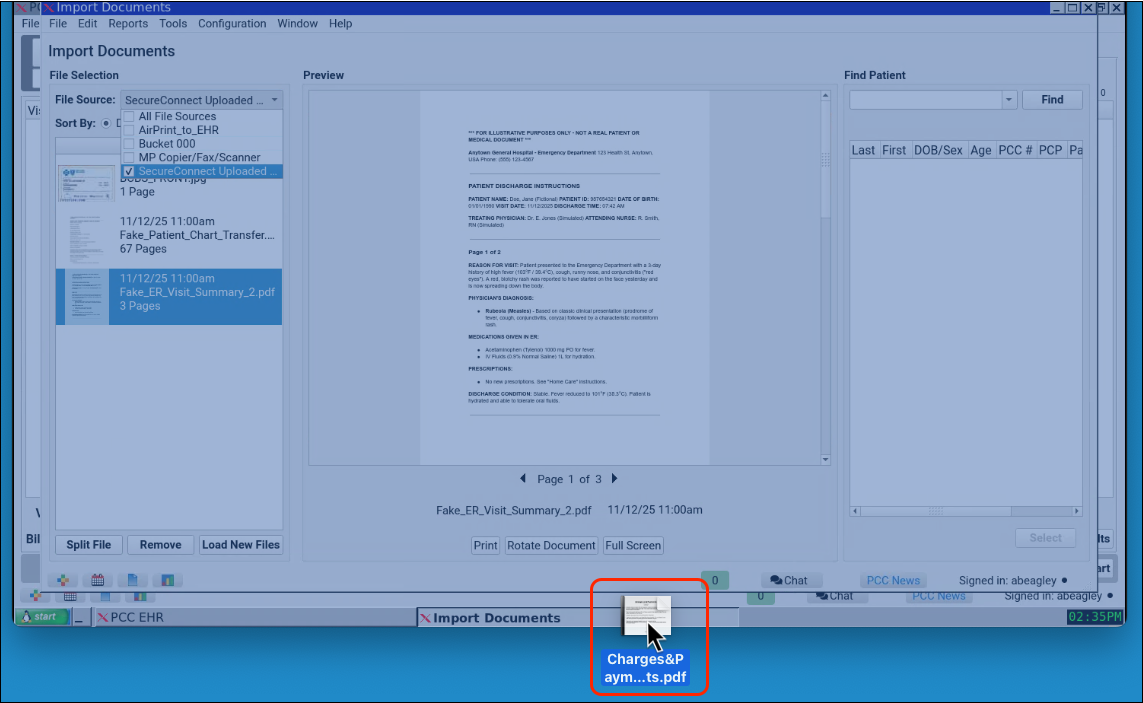
Need to upload a document while logged in remotely via SecureConnect? Simply drag your file over the SecureConnect window, then locate and manage the document as usual in Import Documents.
Stop Playing the Prior Auth Guessing Game
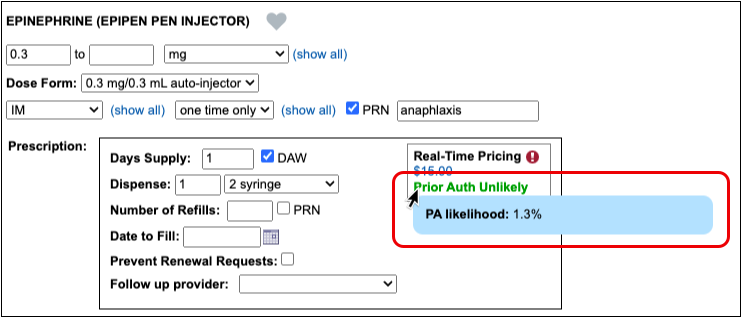
New predictive insight in PCC eRx will reliably tell you when prior authorization is needed for the medication you are about to prescribe.
Prescribe the Covered Inhaler on the First Try
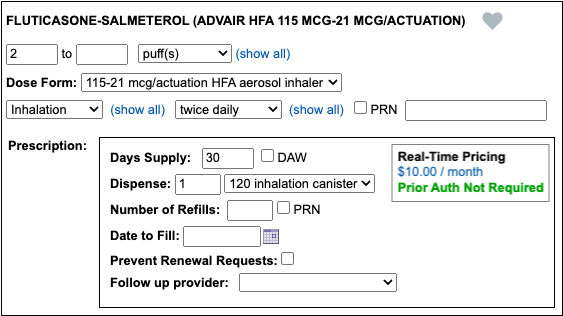
Thought you had prescribed a covered inhaler but the pharmacy says otherwise? PCC 11.0 does a better job of gathering inhaler coverage details to help you decide which treatment to prescribe.
See Your Whole Schedule at a Glance in pocketPCC
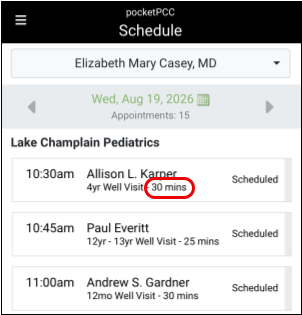
Get a clear and informed view of your whole day in pocketPCC. The Schedule screen in pocketPCC will show the duration of each visit on your schedule, so you’ll know when you’re free for other tasks between visits.
Easily Change the Sequence of Labs

Rearrange the tests in a lab order without rebuilding the entire order. PCC EHR’s Lab Configuration tool will include the option to move a lab order once it has been added.
Use PCC Scribe to Chart for the Whole Family
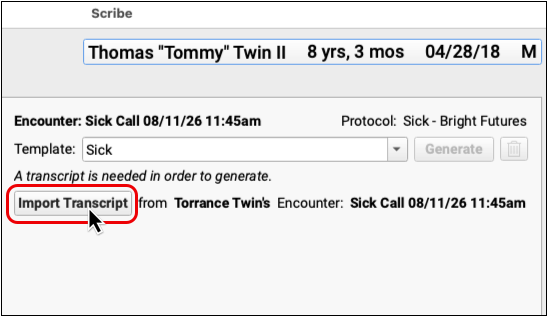
Transcribe for the whole family without switching between charts, then use that transcript to create a unique note for each patient.
Turn Your Phone into a Microphone for PCC Scribe
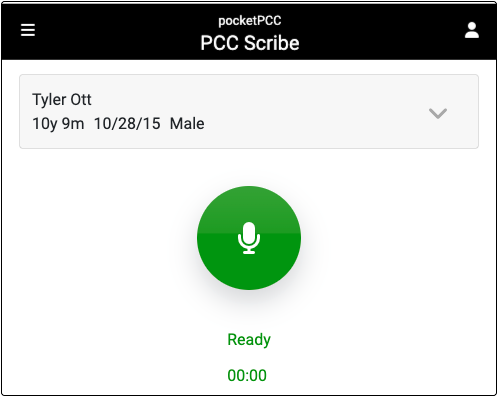
Log into pocketPCC on your phone, tablet, or laptop, start the PCC Scribe listener, then work with the transcript in PCC EHR.
Get More Reliable Retail Rx History Results
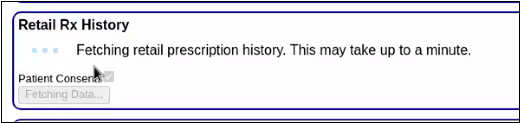
Tired of seeing a blank screen when you request your patient’s retail prescription history? Now you can move on to other tasks without interrupting results from being returned.
View Scribe Templates Before You Copy
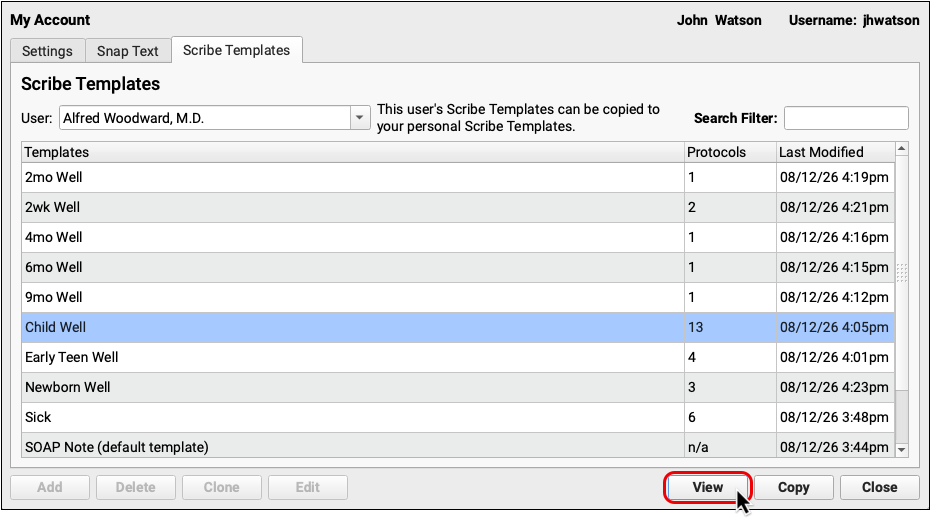
See how your colleagues set up their PCC Scribe templates before deciding which you should copy to your own account.
PCC Scribe Available to More Clinicians via pocketPCC
If your PCC EHR setup doesn’t allow for PCC Scribe microphone access, you can use pocketPCC to transcribe visits with your phone, tablet, or laptop.
Order Quest Labs Electronically
Submit lab orders directly to Quest without ever leaving PCC EHR.
Electronically Submit Prior Authorization Requests for Medications
Initiate, fill out, and submit prior authorization forms right from PCC EHR when a patient’s insurance company requires it for medications and other prescribed items.
Practice Administration & Oversight
PCC EHR Becomes Certified EHR Technology (CEHRT)
PCC EHR supports your participation in incentive programs that require the use of a certified EHR.
Mark Messaging Tasks as “In Use” When A User is in the Task
Avoid duplicating work when messaging patients and families. Messages currently open by other EHR users will be marked as “in use”.
Set Your Own Margins on Patient Forms
Set your own margins for your practice letterhead and body elements on patient forms. Control the letterhead margins separately from the rest and see your forms shine.
Improved Patient Portal Identity Verification Date Selection
When logging in to Patient Portal for the first time, entering a patient’s date of birth is easier using a new date selection tool.
Use Status Flags to Prevent Scheduling Patients
Manage your patient and account flags to select which flags will prevent a patient from being scheduled through Appointment Book
Change the Name in the Portal Messages ”From” Field
Change the name that appears in the “from” field for patient portal messages.
Merge Duplicate Patients in PCC EHR
Combine a pair duplicate patient records into a single patient record within PCC EHR.
View a Patient Portal message Thread When Replying
While composing a reply to a patient portal message, previous messages in the conversation will be visible.
Find a Specific Message Thread Easily in Patient Portal
Patient Portal’s Messaging component will list the patient’s name, if more than one patient is assigned to the account, an All Messages page displays a searchable list of all previous messages.
Merge Duplicate Accounts in PCC EHR
Combine duplicate accounts into a single account in PCC EHR, and maintain patients, billing history and account notes.
Report on Provider Productivity in the Report Library
Run reports on charges and payments broken out by provider within the Report Library.
Report on Payments and Adjustments by Payment Type
Review total payments and adjustments by payment type in the Report Library.
Report on Payer Contract Payments (Allowables) in the Report Library
Review overpayments and underpayments by payer group and by check in the Report Library.
Hide Inactive Patients in Search Results
Optionally hide all inactive patients in patient search results.
Search for Patients by Care Center
Narrow your search results and find the patient you’re looking for by limiting search to a single care center
Get Paid for Clinical Quality Measures (CQMs)
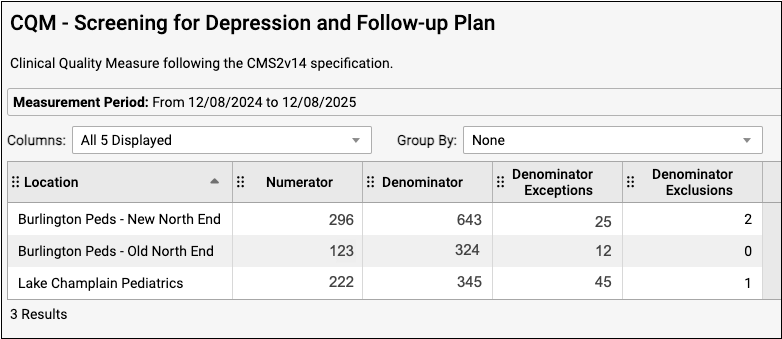
When you need to collect data for your PCMH certification or other external clinical quality measures, use three new CQM reports in the Report Library to find the information you need.
Send Even More Data to Your Business Office
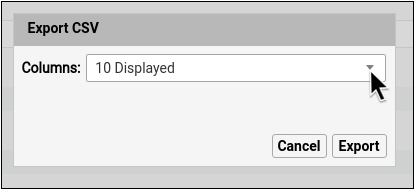
Export large data sets from the Report Library with one click. Use the “Export Results” button to save a CSV with over 20,000 rows right to your workstation’s Downloads folder.
Are Your Patients Eligible for VFC?
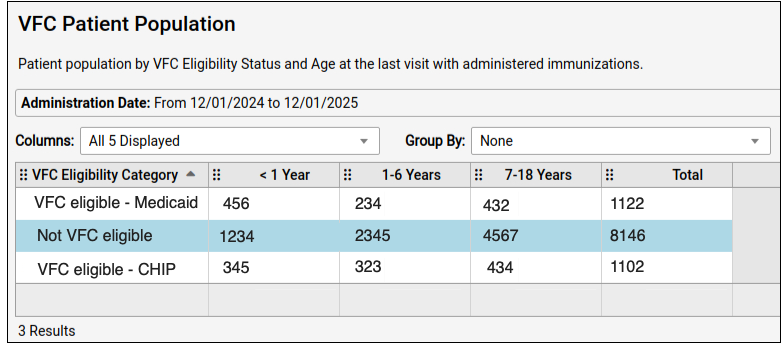
Maintain your practice’s Vaccines for Children (VFC) enrollment with the new VFC Patient Population report in the Report Library. Annual VFC reporting is faster and easier when you use this report to determine the eligibility status of various age groups within your patient population.
Optimize Your Providers’ Schedules
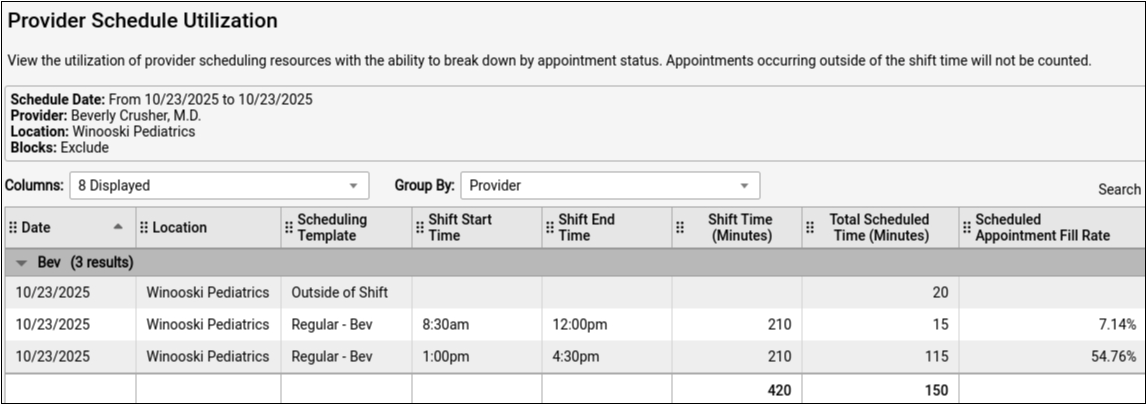
How can you tell if you’re making the most of your scheduling resources? The improved Provider Schedule Utilization report gives you data on appointment distribution across your schedules, providers, and locations over time.
Reveal Inactive EHR Users
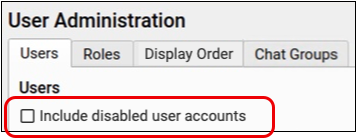
Find the users you’re looking for without the clutter of inactive users getting in the way. In PCC EHR’s User Administration tool, inactive users are hidden by default.
Find the Right User in pocketPCC Messaging
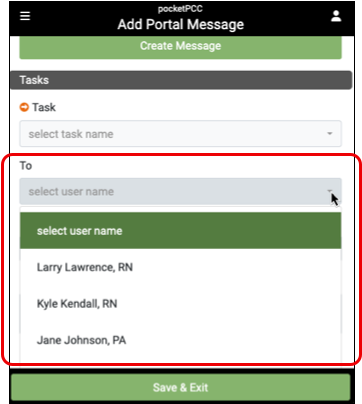
Find the users you’re looking for exactly where you expect them to be. When assigning portal messages within pocketPCC, the list of users now displays in the order you set in User Configuration instead of alphabetically.
Spellcheck Your Form Letters
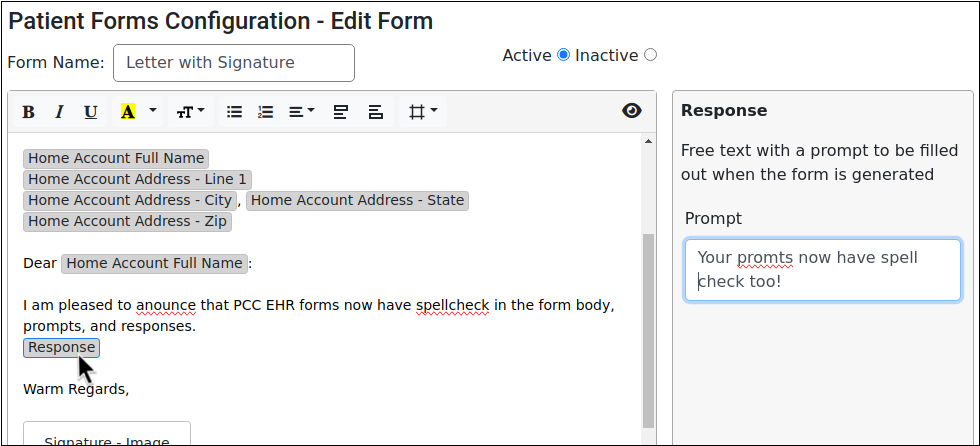
Check spelling while you type in the Forms Configuration tool.
Export Reports While Working Remotely
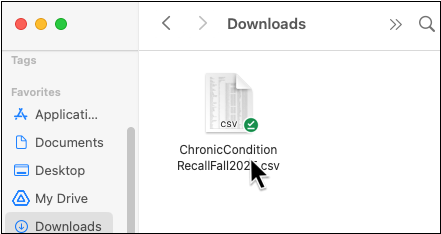
Download a report while working remotely via SecureConnect by clicking any “Export” button in the Report Library. Retrieve the exported file from the Downloads folder on your local workstation.
Get Paid for Even More Clinical Quality Measures (CQMs)
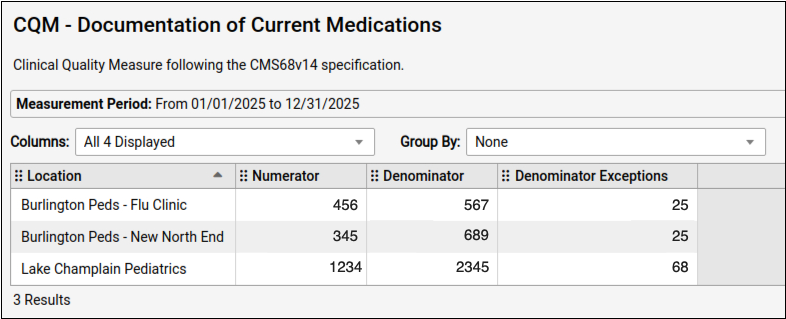
When you need to collect data for PCMH recognition, you can use even more CQM reports in the Report Library to find the information you need.
Find Patients with Medicaid as Secondary Insurance
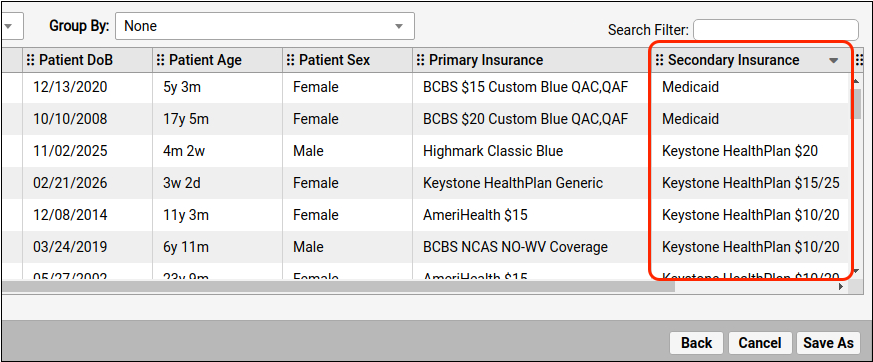
Use Patient List reports to identify patients with active Medicaid coverage or other secondary insurance.
Open a Patient’s Chart from Your Report Results Screen
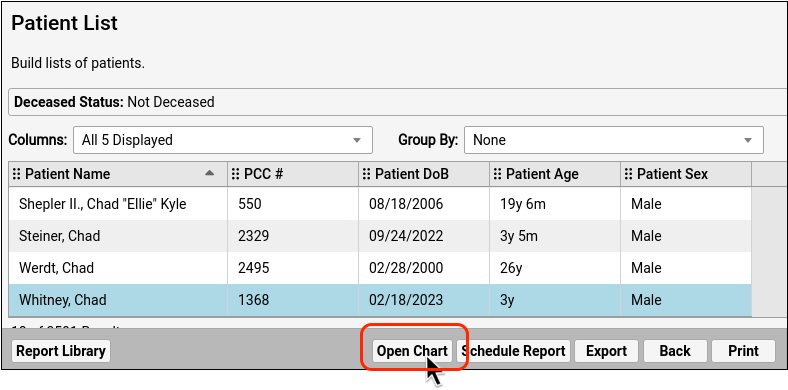
Highlight a patient row in your report results and click “Open Chart” to open and work with a patient’s chart.
Install PCC EHR More Easily
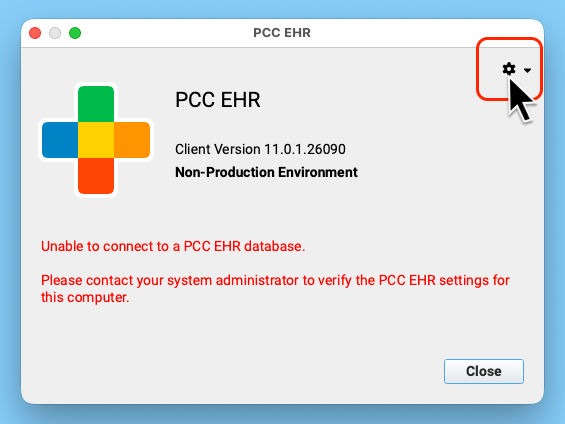
When you need to install PCC EHR on a new computer, complete the setup and connection to your system right from the login window.
Find Which Medicaid Patients Are Due for Their Second Dose
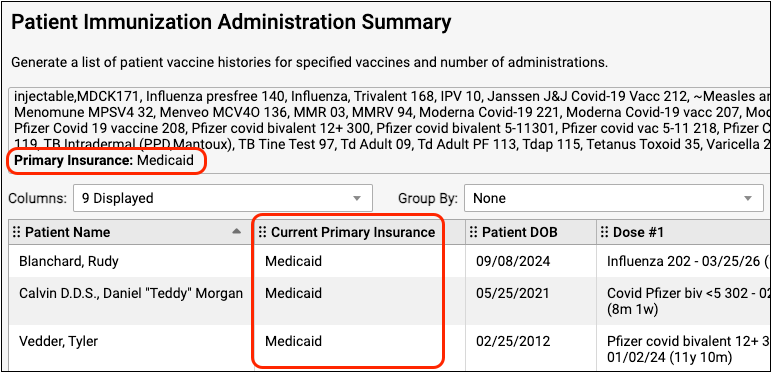
Report on immunizations and filter by insurance to discover which patients, with which insurance, are ready for their next dose.
Account for Vaccine Administration by Clinician
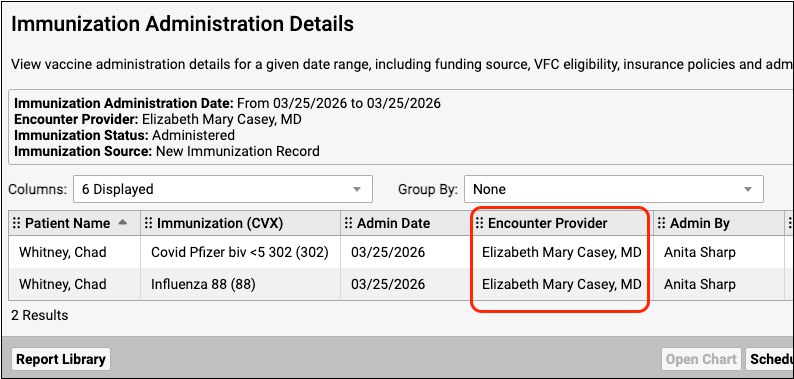
When you need to attribute a vaccine to the provider of the encounter, rather than to the staff member who administered the vaccine, use the immunization administration details report to find the information you need.
Demonstrate the Impact of Late VFC Vaccine Shipments
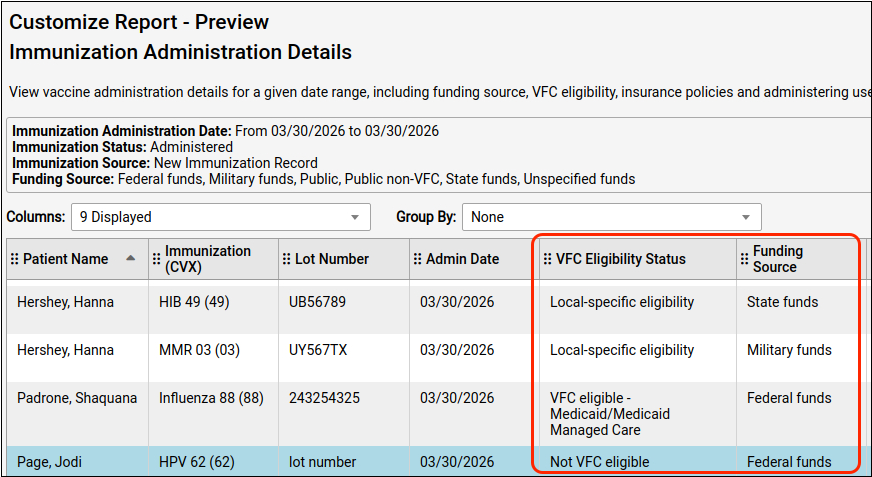
When VFC shipments are late, your practice can track the number of private vaccines administered to VFC-eligible patients with two new filters in the Report Library.
Update PCC EHR Without an Admin Password on Windows Workstations
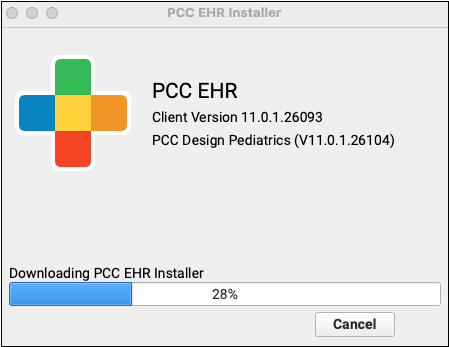
Update Mondays will soon be easier for Windows users: PCC 11.0 is the last release that Windows workstations will require an administrator password to update PCC EHR.
Open the Report Library Faster
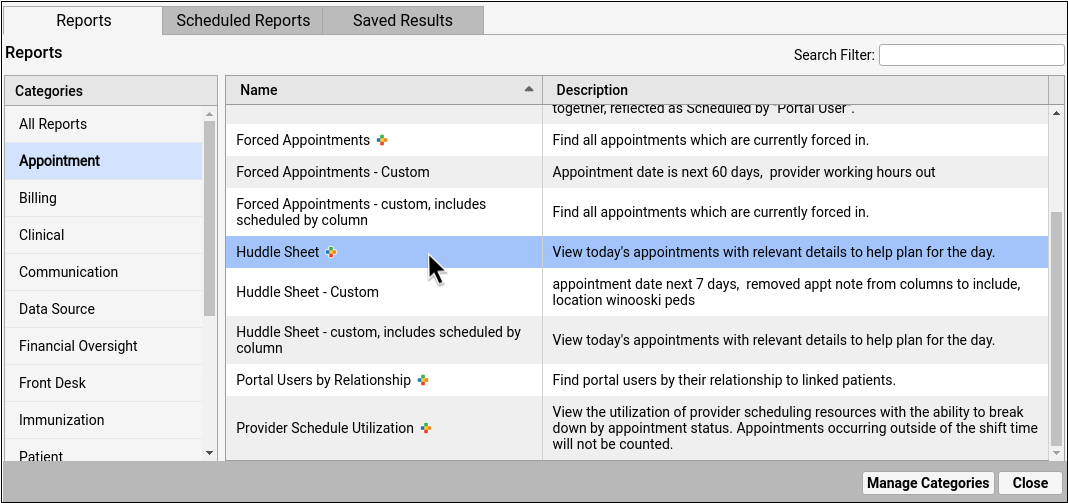
New layout and efficiencies in the Report Library improve speed and report findability.
Letterhead for Each of Your Locations
Design a unique form letterhead specific to each of your practice locations.
Align Text and Letterhead in Forms
Line up text, headers, and footers with columns for a cleaner, more organized form layout.
Report on Chlamydia Screening CQMs
Collect data on chlamydia screenings for PCMH recognition in the Report Library.
Investigate Encounter and Billing Details from a Report
Open a patient’s chart to a specific encounter or billing history from encounter-based reports in the Report Library.
Faster, More Flexible Reporting
Experience increased flexibility and speed with modernized reporting and Dashboard tools based on new data warehouse infrastructure.
Report on Front Desk Productivity
Use the Report Library to track check-in activities and front desk workload distribution.
Scheduling & Front Desk
Self-Scheduling Through Patient Portal
Allow patient portal users to schedule visits through the Patient Portal without the need to call your practice.
Use Flags to Prevent Self Scheduling

Do you have patients with scheduling challenges or unusual requirements for an appointment? Add a flag to prevent them from self scheduling in the patient portal.
Activate Patient Portal Scheduling One Care Center at a Time
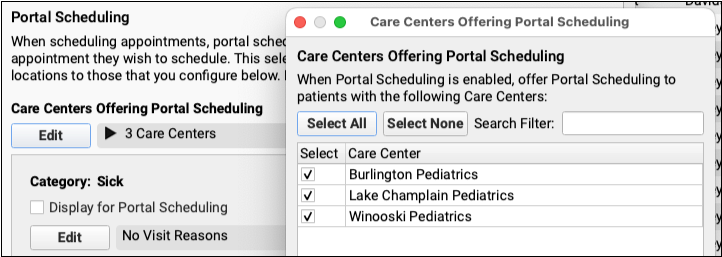
Portal Scheduling can be enabled for your Care Centers independently, so you can ease into using portal scheduling one center at a time.
Take Control of Portal Scheduling Search Rules
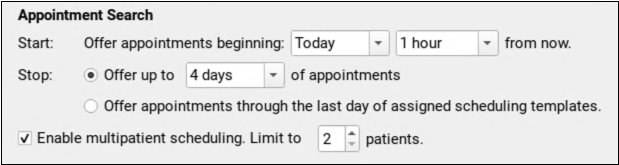
Choose how soon and how far into the future the patient portal should offer appointments for each of your scheduling categories.
Customize the Search Rules for Portal Scheduling Categories
Configure the Portal Scheduling Search Rules to match your practice’s scheduling needs.
Enable Portal Scheduling by Care Center
Select which Care Centers should be available for scheduling via Patient Portal.
Schedule Appointments for the Whole Family in Patient Portal
Schedule the whole family at once through the patient portal. Select multiple patients while scheduling and the patient portal will find time slots to fit everyone back-to-back.
Find Exactly the Right Appointment Time in Patient Portal
Patients and families can find the perfect appointment time slot quickly and easily. Page through available time slots, or jump directly to the most convenient day instead of scrolling endlessly.
Schedule More Than Just Sick or Well Visits in Patient Portal
Expand your patient portal scheduling with two new Patient Portal scheduling categories: Other and Vaccine Only.
Appointment Notes for Every Appointment

Get essential information during scheduling and stay informed about what your patients need. You can now require users to include an Appointment Note when self scheduling.
Portal Scheduling Only with a Patient’s PCP

Ensure that patients see their own provider. Each portal scheduling category includes a new option to require a patient to be scheduled only for their assigned PCP.
Streamlined Patient Portal Scheduling Configuration
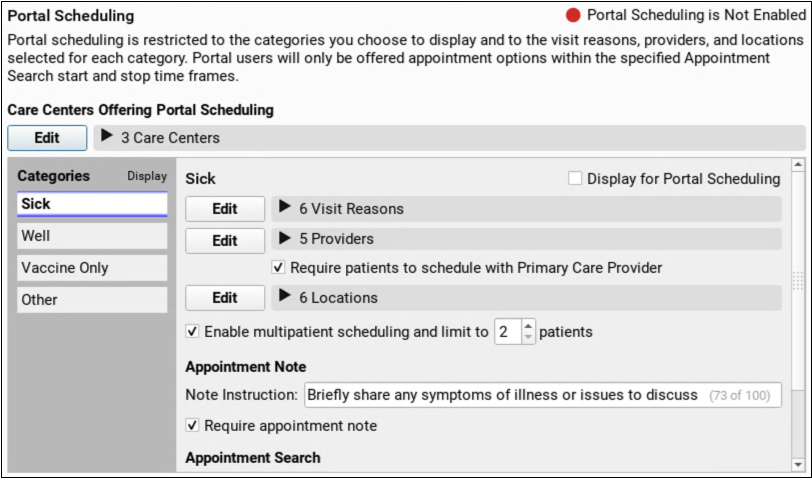
Patient portal Scheduling Configuration gets a new, streamlined, look, so you can review and manage self-scheduling efficiently.
Sign Forms During Pre-Check-In
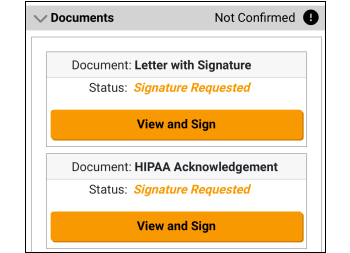
Families can read and sign both patient and account documents during Pre-Check-In. Documents display based on your practice’s configuration settings.
See All Appointments Scheduled by Portal Users
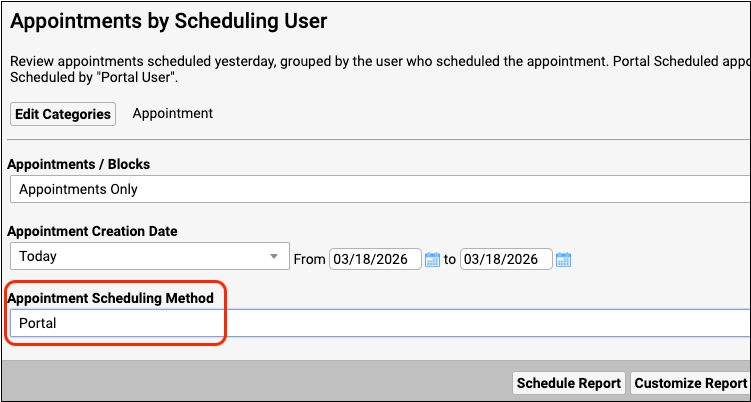
Use a new filter in the Appointments by Scheduling User report to find all the appointments scheduled by portal users.
View Patient Documents During Check-In
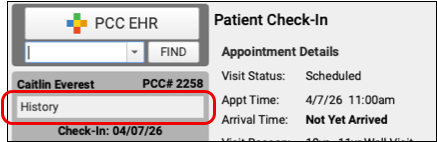
Ensure that your patients have up-to-date policy documents and insurance forms, check visit history and immunization records all without navigating away from patient check-in.
Make Sure You’ve Got Enough Sick Visits
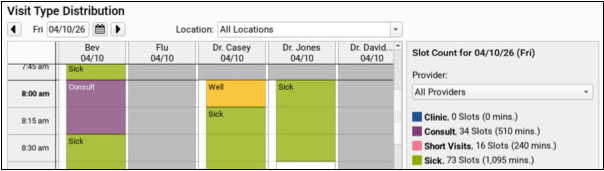
Make sure your schedule is ready! Use the new Visit Type Distribution report to count how many of each visit type are assigned to each provider on any day.
Cancel Appointments in Patient Portal
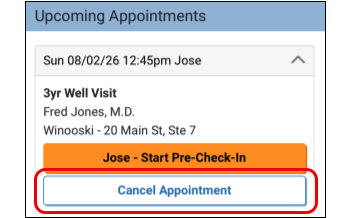
Save time and effort for your patients, families, and front desk staff by optionally allowing users to cancel appointments through the patient portal.
Find Appointments Canceled by Portal Users
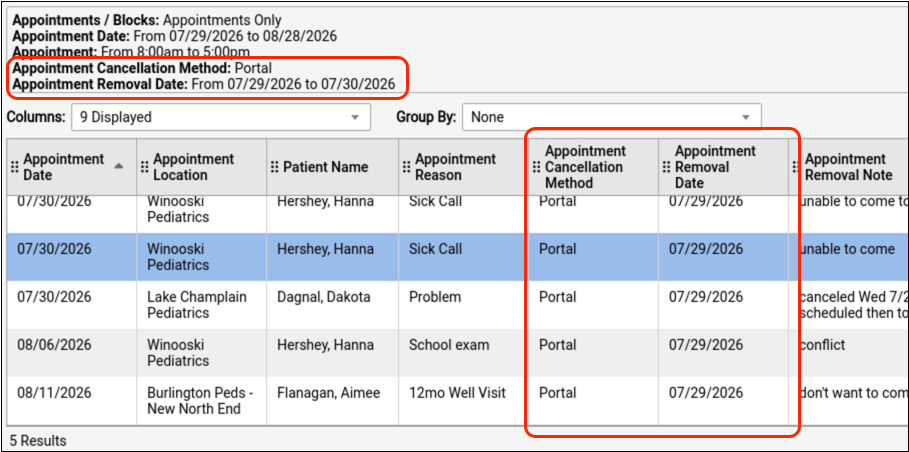
Review and follow up on appointments that were canceled by portal users.
Patient Communication
Updated and integrated patient communication tools, including appointment reminders, two-way text messaging, and more!
Send Account Forms to Portal Users
Send account forms, such as policy documents, to the patient portal.