
PCC Scribe Quickstart Guide
PCC Scribe is a powerful tool for increasing your sense of connection in the exam room and reducing documentation burden. PCC Scribe transcribes while you tend to your patient, then creates a draft chart note for you to review, edit, and import into the patient’s visit protocol. Use of PCC Scribe is completely optional and can be enabled for a fee.
Open the Visit
Open your patient’s visit.

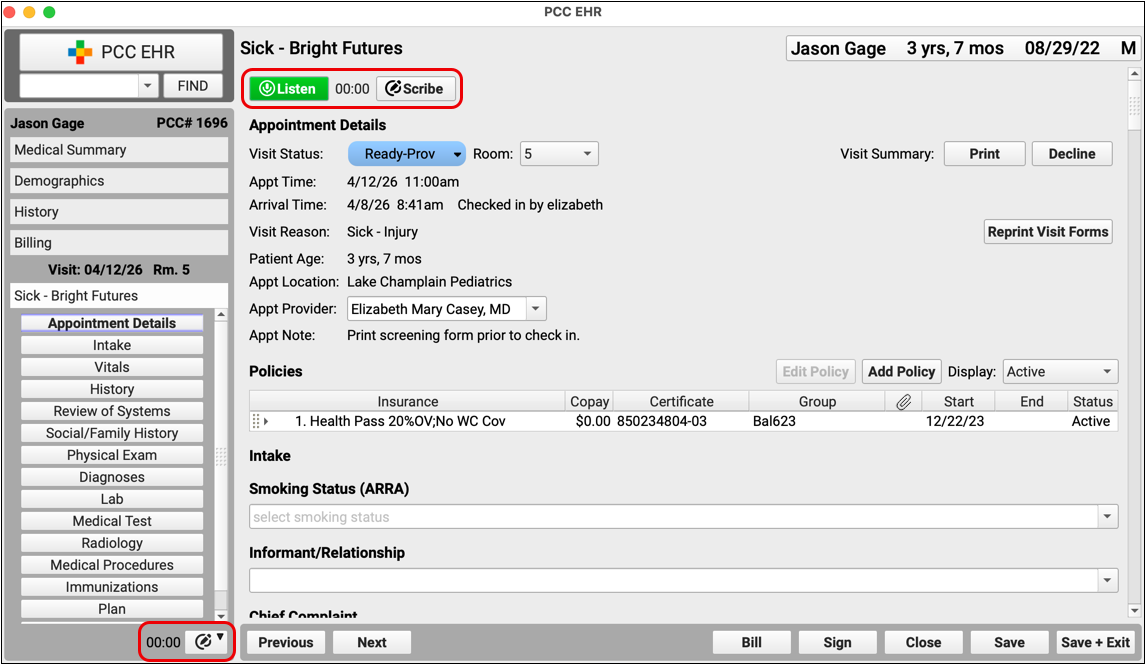
PCC Scribe controls appear at the top of every visit and in the bottom left corner of the open chart.
Begin Listening
Click the “Listen” button to start PCC Scribe.

PCC Scribe will transcribe everything it hears as you conduct your visit.
Stop Listening
Click “Stop” when you want PCC Scribe to stop listening.

You can start and stop as many times as you want.
Open the Scribe Tool
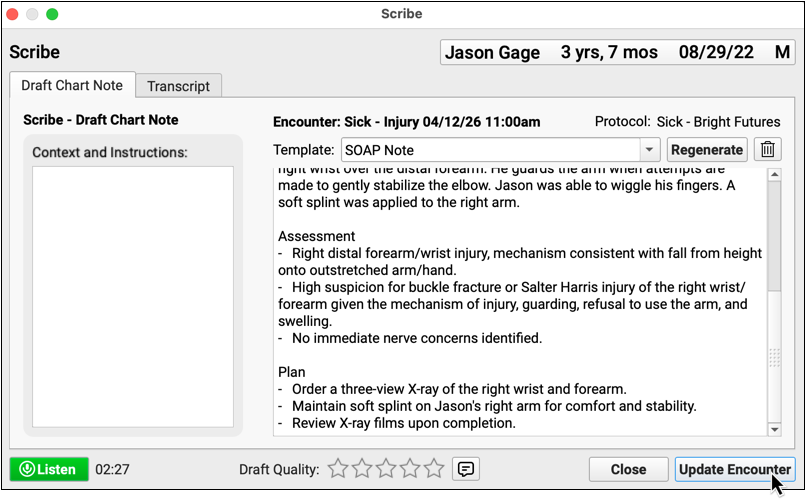
Click the “Scribe” button to open the full PCC Scribe tool.

Generate a Draft Chart Note
Click the “Generate” button to create a draft chart note from the visit transcript. The draft chart note will be formatted according to your selected template.
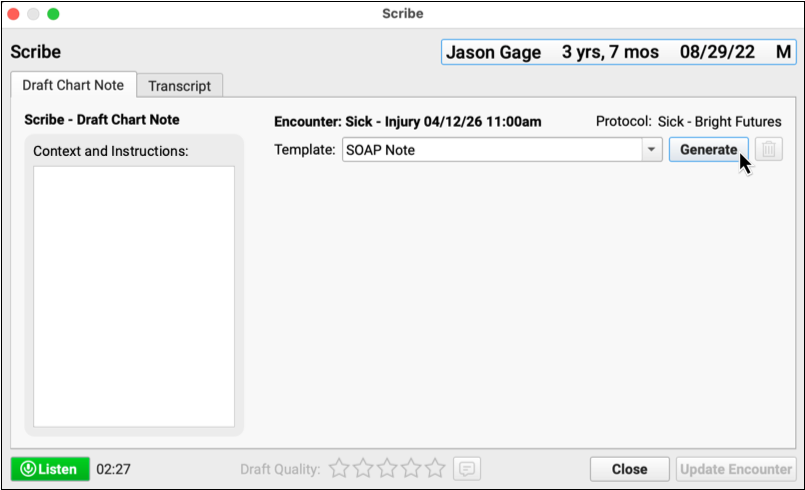
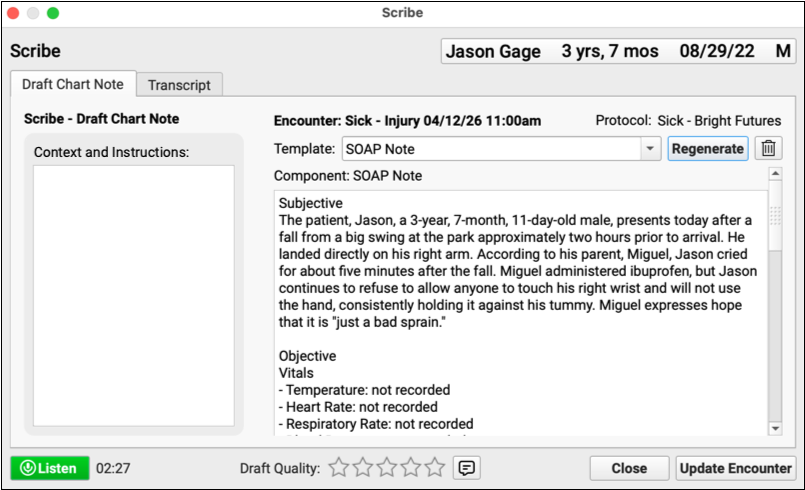
Review and Edit the Draft Chart Note
Carefully review the draft chart note generated by PCC Scribe and make edits as necessary.
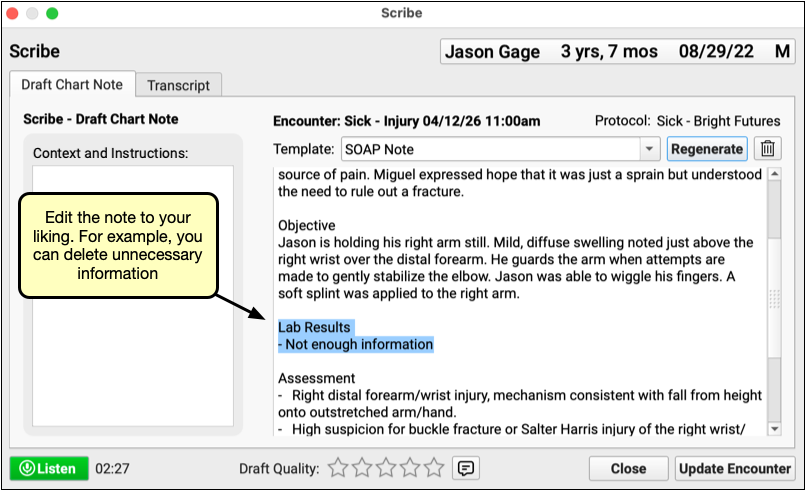
Import the Note into the Visit
Click “Update Encounter” to import the draft chart note into your patient’s visit protocol.
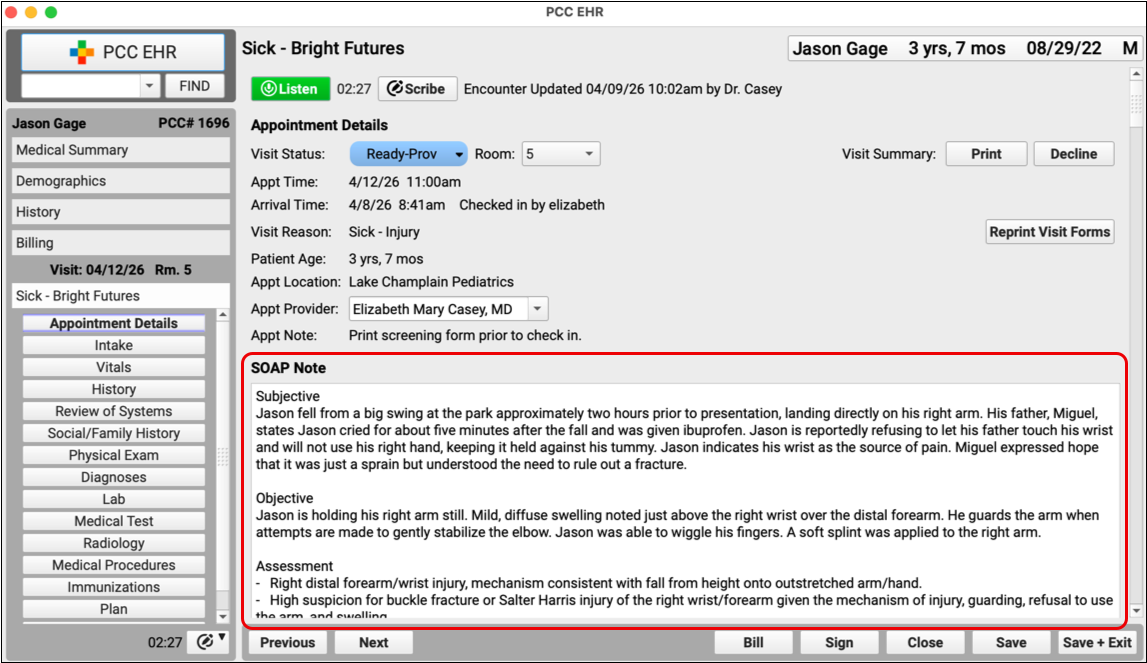
The note appears in your patient’s chart under your name and behaves just like any other chart update. You can continue to make edits after the note has been imported.
Congratulations, you just scribed your first note!
There is a lot more to learn about PCC Scribe.
To learn everything you need to know about how to prepare for, enable, configure, and use PCC Scribe, read Chart Hands-Free with PCC Scribe.
To learn about how to make your own PCC Scribe templates, read Make Your Own PCC Scribe Templates.