
Export Large Data Sets from the Report Library
When your practice needs to export and work with the data from a large report, you can export it to your workstation from the Criteria page with one click. While any report can be exported using the Export Results button, report results that contain more than 20,000 rows should be run and exported using this method.
The Export Results button is only available on the Criteria page. You can still export reports with fewer than 20,000 rows from the View Results window. To learn more about running reports, read Run Reports in the Report Library.
Which Export To Pick?: If you want to download a large report (over 20,000 rows) with all criteria and work with it in a spreadsheet, use the “Export Results” button explained below. If you want to send a Broadcast Message, print a PDF, or refine the layout of a report before exporting, click “View Results” to view the generated report results and then click “Export” from the View Results page.
Export Large Report Result Sets
You can export results from any report in the Report Library with the Export Results button.
Open Report Library
Open the Report Library from the Reports menu in PCC EHR.
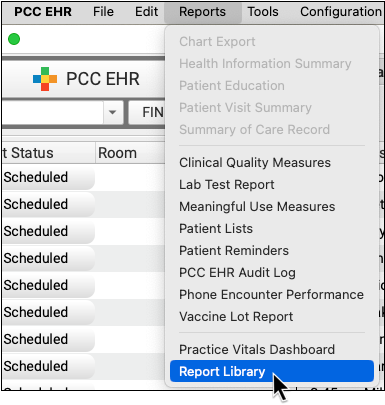
Open a Report
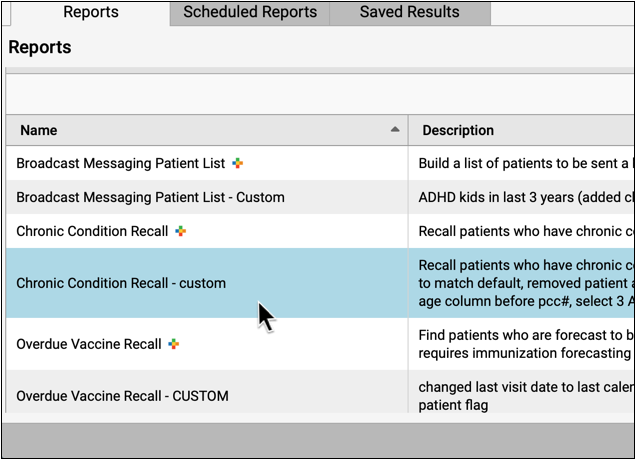
Click on a row to open a report.
Set Report Criteria
Pick your desired date range and set other criteria.
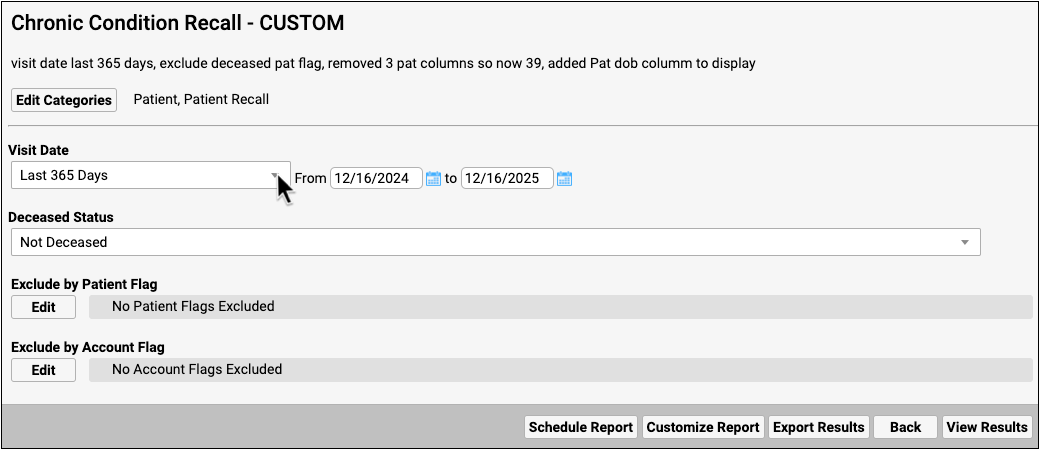
New Button Names: Your Report Library buttons are different. The “Generate” button is now “View Results”. The “Back” button is in a new location, the “Schedule” button is now “Schedule Report”, and the “Close” button is no longer present.
Open the Export Results Window
To export results without viewing them on your screen, click the “Export Results” button.

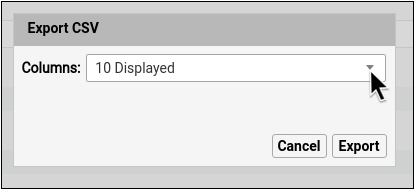
You can cancel your export at any time by clicking the “Cancel” button.
Select Your Report Columns
Use the Columns drop-down to select which columns to display on your report.
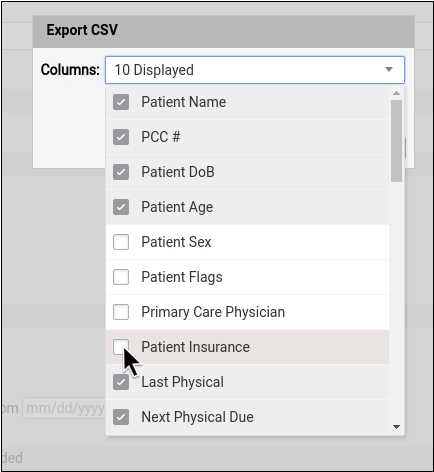
Columns that remain unselected will not be included in your export.
Export Your Report
When you are ready to export your report, click “Export”.
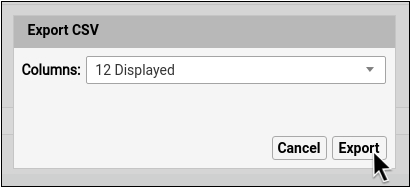
There is no row limit for reports exported with this method.
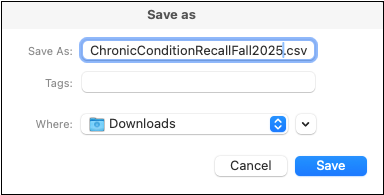
Save Your Report
You can optionally rename or relocate your report using your workstation’s save options. Click “Save” when you are ready to save your report.
Export Remotely with SecureConnect: If you are logged in to PCC remotely through SecureConnect, the export will save to your workstation’s Downloads file. If you need to download a PDF, click “Print” and choose “Print_to_SecureConnect” for the best results. To learn more about Print to SecureConnect, read Print from PCC SecureConnect to Your Home Printer.
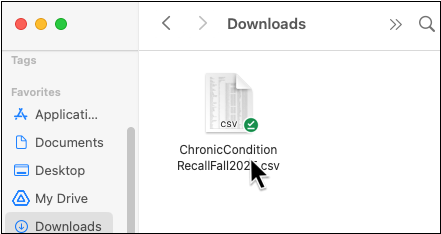
Open and Work With Your Report
After saving your report, open your report on your workstation to work with your report results.
Though rare, there may be situations where you are logged in to PCC EHR via SecureConnect and PCC EHR on your workstation at the same time. In these situations, the download will be routed to the SecureConnect instance.
Log Out of PCC EHR Every Time You Use SecureConnect: Always log out of PCC EHR before closing the SecureConnect browser window. If you were working remotely via SecureConnect and you closed the browser window without logging your user out of PCC EHR, your SecureConnect instance may remain open in the browser session. If you then export a file (with a SecureConnect session still open), the downloaded file will be sent to the open SecureConnect instance. To log out of PCC EHR via SecureConnect, select the Sign Out option in the File menu or Logout option in the Start menu.